My Haas Welcome,
!
Haas Tooling MyHaas/HaasConnect Sign In Register Haas Tooling MyHaas/HaasConnect Sign Out Welcome, My Machines Latest Activity My Quotes My Account My Users Sign Out
Find Your Distributor
  1. Select Language
    1. English
  • machines Main Menu
    • Vertical Mills
      Vertical Mills
      Vertical Mills View All
      • Vertical Mills
      • VF Series
      • Universal Machines
      • VR Series
      • VP-5 Prismatic
      • Pallet-Changing VMCs
      • Mini Mills
      • Mold Machines
      • High-Speed Drill Centers
      • Drill/Tap/ Mill Series
      • Toolroom Mills
      • Pocket Mill
      • Compact Mills
      • Gantry Series
      • SR Sheet Routers
      • Extra-Large VMC
      • Double-Column Mills
      • 3+2 Positioning Machines
    • Multi-Axis Solutions
      Multi-Axis Solutions
      Multi-Axis Solutions View All
      • Multi-Axis Solutions
      • Y-Axis Lathes
      • 5-Axis Mills
    • Lathes
      Lathes
      Lathes View All
      • Lathes
      • ST Series
      • Dual-Spindle
      • Box Way Series
      • Toolroom Lathes
      • Chucker Lathe
      • Haas Bar Feeders
    • Horizontal Mills
      Horizontal Mills
      Horizontal Mills View All
      • Horizontal Mills
      • 50-Taper
      • 40-Taper
    • Rotaries & Indexers
      Rotaries & Indexers
      Rotaries & Indexers View All
      • Rotaries & Indexers
      • Rotary Tables
      • Indexers
      • 5-Axis Rotaries
      • Extra-Large Rotaries
    • Special Series
      Special Series
      Special Series View All
      • Special Series
      • EU_Series_Redirect
    • Automation Systems
      Automation Systems
      Automation Systems View All
      • Automation Systems
      • Mill Automation
      • Lathe Automation
      • Automatic Parts Loaders
      • Automation Models
    • Desktop Machines
      Desktop Machines
      Desktop Machines View All
      • Desktop Machines
      • Desktop Mill
      • Desktop Lathe
      • Control Simulator, Standard
      • Control Simulator, Premium
    • Shop Equipment
      Shop Equipment
      Shop Equipment View All
      • Shop Equipment
      • Knee Mill
      • Haas Manual Lathes
      • Haas Saws
    • Fabrication Machines
      Fabrication Machines
      Fabrication Machines View All
      • Fabrication Machines
      • Laser Cutting Machines
      • CNC Press Brakes
    • QUICK LINKS Special Series  Special Series 
      EU SERIES EU SERIES BUILD & PRICE | PRICE LIST BUILD & PRICE | PRICE LIST In-Stock Machines In-Stock Machines WHAT’S NEW WHAT’S NEW YOUR FIRST CNC YOUR FIRST CNC
      SHOPPING TOOLS
      • Build & Price a Haas
      • Price List
      • Available Inventory
      • CNCA Financing
      WANT TO TALK TO SOMEONE?

      A Haas Factory Outlet (HFO) can answer your questions, and walk you through your best options.

      CONTACT YOUR DISTRIBUTOR >
  • Options Main Menu
    • The Haas Control Value Option Packages
      Value Option Packages
      Value Option Packages View All
      • Value Option Packages
    • Product Image Spindles
      Spindles
      Spindles View All
      • Spindles
    • Product Image Tool Changers
      Tool Changers
      Tool Changers View All
      • Tool Changers
    • Product Image 4th- | 5th-Axis
      4th- | 5th-Axis
      4th- | 5th-Axis View All
      • 4th- | 5th-Axis
    • Product Image Turrets & Live Tooling
      Turrets & Live Tooling
      Turrets & Live Tooling View All
      • Turrets & Live Tooling
    • Product Image Probing
      Probing
      Probing View All
      • Probing
    • Haas Chip & Coolant Management Chip & Coolant Management
      Chip & Coolant Management
      Chip & Coolant Management View All
      • Chip & Coolant Management
    • The Haas Control The Haas Control
      The Haas Control
      The Haas Control View All
      • The Haas Control
    • Product Image Product Options
      Product Options
      Product Options View All
      • Product Options
    • Product Image Tooling & Fixturing
      Tooling & Fixturing
      Tooling & Fixturing View All
      • Tooling & Fixturing
    • Product Image Workholding
      Workholding
      Workholding View All
      • Workholding
    • Product Image 5-Axis Solutions
      5-Axis Solutions
      5-Axis Solutions View All
      • 5-Axis Solutions
      • 5 Easy Steps to 5-Axis
    • QUICK LINKS Special Series  Special Series 
      EU SERIES EU SERIES BUILD & PRICE | PRICE LIST BUILD & PRICE | PRICE LIST In-Stock Machines In-Stock Machines WHAT’S NEW WHAT’S NEW YOUR FIRST CNC YOUR FIRST CNC
      SHOPPING TOOLS
      • Build & Price a Haas
      • Price List
      • Available Inventory
      • CNCA Financing
      WANT TO TALK TO SOMEONE?

      A Haas Factory Outlet (HFO) can answer your questions, and walk you through your best options.

      CONTACT YOUR DISTRIBUTOR >
  • Why Haas Main Menu
      Discover the Haas Difference
    • Why Haas
    • MyHaas
    • Education Community
    • Industry 4.0
    • Haas Certification
    • Customer Testimonials
  • Service Main Menu
      Welcome to Haas Service
      SERVICE HOME Operator’s Manuals How-To Procedures Troubleshooting Guides Preventive Maintenance Haas Parts Haas Tooling Videos
  • Videos Main Menu
  • Main Menu
    • View All
    • View All
    • View All
    • View All
      • HTEC Curriculum Support
      • Haas Value Option Packages (VOP) Journey
    • View All
      • Haas 10 kg Cobot Package
      • Cobot Kits
      • DC-1 Drill Center
      • CNC Sales News
      • Do More With Your Haas
    • View All
    • View All
      • contact-us-test
      • 4 - AUTOMATION SYSTEMS
      • Carousel-V2
      • expert test
      • Demo_Day_Trident-test
      • Link Test
      • image-sale-tag-test
      • article-list-test
      • Haas 25 kg Robot Package
      • test-algolia-page
    • View All
    • View All
    • View All
    • View All
      • calc-test
    • View All
    • QUICK LINKS Special Series  Special Series 
      EU SERIES EU SERIES BUILD & PRICE | PRICE LIST BUILD & PRICE | PRICE LIST In-Stock Machines In-Stock Machines WHAT’S NEW WHAT’S NEW YOUR FIRST CNC YOUR FIRST CNC
      SHOPPING TOOLS
      • Build & Price a Haas
      • Price List
      • Available Inventory
      • CNCA Financing
      WANT TO TALK TO SOMEONE?

      A Haas Factory Outlet (HFO) can answer your questions, and walk you through your best options.

      CONTACT YOUR DISTRIBUTOR >
  • Haas Tooling Main Menu
  • Haas Service Parts Main Menu

My Haas Welcome,
!
Haas Tooling MyHaas/HaasConnect Sign In Register Haas Tooling MyHaas/HaasConnect Sign Out Welcome, My Machines Latest Activity My Quotes My Account My Users Sign Out
Find Your Distributor
  1. Select Language
    1. English
×

Search Results

Web Pages

Images

    • <
    • 1
    • >

UMC Auto Window - Installation - AD0663

Service Home How To Procedures UMC Auto Window - Installation - AD0663

UMC Auto Window - Installation - AD0663

- Jump to Section - 1. Introduction 2. Auto Window Installation (3 steps) 3. 90 Degree Control Cabinet Installation (9 steps) 4. Solenoid Installation (3 steps) 5. Auto Window Activation 6. Sensor Clamp Alignment (2 steps) 7. Testing Back to Top
Recently Updated Last updated: 11/11/2025

UMC Auto Window - Installation


AD0663

Revision C - 09/2025

Introduction

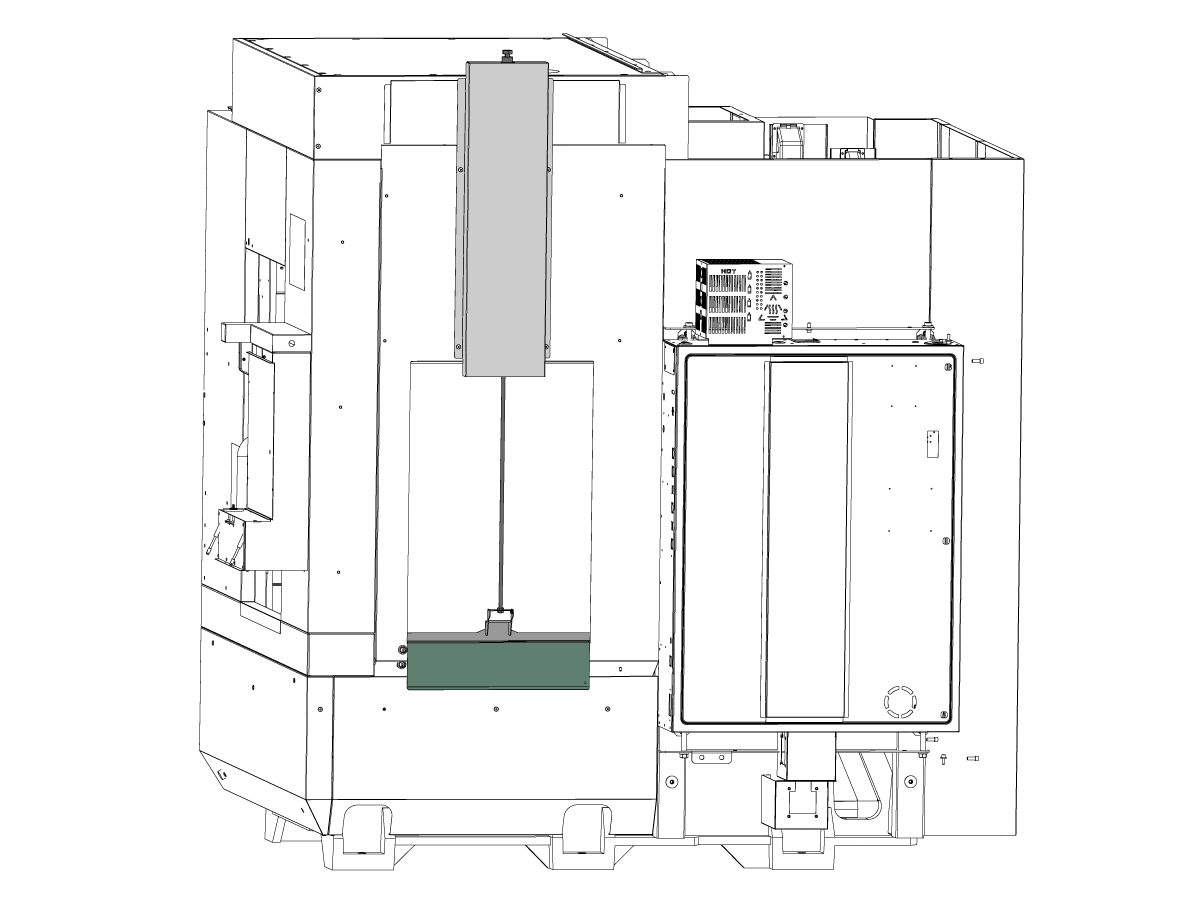
This procedure will show you how to install the Auto Window on UMC-400/SS, UMC-500/SS, UMC-750/SS, UMC-1000/SS, UMC-1250/SS, and UMC-1500/SS. For UMC-350, refer to the DT/DM/UMC-350 Auto Window Installation procedure.

Machine Requirements:

  • UMC-400 Manufactured after 1/17/2025
  • UMC-500 Manufactured after 6/20/2023
  • UMC-750 Manufactured after 8/29/2022
  • UMC-1000 Manufactured after 3/29/2023
  • UMC-1250 Manufactured after 8/12/2022
  • UMC-1500 Manufactured after 4/8/2022

NOTE: For UMC machines built before 7/19/2022, a longer coolant cable needs to be ordered:

  • 32-1240 for standard and high pressure coolant or 32-1243A for variable flow coolant.

 Important: The Auto Window option is NOT COMPATIBLE with machines with the TAB option built before June 2019.

Minimum Software:

  • 100.22.000.1000 or higher

IMPORTANT: In order to use the M180 and M181 M-codes to command the auto window, the machine must meet the following conditions: 

  • No automation option enabled on the Haas control (parts loader, robot, or pallet pool)
  • Safety Fence, Area Scanner, or Light Curtain is connected on the machine.
  • Side automation safety parameters need to be applied to the machine configuration. (93-1000996 - Side automation safety parameters kit is needed if adding the option to an existing machine.)

Note: If any type of automation option offered by Haas is enabled on the machine, the M-codes cannot be used to operate the auto window.

This procedure applies to the following kits: 

  • 93-1001178 - AUTO WINDOW DUAL SWITCH KIT UMC-400/SS
  • 93-1000940 - AUTO WINDOW DUAL SWITCH KIT UMC-500/SS
  • 93-1000941 - AUTO WINDOW DUAL SWITCH KIT UMC-750/1000
  • 93-1000942 - AUTO WINDOW DUAL SWITCH KIT UMC-1250/SS
  • 93-1000954 - AUTO WINDOW DUAL SWITCH KIT UMC-1500/SS

 Important: Auto Window is only compatible when machine's enclosure exhaust is rotated 90 degrees. Refer to the ENCLOSURE EXHAUST - INSTALLATION.

Auto Window Installation

1

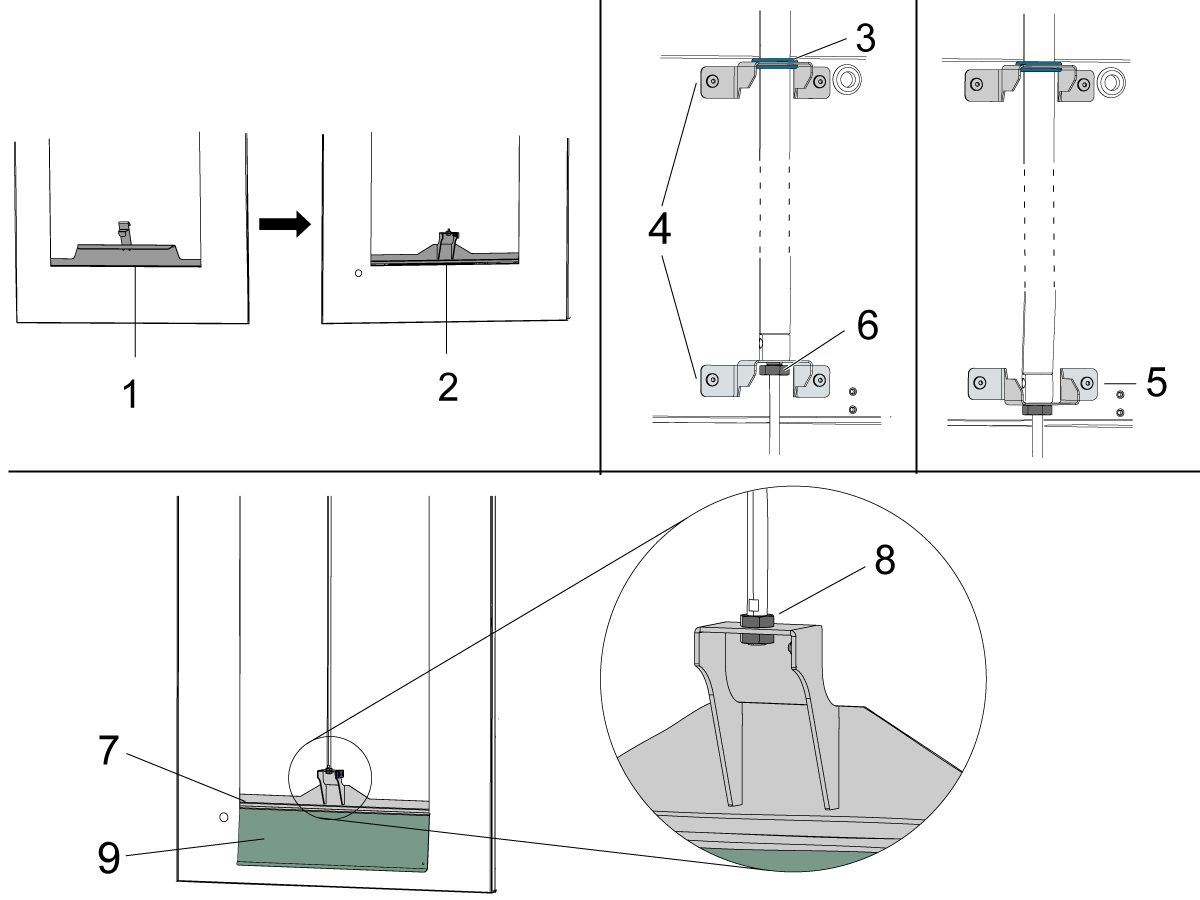
Use a putty knife to remove SikaFlex and separate the original window bracket [1] from the window. Clean bottom of window. 

Add SikaFlex inside the new window bracket [2] to attach to the same window. Make sure the cylinder's hole in the window bracket [2] is aligned with the center of the window. 

Insert grommet [3] inside its corresponding bracket [4]. Bolt both brackets [4] to the enclosure above the window. 

 IMPORTANT: UMC-500's lower bracket [4] is installed in the same orientation as the upper bracket whereas UMC-400 and UMC-750 to 1500's lower bracket [5] is installed in the flip orientation by 180 degrees. 

Remove bottom nut [6] on the cylinder to slide it through both brackets [4]. Install the bottom nut [6] to secure to the cylinder. 

Insert bottom of cylinder shaft through the window bracket's [7] hole and secure with jam nuts [8]. 

Note: Apply blue loctite onto the jam nuts [8] when installing to help prevent the jam nuts from coming loose over time.

Slide the window drip cover [9] into the groove in between the window bracket [7] and enclosure. 

2

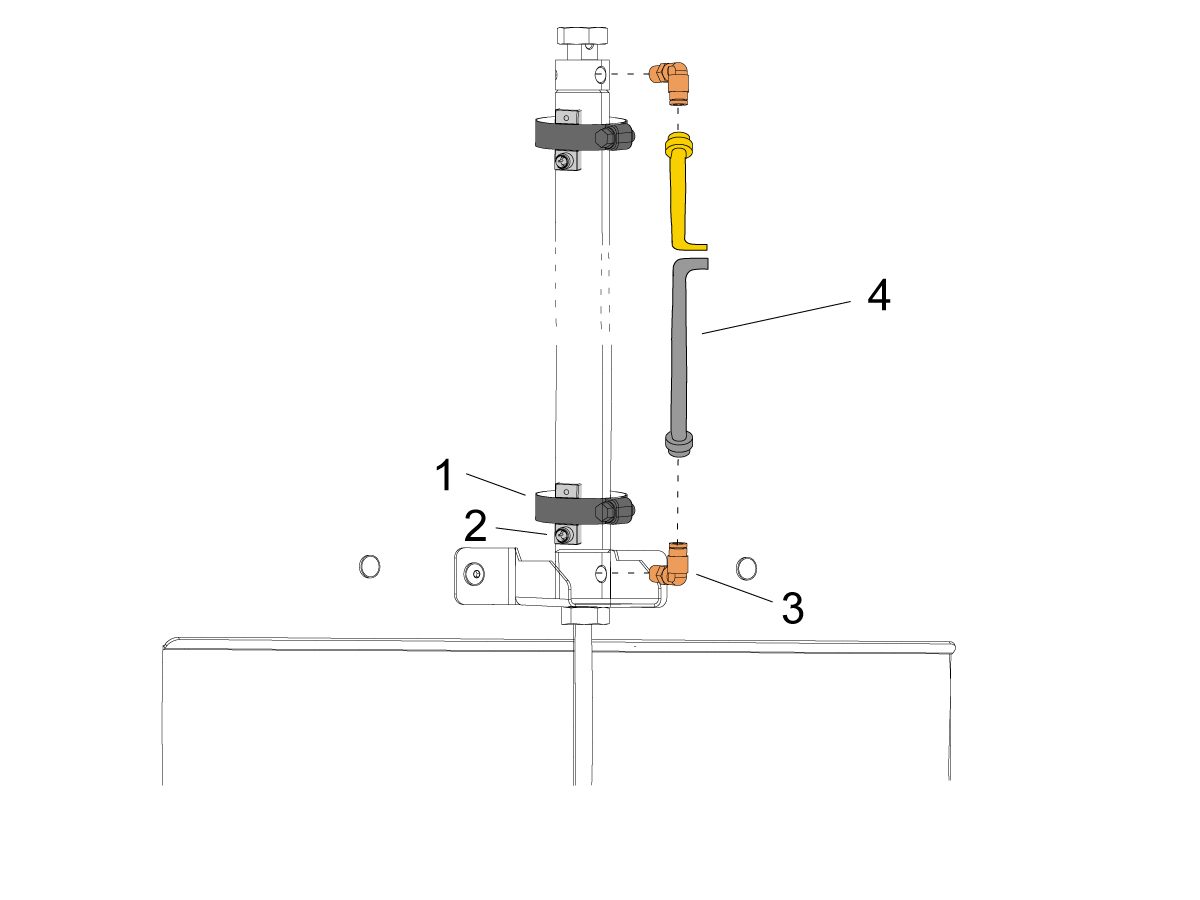
Loosen the sensor clamp [1] until the opening is wide enough to fit around the cylinder. Place one clamp around the bottom of the cylinder and the other around the top.  

Insert sensor [2] in between clamp and cylinder. Tighten the sensor clamp [1].

Attach two hose fittings [3] to the bottom and top of the cylinder. 

Connect the gray airline [4] to the bottom hose fitting on the cylinder and connect the yellow airline to the top hose fitting on the cylinder.  This line gets filled with air to push the door down.

3

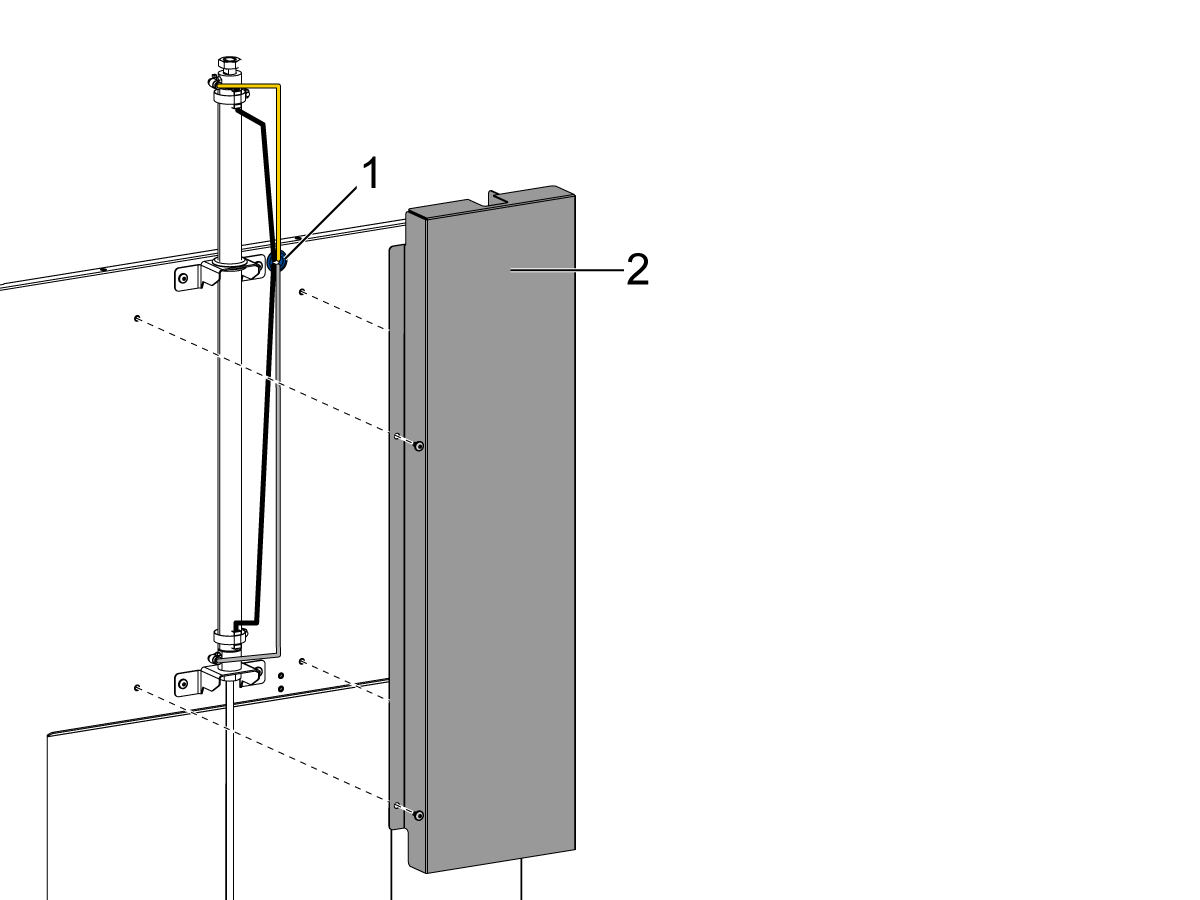
Connect and route both sensor wires and airlines into the enclosure hole [1]. 

 Important: Move any wires and hoses around to prevent any kinks or rubbing before the enclosure cover is put on. 

Secure both airlines and sensor cable to the cylinder with zip ties. 

Bolt enclosure cover assembly [2] to the machine's enclosure above the window.

 NOTE: No need to bolt enclosure cover [2] yet as the clamp sensors will need to be aligned in the Clamp Sensor Alignment section below. 

90 Degree Control Cabinet Installation

1

Push [POWER OFF].

Set the main circuit breaker to the [OFF] position. Lock the main circuit breaker. 

 DANGER: After turning off the machine, wait at least 5 minutes before working in the control cabinet, to allow power to dissipate. Wait for the voltage indicator LED on the vector drive to go off completely. 

Set the wall circuit breaker to the [OFF] position. 

 DANGER: WORKING WITH ELECTRICAL SERVICES REQUIRED FOR A CNC ARE EXTREMELY HAZARDOUS. ALL POWER TO CNC MUST BE TURNED OFF LOCKOUT-TAGOUT AT THE SOURCE. HOWEVER, IF THIS NOT THE CASE OR ARE NOT SURE HOW TO DO THIS, CHECK WITH APPROPIATE PERSONNEL OR OBTAIN THE NECESSARY HELP BEFORE CONTINUING. ALWAYS CHECK THE INCOMING LINES WITH AN AC VOLTAGE DETECTOR TO MAKE SURE POWER HAS BEEN DISCONNECTED.

3

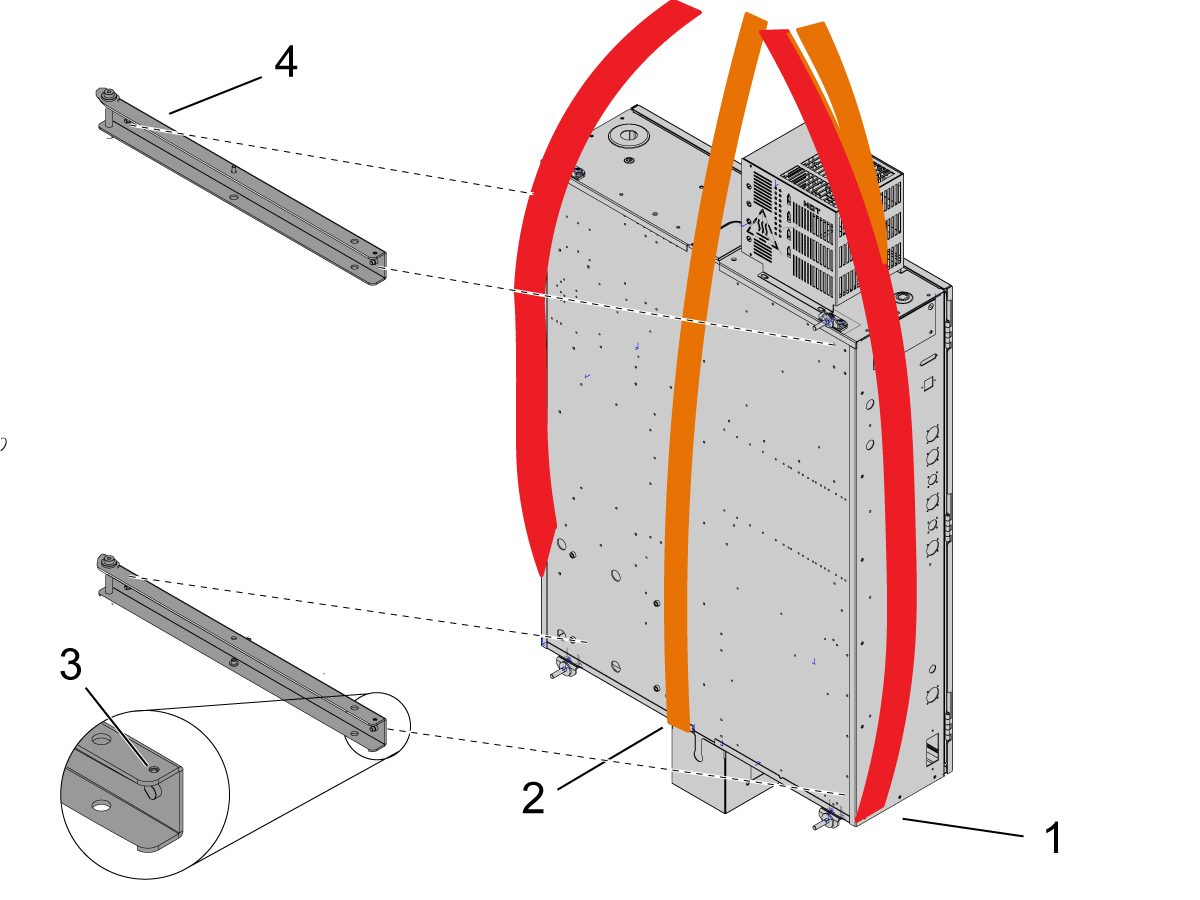
Place one strap horizontally underneath [1] the control cabinet and the other vertically underneath [2] the control cabinet. Attach both straps to forklift. 

Slowly lift the control cabinet unit the weight of the cabinet is fully supported. 

Remove bolts connecting control cabinet to machine. 

While the control is floating, install mounting brackets [4] to the back of the control cabinet. Slightly loosen the vertical strap [2] as needed to expose the back of the control cabinet while continuing to support the cabinet to prevent tipping over. 

 NOTE: Make sure the small corner cutout [3] in the bracket [4] is facing up.


4

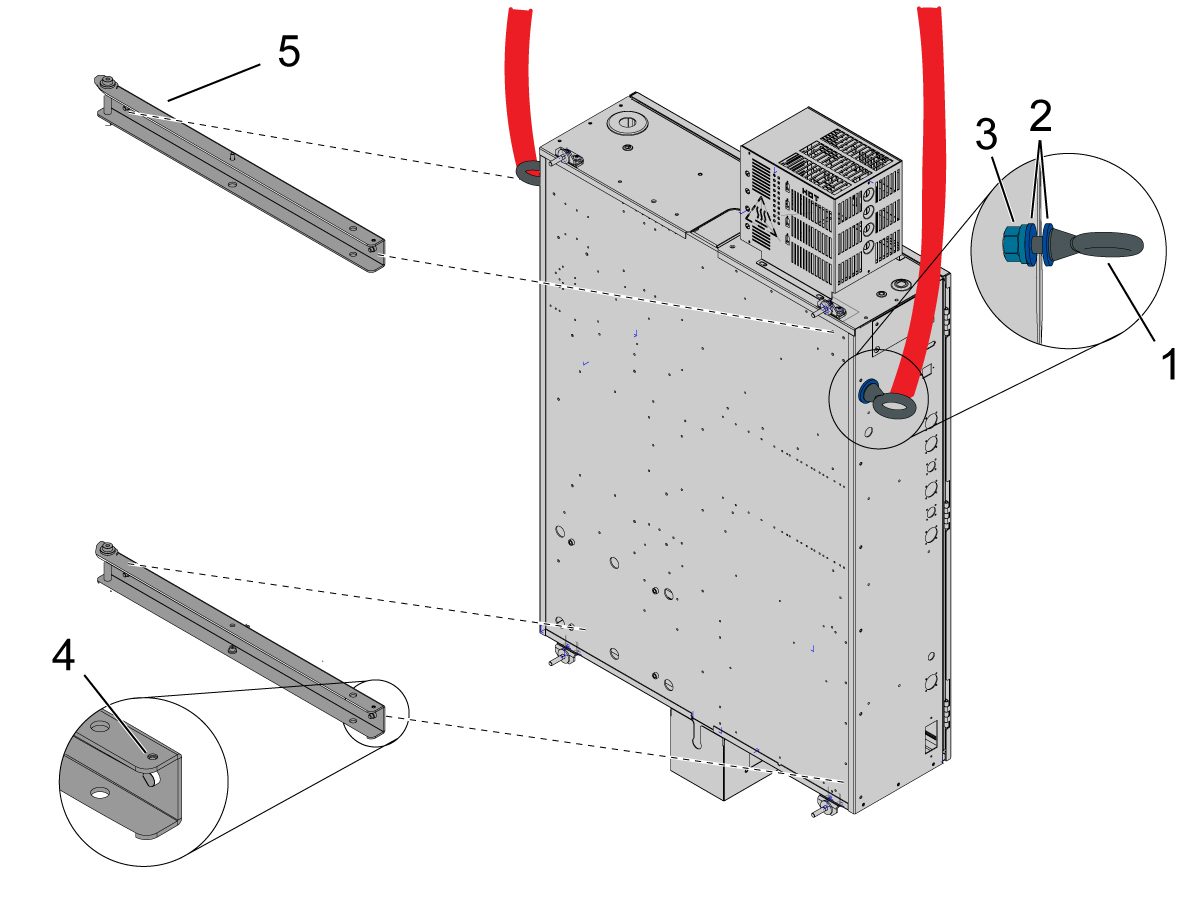
Alternative Lifting Method: 

Remove the circular plug inserted in either side of the control cabinet enclosure. 

Install an industrial grade shoulder eyebolt 1/2 - 13 x 1.50 x 1.19 [1] and washer [2] through both control cabinet cutouts. From inside the machine, install another washer [2] and lock nut [3]. 

Place straps through each eye bolt loop. Attach both straps to forklift. 

IMPORTANT: Due to the control cabinet cutout's being at different heights, the straps will need to be adjusted to be level. Make sure the cabinet is square before lifting. 

Slowly lift the control cabinet unit the weight of the cabinet is fully supported. 

Remove bolts connecting control cabinet to machine. 

While the control is floating, install mounting brackets [5] to the back of the control cabinet.

 NOTE: Make sure the small corner cutout [4] in the bracket [5] is facing up.

5

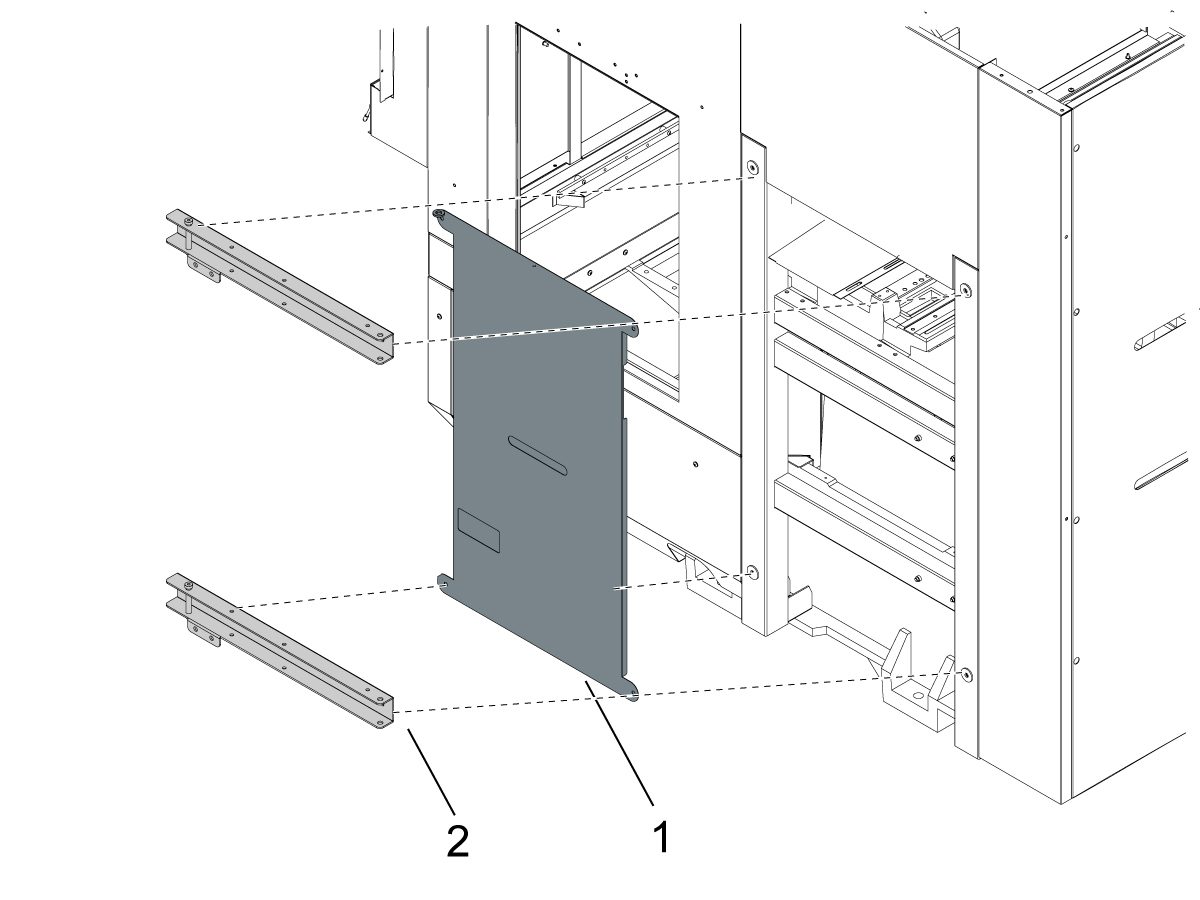
Remove the machine's side panel enclosure. 

Install the control cabinet cover [1] to the side of the machine. 

Install pivot braces [2] on top of the control cover [1].

Align the control cabinet cover [1] and pivot brace's [2] corner holes. Bolt to the machine. 

6

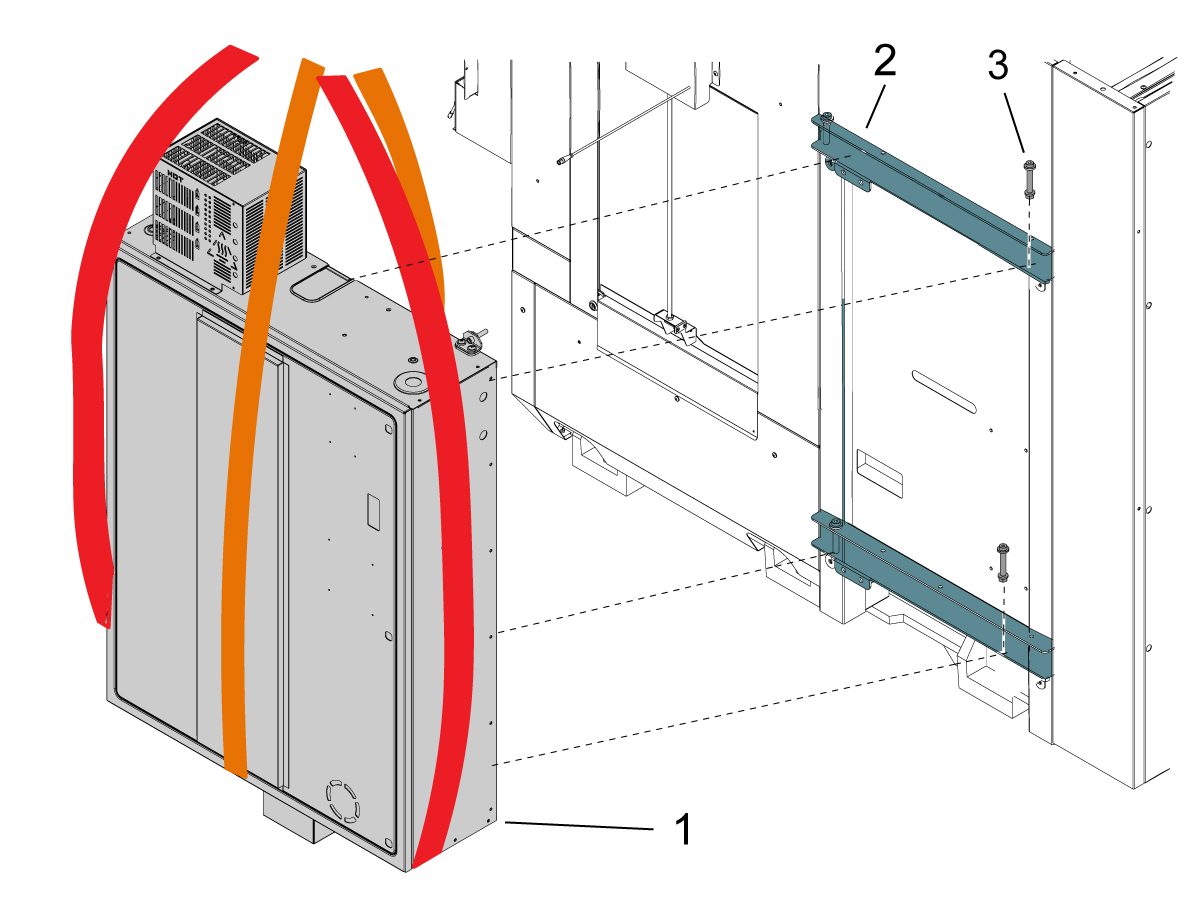
Slowly lift the control cabinet [1] over to the side of the machine.

Slide the mounting brace on the back of the control cabinet [1] into the pivot brace on the machine [2]. Align both braces. 

Insert shoulder bolt [3] through both brace's corner cutouts. 

Remove straps around the control cabinet. 

7

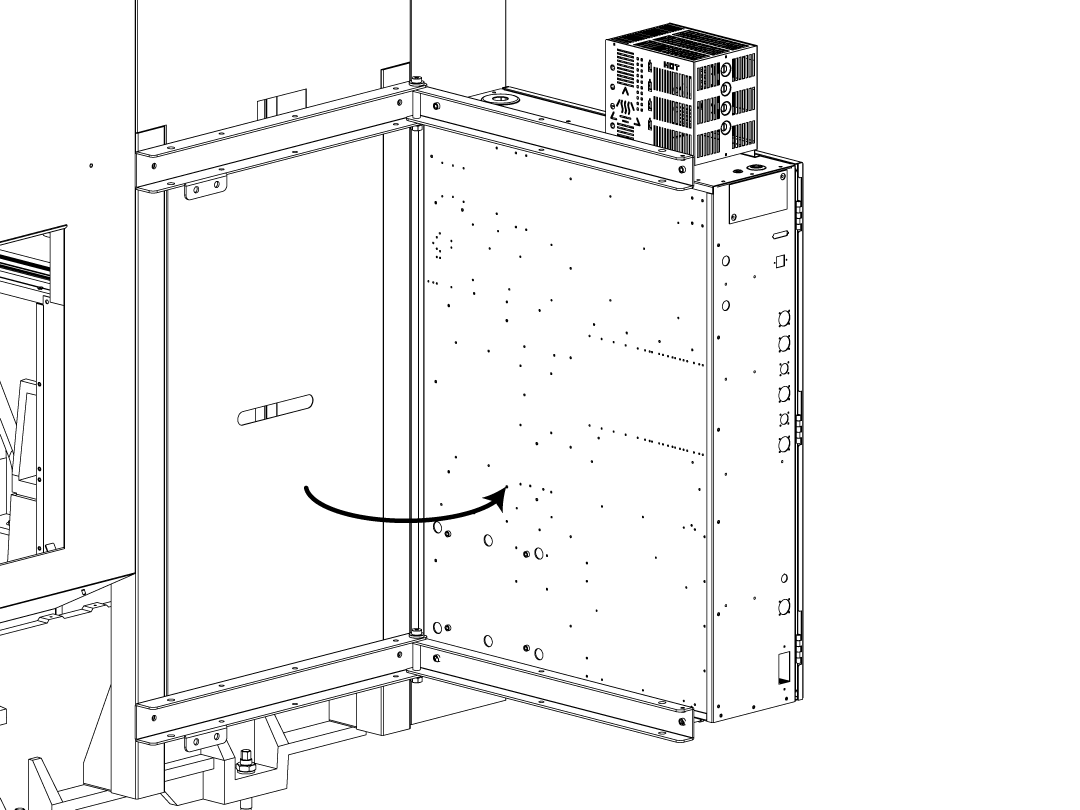
Begin to swing open the control to the 90 degree position. 

8

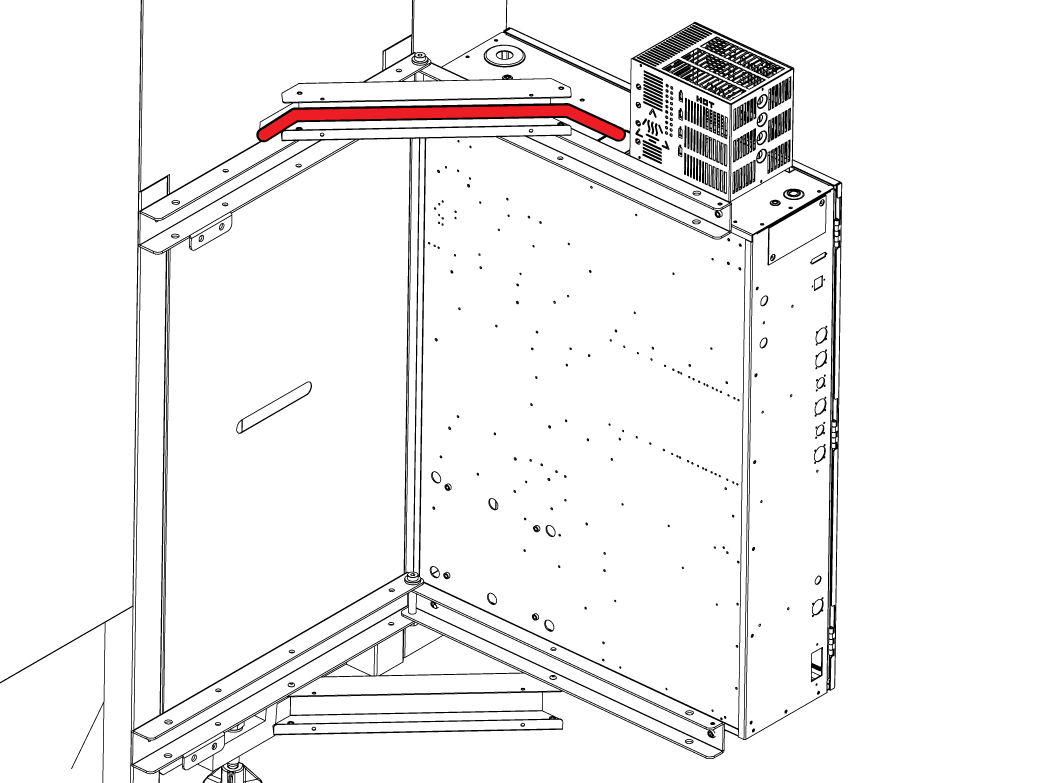
Position the C-channel on the top as shown and begin to pull the control cables out of the opening while keeping the cables inside the C-channel bracket as you open the control cabinet.

Make sure there is no tension on any of the cables before bolting down to the support brackets.  

NOTE: The C-channels can be found inside the machine for shipping.

9

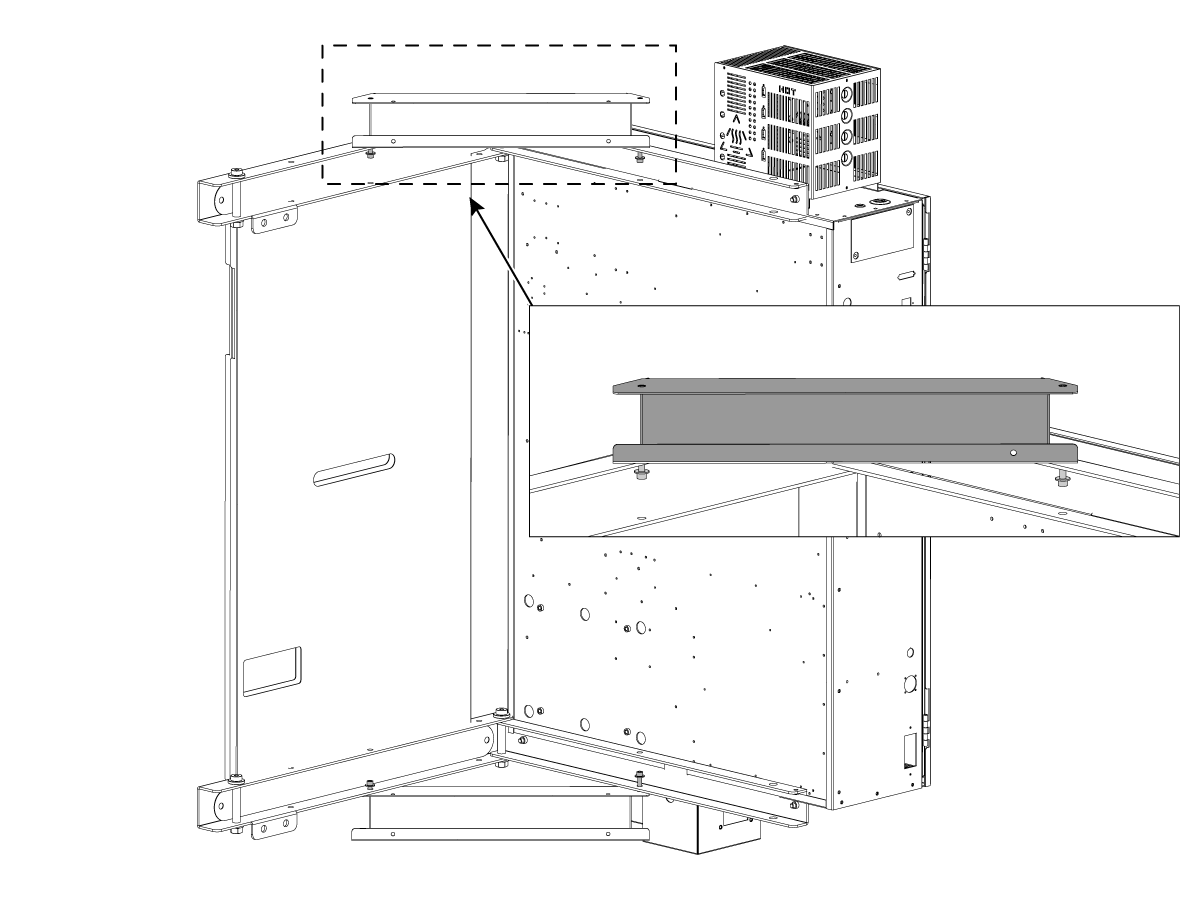
Once the cables have been pulled out of the opening and there is no tension present use the (4X) SHCS 5/16-18 X 7/8 and (4X) WASHER 5/16 HARD 11/32ID X 3/4OD to bolt the upper and lower sheet metal to the support brackets.


Solenoid Installation

1

Push [POWER OFF]. 

Set main circuit breaker to the OFF position. 

Close the primary air valve. This stops the air supply to the machine. 

Open the bleed valve on the air manifold until air pressure is released. Make sure the air pressure is 0 psi (0 bar). 

2

Inside the CALM cabinet, remove and discard the manifold plug [1]. Clean the port threads on the manifold.

Install the solenoid assembly [2] into the manifold port. Connect corresponding yellow and grey hosing to the solenoid's fitting.

 Note: Refer to the Air-Lubrication System decal inside the lubrication cabinet for correct solenoid placement. 

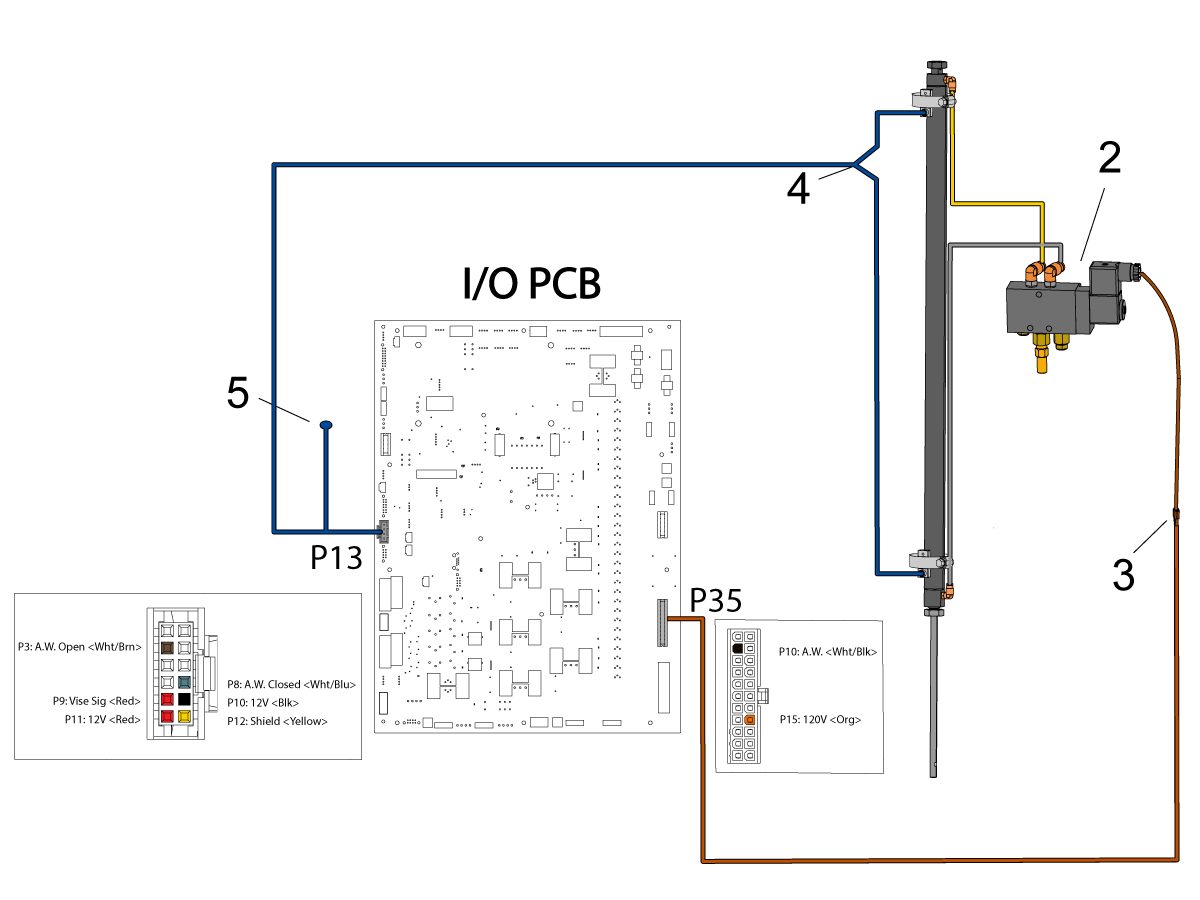
Connect the Auto Window solenoid power cable [3] to the connector labeled UMC Auto Window on the terminal bracket. 

 Note: The Air/Lube Solenoids cable 33-9085F is shown for reference.

Extension cable 33-0521C [4] connects to P13 on the IOPCB and to the open and close sensor's connector. If the machine is equipped with other add-on options, remove the cable from P13 and connect it to the pigtail cable [5].

3

UMC Series:

After routing the wires and airlines through the enclosure hole, run the yellow [1] and gray [2] airlines down the side of the enclosure to the conduit holder on the back of the base. Continue to route them up the other side of the enclosure and into the lube cabinet.

Route the sensor cables [3]down the side of the enclosure and through the C-channel bracket down into the control cabinet. 


Auto Window Activation

Turn on the machine.

Login to the HBC PORTAL.

Download the Auto Window option configuration patch files.

Note: The option files will appear on the configuration download page after it has been ordered. If the option does not appear, contact the service department.

Load the option configuration patch file to the control. Refer to the NEXT GENERATION CONTROL - CONFIGURATION FILE - DOWNLOAD/LOAD procedure. 


Sensor Clamp Alignment

1

Remove cylinder enclosure cover to access the bottom sensor. 

Push [EMERGENCY STOP]. 

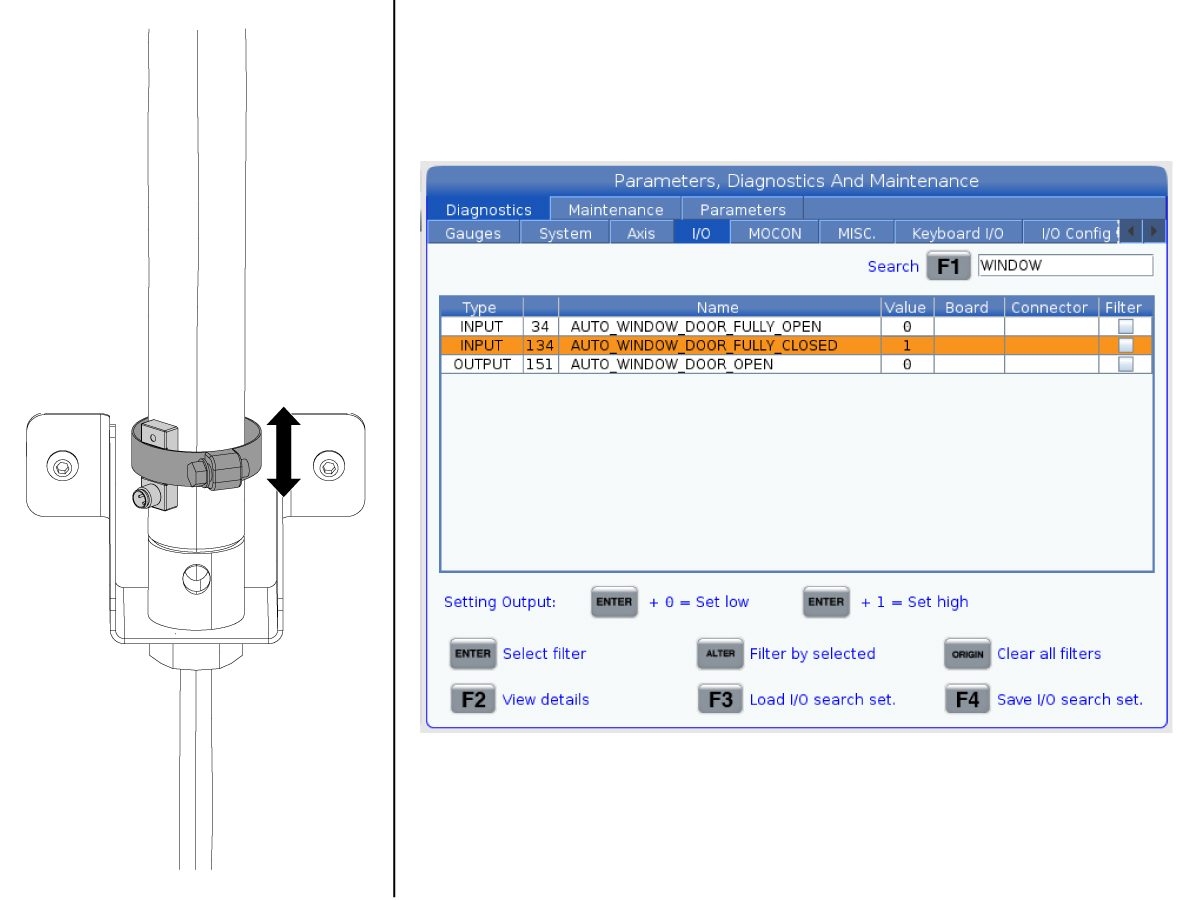
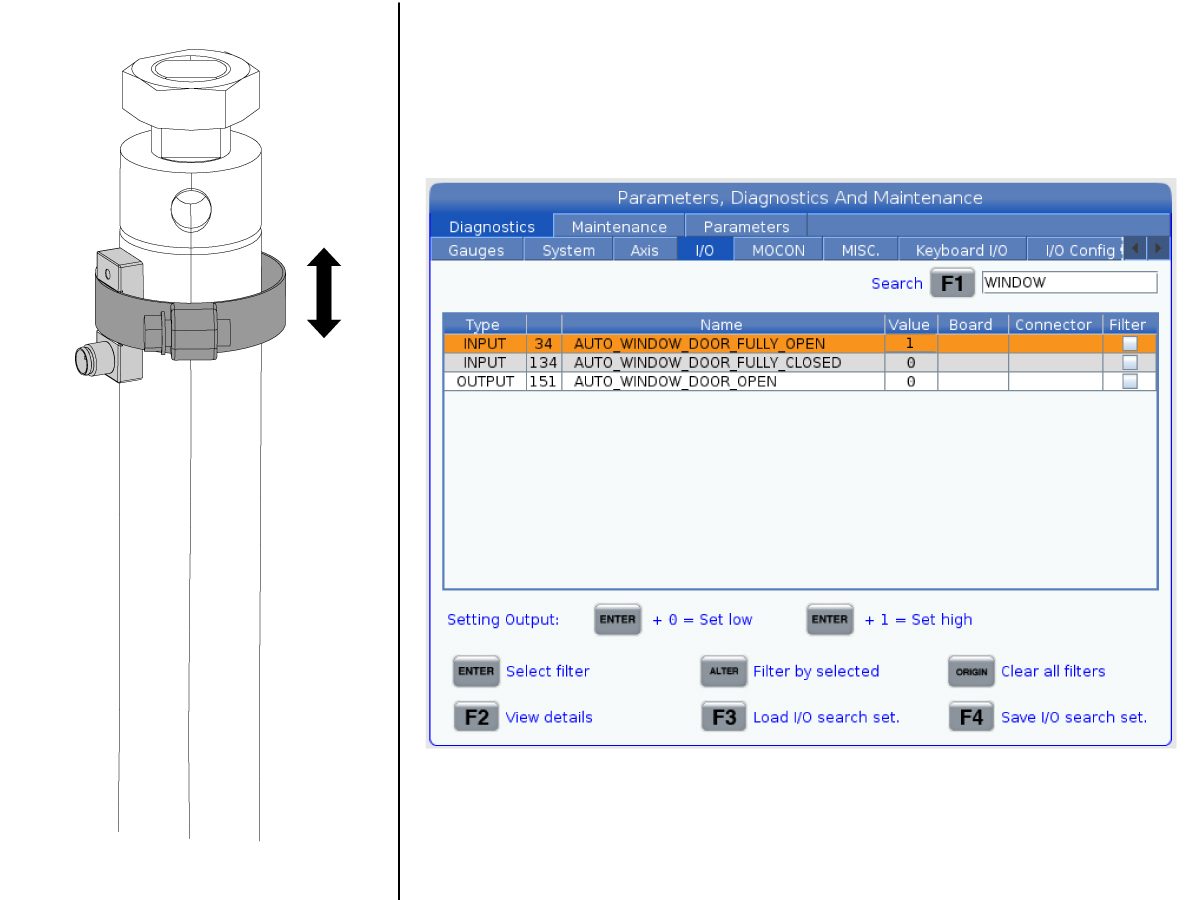
Do these steps to adjust the sensor indicating when the Auto Window is closed. Monitor the DIAGNOSTICS screen at the same time: 

  1. Loosen the sensor clamp. Move the sensor and clamp up until AUTO_WINDOW_DOOR_FULLY_CLOSED changes to 0. 
  2. Slowly move the sensor and clamp up. Find the location where the value is as near as possible to 1, but the value is 0.
  3. Put a mark on the cylinder to locate the sensor's height at this position. 
  4. Repeat Step 1. Repeat Step 2, but move the clamp down. Repeat Step 3. 
  5. Move the sensor and clamp to the middle point between the two marks. Tighten the clamp. 

Reinstall cylinder enclosure cover. 

2

Do these steps to adjust the sensor indicating when the Auto Window is opened. Monitor the DIAGNOSTICS screen at the same time: 

  1. Loosen the sensor clamp. Move the sensor and clamp up until AUTO_WINDOW_DOOR_FULLY_OPENED changes to 0. 
  2. Slowly move the sensor and clamp up. Find the location where the value is as near as possible to 1, but the value is 0.
  3. Put a mark on the cylinder to locate the sensor's height at this position. 
  4. Repeat Step 1. Repeat Step 2, but move the clamp down. Repeat Step 3. 
  5. Move the sensor and clamp to the middle point between the two marks. Tighten the clamp. 

Testing

Verify the auto window feature works properly by doing the following test:

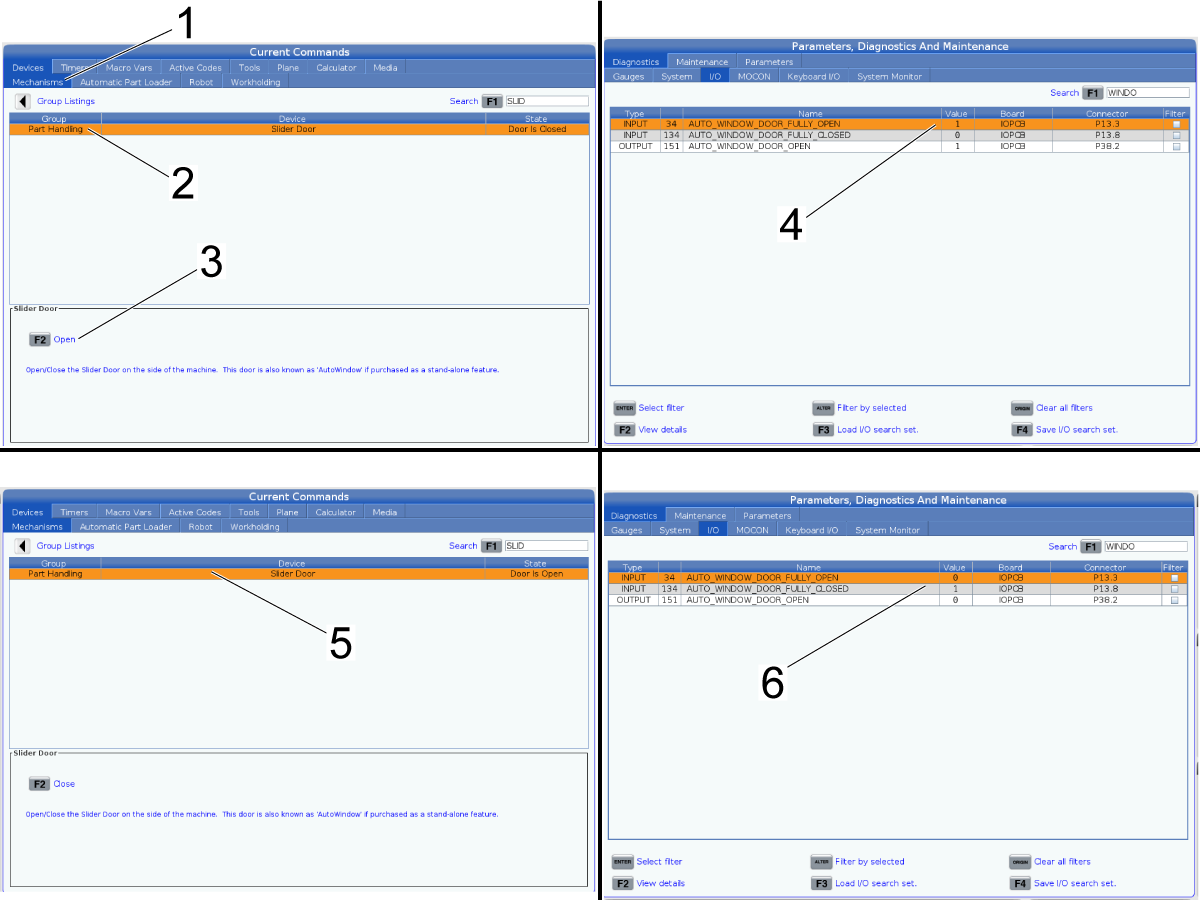
Press [CURRENT COMMANDS] and got to the Devices > Mechanisms tab [1].

Search for "Slider" and then highlight the device [2].

Press [F2] [3] to command the slider window to open.

Go to the I/O tab in DIAGNOSTICS and search for the auto window inputs shown in the image [4]. Make sure that the Auto_Window_Door_Fully_Open switch is 1 when the window is in the open position.

Go back to [CURRENT COMMANDS] and press [F2] [5] again to command the slider window to close.

While the window is running, watch the DIAGNOSTICS screen to verify the auto window inputs trigger the sensors properly [6]. 

If the inputs are behaving as they should, cycle the window multiple times to ensure no alarms are generated.

 NOTE: If the Part Handling group does not show up, manually toggle the output by pressing [DIAGNOSTIC] > I/O and changing AUTO_WINDOW_DOOR_OPEN from 0 to 1. Changing this output requires a service key.

Recently Viewed Items

You Have No Recently Viewed Items Yet

Feedback
Haas Logo

Haas Delivered Price

This price includes shipping cost, export and import duties, insurance, and any other expenses incurred during shipping to a location in France agreed with you as a buyer. No other mandatory costs can be added to the delivery of a Haas CNC Product.

KEEP UP WITH THE LATEST HAAS TIPS AND TECHNOLOGY...

Sign up now!   

HAAS TOOLING ACCEPTS THE FOLLOWING:

  • Service & Support
  • Owners
  • Request Service
  • Operator Manuals
  • Haas Parts
  • Rotary Repair Request
  • Pre-Install Guides
  • Shopping Tools
  • Build & Price a New Haas
  • Available Inventory
  • The Haas Price List
  • CNCA Financing
  • About Haas
  • Accessibility Statement
  • DNSH Statement
  • Export Compliance
  • Careers
  • Certifications & Safety
  • Contact Us
  • History
  • Terms & Conditions
  • Haas Tooling Terms & Conditions
  • Privacy
  • Warranty
  • Haas Community
  • Haas Certification Program
  • Haas Motorsports
  • Gene Haas Foundation
  • Haas Technical Education Community
  • Events
  • Join the Conversation
  • Facebook
  • X
  • Flickr
  • YouTube
  • LinkedIn
  • Instagram
  • TikTok
© 2026 Haas Automation, Inc – CNC Machine Tools

This site is protected by reCAPTCHA and the Google Privacy Policy and Terms of Service apply.

2800 Sturgis Rd., Oxnard, CA 93030
Toll Free: (888) 817-4446 / Fax: 805-278-8554