My Haas Welcome,
!
Haas Tooling MyHaas/HaasConnect Sign In Register Haas Tooling MyHaas/HaasConnect Sign Out Welcome, My Machines Latest Activity My Quotes My Account My Users Sign Out
Find Your Distributor
  1. Select Language
    1. English
  • machines Main Menu
    • Vertical Mills
      Vertical Mills
      Vertical Mills View All
      • Vertical Mills
      • VF Series
      • Universal Machines
      • VR Series
      • VP-5 Prismatic
      • Pallet-Changing VMCs
      • Mini Mills
      • Mold Machines
      • High-Speed Drill Centers
      • Drill/Tap/ Mill Series
      • Toolroom Mills
      • Pocket Mill
      • Compact Mills
      • Gantry Series
      • SR Sheet Routers
      • Extra-Large VMC
      • Double-Column Mills
      • 3+2 Positioning Machines
    • Multi-Axis Solutions
      Multi-Axis Solutions
      Multi-Axis Solutions View All
      • Multi-Axis Solutions
      • Y-Axis Lathes
      • 5-Axis Mills
    • Lathes
      Lathes
      Lathes View All
      • Lathes
      • ST Series
      • Dual-Spindle
      • Box Way Series
      • Toolroom Lathes
      • Chucker Lathe
      • Haas Bar Feeders
    • Horizontal Mills
      Horizontal Mills
      Horizontal Mills View All
      • Horizontal Mills
      • 50-Taper
      • 40-Taper
    • Rotaries & Indexers
      Rotaries & Indexers
      Rotaries & Indexers View All
      • Rotaries & Indexers
      • Rotary Tables
      • Indexers
      • 5-Axis Rotaries
      • Extra-Large Rotaries
    • Special Series
      Special Series
      Special Series View All
      • Special Series
      • EU_Series_Redirect
    • Automation Systems
      Automation Systems
      Automation Systems View All
      • Automation Systems
      • Mill Automation
      • Lathe Automation
      • Automatic Parts Loaders
      • Automation Models
    • Desktop Machines
      Desktop Machines
      Desktop Machines View All
      • Desktop Machines
      • Desktop Mill
      • Desktop Lathe
      • Control Simulator, Standard
      • Control Simulator, Premium
    • Shop Equipment
      Shop Equipment
      Shop Equipment View All
      • Shop Equipment
      • Knee Mill
      • Haas Manual Lathes
      • Haas Saws
    • Fabrication Machines
      Fabrication Machines
      Fabrication Machines View All
      • Fabrication Machines
      • Laser Cutting Machines
      • CNC Press Brakes
    • QUICK LINKS Special Series  Special Series 
      EU SERIES EU SERIES BUILD & PRICE | PRICE LIST BUILD & PRICE | PRICE LIST In-Stock Machines In-Stock Machines WHAT’S NEW WHAT’S NEW YOUR FIRST CNC YOUR FIRST CNC
      SHOPPING TOOLS
      • Build & Price a Haas
      • Price List
      • Available Inventory
      • CNCA Financing
      WANT TO TALK TO SOMEONE?

      A Haas Factory Outlet (HFO) can answer your questions, and walk you through your best options.

      CONTACT YOUR DISTRIBUTOR >
  • Options Main Menu
    • The Haas Control Value Option Packages
      Value Option Packages
      Value Option Packages View All
      • Value Option Packages
    • Product Image Spindles
      Spindles
      Spindles View All
      • Spindles
    • Product Image Tool Changers
      Tool Changers
      Tool Changers View All
      • Tool Changers
    • Product Image 4th- | 5th-Axis
      4th- | 5th-Axis
      4th- | 5th-Axis View All
      • 4th- | 5th-Axis
    • Product Image Turrets & Live Tooling
      Turrets & Live Tooling
      Turrets & Live Tooling View All
      • Turrets & Live Tooling
    • Product Image Probing
      Probing
      Probing View All
      • Probing
    • Haas Chip & Coolant Management Chip & Coolant Management
      Chip & Coolant Management
      Chip & Coolant Management View All
      • Chip & Coolant Management
    • The Haas Control The Haas Control
      The Haas Control
      The Haas Control View All
      • The Haas Control
    • Product Image Product Options
      Product Options
      Product Options View All
      • Product Options
    • Product Image Tooling & Fixturing
      Tooling & Fixturing
      Tooling & Fixturing View All
      • Tooling & Fixturing
    • Product Image Workholding
      Workholding
      Workholding View All
      • Workholding
    • Product Image 5-Axis Solutions
      5-Axis Solutions
      5-Axis Solutions View All
      • 5-Axis Solutions
      • 5 Easy Steps to 5-Axis
    • QUICK LINKS Special Series  Special Series 
      EU SERIES EU SERIES BUILD & PRICE | PRICE LIST BUILD & PRICE | PRICE LIST In-Stock Machines In-Stock Machines WHAT’S NEW WHAT’S NEW YOUR FIRST CNC YOUR FIRST CNC
      SHOPPING TOOLS
      • Build & Price a Haas
      • Price List
      • Available Inventory
      • CNCA Financing
      WANT TO TALK TO SOMEONE?

      A Haas Factory Outlet (HFO) can answer your questions, and walk you through your best options.

      CONTACT YOUR DISTRIBUTOR >
  • Why Haas Main Menu
      Discover the Haas Difference
    • Why Haas
    • MyHaas
    • Education Community
    • Industry 4.0
    • Haas Certification
    • Customer Testimonials
  • Service Main Menu
      Welcome to Haas Service
      SERVICE HOME Operator’s Manuals How-To Procedures Troubleshooting Guides Preventive Maintenance Haas Parts Haas Tooling Videos
  • Videos Main Menu
  • Main Menu
    • View All
    • View All
    • View All
    • View All
      • HTEC Curriculum Support
      • Haas Value Option Packages (VOP) Journey
    • View All
      • Haas 10 kg Cobot Package
      • Cobot Kits
      • DC-1 Drill Center
      • CNC Sales News
      • Do More With Your Haas
    • View All
    • View All
      • contact-us-test
      • 4 - AUTOMATION SYSTEMS
      • Carousel-V2
      • expert test
      • Demo_Day_Trident-test
      • Link Test
      • image-sale-tag-test
      • article-list-test
      • Haas 25 kg Robot Package
      • test-algolia-page
    • View All
    • View All
    • View All
    • View All
      • calc-test
    • View All
    • QUICK LINKS Special Series  Special Series 
      EU SERIES EU SERIES BUILD & PRICE | PRICE LIST BUILD & PRICE | PRICE LIST In-Stock Machines In-Stock Machines WHAT’S NEW WHAT’S NEW YOUR FIRST CNC YOUR FIRST CNC
      SHOPPING TOOLS
      • Build & Price a Haas
      • Price List
      • Available Inventory
      • CNCA Financing
      WANT TO TALK TO SOMEONE?

      A Haas Factory Outlet (HFO) can answer your questions, and walk you through your best options.

      CONTACT YOUR DISTRIBUTOR >
  • Haas Tooling Main Menu
  • Haas Service Parts Main Menu

My Haas Welcome,
!
Haas Tooling MyHaas/HaasConnect Sign In Register Haas Tooling MyHaas/HaasConnect Sign Out Welcome, My Machines Latest Activity My Quotes My Account My Users Sign Out
Find Your Distributor
  1. Select Language
    1. English
×

Search Results

Web Pages

Images

    • <
    • 1
    • >

7 - HMC- Pallet Pool - Operation

HMC - Pallet Pool - Operator's/Service Manual


  • 0 - HMC - Pallet Pool - Table of Contents
  • 1 - HMC - Pallet Pool - Introduction
  • 2 - HMC - Pallet Pool - Legal Information
  • 3 - HMC - Pallet Pool - Safety
  • 4 - HMC - EC-400 PP - 6 + 1 Station - Installation
  • 5 - HMC - EC-500 PP - 6 + 1 Station - Installation
  • 6 - HMC - EC-1600ZT PP - 4 + 1 Station - Installation
  • 7 - HMC- Pallet Pool - Operation
  • 8 - HMC- Pallet Pool - Maintenance
  • 9 - HMC - Pallet Pool - Troubleshooting

Go To :

  • 7.1 HMC - Pallet Pool - Schedule Table
  • 7.2 HMC - EC-400/500 PP - Recovery
  • 7.3 HMC - EC-1600ZT PP - Recovery
  • 7.4 HMC - EC-1600ZT PP - Pallet Installation and Removal

7.1 HMC - Pallet Pool - Schedule Table

Pallet Pool - Operation

The CNC control tracks the pallets as they move from their shelf, to the ready position, to the machining area and then back. The Pallet Schedule Table (PST) is found within the current commands pages.

To access, press the [CURRENT COMMANDS] button and use the cursor arrows to navigate to Devices, then Pallet Schedule Table.

The PST screen contains information to assist the operator in loading/unloading pallets and allows the operator to specify part programs and pallet processing sequences.

 WARNING: It is not possible to leave an adjacent shelf empty to increase clearance for workholding. 

NOTE: Pallet exiting the machine work envelope may not return to the shelf it was taken from. The machine will go to the closest empty shelf starting with the shelf A / Load Station.

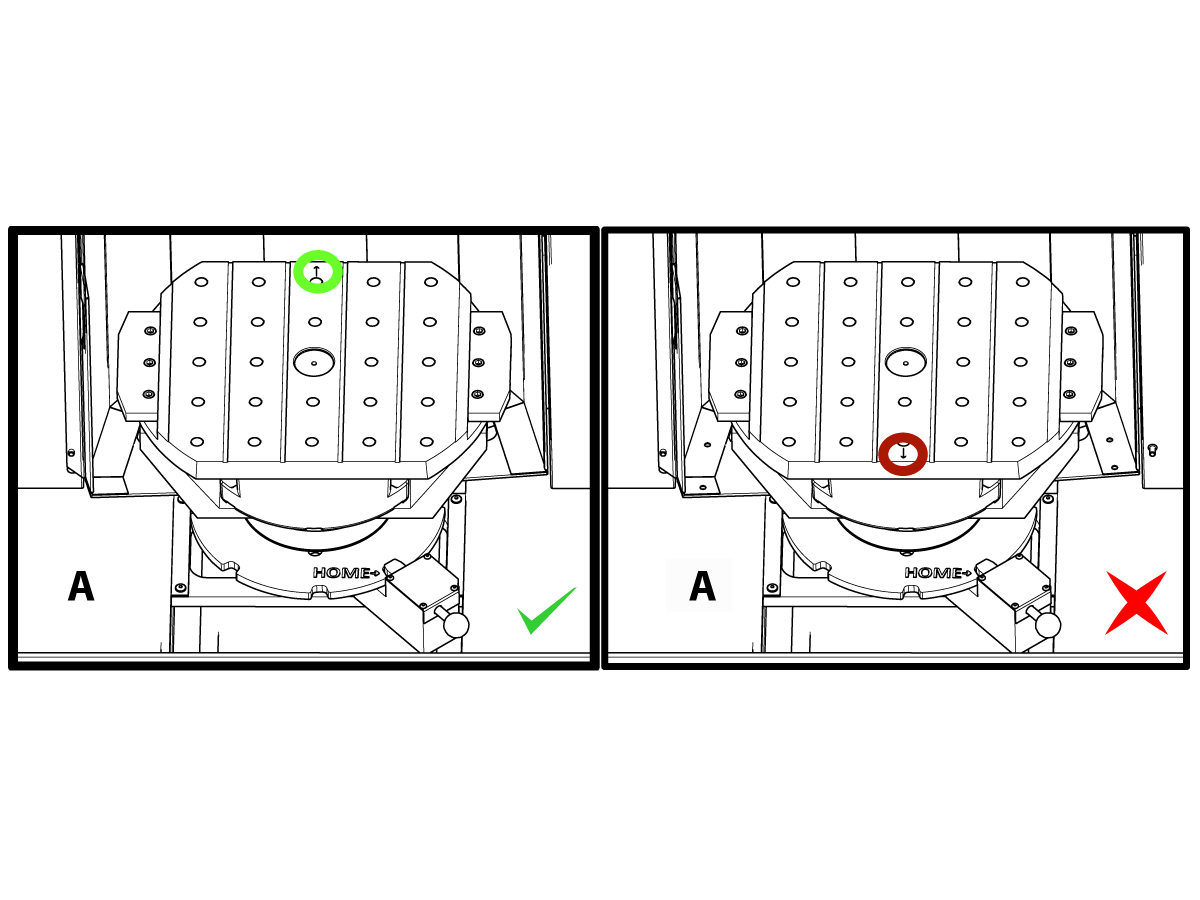
Pallets are loaded into the pallet pool on Load Station A in the reverse orientation as loading on a standard pallet changer machine. On a pallet pool the locating arrow on the pallet must point away from the operator as illustrated. Once the pallet is loaded in the Load Station A press [F3] while on the PST to put the Load Station pallet away.

Changing pallets with the Pallet Pool is done using the PST. Highlight a pallet shelf and press [ALTER] to load the pallet and associated program.

Run all the scheduled pallets by pressing [INSERT].

The program should have a M199 at the end of it to load the next schedule pallet and associated program when in Pallet Scheduler Mode. If running in MEMORY mode the M199 behaves like an M30.

The load order of the pallets is determined by the “Load Order” column in the PST. If you don’t wish to use Pallet Scheduler Mode to process your pallets you can still use the M50 Px command to load a specific pallet from inside your program.

To run the machine through all the scheduled pallets in Pallet Scheduler Mode call the first pallet into the machine. Press [INSERT] from the PST page. This will cause the M199 at the end of the program to behave like an M50 + M99. At the end of the program it will retrieve the next scheduled pallet and continue to run until all scheduled pallets are completed.

The Pallet Pool has a sub panel next to the load station, with an Emergency Stop button for safety, and a Part Ready button.

The Part Ready button is used to signal the lifter that the pallet in the load station is prepared and ready to enter the Pallet Pool. The load station door must be rotated closed for safety so that the lifter has access to the load station pallet.

Pallet Schedule Table

The Pallet Schedule Table incorporates a number of features to help the user with their routine.

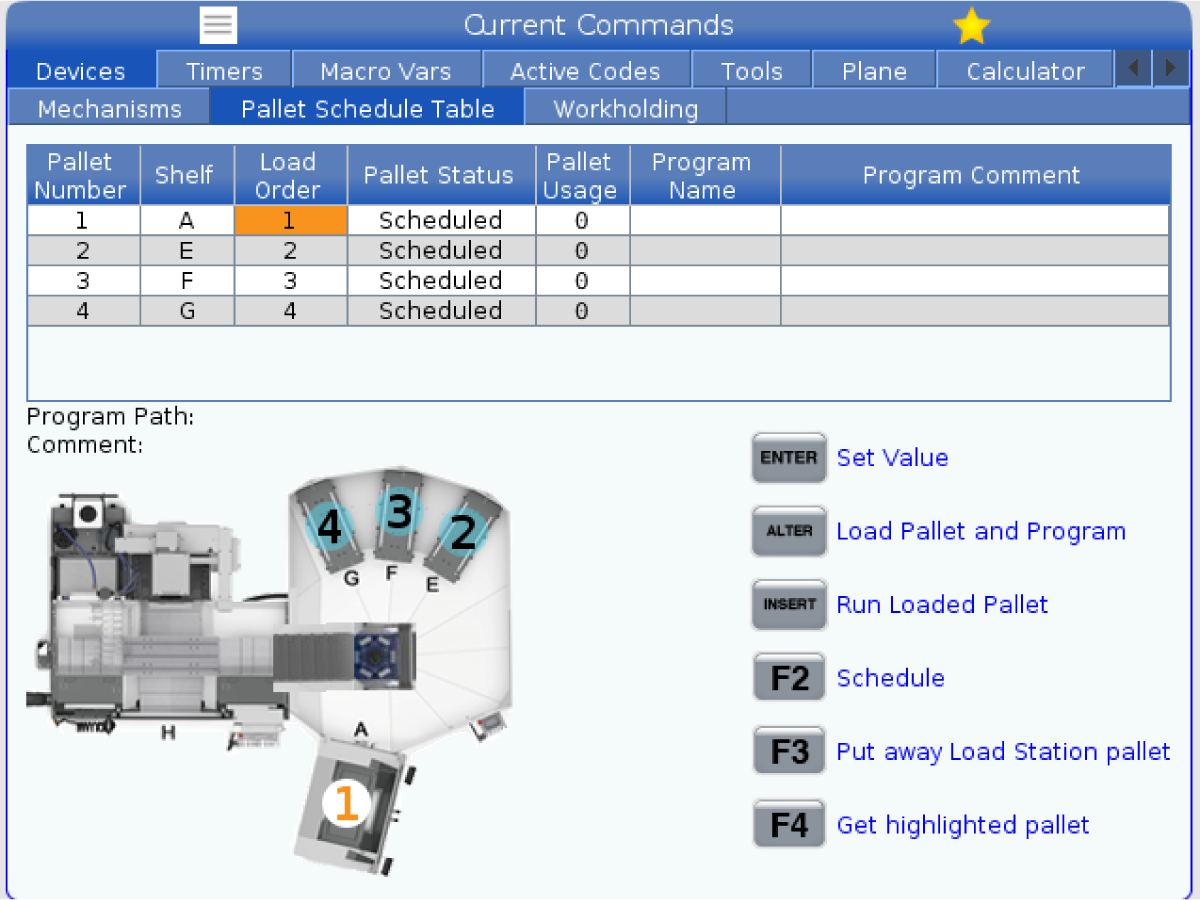
Load Order and Pallet Status: These two features work together to show which pallet is currently in the machining area. Enter a number for the load order and press [ENTER] on the Pallet Status field to select the pallet status. The choices are: 0: Unscheduled, 1: Scheduled, 2: Missing and 3: Completed.

Comment: To add a user comment to a pallet, highlight the pallet number field and press [ENTER]. A box will appear, type in the desired comment and press [ENTER].

Pallet Usage: This feature gives the number of times the specific pallet has been loaded into the machining area. Press [ORIGIN] button to clear the value.

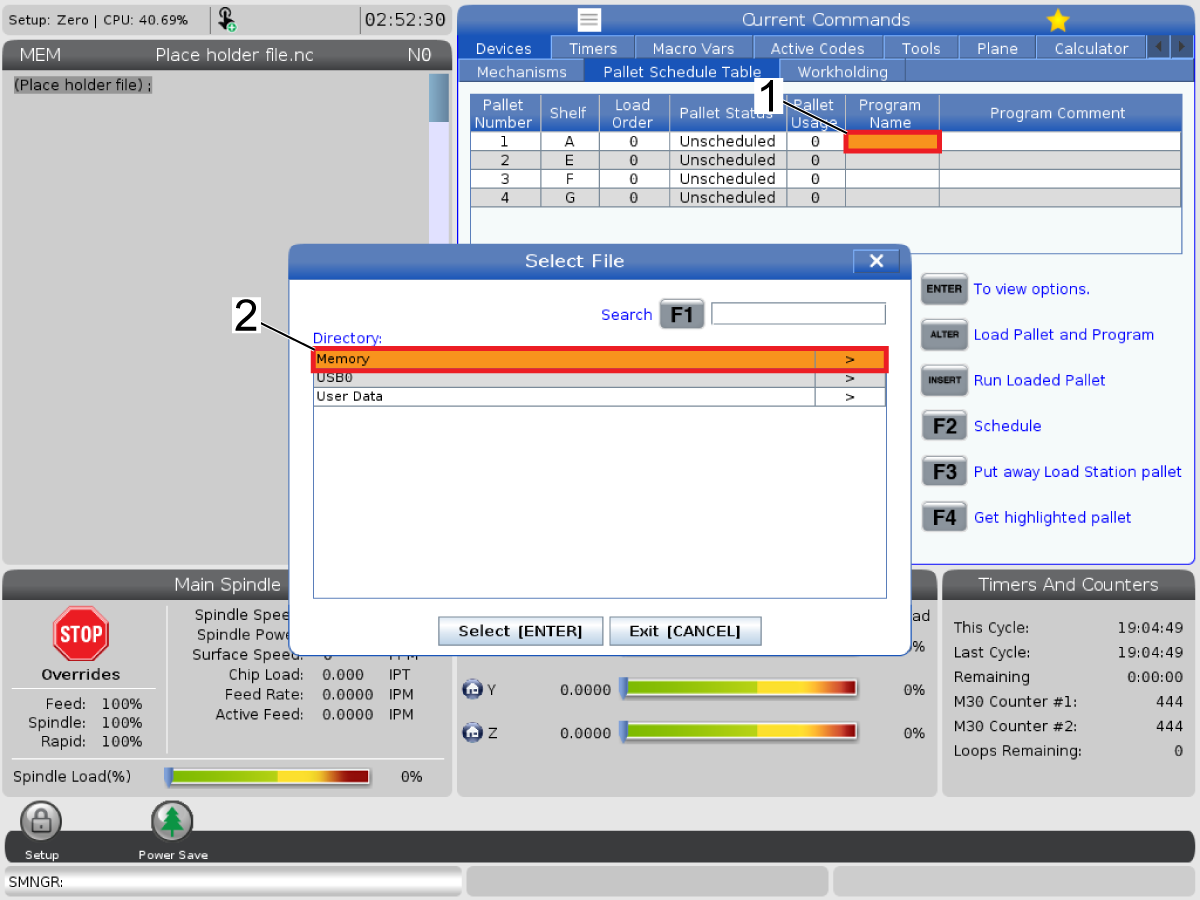
Program Number: This detail shows which program number has been assigned to the pallet. To select a program, highlight the Program Name field then press [ENTER] and navigate to the program.

Program Comment: This area displays the comments that are written in the part program. This can only be changed by editing the comments in the program.

Command Prompts:

[ENTER] The function changes depending where the highlighter is located. It is used to enter a user comment, set a value in the field and to view options for the field.

[ALTER] Load Pallet and Program. This will load the selected pallet into the machine and call the assigned program to memory.

[INSERT] Run loaded program. This will start the machine running in Pallet Scheduler Mode. The machine will continue to run all scheduled pallets in the PST until they are completed. For more information on Pallet Scheduler Mode refer to M199 Pallet / Part Load or Program Endin the M-code section.

[F2] Schedule Load Station pallet. This will set the status of the Load Station pallet to Scheduled.

[F3] Put away Load Station pallet. This will return the Load Station pallet to the pallet pool.

[F4] Get highlighted pallet. This will bring the selected pallet to the Load Station.

Using the Pallet Scheduling Table to Load Pallets

1

Load the pallets using the Pallet Schedule Table.

To reach the Pallet Schedule Table tab press [CURRENT COMMANDS] then go DEVICES > PALLET SCHEDULE TABLE. 

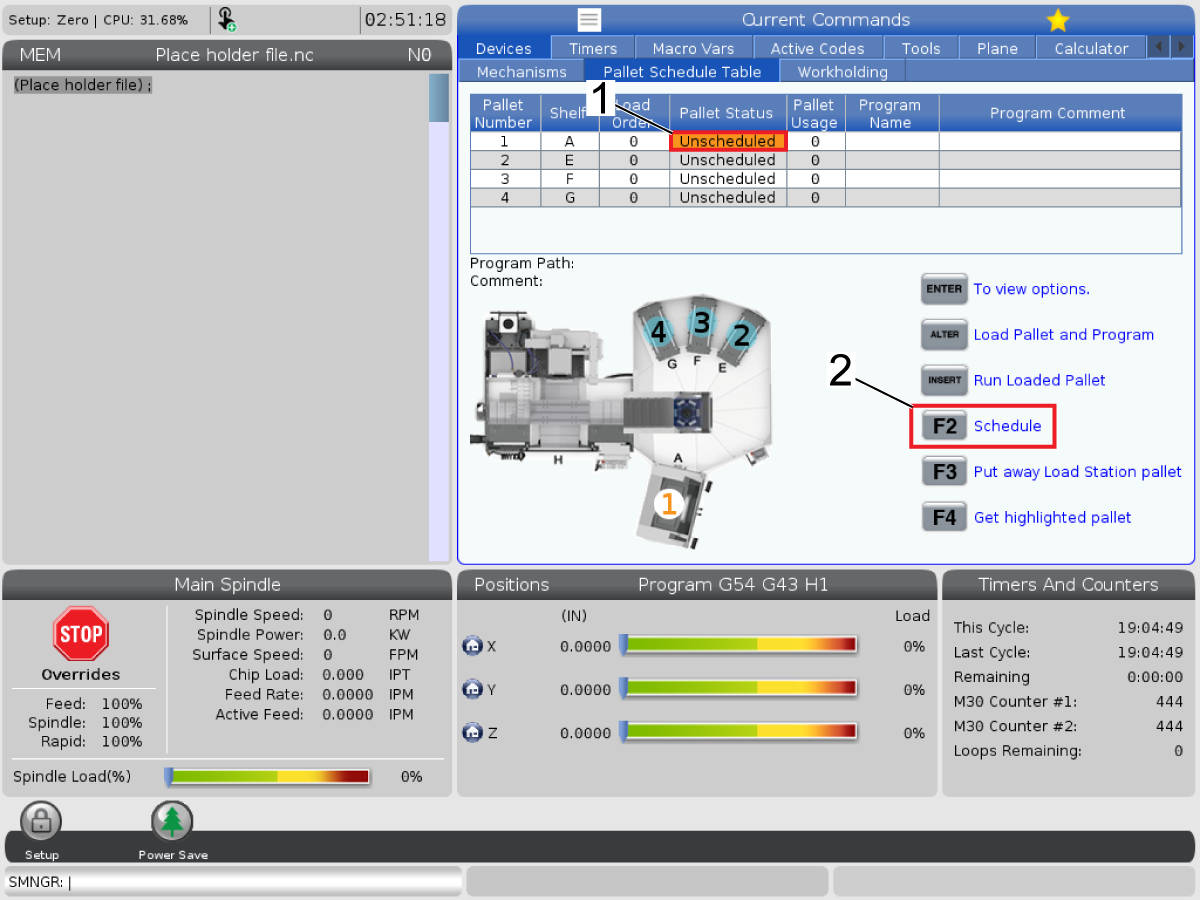
Schedule the pallets, to do this highlight the pallet status of the pallet [1] and press [F2] to schedule. Repeat this process for the remaining pallets.

NOTE: The pallets must be scheduled in order to physically load the pallets to the station. After all pallets have been loaded the user can unschedule the pallets as needed. Unscheduling a pallet will tell the Pallet Pool not to pick up that pallet.

2

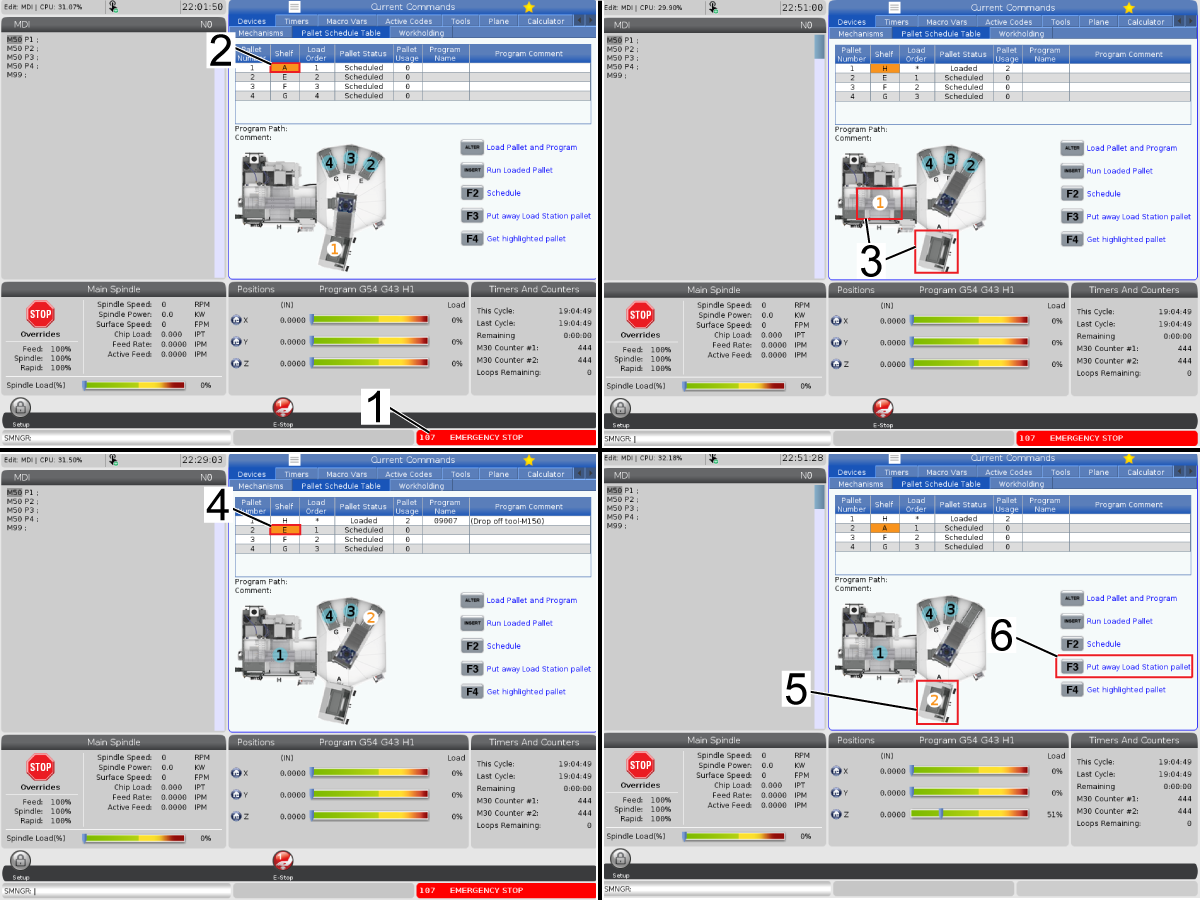
To load the pallets on the machine first press E-STOP [1] then go to the Shelf tab on pallet number 1 [2]. Change pallet 1 to shelf H [3], this will open the loading station in the software of the machine. 

Next highlight the pallet 2 shelf tab [4] and change that to shelf A, this will move the location of pallet 2 to the load station [5]. 

Physically load a pallet onto the load station, release the E-STOP, and press [F3] to put away the load station pallet 2 onto the empty shelf E. 

Continue this process for the rest of the shelves and once complete move pallet 1 back to shelf A. 

3

To load a program for a specific pallet go to the Program Name tab [1] and press [ENTER].

A pop up menu will appear which will ask where to load your program from. Choose the file location, select the program you wish to run for that pallet and press [ENTER].

4

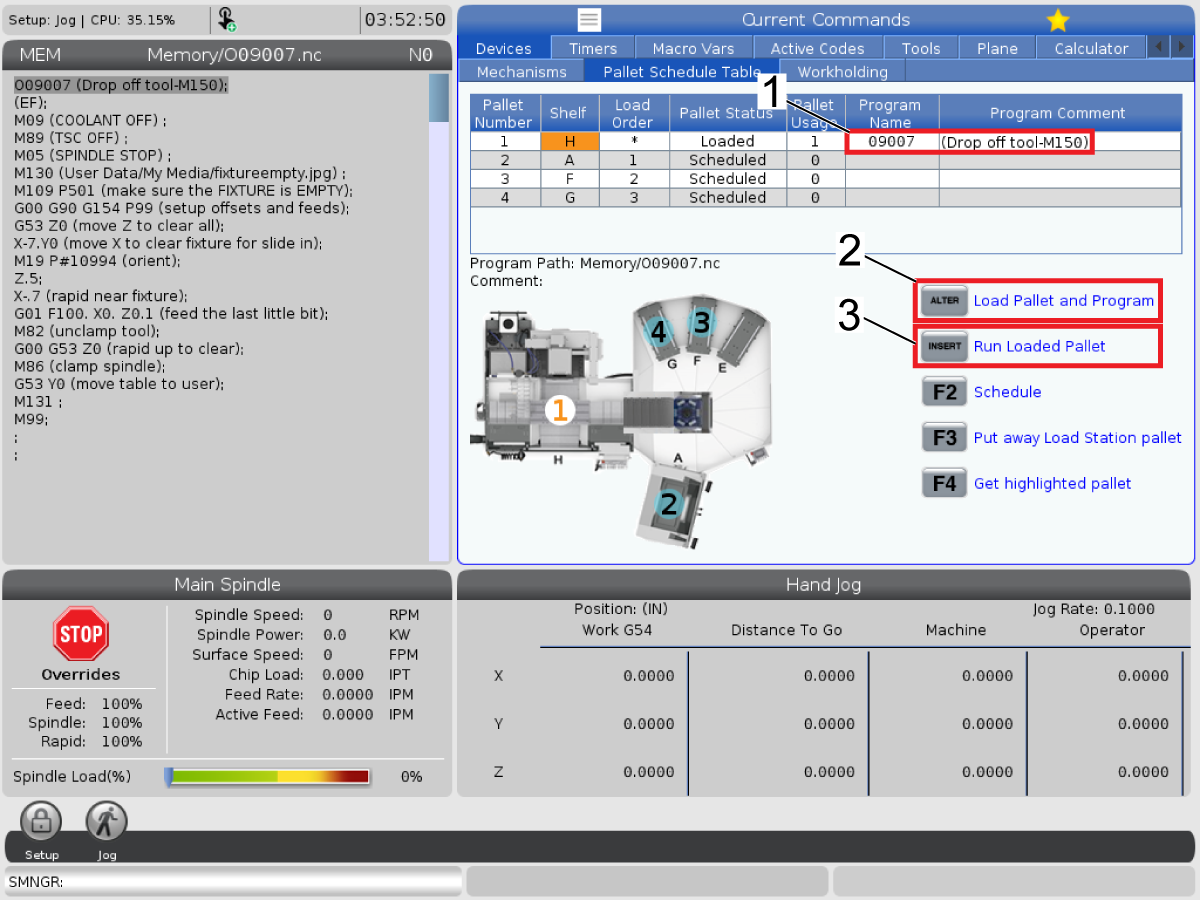
The program name and program comment will appear in its respective tab [1]. Continue loading programs for all other pallets this applies to. 

Pressing [ALTER] [2] will load the pallet and program as the name describes.

Pressing [INSERT] [3] will run the program of the pallet in shelf H, the pallet status should also tell you what pallet number is loaded. 

5

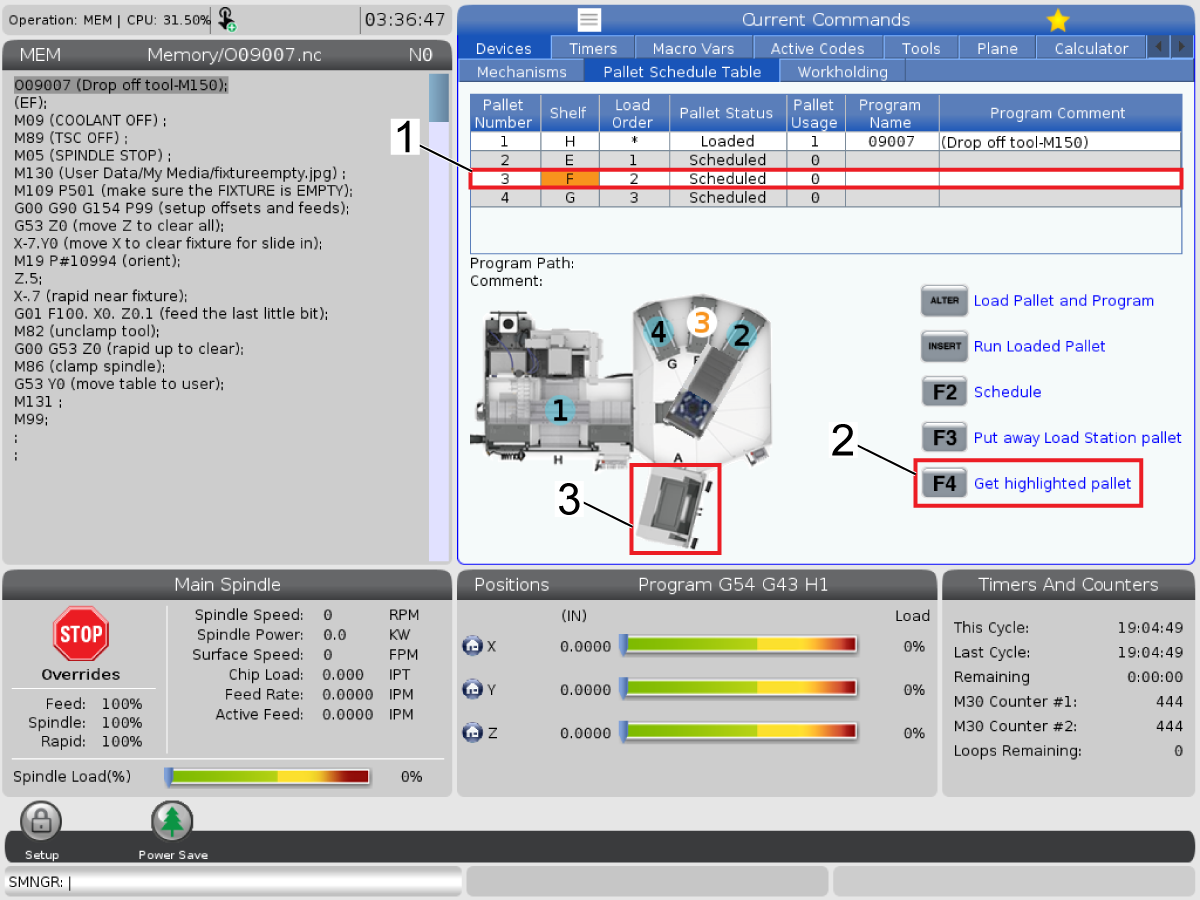
To retrieve any given pallet choose the pallet number or the shelf [1], you should see the number of the pallet highlighted, press [F4] denoted as [2] and that should bring the highlighted pallet to the loading station or shelf A [3]. 

NOTE: If there is a pallet in the load station when this process is commanded the pallet in the loading station will be loaded to an empty shelf in the pallet pool in order to move the highlighted pallet ot position. 

Pallet Wash-Down Sequence

Use the special code M50P0 to extract a pallet without loading the next one to run a wash-down program to clean the receiver before loading the next pallet while in pallet mode.

Refer to the M50 M-Code help text for more info.

7.2 HMC - EC-400/500 PP - Recovery

Pallet Pool Changer - Recovery

If the Pallet Pool or Pallet Changer cycles get interrupted you must enter [RECOVER] mode to correct or complete the cycle.

Press the [RECOVER] button and press 2 for Pallet Changer. The recovery page will display the input and output values.

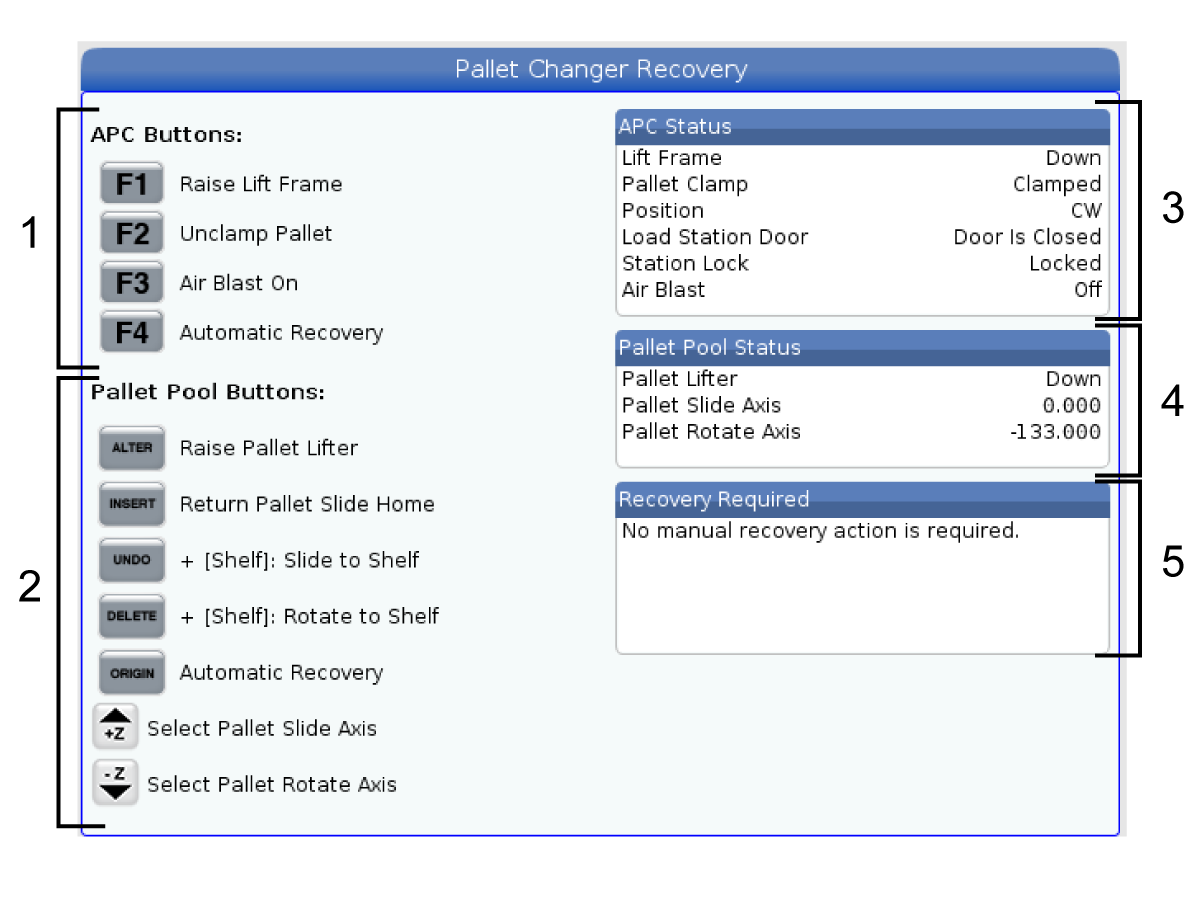
Pallet Changer Recovery Display:

  1. APC Functions
  2. Pallet Pool Functions
  3. APC status 
  4. Pallet Pool Status
  5. Message Box 

Command Prompts:

[F1] APC Up. This will lift the pallet changer H-Frame if the pallet is not clamped.

[F2] Unclamp. This will unclamp the pallet in the machine from the receiver.

[F3] Air Blast. This will activate the air blast under the pallet to remove any chips or debris.

[F4] Attempt Auto Recovery. This will attempt to automatically correct or complete the pallet changer or pallet pool operation.

[ALTER] Raise Pallet Lifter. This will lift the pallet pool lifter assembly.

[INSERT] Return Pallet Slide Home. This will return the lifter to its home position.

[UNDO] Pallet Pool Slide to Shelf. This will slide the pallet pool lifter to the selected shelf location. Example: Press [A] then [UNDO] to slide the lifter to shelf position A.

[DELETE] Pallet Pool Rotate to Shelf. This will rotate the pallet pool lifter to the selected shelf location. Example: Press [A] then [DELETE] to rotate the lifter to shelf position A.

[ORIGIN] Attempt Auto Recovery. This will attempt to automatically correct or complete the pallet pool operation.

[+Z] Select Pallet Slide Axis. This will select the PS axis in handle jog mode.

[-Z] Select Pallet Rotate Axis. This will select the PR axis in handle jog mode.

[Q] Ext to Pallet Schedule Table. This will go back to the Pallet Schedule Table.

7.3 HMC - EC-1600ZT PP - Recovery

Pallet Pool Changer - Recovery

If the Pallet Pool or Pallet Changer cycles get interrupted you must enter [RECOVER] mode to correct or complete the cycle.

Press the [RECOVER] button and press 2 for Pallet Changer. The recovery page will display the input and output values.

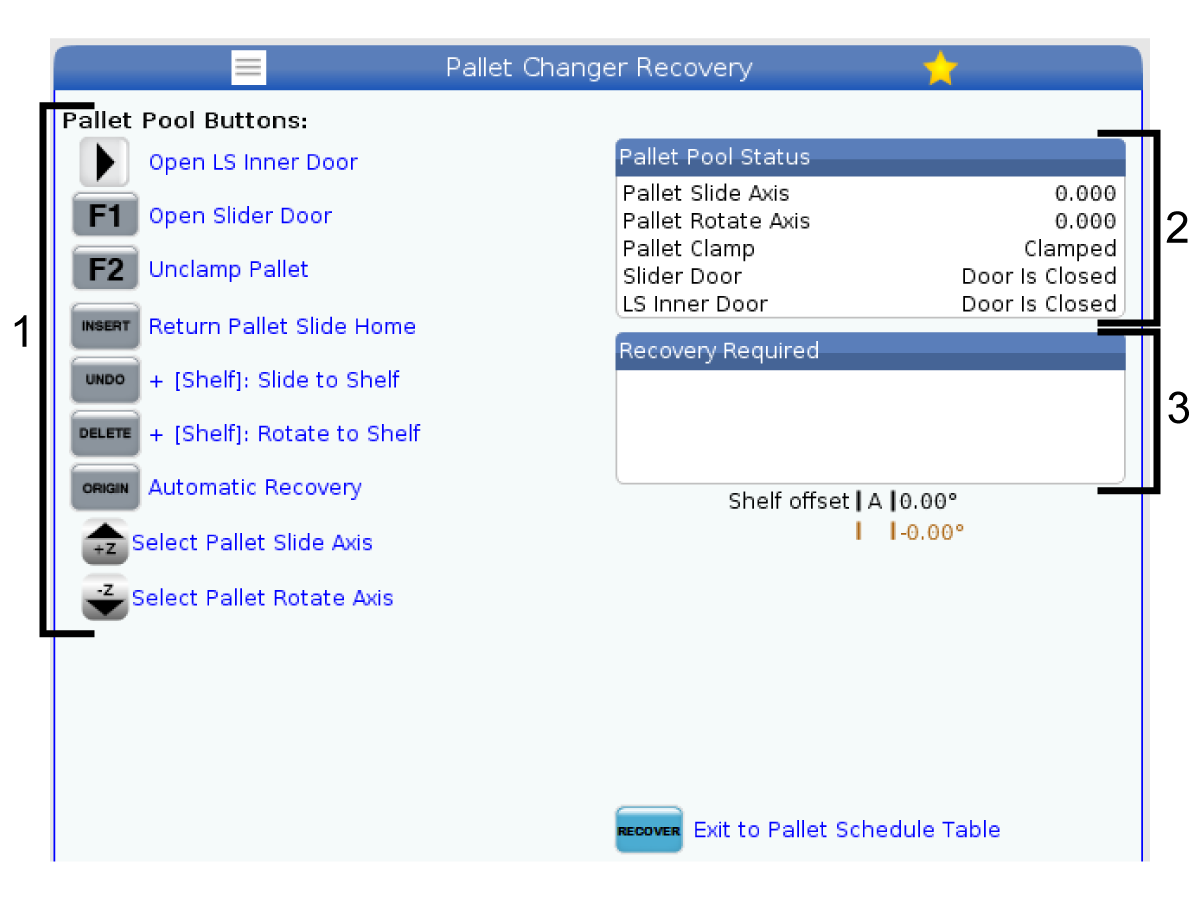
Pallet Changer Recovery Display:

  1. Pallet Pool Functions
  2. Pallet Pool Status
  3. Message Box 

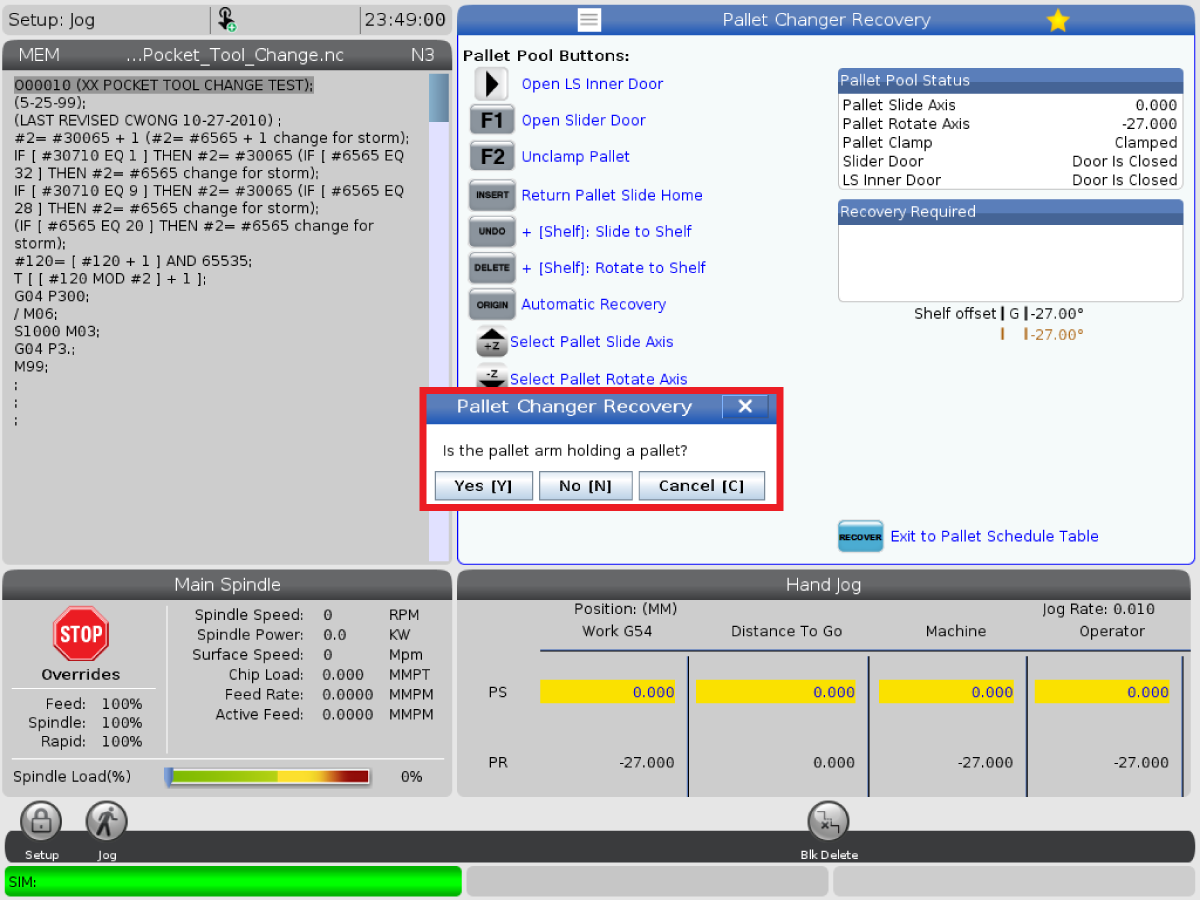
 Important: If there is no pallet on the pallet arm then the PR will go into the station at a 4 degree offset when the pallet arm is commanded into slide to a specified station using the recovery page. It goes in at a 4 degree offset to avoid hitting the pallet locking mechanism on the pallet stations, therefore when in the recovery page and the control asks if the pallet arm is holding a pallet it MUST be answered correctly or a collision may happen between the pallet arm and the pallet locking mechanism.

Command Prompts:

[>] Open LS Inner Door. This will open the Load Station Inner Door.

[F1] Open Slider Door. This will open the Auto Window on the machine. 

[F2] Unclamp. This will unclamp the pallet in the machine from the receiver.

[INSERT] Return Pallet Slide Home. This will return the loader to its home position.

[UNDO] Pallet Pool Slide to Shelf. This will slide the pallet pool loader to the selected shelf location. Example: Press [A] then [UNDO] to slide the loader to shelf position A.

[DELETE] Pallet Pool Rotate to Shelf. This will rotate the pallet pool loader to the selected shelf location. Example: Press [A] then [DELETE] to rotate the loader to shelf position A.

[ORIGIN] Attempt Auto Recovery. This will attempt to automatically correct or complete the pallet pool operation.

[+Z] Select Pallet Slide Axis. This will select the PS axis in handle jog mode.

[-Z] Select Pallet Rotate Axis. This will select the PR axis in handle jog mode.

[RECOVER] Exit to Pallet Schedule Table. This will go back to the Pallet Schedule Table.

7.4 HMC - EC-1600ZT PP - Pallet Installation and Removal

Recently Updated

EC-1600ZT Pallet Pool - Pallet Installation


UNDER CONSTRUCTION

Revision A - 04/2026

Introduction

This procedure shows how to install and remove pallets from the Load Station on the EC-1600ZT Pallet Pool using the Pallet Loading Guides.

Pallet Installation

1

Install the four Pallet Loading Guides [1] into the Load Station.

2

Lower the pallet [1] between the Pallet Loading Guides [2].

 Note: Be sure the pallet hook underneath the pallet it on the side closet to the Main Base or the pallet will not latch.

3

Remove the back two Pallet Loading Guides [1] located behind the pallet.

4

Slide the pallet [1] back until the locking mechanism [2] is fully seated in the pallet hook [3]. 

5

Remove the remaining two Pallet Loading Guides [1] from the Load Station.

Store all of the Pallet Loading Guides [1] onto the top of the E-STOP wall [2].

Pallet Removal

1

Load a pallet onto the Load Station.

Install two of the Pallet Loading Guides [1] onto the Load Station.

2

Manually unhook the pallet [1] from the station by pulling the locking mechanism [2] out of the pallet hook [3] and sliding the pallet forward until it touches the front two Pallet Loading Guides [4].

3

Install the remaining two Pallet Loading Guides [1] onto the Load Station behind the pallet.

4

Install lifting eye bolts M16 x 2 x 32mm (P/N: 49-0311) [1] onto the pallet [2]. 

 Note: Tighten the eye bolts [1] till they bottom out then loosen them a quarter of a turn. 

Use the proper equipment [3] to lift the pallet [2] (approx. 860 lbs. / 390 kg) off of the Load Station. 

5

Remove the Pallet Loading Guides [1] from the Load Station.

Store the Pallet Loading Guides [1] onto the top of the E-STOP wall [2].

Recently Viewed Items

You Have No Recently Viewed Items Yet

Feedback
Haas Logo

Haas Delivered Price

This price includes shipping cost, export and import duties, insurance, and any other expenses incurred during shipping to a location in France agreed with you as a buyer. No other mandatory costs can be added to the delivery of a Haas CNC Product.

KEEP UP WITH THE LATEST HAAS TIPS AND TECHNOLOGY...

Sign up now!   

HAAS TOOLING ACCEPTS THE FOLLOWING:

  • Service & Support
  • Owners
  • Request Service
  • Operator Manuals
  • Haas Parts
  • Rotary Repair Request
  • Pre-Install Guides
  • Shopping Tools
  • Build & Price a New Haas
  • Available Inventory
  • The Haas Price List
  • CNCA Financing
  • About Haas
  • Accessibility Statement
  • DNSH Statement
  • Export Compliance
  • Careers
  • Certifications & Safety
  • Contact Us
  • History
  • Terms & Conditions
  • Haas Tooling Terms & Conditions
  • Privacy
  • Warranty
  • Haas Community
  • Haas Certification Program
  • Haas Motorsports
  • Gene Haas Foundation
  • Haas Technical Education Community
  • Events
  • Join the Conversation
  • Facebook
  • X
  • Flickr
  • YouTube
  • LinkedIn
  • Instagram
  • TikTok
© 2026 Haas Automation, Inc – CNC Machine Tools

This site is protected by reCAPTCHA and the Google Privacy Policy and Terms of Service apply.

2800 Sturgis Rd., Oxnard, CA 93030
Toll Free: (888) 817-4446 / Fax: 805-278-8554