My Haas Welcome,
!
Haas Tooling MyHaas/HaasConnect Sign In Register Haas Tooling MyHaas/HaasConnect Sign Out Welcome, My Machines Latest Activity My Quotes My Account My Users Sign Out
Find Your Distributor
  1. Select Language
    1. English
    2. Deutsch
    3. Español - España
    4. Español - México
    5. Français
    6. Italiano
    7. Português
    8. Český
    9. Dansk
    10. Nederlands
    11. Magyar
    12. Polski
    13. Svenska
    14. Türkçe
    15. 中文
    16. Suomi
    17. Norsk
    18. الإنجليزية
    19. български
    20. Hrvatski
    21. Ελληνικά
    22. Română
    23. Slovenský
    24. Slovenščina
    25. 한국어
    26. 日本語
    27. Українська
  • machines Main Menu
    • Vertical Mills
      Vertical Mills
      Vertical Mills View All
      • Vertical Mills
      • VF Series
      • Universal Machines
      • VR Series
      • VP-5 Prismatic
      • Pallet-Changing VMCs
      • Mini Mills
      • Mold Machines
      • High-Speed Drill Centers
      • Drill/Tap/ Mill Series
      • Toolroom Mills
      • Pocket Mill
      • Compact Mills
      • Gantry Series
      • SR Sheet Routers
      • Extra-Large VMC
      • Double-Column Mills
      • 3+2 Positioning Machines
    • Multi-Axis Solutions
      Multi-Axis Solutions
      Multi-Axis Solutions View All
      • Multi-Axis Solutions
      • Y-Axis Lathes
      • 5-Axis Mills
    • Lathes
      Lathes
      Lathes View All
      • Lathes
      • ST Series
      • Dual-Spindle
      • Box Way Series
      • Toolroom Lathes
      • Chucker Lathe
      • Haas Bar Feeders
    • Horizontal Mills
      Horizontal Mills
      Horizontal Mills View All
      • Horizontal Mills
      • 50-Taper
      • 40-Taper
    • Rotaries & Indexers
      Rotaries & Indexers
      Rotaries & Indexers View All
      • Rotaries & Indexers
      • Rotary Tables
      • Indexers
      • 5-Axis Rotaries
      • Extra-Large Rotaries
    • Special Series
      Special Series
      Special Series View All
      • Special Series
      • EU_Series_Redirect
    • Automation Systems
      Automation Systems
      Automation Systems View All
      • Automation Systems
      • Mill Automation
      • Lathe Automation
      • Automatic Parts Loaders
      • Automation Models
    • Desktop Machines
      Desktop Machines
      Desktop Machines View All
      • Desktop Machines
      • Desktop Mill
      • Desktop Lathe
      • Control Simulator, Standard
      • Control Simulator, Premium
    • Shop Equipment
      Shop Equipment
      Shop Equipment View All
      • Shop Equipment
      • Knee Mill
      • Haas Manual Lathes
      • Haas Saws
    • Fabrication Machines
      Fabrication Machines
      Fabrication Machines View All
      • Fabrication Machines
      • Laser Cutting Machines
      • CNC Press Brakes
    • QUICK LINKS Special Series  Special Series 
      EU SERIES EU SERIES BUILD & PRICE | PRICE LIST BUILD & PRICE | PRICE LIST In-Stock Machines In-Stock Machines WHAT’S NEW WHAT’S NEW YOUR FIRST CNC YOUR FIRST CNC
      SHOPPING TOOLS
      • Build & Price a Haas
      • Price List
      • Available Inventory
      • CNCA Financing
      WANT TO TALK TO SOMEONE?

      A Haas Factory Outlet (HFO) can answer your questions, and walk you through your best options.

      CONTACT YOUR DISTRIBUTOR >
  • Options Main Menu
    • The Haas Control Value Option Packages
      Value Option Packages
      Value Option Packages View All
      • Value Option Packages
    • Product Image Spindles
      Spindles
      Spindles View All
      • Spindles
    • Product Image Tool Changers
      Tool Changers
      Tool Changers View All
      • Tool Changers
    • Product Image 4th- | 5th-Axis
      4th- | 5th-Axis
      4th- | 5th-Axis View All
      • 4th- | 5th-Axis
    • Product Image Turrets & Live Tooling
      Turrets & Live Tooling
      Turrets & Live Tooling View All
      • Turrets & Live Tooling
    • Product Image Probing
      Probing
      Probing View All
      • Probing
    • Haas Chip & Coolant Management Chip & Coolant Management
      Chip & Coolant Management
      Chip & Coolant Management View All
      • Chip & Coolant Management
    • The Haas Control The Haas Control
      The Haas Control
      The Haas Control View All
      • The Haas Control
    • Product Image Product Options
      Product Options
      Product Options View All
      • Product Options
    • Product Image Tooling & Fixturing
      Tooling & Fixturing
      Tooling & Fixturing View All
      • Tooling & Fixturing
    • Product Image Workholding
      Workholding
      Workholding View All
      • Workholding
    • Product Image 5-Axis Solutions
      5-Axis Solutions
      5-Axis Solutions View All
      • 5-Axis Solutions
      • 5 Easy Steps to 5-Axis
    • QUICK LINKS Special Series  Special Series 
      EU SERIES EU SERIES BUILD & PRICE | PRICE LIST BUILD & PRICE | PRICE LIST In-Stock Machines In-Stock Machines WHAT’S NEW WHAT’S NEW YOUR FIRST CNC YOUR FIRST CNC
      SHOPPING TOOLS
      • Build & Price a Haas
      • Price List
      • Available Inventory
      • CNCA Financing
      WANT TO TALK TO SOMEONE?

      A Haas Factory Outlet (HFO) can answer your questions, and walk you through your best options.

      CONTACT YOUR DISTRIBUTOR >
  • Why Haas Main Menu
      Discover the Haas Difference
    • Why Haas
    • MyHaas
    • Education Community
    • Industry 4.0
    • Haas Certification
    • Customer Testimonials
  • Service Main Menu
      Welcome to Haas Service
      SERVICE HOME Operator’s Manuals How-To Procedures Troubleshooting Guides Preventive Maintenance Haas Parts Haas Tooling Videos
  • Videos Main Menu
  • Main Menu
    • View All
    • View All
    • View All
    • View All
      • HTEC Curriculum Support
      • Haas Value Option Packages (VOP) Journey
    • View All
      • Haas 10 kg Cobot Package
      • Cobot Kits
      • DC-1 Drill Center
      • CNC Sales News
      • Do More With Your Haas
    • View All
    • View All
      • contact-us-test
      • 4 - AUTOMATION SYSTEMS
      • Carousel-V2
      • expert test
      • Demo_Day_Trident-test
      • Link Test
      • image-sale-tag-test
      • article-list-test
      • Haas 25 kg Robot Package
      • test-algolia-page
    • View All
    • View All
    • View All
    • View All
      • calc-test
    • View All
    • QUICK LINKS Special Series  Special Series 
      EU SERIES EU SERIES BUILD & PRICE | PRICE LIST BUILD & PRICE | PRICE LIST In-Stock Machines In-Stock Machines WHAT’S NEW WHAT’S NEW YOUR FIRST CNC YOUR FIRST CNC
      SHOPPING TOOLS
      • Build & Price a Haas
      • Price List
      • Available Inventory
      • CNCA Financing
      WANT TO TALK TO SOMEONE?

      A Haas Factory Outlet (HFO) can answer your questions, and walk you through your best options.

      CONTACT YOUR DISTRIBUTOR >
  • Haas Tooling Main Menu
  • Haas Service Parts Main Menu

My Haas Welcome,
!
Haas Tooling MyHaas/HaasConnect Sign In Register Haas Tooling MyHaas/HaasConnect Sign Out Welcome, My Machines Latest Activity My Quotes My Account My Users Sign Out
Find Your Distributor
  1. Select Language
    1. English
    2. Deutsch
    3. Español - España
    4. Español - México
    5. Français
    6. Italiano
    7. Português
    8. Český
    9. Dansk
    10. Nederlands
    11. Magyar
    12. Polski
    13. Svenska
    14. Türkçe
    15. 中文
    16. Suomi
    17. Norsk
    18. الإنجليزية
    19. български
    20. Hrvatski
    21. Ελληνικά
    22. Română
    23. Slovenský
    24. Slovenščina
    25. 한국어
    26. 日本語
    27. Українська
×

Search Results

Web Pages

Images

    • <
    • 1
    • >

HL-50E Series - Troubleshooting Guide - TG0168

6.1 TROUBLESHOOTING GUIDE

Recently Updated

HL-50E Series - Troubleshooting Guide


TG0168

Revision B - 03/2026

Overview

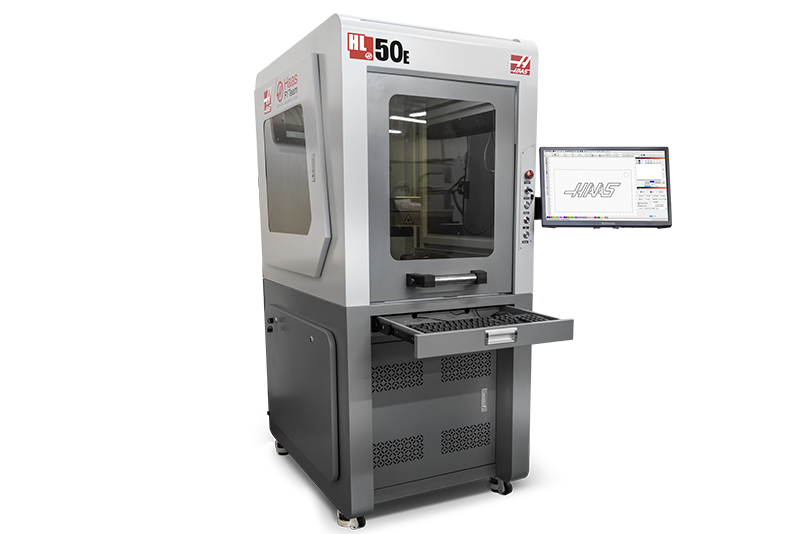
This chapter provides a basic Troubleshooting guide for both the Haas Laser Marker and the Fume Extractor.

This guide includes a table of common issues with the laser marker and the fume extractor, as well as potential solutions.

Only an authorized Haas Factory Outlet distributor should service or repair a Haas machine that is protected by the original factory warranty. Servicing by any other party voids the warranty.

 NOTE: If you cannot find the scenario that matches your situation, please contact [email protected]. 


HL-50E/XT Symptom Table

Symptom Possible Cause Corrective Action
"Please close door / check the door switch and try again" message appears when the door is closed. Door safety sensor switch is obstructed, or positioned incorrectly. Reposition the bracket to the sensor until the safety sensor switch is triggered by the door. Ensure there are no obstructions to the door safety sensor.
Device settings for door sensor switch are not setup correctly. See Safety Sensor Door Switch section below.
Laser won't turn on when "LASER POWER" is pressed. Key to "LASER ENABLED" function is on the "OFF" position. Ensure the key is set to the "ON" position, and the E-stop has been released. The "LASER POWER" button should be illuminated with a green LED when the machine is active.
The laser machine is active, but the LightBurn Laser Window displays a "Disconnected" message. Laser marking control board is ejected (USBLMCV4) from the computer. Disconnect and reconnect the USB cable from the laser marking control board to the PC, and check for other loose connctions. See the Laser Connection section below for more details.
EZCAD2 drivers were not installed, or were installed improperly. Uninstall and reinstall the necessary drivers for LightBurn. See the Laser Drivers section below for more details.
LightBurn software is not up to date. Update LightBurn to the latest released version.
https://lightburnsoftware.com/pages/download-trial
LightBurn window was closed during the middle of a job. End all LightBurn tasks on task manager and reopen a .lbrn file. The Laser Window should display a "Ready" message.
When installing Lightburn, display message says "Server cannot be reached". Drivers might not be up to date. Update the laser drivers. 
Skewed laser markings. The axis and scale are inverted and/or are bulging on the material. Lens needs to be calibrated. Refer to Galvo Lens Calibration.
Laser head does not move up or down when commanded with buttons. Coupler from motor to ballscrew is loose. Remove laser head column cover to access the coupler and tighten the coupler set screw from the motor side. 
Laser head is rough to move with handle and/or with the up and down buttons. Screw handle hard stop is tightened Loosen the screw handle. See the Laser Head Up and Down section.
Lead screw may be binding or bowed. Remove the cover to access the lead screw. Loosen the coupler and manually hand jog the laser head and check for binding or bowing of the lead screw. 
Foot switch pedal fails to Start or Stop Laser operation. Foot switch pedal parameters may be misconfigured in device settings. Adjust parameters to enable the foot switch pedal. See Foot Switch Pedal section below.
"Boot failure detected" display on the monitor screen on initial power up. Loose PC connections to the SSD hardrive. Remove the PC and acess once of the panels to check that the connection the SSD card are pushed all the way in.
If the SSD failed after checking for loose connection to the SSD card, it could be a bad SSD card. Replace the SSD. 
Laser fails to frame and attempts to engrave, but only produces a stationary laser dot moving straight downward with little to no visible marking on the material. 15VDC Power Supply is not functioning.

Check to see if the 15VDC power supply has the green LED ON and is reading the following voltages.

  • GND to +15VDC = +15VDC 
  • GND to -15VDC- = -15 VDC 
  • +15VDC to -15VDC = 30 VDC

If 15VDC Power Supply fails the troubleshooting, contact [email protected] for further assistance.

Include a comprehensive summary of the diagnostic steps performed, test results obtained, and all relevant findings to facilitate efficient evaluation and resolution of the issue.

Laser frames but does not mark. Door Safety Sensor Switch is not being triggered. See the Door Safety Sensor Switch - Laser Not Marking section. 
Laser Drivers are not installed. See the Laser Drivers section.
24VDC Power Supply is not functioning.

Check to see if the 24V power supply has the green LED ON, the cooling fan on the 24V power supply is running when laser is turned on, and is reading the following voltages:

  • GND to Neutral = 0 Vdc 
  • GND to V- = 0 Vdc 
  • GND to V+ = 24 Vdc 
  • V- to V+ = 24 Vdc. 

    If 24V Power Supply fails the troubleshooting, the 24V Power Supply is nonfunctional and will have to be replaced by ordering 93-4715 24V POWER SUPPLY HL-50E/XT.
Laser Source Failure If all prior troubleshooting procedures have been completed and the issue persists, contact [email protected] for further assistance. Include a comprehensive summary of the diagnostic steps performed, test results obtained, and all relevant findings to facilitate efficient evaluation and resolution of the issue.

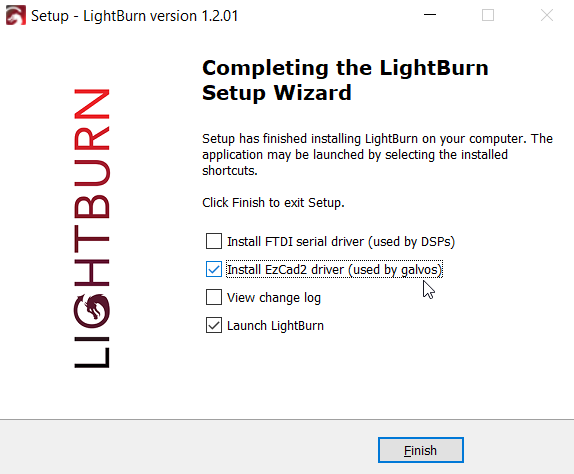
 NOTE: EZCAD2 LMC drivers are required to run LightBurn laser control software. The EZCAD2 LMC drivers and EZCAD2 laser control software are two separate entities. Do NOT download the EZCAD2 laser control software if you intend to use LightBurn (preferred).

The EZCAD2 LMC drivers can be installed upon updating or installing LightBurn, as shown in the image on the left. The LightBurn setup wizard can also be found in the following link:
https://lightburnsoftware.com/pages/download-trial

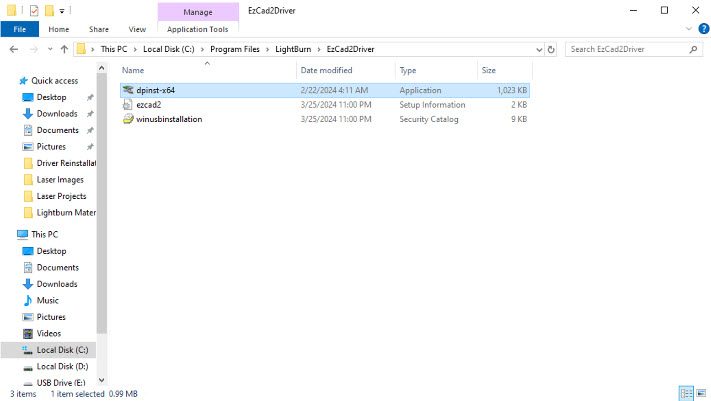
Alternately, the installer for the EZCAD2 LMC drivers is in the LightBurn files at "C:\Program Files\LightBurn\EzCad2Driver\" and can be run again via the "dpinst-x64.exe" file directly.

Door Safety Sensor Switch

1

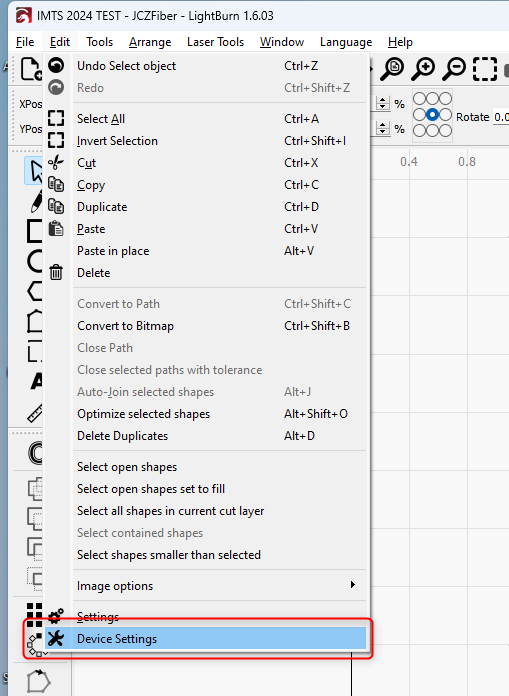
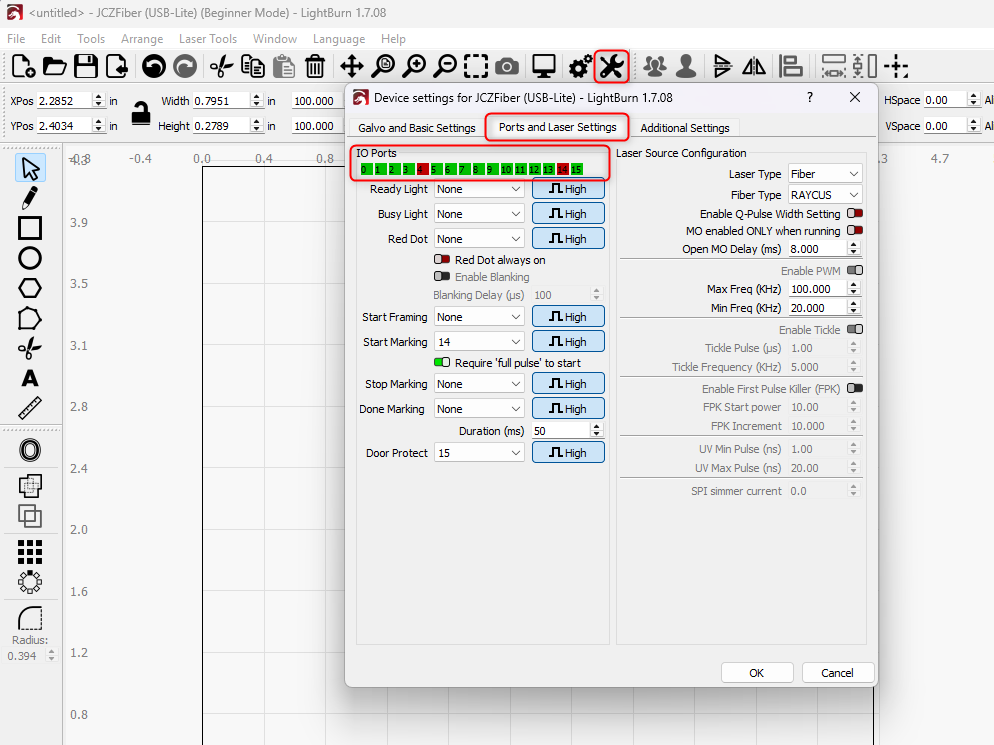
Go to EDIT > DEVICE SETTINGS to get to the Ports and Laser Settings.

2

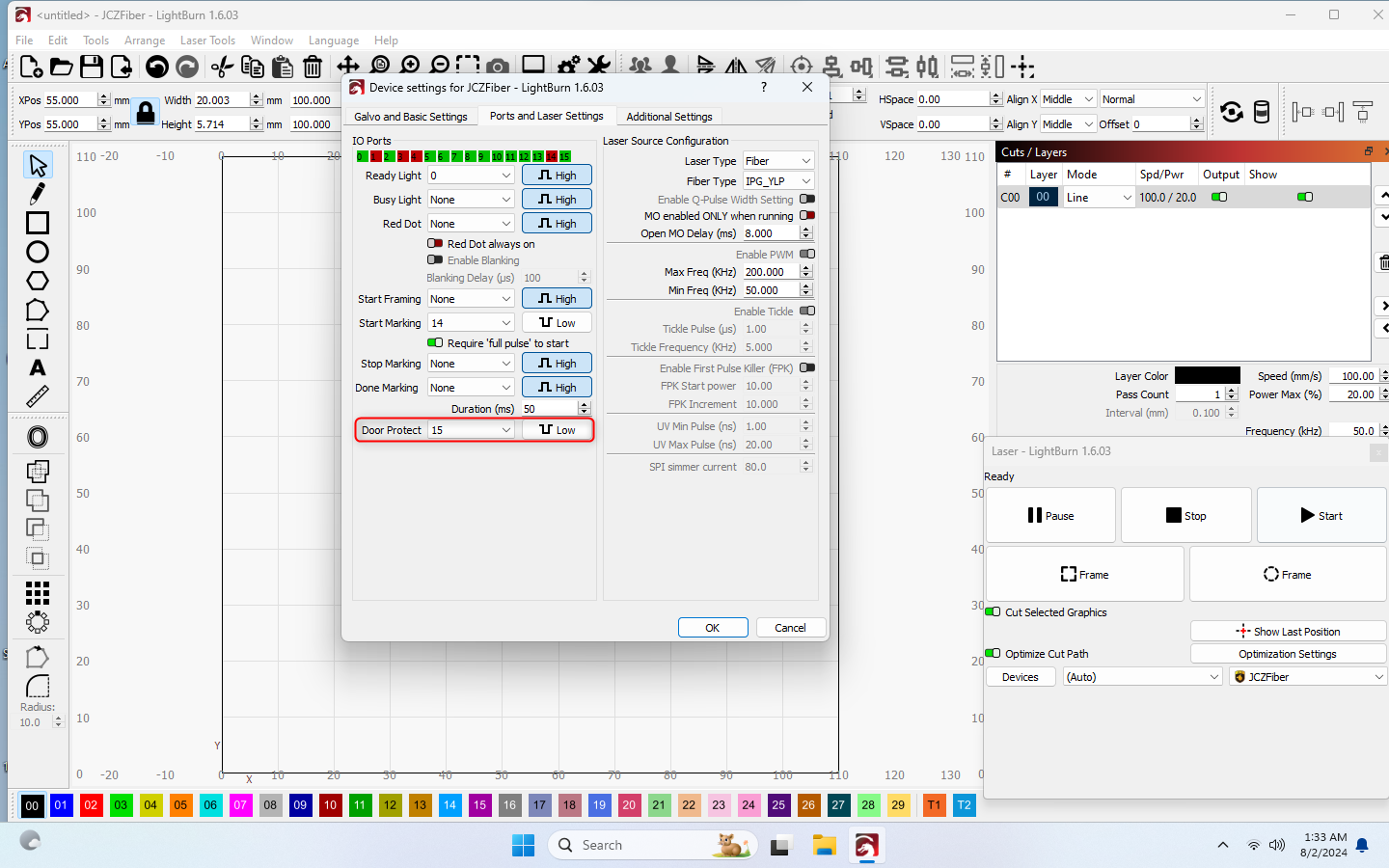
In the Ports and Laser Settings, the settings for Safety Sensor Door Switch should match to what is being shown in the image for Door Protect.

Verify by marking a test piece to see if the message appears when trying to mark with the door slightly open.

CAUTION: Be sure to use laser safe protective eyewear when marking.

Laser Connection

Unplug and plug back in the laser usb cable [1] in the back of the PC as shown in the image. 

Check to see if it appears in the device manager under "Universal Serial Bus devices".


Laser Drivers

1

Begin by opening the Windows Device Manager in the machine's PC.

If the drivers were never installed, the PC will display a "BJJCZ Device" in the Window Device Manager. 

NOTE: Laser should be on so that the PC can display the device under "Universal Serial Bus devices" tree if it is installed properly.

If the drivers were installed properly, the PC will display a generic "USBLMCV2", a "USBLMCV4", or something similar under the "Universal Serial Bus devices" tree.

If neither of these devices appear in the Windows Device Manager, skip to Step 3.


2

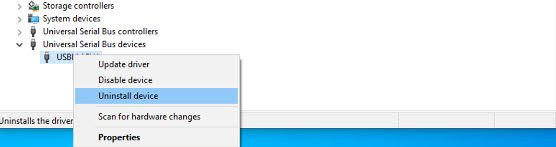
In either scenario, right-click your respective device and choose 'Uninstall Device' from the pop-up menu.

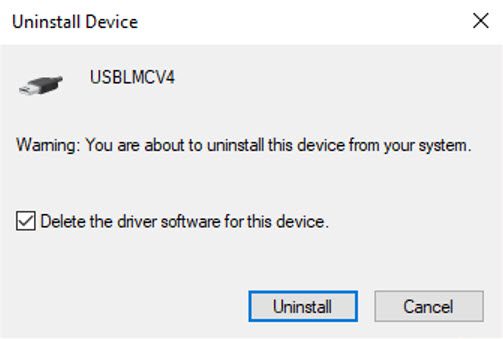
In the next window, check the box to delete the driver. This completely disassociates the driver from your device. Click the 'Uninstall' button to complete the process. When the process is complete, restart the PC.

3

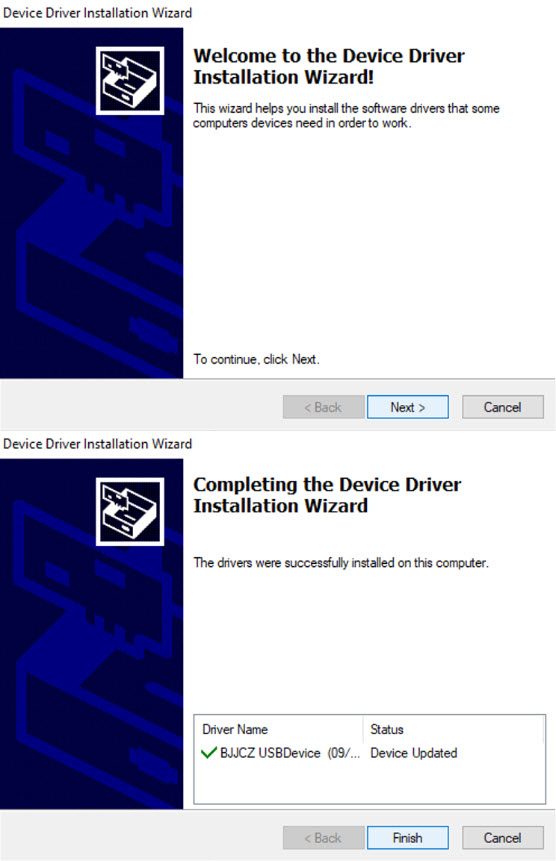
Navigate to C:\Program Files\LightBurn\EzCad2Driver\ and run the included setup file (dpinst-x64.exe) to reinstall the necessary drivers for LightBurn. When the setup installation wizard is complete, restart the PC.

Once the PC has been restarted, reopen LightBurn and ensure the Laser Window displays a 'Ready' message.

Verify that the Windows Device Manager displays a new instance of "USBLMCV2", "USBLMCV4", or something similar under the "Universal Serial Bus devices" tree.

4

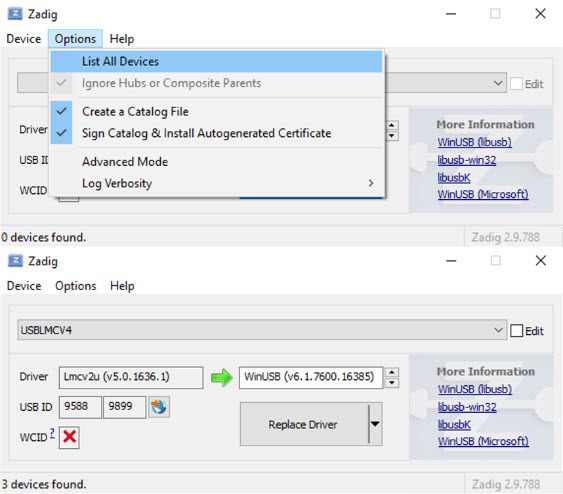
In the event the driver swap performed by running the installer isn't working, try using Zadig (a driver tool) to replace the manufacturer's with a generic driver so LightBurn can properly communicate.

Download Zadig, the driver replacement tool from https://zadig.akeo.ie/ and run it (does not require additional installation).

With the Zadig window open, open the 'Options' menu and enable the 'List All Devices' setting. In the primary device list drop-down, select 'USBLMCV2' or 'USBLMCV2' (or similar). WinUSB should be the target driver.

5

Click 'Replace Driver' and wait for the process to complete. On the rare occasion that Zadig fails, try running the function again.

When the Zadig driver installation wizard is complete, restart the PC.

Once the PC has been restarted, reopen LightBurn and ensure the Laser Window displays a 'Ready' message.

Verify that the Windows Device Manager displays a new instance of "USBLMCV2", "USBLMCV4", or something similar under the "Universal Serial Bus devices" tree.


Foot Switch Pedal

1

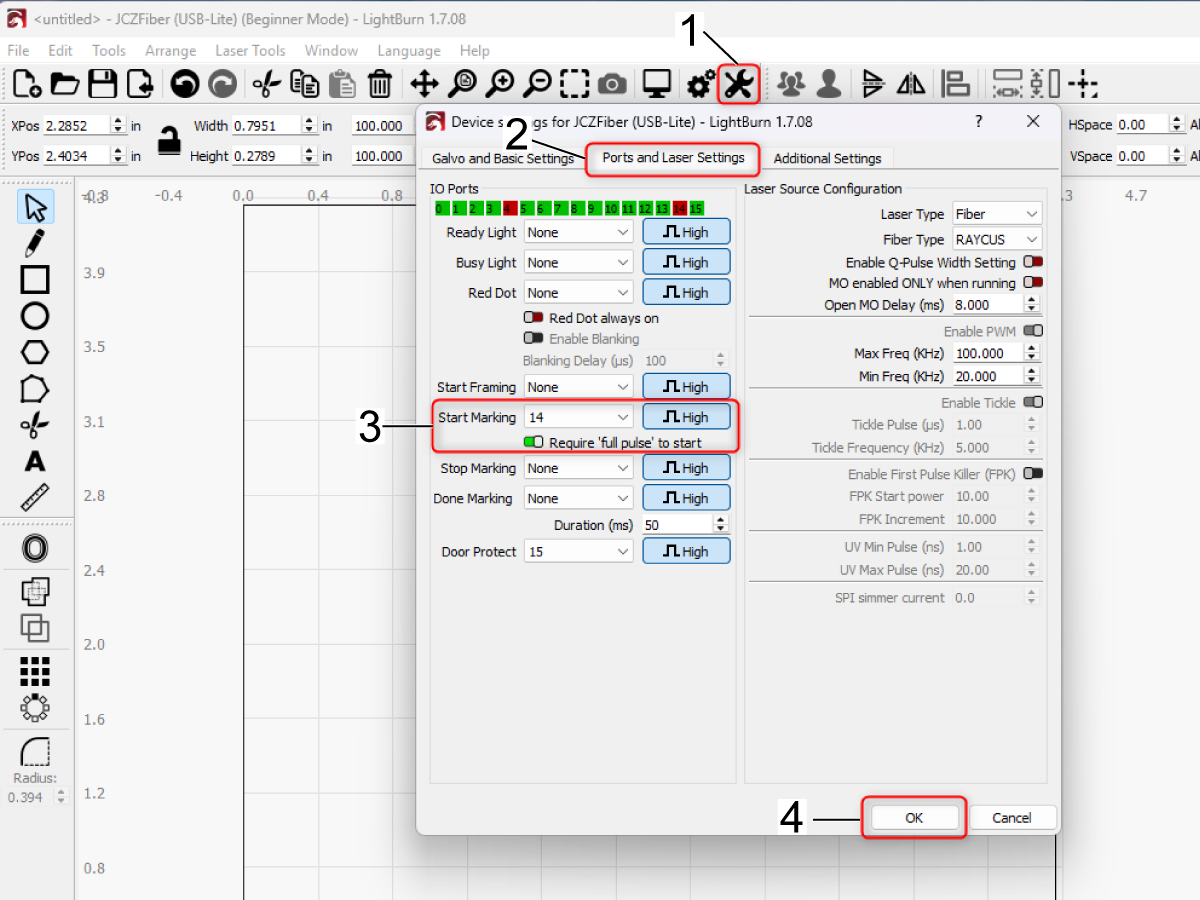
Go to Device Setting [1].

Select Ports and Laser Settings [2].

Adjust the Start Marking setting to 14 and High, and that the "full pulse" is set to ON [3].

Click OK [4].

Run a test to check if pressing the foot switch pedal initiates framing, and press it again to begin marking.

Laser Up and Down

1

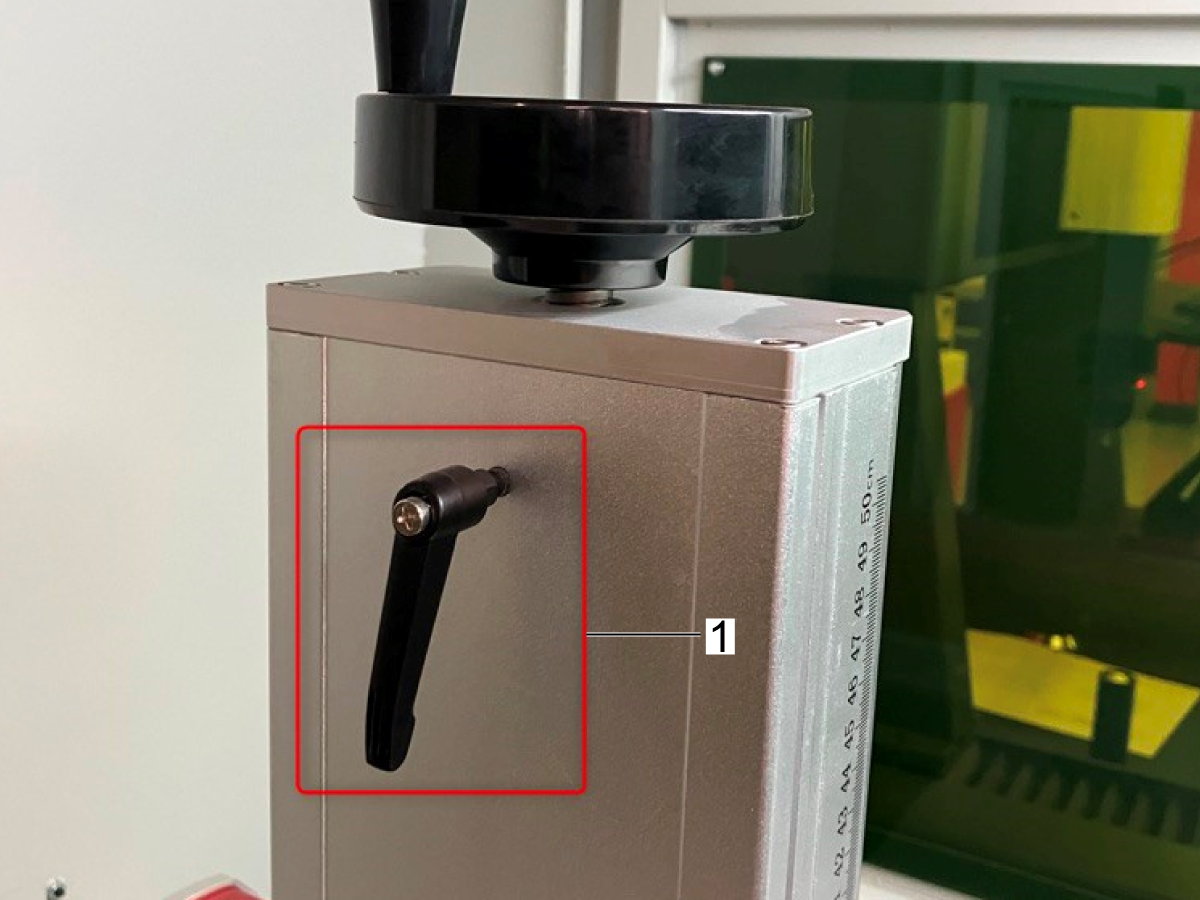
Loosen the Handle Screw [1]. 

Manually jog the head up and down to see if that allows the laser head to move up and down smoothly.

Door Safety Sensor Switch - Laser Not Marking

1

Updated

In LightBurn, access the Device Settings panel by selecting the Wrench icon. Navigate to the Ports and Laser Settings section, then locate the I/O Ports list.

Ensure the laser system is powered on but not actively marking. Open and close the machine door while observing Port 15 in the I/O display. Verify whether the port state changes when the door is actuated.

If Port 15 does not change state during this test, proceed to the next troubleshooting step.

2

Updated

If the door safety sensor switch is not being actuated by the door, manually test the switch using a metal object to simulate activation.

If the switch responds when triggered manually, adjust its position. Loosen the retaining nuts on both sides [1], then reposition the switch by moving it inward or outward as required. Secure the nuts once the switch is properly aligned so that normal door movement reliably actuates the sensor during opening and closing.

If the door safety sensor switch does not respond during manual activation, proceed to the next troubleshooting step.

3

Updated

If the door safety sensor switch fails to operate, verify that the 5 VDC power supply is functioning correctly. Measure the output voltage using a calibrated multimeter to confirm proper voltage is present. Additionally, inspect all wiring connections to the relay to ensure they are secure and properly terminated.

Inspect the following relay connections:

[1] COM cable on the dual-channel relay

[2] NC cable on the dual-channel relay

[3] Wiring to IN1, IN2, DC−, and DC+ terminals on the relay PCB

[4] 5 VDC supply cable connected to the 5 VDC power supply and to DC+ on the dual-channel relay

[5] GND connection from the 5 VDC power supply to DC− on the dual-channel relay

[6] Confirm that the Level Trigger setting is configured to Low for both relay channels

If the door safety sensor switch continues to fail after verifying voltage and confirming all relay connections, replace the component with part number 93-5200 - Door Safety Sensor Switch HL-50E/XT.

Troubleshooting - Fume Extractor

SYMPTOM POSSIBLE CAUSE CORRECTIVE ACTION
Fume Extractor is not functioning when switched on. Knob is set to "Off" Turn the knob clockwise to set the intensity of the vacuum.

Recently Viewed Items

You Have No Recently Viewed Items Yet

Feedback
Haas Logo

Haas Delivered Price

This price includes shipping cost, export and import duties, insurance, and any other expenses incurred during shipping to a location in France agreed with you as a buyer. No other mandatory costs can be added to the delivery of a Haas CNC Product.

KEEP UP WITH THE LATEST HAAS TIPS AND TECHNOLOGY...

Sign up now!   

HAAS TOOLING ACCEPTS THE FOLLOWING:

  • Service & Support
  • Owners
  • Request Service
  • Operator Manuals
  • Haas Parts
  • Rotary Repair Request
  • Pre-Install Guides
  • Shopping Tools
  • Build & Price a New Haas
  • Available Inventory
  • The Haas Price List
  • CNCA Financing
  • About Haas
  • Accessibility Statement
  • DNSH Statement
  • Export Compliance
  • Careers
  • Certifications & Safety
  • Contact Us
  • History
  • Terms & Conditions
  • Haas Tooling Terms & Conditions
  • Privacy
  • Warranty
  • Haas Community
  • Haas Certification Program
  • Haas Motorsports
  • Gene Haas Foundation
  • Haas Technical Education Community
  • Events
  • Join the Conversation
  • Facebook
  • X
  • Flickr
  • YouTube
  • LinkedIn
  • Instagram
  • TikTok
© 2026 Haas Automation, Inc – CNC Machine Tools

This site is protected by reCAPTCHA and the Google Privacy Policy and Terms of Service apply.

2800 Sturgis Rd., Oxnard, CA 93030
Toll Free: (888) 817-4446 / Fax: 805-278-8554