My Haas Welcome,
!
Haas Tooling MyHaas/HaasConnect Sign In Register Haas Tooling MyHaas/HaasConnect Sign Out Welcome, My Machines Latest Activity My Quotes My Account My Users Sign Out
Find Your Distributor
  1. Select Language
    1. English
    2. Deutsch
    3. Español - España
    4. Español - México
    5. Français
    6. Italiano
    7. Português
    8. Český
    9. Dansk
    10. Nederlands
    11. Magyar
    12. Polski
    13. Svenska
    14. Türkçe
    15. 中文
    16. Suomi
    17. Norsk
    18. الإنجليزية
    19. български
    20. Hrvatski
    21. Ελληνικά
    22. Română
    23. Slovenský
    24. Slovenščina
    25. 한국어
    26. 日本語
    27. Українська
  • machines Main Menu
    • Vertical Mills
      Vertical Mills
      Vertical Mills View All
      • Vertical Mills
      • VF Series
      • Universal Machines
      • VR Series
      • VP-5 Prismatic
      • Pallet-Changing VMCs
      • Mini Mills
      • Mold Machines
      • High-Speed Drill Centers
      • Drill/Tap/ Mill Series
      • Toolroom Mills
      • Pocket Mill
      • Compact Mills
      • Gantry Series
      • SR Sheet Routers
      • Extra-Large VMC
      • Double-Column Mills
      • 3+2 Positioning Machines
    • Multi-Axis Solutions
      Multi-Axis Solutions
      Multi-Axis Solutions View All
      • Multi-Axis Solutions
      • Y-Axis Lathes
      • 5-Axis Mills
    • Lathes
      Lathes
      Lathes View All
      • Lathes
      • ST Series
      • Dual-Spindle
      • Box Way Series
      • Toolroom Lathes
      • Chucker Lathe
      • Haas Bar Feeders
    • Horizontal Mills
      Horizontal Mills
      Horizontal Mills View All
      • Horizontal Mills
      • 50-Taper
      • 40-Taper
    • Rotaries & Indexers
      Rotaries & Indexers
      Rotaries & Indexers View All
      • Rotaries & Indexers
      • Rotary Tables
      • Indexers
      • 5-Axis Rotaries
      • Extra-Large Rotaries
    • Special Series
      Special Series
      Special Series View All
      • Special Series
      • EU_Series_Redirect
    • Automation Systems
      Automation Systems
      Automation Systems View All
      • Automation Systems
      • Mill Automation
      • Lathe Automation
      • Automatic Parts Loaders
      • Automation Models
    • Desktop Machines
      Desktop Machines
      Desktop Machines View All
      • Desktop Machines
      • Desktop Mill
      • Desktop Lathe
      • Control Simulator, Standard
      • Control Simulator, Premium
    • Shop Equipment
      Shop Equipment
      Shop Equipment View All
      • Shop Equipment
      • Knee Mill
      • Haas Manual Lathes
      • Haas Saws
    • Fabrication Machines
      Fabrication Machines
      Fabrication Machines View All
      • Fabrication Machines
      • Laser Cutting Machines
      • CNC Press Brakes
    • QUICK LINKS Special Series  Special Series 
      EU SERIES EU SERIES BUILD & PRICE | PRICE LIST BUILD & PRICE | PRICE LIST In-Stock Machines In-Stock Machines WHAT’S NEW WHAT’S NEW YOUR FIRST CNC YOUR FIRST CNC
      SHOPPING TOOLS
      • Build & Price a Haas
      • Price List
      • Available Inventory
      • CNCA Financing
      WANT TO TALK TO SOMEONE?

      A Haas Factory Outlet (HFO) can answer your questions, and walk you through your best options.

      CONTACT YOUR DISTRIBUTOR >
  • Options Main Menu
    • The Haas Control Value Option Packages
      Value Option Packages
      Value Option Packages View All
      • Value Option Packages
    • Product Image Spindles
      Spindles
      Spindles View All
      • Spindles
    • Product Image Tool Changers
      Tool Changers
      Tool Changers View All
      • Tool Changers
    • Product Image 4th- | 5th-Axis
      4th- | 5th-Axis
      4th- | 5th-Axis View All
      • 4th- | 5th-Axis
    • Product Image Turrets & Live Tooling
      Turrets & Live Tooling
      Turrets & Live Tooling View All
      • Turrets & Live Tooling
    • Product Image Probing
      Probing
      Probing View All
      • Probing
    • Haas Chip & Coolant Management Chip & Coolant Management
      Chip & Coolant Management
      Chip & Coolant Management View All
      • Chip & Coolant Management
    • The Haas Control The Haas Control
      The Haas Control
      The Haas Control View All
      • The Haas Control
    • Product Image Product Options
      Product Options
      Product Options View All
      • Product Options
    • Product Image Tooling & Fixturing
      Tooling & Fixturing
      Tooling & Fixturing View All
      • Tooling & Fixturing
    • Product Image Workholding
      Workholding
      Workholding View All
      • Workholding
    • Product Image 5-Axis Solutions
      5-Axis Solutions
      5-Axis Solutions View All
      • 5-Axis Solutions
      • 5 Easy Steps to 5-Axis
    • QUICK LINKS Special Series  Special Series 
      EU SERIES EU SERIES BUILD & PRICE | PRICE LIST BUILD & PRICE | PRICE LIST In-Stock Machines In-Stock Machines WHAT’S NEW WHAT’S NEW YOUR FIRST CNC YOUR FIRST CNC
      SHOPPING TOOLS
      • Build & Price a Haas
      • Price List
      • Available Inventory
      • CNCA Financing
      WANT TO TALK TO SOMEONE?

      A Haas Factory Outlet (HFO) can answer your questions, and walk you through your best options.

      CONTACT YOUR DISTRIBUTOR >
  • Why Haas Main Menu
      Discover the Haas Difference
    • Why Haas
    • MyHaas
    • Education Community
    • Industry 4.0
    • Haas Certification
    • Customer Testimonials
  • Service Main Menu
      Welcome to Haas Service
      SERVICE HOME Operator’s Manuals How-To Procedures Troubleshooting Guides Preventive Maintenance Haas Parts Haas Tooling Videos
  • Videos Main Menu
  • Main Menu
    • View All
    • View All
    • View All
    • View All
      • HTEC Curriculum Support
    • View All
      • Haas 10 kg Cobot Package
      • Cobot Kits
      • DC-1 Drill Center
      • CNC Sales News
      • Do More With Your Haas
    • View All
    • View All
      • contact-us-test
      • 4 - AUTOMATION SYSTEMS
      • Carousel-V2
      • expert test
      • Demo_Day_Trident-test
      • Link Test
      • image-sale-tag-test
      • article-list-test
      • Haas 25 kg Robot Package
    • View All
      • Choose Options
    • View All
    • View All
    • View All
    • View All
    • View All
      • calc-test
    • View All
    • QUICK LINKS Special Series  Special Series 
      EU SERIES EU SERIES BUILD & PRICE | PRICE LIST BUILD & PRICE | PRICE LIST In-Stock Machines In-Stock Machines WHAT’S NEW WHAT’S NEW YOUR FIRST CNC YOUR FIRST CNC
      SHOPPING TOOLS
      • Build & Price a Haas
      • Price List
      • Available Inventory
      • CNCA Financing
      WANT TO TALK TO SOMEONE?

      A Haas Factory Outlet (HFO) can answer your questions, and walk you through your best options.

      CONTACT YOUR DISTRIBUTOR >
  • Haas Tooling Main Menu
  • Haas Service Parts Main Menu

My Haas Welcome,
!
Haas Tooling MyHaas/HaasConnect Sign In Register Haas Tooling MyHaas/HaasConnect Sign Out Welcome, My Machines Latest Activity My Quotes My Account My Users Sign Out
Find Your Distributor
  1. Select Language
    1. English
    2. Deutsch
    3. Español - España
    4. Español - México
    5. Français
    6. Italiano
    7. Português
    8. Český
    9. Dansk
    10. Nederlands
    11. Magyar
    12. Polski
    13. Svenska
    14. Türkçe
    15. 中文
    16. Suomi
    17. Norsk
    18. الإنجليزية
    19. български
    20. Hrvatski
    21. Ελληνικά
    22. Română
    23. Slovenský
    24. Slovenščina
    25. 한국어
    26. 日本語
    27. Українська
×

Search Results

Web Pages

Images

    • <
    • 1
    • >

Wireless Intuitive Probe System - WIPS - RF - Troubleshooting Guide - TG0162

Service Home Wireless Intuitive Probe System - WIPS - RF - Troubleshooting Guide - TG0162

Wireless Intuitive Probe System - WIPS - RF - Troubleshooting Guide - TG0162

- Jump to Cause - Back to Top
Recently Updated Last updated: 10/15/2025

Wireless Intuitive Probe System - WIPS - RF - Troubleshooting Guide


TG0162

Revision A - 09/2025

Download and fill out the Probe Inspection Report Checklist below before replacing any parts.

Probe Inspection Report Checklist

Introduction

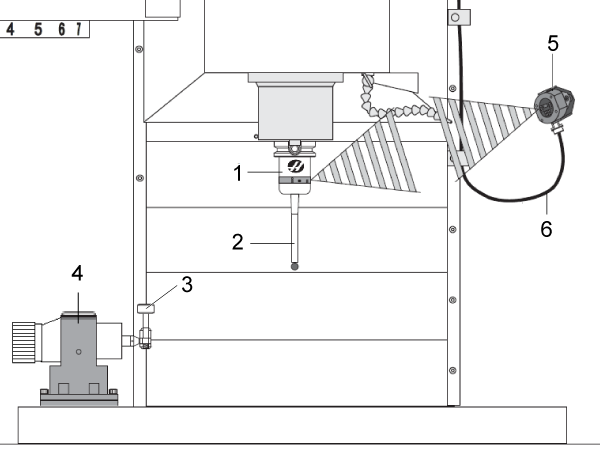
  1. RMP40 work probe (spindle): A spindle-mounted wireless probe that communicates with a radio interface.
  2. Work probe stylus: The part of the work probe that touches parts during measurement.
  3. Tool probe stylus : The part of the tool probe that tools touch during measurement. Tools touch the top and side of the stylus when the probe measures tool length and diameter.
  4. RTS tool probe (table): The RTS is a battery-powered, wireless probe.
  5. RMI-QE Optical Machine Interface: The wireless interface for the RMP40 work probe. The RMI-QE uses radio signals to communicate with the CNC control and switch the probe on or off.
  6. RMI cable: This cable connects the RMI to the CNC control.

Work probes for Wireless Intuitive Probe System - Radio Frequency (WIPS -RF) do not work in the wired probe systems (VQCPS) or Wireless Intuitive Probe System - Optical Frequency (WIPS-OF). The work probes can be differentiated by:

  1. The VQCPS work probe (P/N 60-0024) has a square Haas logo.
  2. The WIPS work probe (P/N 60-0050) has a round Haas logo.
  3. The WIPS - RF work probe (P/N 60-0133) has Model RMP40QE writen on the side. 

For installation instructions for both the work probe and tool probe refer to: WIPS - RF - Installation

Powering on the Work Probe and Tool Probe

Probe Operation: Power on the Work Probe Power on the Tool Probe
Classic Haas Control (CHC)

M59 P1134;

Push [CYCLE START].

M59 P1133;

G04 P1.0;

M59 P1134;

Push [CYCLE START].

Next Generation Contol (NGC)

M59 P3;

Push [CYCLE START].

M59 P2;

G04 P1.0;

M59 P3;

Push [CYCLE START].


The LEDs on the work probe flash green when the probe is powered on and ready for use.

When the probe stylus is touched, a “beep” sound is made by the CNC control.

The LEDs on the work probe flash red each time the stylus is touched.

The LEDs on the work probe flash green when the probe is powered on and ready for use.

When the probe stylus is touched, a “beep” sound is made by the CNC control.

The LEDs on the work probe flash red each time the stylus is touched.

When the stylus on the tool probe is touched, the CNC control makes a "beep" sound.

The tool probe does not have any LEDs.

Symptom Table

Symptom Possible Cause Corrective Action
Alarm 1086 PATH OBSTRUCTED  Protected Positioning Cycle only. Clear the obstruction and start again from a safe position.
Alarm 1088 NO FEED RATE Protected Positioning Cycle only. Insert the F code input and start again from a safe position. Recommended protected positioning feed rate is 120 in/min.
Alarm 1089 NO TOOL LENGTH ACTIVE G43 or G44 is not active before the cycle is called. Edit the program and start again from a safe position.
Alarm 1091 FORMAT ERROR  Inputs are mixed, missing, or incorrectly formatted. Edit the program and start again from a safe position.

Alarm 1092 PROBE OPEN/UNEXPECTED SURFACE FOUND


Interference from the work lights. Adjust the work lights
Settings in the work probe are not correct. Correct the settings.
The surface of the part was found, when not expected. Edit the program.
Occurs if the probe is already triggered before a move or triggered while positioning the probe or tool. Clear faults and restart from safe position, check if chips are trapped around probe eyelids
Alarm 1093 PROBE FAIL/SURFACE NOT FOUND Interference from the work lights. Adjust the work lights
Settings in the work probe are not correct. Correct the settings.
The surface of the part was not found. Edit the program.
Alarm 1099 BROKEN TOOL This alarm occurs if a tool is out of user defined tolerance. Replace defective tool and establish correct tool offset value.
Alarm 1101 PROBE STARTUP FAILURE. Bad Batteries. Replace the batteries.
The macros are corrupted. Reload the macros
Settings in the work probe are not correct Correct the settings 
Alarm 1011 RMP40 Not Calibrated The work probe tool offset does not match macro variable #10561. To correct this issue re-calibrate the work probe.
The work probe is not calibrated. To correct this issue calibrate the work probe.
Alarm 1106 or 1107 RMP40 Needs Calibration The work probe tool offset does not match macro variable #10561. To correct this issue re-calibrate the work probe.
The work probe is not calibrated. To correct this issue calibrate the work probe.
Alarm 1010 RTS Not Calibrated The tool probe is not calibrated. Calibrate the tool probe.
Alarm 1104 RTS Needs Calibration The tool probe is not calibrated. Calibrate the tool probe.
Incorrect measurements. The probe does not give repeatable location results. The probe is not calibrated. Calibrate the probe.
The probe stylus is loose. Check the probe stylus.
The probe stylus is not concentric to the spindle centerline (runout). Adjust the probe stylus to eliminate runout.
The WIPS programs or macro variables are corrupted. Load the latest Renishaw macro programs. Make sure to overwrite the current macro programs.
On an EC-400 the probe was commanded to expand or retract using M104/M105 then Alarm 329 UNDEFINED M CODE appears Probe arm type parameter value was set incorrectly Check Parameter 805 PROBE ARM TYPE and verify the value is on AUTO. 
On EC-400 Alarm 808 AUTOMATIC PROBE ARM FAULT appears while retracting. The connector for the probe down switch on the cable is pinned incorrectly. Check the pin out on the probe down switch cable. Refer to the EC-400 Automatic Probe arm Cable section for further information. 
Intermittently, the probe cylinder can get stuck in the extended position causing Alarm 808 AUTOMATIC PROBE ARM FAULT on EC-400/500/630 and VC-400/SS machines built in 2017 or later. Air can leak past the piston O-ring due to the design having minimal compression. This is witnessed by observing air coming out of the exhaust port of the solenoid when the cylinder is extended. Refer to HSG-A-12/04/2024 for the corrective action. 
The probe is not communicating with the RMI. The probe may be in the wrong mode. Check which mode the probe is in by referring to the light sequence guide in the relevant section below. Change the mode as needed.

UMC-350HD Machines built before 6/14/2023

Tools 1.25 inches or longer do not reach the RTS Probe.

Longer tools will need to update the probe mount. Refer to the UMC-350HD Probe Mount Retro Fit procedure to determine if the machine has the old probe mount and retrofit the new one if needed.
Probes on a CM-1 machine are powering on and off unexpectedly. There is an issue with electrical noise affecting the RMI function on the CM-1 machine. Contact Haas Service for corrective action.  NOTE: Do not replace any parts for these symptoms. Refer to HBC-N-01/09/2025 for more details.
The RMI intermittently tries to switch-on both probes at the same time. 
The LEDs for both probes are lit on the RMI simultaneously.
Work probe assembly not properly aligned. Work probe assembly dropped. Re-ceck for on correct on-center adjustment. Refer to the Renishaw - RMP40 Probe - Installation section of the WIPS-RF - Installation procedure for more information.
No LEDs lit on RMI-Q Overvoltage, undervoltage, or no power. Check voltage supply.
Damaged cable. Check wiring.
RMI-QE status LEDs do not correspond to radio "PROBE STATUS" LEDs. Radio link failure - radio probe out of RMI-QE range. Check position of RMI-QE, refer to the operating envelope in the relevant radio probe installation guide. 
Radio probe has been enclosed/shielded by metal. Review installation.
Radio probe and RMI-QE are not partnered.  Partner radio probe and RMI-QE.
RMI-QE "ERROR" LED illuminated. Radio probe and RMI-QE are not partnered. Partner radio probe and RMI-QE.
Exhausted radio probe batteries. Change radio probe batteries.
Probe not switched on. Check configuration and alter as required.
Probe out of range. Check position of RMI-QE, refer to the operating envelope in the relevant radio probe installation guide.
Probe selection error. Verify that one radio probe is working and is correctly selected.
All four lower LEDs flashing. Wiring fault. Check wiring.
Output overcurrent. Check wiring, turn power to RMI-QE off and on again to reset.
RMI-QE "LOW BATTERY" LED lit. Low radio probe batteries. Change radio probe batteries soon.
Reduced range. Local radio interference. Identify and remove.
Radio probe has been enclosed/shielded by metal. Review installation.
RMI-QE "SYSTEM STATUS" LED is continually lit red. Radio probe is not compatible with RMI-QE. Use a radio probe with a "QE" marking.
RMI-QE "SYSTEM STATUS" LED does not show the active probe's status. RMI-QE "LOW BATTERY/START" LED is lit green and radio probe LEDs are lit. RMI-QE machine start input is active, but radio probe is set to spin on/shank on and is operating. Remove RMI-QE machine start input.
Probe triggers when released at install. Dip Switch on RMI-QE is set incorrectly. See Dip Switch Section below.
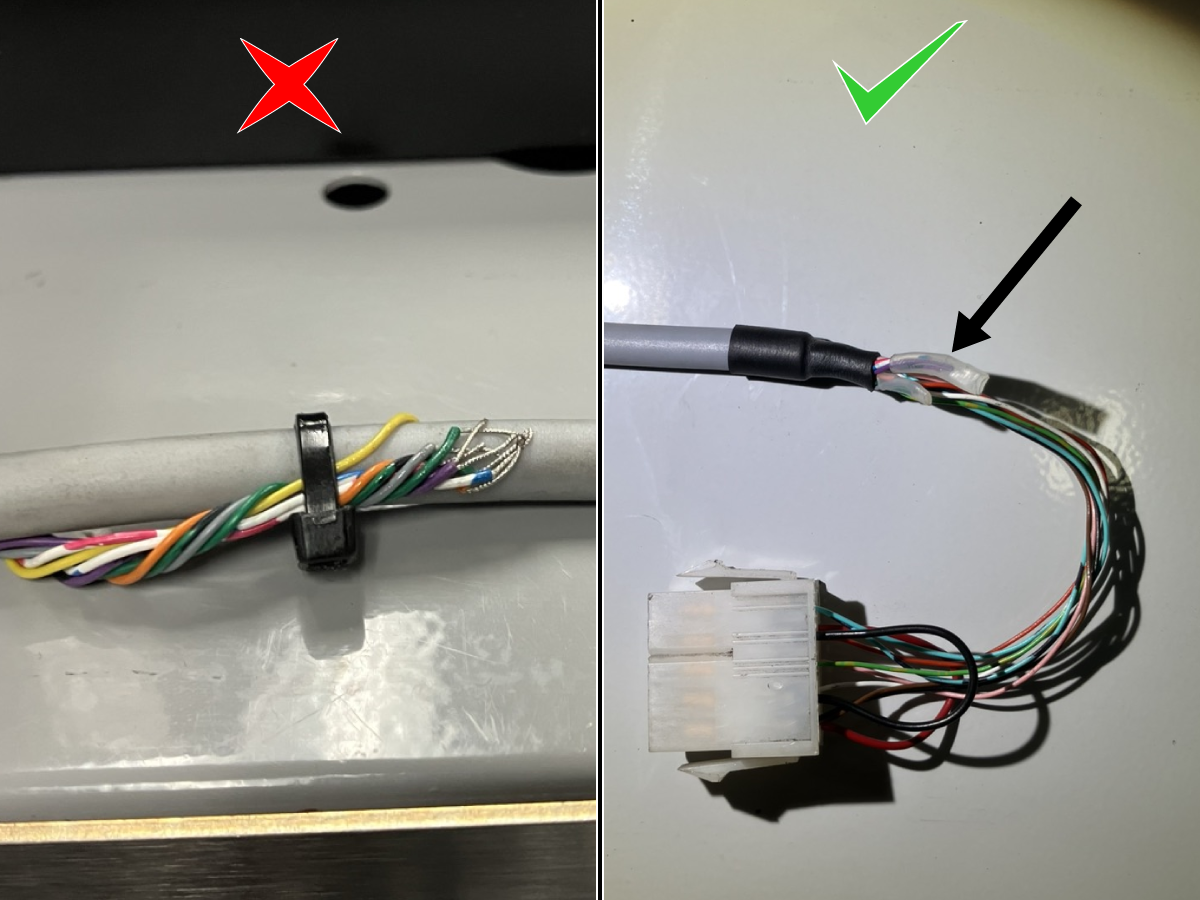
Probe getting stuck in the activation program. Unused wires are shorting to one another. See Unused Wire Section below.
Loose pins in the molex connector. Verify pins are fully seated in the molex connector.

EC-400 Automatic Probe Arm Cable

1

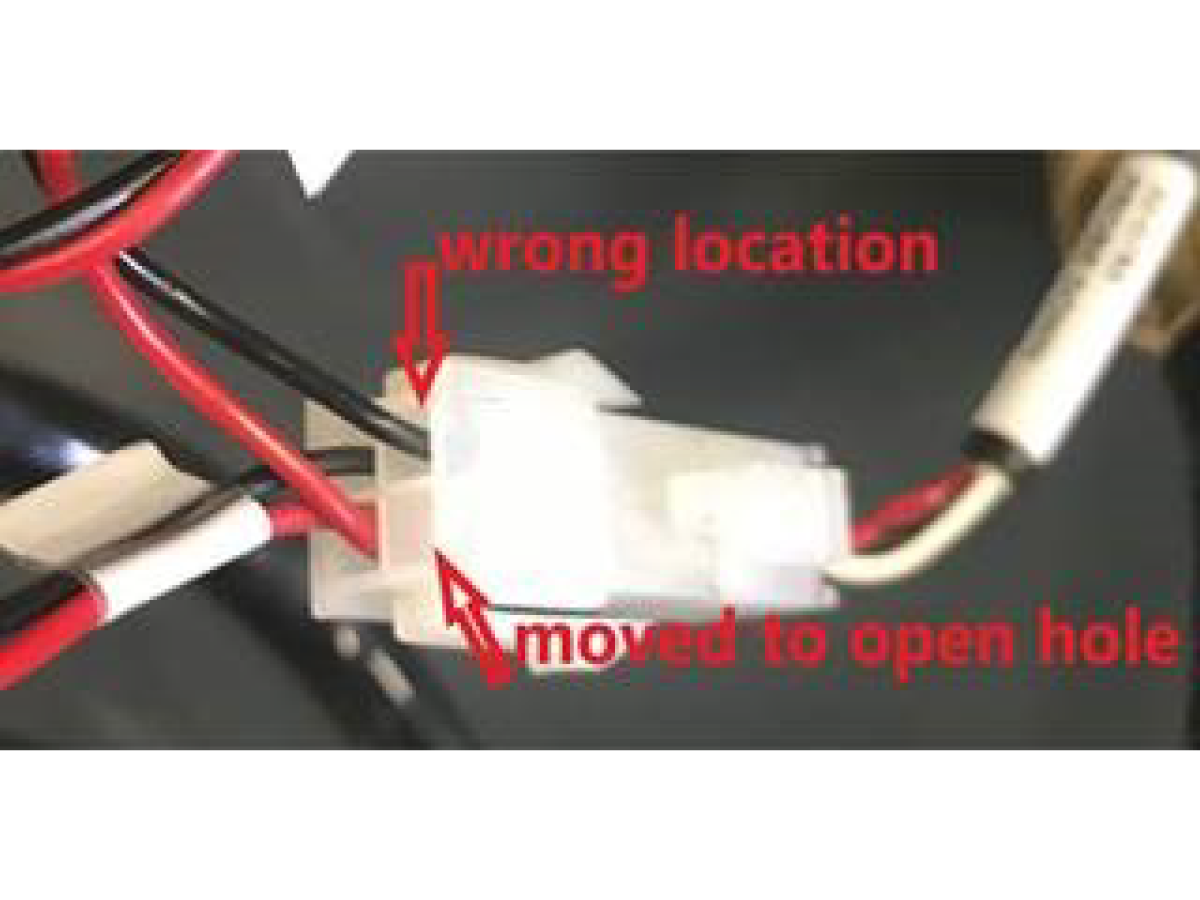
An example of a mis-pinned connector is shown on the left, the cable that connects to cable 32-0763 had a pin in the wrong location. 

Re-pin the wire to the correct location indicated in the image. 

2

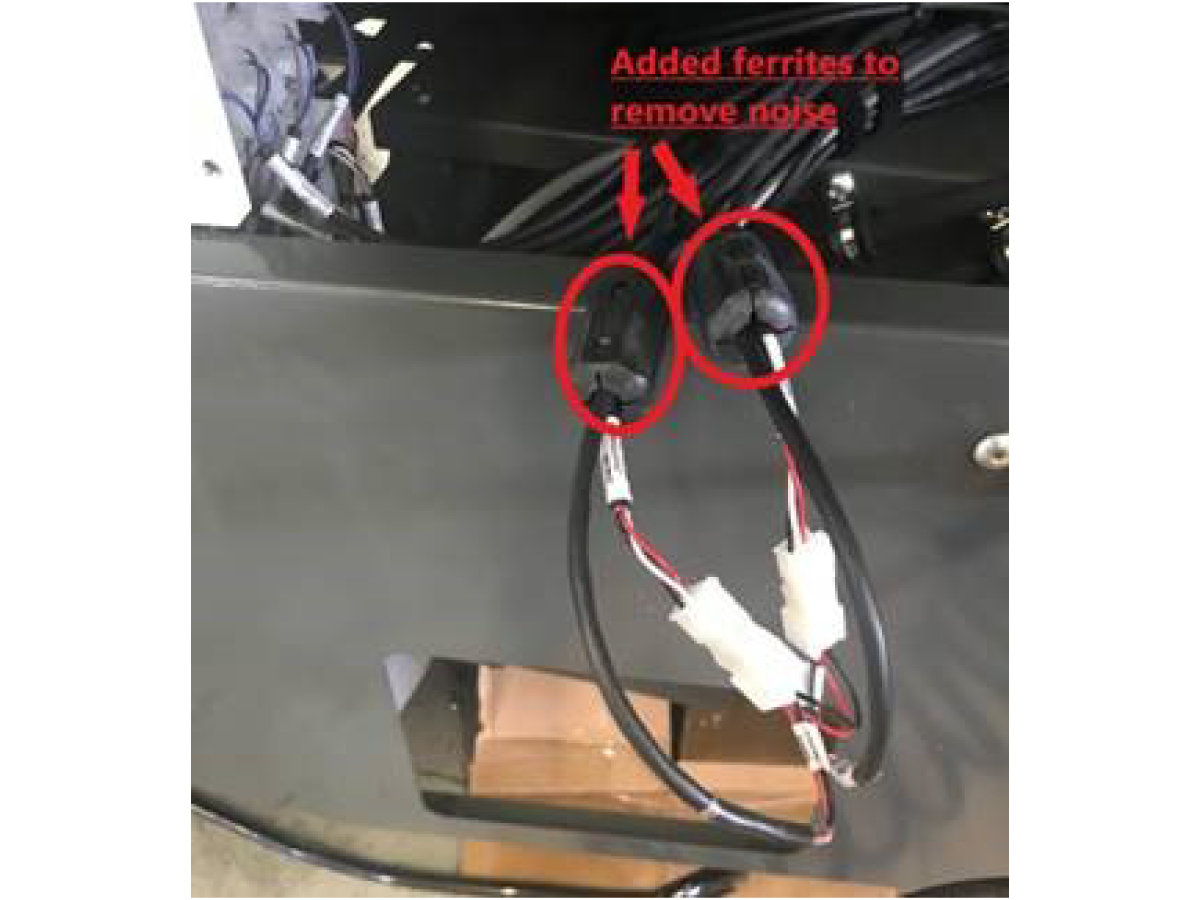
If the probe up input flickers between 1 and 0 add ferrite filters to reduce noise. 

Batteries

Corrective Action:

Battery replacement is always the first step in probe troubleshooting. Replace both batteries at the same time. Test the batteries before you install them.

 Note: Do not allow coolant or debris to enter the battery compartment.

The life span of the batteries in the probes are shown in the tables below. They must be replaced regularly. If the batteries are low, the work probe's green and blue LEDs may flash. If the batteries are completely dead, the red LED may constantly be on.

Do not rely on a multimeter for testing the batteries. The lithium batteries in the probe may read 3.6 Volts from a multimeter, even though they are low.

Write the date on newly installed batteries for future reference.

 Note: Do not touch the stylus during battery replacement. If the stylus is touched, the probe may power on in the setting mode. Settings can be accidentally changed in this mode.

                         RMP40 Typical battery type                          2 x 1/2 AA 3.6 V LTC batteries
Typical battery life   Radio on Spin on
(1 s turn-on) (0.5 s turn-on)
Standby life 82 months 44 months 46 months
Light usage 1% 67 months 40 months 40 months
Heavy usage 5% 39 months 28 months 28 months
Continuous use 2560 hours 2560 hours 2560 hours


                          RTS Typical battery type                        2 x  AA 3.6 V LTC batteries 2 x AA 1.5 V alkaline batteries
Typical battery life    (1 s turn-on) (0.5 s turn-on) (1 s turn-on) (0.5 s turn-on)
Standby life 99 months 63 months 51 months 34 months
Light usage 1% 87 months 58 months 44 months 31 months
Heavy usage 5% 58 months 44 months 28 months 22 months
Continuous use 4860 hours 4860 hours 2160 hours 2160 hours

Interference

Corrective Action:

Turn the work lights off to begin troubleshooting. Make sure the work lights inside the machine are not aimed at the probe or the RMI-QE. Bright lights can interfere with the work probe. Make sure no bright lights are aimed at the machine.

Corrective Action:

Verify there are no objects obstructing the path of the radio frequencies between the RMI-QE, RMP40, and the RTS, as they can interfere with the probe communication.  

Surface Not Found

Corrective Action:

Edit the program to start the probe closer to the part.

Calibration

Corrective Action:

The probes need to be calibrated any time a stylus has been replaced, the tool probe has been moved, or if the CNC control generates alarms during probe routines. The probe needs to be calibrated when changing from inch to metric or metric to inch.

Follow the procedure to calibrate the tool probe and the work probe. Refer to:

  • CHC: Wireless Intuitive Probe System (WIPS) - Calibration.
  • NGC: Next Generation Control - Probe Calibration (VPS)

The probes must be calibrated in this order:

  1. Tool probe
  2. Work probe length
  3. Work probe diameter

RMP40 Work Probe Settings

Probe Settings Basics

The probe settings are in (3) groups,

  1. Switch-On Method
  2. Switch-Off Method
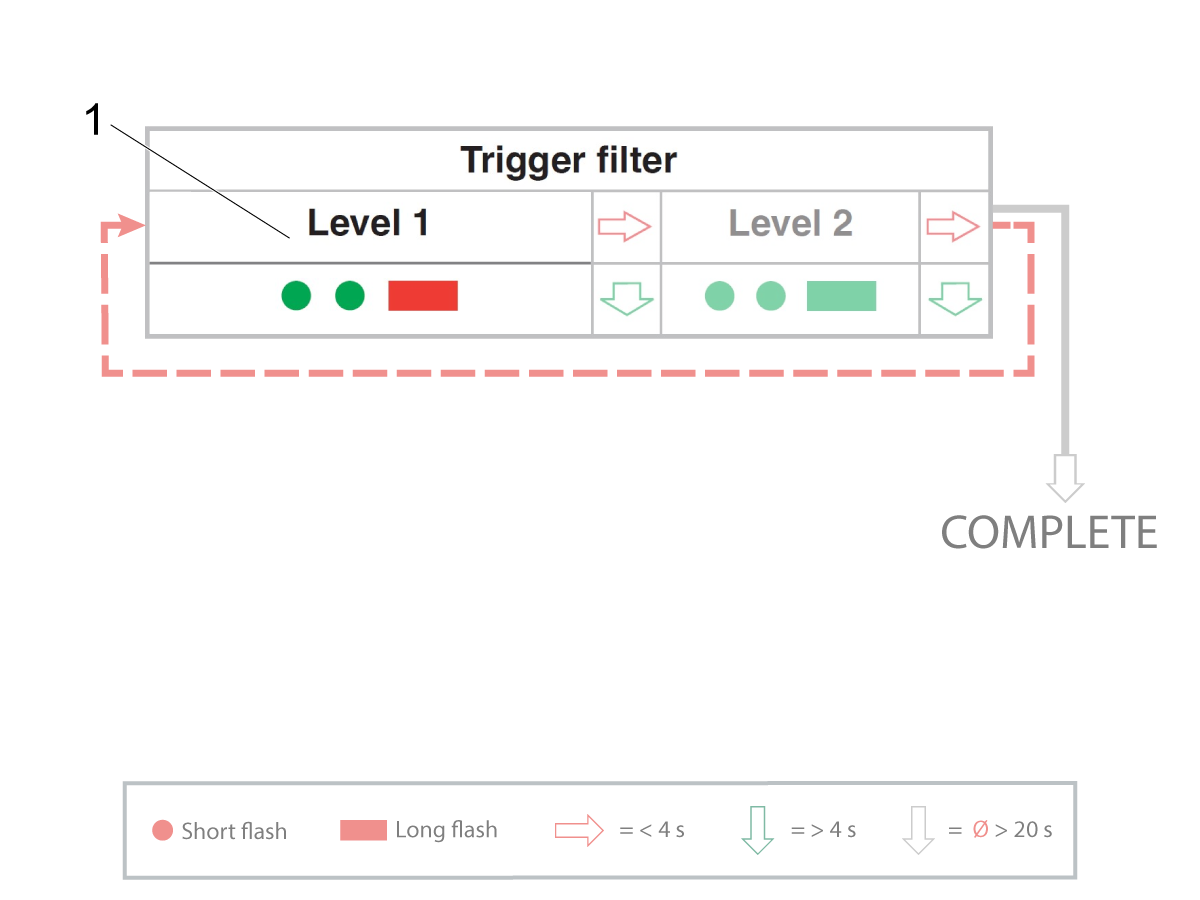
  3. Enhanced Trigger Filter

The sequence that probe flashes tells you the current probe settings.

 Note: The LEDs flash in different colors and different lengths of time. The sequence that the LED flashes tells you the probe settings. The LEDs flashes a short or a long time. In the tables that follow, a small colored circle  shows that the LED flashes a short time. A rectangle  shows that the LED flashes a long time.

To see what the current probe settings are, do the following:

Remove the batteries from the probe for a minimum of 5 seconds.

Install the batteries.

Important: Do not touch the probe stylus after re-inserting batteries - this is how probe settings are changed. Only touch it later if necessary to change the settings.

After you replace the batteries, the probe LED flashes in a specific sequence.

Look at the probe LEDs. Record the sequence that the LED flashes.

Refer to Renishaw Probe - WIPS-RF - RMP40 - Settings for the meaning of the sequence.

If you would like to change the probe settings, do the following:

Remove the batteries [1] from the probe for a minimum of 5 seconds.

Install the batteries.

Note: Do not touch the probe when installing the batteries, this could alter the probe settings.

Immediately after the LED sequence [2], deflect and hold the stylus [3], the probe will flash Red 8 times.

 Note: If the battery power is low, each red flash will be followed by a blue flash.

Keep the stylus deflected until the "Switch -on Method" setting is displayed. Release the stylus.

To change the probe settings you move the stylus in a specified order, refer to the tables below for the orders for different settings:


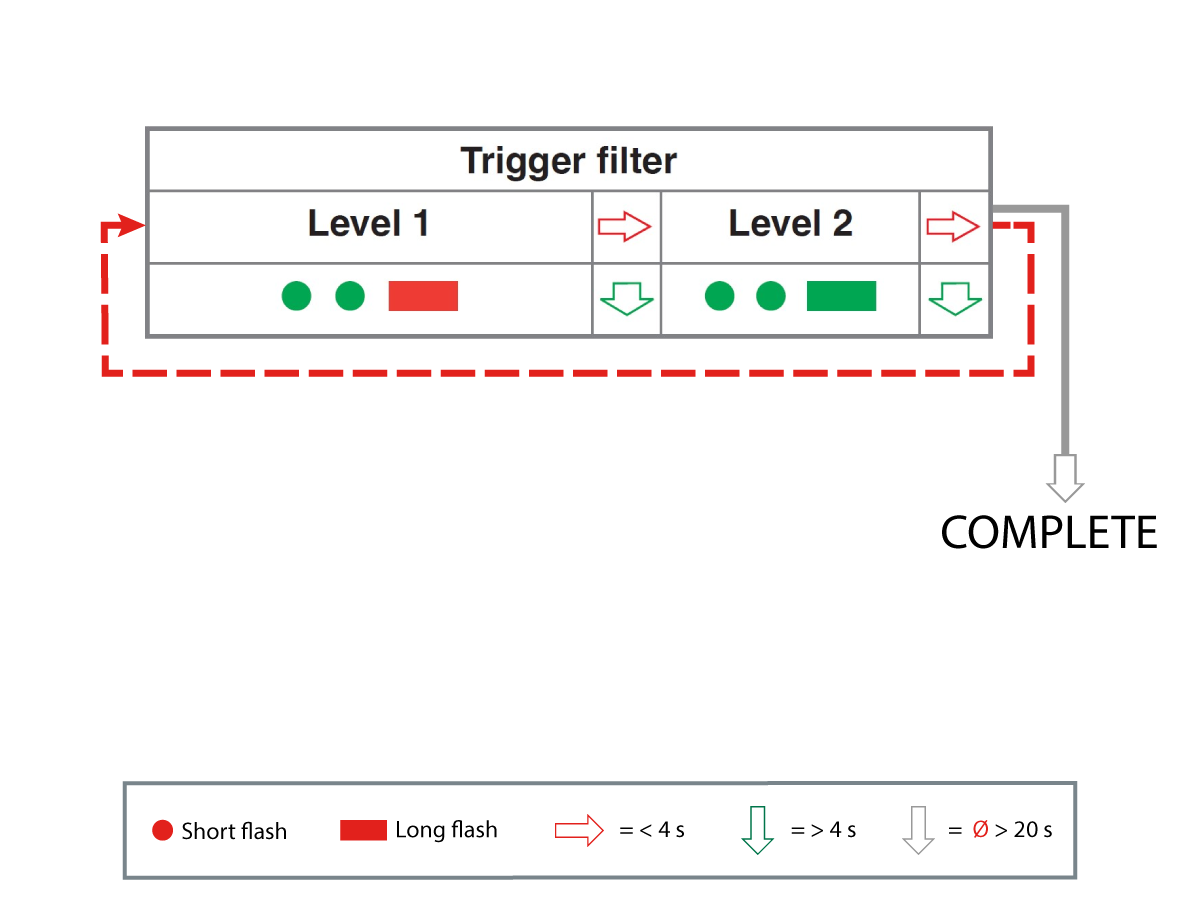
The Illustration shows these symbols: The symbols tells you this: This gives this result:
A red arrow that points to the right. Move and hold the stylus for less than (4) seconds. Selects the next option within a group.
A green arrow that points down. Move and hold the stylus for more than (4) seconds. Moves from one group to another.
A white arrow that points down. Do not touch the stylus for (20) seconds or more. Exits the set up.

Default RMP40 settings are the following:

  • Switch On Method: Radio On [1]
  • Switch Off Method: Radio or Spin [2]
  • Enhanced Trigger Filter: Trigger Filter Off [3]


RMP40 - Macro Variables.

  • 556: (XRAD) Stylus X calibration radius
  • 557: (YRAD) Stylus Y calibration radius
  • 558: (XOFF) X axis stylus offset (run out)
  • 559: (YOFF) Y axis stylus offset (run out)
  • 566-575: (VRAD) Vector probe radius
  • 576: (LENGTH) Tool offset
  • 577: (OFFSET +  RAD + VRAD) Calibration radius, stylus offset, and vector probe radius total
  • 578: Tool number for the RMP40 probe

RTS Tool Probe Settings

RTS Settings Basics:

The probe settings are in (1) group:

  1. Enhanced Trigger Filter

The LEDs flash in different colors and different lengths of time. The sequence that the LED flashes tells you the probe settings. The LEDs flash a short or a long time. In the tables that follow, a small colored circle  shows that the LED flashes a short time. A colored rectangle  shows that the LED flashes a long time.

To find the current RTS probe settings do the following:

Remove and re-install the batteries. After you install the batteries, the probe LED flashes in a special sequence. These LEDs should show the initial factory settings.

Note: Do not touch the probe when installing the batteries, this could alter the probe settings.

Look at the probe LEDs. Record the sequence of color and length of time that the LED flashes

Refer to Renishaw Probe – WIPS-RF - RTS – Settings for light sequence meanings.

To change the RTS probe settings do the following:

Remove the batteries [1] from the probe for a minimum of 5 seconds.

Install the batteries.

Note: Do not touch the probe when installing the batteries, this could alter the probe settings.

Immediately after the LED sequence [2], deflect and hold the stylus [3], the probe will flash Red 8 times.

 Note: If the battery power is low, each red flash will be followed by a blue flash.

Keep the stylus deflected until the "Trigger filter" setting is displayed. Release the stylus.

Follow the below tables to select the values you want for the settings. Default factory settings are shown in the next set of tables:


The Illustration shows these symbols: The symbols tells you this: This gives this result:
A red arrow that points to the right. Move and hold the stylus for less than (4) seconds. Selects the next option within a group.
A green arrow that points down. Move and hold the stylus for more than (4) seconds. Moves from one group to another.
A white arrow that points down. Do not touch the stylus for (20) seconds or more. Exits the set up.

Default probe settings are the following:

  • Enhanced Trigger Filter: Trigger Filter Off [1]


RTS Macro Variables

  • 582: OTS stylus Z location, non rotating tools
  • 583: OTS stylus Z locations, rotating tools
  • 584: Stylus size for diameter setting
  • 585: X-Axis stylus center location
  • 586: Y-Axis stylus center location
  • 587: Z approach position (This is used in length and diameter probing only). The first fast positioning move to the position where the tool offset is applied (height above stylus).
  • 588: Z clearance position (This is used in length and diameter probing only). The position above the stylus for clearance moves around the stylus (height above stylus).
  • 589: Tools above this diameter rotate (This is used in length and diameter probing only)
  • 590: Maximum cutter diameter size (This is used in length and diameter probing only)
  • 592: Probe orientation. This defines the diameter measuring axis, and the radius offsetting direction for rotating length setting.

RMI-QE Operation:

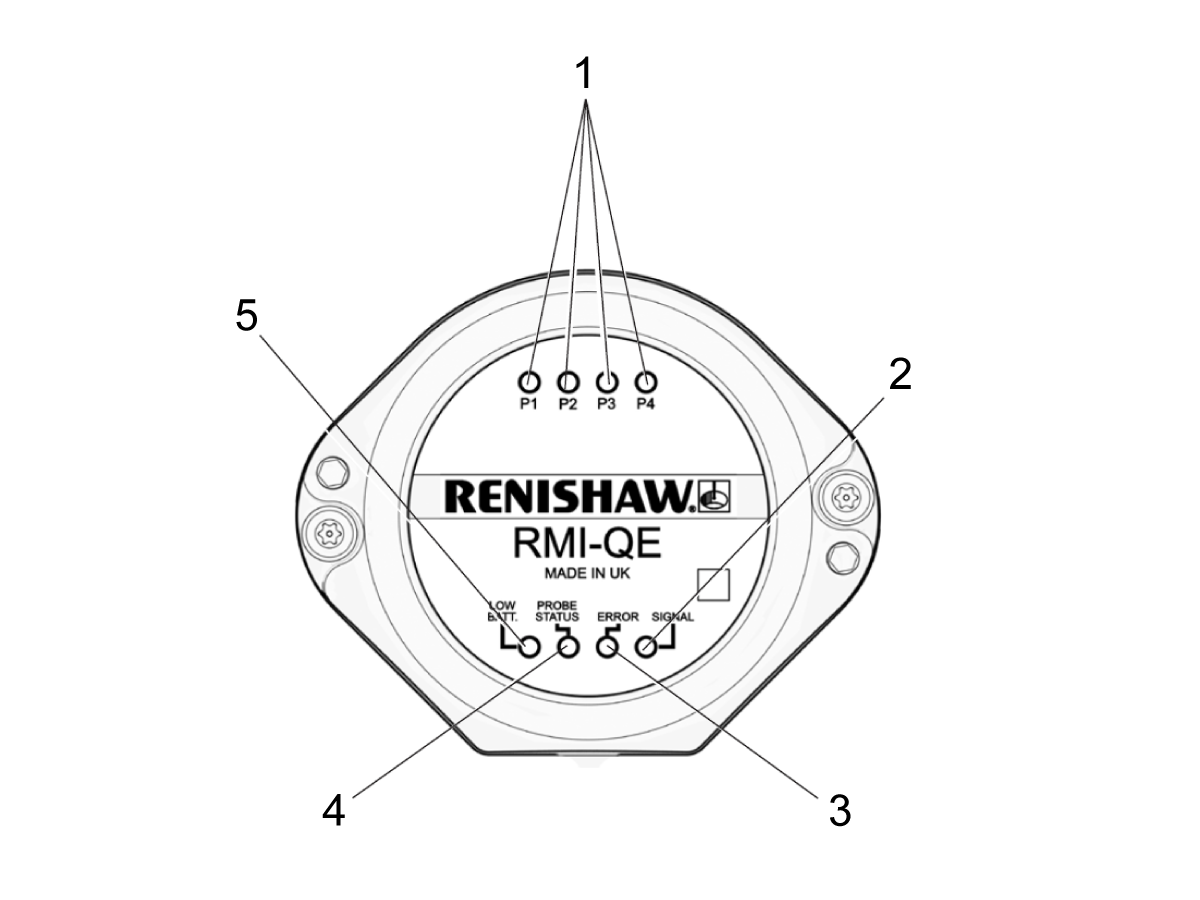
  1. ACTIVE PROBE (red, green, yellow): There are (4) LEDs that show which probe is currently active.
  2. SIGNAL LED (red, green, yellow): This LED flashes for one second when the RMI-QE sends a start signal to switch on or switch off the work probe or the tool probe.
  3. ERROR (red):  When there is no error the LED will be off. Continuous red light indicates the probe has failed or switched off. Flashing red light indicates a system error or an overload error.
  4. PROBE STATUS (red, green): This bi-color LED is green when the probe is seated, and red when the probe is triggered. The LED flashes red when these is a system error or an overload error.
  5. LOW BATTERY/START LED (red, green, yellow): If the RMI-QE detects a low battery from one of the probes, the low battery LED is on. Replace the batteries in the probes. The LED will be green when the M-code start/stop is in progress. If the battery is low the LED will be yellow when the M-code start/stop is in progress. The LED will flash red when there is an overload error.

For more information refer to Renishaw – WIPS-RF - Radio Machine Interface (RMI) - Lights Information

Dip Switch

Carefully remove the front cover of the RMI-QE to access the Dip Switches.

Verify the Dip Switches match the settings shown in the image


Unused Wire

All unused wires from the RMI-QE need to be separated and insulated from each other.

Any exposed wires need to be cut back flush to the insultation. Use heat shrink or electrical tape to secure and insulate them from each other.

Recently Viewed Items

You Have No Recently Viewed Items Yet

Feedback
Haas Logo

Haas Delivered Price

This price includes shipping cost, export and import duties, insurance, and any other expenses incurred during shipping to a location in France agreed with you as a buyer. No other mandatory costs can be added to the delivery of a Haas CNC Product.

KEEP UP WITH THE LATEST HAAS TIPS AND TECHNOLOGY...

Sign up now!   

HAAS TOOLING ACCEPTS THE FOLLOWING:

  • Service & Support
  • Owners
  • Request Service
  • Operator Manuals
  • Haas Parts
  • Rotary Repair Request
  • Pre-Install Guides
  • Shopping Tools
  • Build & Price a New Haas
  • Available Inventory
  • The Haas Price List
  • CNCA Financing
  • About Haas
  • Accessibility Statement
  • DNSH Statement
  • Export Compliance
  • Careers
  • Certifications & Safety
  • Contact Us
  • History
  • Terms & Conditions
  • Haas Tooling Terms & Conditions
  • Privacy
  • Warranty
  • Haas Community
  • Haas Certification Program
  • Haas Motorsports
  • Gene Haas Foundation
  • Haas Technical Education Community
  • Events
  • Join the Conversation
  • Facebook
  • X
  • Flickr
  • YouTube
  • LinkedIn
  • Instagram
  • TikTok
© 2026 Haas Automation, Inc – CNC Machine Tools

This site is protected by reCAPTCHA and the Google Privacy Policy and Terms of Service apply.

2800 Sturgis Rd., Oxnard, CA 93030
Toll Free: (888) 817-4446 / Fax: 805-278-8554