My Haas Welcome,
!
Haas Tooling MyHaas/HaasConnect Sign In Register Haas Tooling MyHaas/HaasConnect Sign Out Welcome, My Machines Latest Activity My Quotes My Account My Users Sign Out
Find Your Distributor
  1. Select Language
    1. English
    2. Deutsch
    3. Español - España
    4. Español - México
    5. Français
    6. Italiano
    7. Português
    8. Český
    9. Dansk
    10. Nederlands
    11. Magyar
    12. Polski
    13. Svenska
    14. Türkçe
    15. 中文
    16. Suomi
    17. Norsk
    18. الإنجليزية
    19. български
    20. Hrvatski
    21. Ελληνικά
    22. Română
    23. Slovenský
    24. Slovenščina
    25. 한국어
    26. 日本語
    27. Українська
  • machines Main Menu
    • Vertical Mills
      Vertical Mills
      Vertical Mills View All
      • Vertical Mills
      • VF Series
      • Universal Machines
      • VR Series
      • VP-5 Prismatic
      • Pallet-Changing VMCs
      • Mini Mills
      • Mold Machines
      • High-Speed Drill Centers
      • Drill/Tap/ Mill Series
      • Toolroom Mills
      • Pocket Mill
      • Compact Mills
      • Gantry Series
      • SR Sheet Routers
      • Extra-Large VMC
      • Double-Column Mills
      • 3+2 Positioning Machines
    • Multi-Axis Solutions
      Multi-Axis Solutions
      Multi-Axis Solutions View All
      • Multi-Axis Solutions
      • Y-Axis Lathes
      • 5-Axis Mills
    • Lathes
      Lathes
      Lathes View All
      • Lathes
      • ST Series
      • Dual-Spindle
      • Box Way Series
      • Toolroom Lathes
      • Chucker Lathe
      • Haas Bar Feeders
    • Horizontal Mills
      Horizontal Mills
      Horizontal Mills View All
      • Horizontal Mills
      • 50-Taper
      • 40-Taper
    • Rotaries & Indexers
      Rotaries & Indexers
      Rotaries & Indexers View All
      • Rotaries & Indexers
      • Rotary Tables
      • Indexers
      • 5-Axis Rotaries
      • Extra-Large Rotaries
    • Special Series
      Special Series
      Special Series View All
      • Special Series
      • EU_Series_Redirect
    • Automation Systems
      Automation Systems
      Automation Systems View All
      • Automation Systems
      • Mill Automation
      • Lathe Automation
      • Automatic Parts Loaders
      • Automation Models
    • Desktop Machines
      Desktop Machines
      Desktop Machines View All
      • Desktop Machines
      • Desktop Mill
      • Desktop Lathe
      • Control Simulator, Standard
      • Control Simulator, Premium
    • Shop Equipment
      Shop Equipment
      Shop Equipment View All
      • Shop Equipment
      • Knee Mill
      • Haas Manual Lathes
      • Haas Saws
    • Fabrication Machines
      Fabrication Machines
      Fabrication Machines View All
      • Fabrication Machines
      • Laser Cutting Machines
      • CNC Press Brakes
    • QUICK LINKS Special Series  Special Series 
      EU SERIES EU SERIES BUILD & PRICE | PRICE LIST BUILD & PRICE | PRICE LIST In-Stock Machines In-Stock Machines WHAT’S NEW WHAT’S NEW YOUR FIRST CNC YOUR FIRST CNC
      SHOPPING TOOLS
      • Build & Price a Haas
      • Price List
      • Available Inventory
      • CNCA Financing
      WANT TO TALK TO SOMEONE?

      A Haas Factory Outlet (HFO) can answer your questions, and walk you through your best options.

      CONTACT YOUR DISTRIBUTOR >
  • Options Main Menu
    • The Haas Control Value Option Packages
      Value Option Packages
      Value Option Packages View All
      • Value Option Packages
    • Product Image Spindles
      Spindles
      Spindles View All
      • Spindles
    • Product Image Tool Changers
      Tool Changers
      Tool Changers View All
      • Tool Changers
    • Product Image 4th- | 5th-Axis
      4th- | 5th-Axis
      4th- | 5th-Axis View All
      • 4th- | 5th-Axis
    • Product Image Turrets & Live Tooling
      Turrets & Live Tooling
      Turrets & Live Tooling View All
      • Turrets & Live Tooling
    • Product Image Probing
      Probing
      Probing View All
      • Probing
    • Haas Chip & Coolant Management Chip & Coolant Management
      Chip & Coolant Management
      Chip & Coolant Management View All
      • Chip & Coolant Management
    • The Haas Control The Haas Control
      The Haas Control
      The Haas Control View All
      • The Haas Control
    • Product Image Product Options
      Product Options
      Product Options View All
      • Product Options
    • Product Image Tooling & Fixturing
      Tooling & Fixturing
      Tooling & Fixturing View All
      • Tooling & Fixturing
    • Product Image Workholding
      Workholding
      Workholding View All
      • Workholding
    • Product Image 5-Axis Solutions
      5-Axis Solutions
      5-Axis Solutions View All
      • 5-Axis Solutions
      • 5 Easy Steps to 5-Axis
    • QUICK LINKS Special Series  Special Series 
      EU SERIES EU SERIES BUILD & PRICE | PRICE LIST BUILD & PRICE | PRICE LIST In-Stock Machines In-Stock Machines WHAT’S NEW WHAT’S NEW YOUR FIRST CNC YOUR FIRST CNC
      SHOPPING TOOLS
      • Build & Price a Haas
      • Price List
      • Available Inventory
      • CNCA Financing
      WANT TO TALK TO SOMEONE?

      A Haas Factory Outlet (HFO) can answer your questions, and walk you through your best options.

      CONTACT YOUR DISTRIBUTOR >
  • Why Haas Main Menu
      Discover the Haas Difference
    • Why Haas
    • MyHaas
    • Education Community
    • Industry 4.0
    • Haas Certification
    • Customer Testimonials
  • Service Main Menu
      Welcome to Haas Service
      SERVICE HOME Operator’s Manuals How-To Procedures Troubleshooting Guides Preventive Maintenance Haas Parts Haas Tooling Videos
  • Videos Main Menu
  • Main Menu
    • View All
    • View All
    • View All
    • View All
      • HTEC Curriculum Support
      • Haas Value Option Packages (VOP) Journey
    • View All
      • Haas 10 kg Cobot Package
      • Cobot Kits
      • DC-1 Drill Center
      • CNC Sales News
      • Do More With Your Haas
    • View All
    • View All
      • contact-us-test
      • 4 - AUTOMATION SYSTEMS
      • Carousel-V2
      • expert test
      • Demo_Day_Trident-test
      • Link Test
      • image-sale-tag-test
      • article-list-test
      • Haas 25 kg Robot Package
      • test-algolia-page
    • View All
    • View All
    • View All
    • View All
      • calc-test
    • View All
    • QUICK LINKS Special Series  Special Series 
      EU SERIES EU SERIES BUILD & PRICE | PRICE LIST BUILD & PRICE | PRICE LIST In-Stock Machines In-Stock Machines WHAT’S NEW WHAT’S NEW YOUR FIRST CNC YOUR FIRST CNC
      SHOPPING TOOLS
      • Build & Price a Haas
      • Price List
      • Available Inventory
      • CNCA Financing
      WANT TO TALK TO SOMEONE?

      A Haas Factory Outlet (HFO) can answer your questions, and walk you through your best options.

      CONTACT YOUR DISTRIBUTOR >
  • Haas Tooling Main Menu
  • Haas Service Parts Main Menu

My Haas Welcome,
!
Haas Tooling MyHaas/HaasConnect Sign In Register Haas Tooling MyHaas/HaasConnect Sign Out Welcome, My Machines Latest Activity My Quotes My Account My Users Sign Out
Find Your Distributor
  1. Select Language
    1. English
    2. Deutsch
    3. Español - España
    4. Español - México
    5. Français
    6. Italiano
    7. Português
    8. Český
    9. Dansk
    10. Nederlands
    11. Magyar
    12. Polski
    13. Svenska
    14. Türkçe
    15. 中文
    16. Suomi
    17. Norsk
    18. الإنجليزية
    19. български
    20. Hrvatski
    21. Ελληνικά
    22. Română
    23. Slovenský
    24. Slovenščina
    25. 한국어
    26. 日本語
    27. Українська
×

Search Results

Web Pages

Images

    • <
    • 1
    • >

5 - HPB - Operation

Haas Press Brake - Operator's/Service Manual


  • 0 - HPB - Table of Contents
  • 1 - HPB - Introduction
  • 2 - HPB - Legal Information
  • 3 - HPB - Safety
  • 4 - HPB - Installation
  • 5 - HPB - Operation
  • 6 - HPB - Maintenance
  • 7 - HPB - Troubleshooting

Go To :

  • 5.1 Control Screen
  • 5.2
Recently Updated

Haas Press Brake - Dalem Control


Under Construction

Revision A

Pre-Operation

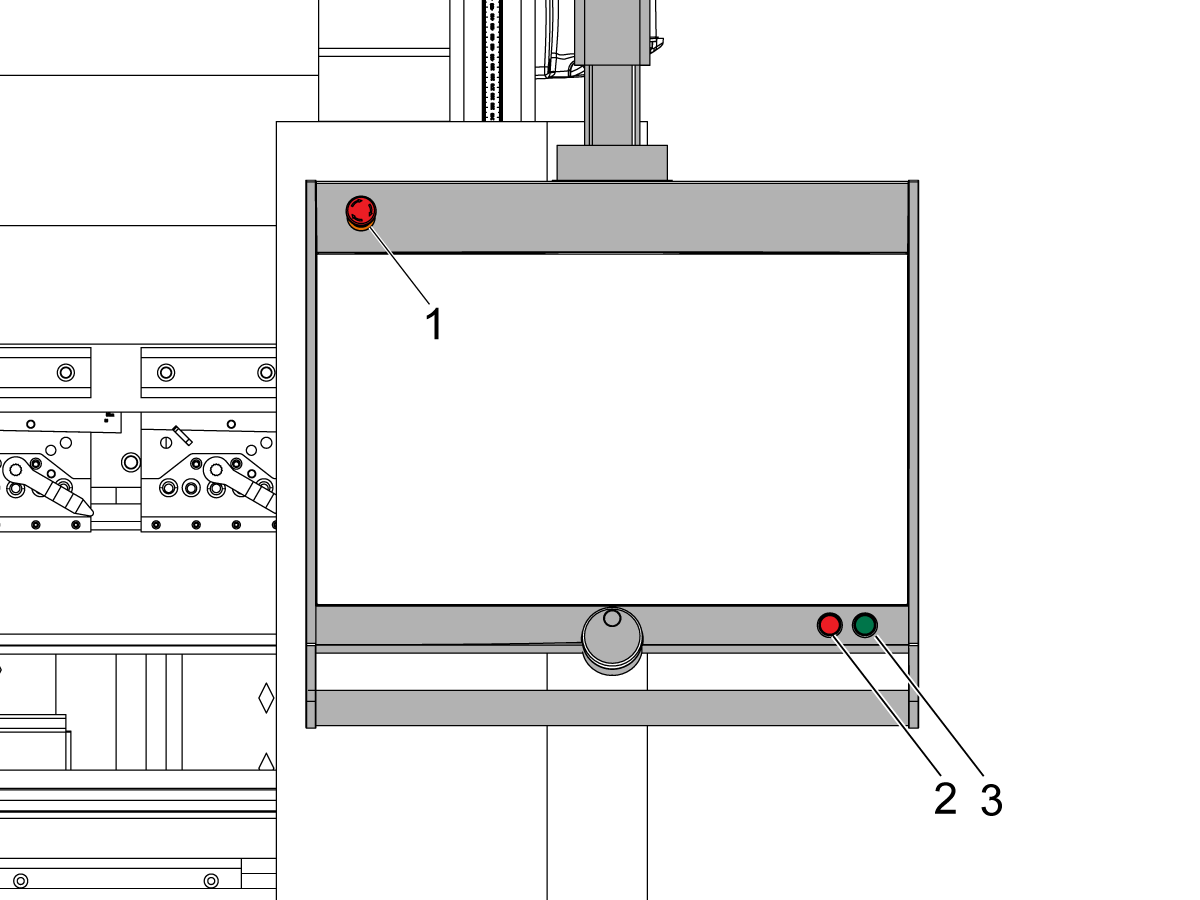
[1] EMERGENCY STOP: The Press Brake will shut down immediately.

[2] STOP BUTTON

[3] START BUTTON

At the right side of the control a USB port is available for connection of external devices, such as a memory stick or an external keyboard or mouse.

Machine Power-On/Off

This section tells you how to power-on and power-off the Press Brake.

IMPORTANT: There is a specific order sequence to turn on the Press Brake. 

  1. Make sure the power cable connector is connected to the Press Brake and to an outlet.
  2. Breaker switch is on.
  3. All E-Stops are released.
  4. Switch is turned "ON" on the control cabinet.
  5. Oil Pump button is turned on.
  6. Start button on the control is pressed. 

IMPORTANT: When turning OFF the press brakes it is very important that the ram is all the way or mostly DOWN. When the Press Brake gets turned on, part of the start up process requires the ram to move all the way up to "home" itself. 

Note: If the machine gets shut off with the ram all the way up, The machine will need to be fully reset in order for the control to know the location of the ram. Instructions on how to reset press brake.

Protective Side Doors

Important: Anytime the protective side doors are opened or the light transmitters get adjusted the machine must be reset to properly run agian. To reset the machine, press the Reset button and the oil pump button, both located on the outside of the control cabinet, then go to the control interface and press the green start button.

Navigation panel

 The Navigation panel is the area where all the major modes can be found. This area is always visible. The controls, large icons, can be used to directly switch from one mode to the other. 

To make a new program and select a program out of the product library.

To start production of the selected product/program.

To draw/create a new product or edit an existing product (graphically).

To program all settings for making one single bend, not related to a program.

To setup the machine and modify existing tool setups.

User settings and preferences applicable to the programming of new products and programs. Also the required material properties can be programmed in the Material library.

To compute and modify the bend sequence.

User settings and preferences applicable to the machine, tooling library including the tool editor, backup/restore of data, software version info etc.

To create a new CNC-program or edit an existing CNC-program numerically.

Wherever you are in the control, via this button you can access the help system which will provide you with context sensitive information.

HPB Axis

                                                                                         X-axis                                  Controls the horizontal movement of the back gauge. It sets the flange length by positioning the workpiece for bending. This is essential for accurate bend length measurement and consistent positioning
    R-axis     Controls the vertical movement of the back gauge. It adjusts the bending height, useful for clearing previous bends or adapting to different material thicknesses and bend angles
V-axis Controls crowning compensation. In long-bed machines, it automatically lifts the center of the table to counteract frame deflection, ensuring uniform bend angles on long parts
Y-axis Controls the vertical movement of the ram (top beam). In dual-ram (synchro) machines, it’s split into Y1 and Y2 for independent control of the left and right cylinders, maintaining perfect parallelism and consistent angles
Z-axis Controls the lateral movement of the back gauge fingers. Split into Z1 and Z2, these allow independent finger movement for complex part manipulation, enabling multiple bends on a single workpiece without repositioning

Starting A New Product

In the Products mode: existing, previously produced, products can be selected to start production or modification in order to make a similar product. To start making a new product or program New Product or New Program can be used from this mode.

1

Each item in the list consists of a thumbnail of the graphical product (for numerical programs a symbol is shown), its Product ID, the Product Description, the Number of bends in the product, what kind of product it is (Type) and the Date it was last used or modified.The Type indication of the product shows following types of products:

  • P - The product has a CNC program, there is no                          drawing.
  • -2D - The product consists of a 2D drawing, there is no                CNC program.
  • P2D     The product has a 2D drawing and a CNC program.
  • -3D      The product consists of a 3D drawing, there is no                CNC program.
  • P3D     The product has a 3D drawing and a CNC program.

2

To start a new graphical product tap New and Product.

Product ID - A unique name to identify a product program.

Product description - A name or description of this program.

Thickness - Thickness of the sheet.

Material - Selection of the material type of the sheet. The control contains 4 pre-programmed materials. See Settings to program materials. Press the required material to select it as active.

Bending length - The bend length in Z-direction of the sheet.

Dimensions - Determine the use of the outside (A) or the inside (B) dimensions in the product drawing when new sides or surfaces are added.

Radius - The product radius is recalculated after selecting the tools in the tool setup, because the chosen tooling influences the resulting radius. By default this setting is ‘use calculated’. 

Bend allowance - For the bend allowance of this product you could select ‘use calculated’ or ‘use programmed’. With ‘use calculated’ the bend allowance will be calculated with the Delem formula or the bend allowance table.

2D Product Drawing

1

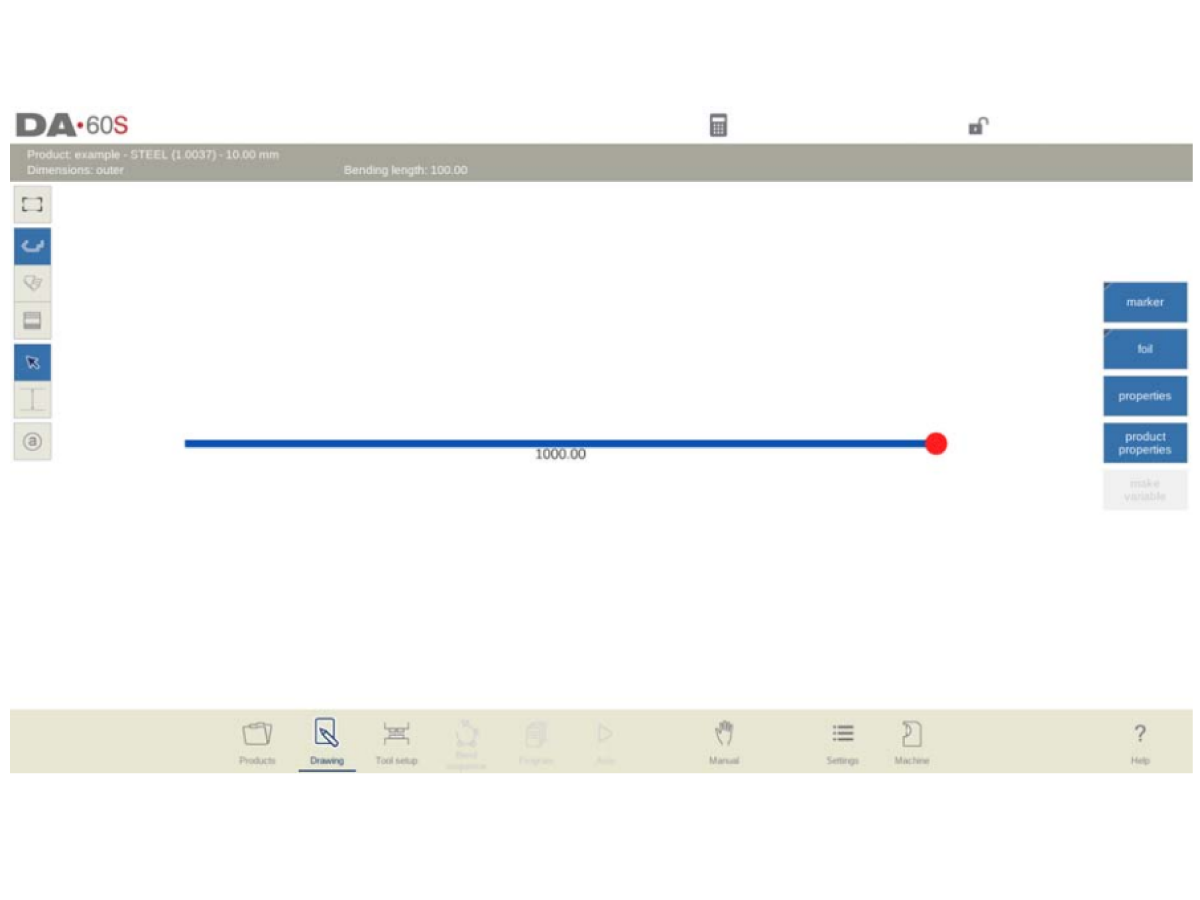
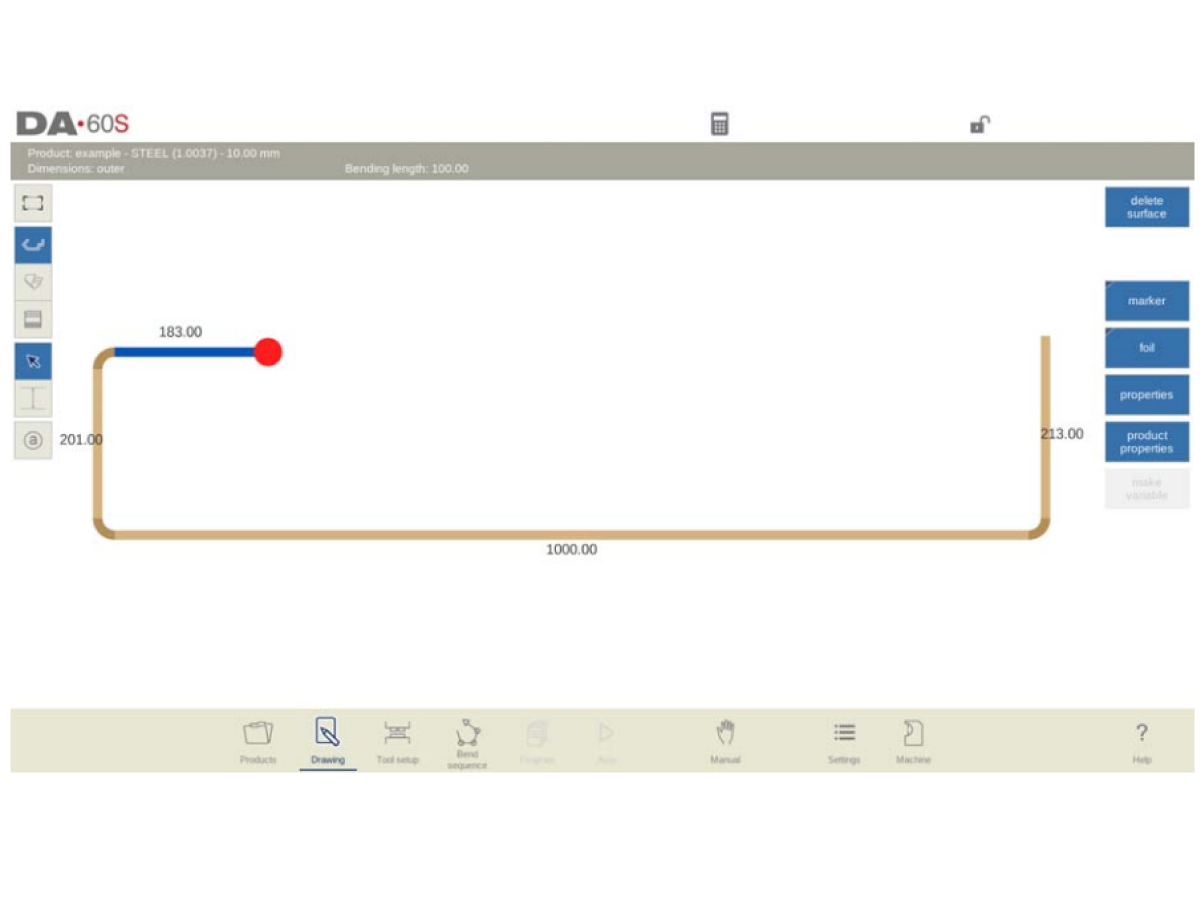
After entering the general product data the drawing screen appears.

Now you can create the profile of the product. It is possible by using your fingers to tap and create quickly the product in 'sketch' mode. After that the real product dimensions and corresponding values can be entered by using the keyboard. 

It is also possible to directly enter the angle of the bend followed by the length of that side by using the keyboard and the Enter button. The properties are prompted in the input bar of the screen on the keyboard panel. This procedure continues until the product has the desired profile. 

The currently active element (line or angle) is highlighted. In a product drawing you can program up to a maximum of 99 bends per product (graphical programming).

When the product drawing is finished, navigate to the next step in the programming process; to determine first the Tool Setup and after the Bend Sequence.


Tool Configuration

 To edit or modify a tool setup for the product, select the product from the library and use Tool setup

1

When the function Tool setup has been activated, the screen shows a front view of the machine set-up in the upper half of the screen. In the lower half of the screen, the tool data is displayed. In this screen, the placement of tools in the machine can be programmed.

In the front view, the following machine elements are shown, from top to bottom:

  • Press beam
  • Adapter for punch (if a punch adapter has been programmed)
  • Punch
  • Die
  • Adapter for die (if a die adapter has been programmed)
  • Table

Note: The machine parts have already been preselected in the Machine mode. Normally these parts will not change. Whether an adapter can be programmed depends on the adapter parameters in the same Machine mode.

Recently Updated

Haas Press Brake-Ram Reset


*Under Construction*

Revision A

These instructions are for when you power down the Haas Press Brake with the ram in the furthest most up postion. 

When the HPB is powered off like this, the machine is not able to complete its homing sequence in order to find the position and distance of the ram. 

It is VERY important you follow these steps to ensure the machine is properly reset and not damaged.  

Resetting the Homing Process

Navigation tab -> make sure youre in machine tab 

Unlock factory settings -> access code is 25789

Left Column go to miantance --> then select diagnostic mode on the right, press continue.

From the pop up menu select DM Module Test

Select a test for example: under 'type' DM101 and find the setting that says "Left valve deflection" and "Right valve deflection" set both values to 20%

Now find the section that is labled Digital Out and select the number 2. 

At this point the ram shouldve automatically lowered itself. 

Now you may end the module test.

Recently Viewed Items

You Have No Recently Viewed Items Yet

Feedback
Haas Logo

Haas Delivered Price

This price includes shipping cost, export and import duties, insurance, and any other expenses incurred during shipping to a location in France agreed with you as a buyer. No other mandatory costs can be added to the delivery of a Haas CNC Product.

KEEP UP WITH THE LATEST HAAS TIPS AND TECHNOLOGY...

Sign up now!   

HAAS TOOLING ACCEPTS THE FOLLOWING:

  • Service & Support
  • Owners
  • Request Service
  • Operator Manuals
  • Haas Parts
  • Rotary Repair Request
  • Pre-Install Guides
  • Shopping Tools
  • Build & Price a New Haas
  • Available Inventory
  • The Haas Price List
  • CNCA Financing
  • About Haas
  • Accessibility Statement
  • DNSH Statement
  • Export Compliance
  • Careers
  • Certifications & Safety
  • Contact Us
  • History
  • Terms & Conditions
  • Haas Tooling Terms & Conditions
  • Privacy
  • Warranty
  • Haas Community
  • Haas Certification Program
  • Haas Motorsports
  • Gene Haas Foundation
  • Haas Technical Education Community
  • Events
  • Join the Conversation
  • Facebook
  • X
  • Flickr
  • YouTube
  • LinkedIn
  • Instagram
  • TikTok
© 2026 Haas Automation, Inc – CNC Machine Tools

This site is protected by reCAPTCHA and the Google Privacy Policy and Terms of Service apply.

2800 Sturgis Rd., Oxnard, CA 93030
Toll Free: (888) 817-4446 / Fax: 805-278-8554