My Haas Welcome,
!
Haas Tooling MyHaas/HaasConnect Sign In Register Haas Tooling MyHaas/HaasConnect Sign Out Welcome, My Machines Latest Activity My Quotes My Account My Users Sign Out
Find Your Distributor
  1. Select Language
    1. English
    2. Deutsch
    3. Español - España
    4. Español - México
    5. Français
    6. Italiano
    7. Português
    8. Český
    9. Dansk
    10. Nederlands
    11. Magyar
    12. Polski
    13. Svenska
    14. Türkçe
    15. 中文
    16. Suomi
    17. Norsk
    18. الإنجليزية
    19. български
    20. Hrvatski
    21. Ελληνικά
    22. Română
    23. Slovenský
    24. Slovenščina
    25. 한국어
    26. 日本語
    27. Українська
  • machines Main Menu
    • Vertical Mills
      Vertical Mills
      Vertical Mills View All
      • Vertical Mills
      • VF Series
      • Universal Machines
      • VR Series
      • VP-5 Prismatic
      • Pallet-Changing VMCs
      • Mini Mills
      • Mold Machines
      • High-Speed Drill Centers
      • Drill/Tap/ Mill Series
      • Toolroom Mills
      • Pocket Mill
      • Compact Mills
      • Gantry Series
      • SR Sheet Routers
      • Extra-Large VMC
      • Double-Column Mills
      • 3+2 Positioning Machines
    • Multi-Axis Solutions
      Multi-Axis Solutions
      Multi-Axis Solutions View All
      • Multi-Axis Solutions
      • Y-Axis Lathes
      • 5-Axis Mills
    • Lathes
      Lathes
      Lathes View All
      • Lathes
      • ST Series
      • Dual-Spindle
      • Box Way Series
      • Toolroom Lathes
      • Chucker Lathe
      • Haas Bar Feeders
    • Horizontal Mills
      Horizontal Mills
      Horizontal Mills View All
      • Horizontal Mills
      • 50-Taper
      • 40-Taper
    • Rotaries & Indexers
      Rotaries & Indexers
      Rotaries & Indexers View All
      • Rotaries & Indexers
      • Rotary Tables
      • Indexers
      • 5-Axis Rotaries
      • Extra-Large Rotaries
    • Special Series
      Special Series
      Special Series View All
      • Special Series
      • EU_Series_Redirect
    • Automation Systems
      Automation Systems
      Automation Systems View All
      • Automation Systems
      • Mill Automation
      • Lathe Automation
      • Automatic Parts Loaders
      • Automation Models
    • Desktop Machines
      Desktop Machines
      Desktop Machines View All
      • Desktop Machines
      • Desktop Mill
      • Desktop Lathe
      • Control Simulator, Standard
      • Control Simulator, Premium
    • Shop Equipment
      Shop Equipment
      Shop Equipment View All
      • Shop Equipment
      • Knee Mill
      • Haas Manual Lathes
      • Haas Saws
    • Fabrication Machines
      Fabrication Machines
      Fabrication Machines View All
      • Fabrication Machines
      • Laser Cutting Machines
      • CNC Press Brakes
    • QUICK LINKS Special Series  Special Series 
      EU SERIES EU SERIES BUILD & PRICE | PRICE LIST BUILD & PRICE | PRICE LIST In-Stock Machines In-Stock Machines WHAT’S NEW WHAT’S NEW YOUR FIRST CNC YOUR FIRST CNC
      SHOPPING TOOLS
      • Build & Price a Haas
      • Price List
      • Available Inventory
      • CNCA Financing
      WANT TO TALK TO SOMEONE?

      A Haas Factory Outlet (HFO) can answer your questions, and walk you through your best options.

      CONTACT YOUR DISTRIBUTOR >
  • Options Main Menu
    • The Haas Control Value Option Packages
      Value Option Packages
      Value Option Packages View All
      • Value Option Packages
    • Product Image Spindles
      Spindles
      Spindles View All
      • Spindles
    • Product Image Tool Changers
      Tool Changers
      Tool Changers View All
      • Tool Changers
    • Product Image 4th- | 5th-Axis
      4th- | 5th-Axis
      4th- | 5th-Axis View All
      • 4th- | 5th-Axis
    • Product Image Turrets & Live Tooling
      Turrets & Live Tooling
      Turrets & Live Tooling View All
      • Turrets & Live Tooling
    • Product Image Probing
      Probing
      Probing View All
      • Probing
    • Haas Chip & Coolant Management Chip & Coolant Management
      Chip & Coolant Management
      Chip & Coolant Management View All
      • Chip & Coolant Management
    • The Haas Control The Haas Control
      The Haas Control
      The Haas Control View All
      • The Haas Control
    • Product Image Product Options
      Product Options
      Product Options View All
      • Product Options
    • Product Image Tooling & Fixturing
      Tooling & Fixturing
      Tooling & Fixturing View All
      • Tooling & Fixturing
    • Product Image Workholding
      Workholding
      Workholding View All
      • Workholding
    • Product Image 5-Axis Solutions
      5-Axis Solutions
      5-Axis Solutions View All
      • 5-Axis Solutions
      • 5 Easy Steps to 5-Axis
    • QUICK LINKS Special Series  Special Series 
      EU SERIES EU SERIES BUILD & PRICE | PRICE LIST BUILD & PRICE | PRICE LIST In-Stock Machines In-Stock Machines WHAT’S NEW WHAT’S NEW YOUR FIRST CNC YOUR FIRST CNC
      SHOPPING TOOLS
      • Build & Price a Haas
      • Price List
      • Available Inventory
      • CNCA Financing
      WANT TO TALK TO SOMEONE?

      A Haas Factory Outlet (HFO) can answer your questions, and walk you through your best options.

      CONTACT YOUR DISTRIBUTOR >
  • Why Haas Main Menu
      Discover the Haas Difference
    • Why Haas
    • MyHaas
    • Education Community
    • Industry 4.0
    • Haas Certification
    • Customer Testimonials
  • Service Main Menu
      Welcome to Haas Service
      SERVICE HOME Operator’s Manuals How-To Procedures Troubleshooting Guides Preventive Maintenance Haas Parts Haas Tooling Videos
  • Videos Main Menu
  • Main Menu
    • View All
    • View All
    • View All
    • View All
      • HTEC Curriculum Support
    • View All
      • Haas 10 kg Cobot Package
      • Cobot Kits
      • DC-1 Drill Center
      • CNC Sales News
      • Do More With Your Haas
    • View All
    • View All
      • contact-us-test
      • 4 - AUTOMATION SYSTEMS
      • Carousel-V2
      • expert test
      • Demo_Day_Trident-test
      • Link Test
      • image-sale-tag-test
      • article-list-test
      • Haas 25 kg Robot Package
    • View All
      • Choose Options
    • View All
    • View All
    • View All
    • View All
    • View All
      • calc-test
    • View All
    • QUICK LINKS Special Series  Special Series 
      EU SERIES EU SERIES BUILD & PRICE | PRICE LIST BUILD & PRICE | PRICE LIST In-Stock Machines In-Stock Machines WHAT’S NEW WHAT’S NEW YOUR FIRST CNC YOUR FIRST CNC
      SHOPPING TOOLS
      • Build & Price a Haas
      • Price List
      • Available Inventory
      • CNCA Financing
      WANT TO TALK TO SOMEONE?

      A Haas Factory Outlet (HFO) can answer your questions, and walk you through your best options.

      CONTACT YOUR DISTRIBUTOR >
  • Haas Tooling Main Menu
  • Haas Service Parts Main Menu

My Haas Welcome,
!
Haas Tooling MyHaas/HaasConnect Sign In Register Haas Tooling MyHaas/HaasConnect Sign Out Welcome, My Machines Latest Activity My Quotes My Account My Users Sign Out
Find Your Distributor
  1. Select Language
    1. English
    2. Deutsch
    3. Español - España
    4. Español - México
    5. Français
    6. Italiano
    7. Português
    8. Český
    9. Dansk
    10. Nederlands
    11. Magyar
    12. Polski
    13. Svenska
    14. Türkçe
    15. 中文
    16. Suomi
    17. Norsk
    18. الإنجليزية
    19. български
    20. Hrvatski
    21. Ελληνικά
    22. Română
    23. Slovenský
    24. Slovenščina
    25. 한국어
    26. 日本語
    27. Українська
×

Search Results

Web Pages

Images

    • <
    • 1
    • >

6 - Mill APL - Operation

Mill - APL - Operator's Manual Supplement


  • 0 - Mill APL - Table of Contents
  • 1 - Mill APL - Introduction
  • 2 - Mill APL - Legal Information
  • 3 - Mill APL - Safety
  • 4 - Mill APL - Installation
  • 5 - Mill APL - Control Icons
  • 6 - Mill APL - Operation
  • 7 - Mill APL - Programming
  • 8 - Mill APL - M-codes
  • 9 - Mill APL - Settings
  • 10 - Mill APL - Maintenance
  • 11 - Mill APL - Workholding

Go To :

  • 6.1 Mill APL - Jogging
  • 6.2 Mill APL - Setup
  • 6.3 Mill APL - Recovery

6.1 Mill APL - Jogging

Mill APL - Jogging


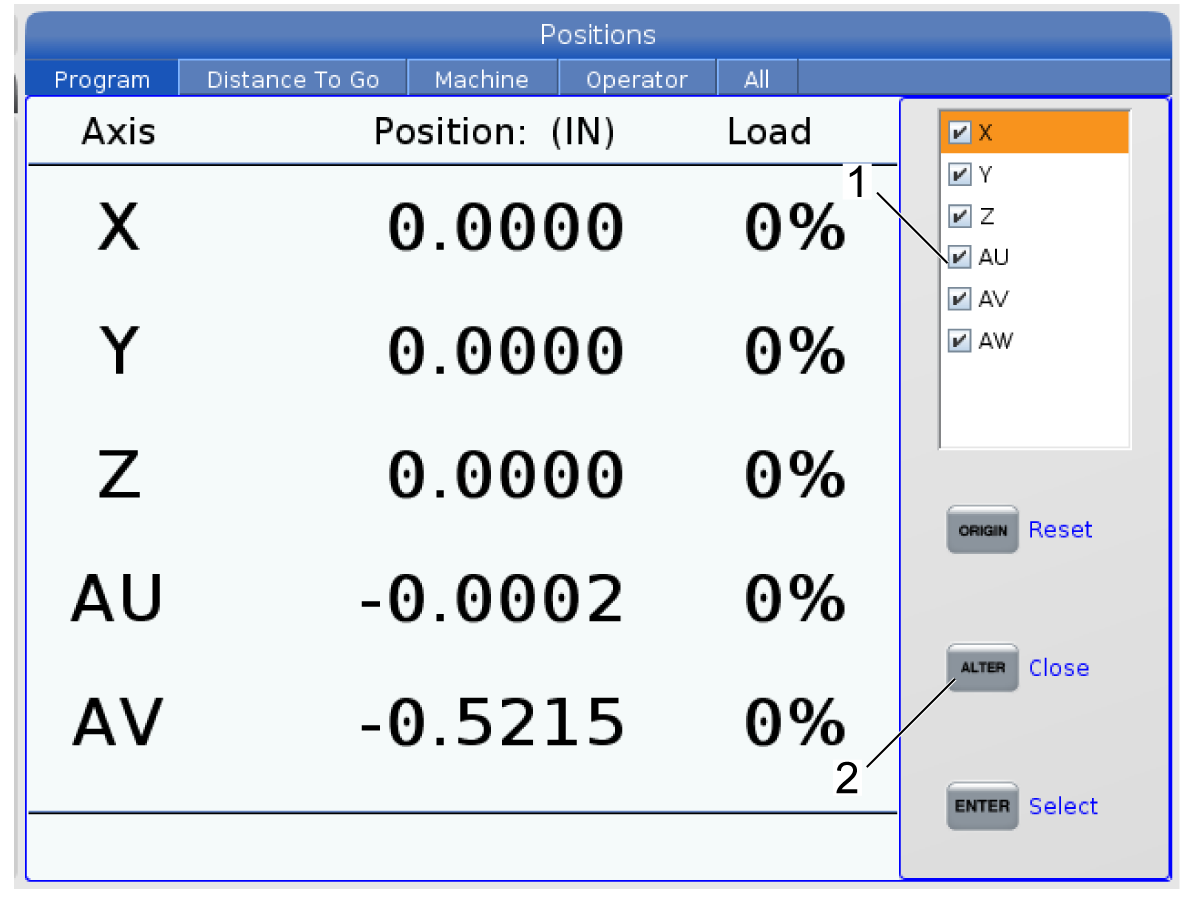
To jog the APL axes you need to make them visible in the Position screen. Axes Position Display.
  1. Press [Position].
  2. Press [ALTER] 
  3. Select the AU, AW and AV [1] axis.
  4. Press [ALTER] [2] to close the pop up window.
  5. To jog an APL axis. Type [AU] , [AW] or [AV] and then press [Handle Jog] .


6.2 Mill APL - Setup

Mill APL - Template


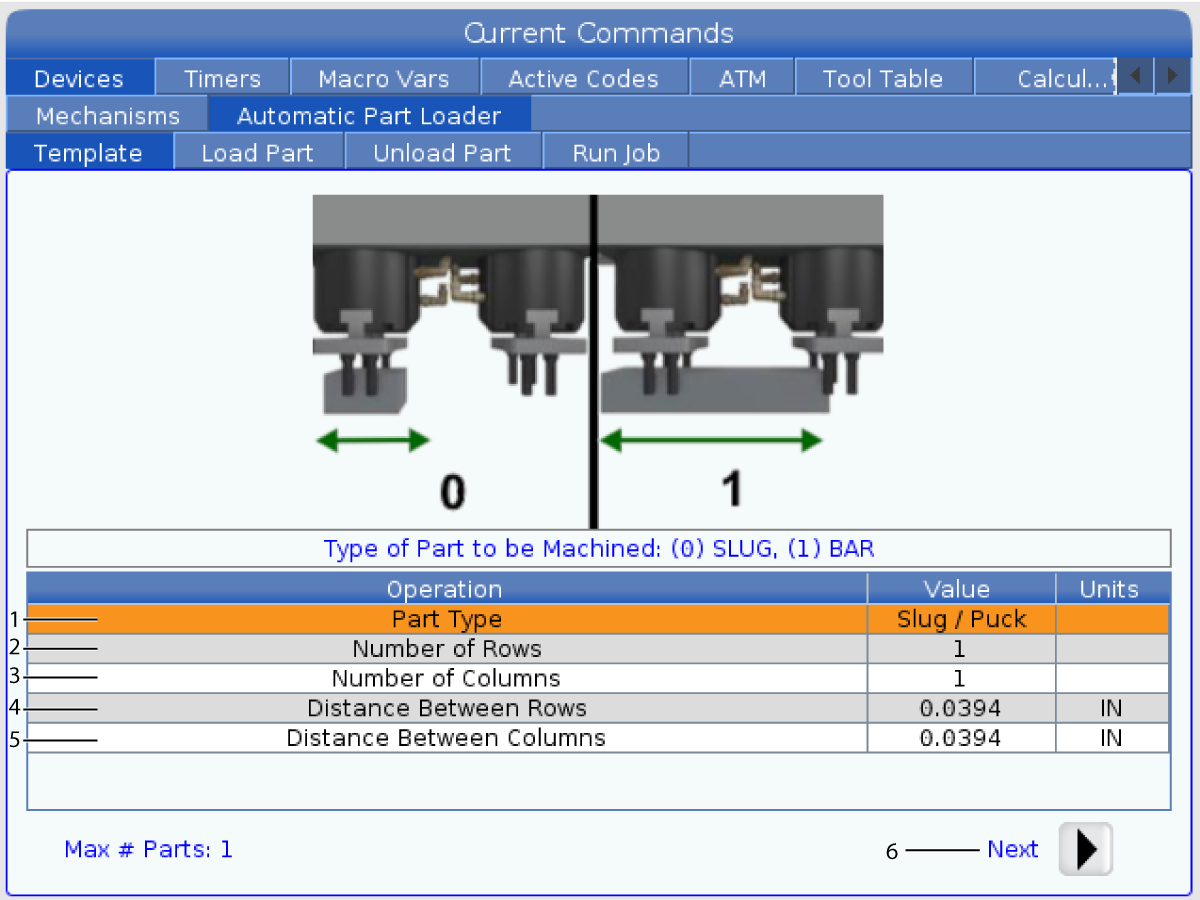
The Template page allows to setup the grid patter and part information to run the APL.

Press [CURRENT COMMANDS] , Devices, arrow down to Automatic Part Loader and navigate Template. Template Display

  1. Part Type - Enter 0 for a Slug/Puck or 1 for a Bar.
  2. Number of Rows- Enter the number of rows you want to use on the table.
  3. Numbers of Columns - Enter the number of columns you want to use on the table.
  4. Distance Between Rows - Enter the incremental distance between the rows.
  5. Distance Between Columns- Enter the incremental distance between the columns.
  6. Press the [Right] arrow to go to the next page.


Mill APL - Load Part

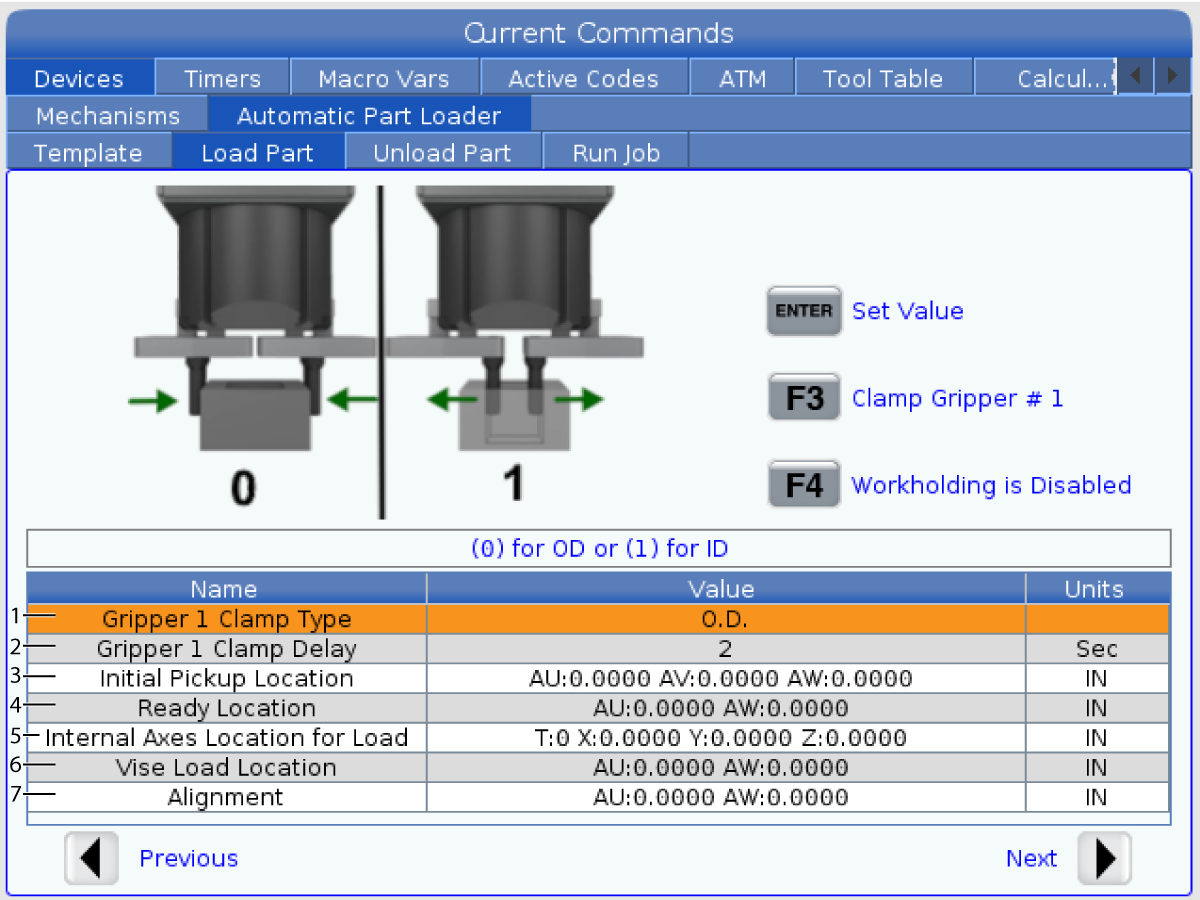
The Load Part page allows to setup APL Ram pick up and load position.

Press [CURRENT COMMANDS] , Devices, arrow down to Automatic Part Loader and navigate to Load Part.Load Part Display

Note: The door state and workholding state is commanded in the APL template. Do not command door or workholding states in the part program.

  1. Gripper 1 Clamp Type - Enter 0 for OD or 1 for ID clamping.
  2. Gripper 1 Clamp Delay - Enter the number of seconds to delay after the jaws have been commanded to move.For the next operations the following commands are available:
    • Press [ATC FWD] or [ATC REV] to index the tool changer.
    • Press [Insert] to move to above table.
    • Press [F2] to set the reference position.
    • Press [F3] to clamp/unclamp gripper #1.
    • Press [F4] to rotate the gripper arm.

  3. Initial Pickup Location - This field is used to set the initial pickup location, follow the on screen instructions to set the values.
  4. Ready Location - This field is used to set the position of grippers, follow the on screen instructions to set the values. This location is dependent on the machine and the part. Follow the on screen instructions to set the values.
  5. Internal Axes Location for Load - This field is used to set the Table Axes to a safe location for the APL to load the part. Follow the on screen instructions to set the values.
  6. Vise Load Location - This field is used to set the APL position to load the part into the vise. Follow the on screen instructions to set the values.
  7. Alignment - This field is used to set the gripper location to clear the clamped part. Follow the on screen instructions to set the values.

Mill APL - Unload Part

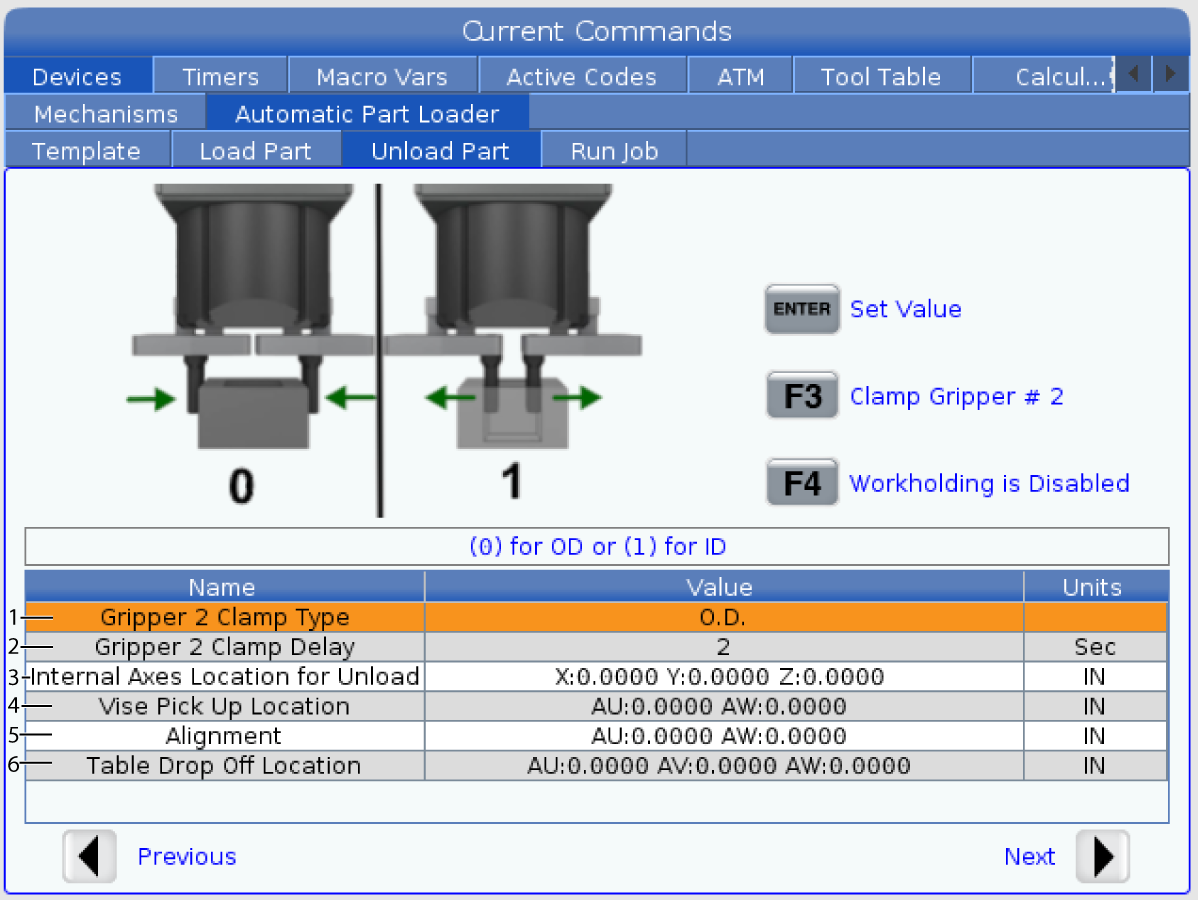
The Unload Part page allows to setup APL Ram pick up and drop position.

Press [CURRENT COMMANDS] , Devices, arrow down to Automatic Part Loader and navigate to Unload Part.Unload Part Display

  1. Gripper 2 Clamp Type - Enter 0 for OD or 1 for ID clamping.
  2. Gripper 2 Clamp Delay - Enter the number of seconds to delay after the jaws have been commanded to move.For the next operations the following commands are available:
    • Press [ATC FWD] or [ATC REV] to index the tool changer.
    • Press [Insert] to move to above table.
    • Press [F2] to set the reference position.
    • Press [F3] to clamp/unclamp gripper #1.
    • Press [F4] to rotate the gripper arm.

  3. Gripper Rotate Delay - Enter the number the seconds to delay after commanding the gripper to rotate.
  4. Internal Axes Location for Unload - This field is used to set the Mill Table Axes to a safe location for the APL to unload the part. Follow the on screen instructions to set the values.
  5. Vise Pick Up Location - This field is used to set the APL position to unload the part from the vise. Follow the on screen instructions to set the values.
  6. Alignment - This field is used to set the gripper location to clear the workholding. Follow the on screen instructions to set the values.
  7. Table Drop Off Location - This field is used to set the initial drop off location, follow the on screen instructions to set the values.

APL Mode - Save/Load/ New Job

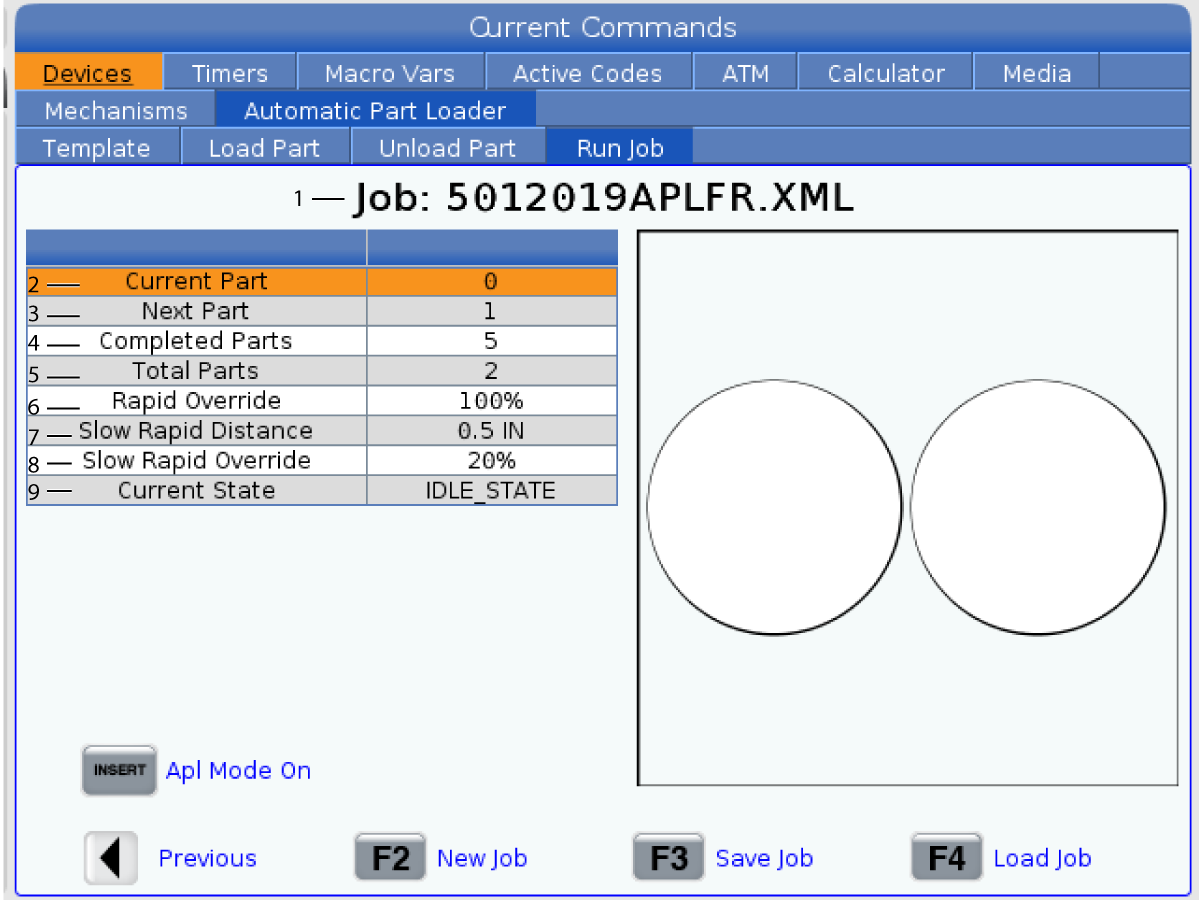
The Run Job tab allows you to load/run and save a job. It also shows the current APL mode status.

This tab shows the current job that the APL is running.

NOTE:  The Job file name will turn red if the job is not saved.

How to Save the current Job Once you have completed filling in the values on the Template, Load Bar and Load Part tabs.

  • Type in the desired job name on the input bar.
  • Press [F3] . Select the location where you want to save the file.
  • Press [Enter] to save the file.

NOTE: The job file is a XML file.

How to Load a Job To load a previous job:

  • Press [F4] to load a job.
  • Find and highlight the job XML file you wish to load.
  • Press [Enter] to load the file.

How to Start a New Job To start a new job:

  • Press [F2] .
  • A popup window will show “Are you sure you want to clear?
  • Press [Y] .

NOTE: This will reset the values in the Template, Load Part, Unload Part etc. back to factory values.

  • Current Part- This field can be updated so that the sequence will start at this point.
  • Next Part - This counter shows the next part.
  • Completed Parts - This counter shows the amount of completed parts. This field can be reset with [ORIGIN] .
  • Total Parts - This field can be changed. The sequence will run until total parts = completed parts. This would allow of running of a partial table.
  • Rapid Override - This shows the current rapid override status.
  • Slow Rapid Distance - When the APL is this distance from picking up or dropping off a part (either from table or spindle) the speed will drop to the Slow Rapid Override setting.
  • Slow Rapid Override - When the APL is the Slow rapid distance from picking up or dropping off a part (either from table or spindle) the speed will drop to this setting.
  • Current State - This shows the APL current state.
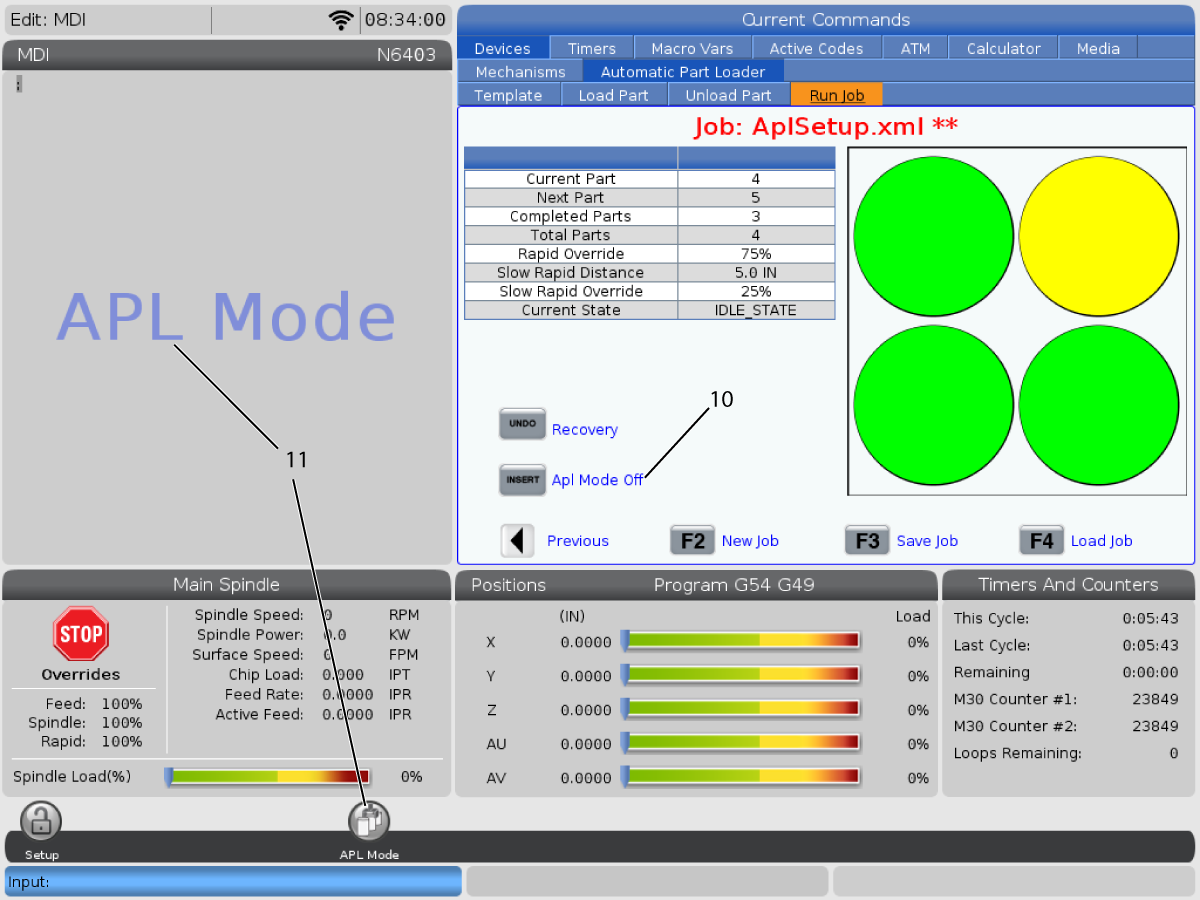
  • Press [Insert] to turn ON/OFF the APL Mode. When the machine is in APL Mode the control will load the next part when the machine executes an M299 code.
  • The APL Mode overlay and APL Mode icon appear on the screen when the machine is in APL mode.

6.3 Mill APL - Recovery

Mill APL - Recovery

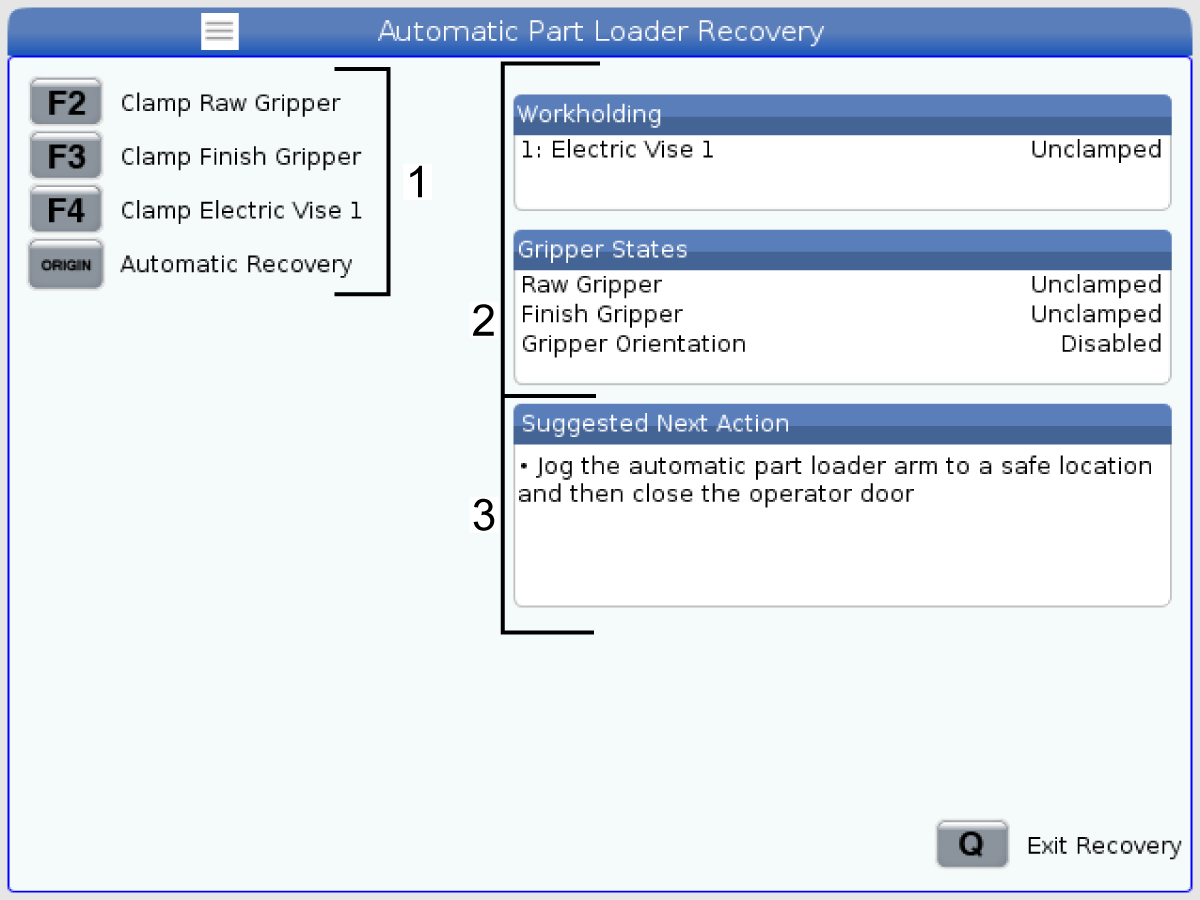
If the Automatic Part Loader cycles get interrupted you must enter [RECOVER] mode to correct or complete the cycle.

Press the [RECOVER] , the recovery page will display the Chuck, Gripper, status.

Automatic Part Loader Recovery Display:

  1. APL Functions 
  2. APL status 
  3. Message Box 

[F2] Clamp Raw Gripper. This will clamp the raw gripper.

[F3] Clamp Finish Gripper. This will clamp the finish gripper.

[F4] Clamp/Unclamp E-Vise. This will clamp/unclamp the E-Vise.

[Origin] Automatic Recovery. This will attempt to recover the APL automatically.

[Q] Exit Recovery. This will exit the APL recovery display.

Feedback

Recently Viewed Items

You Have No Recently Viewed Items Yet

Feedback
Haas Logo

Haas Delivered Price

This price includes shipping cost, export and import duties, insurance, and any other expenses incurred during shipping to a location in France agreed with you as a buyer. No other mandatory costs can be added to the delivery of a Haas CNC Product.

KEEP UP WITH THE LATEST HAAS TIPS AND TECHNOLOGY...

Sign up now!   

HAAS TOOLING ACCEPTS THE FOLLOWING:

  • Service & Support
  • Owners
  • Request Service
  • Operator Manuals
  • Haas Parts
  • Rotary Repair Request
  • Pre-Install Guides
  • Shopping Tools
  • Build & Price a New Haas
  • Available Inventory
  • The Haas Price List
  • CNCA Financing
  • About Haas
  • Accessibility Statement
  • DNSH Statement
  • Export Compliance
  • Careers
  • Certifications & Safety
  • Contact Us
  • History
  • Terms & Conditions
  • Haas Tooling Terms & Conditions
  • Privacy
  • Warranty
  • Haas Community
  • Haas Certification Program
  • Haas Motorsports
  • Gene Haas Foundation
  • Haas Technical Education Community
  • Events
  • Join the Conversation
  • Facebook
  • X
  • Flickr
  • YouTube
  • LinkedIn
  • Instagram
  • TikTok
© 2026 Haas Automation, Inc – CNC Machine Tools

This site is protected by reCAPTCHA and the Google Privacy Policy and Terms of Service apply.

2800 Sturgis Rd., Oxnard, CA 93030
Toll Free: (888) 817-4446 / Fax: 805-278-8554