My Haas Welcome,
!
Haas Tooling MyHaas/HaasConnect Sign In Register Haas Tooling MyHaas/HaasConnect Sign Out Welcome, My Machines Latest Activity My Quotes My Account My Users Sign Out
Find Your Distributor
  1. Select Language
    1. English
    2. Deutsch
    3. Español - España
    4. Español - México
    5. Français
    6. Italiano
    7. Português
    8. Český
    9. Dansk
    10. Nederlands
    11. Magyar
    12. Polski
    13. Svenska
    14. Türkçe
    15. 中文
    16. Suomi
    17. Norsk
    18. الإنجليزية
    19. български
    20. Hrvatski
    21. Ελληνικά
    22. Română
    23. Slovenský
    24. Slovenščina
    25. 한국어
    26. 日本語
    27. Українська
  • machines Main Menu
    • Vertical Mills
      Vertical Mills
      Vertical Mills View All
      • Vertical Mills
      • VF Series
      • Universal Machines
      • VR Series
      • VP-5 Prismatic
      • Pallet-Changing VMCs
      • Mini Mills
      • Mold Machines
      • High-Speed Drill Centers
      • Drill/Tap/ Mill Series
      • Toolroom Mills
      • Pocket Mill
      • Compact Mills
      • Gantry Series
      • SR Sheet Routers
      • Extra-Large VMC
      • Double-Column Mills
      • 3+2 Positioning Machines
    • Multi-Axis Solutions
      Multi-Axis Solutions
      Multi-Axis Solutions View All
      • Multi-Axis Solutions
      • Y-Axis Lathes
      • 5-Axis Mills
    • Lathes
      Lathes
      Lathes View All
      • Lathes
      • ST Series
      • Dual-Spindle
      • Box Way Series
      • Toolroom Lathes
      • Chucker Lathe
      • Haas Bar Feeders
    • Horizontal Mills
      Horizontal Mills
      Horizontal Mills View All
      • Horizontal Mills
      • 50-Taper
      • 40-Taper
    • Rotaries & Indexers
      Rotaries & Indexers
      Rotaries & Indexers View All
      • Rotaries & Indexers
      • Rotary Tables
      • Indexers
      • 5-Axis Rotaries
      • Extra-Large Rotaries
    • Special Series
      Special Series
      Special Series View All
      • Special Series
      • EU_Series_Redirect
    • Automation Systems
      Automation Systems
      Automation Systems View All
      • Automation Systems
      • Mill Automation
      • Lathe Automation
      • Automatic Parts Loaders
      • Automation Models
    • Desktop Machines
      Desktop Machines
      Desktop Machines View All
      • Desktop Machines
      • Desktop Mill
      • Desktop Lathe
      • Control Simulator, Standard
      • Control Simulator, Premium
    • Shop Equipment
      Shop Equipment
      Shop Equipment View All
      • Shop Equipment
      • Knee Mill
      • Haas Manual Lathes
      • Haas Saws
    • Fabrication Machines
      Fabrication Machines
      Fabrication Machines View All
      • Fabrication Machines
      • Laser Cutting Machines
      • CNC Press Brakes
    • QUICK LINKS Special Series  Special Series 
      EU SERIES EU SERIES BUILD & PRICE | PRICE LIST BUILD & PRICE | PRICE LIST In-Stock Machines In-Stock Machines WHAT’S NEW WHAT’S NEW YOUR FIRST CNC YOUR FIRST CNC
      SHOPPING TOOLS
      • Build & Price a Haas
      • Price List
      • Available Inventory
      • CNCA Financing
      WANT TO TALK TO SOMEONE?

      A Haas Factory Outlet (HFO) can answer your questions, and walk you through your best options.

      CONTACT YOUR DISTRIBUTOR >
  • Options Main Menu
    • The Haas Control Value Option Packages
      Value Option Packages
      Value Option Packages View All
      • Value Option Packages
    • Product Image Spindles
      Spindles
      Spindles View All
      • Spindles
    • Product Image Tool Changers
      Tool Changers
      Tool Changers View All
      • Tool Changers
    • Product Image 4th- | 5th-Axis
      4th- | 5th-Axis
      4th- | 5th-Axis View All
      • 4th- | 5th-Axis
    • Product Image Turrets & Live Tooling
      Turrets & Live Tooling
      Turrets & Live Tooling View All
      • Turrets & Live Tooling
    • Product Image Probing
      Probing
      Probing View All
      • Probing
    • Haas Chip & Coolant Management Chip & Coolant Management
      Chip & Coolant Management
      Chip & Coolant Management View All
      • Chip & Coolant Management
    • The Haas Control The Haas Control
      The Haas Control
      The Haas Control View All
      • The Haas Control
    • Product Image Product Options
      Product Options
      Product Options View All
      • Product Options
    • Product Image Tooling & Fixturing
      Tooling & Fixturing
      Tooling & Fixturing View All
      • Tooling & Fixturing
    • Product Image Workholding
      Workholding
      Workholding View All
      • Workholding
    • Product Image 5-Axis Solutions
      5-Axis Solutions
      5-Axis Solutions View All
      • 5-Axis Solutions
      • 5 Easy Steps to 5-Axis
    • QUICK LINKS Special Series  Special Series 
      EU SERIES EU SERIES BUILD & PRICE | PRICE LIST BUILD & PRICE | PRICE LIST In-Stock Machines In-Stock Machines WHAT’S NEW WHAT’S NEW YOUR FIRST CNC YOUR FIRST CNC
      SHOPPING TOOLS
      • Build & Price a Haas
      • Price List
      • Available Inventory
      • CNCA Financing
      WANT TO TALK TO SOMEONE?

      A Haas Factory Outlet (HFO) can answer your questions, and walk you through your best options.

      CONTACT YOUR DISTRIBUTOR >
  • Why Haas Main Menu
      Discover the Haas Difference
    • Why Haas
    • MyHaas
    • Education Community
    • Industry 4.0
    • Haas Certification
    • Customer Testimonials
  • Service Main Menu
      Welcome to Haas Service
      SERVICE HOME Operator’s Manuals How-To Procedures Troubleshooting Guides Preventive Maintenance Haas Parts Haas Tooling Videos
  • Videos Main Menu
  • Main Menu
    • View All
    • View All
    • View All
    • View All
      • HTEC Curriculum Support
    • View All
      • Haas 10 kg Cobot Package
      • Cobot Kits
      • DC-1 Drill Center
      • CNC Sales News
      • Do More With Your Haas
    • View All
    • View All
      • contact-us-test
      • 4 - AUTOMATION SYSTEMS
      • Carousel-V2
      • expert test
      • Demo_Day_Trident-test
      • Link Test
      • image-sale-tag-test
      • article-list-test
      • Haas 25 kg Robot Package
    • View All
      • Choose Options
    • View All
    • View All
    • View All
    • View All
    • View All
      • calc-test
    • View All
    • QUICK LINKS Special Series  Special Series 
      EU SERIES EU SERIES BUILD & PRICE | PRICE LIST BUILD & PRICE | PRICE LIST In-Stock Machines In-Stock Machines WHAT’S NEW WHAT’S NEW YOUR FIRST CNC YOUR FIRST CNC
      SHOPPING TOOLS
      • Build & Price a Haas
      • Price List
      • Available Inventory
      • CNCA Financing
      WANT TO TALK TO SOMEONE?

      A Haas Factory Outlet (HFO) can answer your questions, and walk you through your best options.

      CONTACT YOUR DISTRIBUTOR >
  • Haas Tooling Main Menu
  • Haas Service Parts Main Menu

My Haas Welcome,
!
Haas Tooling MyHaas/HaasConnect Sign In Register Haas Tooling MyHaas/HaasConnect Sign Out Welcome, My Machines Latest Activity My Quotes My Account My Users Sign Out
Find Your Distributor
  1. Select Language
    1. English
    2. Deutsch
    3. Español - España
    4. Español - México
    5. Français
    6. Italiano
    7. Português
    8. Český
    9. Dansk
    10. Nederlands
    11. Magyar
    12. Polski
    13. Svenska
    14. Türkçe
    15. 中文
    16. Suomi
    17. Norsk
    18. الإنجليزية
    19. български
    20. Hrvatski
    21. Ελληνικά
    22. Română
    23. Slovenský
    24. Slovenščina
    25. 한국어
    26. 日本語
    27. Українська
×

Search Results

Web Pages

Images

    • <
    • 1
    • >

Robot Pallet Loader - UMC Installation - AD0766

Service Home How To Procedures Robot Pallet Loader - UMC Installation - AD0766

Robot Pallet Loader - UMC Installation - AD0766

- Jump to Section - 1. Introduction 2. RPL - Pallet Installation (11 steps) 3. Electrical Installation (5 steps) 4. RPL - Air Installation (7 steps) 5. Robot First Power-UP (8 steps) Back to Top
Recently Updated Last updated: 08/15/2024

Robot Pallet Loader - UMC Installation - AD0766


Introduction


The RPL is compatible on the following machines:

  • UMC-500/SS built after 6/20/23
  • UMC-750/SS built after 8/29/22
  • UMC-1000/SS built after 3/29/23

Note: For a list of options that are not compatible with the RPL, refer to the Specifications and Compatibility tab in the Introduction chapter.

Updated

This procedure shows how to install the Robot Pallet Loader (RPL) option. The RPL option also requires the following options for the machine:

  • Auto Window option (field install kit dependent on machine) Refer to UMC - Auto Window - Installation
  • Single Zero Point Ready Kit (UMC-500/750/1000 machines)
  • Safety Device (Light Curtain or Safety Fence)
  • 100.24.000.1111 or later Software Version

Note: For Existing machines that need 100.24.000.1111 software, contact Haas Service for access.

This procedure is for the following kits:

  • 93-1001040 - ROBOT-25 PALLET SYS INSTALL KIT
  • 93-1001123 - PALLET SYS INSTALL KIT UMC CE
  • 93-1001128 - FENCE INSTALL KIT RPL-25KG

Note: Refer to Section 4.2 of this manual for instructions on installing the zero point ready on VMC and UMC machines.

Updated

In order to install an RPL to an existing machine, several different kits need to be ordered. The table below shows which field install kits need to be ordered depending on machine type.

Example: In order to field install an RPL on a UMC-750SS in Europe (CE required) you would have to order ALL of the following kits:

  • 93-1001316- Single Zero Point Ready Kit UMC-750
  • 93-1001321 - RPL-25KG Ready Kit UMC-750
  • 93-1001123 - RPL-25KG Install Kit-CE
  • 93-1001128 - RPL-25KG Fence Kit
  • 93-1000941 - Dual Switch Autowindow Kit
  • 93-1000996 - Side Automation Safety Par Only
Field Installation Kits UMC-500 UMC-750 UMC-1000
Single Zero Point Ready Kit 93-1001315 93-1001316 93-1001317
RPL-25KG Ready Kit  93-1001320 93-1001321 93-1001322

RPL-25KG Install Kit*

CE Install Kit AND Fence

OR

NON-CE Install Kit

93-1001123 AND 93-1001128

OR

93-1001040

Dual Switch Autowindow Kit 93-1000940 93-1000941
Side Automation Safety Par Only 93-1000996

Note: European regions must get the CE Install Kit AND the Fence. U.S. and U.K. regions get the NON-CE Install Kit that comes with light curtains.

RPL - Pallet Installation

1

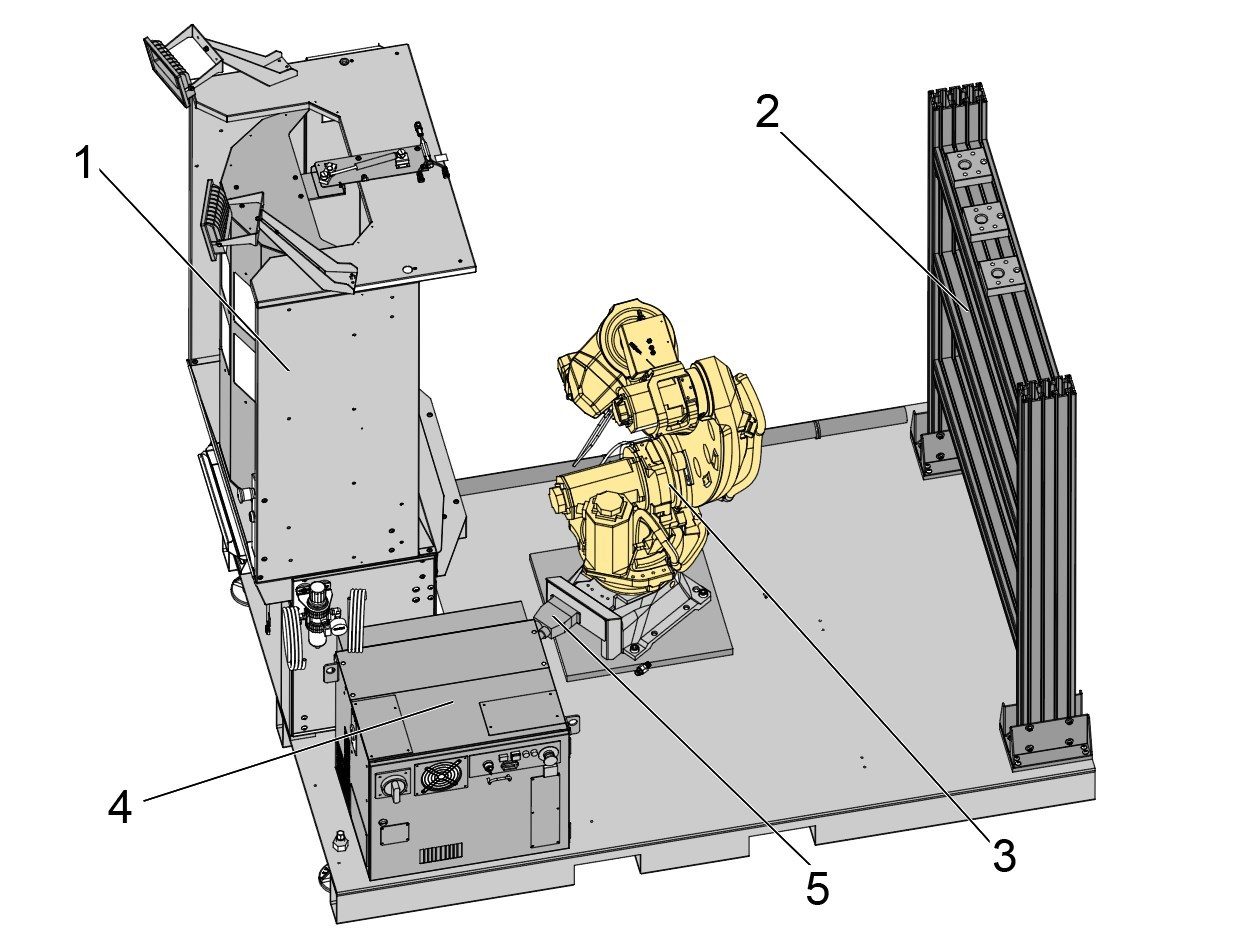
The pallet comes with the following components installed on it:

  1. Operator Load Station
  2. Pallet Shelf
  3. HRP-2 Robot
  4. HRP Control Box

Verify that the electrical connector [5] is oriented as shown in the image.

Warning: Due to the range that robot joints can move, the robot can't maneuver through the area aligned with the electrical connector. The orientation shown in the image is needed for the robot to navigate the operator station, and the pallet shelf effectively.

2

Lift the RPL from the side where there is the pallet jack slots and move it into the place next to the machine. See the next step for exact placement measurements.

Important: Make sure the pallet jack used has forks that are at least the same length of the RPL pallet to ensure safe lifting.

3

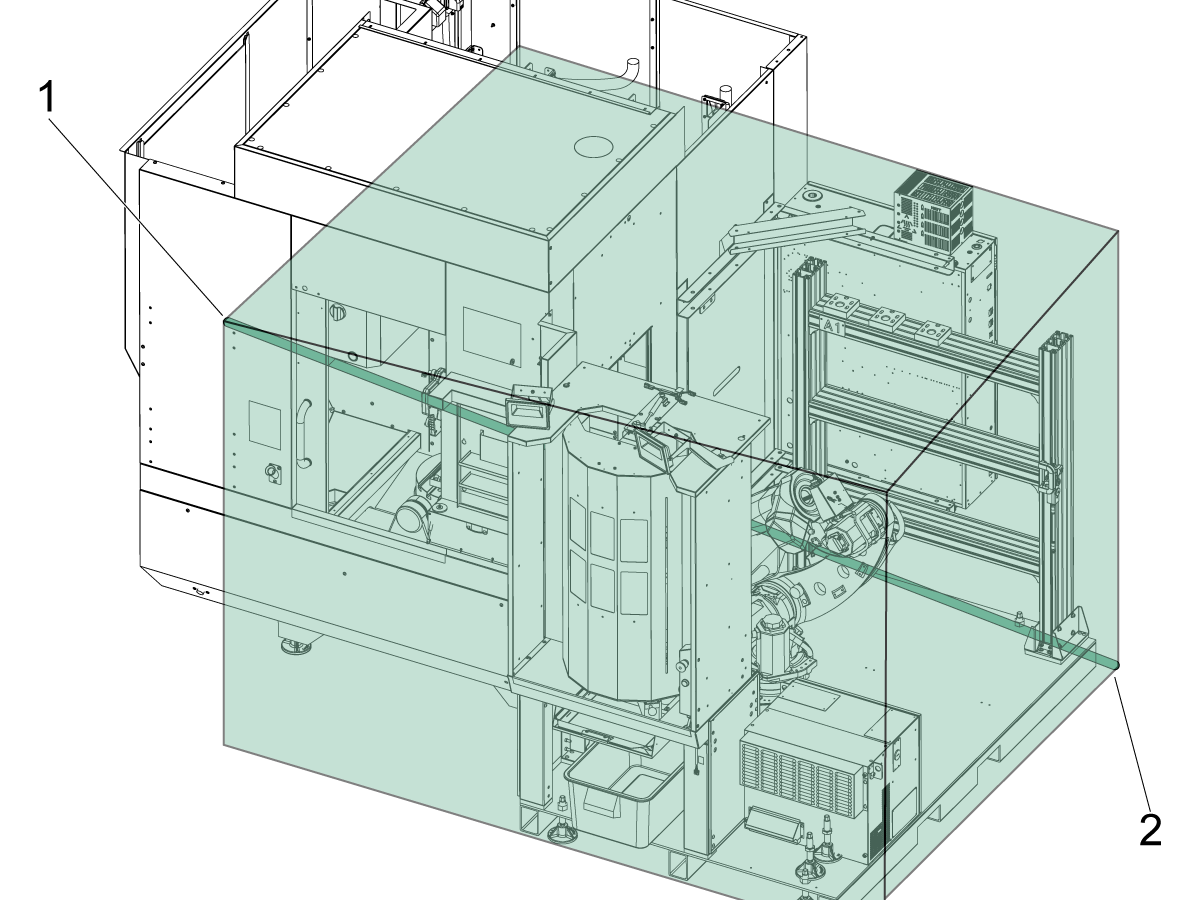
The pallet needs to be positioned on the right side of the machine, located next to the auto window that is installed.

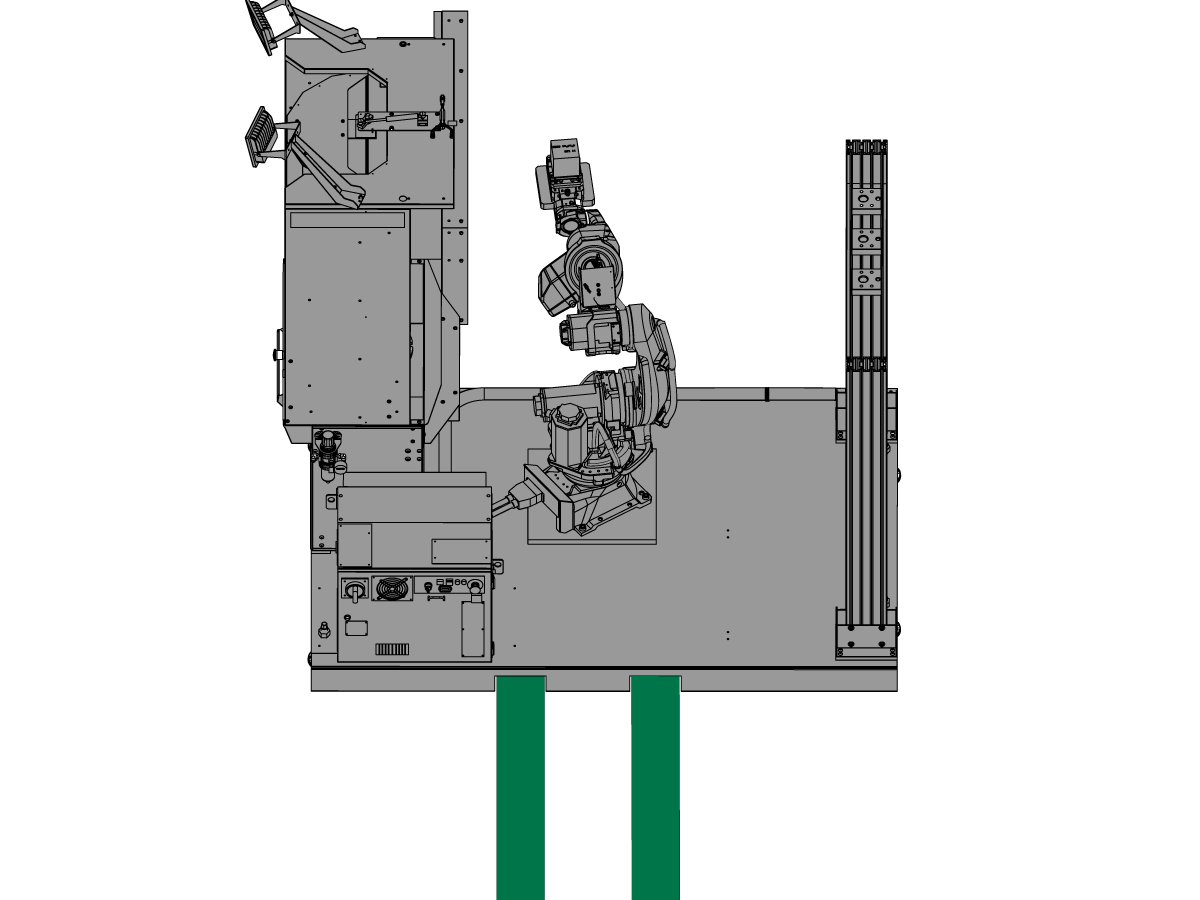
Use a forklift to move the pallet into the correct position.

Place the pallet with the operator station facing the same direction as the front of the machine [1]. Make sure that the left edge of the pallet [5] is parellel to the right edge of the machine [4].

Position the pallet so that:

On UMC-500:

  • The front side of the pallet [2] is [3] (20" or 50.8 cm) from the front of the machine [1]. 
  • The left side of the pallet [5] is [6] (7" or 17.78 cm) from the left side of the machine [4].

On UMC-750:

  • The front side of the pallet [2] is [3] (17.5" or 50.8 cm) from the front of the machine [1]. 
  • The left side of the pallet [5] is [6] (7" or 17.78 cm) from the left side of the machine [4].

On UMC-1000:

  • The front side of the pallet [2] is [3] (16" or 50.8 cm) from the front of the machine [1]. 
  • The left side of the pallet [5] is [6] (7" or 17.78 cm) from the left side of the machine [4].

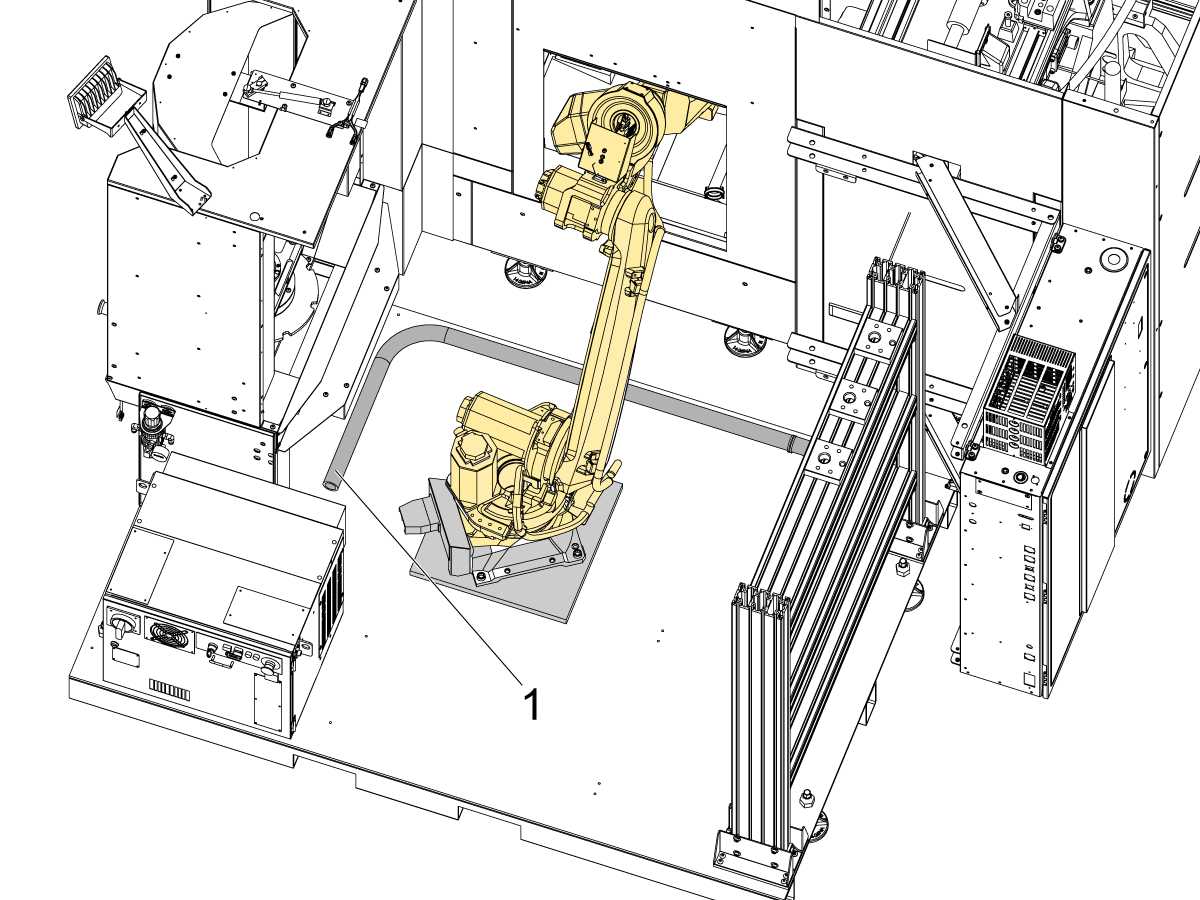
4

If the pallet is sitting on an uneven surface, use the 4 leveling feet [1] to raise the pallet off the ground. 

Use a level to make sure that the pallet is roughly level after raising it of the ground.

Lock the leveling feet in position by tightening the nuts [2] on each foot.

5

Install the anchors [1] from the installation kit after the RPL has been placed in its final position. Use the provided template in the kit  to mark each individual anchor drilling location.

Note: The kit comes with four anchors, but only three are required for installation [2]. The fourth anchor [3] is recommended but not required for anchoring down the RPL.

Follow the link below on how to install the anchors. 

Anchoring Instructions

6

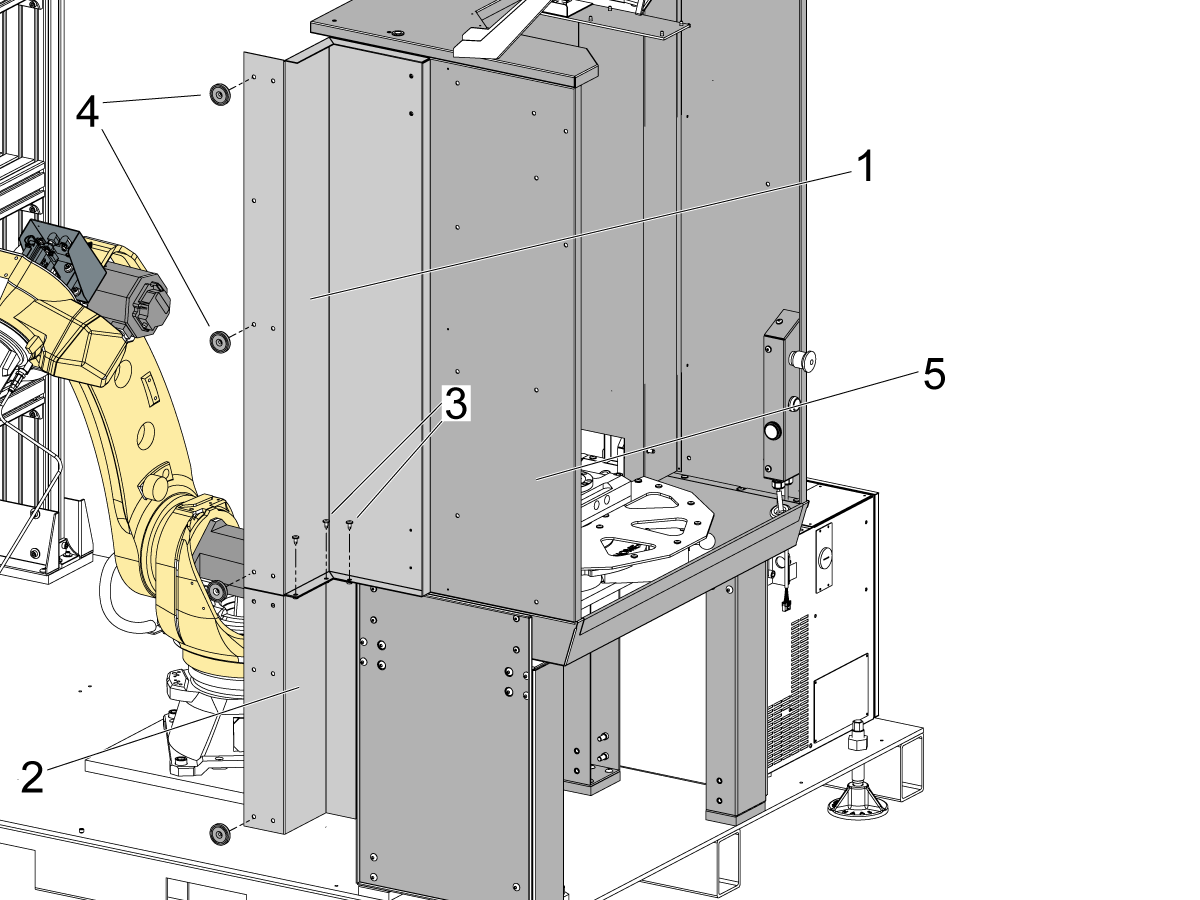
Fasten the sheet metal brackets [1] and [2] together using the FBHCS [3].

Install the magnetic cups onto the sheet metal [4]. This sheet metal will connect the machine to the load station [5] with the magnets.

Note: In this image the machine is not shown so that the magnetic cups can clearly be seen. These magnets connect to both the load station and the machine.

Note: For machines with the CE Install Kit, use the self tapping screws instead of the magnets to mate the sheet metal to the machine.

7

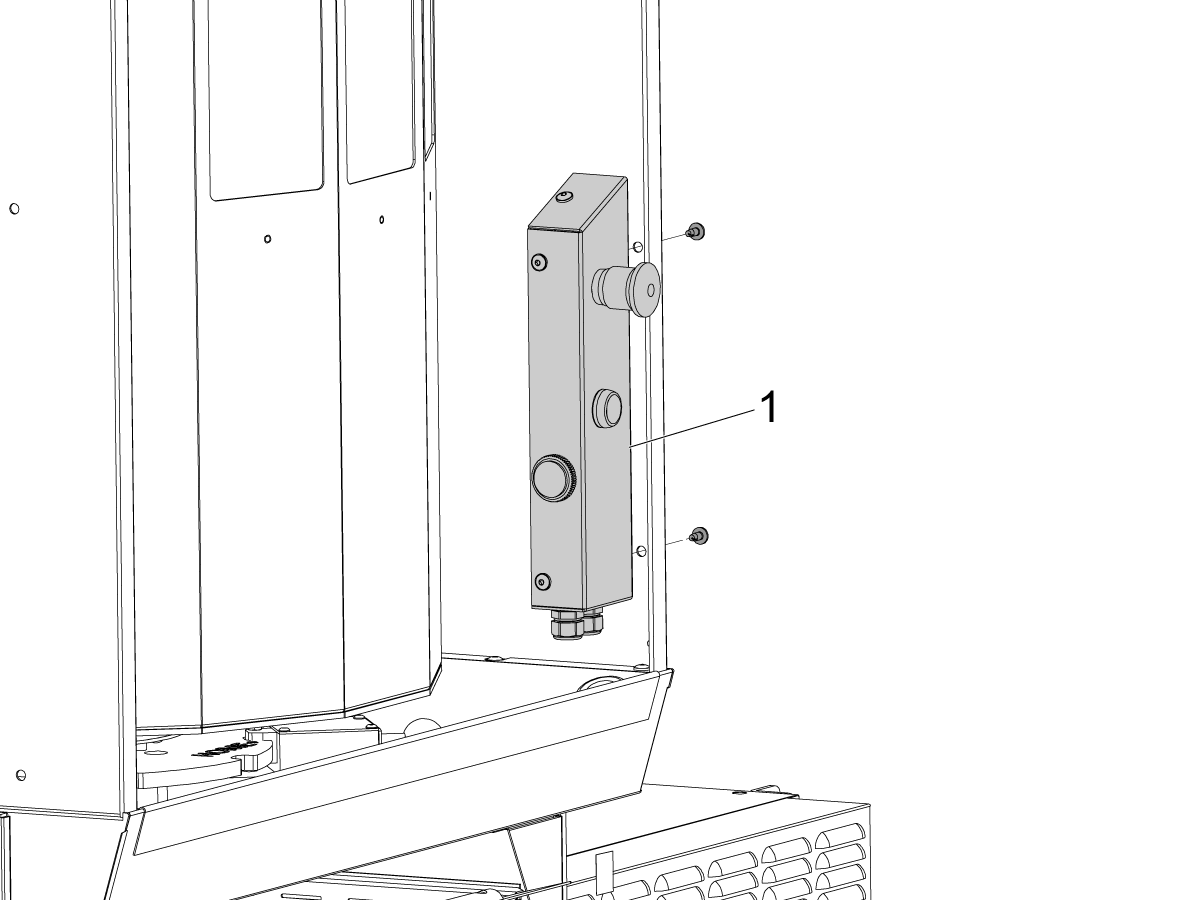
Cut the zip-tie to take the E-stop/work light button holder [1] off the load station. Rotate the holder [1] and use the bolts provided to mount the holder onto the load station. 

8

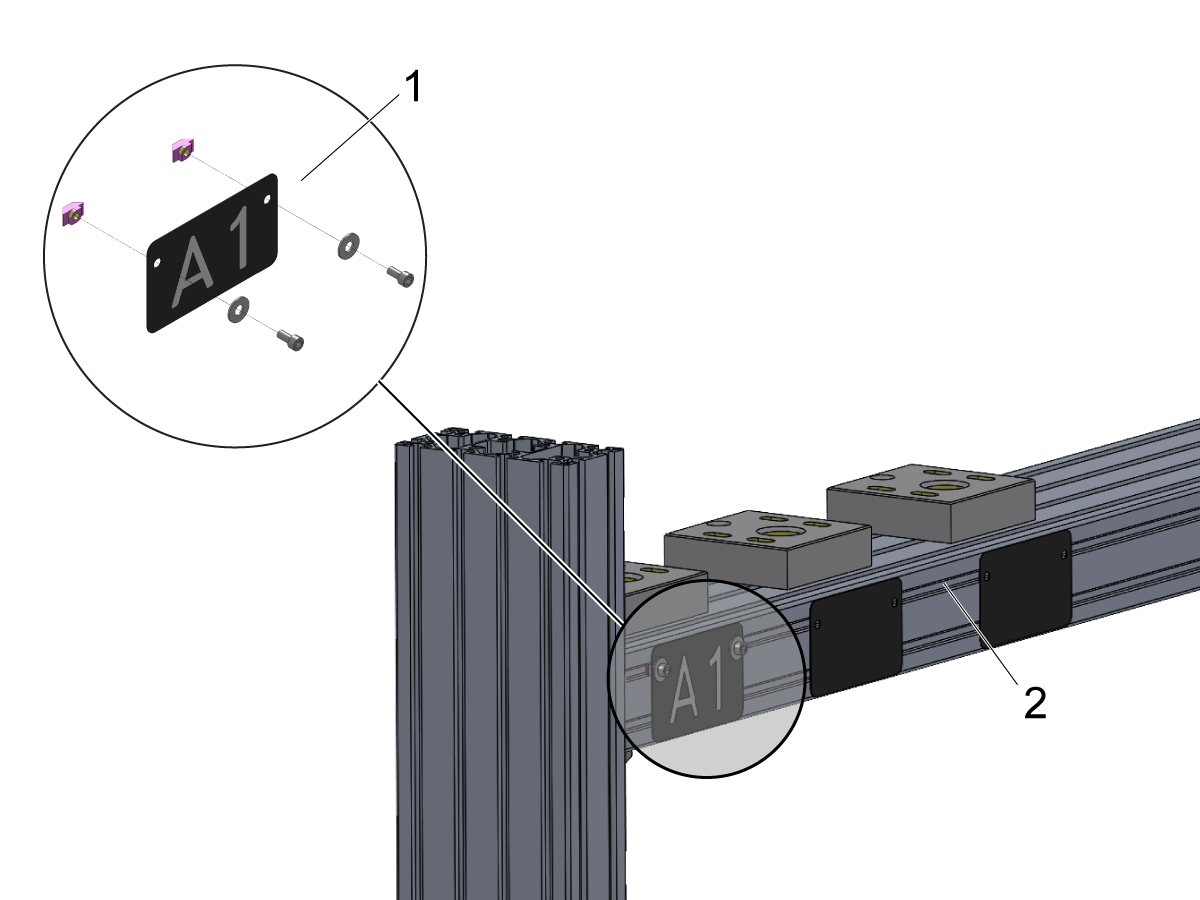
Assemble the number plates and mounting hardware as shown [1]. Lightly tighten t-nuts onto first 1-2 threads of bolts.  

Slip t-nuts into the top slot of the top shelf  [2] and tighten bolts. Number plates A1- A5 should be placed on the top shelf, B1 - B5 on the second shelf, and so on.

Name plates should be installed on the side of the shelf facing the robot arm.

9

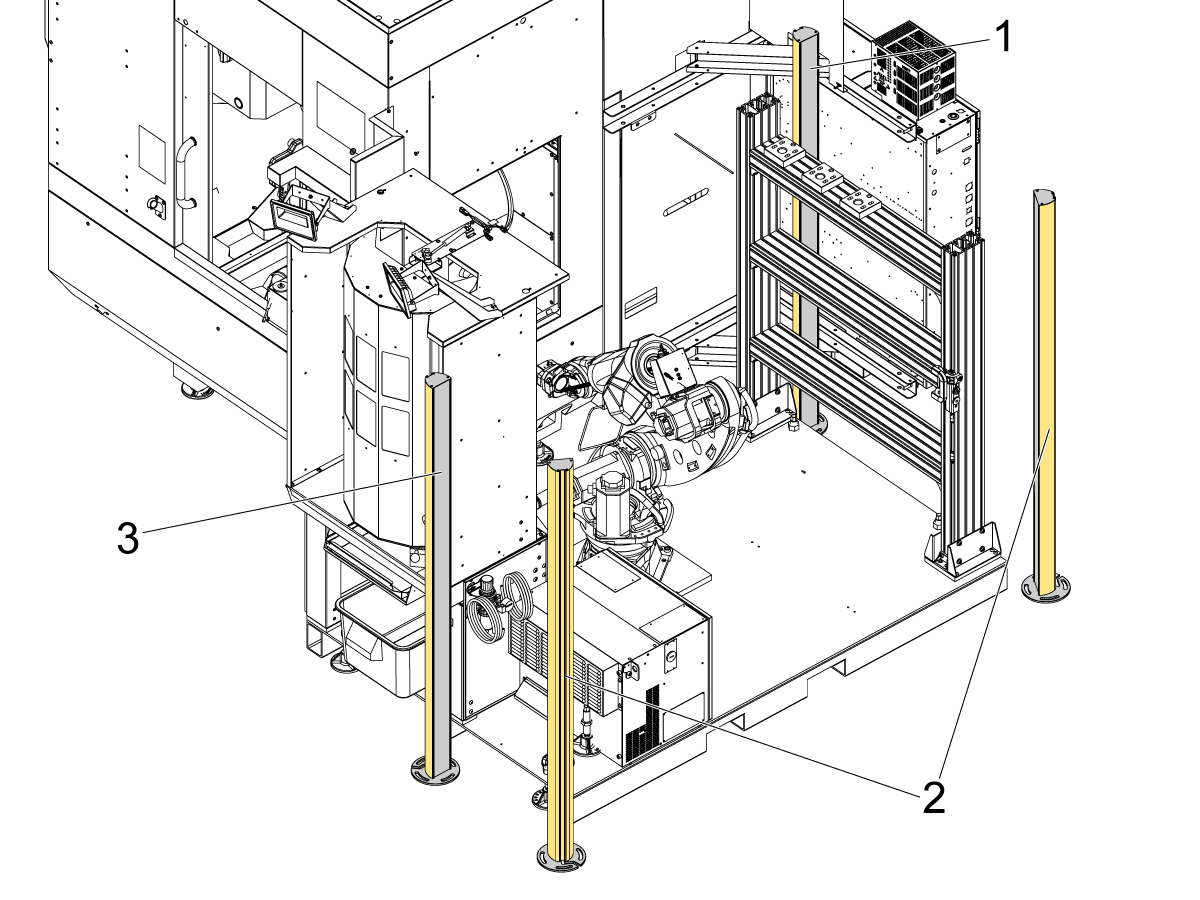
For 93-1001040 Non-CE Install Kit:

Install the light curtains and mirrors as shown in the image.

Place the emitter [1] behind the pallet shelf.

Place the two mirrors [2] on the side opposite the machine.

Place the receiver [3] next to the E-stop of the load station.

10

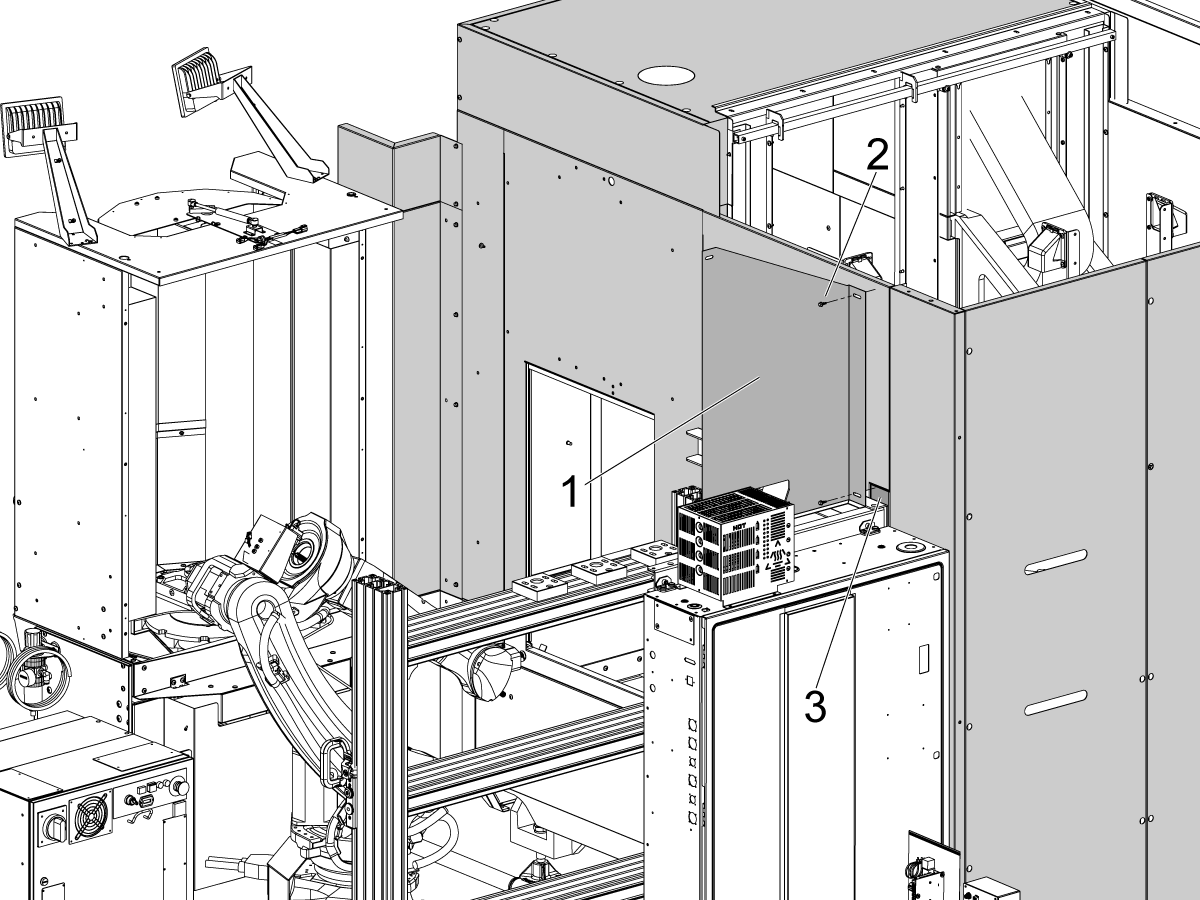
For 93-1001123 CE Install Kit:

Install the rear fence mate panel [1] using the 2 self tapping screws [2].

Note: Do not fully tighten the screws at first. The mounting holes in the panel are slotted so that the position can be adjusted to mate to the fence. Have the fence and other sheet metal setup before fully fastening all the sheet metal in place.

The bottom screw should be mounted to the enclosure panel highlighted [3] in the image. 

11

For 93-1001123 CE Install Kit:

Install the fence [1] to enclose the RPL. Refer to Chapter 6 Fence Installation for more detail on installing the fence.

Use the self tapping screws [2] to mate the sheet metal [3] installed in the previous step.

Note: Fully tighten both sets of self tapping screws [4].

Electrical Installation

 DANGER: Working with the electrical services required for CNC machines is extremely hazardous and can result in serious injury or death.

Before connecting line wires to the CNC:

  • Turn off all power to the machine at the source.
  • Perform a Lockout-Tagout (LOTO) procedure to ensure the power remains off during service.
  • Verify that power has been disconnected by using an AC voltage detector on all incoming lines.

If you are uncertain about how to safely disconnect power or perform LOTO procedures:

  • Do not proceed.
  • Contact qualified personnel or obtain appropriate assistance before continuing.

Failure to follow these precautions may result in electrical shock, equipment damage, or fatal injury.

 Danger: Before beginning any work inside the control cabinet, verify that the High Voltage indicator light on the 320V Power Supply / Vector Drive has been off for a minimum of five (5) minutes. This waiting period ensures that residual voltage has dissipated and reduces the risk of electric shock.

Certain service procedures involve high-risk electrical components and may pose serious injury or fatality hazards. Technicians must not attempt any procedure unless they have a complete understanding of the steps involved and the associated risks.

If there is any uncertainty regarding a procedure, contact your Haas Factory Outlet (HFO) to arrange for a qualified service technician.

1

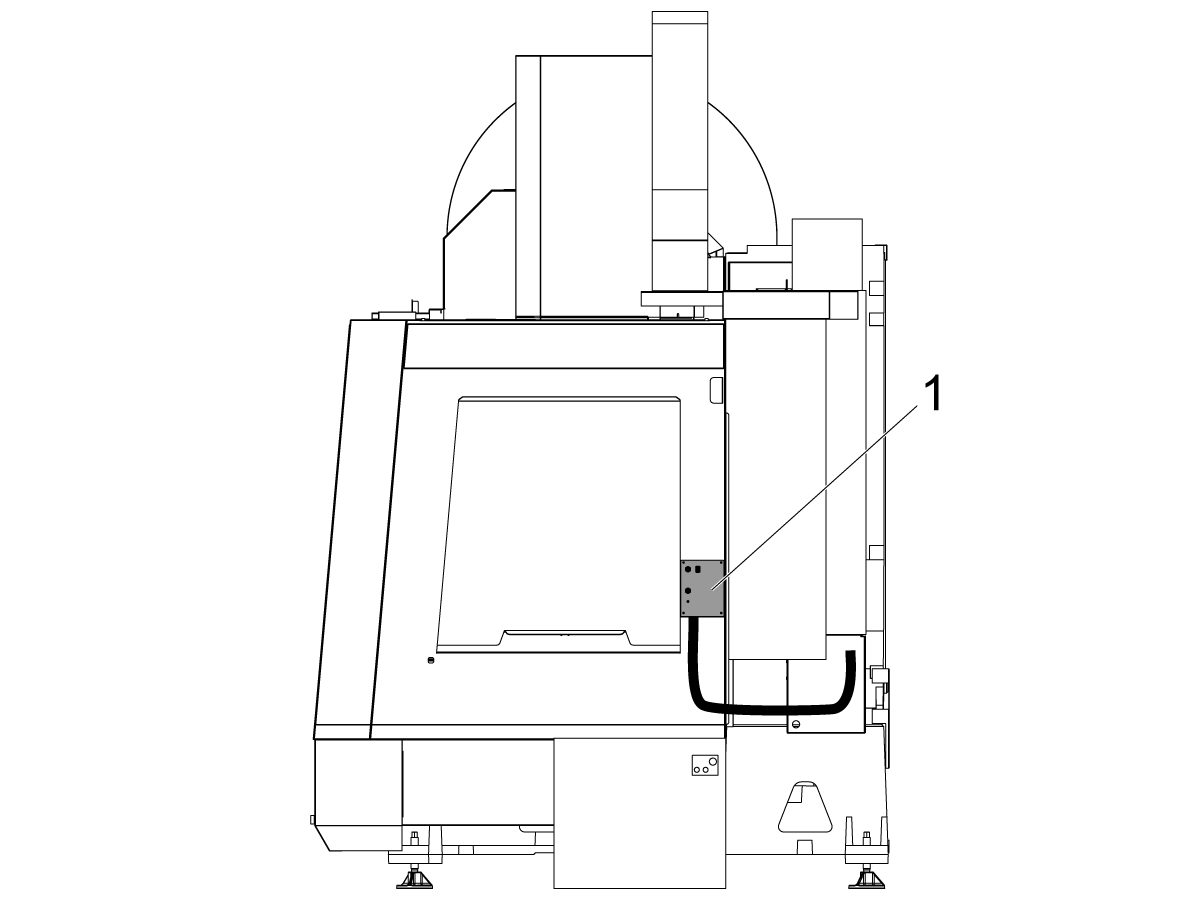
Robot Interface Mounting Location

The Robot electrical interface box has magnetic mounts to attach to the machine sheet metal.

Mount the Robot electrical interface box [1] as shown in the picture.

Route the Robot interface electrical cables through the bottom of the electrical cabinet.

Follow the next section for where to install the cables coming from the interface box and the Remote Jog Handle (RJH).

2

Perform the following steps to connect the robot to the Haas machine.

Robot Power

Requires separate 200-230V 3-Phase, 50/60 Hz, 3 kVA Power Supply[7]. See the Fanuc Startup Guide for more information.

 Note: It is recommended to install a strain relief cable grip to remove stress on the power cable connections and isolate the power cable from the controller cabinet.

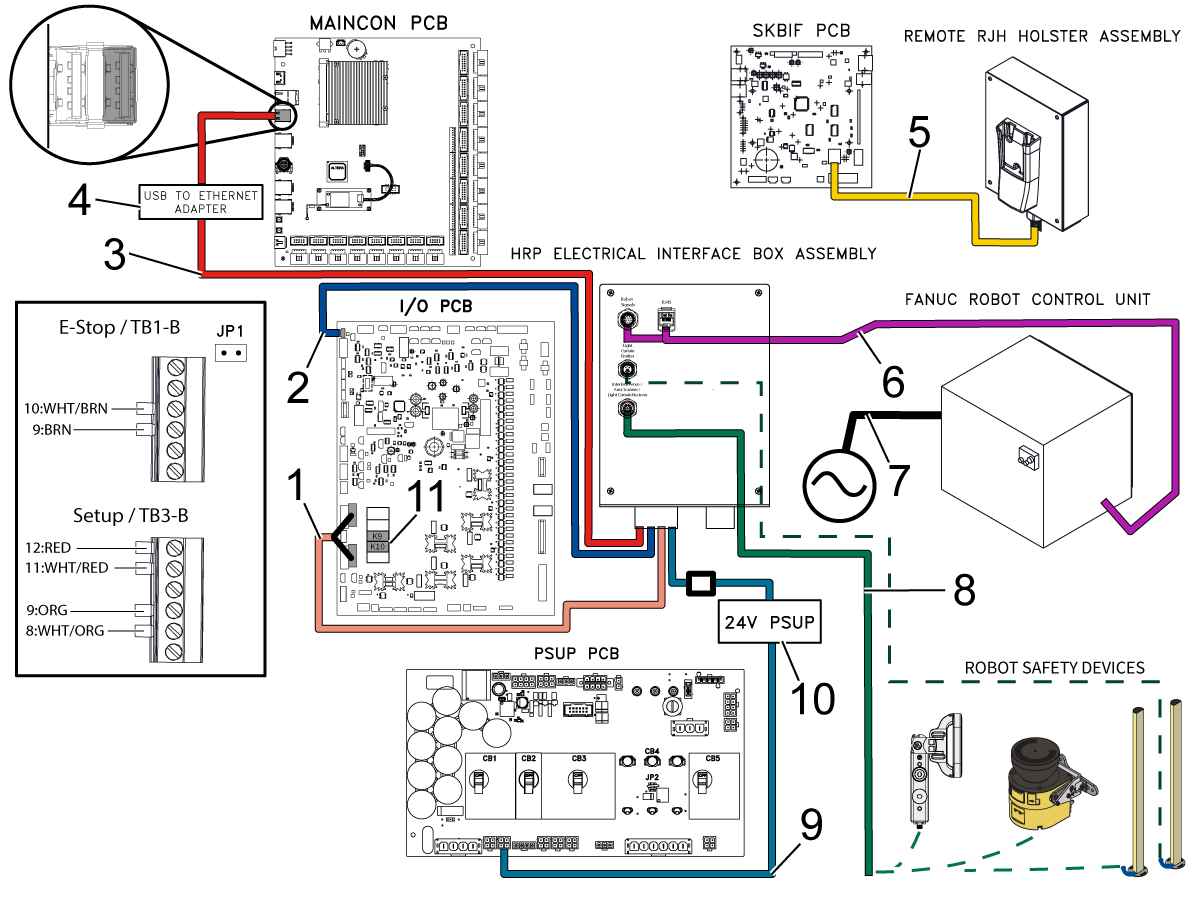
Cable P/N 33-8562C has multiple connections:

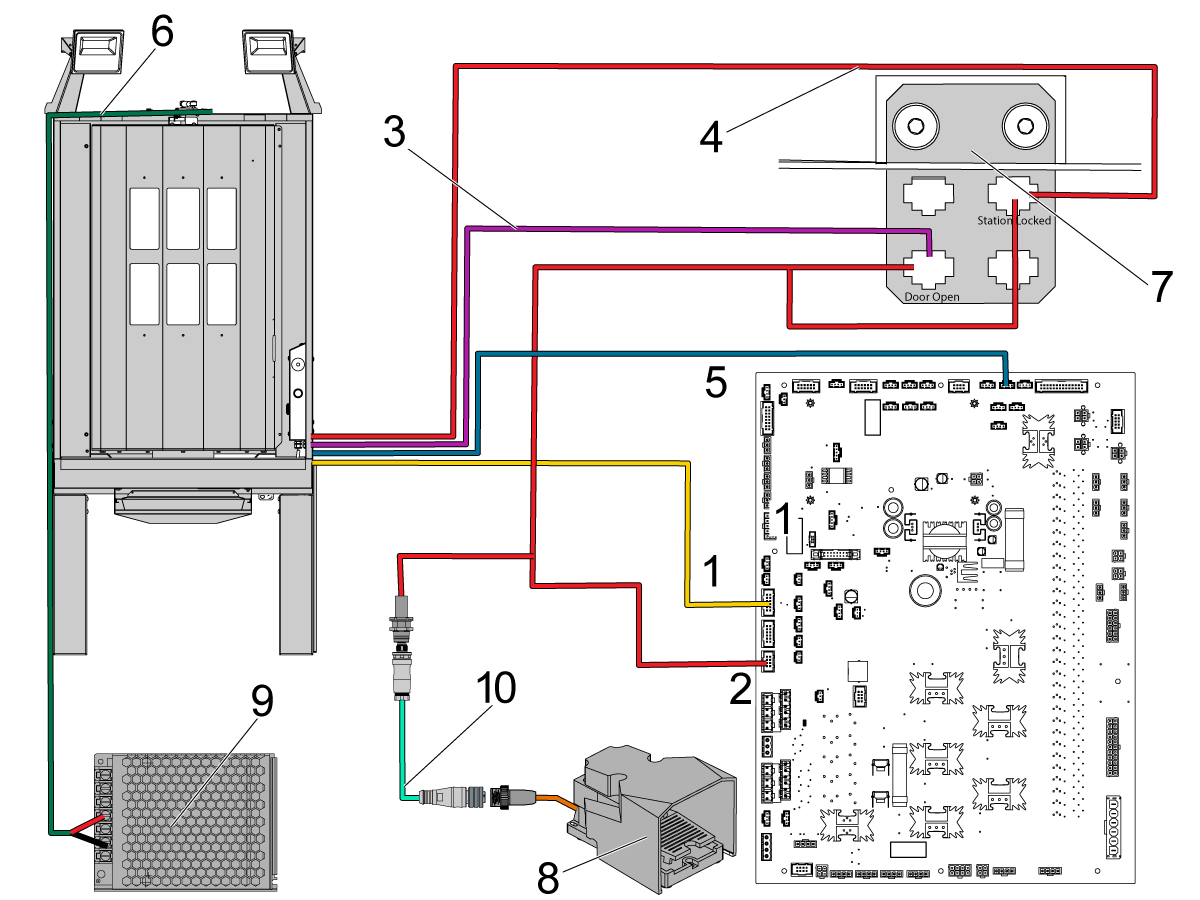
I/O PCB

  • Connect the E-STOP terminal block connections to SIO PCB TB-1B (see diagram)[1].
  • Verify the jumper is installed on the SIO PCB at JP1.
  • Connect the Setup mode terminal block connections to SIO PCB TB-3B (see diagram)[1].
  • Plug the User Relays into K9 and K10.  (see diagram)[11].
  • Connect the cable labeled P1 SIO to the SIO PCB at P1[2].

Note: Do not plug anything into the connector FILTER OV FAULT.

Maincon PCB

  • Connect the RJ-45 cable [3] to Ethernet to USB adapter [4] (P/N 33-0636). Connect the USB connector end to the Maincon PCB J8 top port (see diagram). Add a ferrite filter 64-1252 to the USB adapter.
PSUP PCB
  • Mount the 24VDC Power Supply[10] to the left side of the control cabinet and plug into connector labeled 24V PS on cable 33-8562C. Connect cable 33-1910A[9] to the 24VDC Power Supply[10] and plug into P3 on the PSUP PCB.

SKBIF to Remote Jog Handle

  • Connect the RJ12 cable 33-8550C[5] from the Remote E-stop box to cable 33-0713 and plug into the SKIBF PCB P9.
  • Remove the jumpers JP2 and JP3 on the SKBIF from the horizontal position and replace them in the vertical position.
  • Plug the RJH-XL cable into the cradle.

 Warning: By not putting the jumpers in the vertical position, E-STOP functionality on the RJH-XL is disabled and the machine is considered unsafe. Jumpers MUST be inserted vertically.

Robot Electrical Box to Robot Control

  • Connect the Robot Control Signal Cables [6] P/N 33-8592A to the Robot Electrical Interface Box. Add a ferrite filter 64-1252 to the RJ-45 cable.

 IMPORTANT: When connecting the Robot Control Signal Cable [6], make sure to line up the M12 connector female notch with the M12 connector male key to prevent any misalignment that could result in damaged pins. 

Note: If cable 33-8591A or 33-8592A is not installed to the Fanuc Control box, see the HRP Troubleshooting Guide Robot Control Wiring HRP-2/3 step for wiring instructions.

Robot Safety Device 

  • Connect the robot safety device cable [8] from the electrical interface box to the robot safety device—either light curtain, interlock fence.  For more information regarding safety devices, refer to the Robot Safety Device section below. 

Note: The RPL comes with light curtains or an interlock fence. Area scanner should not be used even though it is shown in the schematic.

3

Remove the bottom cable cover [1] from the control cabinet [2].

For machines purchased with the RPL option, cables will be coiled inside the cover. 

Note: RPL's being added to an existing machine will have to install these cables. These are included in the field install kit for the zero point ready.

Connect the cables to the load station cable bracket [3] which is located as shown in the image. 

4

The cables coming from the load station are connected to the bracket in the previous step [7], or routed all the way to the control cabinet. Make sure the following cables are connected:

  1. 33-2565 - Connect to P12 on IOPCB 
  2. 32-1303 - This is connected to P14 on the IOPCB. One end connects to the cable bracket at the Door Open label and the Station Locked label. The other end is connected to the cutout at the skirt of the machine where the foot pedal connects. If there is already a cable routed to this connector it needs to be replaced with the 32-1303 cable.
  3. 32-1286 - Connects to the foot pedal assembly [8] and then also to the connector of the cable 32-1303.
  4. 32-1304 - Connect to the cable bracket at the Door Open label
  5. 33-1308 - Connect to the cable bracket at the Station Locked label
  6. 33-1482 - Connect to P50 on the IOPCB (pallet alarm). 
  7. 33-5838 - Connect work lights to splitter on top of load station. And then connect to work light power supply [9].

Note: The foot pedal assembly [8], cable 32-1286 [10] and the 32-1303 [2] cables are found in the Zero Point Installation kits.

5

Route the cables and hoses going to the load station and robot through the cable conduit [1] on the machine side of the pallet.

RPL - Air Installation

1

For instructions on the air installation for the Zero point in the machine, refer to the previous chapter in the Zero Point Ready - Installation section.

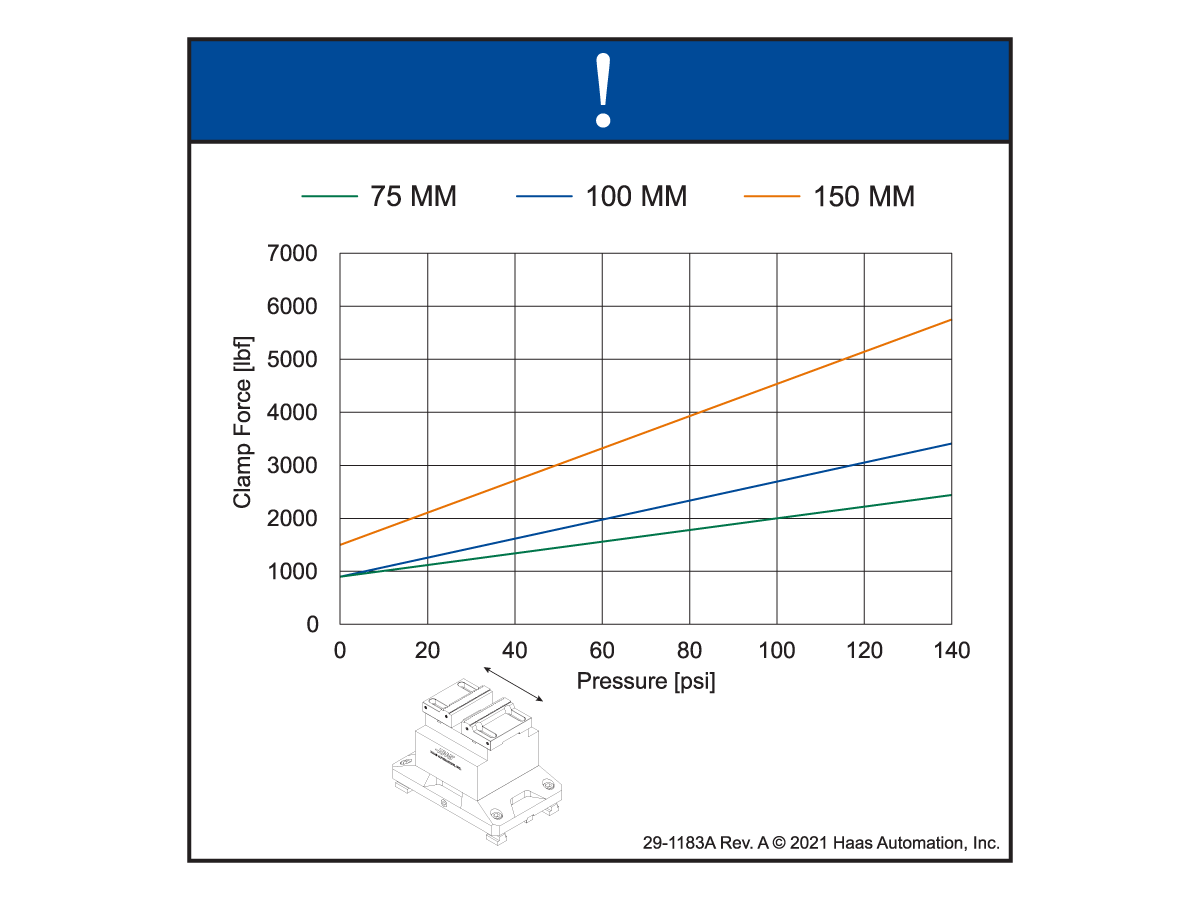
The air booster [1] controls the clamp force of the zero point receiver inside the machine and the load station.

2

Before beginning any installation on the pneumatics, turn off the air and purge the remaining air so that there is no air left in the system. 

This will make installation of the solenoids and air hoses easier.

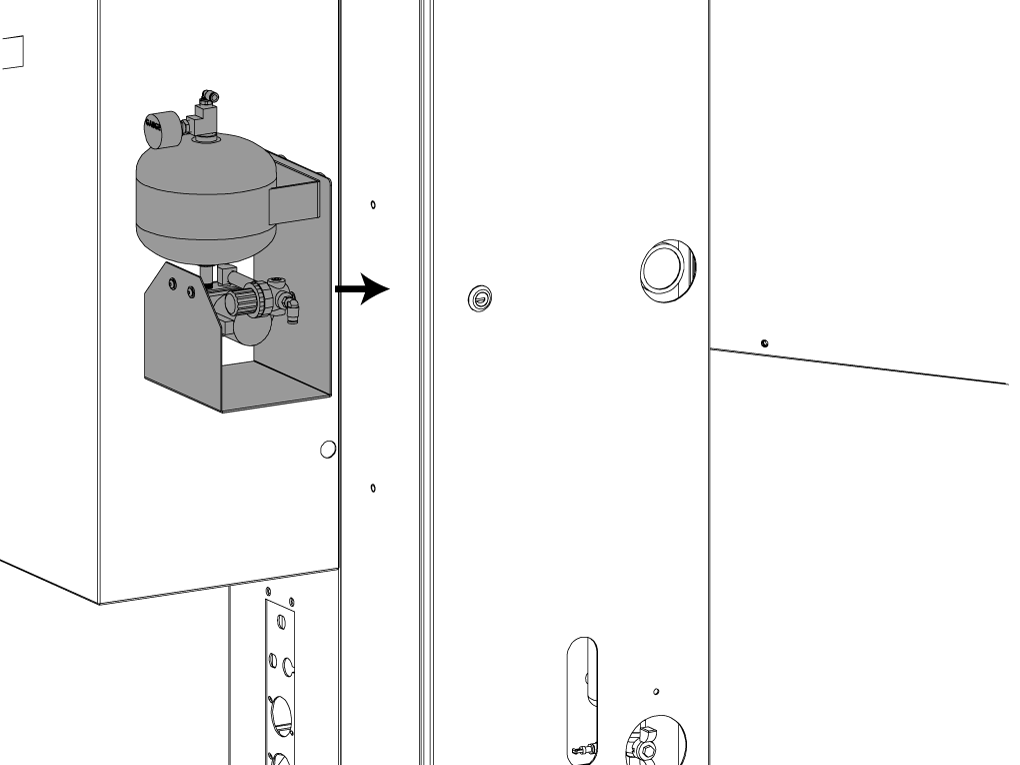
3

Install the air booster on the side of the lube cabinet using the magnets to attach.

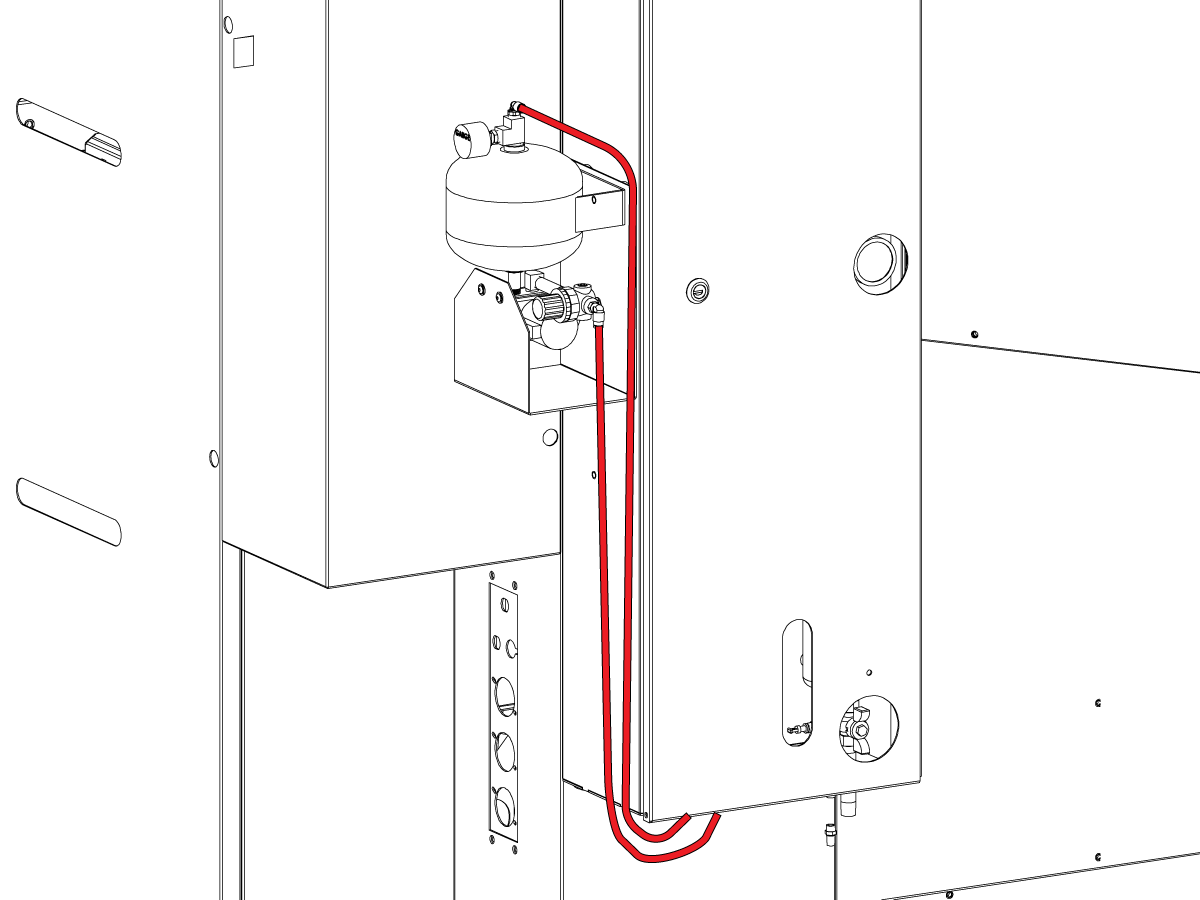
4

Connect the two red high pressure hoses to the two 1/4 push connect fittings and route the hoses through the bottom of the lube cabinet.

See the next step for where in the lube panel to connect these hoses.

5

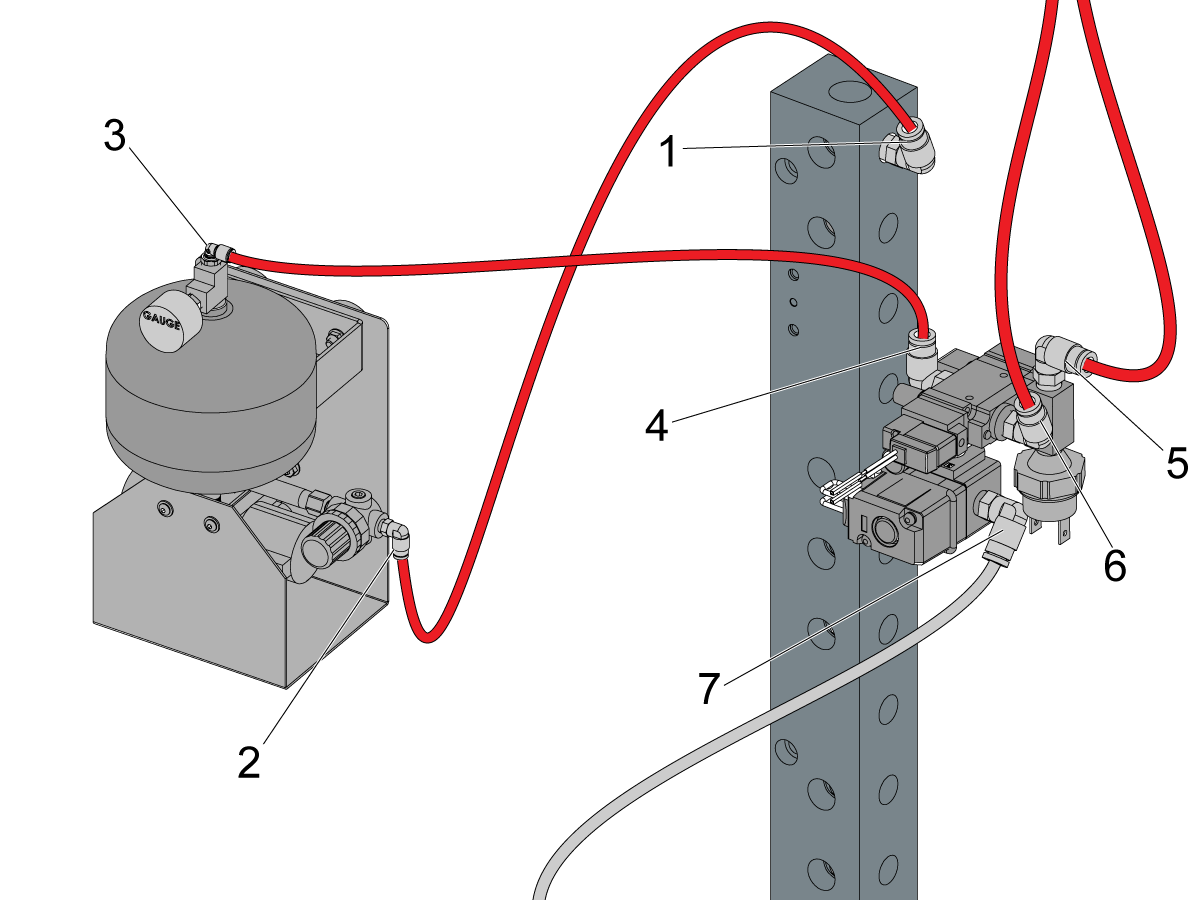
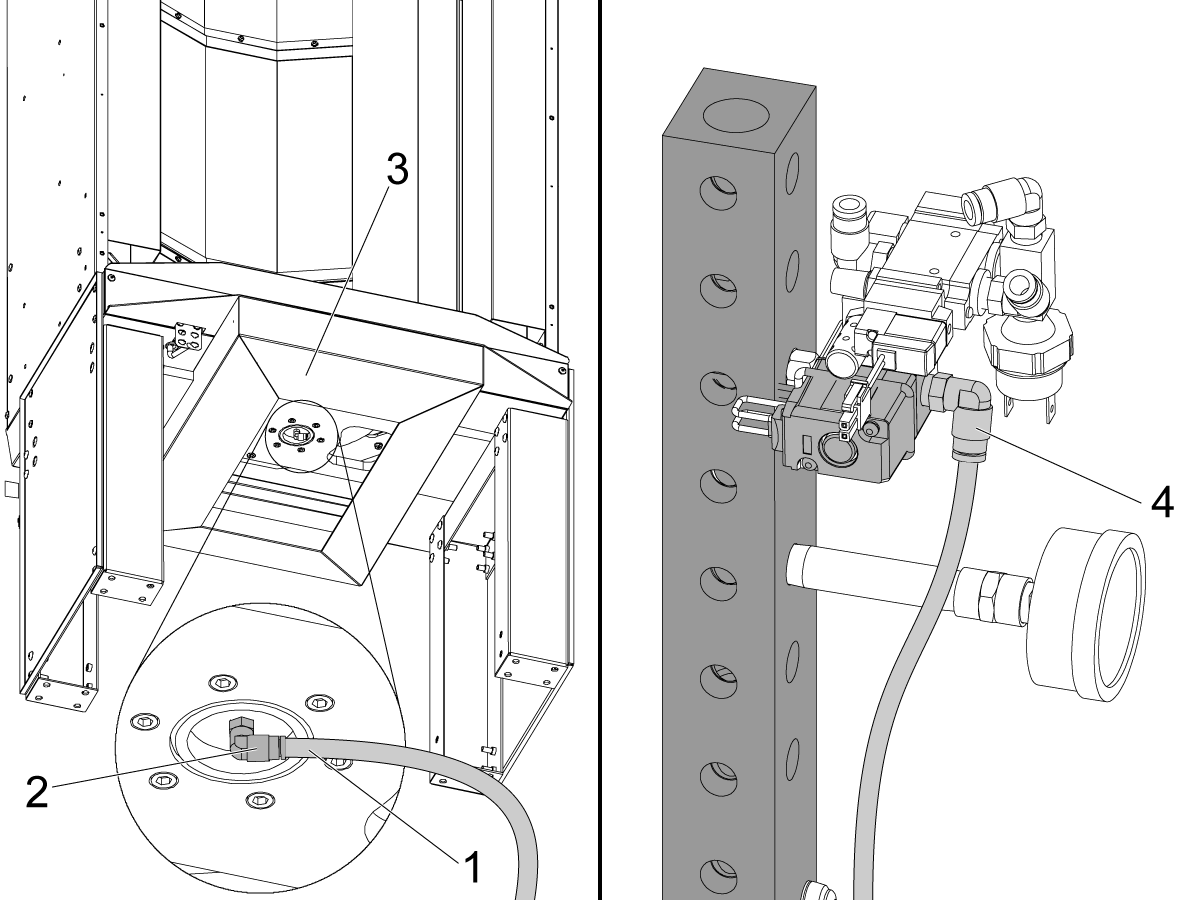
In the lube panel connect the hoses to the solenoids installed in the previous section.

Connect the hose coming from the air manifold in the lube panel [1] to the incoming connector of the air booster [2].

Connect the output of the air booster [3] to the port on the solenoid [4].

Connect the red clamp [5] and unclamp [6] hoses coming from the zero point of the machine to the push connects on the solenoid as shown in the image.

Note: The pressure switch should be on the red clamp hose.

The clear hose [7] coming from the lower solenoid gets routed to the RPL load station.

6

Connect the clear air hose [1] to the 90 degree fitting [2] underneath the load station [3].

Route the hose through the RPL conduit to the lube cabinet and connect it to the fitting at the bottom solenoid [4] in the solenoid assembly.

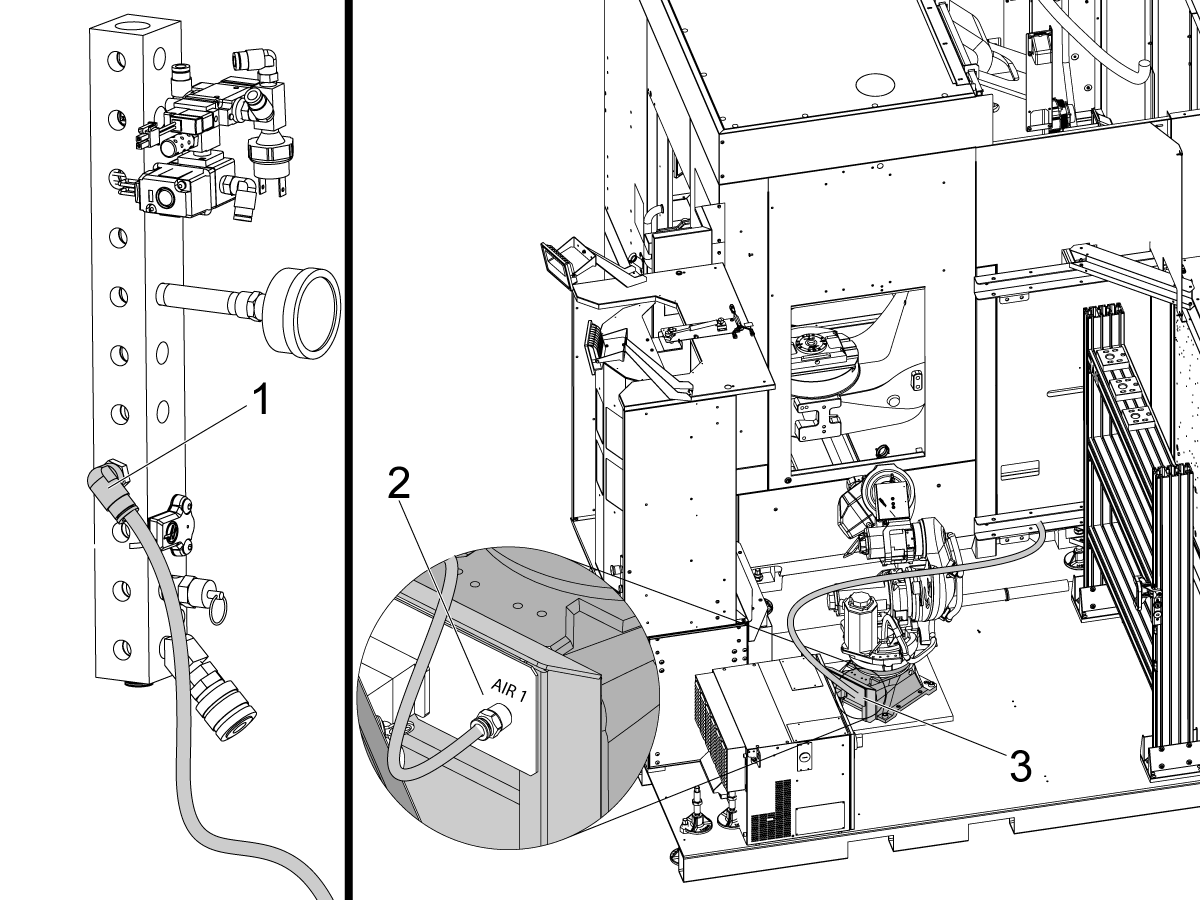
7

Connect the fitting [1] to the main air manifold in the lube cabinet.

Connect the 3/8 in hose to the fitting, and route it to the robot gripper air regulator [2].

Place the regulator [2] on the side of the load station as shown in the image.

Connect the hose to the inlet fitting [3]. Connect the short hose to the outlet fitting [4] and then connect that to the air connection on the base of the robot [5].

Set the regulator to the desired clamp pressure. Refer to the decal for the high pressure regulator for details.

Robot First Power-UP

1

Turn on the machine.

Login to the HBC PORTAL.

Download the Robot Pallet Loader patch files.

 Note: The option files will appear on the configuration download page after the RPL Ready Kit has been ordered. If the option does not appear, contact the service department.

Load the option configuration patch file to the control. Refer to the NEXT GENERATION CONTROL - CONFIGURATION FILE - DOWNLOAD/LOAD procedure. 

2

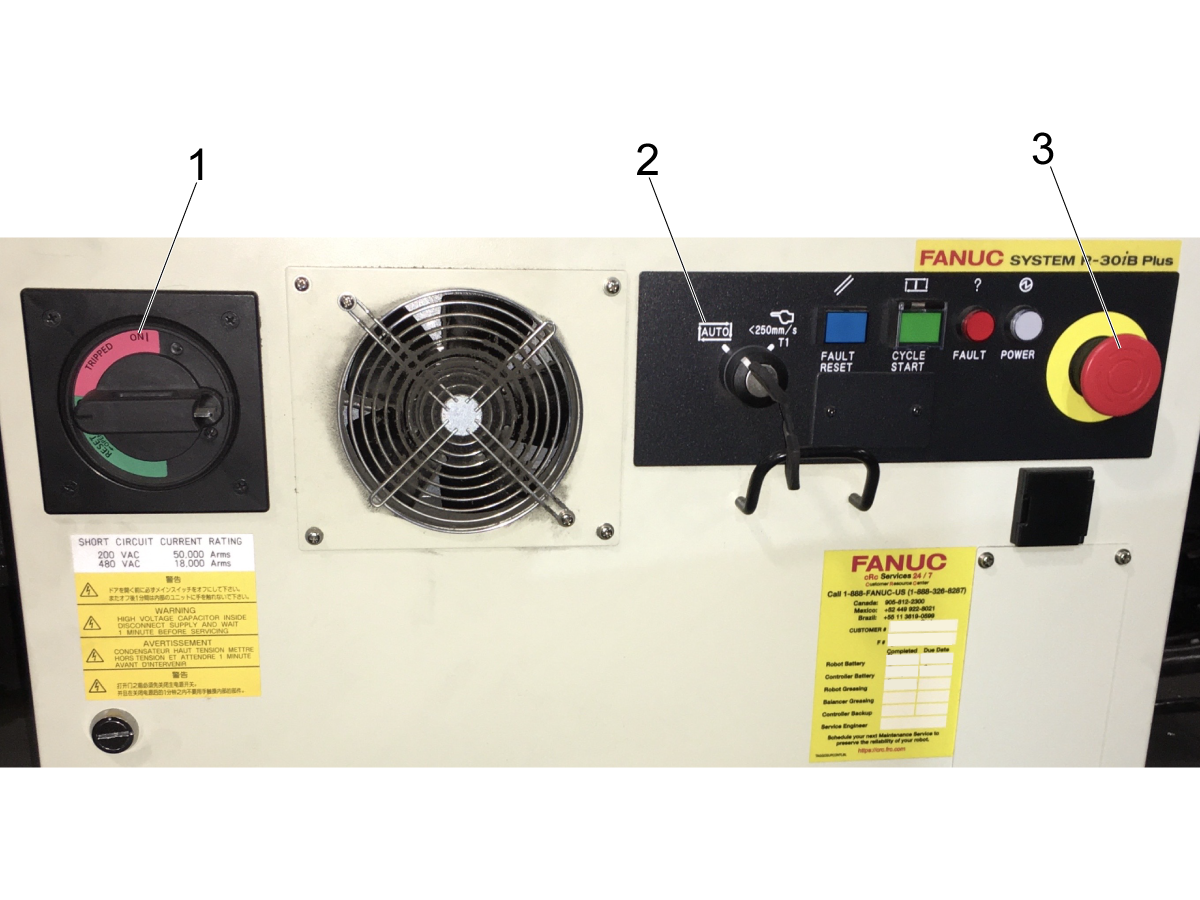
Locate the Mode Switch on the Controller Operator Panel. The key should be set to Auto Mode[2].

Make sure the [E-STOP] button[3] is not pressed.

Turn on the Robot Control box by rotating the Breaker clockwise to On[1].

3

Turn on the Haas CNC.

Zero Return all Axes.

Insert Service USB key.  Go into Service mode.

Go to Parameters> Factory tab.  Change the following:

  • 1278 [1278:] Robot Ready E-Stop Enabled to TRUE
  • 2191 [694:] LIGHT CUTAIN TYPE to LC_TYPE_1
  • 2192 [:] Light Curtain Trigger Threshold to 0

Verify that the following  parameters are set to these values:

  • 2128 [:] PALLET POOL TYPE to 4 Robot
  • 2129 [:] PALLET LOADING SHELF to PP_SHELF_A

Go to Settings and change the following:

  • 382 Disable Pallet Changer to None
  • 372 Parts Loader Type to None
  • 376 Light Curtain Enabled to On

4

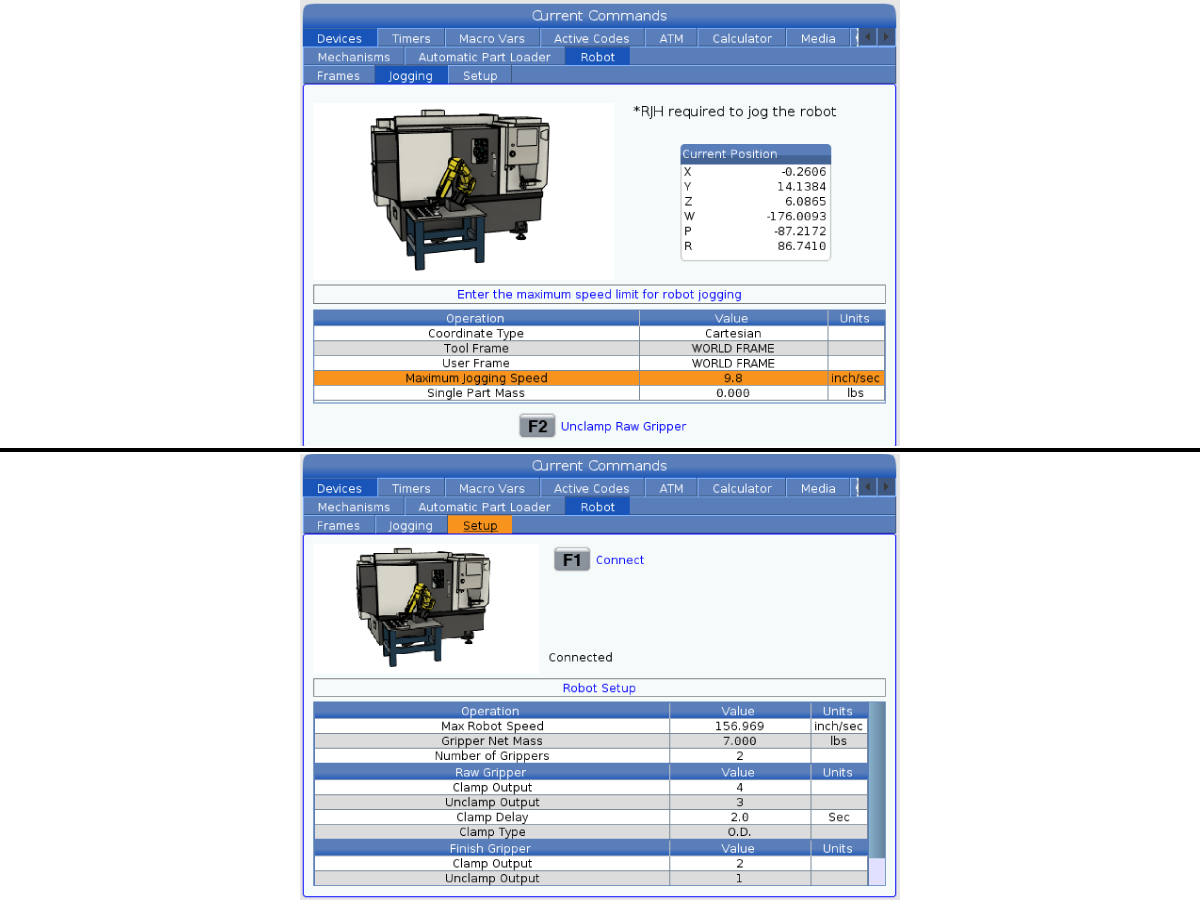
Press [CURRENT COMMANDS].

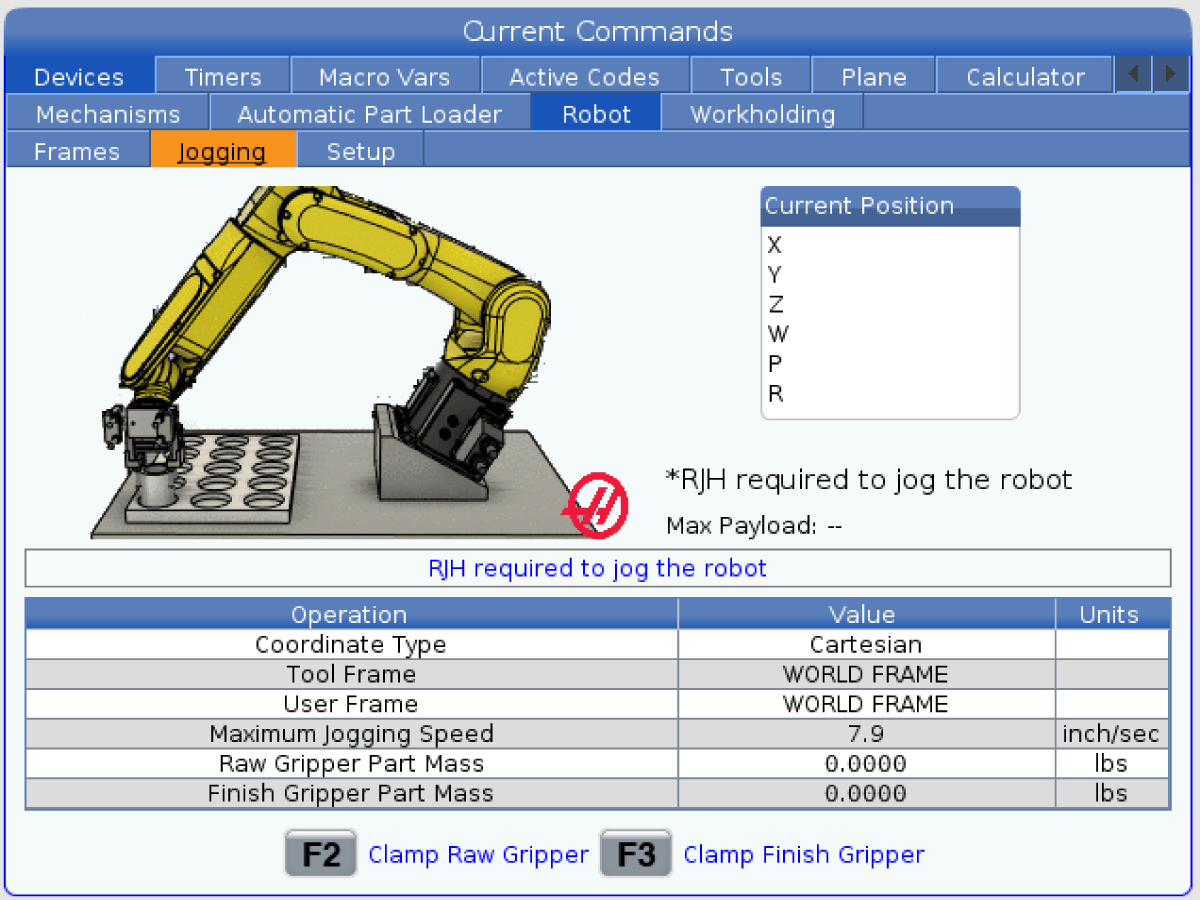
Go to Devices>Robot>Jogging tab. Change the following:

  • Maximum Jogging Speed to 7.9 in/sec (200 mm/sec).

Go to the Setup tab. Change the following:

  • Max Robot Speed to 157 in/sec (3988 mm/sec). 
  • Gripper Net Mass - Enter the Net Mass of the gripper. Refer to the HRP-2 Machine Layout Drawing to get the correct value for this setting.

    Warning: Setting this value incorrectly can cause the Robot Arm to not move correctly.

  • Number of Grippers to the number of grippers.
  • Raw Gripper Clamp Output to 1.
  • Raw Gripper Unclamp Output to 2.
  • Raw Gripper Clamp Delay to the clamp/unclamp duration in sec.
  • Raw Gripper Clamp Type to OD/ID.

5

Press [CURRENT COMMANDS].

Go to Devices>Robot>Setup tab[1].

Press [E-Stop].

Press [F1] to connect the robot[2].

The first time connecting a robot to a machine, a Robot Activation window will pop-up. This pop-up shows the Software Version of the machine[3], the MAC address of the robot[4], and the Machine Generated Code[5] used for Machine Time Extension on the portal.

To activate the robot, enter the F Number[6] and Unlock Code[7].

The F Number is found on the robot ID tag that is on the control panel door or on the robot arm.

The Unlock Code is generated after completing the Robot Installation on the Haas Business Center.

 Note: The machine needs to be activated before the robot is activated. Follow the Machine Activation / Time Extension - NGC procedure.

For Service Activation. In Service Mode, Press [INSERT] to connect the robot. This will be disabled after a Cycle Power.

Note: This step can only be completed by a HFO Service Technician.

Note: The green button on the control box will light up.

6

Press the [HANDLE JOG] button. 

Press the [CURRENT COMMANDS]  and go to Devices > Robot > Jogging tab.

On the Remote Handle Jog Touch press the Joint button to go into the Joints Coordinates.

Jog the robot from its shipping position to a safe position.

Note: Press [Emergency Stop] before working on the robot.

Note: Turn off the machine air by turning the valve in the Air/Lube cabinet and pull the pressure relief valve to release the air in the system.

7

DCS Setup (Dual Safety Check)

Each Haas Robot is provided with FANUC's DCS System. This allows the user to define speed and positional limits to the robot. If the robot goes outside of these limits, DCS will stop the robot and remove power to the motors.

Note: This is required for RPL's.

Refer to the procedure linked below for how to set up a Fanuc Dual Check Safety (DCS) zone.

Note: This is setup the same as it is on a normal HRP-2 machine.

FANUC Dual Check Safety (DCS) – Setup

8

Note: Make sure DCS is setup correctly at this point before continuing.

Once the robot is installed and operational, continue to setup the RPL system using the tabs in the CURRENT COMMANDS > DEVICES menu in the control.

Chapter 9 Pallet Loader Setup will show how to configure the shelf, setup the pallet holders, and set the needed positions for the robot.

Recently Viewed Items

You Have No Recently Viewed Items Yet

Feedback
Haas Logo

Haas Delivered Price

This price includes shipping cost, export and import duties, insurance, and any other expenses incurred during shipping to a location in France agreed with you as a buyer. No other mandatory costs can be added to the delivery of a Haas CNC Product.

KEEP UP WITH THE LATEST HAAS TIPS AND TECHNOLOGY...

Sign up now!   

HAAS TOOLING ACCEPTS THE FOLLOWING:

  • Service & Support
  • Owners
  • Request Service
  • Operator Manuals
  • Haas Parts
  • Rotary Repair Request
  • Pre-Install Guides
  • Shopping Tools
  • Build & Price a New Haas
  • Available Inventory
  • The Haas Price List
  • CNCA Financing
  • About Haas
  • Accessibility Statement
  • DNSH Statement
  • Export Compliance
  • Careers
  • Certifications & Safety
  • Contact Us
  • History
  • Terms & Conditions
  • Haas Tooling Terms & Conditions
  • Privacy
  • Warranty
  • Haas Community
  • Haas Certification Program
  • Haas Motorsports
  • Gene Haas Foundation
  • Haas Technical Education Community
  • Events
  • Join the Conversation
  • Facebook
  • X
  • Flickr
  • YouTube
  • LinkedIn
  • Instagram
  • TikTok
© 2026 Haas Automation, Inc – CNC Machine Tools
This site is protected by reCAPTCHA and the Google Privacy Policy and Terms of Service apply.

2800 Sturgis Rd., Oxnard, CA 93030
Toll Free: (888) 817-4446 / Fax: 805-278-8554