My Haas Welcome,
!
Haas Tooling MyHaas/HaasConnect Sign In Register Haas Tooling MyHaas/HaasConnect Sign Out Welcome, My Machines Latest Activity My Quotes My Account My Users Sign Out
Find Your Distributor
  1. Select Language
    1. English
    2. Deutsch
    3. Español - España
    4. Español - México
    5. Français
    6. Italiano
    7. Português
    8. Český
    9. Dansk
    10. Nederlands
    11. Magyar
    12. Polski
    13. Svenska
    14. Türkçe
    15. 中文
    16. Suomi
    17. Norsk
    18. الإنجليزية
    19. български
    20. Hrvatski
    21. Ελληνικά
    22. Română
    23. Slovenský
    24. Slovenščina
    25. 한국어
    26. 日本語
    27. Українська
  • machines Main Menu
    • Vertical Mills
      Vertical Mills
      Vertical Mills View All
      • Vertical Mills
      • VF Series
      • Universal Machines
      • VR Series
      • VP-5 Prismatic
      • Pallet-Changing VMCs
      • Mini Mills
      • Mold Machines
      • High-Speed Drill Centers
      • Drill/Tap/ Mill Series
      • Toolroom Mills
      • Pocket Mill
      • Compact Mills
      • Gantry Series
      • SR Sheet Routers
      • Extra-Large VMC
      • Double-Column Mills
      • 3+2 Positioning Machines
    • Multi-Axis Solutions
      Multi-Axis Solutions
      Multi-Axis Solutions View All
      • Multi-Axis Solutions
      • Y-Axis Lathes
      • 5-Axis Mills
    • Lathes
      Lathes
      Lathes View All
      • Lathes
      • ST Series
      • Dual-Spindle
      • Box Way Series
      • Toolroom Lathes
      • Chucker Lathe
      • Haas Bar Feeders
    • Horizontal Mills
      Horizontal Mills
      Horizontal Mills View All
      • Horizontal Mills
      • 50-Taper
      • 40-Taper
    • Rotaries & Indexers
      Rotaries & Indexers
      Rotaries & Indexers View All
      • Rotaries & Indexers
      • Rotary Tables
      • Indexers
      • 5-Axis Rotaries
      • Extra-Large Rotaries
    • Special Series
      Special Series
      Special Series View All
      • Special Series
      • EU_Series_Redirect
    • Automation Systems
      Automation Systems
      Automation Systems View All
      • Automation Systems
      • Mill Automation
      • Lathe Automation
      • Automatic Parts Loaders
      • Automation Models
    • Desktop Machines
      Desktop Machines
      Desktop Machines View All
      • Desktop Machines
      • Desktop Mill
      • Desktop Lathe
      • Control Simulator, Standard
      • Control Simulator, Premium
    • Shop Equipment
      Shop Equipment
      Shop Equipment View All
      • Shop Equipment
      • Knee Mill
      • Haas Manual Lathes
      • Haas Saws
    • Fabrication Machines
      Fabrication Machines
      Fabrication Machines View All
      • Fabrication Machines
      • Laser Cutting Machines
      • CNC Press Brakes
    • QUICK LINKS Special Series  Special Series 
      EU SERIES EU SERIES BUILD & PRICE | PRICE LIST BUILD & PRICE | PRICE LIST In-Stock Machines In-Stock Machines WHAT’S NEW WHAT’S NEW YOUR FIRST CNC YOUR FIRST CNC
      SHOPPING TOOLS
      • Build & Price a Haas
      • Price List
      • Available Inventory
      • CNCA Financing
      WANT TO TALK TO SOMEONE?

      A Haas Factory Outlet (HFO) can answer your questions, and walk you through your best options.

      CONTACT YOUR DISTRIBUTOR >
  • Options Main Menu
    • The Haas Control Value Option Packages
      Value Option Packages
      Value Option Packages View All
      • Value Option Packages
    • Product Image Spindles
      Spindles
      Spindles View All
      • Spindles
    • Product Image Tool Changers
      Tool Changers
      Tool Changers View All
      • Tool Changers
    • Product Image 4th- | 5th-Axis
      4th- | 5th-Axis
      4th- | 5th-Axis View All
      • 4th- | 5th-Axis
    • Product Image Turrets & Live Tooling
      Turrets & Live Tooling
      Turrets & Live Tooling View All
      • Turrets & Live Tooling
    • Product Image Probing
      Probing
      Probing View All
      • Probing
    • Haas Chip & Coolant Management Chip & Coolant Management
      Chip & Coolant Management
      Chip & Coolant Management View All
      • Chip & Coolant Management
    • The Haas Control The Haas Control
      The Haas Control
      The Haas Control View All
      • The Haas Control
    • Product Image Product Options
      Product Options
      Product Options View All
      • Product Options
    • Product Image Tooling & Fixturing
      Tooling & Fixturing
      Tooling & Fixturing View All
      • Tooling & Fixturing
    • Product Image Workholding
      Workholding
      Workholding View All
      • Workholding
    • Product Image 5-Axis Solutions
      5-Axis Solutions
      5-Axis Solutions View All
      • 5-Axis Solutions
      • 5 Easy Steps to 5-Axis
    • QUICK LINKS Special Series  Special Series 
      EU SERIES EU SERIES BUILD & PRICE | PRICE LIST BUILD & PRICE | PRICE LIST In-Stock Machines In-Stock Machines WHAT’S NEW WHAT’S NEW YOUR FIRST CNC YOUR FIRST CNC
      SHOPPING TOOLS
      • Build & Price a Haas
      • Price List
      • Available Inventory
      • CNCA Financing
      WANT TO TALK TO SOMEONE?

      A Haas Factory Outlet (HFO) can answer your questions, and walk you through your best options.

      CONTACT YOUR DISTRIBUTOR >
  • Why Haas Main Menu
      Discover the Haas Difference
    • Why Haas
    • MyHaas
    • Education Community
    • Industry 4.0
    • Haas Certification
    • Customer Testimonials
  • Service Main Menu
      Welcome to Haas Service
      SERVICE HOME Operator’s Manuals How-To Procedures Troubleshooting Guides Preventive Maintenance Haas Parts Haas Tooling Videos
  • Videos Main Menu
  • Main Menu
    • View All
    • View All
    • View All
    • View All
      • HTEC Curriculum Support
      • Haas Value Option Packages (VOP) Journey
    • View All
      • Haas 10 kg Cobot Package
      • Cobot Kits
      • DC-1 Drill Center
      • CNC Sales News
      • Do More With Your Haas
    • View All
    • View All
      • contact-us-test
      • 4 - AUTOMATION SYSTEMS
      • Carousel-V2
      • expert test
      • Demo_Day_Trident-test
      • Link Test
      • image-sale-tag-test
      • article-list-test
      • Haas 25 kg Robot Package
      • test-algolia-page
    • View All
    • View All
    • View All
    • View All
      • calc-test
    • View All
    • QUICK LINKS Special Series  Special Series 
      EU SERIES EU SERIES BUILD & PRICE | PRICE LIST BUILD & PRICE | PRICE LIST In-Stock Machines In-Stock Machines WHAT’S NEW WHAT’S NEW YOUR FIRST CNC YOUR FIRST CNC
      SHOPPING TOOLS
      • Build & Price a Haas
      • Price List
      • Available Inventory
      • CNCA Financing
      WANT TO TALK TO SOMEONE?

      A Haas Factory Outlet (HFO) can answer your questions, and walk you through your best options.

      CONTACT YOUR DISTRIBUTOR >
  • Haas Tooling Main Menu
  • Haas Service Parts Main Menu

My Haas Welcome,
!
Haas Tooling MyHaas/HaasConnect Sign In Register Haas Tooling MyHaas/HaasConnect Sign Out Welcome, My Machines Latest Activity My Quotes My Account My Users Sign Out
Find Your Distributor
  1. Select Language
    1. English
    2. Deutsch
    3. Español - España
    4. Español - México
    5. Français
    6. Italiano
    7. Português
    8. Český
    9. Dansk
    10. Nederlands
    11. Magyar
    12. Polski
    13. Svenska
    14. Türkçe
    15. 中文
    16. Suomi
    17. Norsk
    18. الإنجليزية
    19. български
    20. Hrvatski
    21. Ελληνικά
    22. Română
    23. Slovenský
    24. Slovenščina
    25. 한국어
    26. 日本語
    27. Українська
×

Search Results

Web Pages

Images

    • <
    • 1
    • >

2 - HTS400 - Installation

HTS400 - Operator's/Service Manual


  • 1 - HTS400 - Introduction
  • 2 - HTS400 - Installation
  • 3 - HTS400 - Operation
  • 4 - HTS400 - Maintenance
  • 5 - HTS400 - Troubleshooting

Go To :

  • SEE THE HTS400 ON HAASTOOLING.COM
  • 2.1 HTS400 - Installation
  • 2.2 HTS400 - Base Cabinet Assembly
  • 2.3 HTS400 - Printer Driver Update

2.1 Installation

Recently Updated

HTS400 Installation Guide


AD0519

Installation

Introduction

This procedure will go over how to unpack and set up the HTS400 and the Wireless Data Matrix Scanner. 

To the left is a video showing how to unpack and set up the HTS400. Below is written instructions with illustrations showing the process. 

At the bottom of the page is a video showing how to install the Wireless Data Matrix Scanner and the hardware requirements for the scanner. 

1

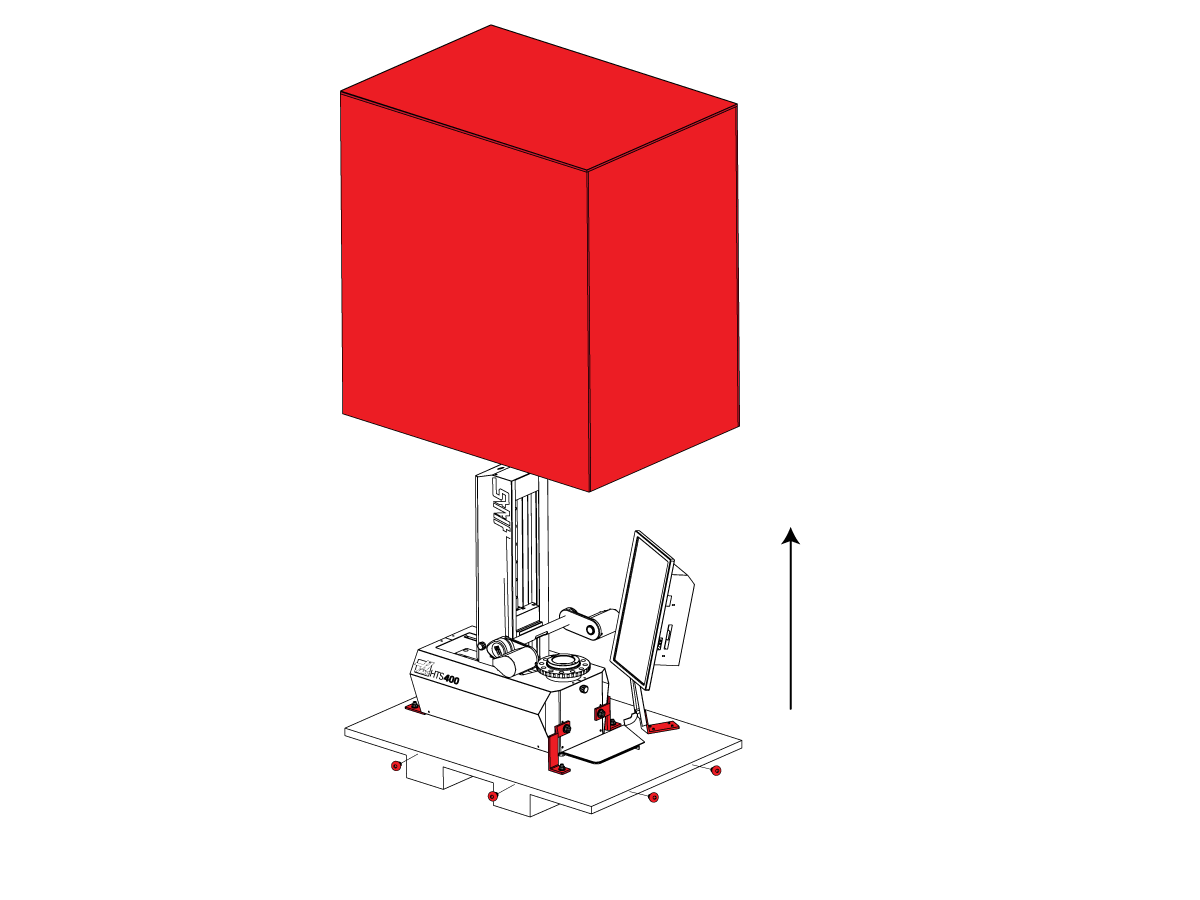
Opening the Crate:

Remove the side screws on each side of the crate to lift the wood walls and lid off.  Remove the spindle box components.

2

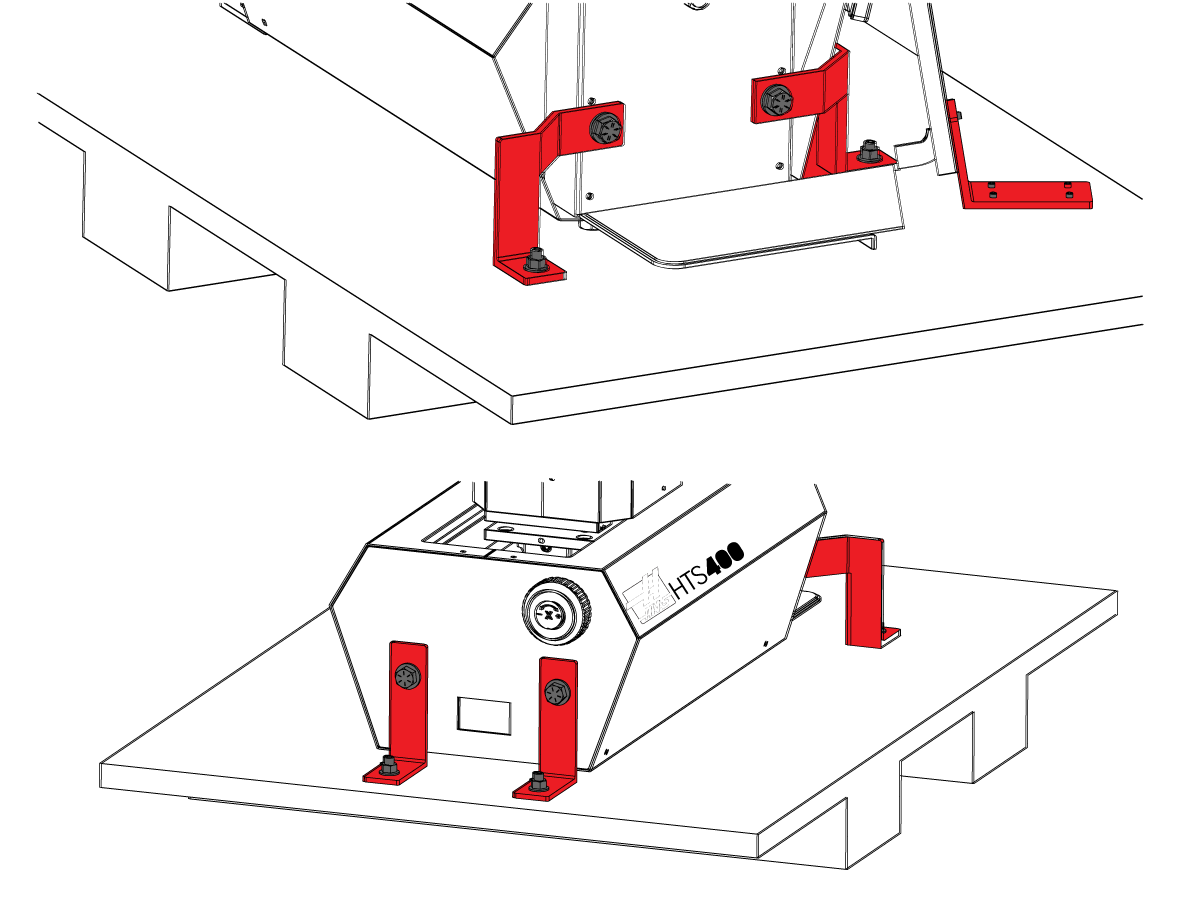
Remove Shipping Brackets:

Remove the shipping brackets shown in red.

3

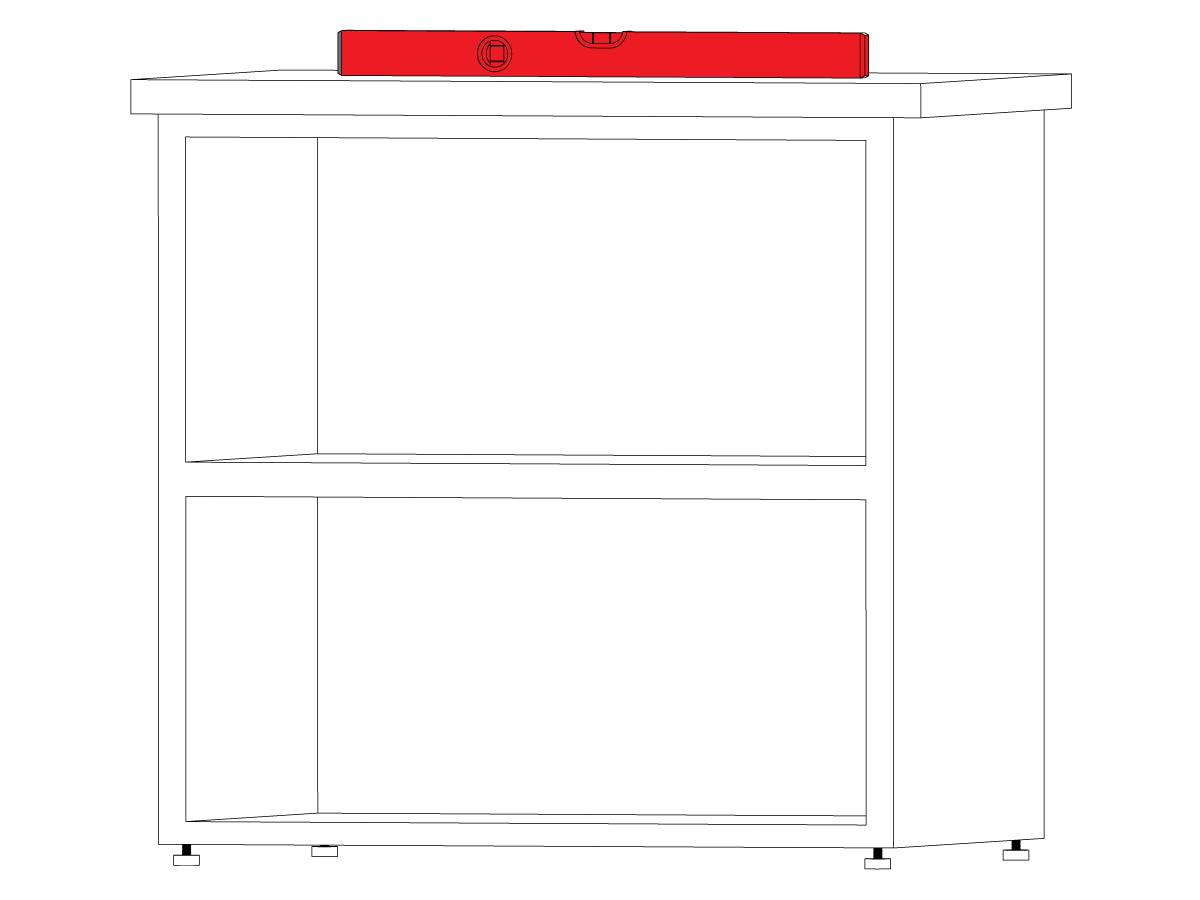
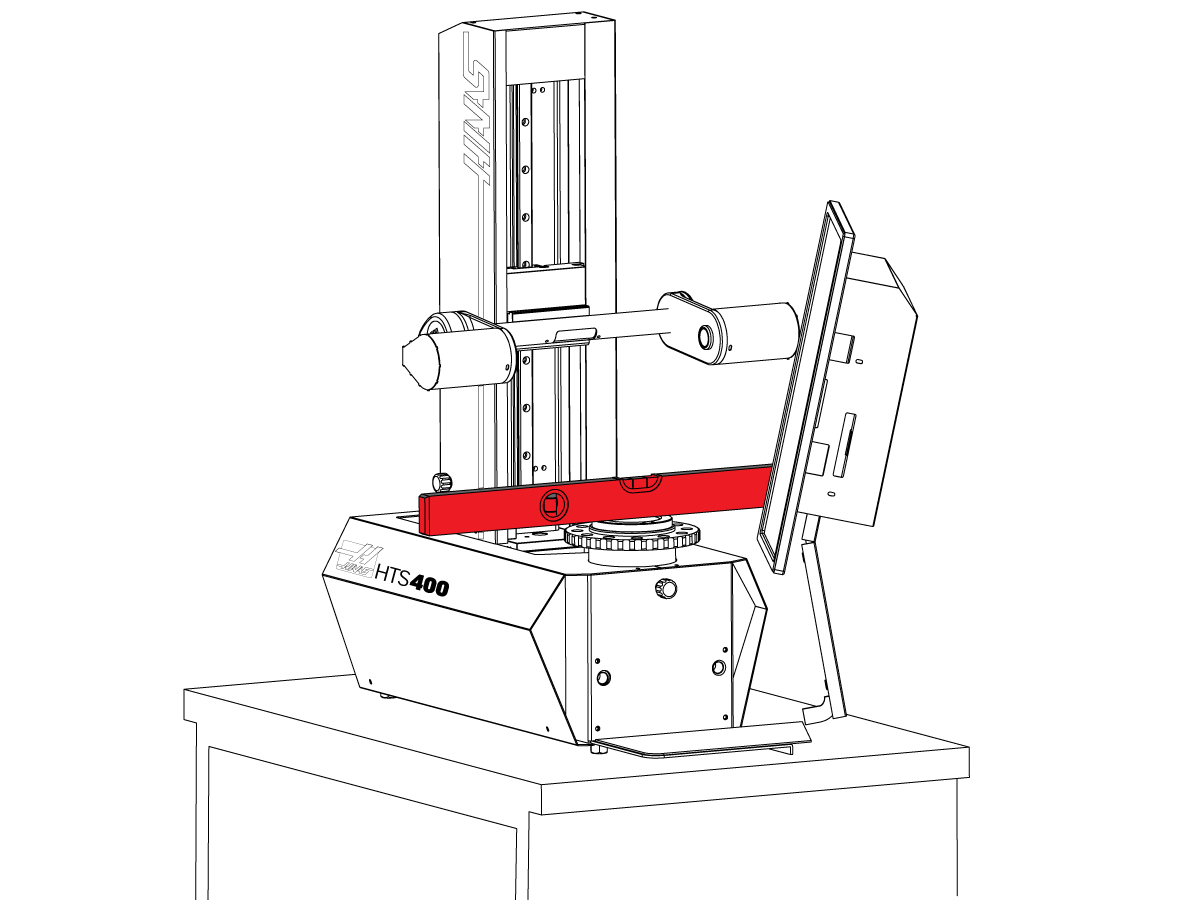
Build and Level Cabinet:

Build the cabinet using the instructions provided.

Once the cabinet is built, level the cabinet using a precision bubble level.

4

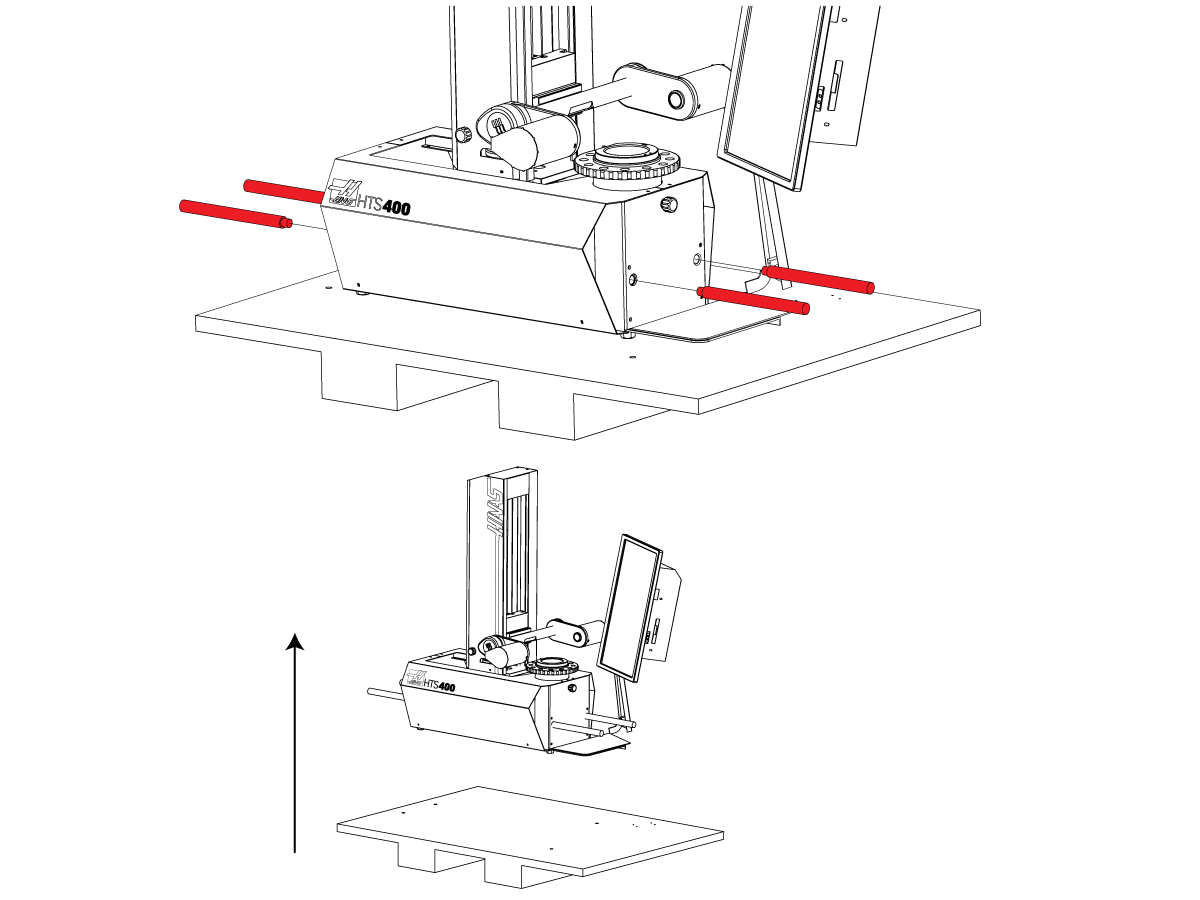
Lift the Machine:

Thread the lifting handles into the machine to lift the device and place it on the cabinet.

CAUTION: The unit is heavy (199lbs / 90Kg) and requires two people to lift it.

5

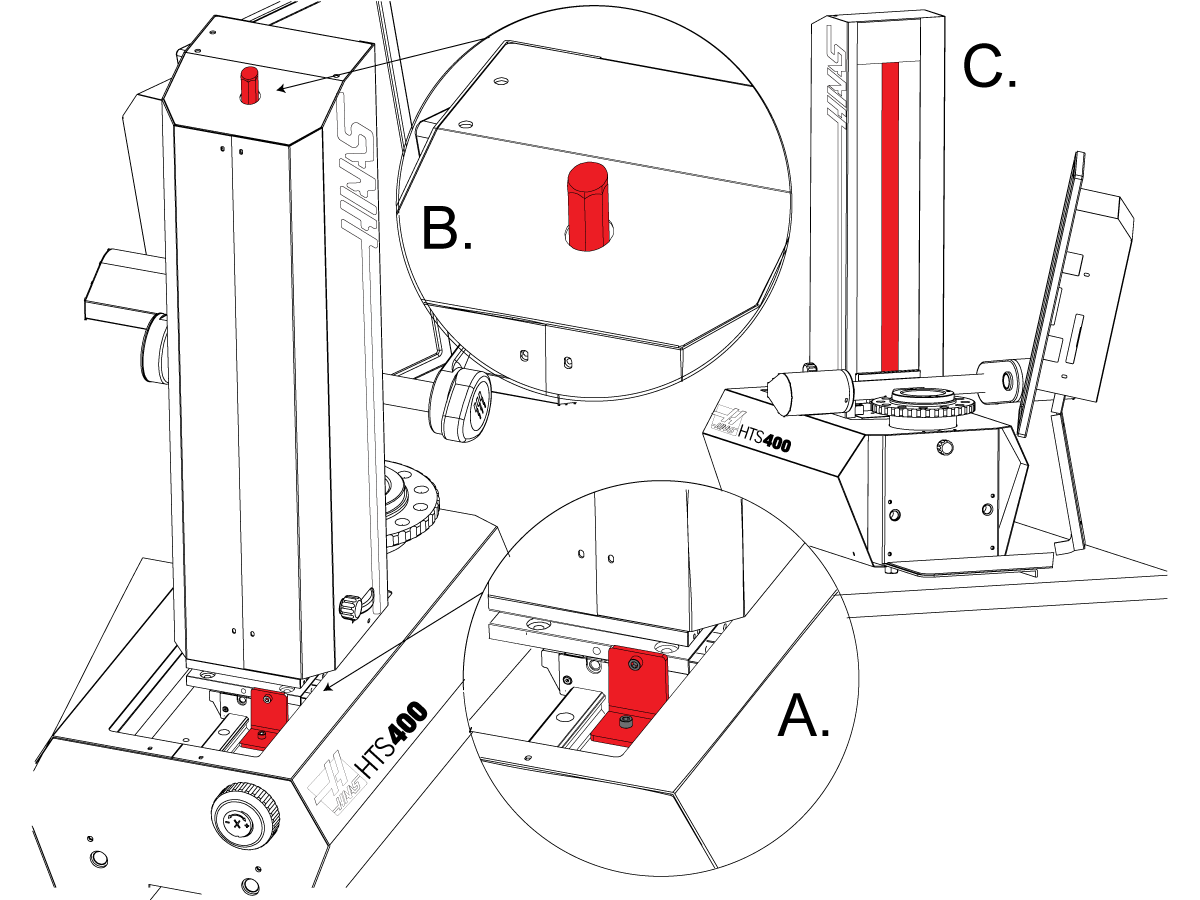
Unlock the Axes:

Important: The following steps must be done in order.  If you do step C before B the wire of the counterbalance will come off the pulley.

STEP A: Remove the X-axis locking bracket.

STEP B: Remove the counterweight locking hex bolt.

STEP C: Remove the Z-axis locking bar before moving the axes.

Install the caps on the lifting plugs.

6

Level The Machine:

Level the machine by using a precision bubble level.  If any adjustments are needed use the legs of the cabinet to do so.

7

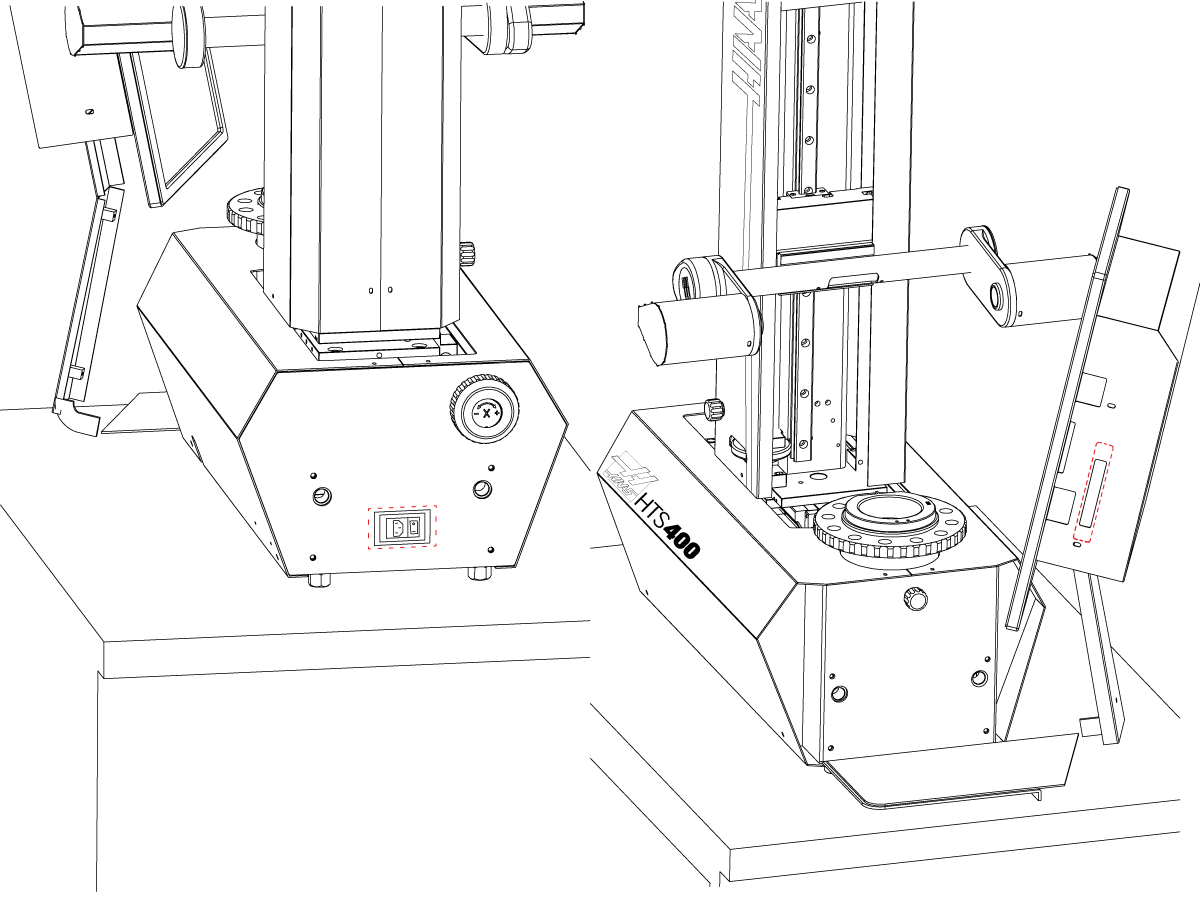
Electrical Connections:

Plug the power plug into the left side of the unit.  The mouse provided has already been pre-installed.  The DYMO printer must be plugged into the USB hub on the monitor.  Once completed, power up the machine.

Tool Sleeve Installation:

  • Clean the spindle face and taper.
  • Install the needed bearing on top of the spindle face.
  • Install the tool sleeve.
    Note:  The tool sleeve should slide in smoothly do not force it.

8

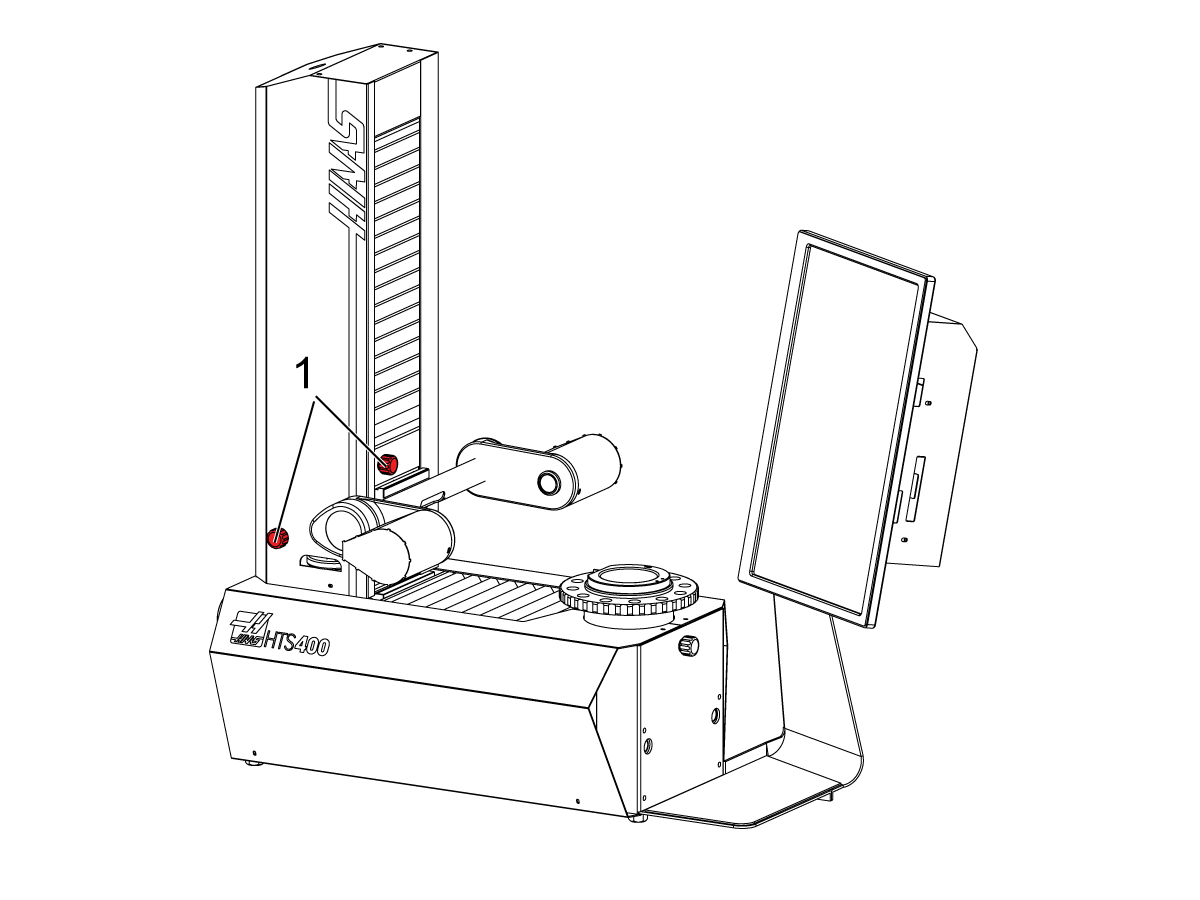
Home X and Z-Axis
  • Upon startup, you will be prompted to calibrate the X & Z axis.
  • Unlock Axis Locks [1,2].
  • Move Z & X Axis up and down and side to side until the flashing red lines in the axis readouts turn green.
  • Click OK to clear the message

9

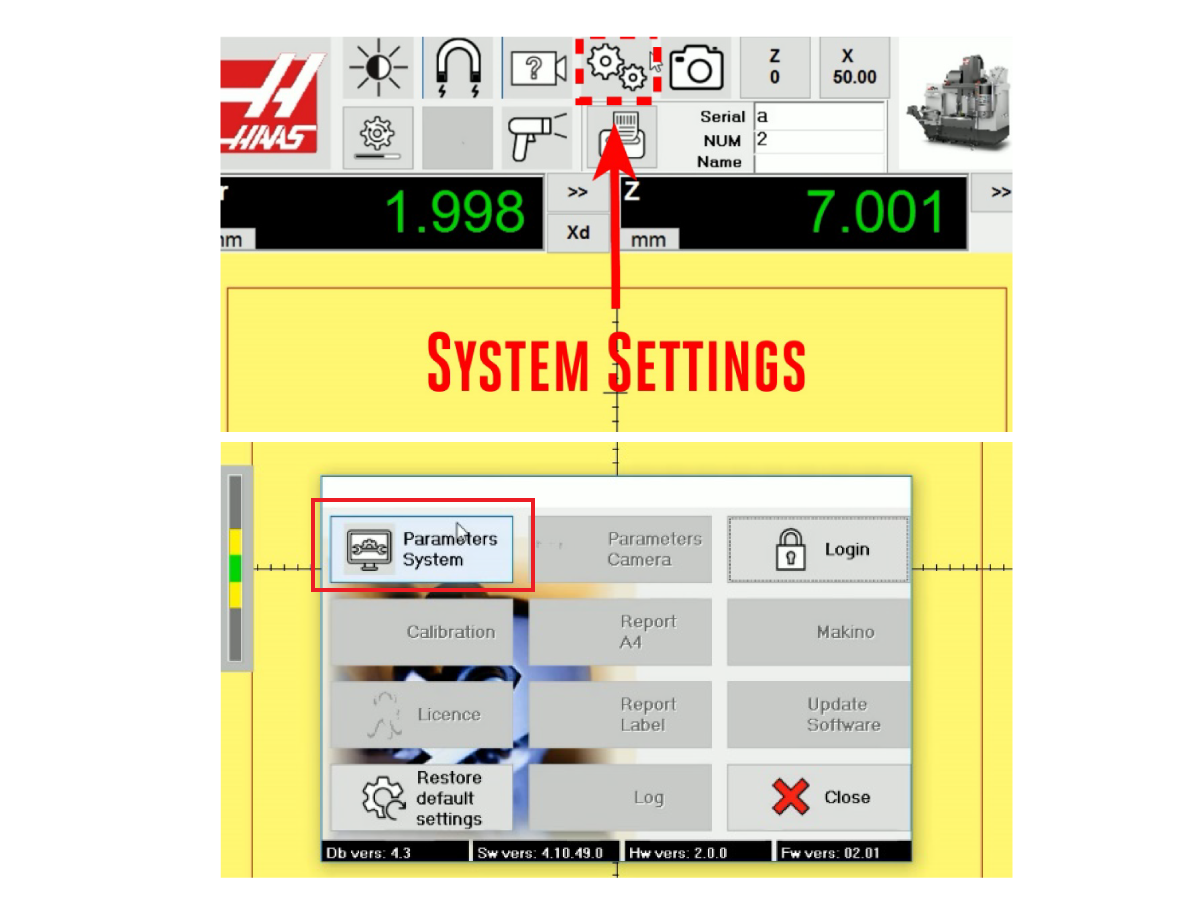
Open System Settings
  • Open the system settings window, identified by an icon of two gears. 
  • Open System Parameters

10

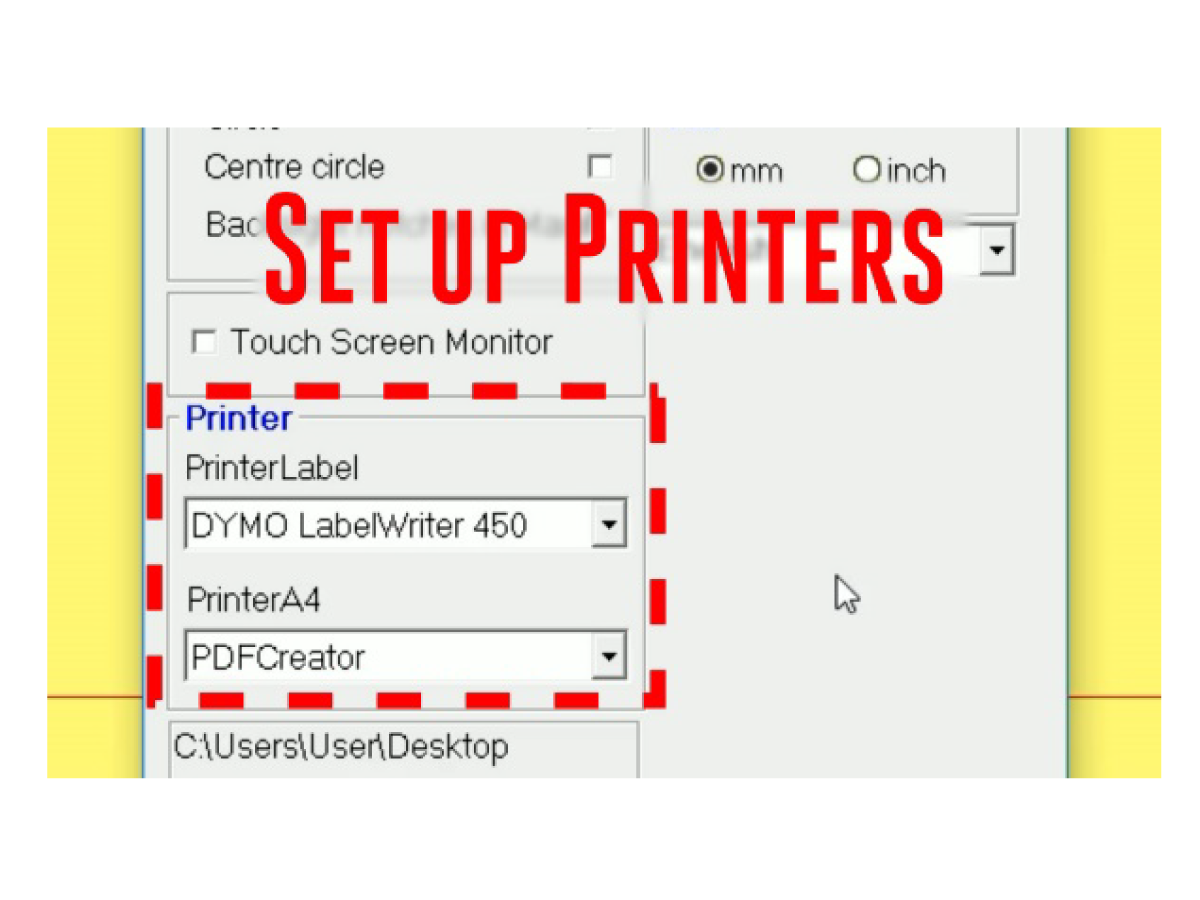
Set Printer Preferences
 
In the printer section, there are two dropdowns: Printer Label & Printer A4
  • Set Printer Label to the model that is connected.
    • DYMO LabelWritter 450 or DYMO LabelWritter 550 are the printers that are shipped with the HTS 400.
  • Set Printer A4 to PDFCreator
  • You may change this setting to accommodate a paper printer should you choose to connect one.

Note: Two sizes of labels are shipped with the HTS400. Be sure to use the labels that are 1-4/10" x 3-1/2" and DYMO Item # 30321. This will be listed on the back of the label. The other set of labels will be smaller, and if they are used, the information will not be correctly printed. 

Information about replacement labels can be found at 4.1 HTS400 - Maintenance. 

11

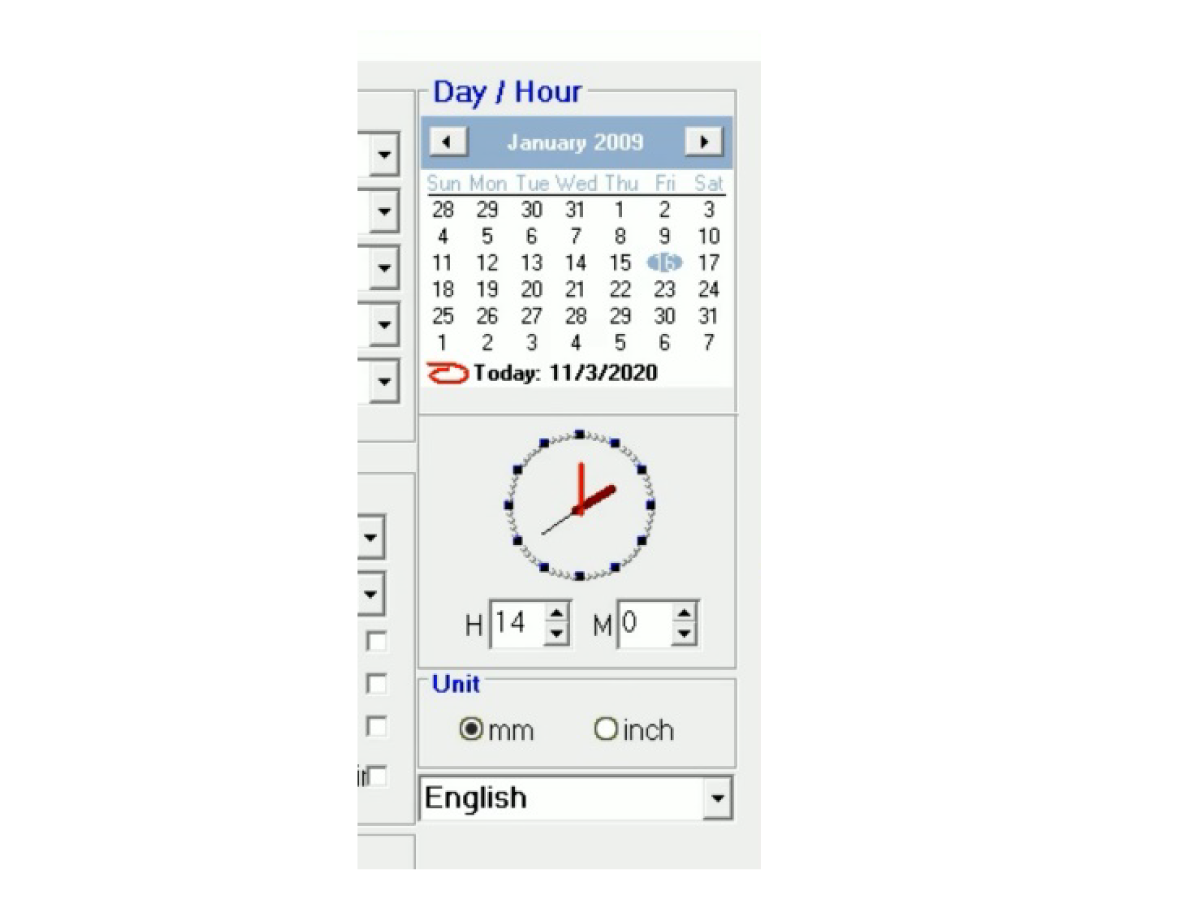
Set Date and Time and Language
 
In the printers section, there are two dropdowns:
  • In the same window, set the current date and time.
  • In the dropdown, change the system language if needed.
  • Close Settings to save changes

Wireless Scanner Installation

Machine requirements: 

  • Software version 100.20.000.1200 or later
  • SKBIF 34-4510 or later

Required materials: 

  • Wireless Data Matrix Scanner and dongle

Pull the NGC control pendant out to get access to its back panel. Undo the screws to free the back panel. 

Plug the USB dongle into the single USB A port shown in the video. Do not plug it into any other USB ports, as the NGC control may not work correctly. 

2.2 Base Cabinet Assembly

Recently Updated

HTS400 - Base Cabinet Assembly


Introduction

This procedure outlines how to assemble the HTS400 Base Cabinet.

Hardware in kit:

  • (20) Screws
  • (20) Washers
  • (4) Leveling Glide
  • (4) Shelf Clips

Installation

1

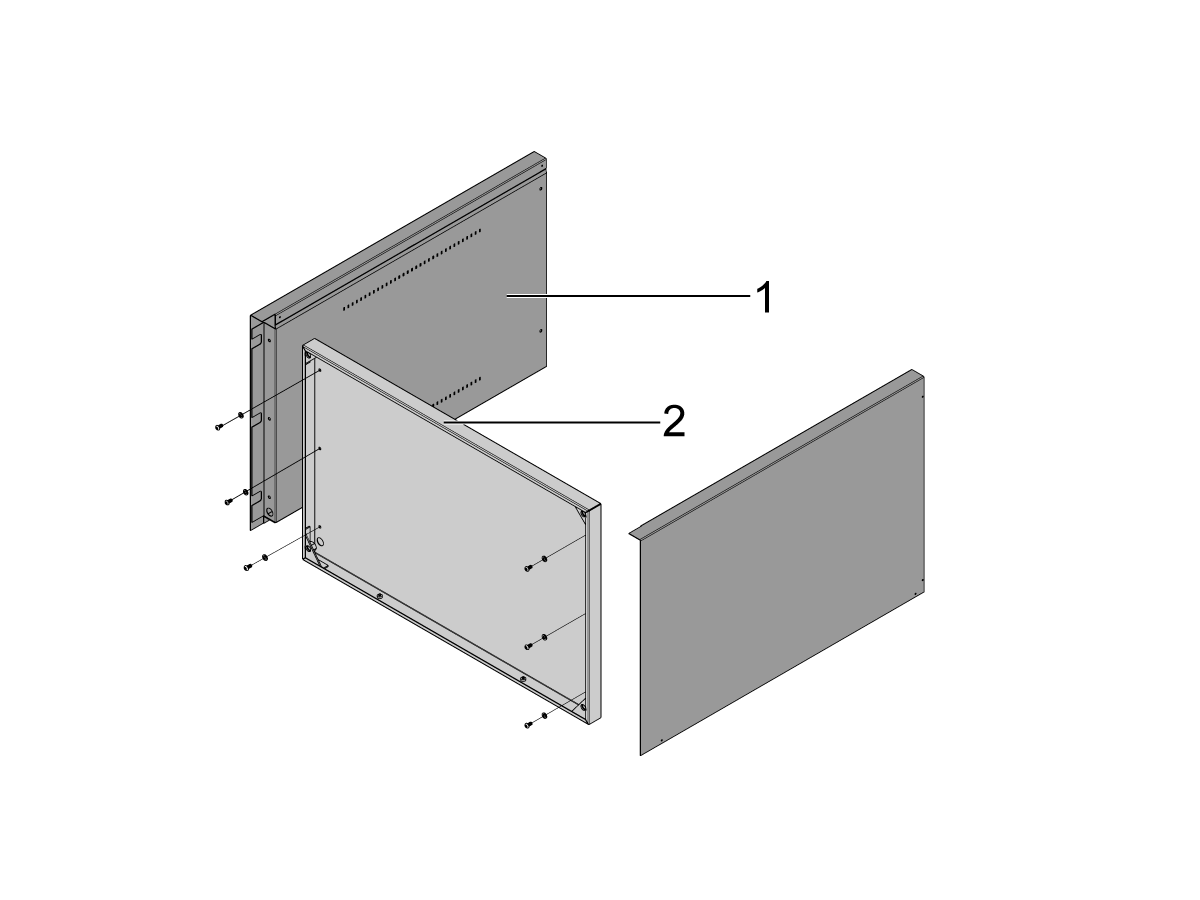
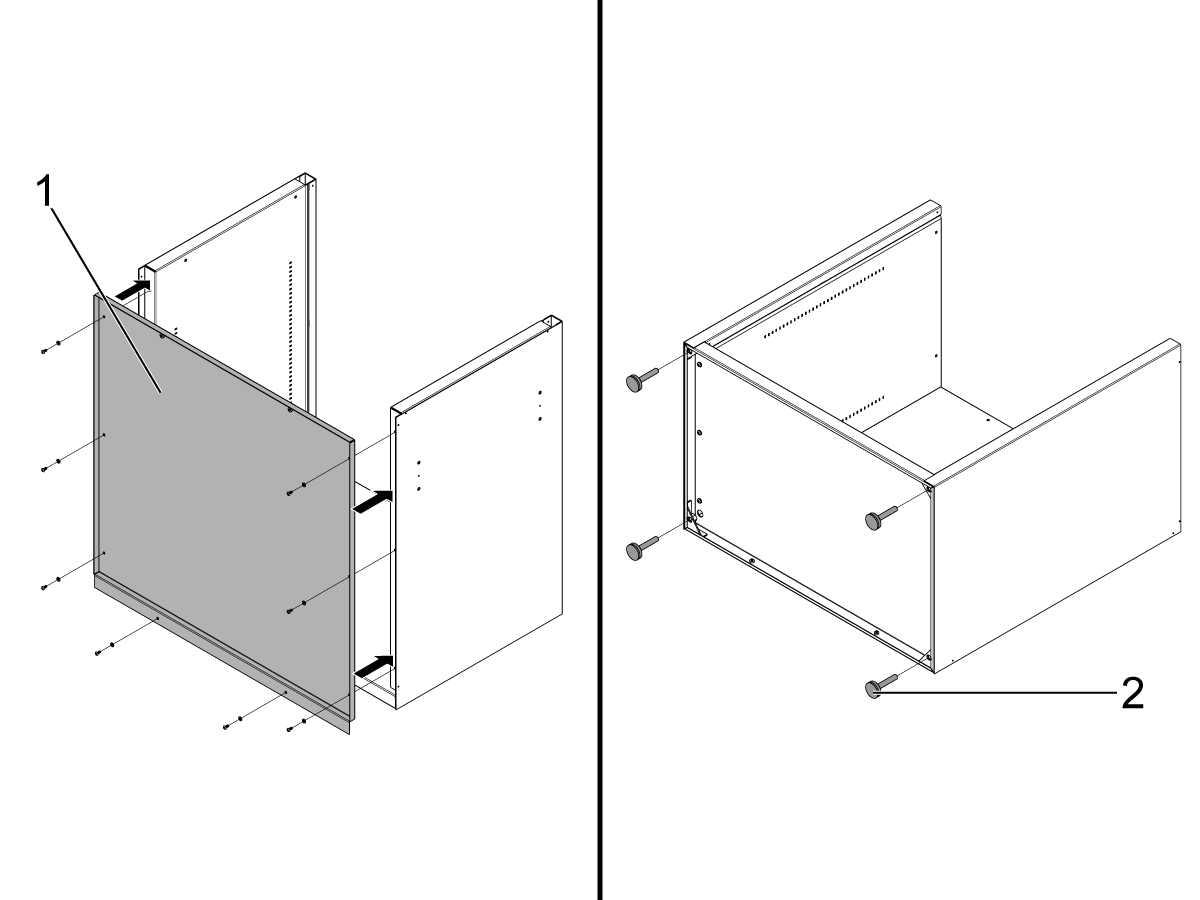
Attach the cabinet side panels [1] to the base [2] using (6) screws and (6) washers.

2

Attach the back panel [1] using the (8) screws and (8) washers provided.

Attach the (4) leveling glides [2] on the base of the cabinet.

3

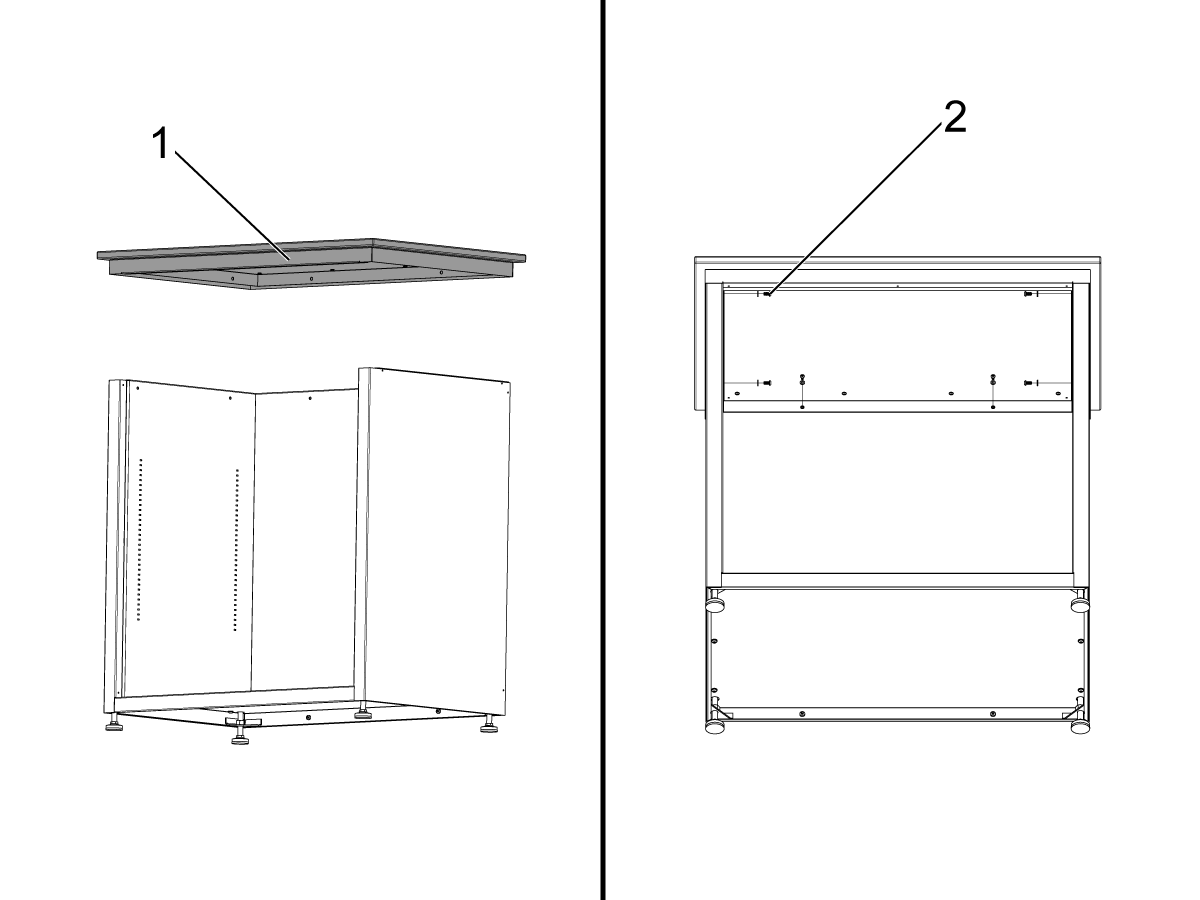
Place the table top [1] on the cabinet assembly using the (6) screws and (6) washers [2] provided.

4

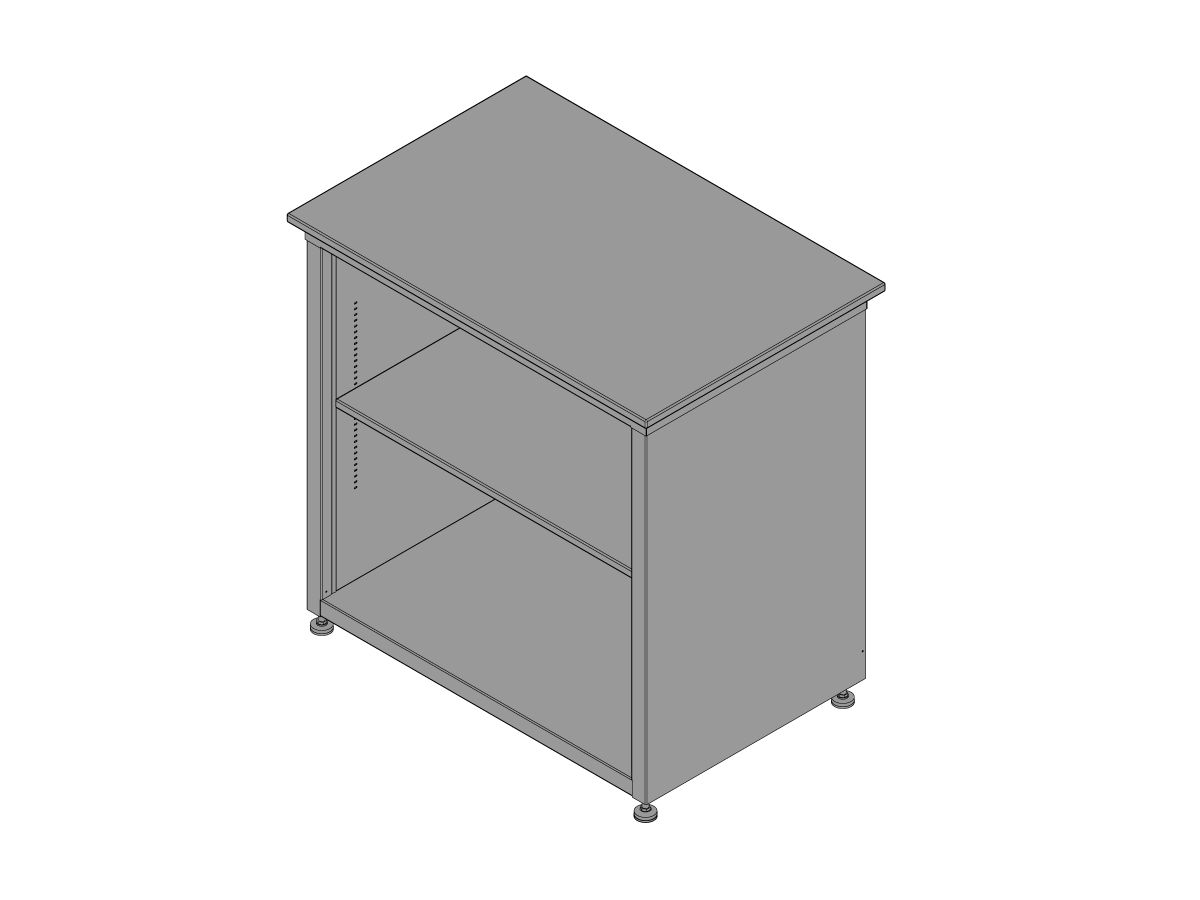
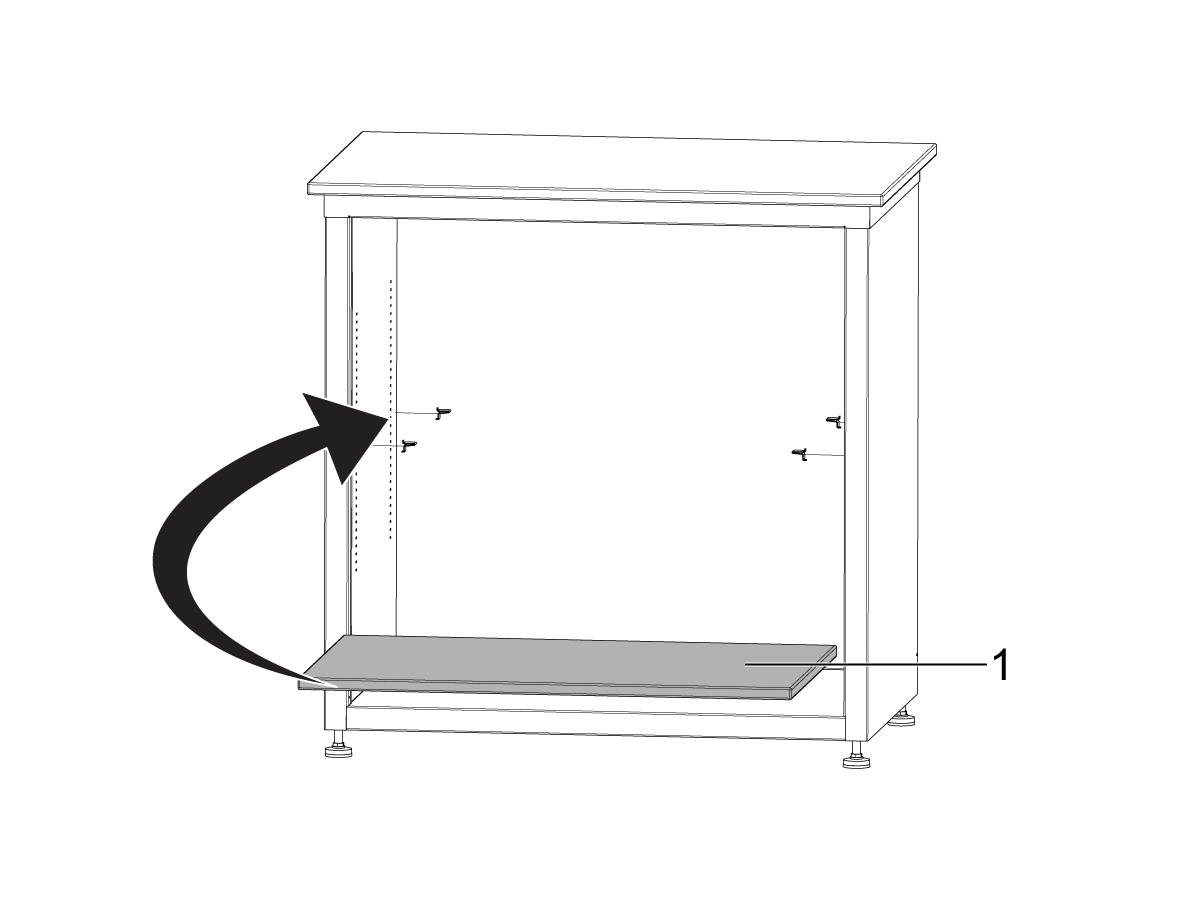
Install the (4) shelf clips given and place the shelf [1] in the base cabinet assembly.

2.3 Software Update

Recently Updated

HTS400 - Printer Driver Update


Revision A - 09/2025

Introduction

This procedure will show you how to update the software of the HTS400 and how to update the software for its printer. 

This Procedure is necessary for HTS400 units shipped after September 2022 or later and for machines that were shipped with the Dymo LabelWriter 450 that are upgrading to the Dymo LabelWriter 550. 

Required tools

  • Two empty USB sticks  Warning: If these USB sticks are not empty, the update will fail. Even a Haas service key on the USB stick will cause the update to fail.
  • Mouse (included with the HTS400)
  • Keyboard. This is not required but may make this procedure easier. 

HTS400 Software Update

1

Download the zip file and extract the files. 

HTS400 Software and Printer Update files.zip

Note: There are two files .INF and .agg. 

.agg is used for updating the tool presetters software and .INF is used for updating the printer's drivers.  

Load each file onto a separate USB stick with no other files. 

2

For this procedure, you will need to be logged into the service mode of the HTS400. To do this, press the setting button at the top of the HTS400 [1], then press the button “Login” [2] and use the password “233935”.

If the button says “Logout,” press it to log out, then press it again to log in using the password “233935”. This verifies that the correct mode is active. 

If this procedure is being done without a keyboard, double click on the password's text box to bring up an on-screen keyboard. 

3

Click on the Settings button [1] on the presetter main screen. Then select System Parameters [2]

4

Within settings and system parameters, ensure the protection is disabled. Check the protection button [1]. 

If protections are disabled, the button will say “ENABLE Protection?” and you should proceed.

If protections are enabled, the button will say “DISABLE Protection?” click on the button and confirm this choice. The system will need to reboot to apply this. If you do this, restart this step to verify that protections have been disabled. 

5

Press the update software button [1] at the top of the page. 

Press .agg [2] button on the pop up menu. 

 Note: Once the button is pressed, a 60 second timer will start. If the USB stick is not inserted in that time, the update will be aborted, and this step will need to be restarted. 

Insert a USB drive with only the .agg file and nothing else. 

Important: The USB stick must be plugged in after the update button has been pressed and the countdown has started. If the USB stick is plugged in before, it will not be detected, the update will fail, and the error message "USB key has not been detected!” will be generated. 

Warning: If any other file is on the USB stick, the update will fail.

6

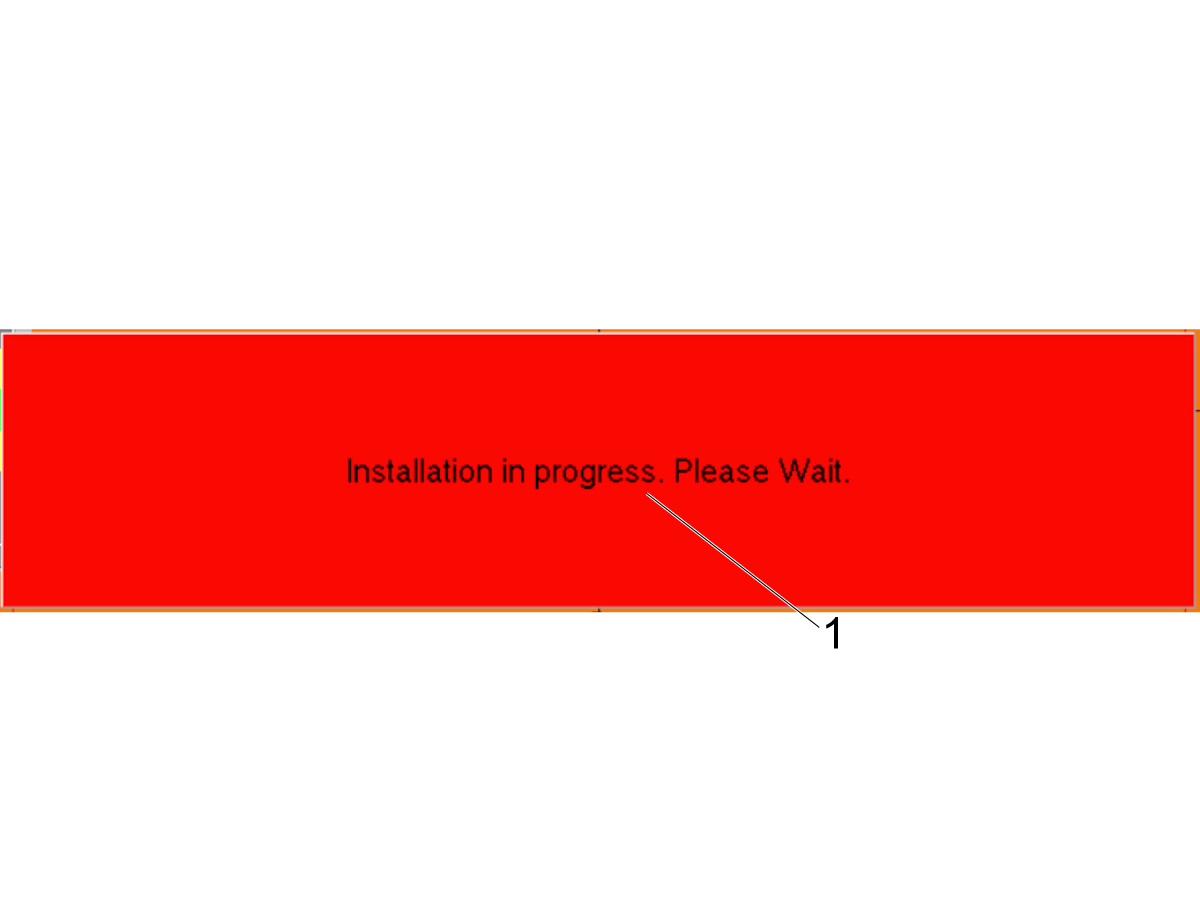
While the installation is in progress, the machine will display [1] "Installation in progress. Please Wait" 

Once the update is complete, the HTS400 will automatically restart.

7

Verify that you are still logged in using the service password. See step 2. 

Once the HTS400 finishes powering up, click the SOFTWARE UPDATE button [1] on the presetter main screen. 

Press .INF [2] button on the pop up menu.

 Note: Once the button is pressed, a 60 second timer will start. If the USB stick is not inserted in that time, the update will be aborted, and this step will need to be restarted. 

Insert a USB drive with only the .INF file and nothing else.

Warning: If any other file is on the USB stick, the update will fail. 

8

While the installation is in progress, the machine will display [1] "Installation in progress. Please Wait". 

The HTS400 will display a message indicating it is complete. If a message appears, press "OK" [2] to clear the message. 

9

If HTS400 is connected to Wifi and a keyboard is connected to the HTS400, the DYMO software can be downloaded directly to the unit. Press the Windows key on the keyboard to open the windows start menu. Then open an internet browser. 

In the browser, go to the DYMO Software Download Center. Select "Search by Machine" [1]. In the drop-downs select "LabelWriter550" [2], "Windows [3], and "Windows 10" [4]. Then download the latest version of the software [5]. 

If Wifi or a keyboard is not available. Go to a separate computer and download the software using the same instructions in the previous paragraph. Once the exe file has been downloaded, transfer it to a USB drive. 

10

If the Keyboard and WIFI are not available

Insert the USB stick with the DYMO exe file into the HTS400. This will open file explorer. Double click on the exe file to run it. You will be prompted on where to install the DYMO software, use the default location, and note it down.

During the installation process, the HTS400 will need to reboot. After the reboot has been completed, do not immediately restart the DYMO software. First, plug the DYMO printer into the HTS400. Then make sure you are still logged in to the HTS400 with the service password. See step 2. If the button says “Login, " you need to log in using the password “233935”. If the button says “Logout,” no action is required.

Reinsert the USB stick into the HTS400 to pull up file explorer. Then, double click on the exe file to run it and finish the installation. 

If the Keyboard and WIFI are available

If the DYMO exe file was downloaded directly to the HTS400. Use file explorer to navigate to the location where it was downloaded. Then, double click on the exe file to run it. You will be prompted on where to install the DYMO software, use the default location, and note it down.

During the installation process, the HTS400 will need to reboot. After the reboot has been completed, do not immediately restart the DYMO software. First, plug the DYMO printer into the HTS400. Then make sure you are still logged in to the HTS400 with the service password. See step 2. If the button says “Login, " you need to log in using the password “233935”. If the button says “Logout,” no action is required.

Press the Windows button to open the start menu and open file explorer. Next, go to the location where the DYMO exe was downloaded and double click on it again to finish the installation. 

11

When the installation finishes, it should automatically open the app. If it does not automatically open, you can press the windows button, navigate to the “D” section of the windows menu and select the DYMO connect [1] app in the DYMO folder.

If a keyboard is unavailable, pull out the USB stick and put it back in. This will open file explorer. In file explorer, navigate to the location where DYMO connect was installed. This should have been recorded in the previous step. 

12

Using the DYMO Connect app, the bottom left corner [1] should have the available printer. If the printer is not available, disconnect both wires for the printer and connect again. Ensure it’s on, has labels, and the feed is ready. 

Use the Dymo Connect software to make a basic label and conduct a test print [2]. 

13

Once the printer is available and has been tested in the DYMO connect app, navigate to the HTS400 system parameters and verify if the printer is available in the “PrinterLabel” section. If not available, restart the HTS400 and confirm the installation of the printer.

Select "DYMO Lablewriter 550 turbo" in the "PrinterLabel" drop down menu and conduct a test print using the HTS400 software. 

Dymo LabelWriter identification

The Dymo LabelWriter 450 [1] and LabelWriter 550 [2] can be identified by the label on the front of the printer. 

Feedback

Recently Viewed Items

You Have No Recently Viewed Items Yet

Feedback
Haas Logo

Haas Delivered Price

This price includes shipping cost, export and import duties, insurance, and any other expenses incurred during shipping to a location in France agreed with you as a buyer. No other mandatory costs can be added to the delivery of a Haas CNC Product.

KEEP UP WITH THE LATEST HAAS TIPS AND TECHNOLOGY...

Sign up now!   

HAAS TOOLING ACCEPTS THE FOLLOWING:

  • Service & Support
  • Owners
  • Request Service
  • Operator Manuals
  • Haas Parts
  • Rotary Repair Request
  • Pre-Install Guides
  • Shopping Tools
  • Build & Price a New Haas
  • Available Inventory
  • The Haas Price List
  • CNCA Financing
  • About Haas
  • Accessibility Statement
  • DNSH Statement
  • Export Compliance
  • Careers
  • Certifications & Safety
  • Contact Us
  • History
  • Terms & Conditions
  • Haas Tooling Terms & Conditions
  • Privacy
  • Warranty
  • Haas Community
  • Haas Certification Program
  • Haas Motorsports
  • Gene Haas Foundation
  • Haas Technical Education Community
  • Events
  • Join the Conversation
  • Facebook
  • X
  • Flickr
  • YouTube
  • LinkedIn
  • Instagram
  • TikTok
© 2026 Haas Automation, Inc – CNC Machine Tools

This site is protected by reCAPTCHA and the Google Privacy Policy and Terms of Service apply.

2800 Sturgis Rd., Oxnard, CA 93030
Toll Free: (888) 817-4446 / Fax: 805-278-8554