My Haas Welcome,
!
Haas Tooling MyHaas/HaasConnect Sign In Register Haas Tooling MyHaas/HaasConnect Sign Out Welcome, My Machines Latest Activity My Quotes My Account My Users Sign Out
Find Your Distributor
  1. Select Language
    1. English
    2. Deutsch
    3. Español - ES
    4. Español - MX
    5. Français
    6. Italiano
    7. Português
    8. Český
    9. Dansk
    10. Nederlands
    11. Magyar
    12. Polski
    13. Svenska
    14. Türkçe
    15. 中文
    16. Suomi
    17. Norsk
    18. الإنجليزية
    19. български
    20. Hrvatski
    21. Ελληνικά
    22. Română
    23. Slovenský
    24. Slovenščina
    25. 한국어
    26. 日本語
    27. Українська
  • machines Main Menu
    • Vertical Mills
      Vertical Mills
      Vertical Mills View All
      • Vertical Mills
      • VF Series
      • Universal Machines
      • VR Series
      • VP-5 Prismatic
      • Pallet-Changing VMCs
      • Mini Mills
      • Mold Machines
      • High-Speed Drill Centers
      • Drill/Tap/ Mill Series
      • Toolroom Mills
      • Pocket Mill
      • Compact Mills
      • Gantry Series
      • SR Sheet Routers
      • Extra-Large VMC
      • Double-Column Mills
      • 3+2 Positioning Machines
    • Multi-Axis Solutions
      Multi-Axis Solutions
      Multi-Axis Solutions View All
      • Multi-Axis Solutions
      • Y-Axis Lathes
      • 5-Axis Mills
    • Lathes
      Lathes
      Lathes View All
      • Lathes
      • ST Series
      • Dual-Spindle
      • Box Way Series
      • Toolroom Lathes
      • Chucker Lathe
      • Pocket Lathe
      • Haas Bar Feeders
    • Horizontal Mills
      Horizontal Mills
      Horizontal Mills View All
      • Horizontal Mills
      • 50-Taper
      • 40-Taper
    • Rotaries & Indexers
      Rotaries & Indexers
      Rotaries & Indexers View All
      • Rotaries & Indexers
      • Rotary Tables
      • Indexers
      • 5-Axis Rotaries
      • Extra-Large Rotaries
    • Special Series
      Special Series
      Special Series View All
      • Special Series
      • EU_Series_Redirect
    • Automation Systems
      Automation Systems
      Automation Systems View All
      • Automation Systems
      • Mill Automation
      • Lathe Automation
      • Automatic Parts Loaders
      • Automation Models
    • Desktop Machines
      Desktop Machines
      Desktop Machines View All
      • Desktop Machines
      • Desktop Mill
      • Desktop Lathe
      • Control Simulator, Standard
      • Control Simulator, Premium
    • Shop Equipment
      Shop Equipment
      Shop Equipment View All
      • Shop Equipment
      • Knee Mill
      • Haas Manual Lathes
      • Haas Saws
    • Fabrication Machines
      Fabrication Machines
      Fabrication Machines View All
      • Fabrication Machines
      • Laser Cutting Machines
      • CNC Press Brakes
    • QUICK LINKS Special Series  Special Series 
      EU SERIES EU SERIES BUILD & PRICE | PRICE LIST BUILD & PRICE | PRICE LIST In-Stock Machines In-Stock Machines WHAT’S NEW WHAT’S NEW YOUR FIRST CNC YOUR FIRST CNC
      SHOPPING TOOLS
      • Build & Price a Haas
      • Price List
      • Available Inventory
      • CNCA Financing
      WANT TO TALK TO SOMEONE?

      A Haas Factory Outlet (HFO) can answer your questions, and walk you through your best options.

      CONTACT YOUR DISTRIBUTOR >
  • Options Main Menu
    • The Haas Control Value Option Packages
      Value Option Packages
      Value Option Packages View All
      • Value Option Packages
    • Product Image Spindles
      Spindles
      Spindles View All
      • Spindles
    • Product Image Tool Changers
      Tool Changers
      Tool Changers View All
      • Tool Changers
    • Product Image 4th- | 5th-Axis
      4th- | 5th-Axis
      4th- | 5th-Axis View All
      • 4th- | 5th-Axis
    • Product Image Turrets & Live Tooling
      Turrets & Live Tooling
      Turrets & Live Tooling View All
      • Turrets & Live Tooling
    • Product Image Probing
      Probing
      Probing View All
      • Probing
    • Haas Chip & Coolant Management Chip & Coolant Management
      Chip & Coolant Management
      Chip & Coolant Management View All
      • Chip & Coolant Management
    • The Haas Control The Haas Control
      The Haas Control
      The Haas Control View All
      • The Haas Control
    • Product Image Product Options
      Product Options
      Product Options View All
      • Product Options
    • Product Image Tooling & Fixturing
      Tooling & Fixturing
      Tooling & Fixturing View All
      • Tooling & Fixturing
    • Product Image Workholding
      Workholding
      Workholding View All
      • Workholding
    • Product Image 5-Axis Solutions
      5-Axis Solutions
      5-Axis Solutions View All
      • 5-Axis Solutions
      • 5 Easy Steps to 5-Axis
    • QUICK LINKS Special Series  Special Series 
      EU SERIES EU SERIES BUILD & PRICE | PRICE LIST BUILD & PRICE | PRICE LIST In-Stock Machines In-Stock Machines WHAT’S NEW WHAT’S NEW YOUR FIRST CNC YOUR FIRST CNC
      SHOPPING TOOLS
      • Build & Price a Haas
      • Price List
      • Available Inventory
      • CNCA Financing
      WANT TO TALK TO SOMEONE?

      A Haas Factory Outlet (HFO) can answer your questions, and walk you through your best options.

      CONTACT YOUR DISTRIBUTOR >
  • Why Haas Main Menu
      Discover the Haas Difference
    • Why Haas
    • MyHaas
    • Education Community
    • Industry 4.0
    • Haas Certification
    • Customer Testimonials
  • Service Main Menu
      Welcome to Haas Service
      SERVICE HOME Operator’s Manuals How-To Procedures Troubleshooting Guides Preventive Maintenance Haas Parts Haas Tooling Videos
  • Videos Main Menu
  • Main Menu
    • View All
    • View All
    • View All
    • View All
      • HTEC Curriculum Support
      • Haas Value Option Packages (VOP) Journey
    • View All
      • Haas 10 kg Cobot Package
      • Cobot Kits
      • DC-1 Drill Center
      • CNC Sales News
      • Do More With Your Haas
    • View All
    • View All
      • contact-us-test
      • 4 - AUTOMATION SYSTEMS
      • Carousel-V2
      • expert test
      • Demo_Day_Trident-test
      • Link Test
      • image-sale-tag-test
      • article-list-test
      • Haas 25 kg Robot Package
      • test-algolia-page
    • View All
    • View All
    • View All
    • View All
      • calc-test
    • View All
    • QUICK LINKS Special Series  Special Series 
      EU SERIES EU SERIES BUILD & PRICE | PRICE LIST BUILD & PRICE | PRICE LIST In-Stock Machines In-Stock Machines WHAT’S NEW WHAT’S NEW YOUR FIRST CNC YOUR FIRST CNC
      SHOPPING TOOLS
      • Build & Price a Haas
      • Price List
      • Available Inventory
      • CNCA Financing
      WANT TO TALK TO SOMEONE?

      A Haas Factory Outlet (HFO) can answer your questions, and walk you through your best options.

      CONTACT YOUR DISTRIBUTOR >
  • Haas Tooling Main Menu
  • Haas Service Parts Main Menu
My Haas Welcome,
!
Haas Tooling MyHaas/HaasConnect Sign In Register Haas Tooling MyHaas/HaasConnect Sign Out Welcome, My Machines Latest Activity My Quotes My Account My Users Sign Out
Find Your Distributor
  1. Select Language
    1. English
    2. Deutsch
    3. Español - ES
    4. Español - MX
    5. Français
    6. Italiano
    7. Português
    8. Český
    9. Dansk
    10. Nederlands
    11. Magyar
    12. Polski
    13. Svenska
    14. Türkçe
    15. 中文
    16. Suomi
    17. Norsk
    18. الإنجليزية
    19. български
    20. Hrvatski
    21. Ελληνικά
    22. Română
    23. Slovenský
    24. Slovenščina
    25. 한국어
    26. 日本語
    27. Українська
×

Search Results

Web Pages

Images

    • <
    • 1
    • >

4 - Rotary - Operation

Rotary/Tailstock - Operator's Manual Supplement


  • 1 - Rotary - Introduction
  • 2 - Rotary - Legal Information
  • 3 - Rotary - Installation
  • 4 - Rotary - Operation
  • 5 - Rotary - MRZP
  • 6 - Rotary - 5-Axis Models
  • 7 - Rotary - Programming
  • 8 - Rotary - G-Codes
  • 9 - Rotary - Parameters
  • 10 - Rotary - Maintenance
  • 11 - Rotary - Workholding
  • 12 - Tailstock - Operation/Setup

Go To :

  • 4.1 Initial Control Setup
  • 4.2 Dual Axes Coordinate System
  • 4.3 Zero Position
  • 4.4 Operating Hints

Turning On the Servo Control

The Servo Control requires a single 115V AC supply. To turn on your Servo Control:

  1. Press 0 on the rear panel Power switch to make sure that the Servo Control power is off.
  2. Connect the control cables (MOTOR/BRAKE and ENCODER) from the table/indexer.
  3. Connect the remote input (CNC Interface) cable from the mill (and/or the RS-232 UP cable from the PC or CNC Mill).
  4. Connect the Servo Control power cord to a 120VAC, single-phase, 50/60 Hz power supply. Press 1 on the rear panel Power switch to power on the Servo Control.
  5. The Servo Control runs a self-test and then displays: To begin Clear Alarms then Press Cycle Start. If the display gives an alarm message, refer to the Alarm:Error Codes section of this manual, starting on page 5. The numbers remain in the display for only about one second. The Por On message indicates that the motors are turned off. This is normal.
  6. Pull the Emergency Stop to disengage it, if it is set. Press a key to continue operation.

Run Mode

When the Servo Control is first turned on, it is in Run mode but the servo motor is turned off. This is indicated by: Por On. Pressing CYCLE START allows you to continue operation.

Run mode is used to execute pre-programmed commands. The servo loop can be turned on in this mode and holds the motor to a commanded position when idle.

When an area of the display is flashing on and off, you are in Program mode. To return to Run mode:

Press and release MODE/RUN PROG until the display is steady.

Initialize Servo Control to Factory Default Parameters

After turning on the Servo Control, you may need to initialize the control to your rotary model. To initialize the servo control:

  1. Go to parameter mode. Press MODE/RUN PROG.
    The display flashes.

  2. Press and hold STEP SCAN up arrow for 5 seconds.
    The display is in parameter mode.

  3. Press and hold CLEAR/ZERO SET for 5 seconds.The display shows a rotary model.

  4. Press DISPLAY SCAN to scroll to find model type.Press CYCLE START.

  5. Press STEP SCAN to model version.

  6. Press CYCLE START.  The display shows Detecting Motor, and parameters begin loading for your model rotary.

  7. When parameter loading stops, press MODE/RUN PROG.

  8. Power off and on the Servo Control.
  9. Press the front panel CYCLE START switch once.

    The display shows 01 no Ho. This means that the motor(s) are now powered but zero position is not defined (there is no home position).

Jogging

To jog the rotary unit:

Select the jog rate as a percent of the maximum feed rate with the front panel number keys. For example, press 5 and then 0 to select 50 percent jog rate.

Press JOG + or - to move the table at the jog rate you selected to the position that you want.

If the control is set up for linear motion; there are both positive and negative travel limits possible. If a step exceeds the travel limits, the control gives the message 2 FAr and the step is not executed.

Parameters 13 and 14 control the maximum travel distances. Information about these parameters go to the parameter section.

Emergency Stop

To turn off the servo, cause the spindle to decelerate and stop, and display E-STOP:

Press EMERGENCY STOP on the Servo Control.

If the last step was not completed, the control remains on that step so the rotary position is not lost.

To restart, pull out the EMERGENCY STOP button and push CYCLE START twice (once to turn the servo on, and again to restart the step).

The remote CYCLE START and FINISH SIGNAL will not function until you pull out the EMERGENCY STOP button and push CYCLE START.

Dual Axes Coordinate System

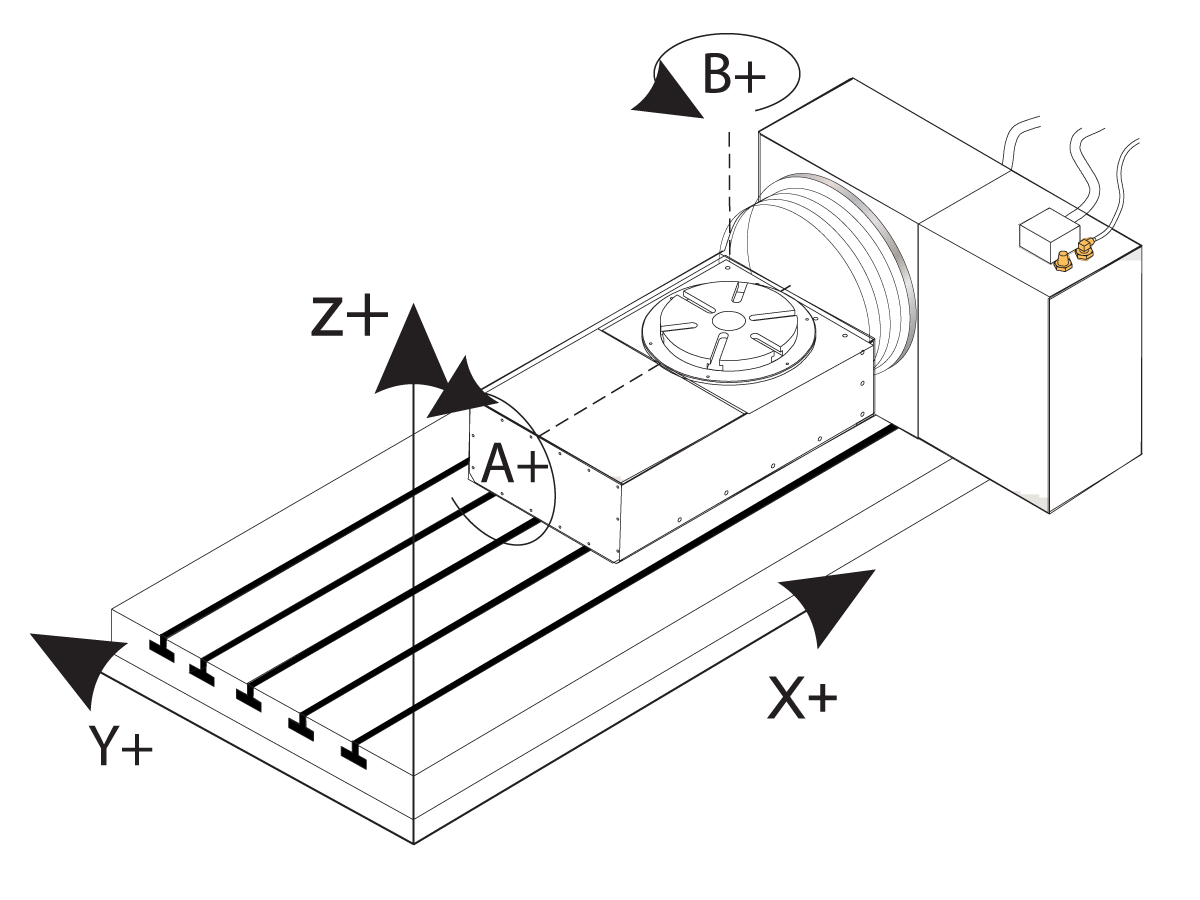
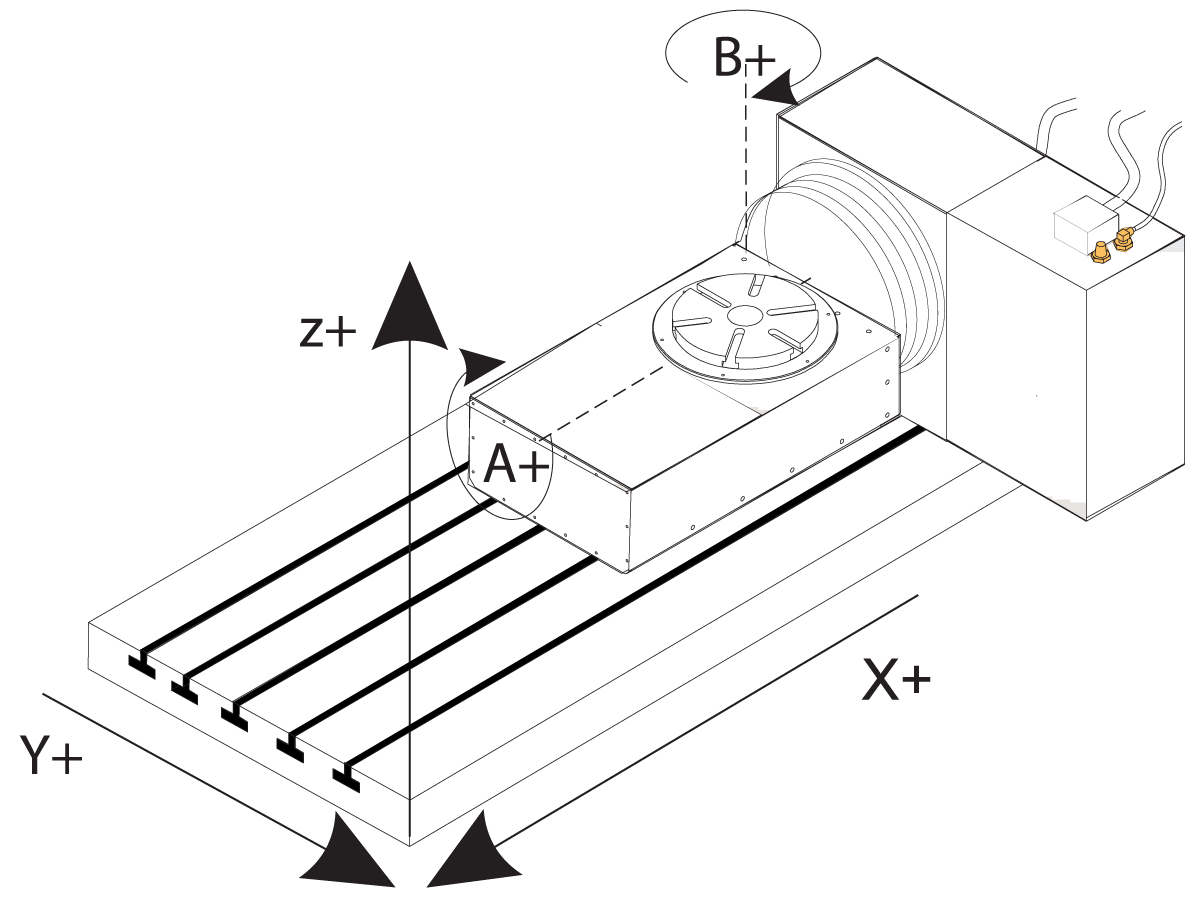
The illustrations in this section show the layout of the A and B axes in the Haas five-axis control. The A Axis is rotary motion around the X Axis, while the B Axis is rotary motion about the Y Axis.

You can use the right-hand rule to determine axis rotation for the A and B axes. Place the thumb of your right hand along the positive X Axis. The fingers of your right hand point in the direction of tool movement for a positive A-Axis command.

Likewise, with the A Axis at 90°, if you place the thumb of your right hand along the positive Y Axis, the fingers of your hand point in the direction of tool movement for a positive B-Axis command.

It is important to remember that the right-hand rule determines direction of tool movement, and not the table movement direction. For the right-hand rule, the fingers point opposite of the positive rotary table movement. Refer to these figures.

NOTE: These illustrations are representative only. Different table movements are possible for positive directions, depending on the equipment, parameter settings, or the five-axis programming software you use.

Work Coordinates (Positive Direction)

Table Movement (Positive Command)

Finding the Zero Position

To find the zero position automatically:

Press ZERO RETURN to start the automatic homing operation.

When the table/indexer stops, the display indicates: 01 Pnnn.nnn.

If the display shows a non-zero number, press CLEAR/ZERO SET for three seconds.

Manually Finding the Zero Position

To manually find the zero position:

Use JOG + or - to move the table to the position that you want to use as zero.

Press and hold CLEAR/ZERO SET for three seconds.

The display should now indicate: 01 P 000.000. This indicates that the zero position is established and the controller is ready to begin normal operations.

If the new home position is cleared, the display shows a non-zero position. In this case, press ZERO RETURN and the table moves to the pre-defined zero position.

Offsetting the Zero Position

To offset the Zero Position:

Use JOG + or - to move the rotary unit to the position to use as zero and press CLEAR/ZERO SET for 3 seconds.

The following is displayed: 01 P000.000.

If there is a zero offset defined, a non-zero number is displayed. In this case, press ZERO RETURN once and the unit moves forward to the predefined zero position.

Servo Control - Operating Hints

Here are a few servo control operating hints:

To select another display while in the Run mode, press DISPLAY SCAN.

A program can be started at any step by pressing STEP SCAN up or down.

Make sure the mill has the same number of M-Codes programmed as steps in the rotary control.

Do not program two consecutive M-Codes in the mill to index the rotary control. To avoid a timing fault in the mill, use a dwell of 1/4 second between M-Codes.

Default Values

For all rotary units, the default values are:

Variable Value
step size zero 000.000
F maximum feed rate defined by Parameters
L 001
G-Code G91 (incremental)

If an entry is cleared or set to 0 by the operator, the value is changed by the control to the default value. All entries are stored when selecting the next display function, step number, or returning to Run mode.

Recently Viewed Items

You Have No Recently Viewed Items Yet

Feedback
Haas Logo

Haas Delivered Price

This price includes shipping cost, export and import duties, insurance, and any other expenses incurred during shipping to a location in France agreed with you as a buyer. No other mandatory costs can be added to the delivery of a Haas CNC Product.

KEEP UP WITH THE LATEST HAAS TIPS AND TECHNOLOGY...

Sign up now!   

HAAS TOOLING ACCEPTS THE FOLLOWING:

  • Service & Support
  • Owners
  • Request Service
  • Operator Manuals
  • Haas Parts
  • Rotary Repair Request
  • Pre-Install Guides
  • Shopping Tools
  • Build & Price a New Haas
  • Available Inventory
  • The Haas Price List
  • CNCA Financing
  • About Haas
  • Accessibility Statement
  • DNSH Statement
  • Export Compliance
  • Careers
  • Certifications & Safety
  • Contact Us
  • History
  • Terms & Conditions
  • Haas Tooling Terms & Conditions
  • Privacy
  • Warranty
  • Haas Community
  • Haas Certification Program
  • Haas Motorsports
  • Gene Haas Foundation
  • Haas Technical Education Community
  • Events
  • Join the Conversation
  • Facebook
  • X
  • Flickr
  • YouTube
  • LinkedIn
  • Instagram
  • TikTok
© 2026 Haas Automation, Inc – CNC Machine Tools

This site is protected by reCAPTCHA and the Google Privacy Policy and Terms of Service apply.

2800 Sturgis Rd., Oxnard, CA 93030
Toll Free: (888) 817-4446 / Fax: 805-278-8554