My Haas Welcome,
!
Haas Tooling MyHaas/HaasConnect Sign In Register Haas Tooling MyHaas/HaasConnect Sign Out Welcome, My Machines Latest Activity My Quotes My Account My Users Sign Out
Find Your Distributor
  1. Select Language
    1. English
    2. Deutsch
    3. Español - España
    4. Español - México
    5. Français
    6. Italiano
    7. Português
    8. Český
    9. Dansk
    10. Nederlands
    11. Magyar
    12. Polski
    13. Svenska
    14. Türkçe
    15. 中文
    16. Suomi
    17. Norsk
    18. الإنجليزية
    19. български
    20. Hrvatski
    21. Ελληνικά
    22. Română
    23. Slovenský
    24. Slovenščina
    25. 한국어
    26. 日本語
    27. Українська
  • machines Main Menu
    • Vertical Mills
      Vertical Mills
      Vertical Mills View All
      • Vertical Mills
      • VF Series
      • Universal Machines
      • VR Series
      • VP-5 Prismatic
      • Pallet-Changing VMCs
      • Mini Mills
      • Mold Machines
      • High-Speed Drill Centers
      • Drill/Tap/ Mill Series
      • Toolroom Mills
      • Pocket Mill
      • Compact Mills
      • Gantry Series
      • SR Sheet Routers
      • Extra-Large VMC
      • Double-Column Mills
      • 3+2 Positioning Machines
    • Multi-Axis Solutions
      Multi-Axis Solutions
      Multi-Axis Solutions View All
      • Multi-Axis Solutions
      • Y-Axis Lathes
      • 5-Axis Mills
    • Lathes
      Lathes
      Lathes View All
      • Lathes
      • ST Series
      • Dual-Spindle
      • Box Way Series
      • Toolroom Lathes
      • Chucker Lathe
      • Haas Bar Feeders
    • Horizontal Mills
      Horizontal Mills
      Horizontal Mills View All
      • Horizontal Mills
      • 50-Taper
      • 40-Taper
    • Rotaries & Indexers
      Rotaries & Indexers
      Rotaries & Indexers View All
      • Rotaries & Indexers
      • Rotary Tables
      • Indexers
      • 5-Axis Rotaries
      • Extra-Large Rotaries
    • Special Series
      Special Series
      Special Series View All
      • Special Series
      • EU_Series_Redirect
    • Automation Systems
      Automation Systems
      Automation Systems View All
      • Automation Systems
      • Mill Automation
      • Lathe Automation
      • Automatic Parts Loaders
      • Automation Models
    • Desktop Machines
      Desktop Machines
      Desktop Machines View All
      • Desktop Machines
      • Desktop Mill
      • Desktop Lathe
      • Control Simulator, Standard
      • Control Simulator, Premium
    • Shop Equipment
      Shop Equipment
      Shop Equipment View All
      • Shop Equipment
      • Knee Mill
      • Haas Manual Lathes
      • Haas Saws
    • Fabrication Machines
      Fabrication Machines
      Fabrication Machines View All
      • Fabrication Machines
      • Laser Cutting Machines
      • CNC Press Brakes
    • QUICK LINKS Special Series  Special Series 
      EU SERIES EU SERIES BUILD & PRICE | PRICE LIST BUILD & PRICE | PRICE LIST In-Stock Machines In-Stock Machines WHAT’S NEW WHAT’S NEW YOUR FIRST CNC YOUR FIRST CNC
      SHOPPING TOOLS
      • Build & Price a Haas
      • Price List
      • Available Inventory
      • CNCA Financing
      WANT TO TALK TO SOMEONE?

      A Haas Factory Outlet (HFO) can answer your questions, and walk you through your best options.

      CONTACT YOUR DISTRIBUTOR >
  • Options Main Menu
    • The Haas Control Value Option Packages
      Value Option Packages
      Value Option Packages View All
      • Value Option Packages
    • Product Image Spindles
      Spindles
      Spindles View All
      • Spindles
    • Product Image Tool Changers
      Tool Changers
      Tool Changers View All
      • Tool Changers
    • Product Image 4th- | 5th-Axis
      4th- | 5th-Axis
      4th- | 5th-Axis View All
      • 4th- | 5th-Axis
    • Product Image Turrets & Live Tooling
      Turrets & Live Tooling
      Turrets & Live Tooling View All
      • Turrets & Live Tooling
    • Product Image Probing
      Probing
      Probing View All
      • Probing
    • Haas Chip & Coolant Management Chip & Coolant Management
      Chip & Coolant Management
      Chip & Coolant Management View All
      • Chip & Coolant Management
    • The Haas Control The Haas Control
      The Haas Control
      The Haas Control View All
      • The Haas Control
    • Product Image Product Options
      Product Options
      Product Options View All
      • Product Options
    • Product Image Tooling & Fixturing
      Tooling & Fixturing
      Tooling & Fixturing View All
      • Tooling & Fixturing
    • Product Image Workholding
      Workholding
      Workholding View All
      • Workholding
    • Product Image 5-Axis Solutions
      5-Axis Solutions
      5-Axis Solutions View All
      • 5-Axis Solutions
      • 5 Easy Steps to 5-Axis
    • QUICK LINKS Special Series  Special Series 
      EU SERIES EU SERIES BUILD & PRICE | PRICE LIST BUILD & PRICE | PRICE LIST In-Stock Machines In-Stock Machines WHAT’S NEW WHAT’S NEW YOUR FIRST CNC YOUR FIRST CNC
      SHOPPING TOOLS
      • Build & Price a Haas
      • Price List
      • Available Inventory
      • CNCA Financing
      WANT TO TALK TO SOMEONE?

      A Haas Factory Outlet (HFO) can answer your questions, and walk you through your best options.

      CONTACT YOUR DISTRIBUTOR >
  • Why Haas Main Menu
      Discover the Haas Difference
    • Why Haas
    • MyHaas
    • Education Community
    • Industry 4.0
    • Haas Certification
    • Customer Testimonials
  • Service Main Menu
      Welcome to Haas Service
      SERVICE HOME Operator’s Manuals How-To Procedures Troubleshooting Guides Preventive Maintenance Haas Parts Haas Tooling Videos
  • Videos Main Menu
  • Main Menu
    • View All
    • View All
    • View All
    • View All
      • HTEC Curriculum Support
      • Haas Value Option Packages (VOP) Journey
    • View All
      • Haas 10 kg Cobot Package
      • Cobot Kits
      • DC-1 Drill Center
      • CNC Sales News
      • Do More With Your Haas
    • View All
    • View All
      • contact-us-test
      • 4 - AUTOMATION SYSTEMS
      • Carousel-V2
      • expert test
      • Demo_Day_Trident-test
      • Link Test
      • image-sale-tag-test
      • article-list-test
      • Haas 25 kg Robot Package
      • test-algolia-page
    • View All
      • Choose Options
    • View All
    • View All
    • View All
    • View All
    • View All
      • calc-test
    • View All
    • QUICK LINKS Special Series  Special Series 
      EU SERIES EU SERIES BUILD & PRICE | PRICE LIST BUILD & PRICE | PRICE LIST In-Stock Machines In-Stock Machines WHAT’S NEW WHAT’S NEW YOUR FIRST CNC YOUR FIRST CNC
      SHOPPING TOOLS
      • Build & Price a Haas
      • Price List
      • Available Inventory
      • CNCA Financing
      WANT TO TALK TO SOMEONE?

      A Haas Factory Outlet (HFO) can answer your questions, and walk you through your best options.

      CONTACT YOUR DISTRIBUTOR >
  • Haas Tooling Main Menu
  • Haas Service Parts Main Menu

My Haas Welcome,
!
Haas Tooling MyHaas/HaasConnect Sign In Register Haas Tooling MyHaas/HaasConnect Sign Out Welcome, My Machines Latest Activity My Quotes My Account My Users Sign Out
Find Your Distributor
  1. Select Language
    1. English
    2. Deutsch
    3. Español - España
    4. Español - México
    5. Français
    6. Italiano
    7. Português
    8. Český
    9. Dansk
    10. Nederlands
    11. Magyar
    12. Polski
    13. Svenska
    14. Türkçe
    15. 中文
    16. Suomi
    17. Norsk
    18. الإنجليزية
    19. български
    20. Hrvatski
    21. Ελληνικά
    22. Română
    23. Slovenský
    24. Slovenščina
    25. 한국어
    26. 日本語
    27. Українська
×

Search Results

Web Pages

Images

    • <
    • 1
    • >

3 - WIPS - Calibration

WIPS - Interactive Operator's Manual Supplement


  • 1 - WIPS - Introduction
  • 2 - WIPS - Installation
  • 3 - WIPS - Calibration
  • 4 - WIPS - Operation
  • 5 - WIPS - Maintenance
  • 6 - WIPS - Troubleshooting

Go To :

  • 3.1 Mill - WIPS CALIBRATION
  • 3.2 Lathe - WIPS CALIBRATION
  • 3.3 How to Make WIPS Calibration Tool
Recently Updated

WIPS - Probe Calibration - NGC


AD0382

Revision A - 10/2025

Introduction

The work probe (spindle) and tool probe (table) must be calibrated when the machine is being installed for the first time or a kit was ordered to add WIPS to an existing machine.

NOTE: Do not use the "Complete Probe Calibration" VPS template.  

NGC - WIPS - Three Step Probe Calibration

1

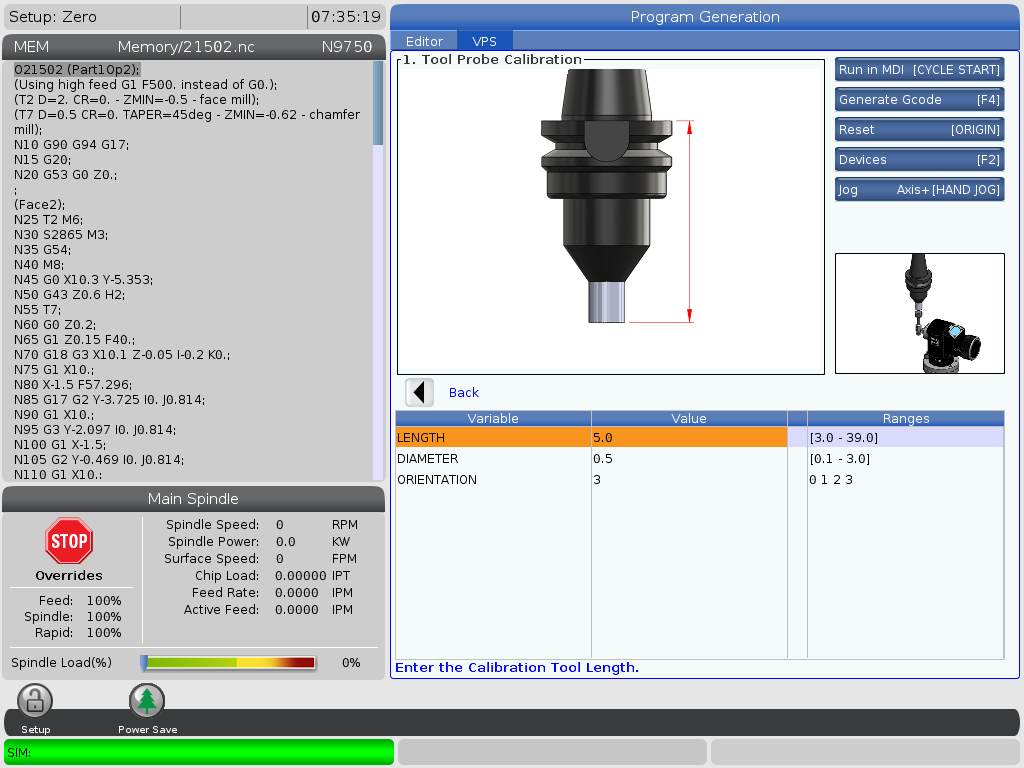
Press [EDIT]. Navigate to the VPS tab > PROBING > CALIBRATION > Tool Probe Calibration.

Load a calibration tool of known gauge length and diameter into the spindle.

Enter the calibration tool guage length and diameter into the VPS template. 

Use Handle Jog to position the calibration tool coaxial to and about .25 inch above the table probe stylus.


2

Navigate to the ORIENTATION variable and enter the number that corresponds to the orientation of the table probe in the machine.

Press [CYCLE START] to run the calibration cycle.

3

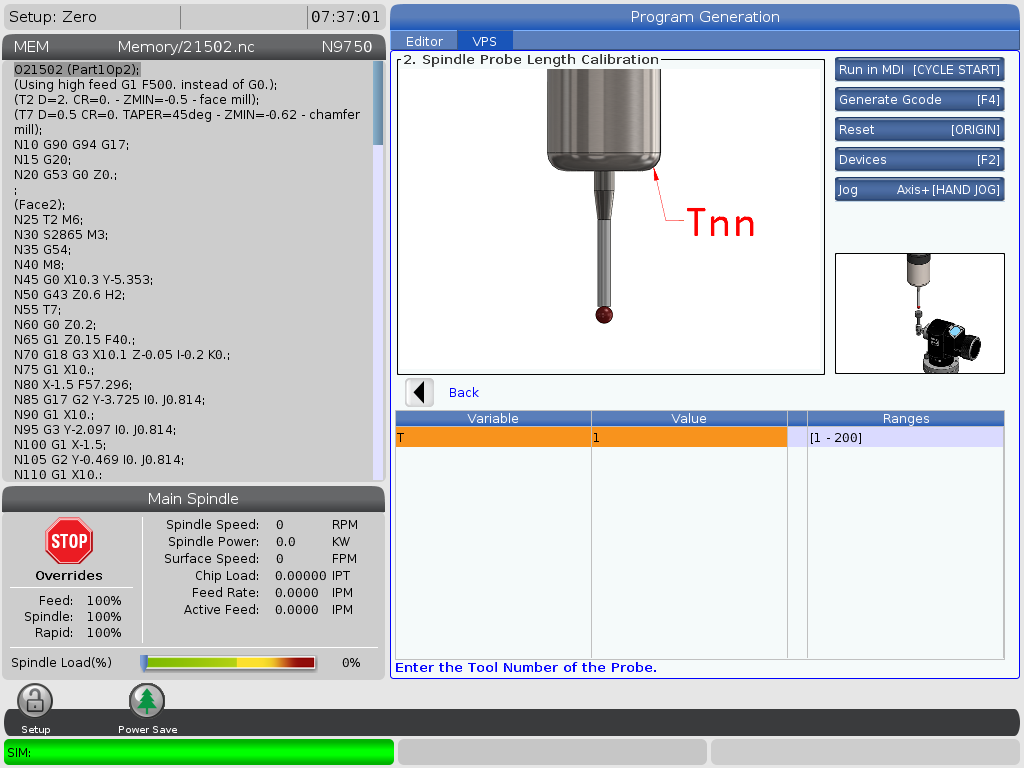
Navigate to the VPS > PROBING > CALIBRATION > Spindle Probe Length Calibration.

Enter the tool number of the spindle probe into the VPS template.

Press [CYCLE START] to run the calibration cycle.

4

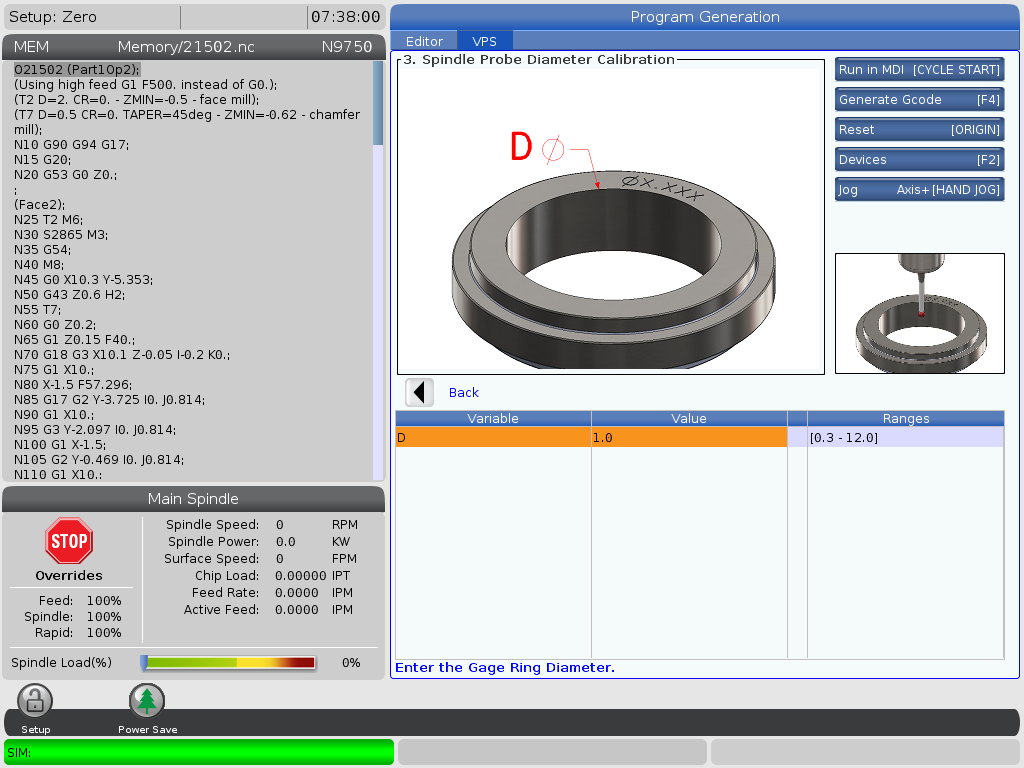
Secure a ring gauge of know diameter to the machine table using magnets or toe clamps.

Enter the ring gauge diameter into the VPS template.

Use Handle Jog to position the spindle probe ruby in the center of and about .25 inch below the top of the ring gauge.

Press [CYCLE START] to run the calibration cycle.

Troubleshooting

1

If the machine generates probe alarms.  Please refer to Wireless Intuitive Probe System - WIPS - Troubleshooting Guide.

Recently Updated

WIPS-L Calibration – NGC


Applies to machines built from: February, 2018

Introduction

ATP Installation
ATP Calibration

This procedure applies to ST/DS lathes with NGC control built after February 2018.

The Automatic Tool Presetter (ATP) needs to be installed and calibrated before calibrating the WIPS-L. If this has not been done perform these procedures.

WIPS-L Installation

The WIPS-L should be installed and aligned to the Spindle Center Line. If this has not been done perform this procedure.

Test the Probing System

1

Test the Work Probe

  • Start the Work Probe as follows:

Operate this code in MDI mode: M59 P2; G04 P1.; M59 P3

  • The lights on the OMI will turn off and a green light will start flashing on the probe.
  • If the probe operates correctly, you hear a "beep" each time you tap the probe tip.
  • Stop the Work Probe as follows:

Operate this code in MDI mode: M69 P3 

  • If the probe operates correctly, light on the OMI goes on, and the green light on the probe does not flash.

2

Test the Automatic Tool Presetter (ATP)

CAUTION: The Work Probe must be OFF for the Tool Probe to operate. If you attempt to probe the tool while the Work Probe is ON you may damage the Tool Probe stylus.

  • Navigate to the Devices/Mechanisms tab in the Current Commands window. Highlight the Probe Arm line and press F2 to extend the ATP arm.
  • Tap the probe stylus. If the probe operates correctly, you hear a "beep" each time you tap the probe tip.

Note: If the Tool Probe does not operate correctly, examine the wire connection from the control cable.

  • Press the F2 to retract the ATP arm.

Tram and Indicate Work Probe

1

Install a co-axial indicator into the chuck. Install the probe into the appropriate tool holder. For instructions see the installation guide linked above.

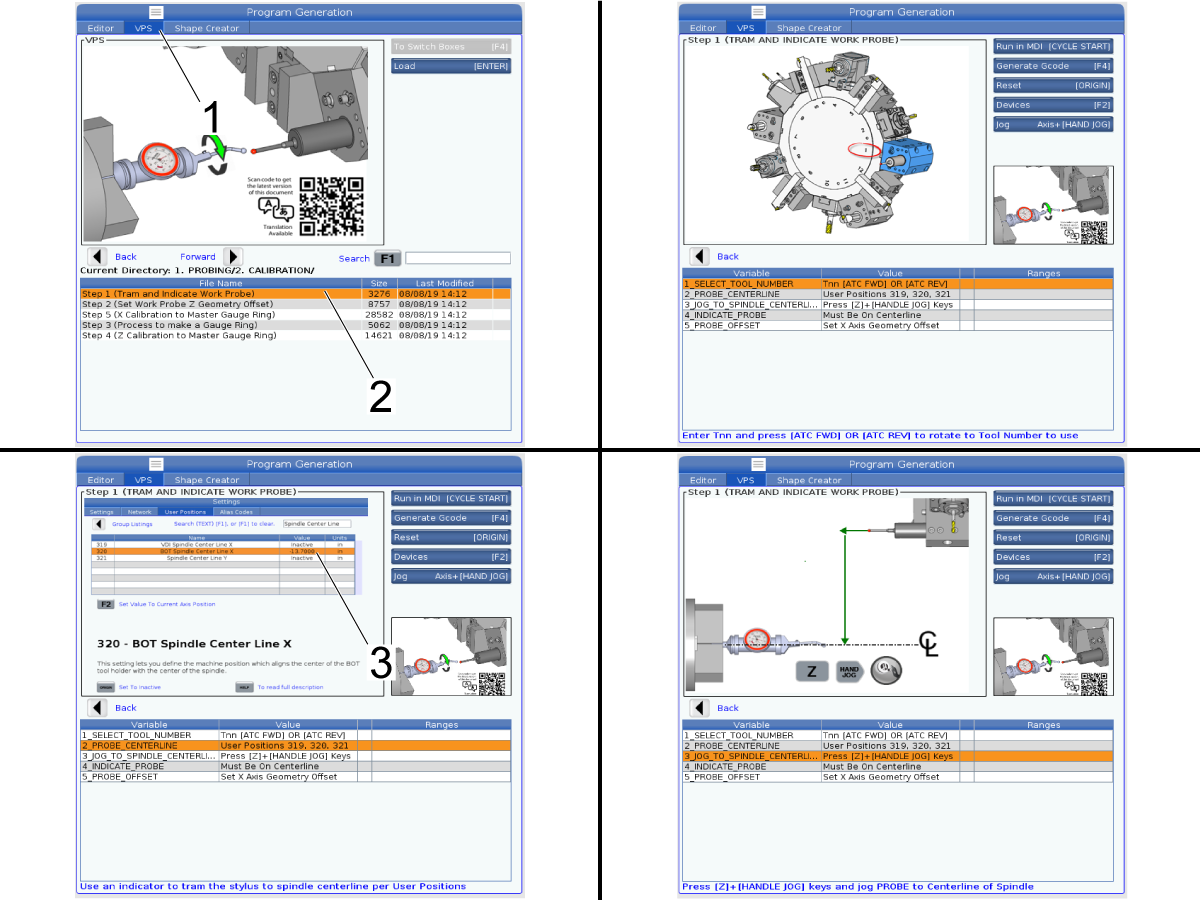
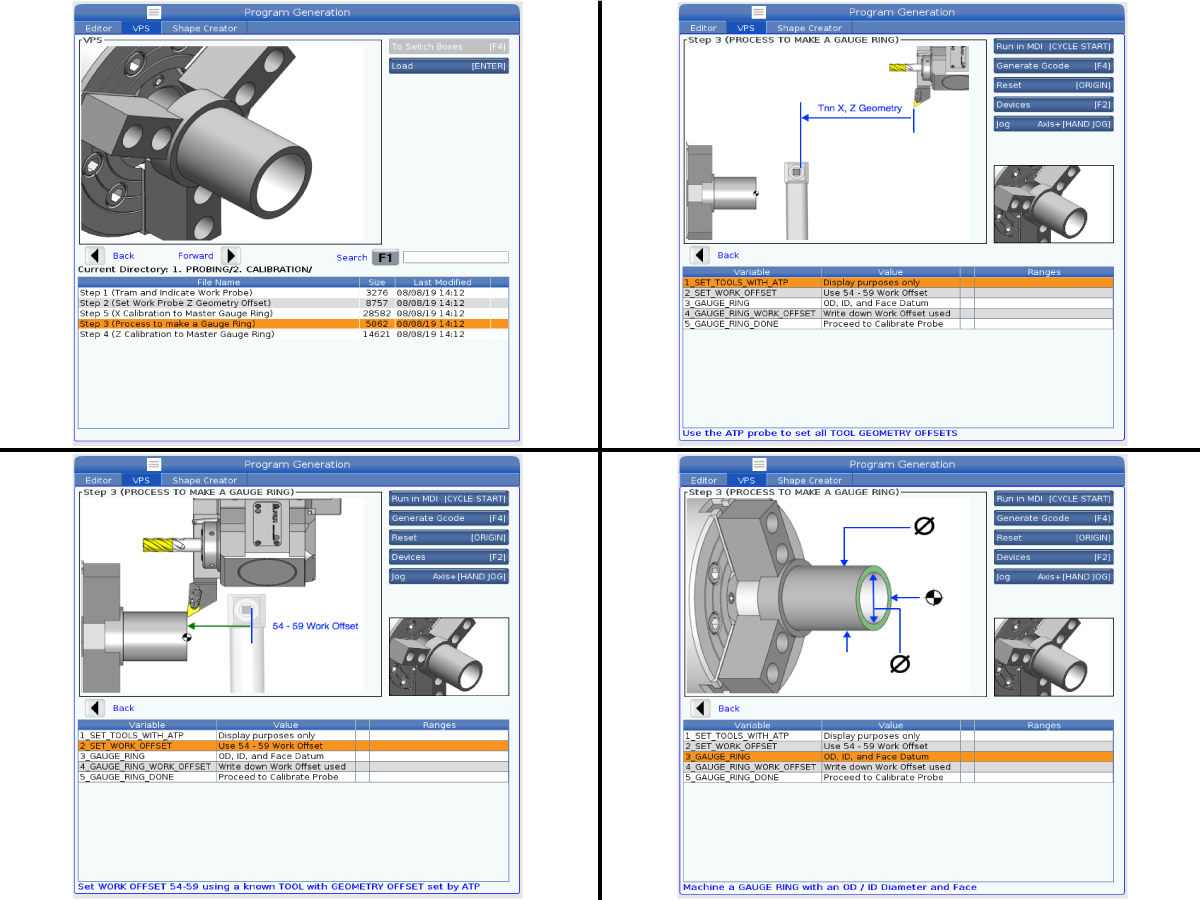
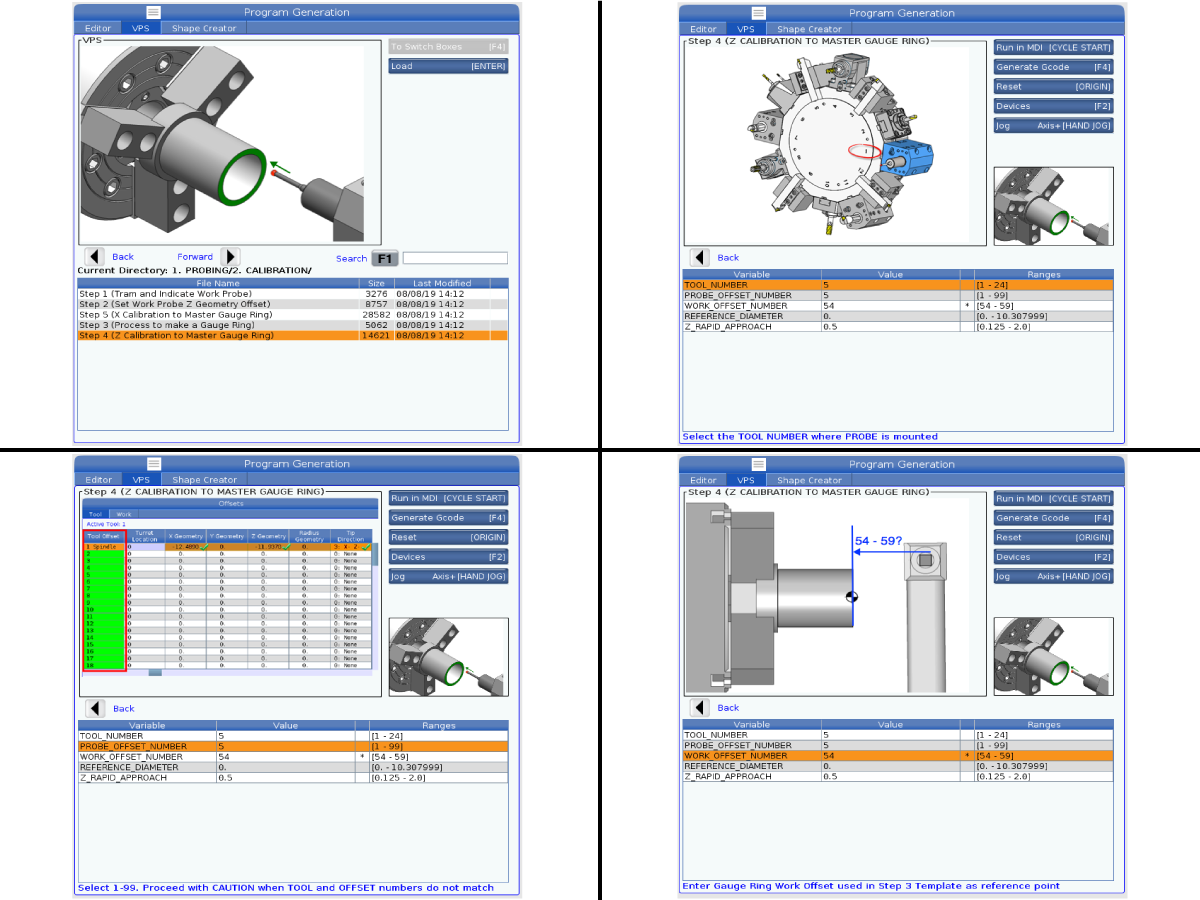
Go to VPS by pushing [EDIT] and use the arrow keys to navigate to VPS [1] >PROBING>CALIBRATION>Step 1 (Tram and Indicate Work Probe) [2].

To select the tool position that your probe was installed in press [Tnn] and [ATC FWD] or [ATC REV]. This will call the probe into position.

Push [SETTING] and use the arrow key to navigate to User Positions>Spindle Center Line. Write down the X-position [3] stored in the appropriate setting for the type of turret on your machine. VDI/Hybrid turret: Setting 319 or BOT/BMT turret: Setting 320

Hand Jog the X-axis to the written down X-position. Make sure that the Y-axis position is zero. Then Hand Jog the Z-axis so the co-axial indicator will sweep the probe stylus tip.

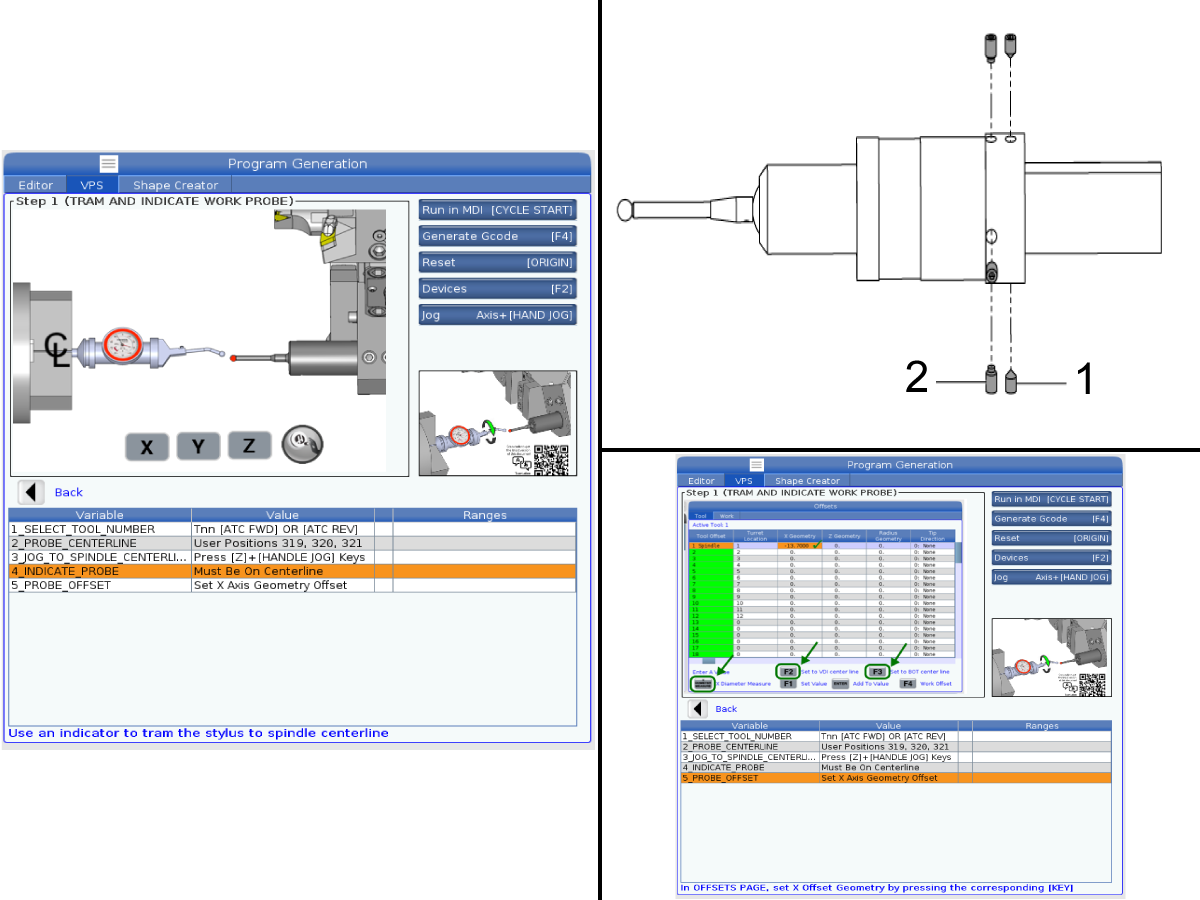
2

Sweep the probe stylus tip with the indicator. Keep the two tapered setscrews [1] snug and adjust the four flat setscrews [2] until the probe stylus tip is inline with the spindle centerline NTE 0.0005" (0.0127mm). Make sure all of the setscrews are tight when the alignment is done.

Push [OFFSET] then use the arrow keys to navigate to Tool tab and then to the X Geometry column for the tool number that the probe is in. Push either [F2] for a VDI/Hybrid turret or [F3] for a BOT/BMT turret. This will set the X-axis Geometry Offset. 

Set Work Probe Z Geometry Offset

1

Important : If your machine is not equipped with ATP or the work probe is incompatible with the ATP option refer to the section below.

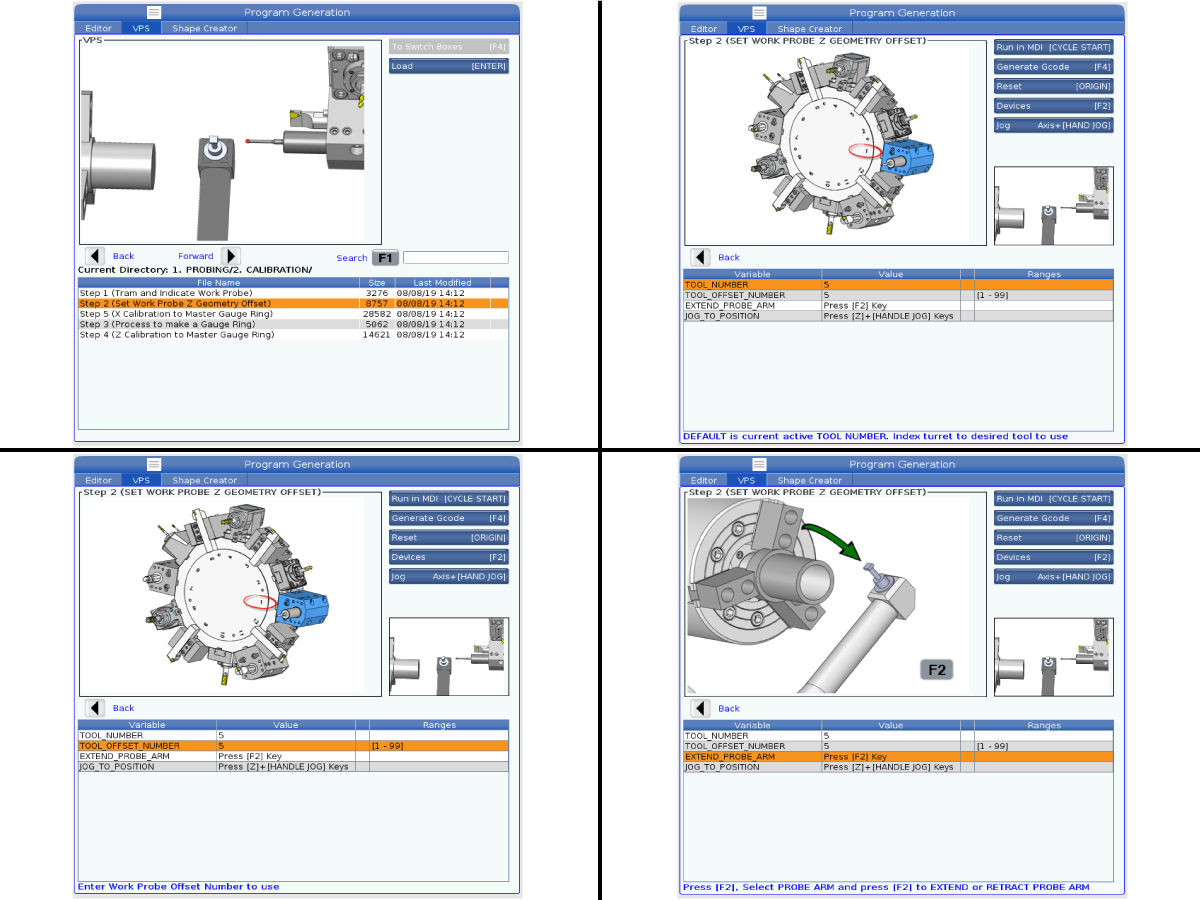
Index the turret to the tool position that the probe is installed in. Default is the current active tool number.

Enter the Work Probe Offset that the probe will use.

Warning: Check that the probe arm has room to extend or damage may occur.

Push [F2] to extend the probe arm.

2

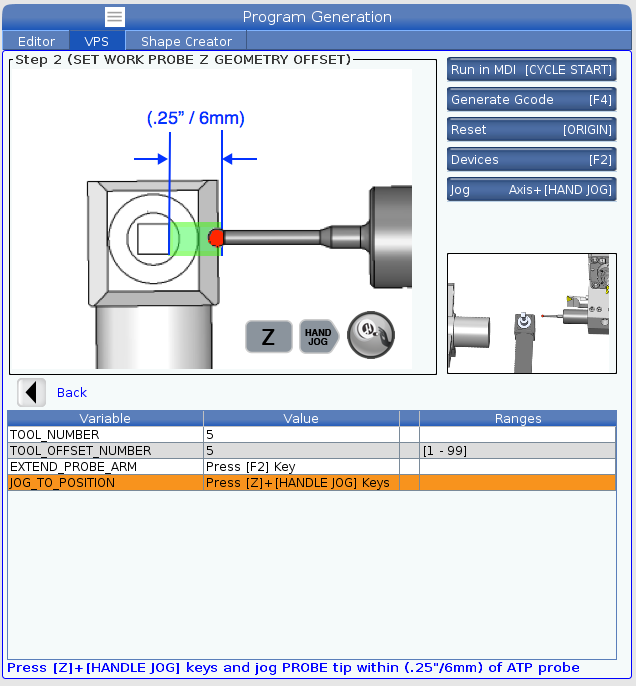
Hand jog the probe tip to within (.25”/6mm) of the ATP probe.

Push [CYCLE START] to set the Work Probe Z Geometry Offset.

Set Work Probe Z Geometry Offset (No ATP)

1

2

3

4

Process to make a Master Gauge Ring

1

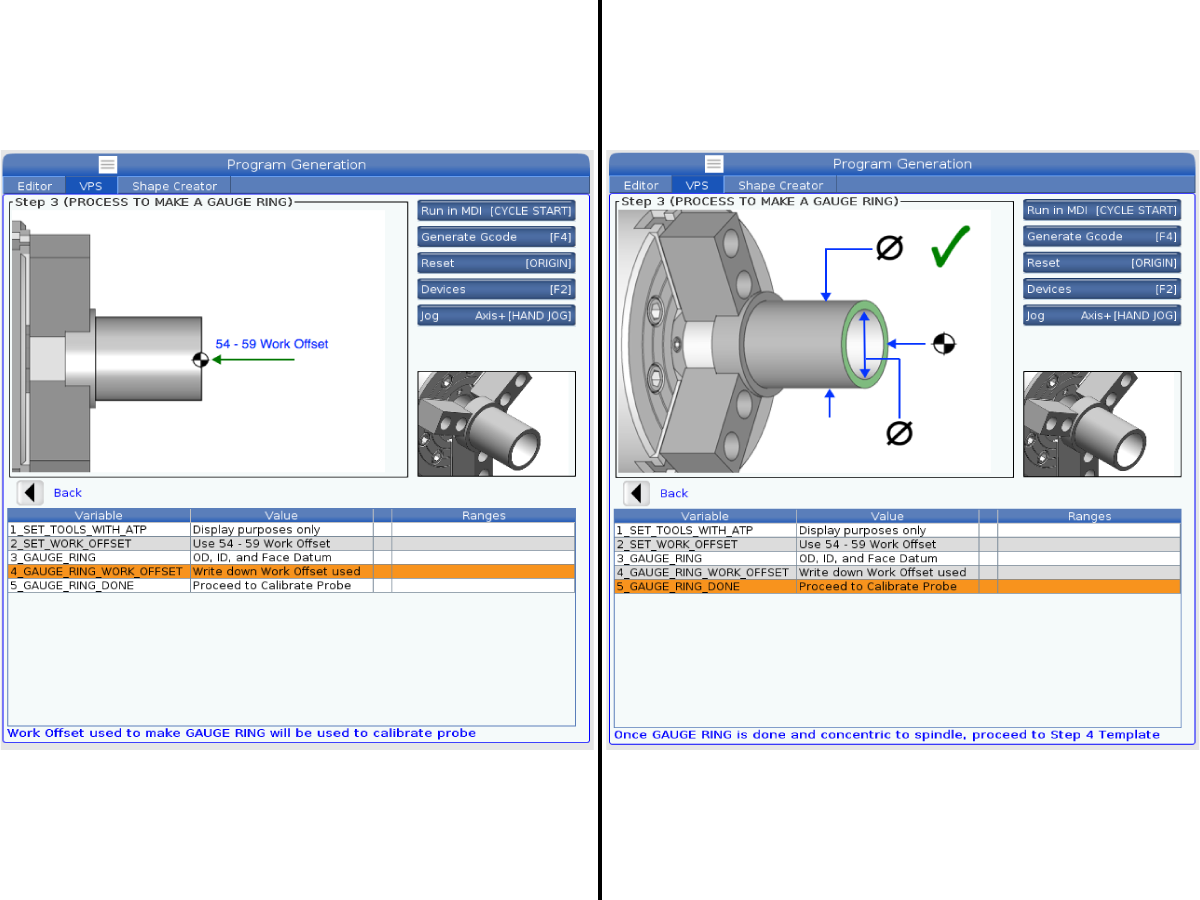
To create a Gauge Ring you will need the necessary tools to face, turn an ID bore, and turn an OD diameter. Round stock is needed to create the gauge ring. Recommended dimensions are Ø3.0” and 3.0” in length.

Use the ATP to probe all the tool geometry offsets for the tools needed to machine the Gauge Ring.

Set the Work Offset used (G54-G59).

Machine the gauge ring by facing the part, bore the ID, and turn the OD. 

2

Write down the work offset used to machine the Gauge Ring. (G54-G59)

Once you have machined the necessary features of the Gauge Ring continue to calibrate the Work Probe to the Master Gauge Ring.

Z Calibration to Master Gauge Ring

1

Dimension the Gauge Ring’s OD and ID using the proper measuring tools and record the values. The precision of the tool should at least be 0.0001”.

Note: Do not remove the part from the chuck to measure the part. Doing so will cause the part to not be aligned to Spindle Center Line.

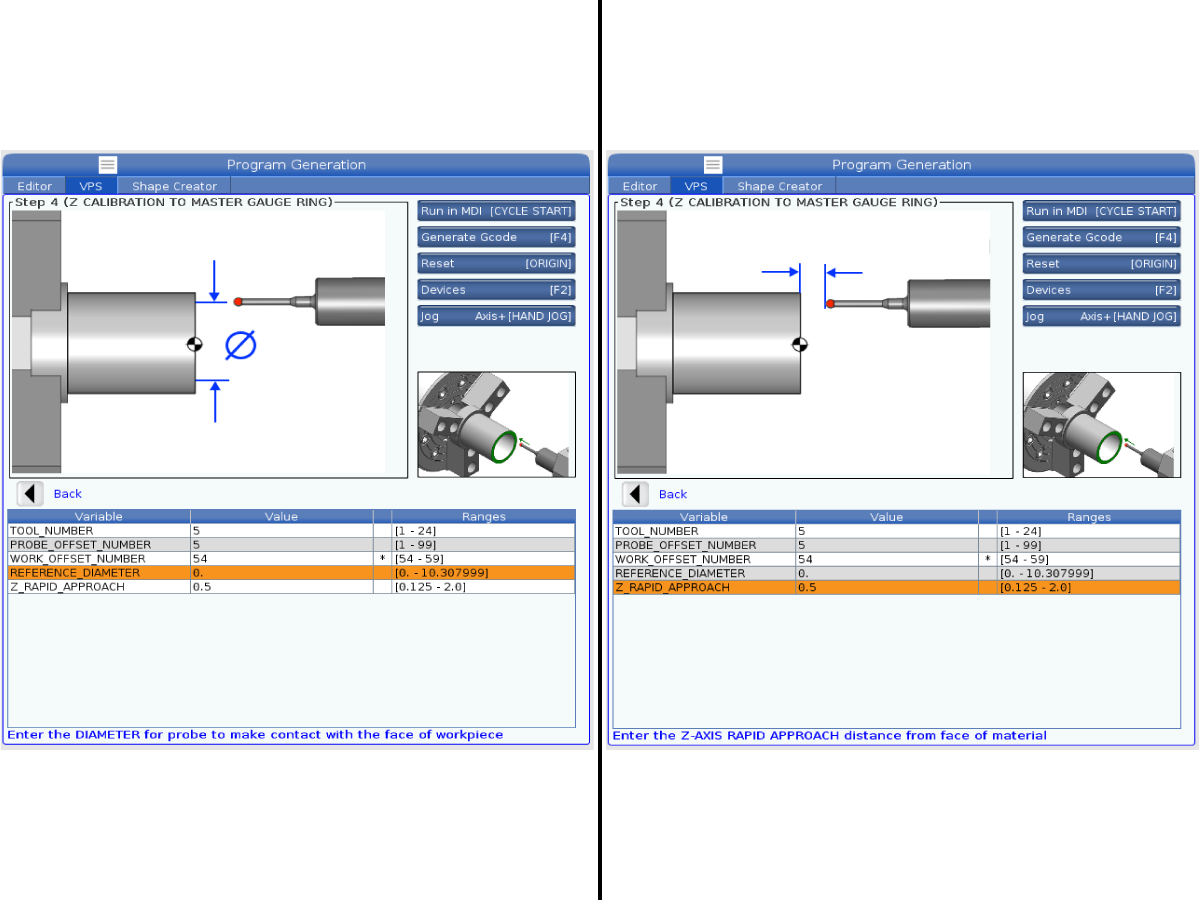
Index the turret to the tool position that the probe is installed in. Default is the current active tool number.

Enter the Work Probe Offset that the probe will use.

Enter the Gauge Ring Work Offset that was written down to use as a reference point.

2

Enter the reference diameter which is calculated as (OD+ID)/2.

Enter the Z Rapid Approach distance from the face of the material.

Note: Recommended value is 0.5.

Push [CYCLE START] to probe the Face of the Master Gauge Ring.

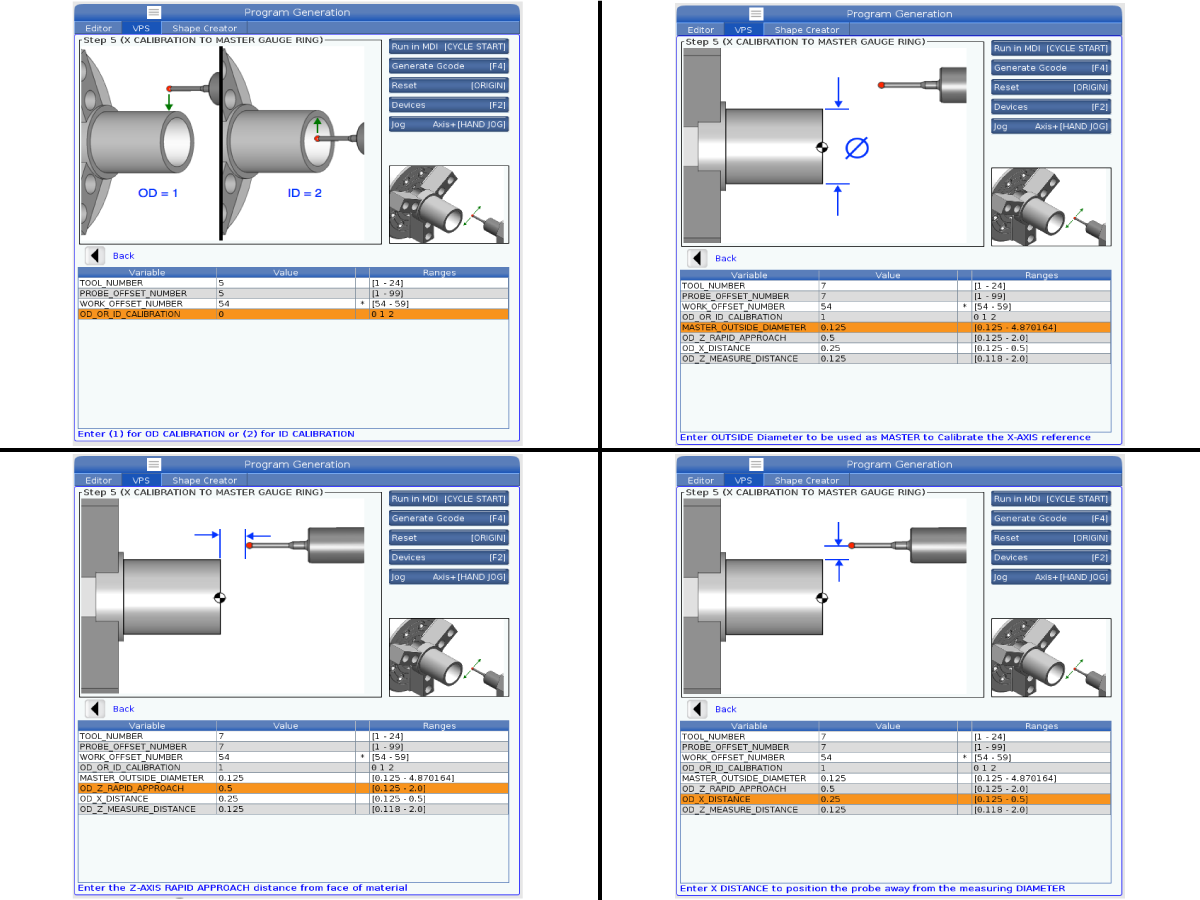
X Calibration to Master Gauge Ring

1

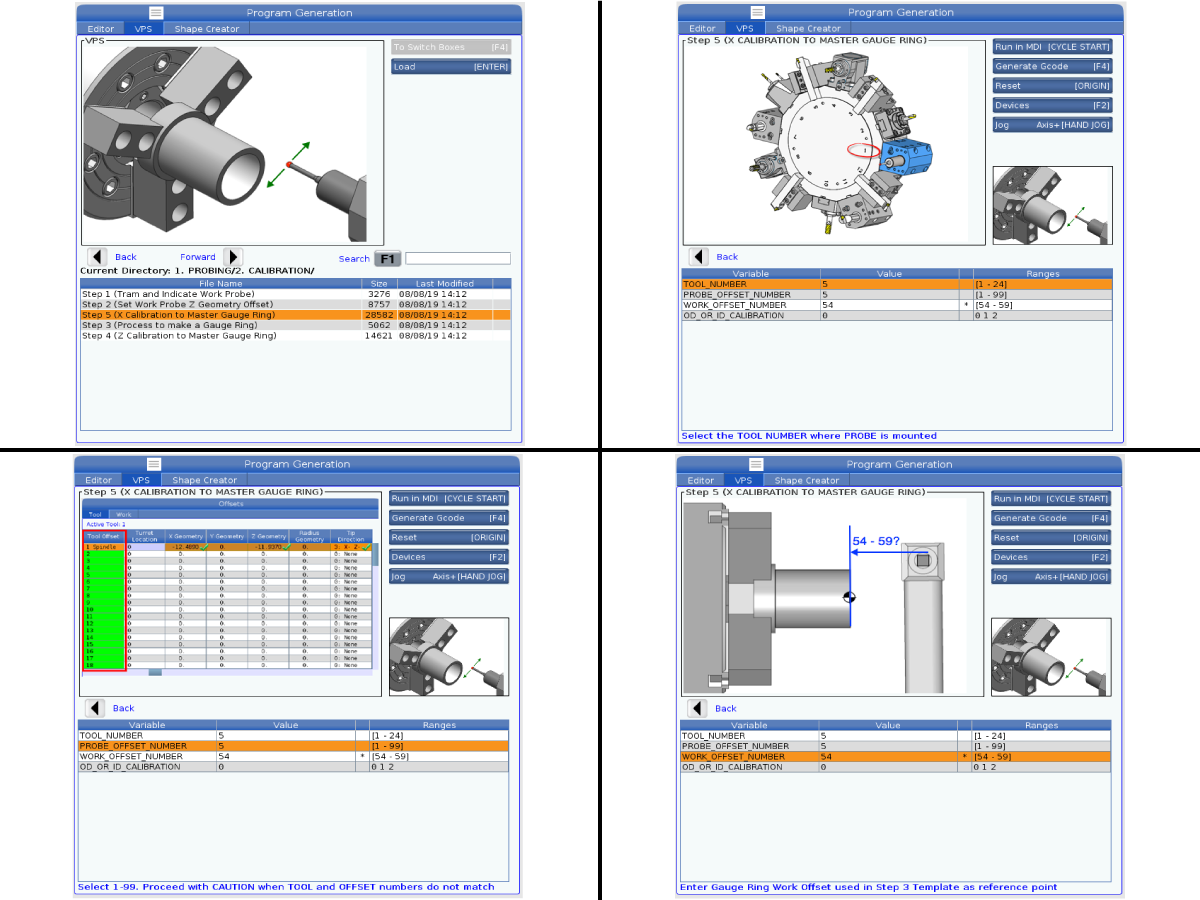
Index the turret to the tool position that the probe is installed in. Default is the current active tool number.

Enter the Work Probe Offset that the probe will use.

Enter the Gauge Ring Work Offset that was written down to use as a reference point.

2

Enter 1 for OD Calibration and push [ENTER].

Enter the measured OD dimension that was recorded.

Enter the Z Rapid Approach distance from the face of the material.

Note: Recommended value is 0.5.

Enter the X Distance to position the probe away from the diameter to be measured.

Note: Recommended value is 0.25.

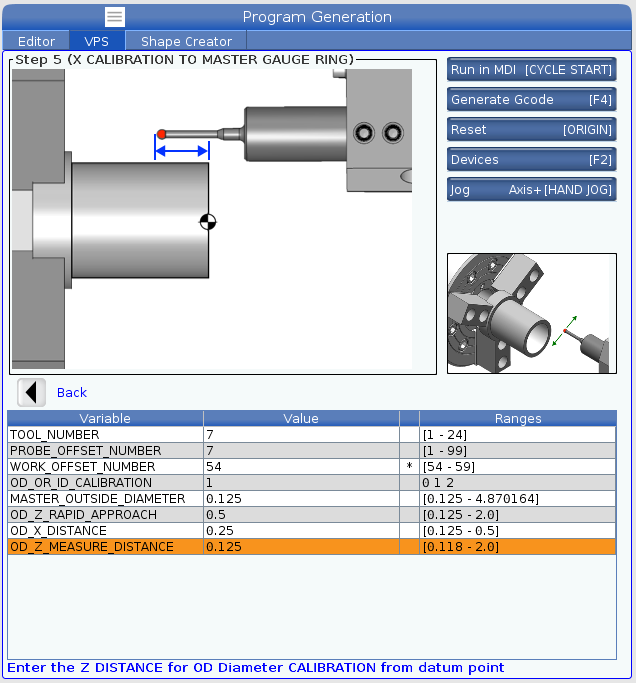
3

Enter the Z Distance the probe will move before probing the OD.

Note: Recommended value is 0.25.

Push [CYCLE START] to probe the OD of the Master Gauge Ring.

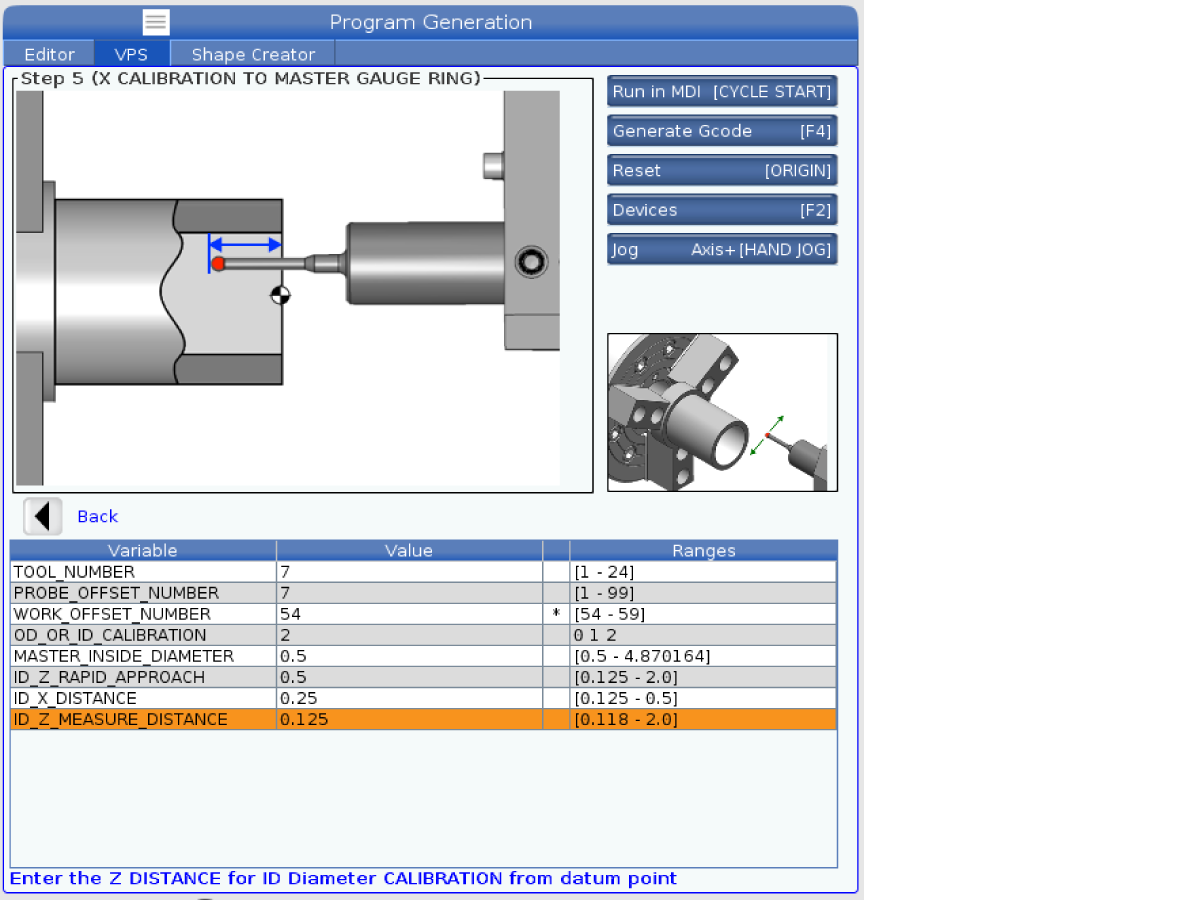
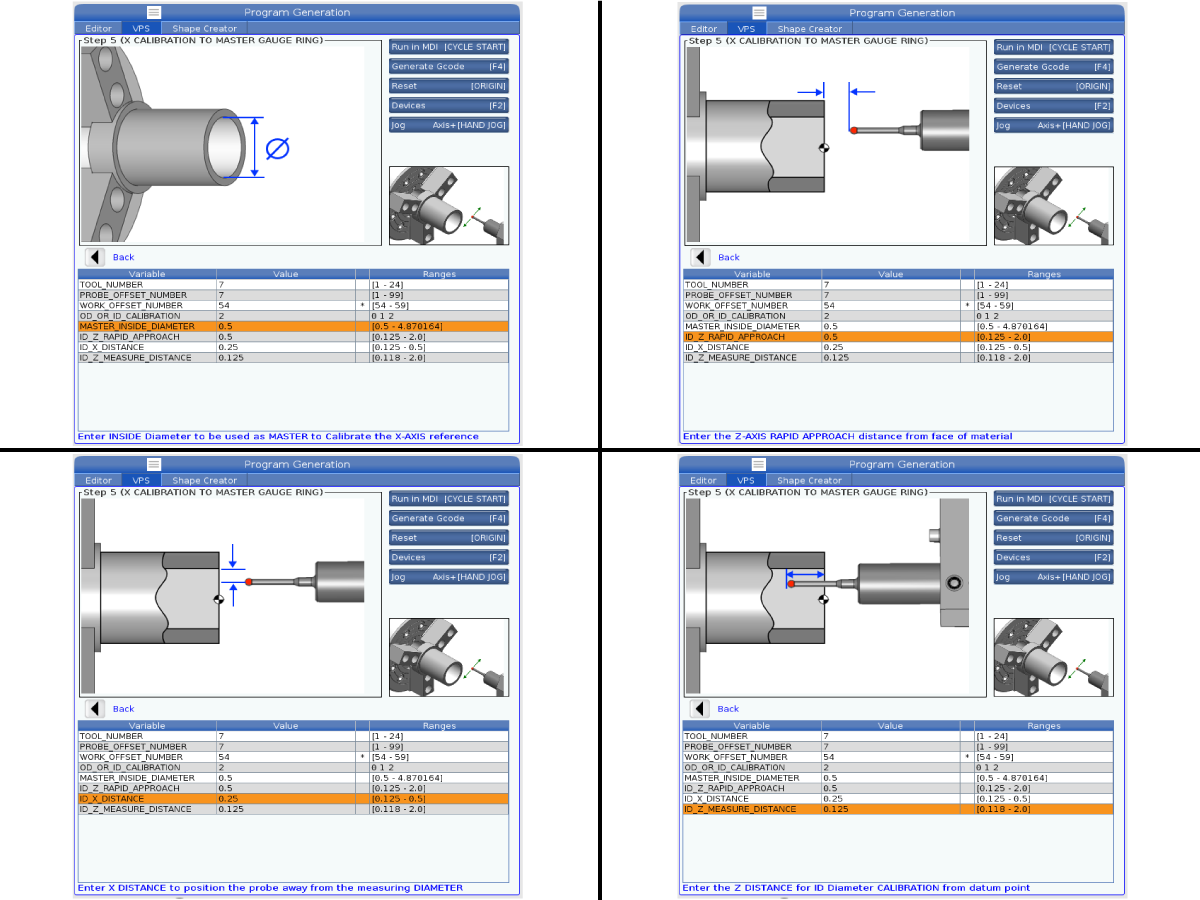
4

Enter 2 for ID Calibration and push [ENTER].

Enter the measured ID dimension that was recorded.

Enter the Z Rapid Approach distance from the face of the material.

Note: Recommended value is 0.5.

Enter the X Distance to position the probe away from the diameter to be measured.

Note: Recommended value is 0.25.

5

Enter the Z Distance the probe will move before probing the ID.

Note: Recommended value is 0.25.

Push [CYCLE START] to probe the ID of the Master Gauge Ring.

Introduction

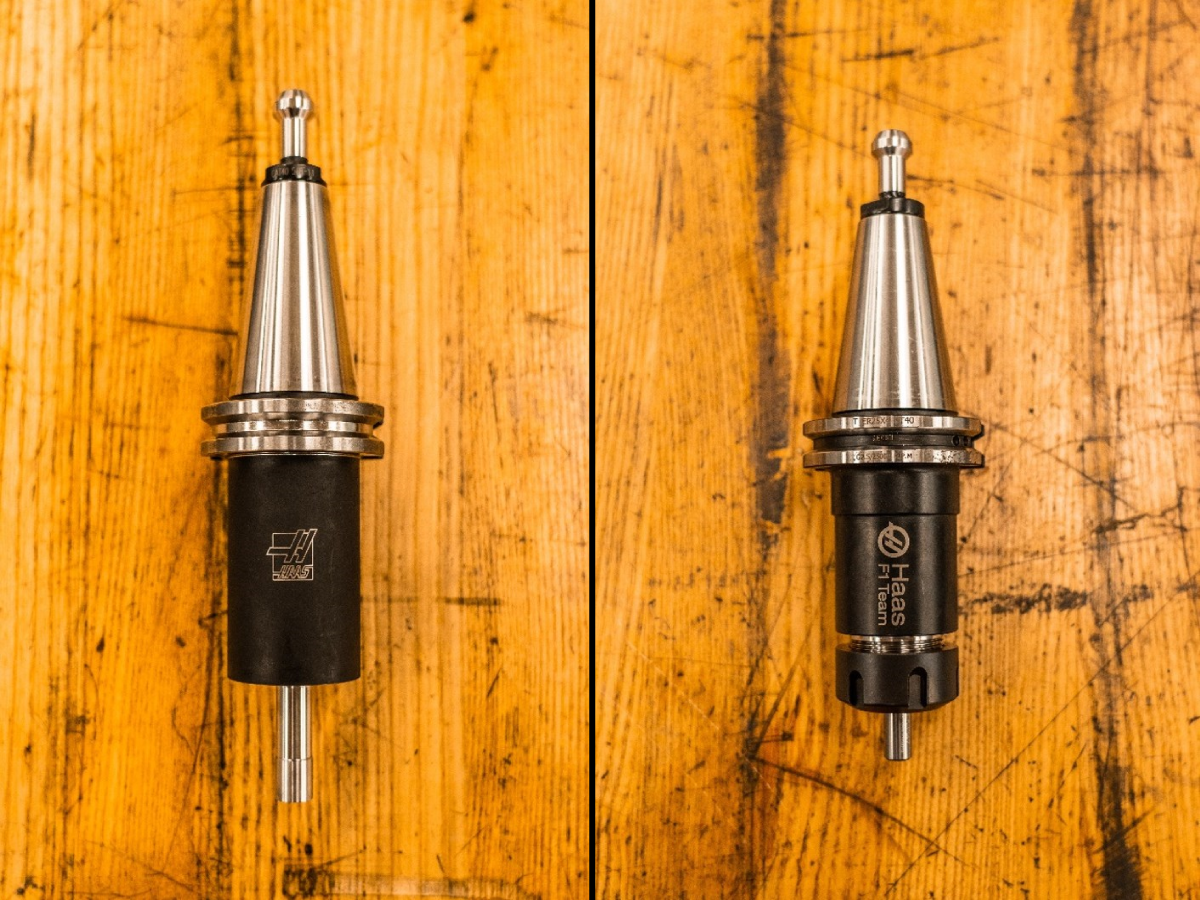
This procedure will show you how to make your own WIPS Calibration Tool.

A calibration tool is a tool of known length and diameter and is used for the Haas WIPS system and HTS400 presetter.

How To

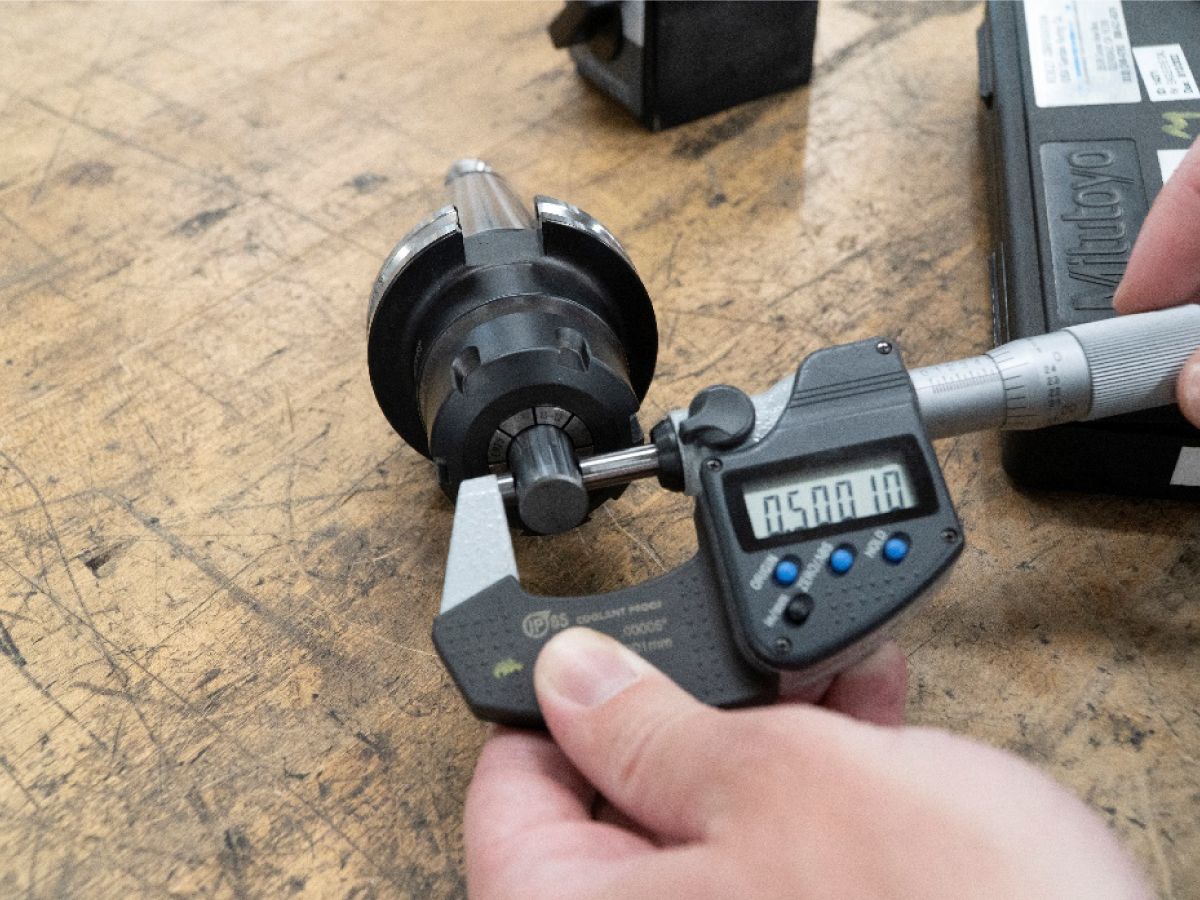
1

Place an end mill or a gauge pin in an ER tool holder.

The end mill or gauge pin must be straight, true, and round.

Measure the diameter using a micrometer and take note of the value.

Note: Do NOT use tool holders with set screws such as a Weldon tool holder.

2

Place the tool in the spindle and check the runout.

Place a tenths indicator on the table and sweep the diameter, use a small hammer to true it in the holder.

Once finished, the runout should be .0000 inch.

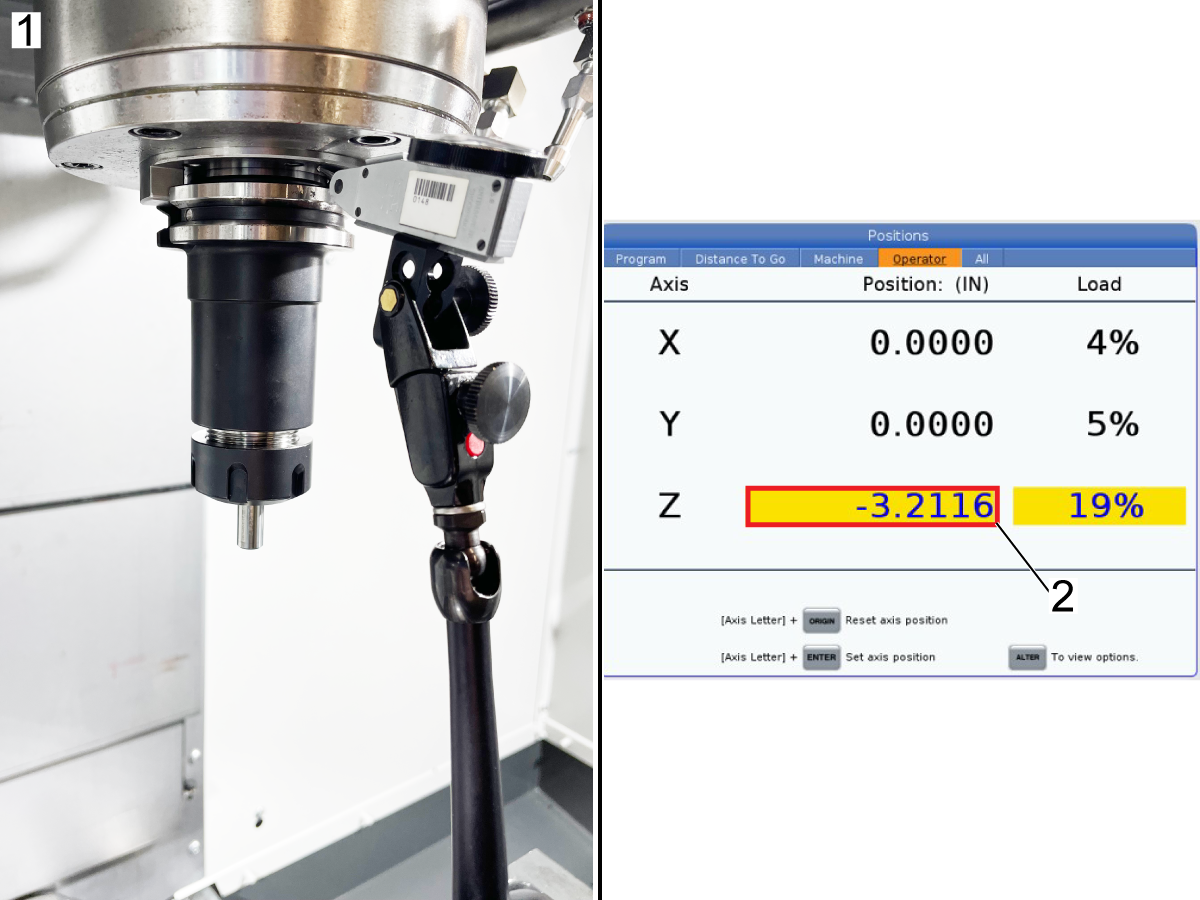
3

Use the tenth's indicator and zero the indicator on the bottom of the tool as shown in [1].

On the pendent press [POSITION] and page over top the [OPERATOR] tab and type [Z] and press [ORIGIN] to zero out the z-axis position [2].

4

Jog the z-axis off the indicator and position it so that the indicator is zeroed out on the spindle face as shown in [1].

Use the value shown on the operator page [2] as the tool length.

Keep and record the tool measurement values and the tool can now be used as the calibration tool.

Note: If you are recalibrating the machine using a different tool, all offsets must be re-measured.

Recently Viewed Items

You Have No Recently Viewed Items Yet

Feedback
Haas Logo

Haas Delivered Price

This price includes shipping cost, export and import duties, insurance, and any other expenses incurred during shipping to a location in France agreed with you as a buyer. No other mandatory costs can be added to the delivery of a Haas CNC Product.

KEEP UP WITH THE LATEST HAAS TIPS AND TECHNOLOGY...

Sign up now!   

HAAS TOOLING ACCEPTS THE FOLLOWING:

  • Service & Support
  • Owners
  • Request Service
  • Operator Manuals
  • Haas Parts
  • Rotary Repair Request
  • Pre-Install Guides
  • Shopping Tools
  • Build & Price a New Haas
  • Available Inventory
  • The Haas Price List
  • CNCA Financing
  • About Haas
  • Accessibility Statement
  • DNSH Statement
  • Export Compliance
  • Careers
  • Certifications & Safety
  • Contact Us
  • History
  • Terms & Conditions
  • Haas Tooling Terms & Conditions
  • Privacy
  • Warranty
  • Haas Community
  • Haas Certification Program
  • Haas Motorsports
  • Gene Haas Foundation
  • Haas Technical Education Community
  • Events
  • Join the Conversation
  • Facebook
  • X
  • Flickr
  • YouTube
  • LinkedIn
  • Instagram
  • TikTok
© 2026 Haas Automation, Inc – CNC Machine Tools
This site is protected by reCAPTCHA and the Google Privacy Policy and Terms of Service apply.

2800 Sturgis Rd., Oxnard, CA 93030
Toll Free: (888) 817-4446 / Fax: 805-278-8554