My Haas Welcome,
!
Haas Tooling MyHaas/HaasConnect Sign In Register Haas Tooling MyHaas/HaasConnect Sign Out Welcome, My Machines Latest Activity My Quotes My Account My Users Sign Out
Find Your Distributor
  1. Select Language
    1. English
    2. Deutsch
    3. Español - ES
    4. Español - MX
    5. Français
    6. Italiano
    7. Português
    8. Český
    9. Dansk
    10. Nederlands
    11. Magyar
    12. Polski
    13. Svenska
    14. Türkçe
    15. 中文
    16. Suomi
    17. Norsk
    18. الإنجليزية
    19. български
    20. Hrvatski
    21. Ελληνικά
    22. Română
    23. Slovenský
    24. Slovenščina
    25. 한국어
    26. 日本語
    27. Українська
  • machines Main Menu
    • Vertical Mills
      Vertical Mills
      Vertical Mills View All
      • Vertical Mills
      • VF Series
      • Universal Machines
      • VR Series
      • VP-5 Prismatic
      • Pallet-Changing VMCs
      • Mini Mills
      • Mold Machines
      • High-Speed Drill Centers
      • Drill/Tap/ Mill Series
      • Toolroom Mills
      • Pocket Mill
      • Compact Mills
      • Gantry Series
      • SR Sheet Routers
      • Extra-Large VMC
      • Double-Column Mills
      • 3+2 Positioning Machines
    • Multi-Axis Solutions
      Multi-Axis Solutions
      Multi-Axis Solutions View All
      • Multi-Axis Solutions
      • Y-Axis Lathes
      • 5-Axis Mills
    • Lathes
      Lathes
      Lathes View All
      • Lathes
      • ST Series
      • Dual-Spindle
      • Box Way Series
      • Toolroom Lathes
      • Chucker Lathe
      • Pocket Lathe
      • Haas Bar Feeders
    • Horizontal Mills
      Horizontal Mills
      Horizontal Mills View All
      • Horizontal Mills
      • 50-Taper
      • 40-Taper
    • Rotaries & Indexers
      Rotaries & Indexers
      Rotaries & Indexers View All
      • Rotaries & Indexers
      • Rotary Tables
      • Indexers
      • 5-Axis Rotaries
      • Extra-Large Rotaries
    • Special Series
      Special Series
      Special Series View All
      • Special Series
      • EU_Series_Redirect
    • Automation Systems
      Automation Systems
      Automation Systems View All
      • Automation Systems
      • Mill Automation
      • Lathe Automation
      • Automatic Parts Loaders
      • Automation Models
    • Desktop Machines
      Desktop Machines
      Desktop Machines View All
      • Desktop Machines
      • Desktop Mill
      • Desktop Lathe
      • Control Simulator, Standard
      • Control Simulator, Premium
    • Shop Equipment
      Shop Equipment
      Shop Equipment View All
      • Shop Equipment
      • Knee Mill
      • Haas Manual Lathes
      • Haas Saws
    • Fabrication Machines
      Fabrication Machines
      Fabrication Machines View All
      • Fabrication Machines
      • Laser Cutting Machines
      • CNC Press Brakes
    • QUICK LINKS Special Series  Special Series 
      EU SERIES EU SERIES BUILD & PRICE | PRICE LIST BUILD & PRICE | PRICE LIST In-Stock Machines In-Stock Machines WHAT’S NEW WHAT’S NEW YOUR FIRST CNC YOUR FIRST CNC
      SHOPPING TOOLS
      • Build & Price a Haas
      • Price List
      • Available Inventory
      • CNCA Financing
      WANT TO TALK TO SOMEONE?

      A Haas Factory Outlet (HFO) can answer your questions, and walk you through your best options.

      CONTACT YOUR DISTRIBUTOR >
  • Options Main Menu
    • The Haas Control Value Option Packages
      Value Option Packages
      Value Option Packages View All
      • Value Option Packages
    • Product Image Spindles
      Spindles
      Spindles View All
      • Spindles
    • Product Image Tool Changers
      Tool Changers
      Tool Changers View All
      • Tool Changers
    • Product Image 4th- | 5th-Axis
      4th- | 5th-Axis
      4th- | 5th-Axis View All
      • 4th- | 5th-Axis
    • Product Image Turrets & Live Tooling
      Turrets & Live Tooling
      Turrets & Live Tooling View All
      • Turrets & Live Tooling
    • Product Image Probing
      Probing
      Probing View All
      • Probing
    • Haas Chip & Coolant Management Chip & Coolant Management
      Chip & Coolant Management
      Chip & Coolant Management View All
      • Chip & Coolant Management
    • The Haas Control The Haas Control
      The Haas Control
      The Haas Control View All
      • The Haas Control
    • Product Image Product Options
      Product Options
      Product Options View All
      • Product Options
    • Product Image Tooling & Fixturing
      Tooling & Fixturing
      Tooling & Fixturing View All
      • Tooling & Fixturing
    • Product Image Workholding
      Workholding
      Workholding View All
      • Workholding
    • Product Image 5-Axis Solutions
      5-Axis Solutions
      5-Axis Solutions View All
      • 5-Axis Solutions
      • 5 Easy Steps to 5-Axis
    • QUICK LINKS Special Series  Special Series 
      EU SERIES EU SERIES BUILD & PRICE | PRICE LIST BUILD & PRICE | PRICE LIST In-Stock Machines In-Stock Machines WHAT’S NEW WHAT’S NEW YOUR FIRST CNC YOUR FIRST CNC
      SHOPPING TOOLS
      • Build & Price a Haas
      • Price List
      • Available Inventory
      • CNCA Financing
      WANT TO TALK TO SOMEONE?

      A Haas Factory Outlet (HFO) can answer your questions, and walk you through your best options.

      CONTACT YOUR DISTRIBUTOR >
  • Why Haas Main Menu
      Discover the Haas Difference
    • Why Haas
    • MyHaas
    • Education Community
    • Industry 4.0
    • Haas Certification
    • Customer Testimonials
  • Service Main Menu
      Welcome to Haas Service
      SERVICE HOME Operator’s Manuals How-To Procedures Troubleshooting Guides Preventive Maintenance Haas Parts Haas Tooling Videos
  • Videos Main Menu
  • Main Menu
    • View All
    • View All
    • View All
    • View All
      • HTEC Curriculum Support
      • Haas Value Option Packages (VOP) Journey
    • View All
      • Haas 10 kg Cobot Package
      • Cobot Kits
      • DC-1 Drill Center
      • CNC Sales News
      • Do More With Your Haas
    • View All
    • View All
      • contact-us-test
      • 4 - AUTOMATION SYSTEMS
      • Carousel-V2
      • expert test
      • Demo_Day_Trident-test
      • Link Test
      • image-sale-tag-test
      • article-list-test
      • Haas 25 kg Robot Package
      • test-algolia-page
    • View All
    • View All
    • View All
    • View All
      • calc-test
    • View All
    • QUICK LINKS Special Series  Special Series 
      EU SERIES EU SERIES BUILD & PRICE | PRICE LIST BUILD & PRICE | PRICE LIST In-Stock Machines In-Stock Machines WHAT’S NEW WHAT’S NEW YOUR FIRST CNC YOUR FIRST CNC
      SHOPPING TOOLS
      • Build & Price a Haas
      • Price List
      • Available Inventory
      • CNCA Financing
      WANT TO TALK TO SOMEONE?

      A Haas Factory Outlet (HFO) can answer your questions, and walk you through your best options.

      CONTACT YOUR DISTRIBUTOR >
  • Haas Tooling Main Menu
  • Haas Service Parts Main Menu
My Haas Welcome,
!
Haas Tooling MyHaas/HaasConnect Sign In Register Haas Tooling MyHaas/HaasConnect Sign Out Welcome, My Machines Latest Activity My Quotes My Account My Users Sign Out
Find Your Distributor
  1. Select Language
    1. English
    2. Deutsch
    3. Español - ES
    4. Español - MX
    5. Français
    6. Italiano
    7. Português
    8. Český
    9. Dansk
    10. Nederlands
    11. Magyar
    12. Polski
    13. Svenska
    14. Türkçe
    15. 中文
    16. Suomi
    17. Norsk
    18. الإنجليزية
    19. български
    20. Hrvatski
    21. Ελληνικά
    22. Română
    23. Slovenský
    24. Slovenščina
    25. 한국어
    26. 日本語
    27. Українська
×

Search Results

Web Pages

Images

    • <
    • 1
    • >

H-5AX Geometry Inspection Tool - AD0813

Service Home How To Procedures H-5AX Geometry Inspection Tool - AD0813
Recently Updated Last updated: 01/29/2025

H-5AX Geometry Inspection Tool


AD0813

H-5AX Geometry Inspection Tool - AD0813

- Jump to Section - 1. Introduction 2. Geometry Check (14 steps) Back to Top

Introduction

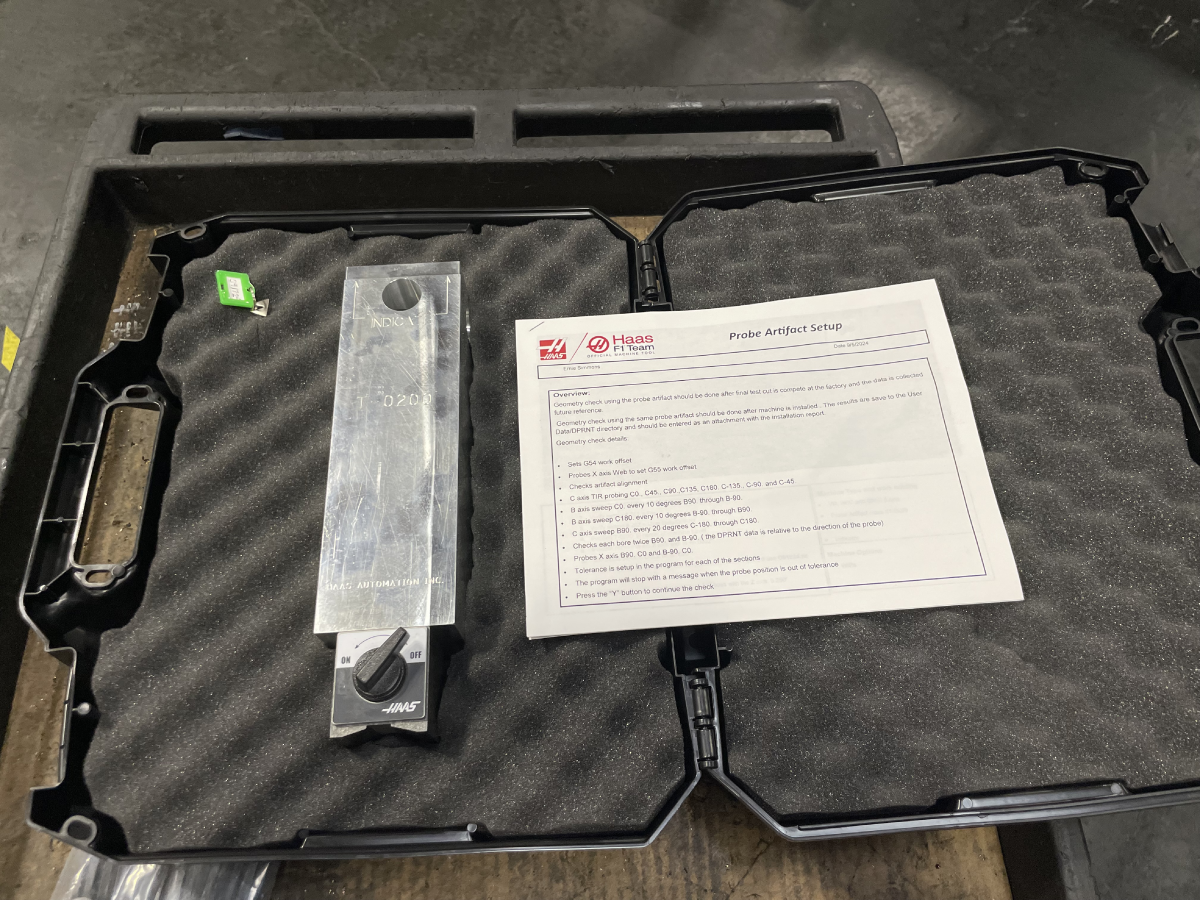
This procedure cover how to use the T-0200 H-5AX Geometry Inspection Tool to check head geometry of Gimbal Head machines.

 Important: This procedure is currently only available for Machines set to Inch. Verify the machine is set to Inches before running the programs.

 Note: Geometry check using the probe artifact should be done after MRZP is calculated. 

 Note: Geometry check using the same probe artifact should be done after the machine is installed. The results saved in the DPRNT.OUT file should be attached to the Service Installation Report and sent to the Haas Service Department along with an Error Report.

 Caution: The geometry check program runs through the cycle twice. If the program is stopped and restarted during the first run the values in #10900-10904 will be over written with zeros. Before restarting the program that was stopped during the first run, the MRZP settings #300-304 must be restored. These MRZP values are in the screen shot taken at the beginning of the procedure.

Program Cycle Time:

  • approximately 45 minutes

Geometry Check

1

Download the Programs listed below on to a USB.

Artifact T0200 Template:

Artifact T0200 Template

 Note: The Artifact T0200 Template file will need to be unzipped before it can be loaded onto the machine.

Gimbal Head Inch Program:

 Note: These programs are only available for machines set to Inches.

O91824.NC

O09300.NC

Install the USB with the downloaded program into the USB port on the side of the pendant.

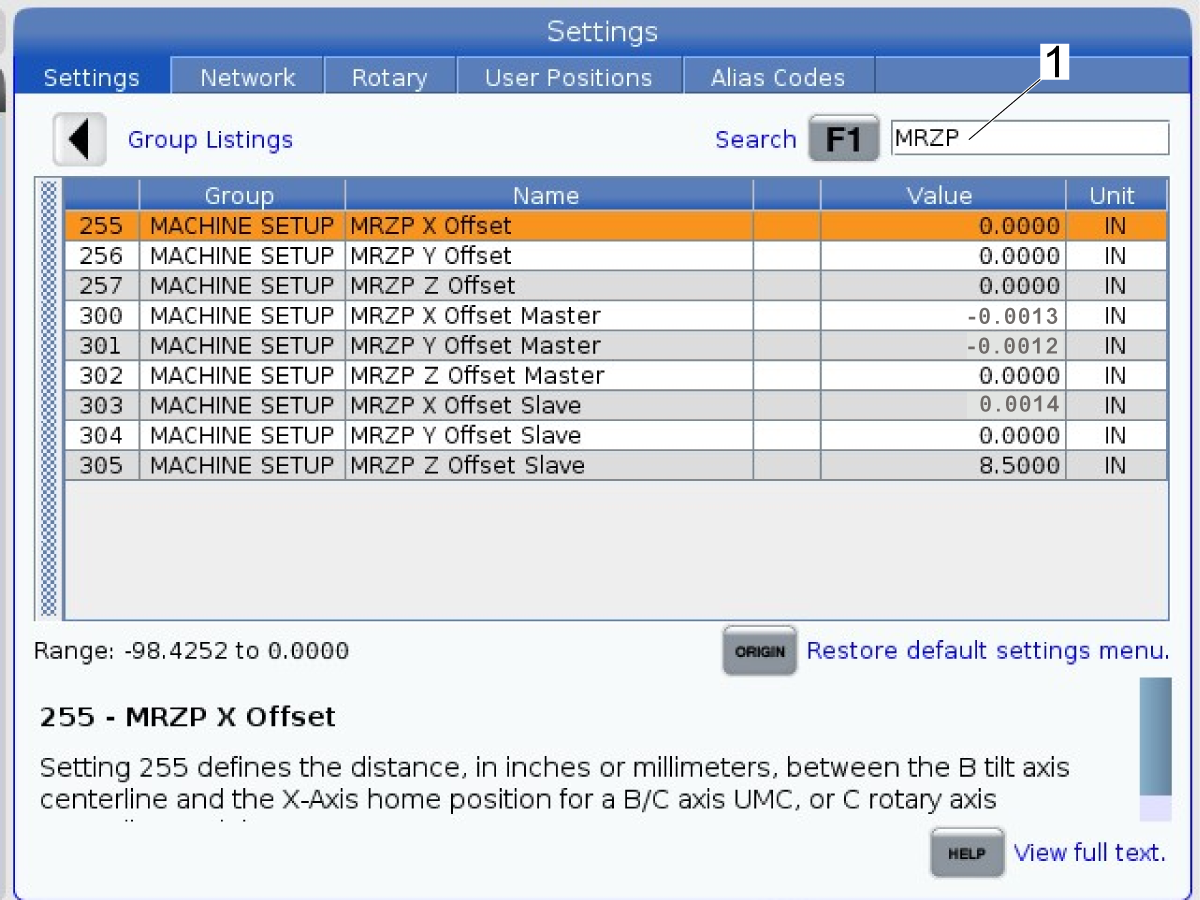
In SETTINGS, type MRZP. 

Press [F1].

Save a screen shot of the MRZP values. Press [SHIFT] [F1].

 Note: MRZP values will differ from machine to machine. 

2

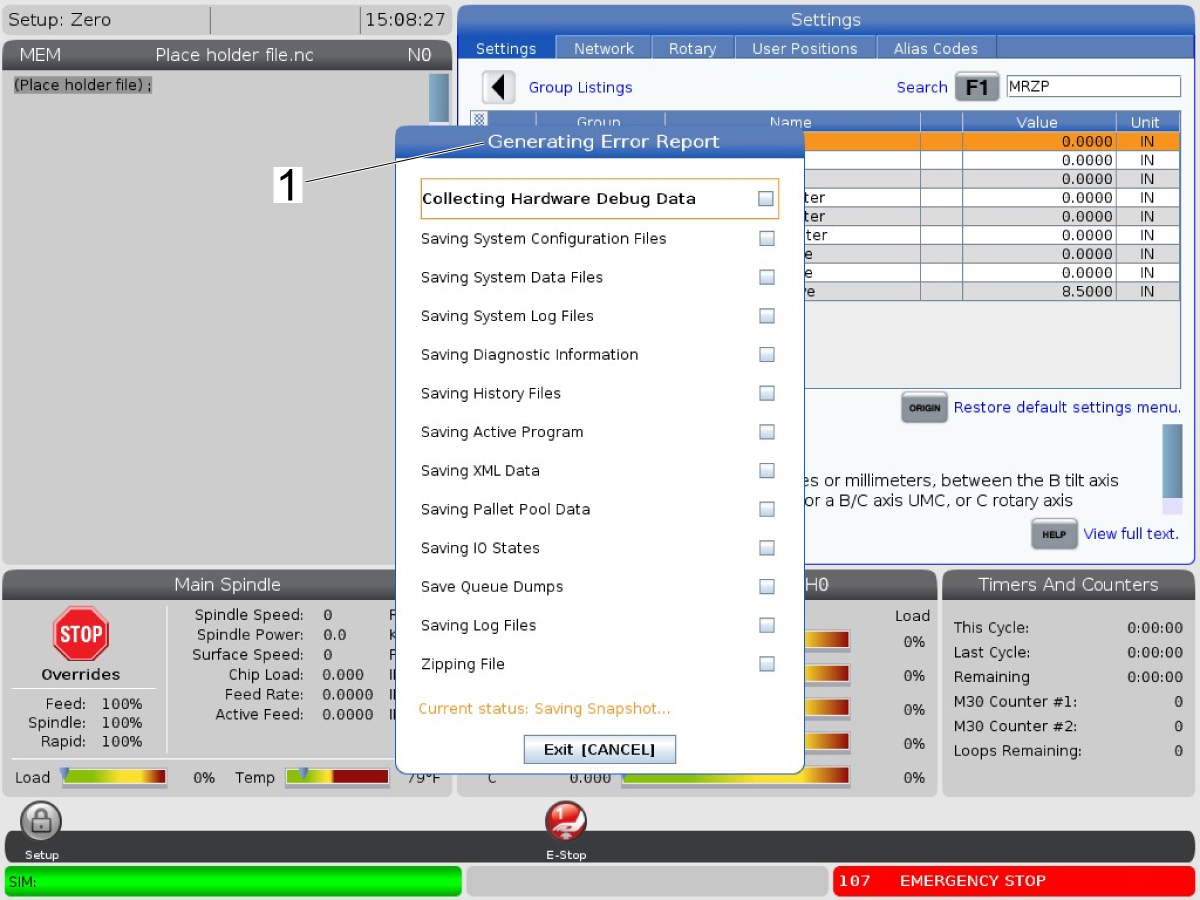
Collect an Error Report by pressing [SHIFT] [F3].

3

 Note: The WIPS and probe should be calibrated before starting this procedure. 

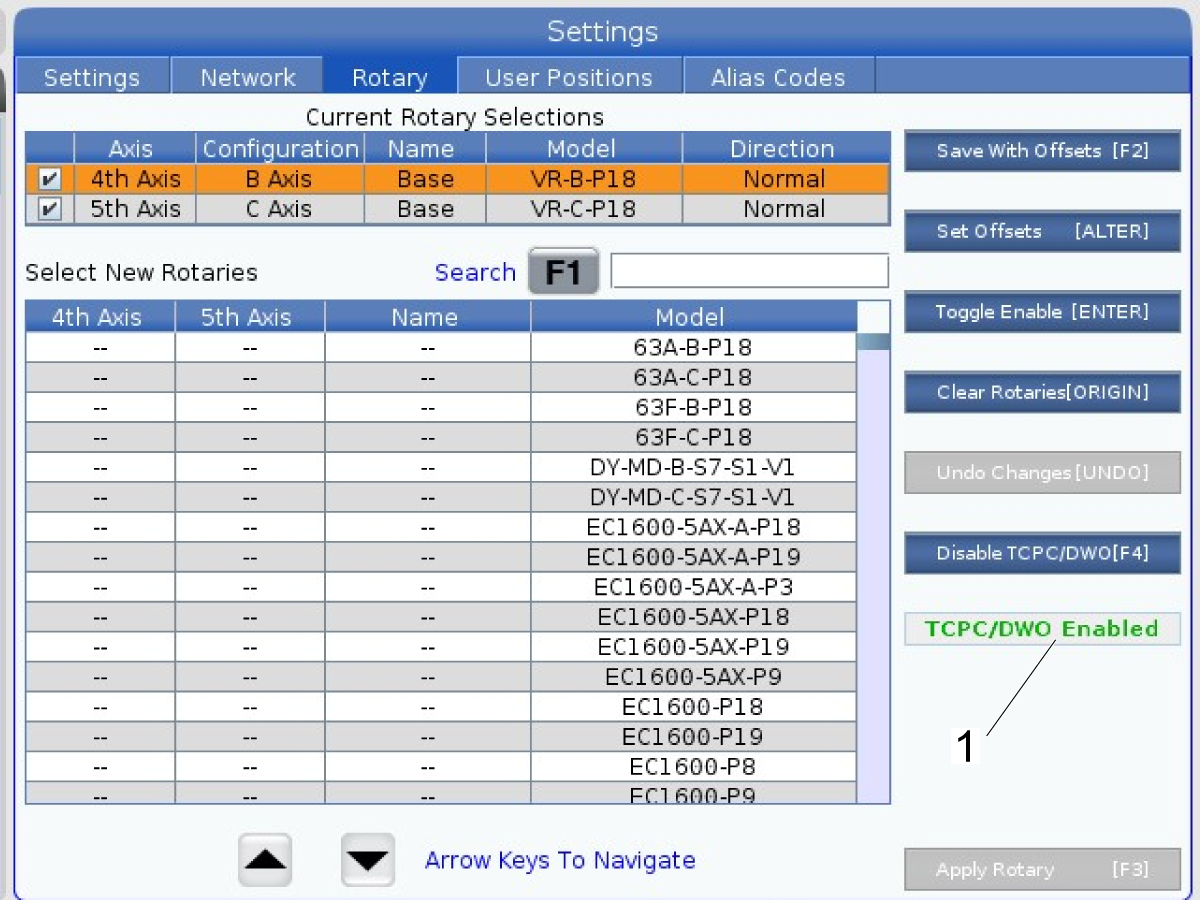
Verify TCPC/DWO is enabled in Rotary settings.

4

Verify setting #261 = File.

5

Verify setting #262 = User Data/.

6

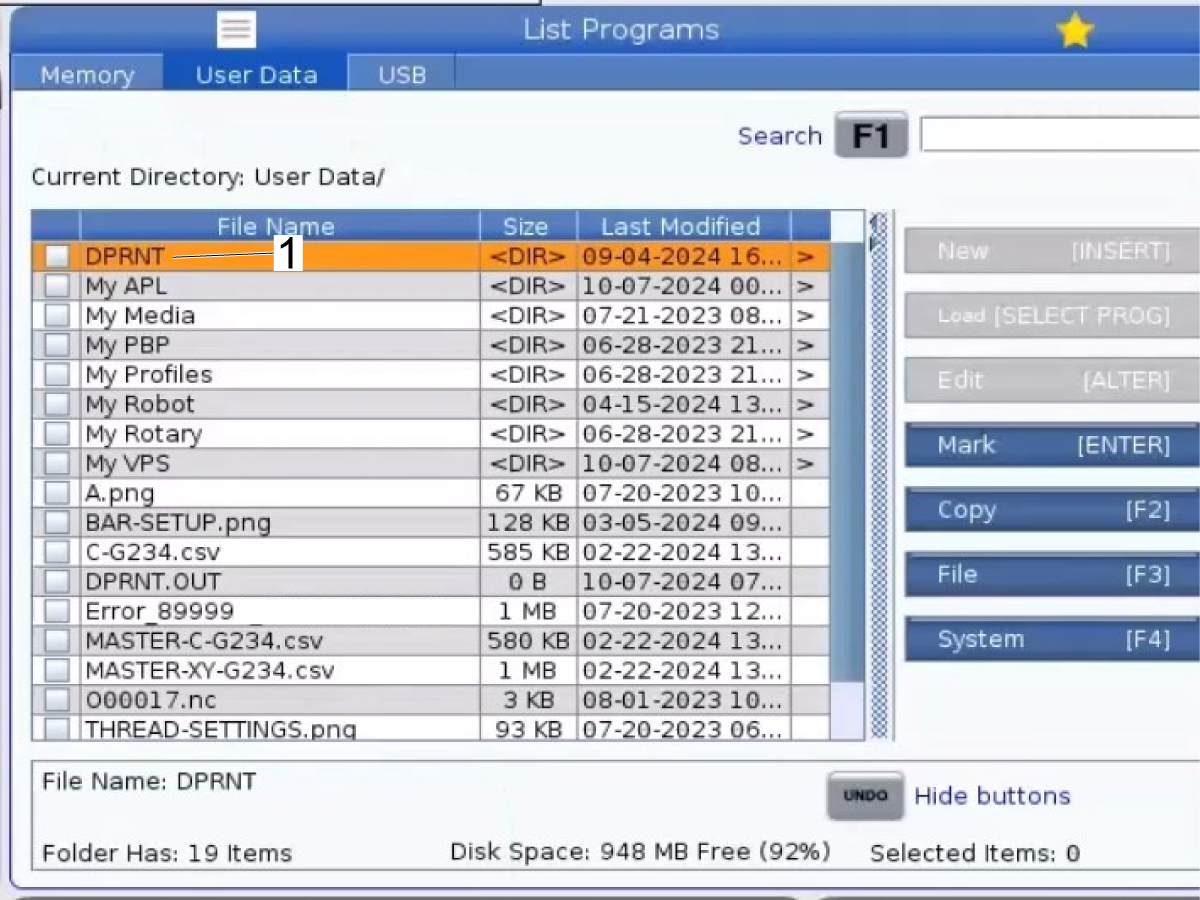
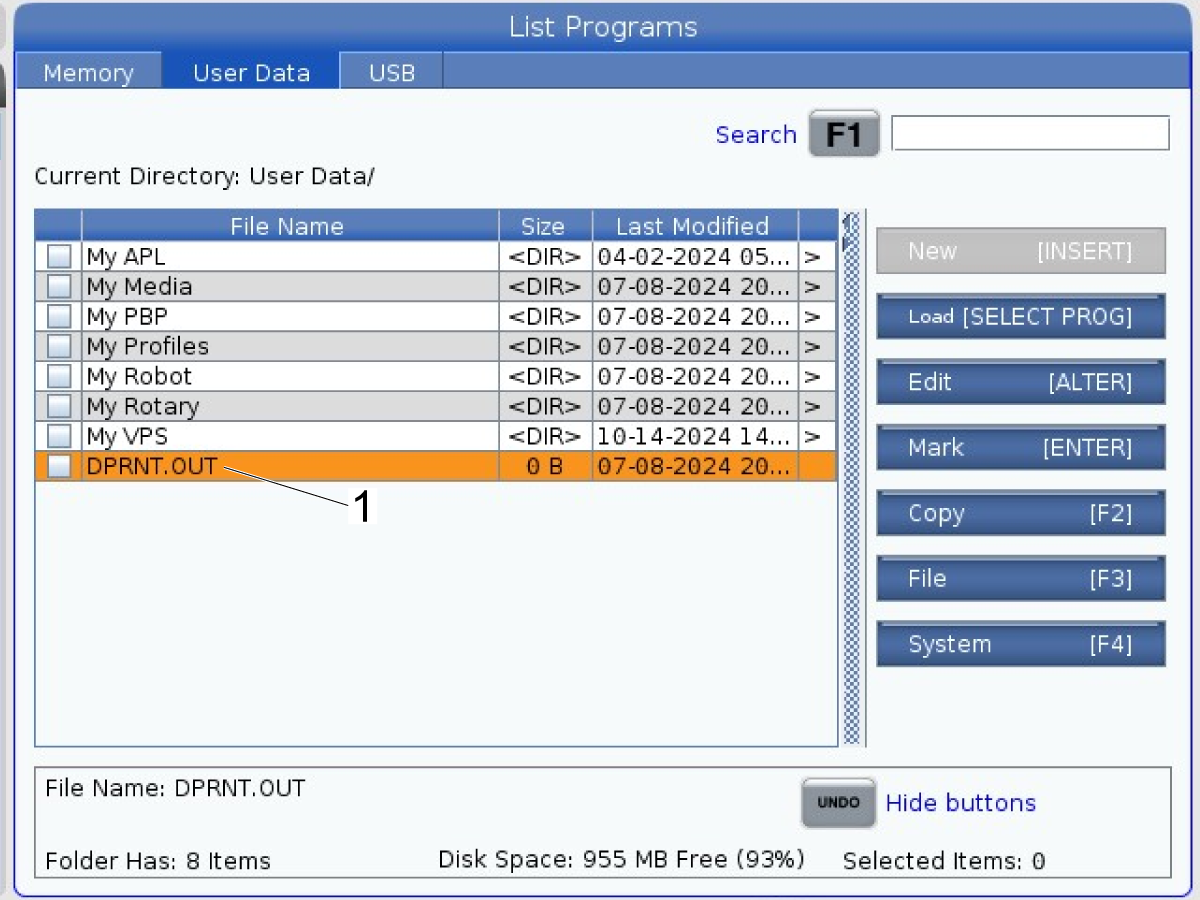
Press [LIST PROGRAM]. Navigate to the User Data tab.

Open the DPRNT<DIR>. 

 Note: DPRNT.OUT is where the Data is saved.

7

With the USB in the port on the control pendant.

Push [LIST PROGRAM].

Navigate to the USB tab.

Select the O9300.nc and O91824.nc [1]. Push [ENTER] to select both files.

 Important: This procedure is currently only available for Machines set to Inch. Verify the machine is set to Inches before running the programs.

Push [F2] to copy the files.

Navigate to Memory on the Select Device screen.

Enter the Memory directory.

Push [ENTER] to copy the files to this location.

8

With the USB in the port on the control pendant.

Push [LIST PROGRAM].

Navigate to the USB tab.

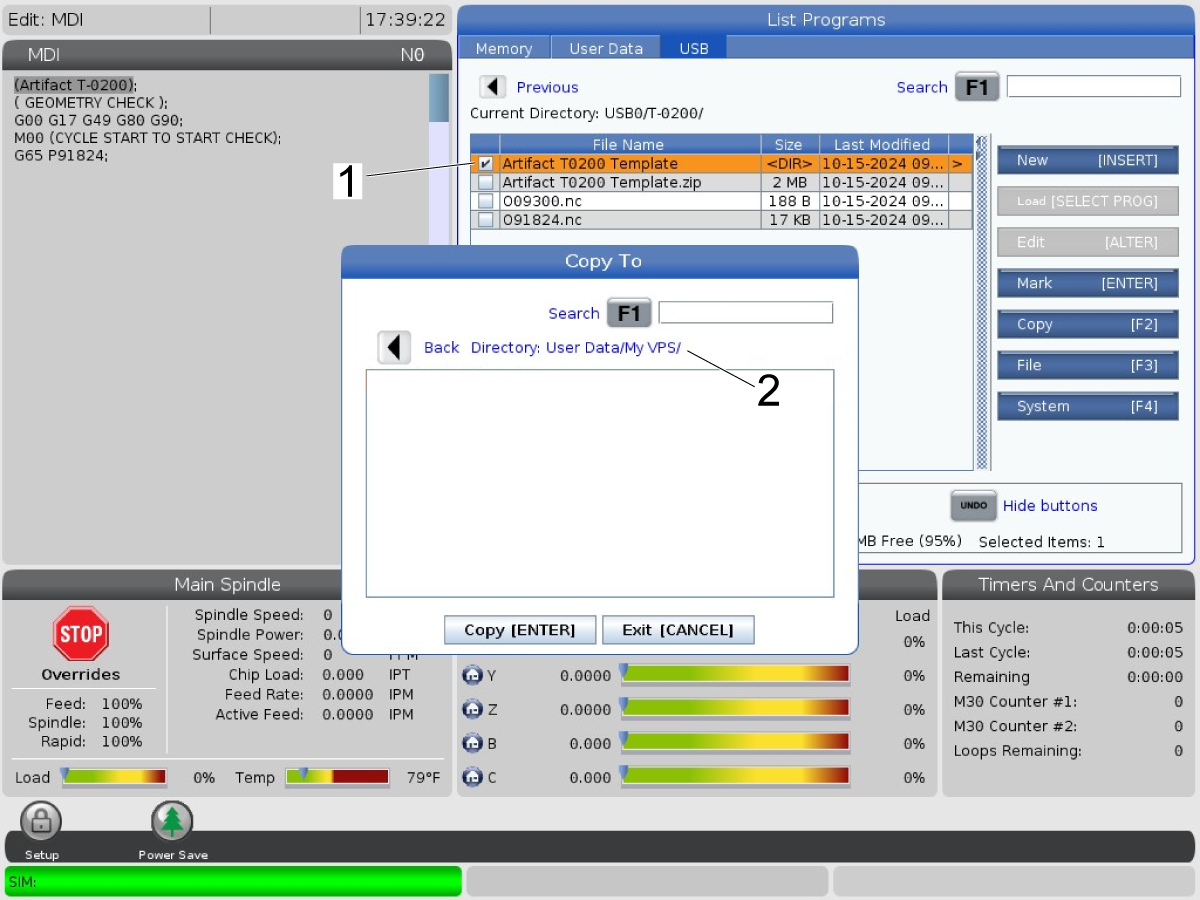
Select the Artifact T0200 Template file [1]. Push [ENTER] to select the file.

 Note: This file should be unzipped. 

Push [F2] to copy the file.

Navigate to User Data on the Select Device screen.

Enter the User Data directory.

Navigate to the My VPS directory.

Enter the My VPS directory [2].

Push [ENTER] to copy the file to this location.

9

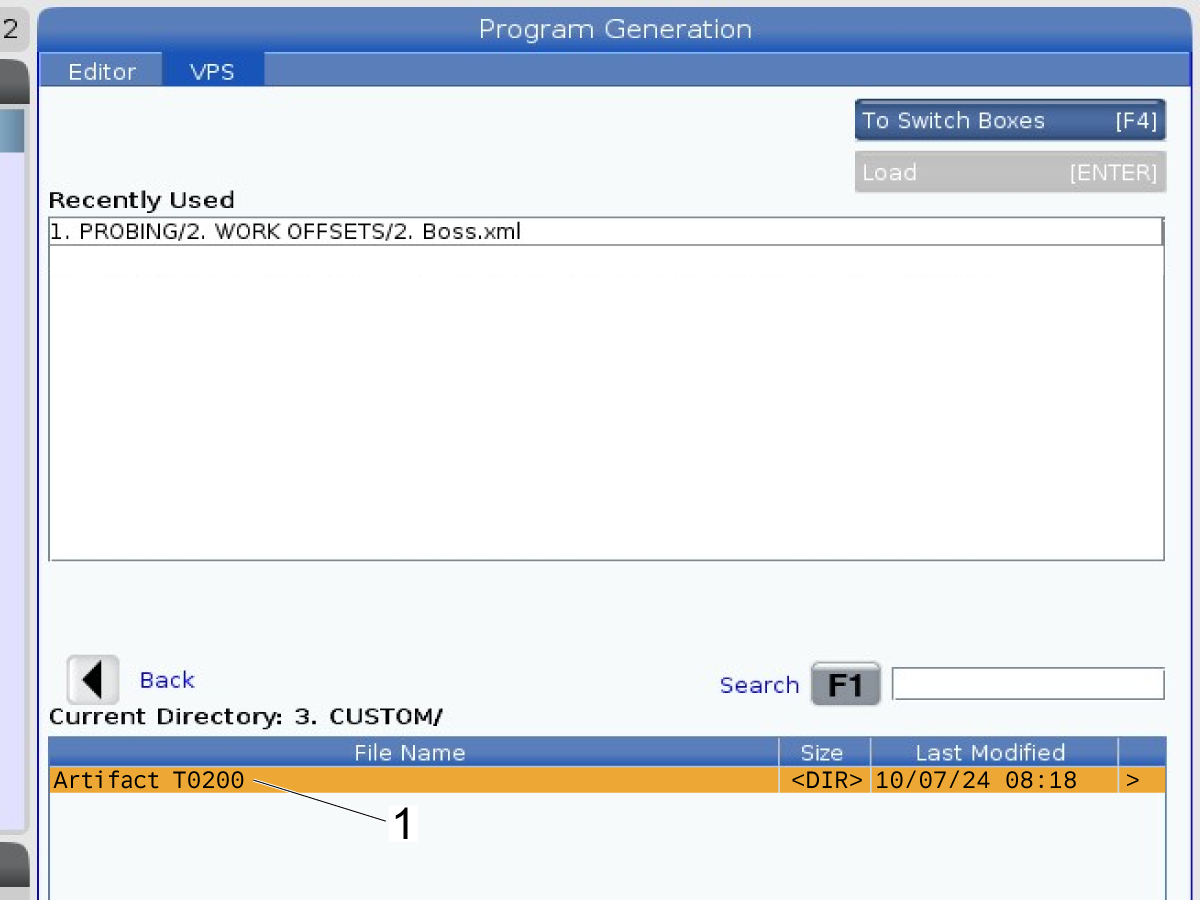
Press [EDIT]. Navigate to the VPS tab > CUSTOM > Artifact T0200 > Artifact T0200 Template [1].

 Note: If the VPS Template does not load, press [F1] to refresh the screen.

10

 Note: Work offsets G54 and G55 are set at the beginning of the cycle with the probe.

Position T-0200 in the center of the machine travel.

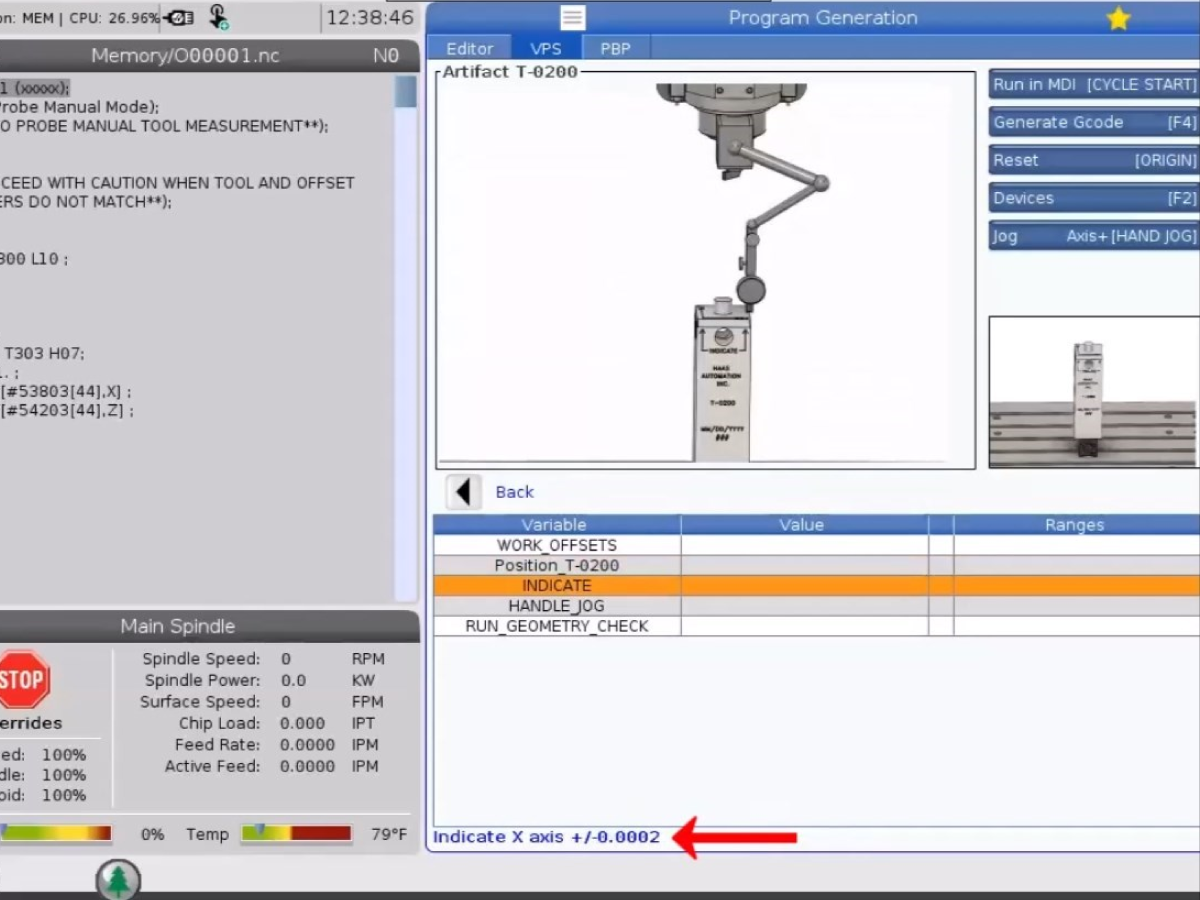
Place an indicator on the spindle head and indicate the front face of the artifact so that it is parallel to the X-Axis with in +/-.0002".

 Note: The probing cycle checks the surface and will alarm out if out of tolerance.

11

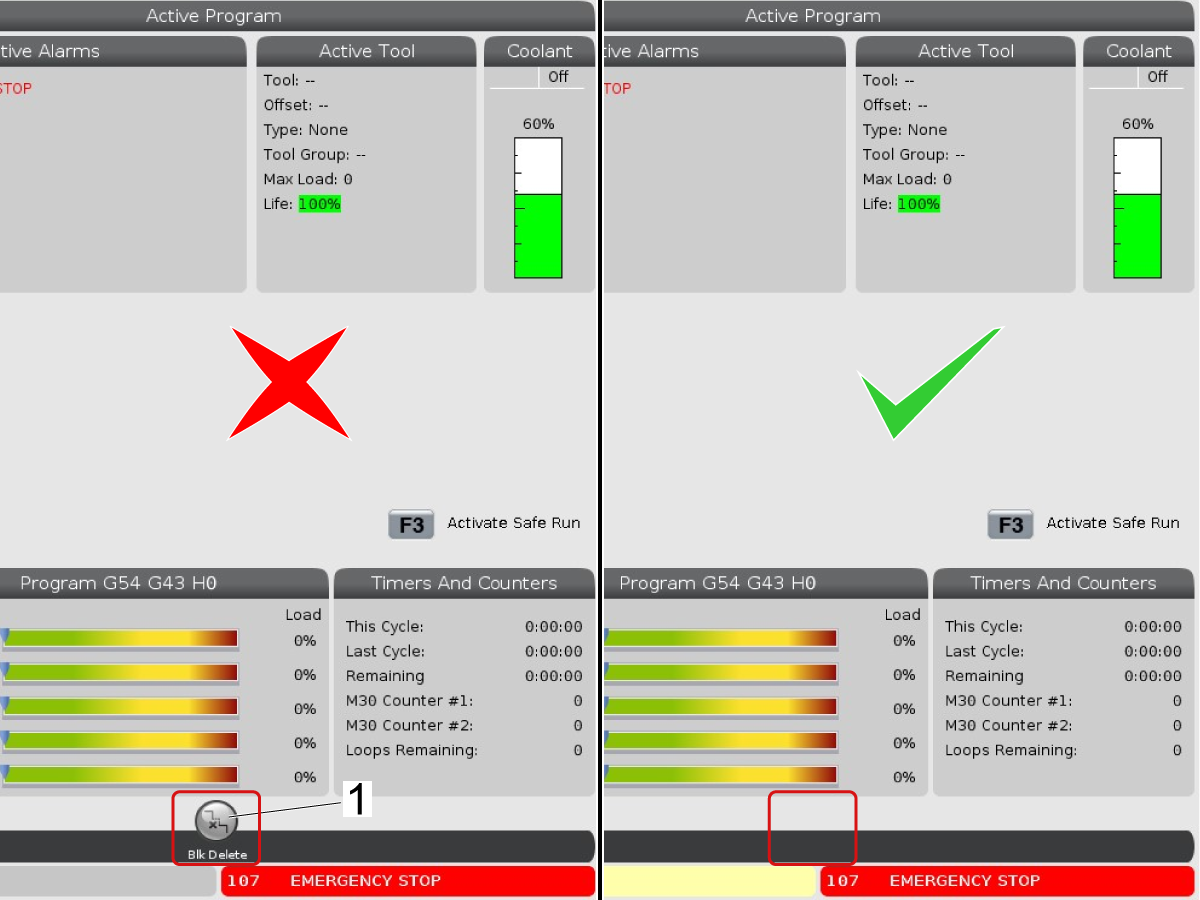
Verify BLOCK DELETE [1] is turned OFF before running the program.

 Note: The icon will not be present when Block Delete is off.

12

Load the probe into the spindle.

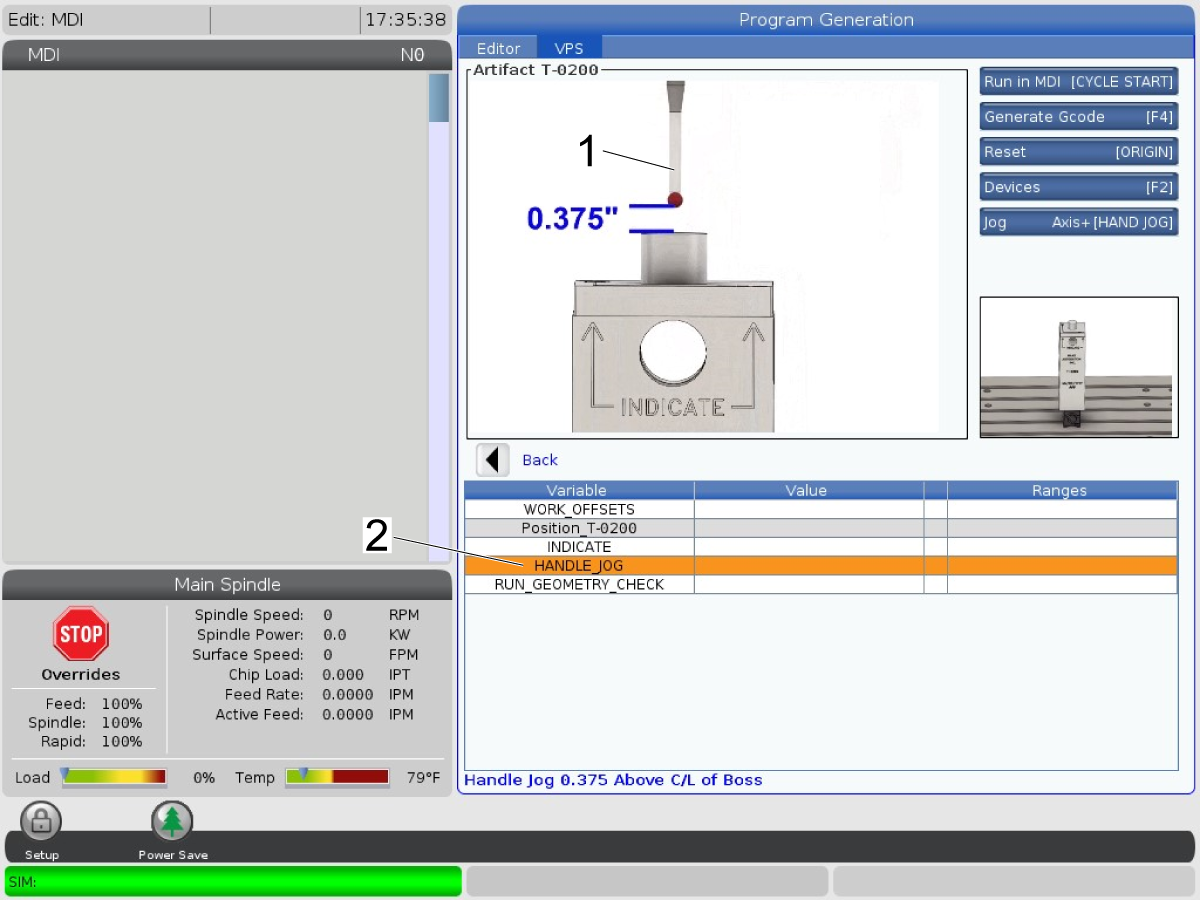
Handle jog X and Y axis to centerline of 1" boss with the Z-Axis approximately 0.375" above boss.

 Note: The probe cycle will set G54 as the top center of the Boss and the G55 as the top center of the X-Axis web.

13

 Note: It is recommended to use a white foam board or cardboard set in the front right T-slot to reflect the OMI signal when running this test and the MRZP calibration program.

Navigate to RUN_GEOMETRY_CHECK [1] in the VPS tab.

Press [CYCLE START].

The program will load and run in MDI.

 Caution: The geometry check program runs through the cycle twice. If the program is stopped and restarted during the first run the values in #10900-10904 will be over written with zeros. Before restarting the program that was stopped during the first run, the MRZP settings #300-304 must be restored. These MRZP values are in the screen shot taken at the beginning of the procedure.

 Note: Block Delete can be turned on to skip probing G54 and G55 work offset again when starting the program again. 

14

The results are saved to the User Data/DPRNT directory.

Attach the DPRNT.OUT [1] file and Error Report to the Service Installation Report.

Email a copy of the DPRNT.OUT and Error Report to the Haas Service Department. 

Recently Viewed Items

You Have No Recently Viewed Items Yet

Feedback
Haas Logo

Haas Delivered Price

This price includes shipping cost, export and import duties, insurance, and any other expenses incurred during shipping to a location in France agreed with you as a buyer. No other mandatory costs can be added to the delivery of a Haas CNC Product.

KEEP UP WITH THE LATEST HAAS TIPS AND TECHNOLOGY...

Sign up now!   

HAAS TOOLING ACCEPTS THE FOLLOWING:

  • Service & Support
  • Owners
  • Request Service
  • Operator Manuals
  • Haas Parts
  • Rotary Repair Request
  • Pre-Install Guides
  • Shopping Tools
  • Build & Price a New Haas
  • Available Inventory
  • The Haas Price List
  • CNCA Financing
  • About Haas
  • Accessibility Statement
  • DNSH Statement
  • Export Compliance
  • Careers
  • Certifications & Safety
  • Contact Us
  • History
  • Terms & Conditions
  • Haas Tooling Terms & Conditions
  • Privacy
  • Warranty
  • Haas Community
  • Haas Certification Program
  • Haas Motorsports
  • Gene Haas Foundation
  • Haas Technical Education Community
  • Events

  • Join the Conversation
  • Facebook
  • X
  • Flickr
  • YouTube
  • LinkedIn
  • Instagram
  • TikTok
© 2026 Haas Automation, Inc – CNC Machine Tools

This site is protected by reCAPTCHA and the Google Privacy Policy and Terms of Service apply.

2800 Sturgis Rd., Oxnard, CA 93030
Toll Free: (888) 817-4446 / Fax: 805-278-8554