My Haas Welcome,
!
Haas Tooling MyHaas/HaasConnect Sign In Register Haas Tooling MyHaas/HaasConnect Sign Out Welcome, My Machines Latest Activity My Quotes My Account My Users Sign Out
Find Your Distributor
  1. Select Language
    1. English
    2. Deutsch
    3. Español - ES
    4. Español - MX
    5. Français
    6. Italiano
    7. Português
    8. Český
    9. Dansk
    10. Nederlands
    11. Magyar
    12. Polski
    13. Svenska
    14. Türkçe
    15. 中文
    16. Suomi
    17. Norsk
    18. الإنجليزية
    19. български
    20. Hrvatski
    21. Ελληνικά
    22. Română
    23. Slovenský
    24. Slovenščina
    25. 한국어
    26. 日本語
    27. Українська
  • machines Main Menu
    • Vertical Mills
      Vertical Mills
      Vertical Mills View All
      • Vertical Mills
      • VF Series
      • Universal Machines
      • VR Series
      • VP-5 Prismatic
      • Pallet-Changing VMCs
      • Mini Mills
      • Mold Machines
      • High-Speed Drill Centers
      • Drill/Tap/ Mill Series
      • Toolroom Mills
      • Pocket Mill
      • Compact Mills
      • Gantry Series
      • SR Sheet Routers
      • Extra-Large VMC
      • Double-Column Mills
      • 3+2 Positioning Machines
    • Multi-Axis Solutions
      Multi-Axis Solutions
      Multi-Axis Solutions View All
      • Multi-Axis Solutions
      • Y-Axis Lathes
      • 5-Axis Mills
    • Lathes
      Lathes
      Lathes View All
      • Lathes
      • ST Series
      • Dual-Spindle
      • Box Way Series
      • Toolroom Lathes
      • Chucker Lathe
      • Pocket Lathe
      • Haas Bar Feeders
    • Horizontal Mills
      Horizontal Mills
      Horizontal Mills View All
      • Horizontal Mills
      • 50-Taper
      • 40-Taper
    • Rotaries & Indexers
      Rotaries & Indexers
      Rotaries & Indexers View All
      • Rotaries & Indexers
      • Rotary Tables
      • Indexers
      • 5-Axis Rotaries
      • Extra-Large Rotaries
    • Special Series
      Special Series
      Special Series View All
      • Special Series
      • EU_Series_Redirect
    • Automation Systems
      Automation Systems
      Automation Systems View All
      • Automation Systems
      • Mill Automation
      • Lathe Automation
      • Automatic Parts Loaders
      • Automation Models
    • Desktop Machines
      Desktop Machines
      Desktop Machines View All
      • Desktop Machines
      • Desktop Mill
      • Desktop Lathe
      • Control Simulator, Standard
      • Control Simulator, Premium
    • Shop Equipment
      Shop Equipment
      Shop Equipment View All
      • Shop Equipment
      • Knee Mill
      • Haas Manual Lathes
      • Haas Saws
    • Fabrication Machines
      Fabrication Machines
      Fabrication Machines View All
      • Fabrication Machines
      • Laser Cutting Machines
      • CNC Press Brakes
    • QUICK LINKS Special Series  Special Series 
      EU SERIES EU SERIES BUILD & PRICE | PRICE LIST BUILD & PRICE | PRICE LIST In-Stock Machines In-Stock Machines WHAT’S NEW WHAT’S NEW YOUR FIRST CNC YOUR FIRST CNC
      SHOPPING TOOLS
      • Build & Price a Haas
      • Price List
      • Available Inventory
      • CNCA Financing
      WANT TO TALK TO SOMEONE?

      A Haas Factory Outlet (HFO) can answer your questions, and walk you through your best options.

      CONTACT YOUR DISTRIBUTOR >
  • Options Main Menu
    • The Haas Control Value Option Packages
      Value Option Packages
      Value Option Packages View All
      • Value Option Packages
    • Product Image Spindles
      Spindles
      Spindles View All
      • Spindles
    • Product Image Tool Changers
      Tool Changers
      Tool Changers View All
      • Tool Changers
    • Product Image 4th- | 5th-Axis
      4th- | 5th-Axis
      4th- | 5th-Axis View All
      • 4th- | 5th-Axis
    • Product Image Turrets & Live Tooling
      Turrets & Live Tooling
      Turrets & Live Tooling View All
      • Turrets & Live Tooling
    • Product Image Probing
      Probing
      Probing View All
      • Probing
    • Haas Chip & Coolant Management Chip & Coolant Management
      Chip & Coolant Management
      Chip & Coolant Management View All
      • Chip & Coolant Management
    • The Haas Control The Haas Control
      The Haas Control
      The Haas Control View All
      • The Haas Control
    • Product Image Product Options
      Product Options
      Product Options View All
      • Product Options
    • Product Image Tooling & Fixturing
      Tooling & Fixturing
      Tooling & Fixturing View All
      • Tooling & Fixturing
    • Product Image Workholding
      Workholding
      Workholding View All
      • Workholding
    • Product Image 5-Axis Solutions
      5-Axis Solutions
      5-Axis Solutions View All
      • 5-Axis Solutions
      • 5 Easy Steps to 5-Axis
    • QUICK LINKS Special Series  Special Series 
      EU SERIES EU SERIES BUILD & PRICE | PRICE LIST BUILD & PRICE | PRICE LIST In-Stock Machines In-Stock Machines WHAT’S NEW WHAT’S NEW YOUR FIRST CNC YOUR FIRST CNC
      SHOPPING TOOLS
      • Build & Price a Haas
      • Price List
      • Available Inventory
      • CNCA Financing
      WANT TO TALK TO SOMEONE?

      A Haas Factory Outlet (HFO) can answer your questions, and walk you through your best options.

      CONTACT YOUR DISTRIBUTOR >
  • Why Haas Main Menu
      Discover the Haas Difference
    • Why Haas
    • MyHaas
    • Education Community
    • Industry 4.0
    • Haas Certification
    • Customer Testimonials
  • Service Main Menu
      Welcome to Haas Service
      SERVICE HOME Operator’s Manuals How-To Procedures Troubleshooting Guides Preventive Maintenance Haas Parts Haas Tooling Videos
  • Videos Main Menu
  • Main Menu
    • View All
    • View All
    • View All
    • View All
      • HTEC Curriculum Support
      • Haas Value Option Packages (VOP) Journey
    • View All
      • Haas 10 kg Cobot Package
      • Cobot Kits
      • DC-1 Drill Center
      • CNC Sales News
      • Do More With Your Haas
    • View All
    • View All
      • contact-us-test
      • 4 - AUTOMATION SYSTEMS
      • Carousel-V2
      • expert test
      • Demo_Day_Trident-test
      • Link Test
      • image-sale-tag-test
      • article-list-test
      • Haas 25 kg Robot Package
      • test-algolia-page
    • View All
    • View All
    • View All
    • View All
      • calc-test
    • View All
    • QUICK LINKS Special Series  Special Series 
      EU SERIES EU SERIES BUILD & PRICE | PRICE LIST BUILD & PRICE | PRICE LIST In-Stock Machines In-Stock Machines WHAT’S NEW WHAT’S NEW YOUR FIRST CNC YOUR FIRST CNC
      SHOPPING TOOLS
      • Build & Price a Haas
      • Price List
      • Available Inventory
      • CNCA Financing
      WANT TO TALK TO SOMEONE?

      A Haas Factory Outlet (HFO) can answer your questions, and walk you through your best options.

      CONTACT YOUR DISTRIBUTOR >
  • Haas Tooling Main Menu
  • Haas Service Parts Main Menu
My Haas Welcome,
!
Haas Tooling MyHaas/HaasConnect Sign In Register Haas Tooling MyHaas/HaasConnect Sign Out Welcome, My Machines Latest Activity My Quotes My Account My Users Sign Out
Find Your Distributor
  1. Select Language
    1. English
    2. Deutsch
    3. Español - ES
    4. Español - MX
    5. Français
    6. Italiano
    7. Português
    8. Český
    9. Dansk
    10. Nederlands
    11. Magyar
    12. Polski
    13. Svenska
    14. Türkçe
    15. 中文
    16. Suomi
    17. Norsk
    18. الإنجليزية
    19. български
    20. Hrvatski
    21. Ελληνικά
    22. Română
    23. Slovenský
    24. Slovenščina
    25. 한국어
    26. 日本語
    27. Українська
×

Search Results

Web Pages

Images

    • <
    • 1
    • >

Haas Cobot - Type Error Recovery - AD0756

Service Home How To Procedures Haas Cobot - Type Error Recovery - AD0756

Haas Cobot - Type Error Recovery - AD0756

- Jump to Section - 1. Introduction (1 step) 2. Connect Laptop to Cobot (2 steps) 3. TypeError Recovery (8 steps) Back to Top
Recently Updated Last updated: 04/11/2024

Haas Cobot - Type Error Recovery


AD0756

Introduction

1

This procedure shows how to recover from a TypeError in the cobot software that can prevent the user from signing in using the teach pendant. If the error message shown in the image [1] appears when you enter the login credentials, use this procedure to troubleshoot fixing the issue.

Note: The login credentials for all haas cobots on the teach pendant are the same. Make sure you are inputting these correctly before going through this procedure.

The login credentials on the teach pendant are:

  • Username: "admin"
  • Password: "admin"

Important: This procedure requires administrator access on the laptop in order to change the adapter settings on the laptop. 

Important: There is a zip file that can be downloaded from HBC inside the 09_Cobot_Software folder. There is also a software that needs to be installed on a laptop in order to follow this procedure.

Follow this link to download and install the PuTTY software. PuTTY is an ssh client interface software that will allow you to connect a laptop to the cobot control.

Connect Laptop to Cobot

1

Power on the cobot control box.

Connect the laptop to the cobot to gain access to some system files.

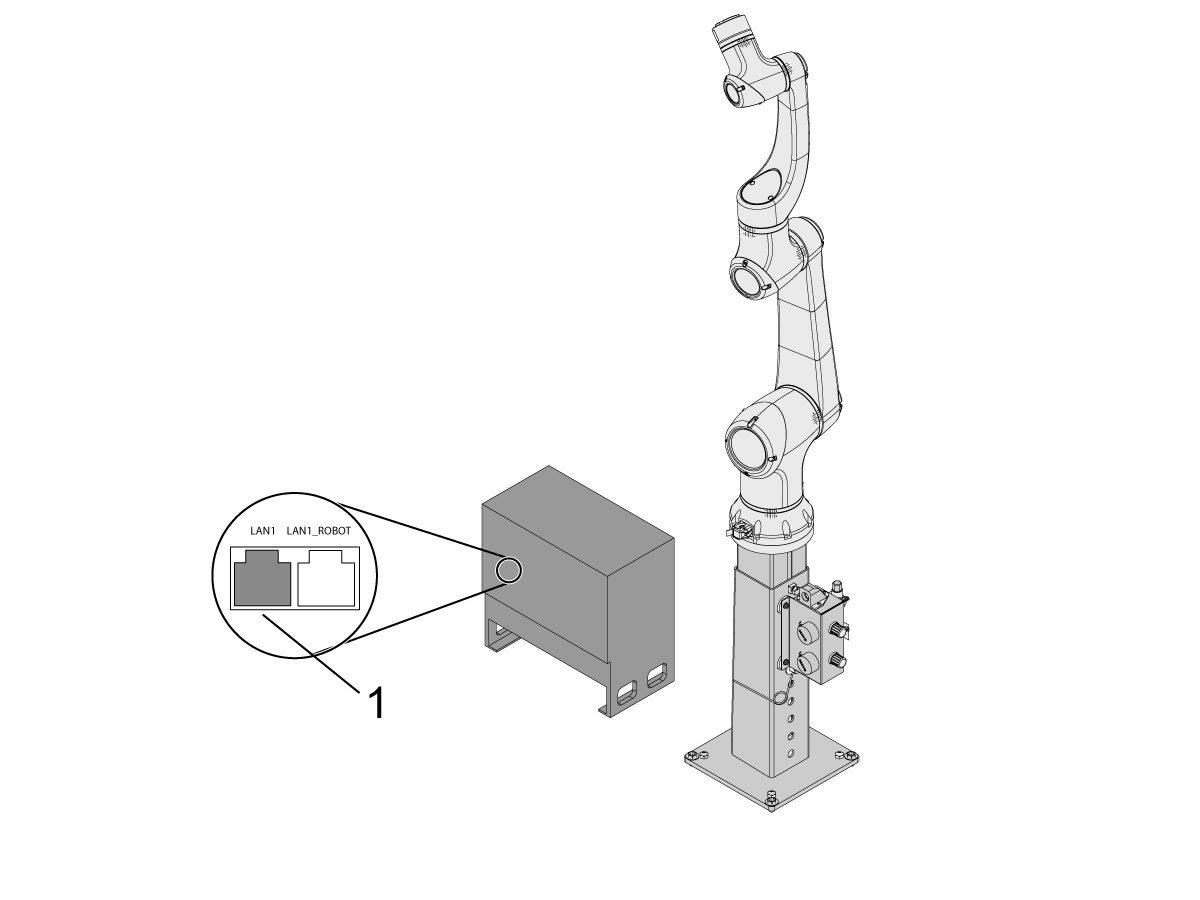
Use an ethernet cable to connect the laptop to the LAN1 port [1] in the Cobot control box.

Once connected, open up a command prompt window on the laptop. 

Note: To open a command prompt session on windows, search in the start menu by typing "cmd".

2

The ethernet adapter settings need to be correct in order to connect to the cobot control box.

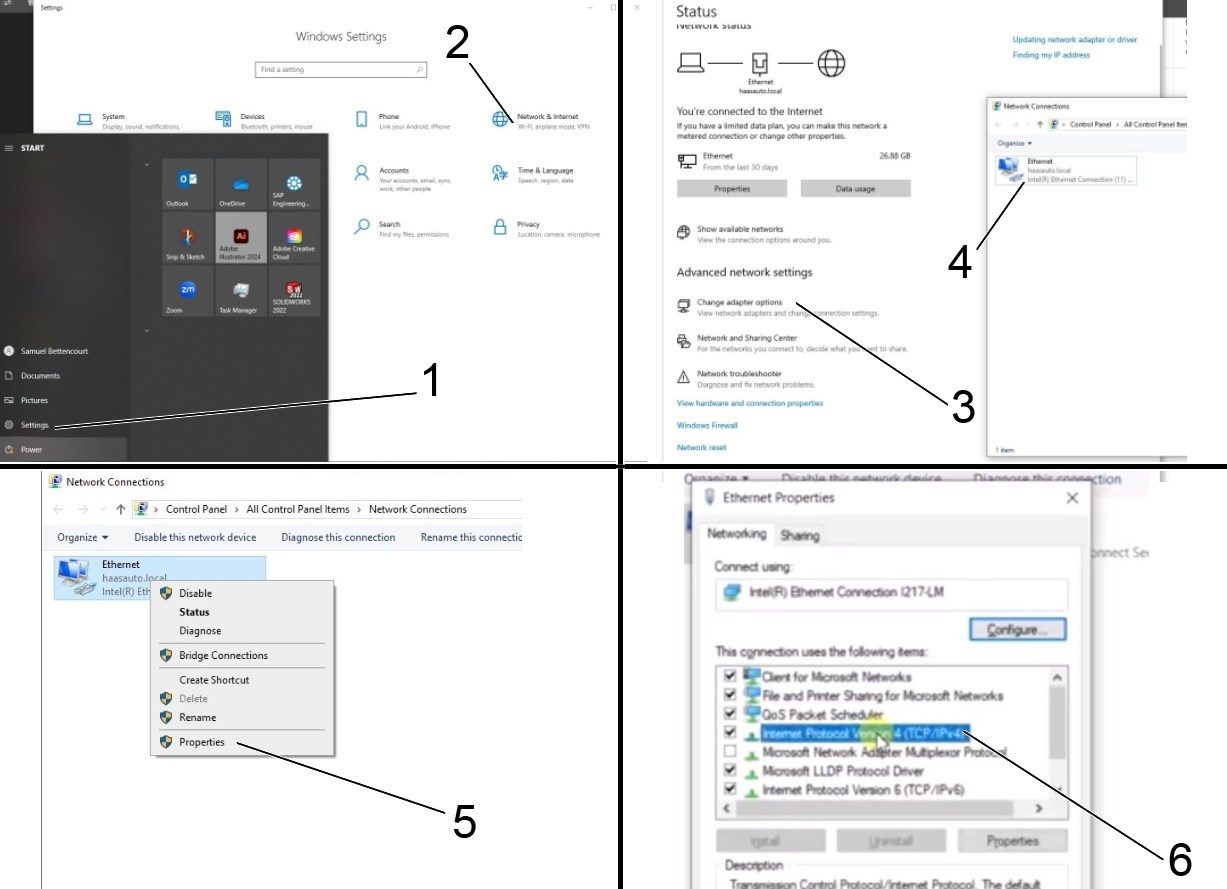
To change the adapter settings, open the settings page [1] on the computer, then click on Network & Internet [2] which will bring up the network status page.

Click on Change adapter options [3] then right click on Ethernet [4] and open up the properties window [5]. From there select the Internet Protocol Version 4 (TCP/IPv4) [6] option and click Ok. 


TypeError Recovery

1

With the laptop connected to the cobot control box, open up a puTTY window on the laptop. Click on the puTTY icon on the desktop [1] to open the puTTY configuration window [2].

Note: Putty is a free ssh (Secure Shell) client that will be used as a guide in these instructions. PuTTY can be downloaded here: puTTY download

Important: The instructions for repairing the TypeError can be done with any ssh client software that allows you to transfer files from a laptop to the cobot control system. PuTTY is recommended in order to follow this video.

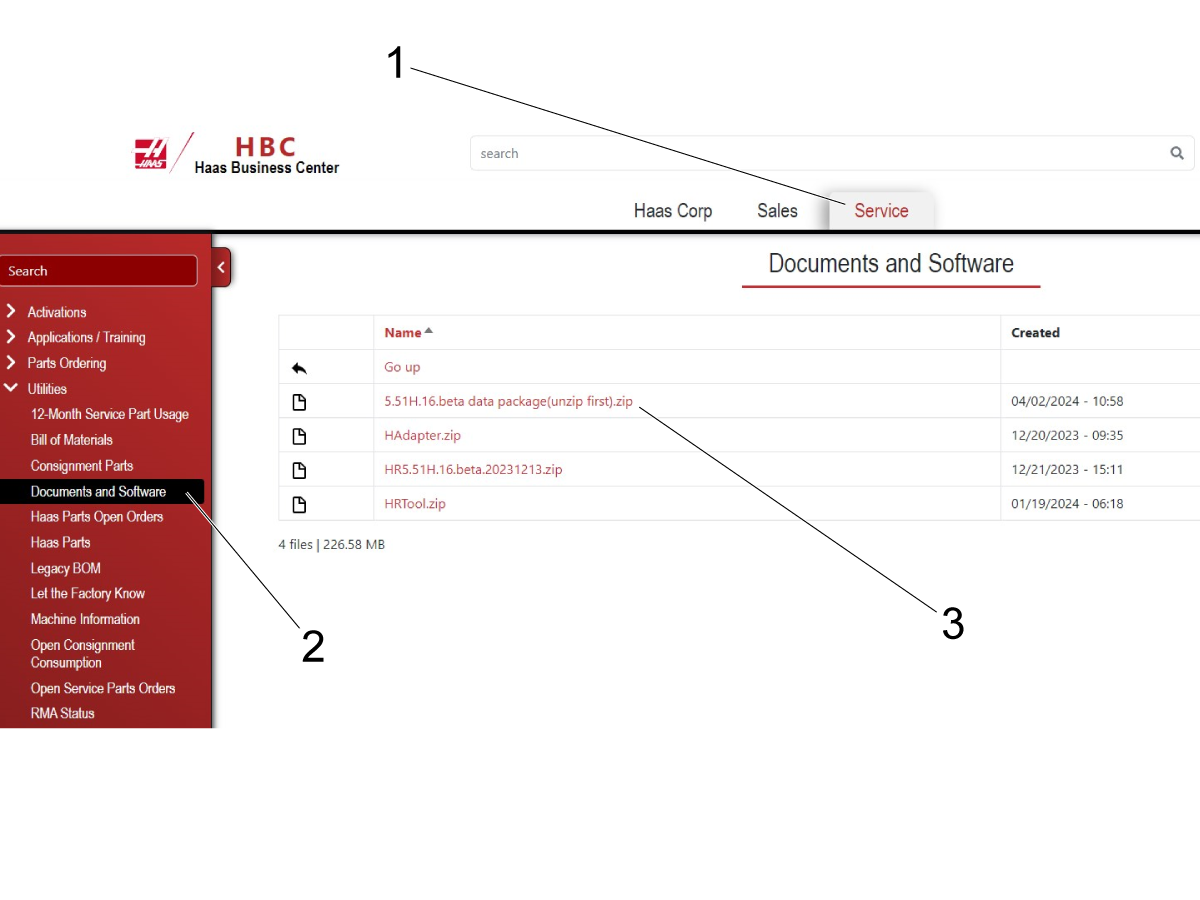
There is a zip file that needs to be downloaded in order to follow this procedure. That file can be downloaded from HBC. The 5.51H.16.beta data package(unzip first) zip file must be downloaded from HBC as shown in the image. This zip folder has the following files inside:

  • HR5.51H.16.beta.20231213.zip
  • HAdapter V1.14.zip that contains the HAdapter.zip plugin file.

Follow the video for how to unpack these files.

2

To recover from the TypeError there are several steps that need to be done.

  1. Upload the HR5.51H.beta.20231213.zip to the cobot control.
  2. Remove current HansRobot directory.
  3. Install new system package using the zip file
  4. login to the cobot through the laptop and install the plugin using the HAdapter.zip.

All these steps are outlined in the video below. Follow the video and/or follow the written instructions provided as well.

Important: These instructions must be followed very closely. Missing steps could cause damage to the cobot software.

3

Upload HR5.51H.beta.20231213.zip to cobot control (Beginning of video)

  • Make sure the Haas machine is powered off. Press the power button on the teach pendant and allow the cobot to boot up until the login page is on display. Then use the laptop to connect to the cobot control.
  • Follow the video for how to setup the zip file downloaded from HBC. After unzipping the first folder, you will have access to the HR5.51H.beta.20231213.zip file. This file needs to be uploaded to the cobot control.
  • Open a PSFTP window of putty (putty secure file transfer protocol). Use the command "open [email protected]" to connect to the cobot control.
  • When prompted to enter password, enter the password "hans".
  • Note: The password will not show up when entering it. Press enter after typing the password hans and the command line will show the remote working directory is "/home/hans".
  • Enter the Downloads directory by doing "cd /home/hans/Downloads"
  • Enter "ls" to list the file structure of the current directory.
  • Then move the zip file to the cobot control by entering the command "put <path to HR5.51H.16.beta.20231213>". The path can be entered by dragging and dropping the zip file to the putty terminal. See video for more details.

Note: Wait for the put command to finish. It can take from 15-60 minutes to transfer the zip file. You will know the command has finished when you see a new line with only the psftp> prompt.

  • Run the "ls" command again and the zip file should now show up in the file structure.
  • After transferring the file, exit the PSFTP terminal and move onto the next step.

5

Remove HansRobot File: (Step starts at 03:15 on video)

  • Open a PuTTY terminal to delete/move files on the cobot control.
  • In the PuTTY Configuration window enter "[email protected]" as the hostname field and press enter. When prompted to enter the password, enter "hans" the same way as the previous step.
  • Once connected, run the command "cd /var/www/upgrade/" to move to the upgrade folder. Run "ls" to see the current files.
  • Run the command "sudo su" to gain access to removing/moving files. Enter the password "hans".
  • Remove the HansRobot folder by running the "rm -rf HansRobot/" command.
  • Note: There should be no files in this directory after removing the HansRobot folder. If there are other files in this directory, remove them using the rm -rf "file_name" command.
  • Run the "ls" command again after removing files. There should be nothing that shows up. If files show up, remove them. Then move to the next step.

6

Install New System Package: (Step starts at 04:24)

  • To install the new system package, enter the directory where the zip file was uploaded to in step 1. To do this run the command "cd /home/hans/Downloads/"
  • Run the "ls" command to see the files.
  • Run the command "mv HR5.51H.16.beta.20231213.zip /var/www/upgrade" to move the zip file from the Downloads folder to the path listed in the command (/var/www/upgrade). 
  • The zip file will no longer be in the current directory. Run the "ls" command and verify that the HR5.51H.15.beta.20231213.zip file doesn't appear.
  • Change back to the upgrade directory by running the command "cd /var/www/upgrade"
  • Run the "ls" command to verify that the zip file is in the current directory.
  • Unzip the zip file in the current directory by running the "unzip HR5.51H.16.beta.20231213.zip" command. Wait for all the files to be extracted.
  • Run the "ls" command and there will now be two items listed. There should be a HansRobot folder and the zip file that was just unzipped. Move into the HansRobot folder by using the command "cd HansRobot/". 
  • Run the "ls" command when inside the HansRobot folder to view the files. Change the permissions of the files by running the command "chmod 777 * ". Then run "ls" again and verify that the file names have changed color.
  • Run the Upgrade.sh file by entering the command "sh Upgrade.sh". Allow for the system package to be installed. After the command has finished, the cobot control will reboot after 1-2 minutes.
  • Note: There will be a window pop up on the screen saying "Remote side unexpectedly closed network connection" once the cobot control begins rebooting. This is normal.

7

Install Plugin: (Step starts at 06:50)

  • After allowing the cobot control to reboot, the login page will be on the teach pendant. Power on the Haas Control at this time to clear any E-stop messages.
  • Open an internet browser window (i.e. google chrome) and enter the IP address in the URL search bar "10.72.65.82/dist". This will open the login page on the laptop.
  • Login to the cobot interface with the username: "admin" password: "admin". If login is successful then the typeError has been fixed. Install the plugin package.
  • Click on the HRApp icon on the top menu. Then click on Import, then browse, and then select the HAdapter.zip file that is inside the HAdapter V1.14 folder that was unzipped in step 1.
  • Click import again and you will get a "Loading Succeeded" message if the plugin has been successfully installed. 
  • Verify that the cobot can be jogged, by pressing "Enable" on the run menu, and then jogging any of the joints as shown in the video.

8

Power off the cobot, and reconnect the ethernet cable coming from the cobot interface box on the haas machine.

Verify that the cobot can be used with the teach pendant.

Note: If the TypeError message still persists after performing all the steps in this procedure contact the Haas Service Department.

Recently Viewed Items

You Have No Recently Viewed Items Yet

Feedback
Haas Logo

Haas Delivered Price

This price includes shipping cost, export and import duties, insurance, and any other expenses incurred during shipping to a location in France agreed with you as a buyer. No other mandatory costs can be added to the delivery of a Haas CNC Product.

KEEP UP WITH THE LATEST HAAS TIPS AND TECHNOLOGY...

Sign up now!   

HAAS TOOLING ACCEPTS THE FOLLOWING:

  • Service & Support
  • Owners
  • Request Service
  • Operator Manuals
  • Haas Parts
  • Rotary Repair Request
  • Pre-Install Guides
  • Shopping Tools
  • Build & Price a New Haas
  • Available Inventory
  • The Haas Price List
  • CNCA Financing
  • About Haas
  • Accessibility Statement
  • DNSH Statement
  • Export Compliance
  • Careers
  • Certifications & Safety
  • Contact Us
  • History
  • Terms & Conditions
  • Haas Tooling Terms & Conditions
  • Privacy
  • Warranty
  • Haas Community
  • Haas Certification Program
  • Haas Motorsports
  • Gene Haas Foundation
  • Haas Technical Education Community
  • Events
  • Join the Conversation
  • Facebook
  • X
  • Flickr
  • YouTube
  • LinkedIn
  • Instagram
  • TikTok
© 2026 Haas Automation, Inc – CNC Machine Tools

This site is protected by reCAPTCHA and the Google Privacy Policy and Terms of Service apply.

2800 Sturgis Rd., Oxnard, CA 93030
Toll Free: (888) 817-4446 / Fax: 805-278-8554