My Haas Welcome,
!
Haas Tooling MyHaas/HaasConnect Sign In Register Haas Tooling MyHaas/HaasConnect Sign Out Welcome, My Machines Latest Activity My Quotes My Account My Users Sign Out
Find Your Distributor
  1. Select Language
    1. English
    2. Deutsch
    3. Español - España
    4. Español - México
    5. Français
    6. Italiano
    7. Português
    8. Český
    9. Dansk
    10. Nederlands
    11. Magyar
    12. Polski
    13. Svenska
    14. Türkçe
    15. 中文
    16. Suomi
    17. Norsk
    18. الإنجليزية
    19. български
    20. Hrvatski
    21. Ελληνικά
    22. Română
    23. Slovenský
    24. Slovenščina
    25. 한국어
    26. 日本語
    27. Українська
  • machines Main Menu
    • Vertical Mills
      Vertical Mills
      Vertical Mills View All
      • Vertical Mills
      • VF Series
      • Universal Machines
      • VR Series
      • VP-5 Prismatic
      • Pallet-Changing VMCs
      • Mini Mills
      • Mold Machines
      • High-Speed Drill Centers
      • Drill/Tap/ Mill Series
      • Toolroom Mills
      • Pocket Mill
      • Compact Mills
      • Gantry Series
      • SR Sheet Routers
      • Extra-Large VMC
      • Double-Column Mills
      • 3+2 Positioning Machines
    • Multi-Axis Solutions
      Multi-Axis Solutions
      Multi-Axis Solutions View All
      • Multi-Axis Solutions
      • Y-Axis Lathes
      • 5-Axis Mills
    • Lathes
      Lathes
      Lathes View All
      • Lathes
      • ST Series
      • Dual-Spindle
      • Box Way Series
      • Toolroom Lathes
      • Chucker Lathe
      • Haas Bar Feeders
    • Horizontal Mills
      Horizontal Mills
      Horizontal Mills View All
      • Horizontal Mills
      • 50-Taper
      • 40-Taper
    • Rotaries & Indexers
      Rotaries & Indexers
      Rotaries & Indexers View All
      • Rotaries & Indexers
      • Rotary Tables
      • Indexers
      • 5-Axis Rotaries
      • Extra-Large Rotaries
    • Special Series
      Special Series
      Special Series View All
      • Special Series
      • EU_Series_Redirect
    • Automation Systems
      Automation Systems
      Automation Systems View All
      • Automation Systems
      • Mill Automation
      • Lathe Automation
      • Automatic Parts Loaders
      • Automation Models
    • Desktop Machines
      Desktop Machines
      Desktop Machines View All
      • Desktop Machines
      • Desktop Mill
      • Desktop Lathe
      • Control Simulator, Standard
      • Control Simulator, Premium
    • Shop Equipment
      Shop Equipment
      Shop Equipment View All
      • Shop Equipment
      • Knee Mill
      • Haas Manual Lathes
      • Haas Saws
    • Fabrication Machines
      Fabrication Machines
      Fabrication Machines View All
      • Fabrication Machines
      • Laser Cutting Machines
      • CNC Press Brakes
    • QUICK LINKS Special Series  Special Series 
      EU SERIES EU SERIES BUILD & PRICE | PRICE LIST BUILD & PRICE | PRICE LIST In-Stock Machines In-Stock Machines WHAT’S NEW WHAT’S NEW YOUR FIRST CNC YOUR FIRST CNC
      SHOPPING TOOLS
      • Build & Price a Haas
      • Price List
      • Available Inventory
      • CNCA Financing
      WANT TO TALK TO SOMEONE?

      A Haas Factory Outlet (HFO) can answer your questions, and walk you through your best options.

      CONTACT YOUR DISTRIBUTOR >
  • Options Main Menu
    • The Haas Control Value Option Packages
      Value Option Packages
      Value Option Packages View All
      • Value Option Packages
    • Product Image Spindles
      Spindles
      Spindles View All
      • Spindles
    • Product Image Tool Changers
      Tool Changers
      Tool Changers View All
      • Tool Changers
    • Product Image 4th- | 5th-Axis
      4th- | 5th-Axis
      4th- | 5th-Axis View All
      • 4th- | 5th-Axis
    • Product Image Turrets & Live Tooling
      Turrets & Live Tooling
      Turrets & Live Tooling View All
      • Turrets & Live Tooling
    • Product Image Probing
      Probing
      Probing View All
      • Probing
    • Haas Chip & Coolant Management Chip & Coolant Management
      Chip & Coolant Management
      Chip & Coolant Management View All
      • Chip & Coolant Management
    • The Haas Control The Haas Control
      The Haas Control
      The Haas Control View All
      • The Haas Control
    • Product Image Product Options
      Product Options
      Product Options View All
      • Product Options
    • Product Image Tooling & Fixturing
      Tooling & Fixturing
      Tooling & Fixturing View All
      • Tooling & Fixturing
    • Product Image Workholding
      Workholding
      Workholding View All
      • Workholding
    • Product Image 5-Axis Solutions
      5-Axis Solutions
      5-Axis Solutions View All
      • 5-Axis Solutions
      • 5 Easy Steps to 5-Axis
    • QUICK LINKS Special Series  Special Series 
      EU SERIES EU SERIES BUILD & PRICE | PRICE LIST BUILD & PRICE | PRICE LIST In-Stock Machines In-Stock Machines WHAT’S NEW WHAT’S NEW YOUR FIRST CNC YOUR FIRST CNC
      SHOPPING TOOLS
      • Build & Price a Haas
      • Price List
      • Available Inventory
      • CNCA Financing
      WANT TO TALK TO SOMEONE?

      A Haas Factory Outlet (HFO) can answer your questions, and walk you through your best options.

      CONTACT YOUR DISTRIBUTOR >
  • Why Haas Main Menu
      Discover the Haas Difference
    • Why Haas
    • MyHaas
    • Education Community
    • Industry 4.0
    • Haas Certification
    • Customer Testimonials
  • Service Main Menu
      Welcome to Haas Service
      SERVICE HOME Operator’s Manuals How-To Procedures Troubleshooting Guides Preventive Maintenance Haas Parts Haas Tooling Videos
  • Videos Main Menu
  • Main Menu
    • View All
    • View All
    • View All
    • View All
      • HTEC Curriculum Support
    • View All
      • Haas 10 kg Cobot Package
      • Cobot Kits
      • DC-1 Drill Center
      • CNC Sales News
      • Do More With Your Haas
    • View All
    • View All
      • contact-us-test
      • 4 - AUTOMATION SYSTEMS
      • Carousel-V2
      • expert test
      • Demo_Day_Trident-test
      • Link Test
      • image-sale-tag-test
      • article-list-test
      • Haas 25 kg Robot Package
    • View All
      • Choose Options
    • View All
    • View All
    • View All
    • View All
    • View All
      • calc-test
    • View All
    • QUICK LINKS Special Series  Special Series 
      EU SERIES EU SERIES BUILD & PRICE | PRICE LIST BUILD & PRICE | PRICE LIST In-Stock Machines In-Stock Machines WHAT’S NEW WHAT’S NEW YOUR FIRST CNC YOUR FIRST CNC
      SHOPPING TOOLS
      • Build & Price a Haas
      • Price List
      • Available Inventory
      • CNCA Financing
      WANT TO TALK TO SOMEONE?

      A Haas Factory Outlet (HFO) can answer your questions, and walk you through your best options.

      CONTACT YOUR DISTRIBUTOR >
  • Haas Tooling Main Menu
  • Haas Service Parts Main Menu

My Haas Welcome,
!
Haas Tooling MyHaas/HaasConnect Sign In Register Haas Tooling MyHaas/HaasConnect Sign Out Welcome, My Machines Latest Activity My Quotes My Account My Users Sign Out
Find Your Distributor
  1. Select Language
    1. English
    2. Deutsch
    3. Español - España
    4. Español - México
    5. Français
    6. Italiano
    7. Português
    8. Český
    9. Dansk
    10. Nederlands
    11. Magyar
    12. Polski
    13. Svenska
    14. Türkçe
    15. 中文
    16. Suomi
    17. Norsk
    18. الإنجليزية
    19. български
    20. Hrvatski
    21. Ελληνικά
    22. Română
    23. Slovenský
    24. Slovenščina
    25. 한국어
    26. 日本語
    27. Українська
×

Search Results

Web Pages

Images

    • <
    • 1
    • >

UMC-400 Installation - NGC

Service Home How To Procedures UMC-400 Installation - NGC

UMC-400 Installation - NGC

- Jump to Section - Back to Top

3.1 UMC-400

Recently Updated Last updated: 03/12/2025

UMC-400 Installation - NGC


Revision B - 02/2026

Introduction

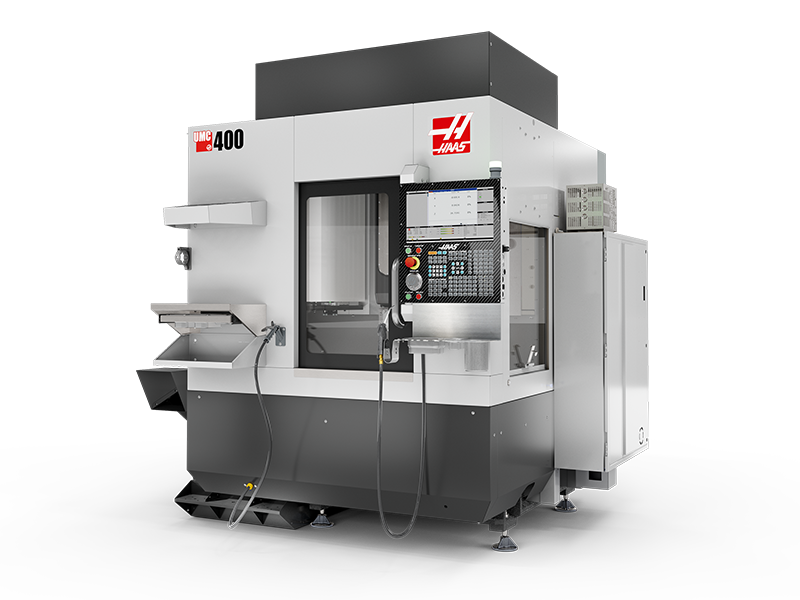
This procedure outlines how to install a UMC-400 machine.

Tools required:

  • Precision Machinist Level, 0.0005" Division
  • T-2192 SERVICE TOOL, LEVELING ADAPTER 
  • MRZP Calibration Sphere
  • Precision Granite Square 12"

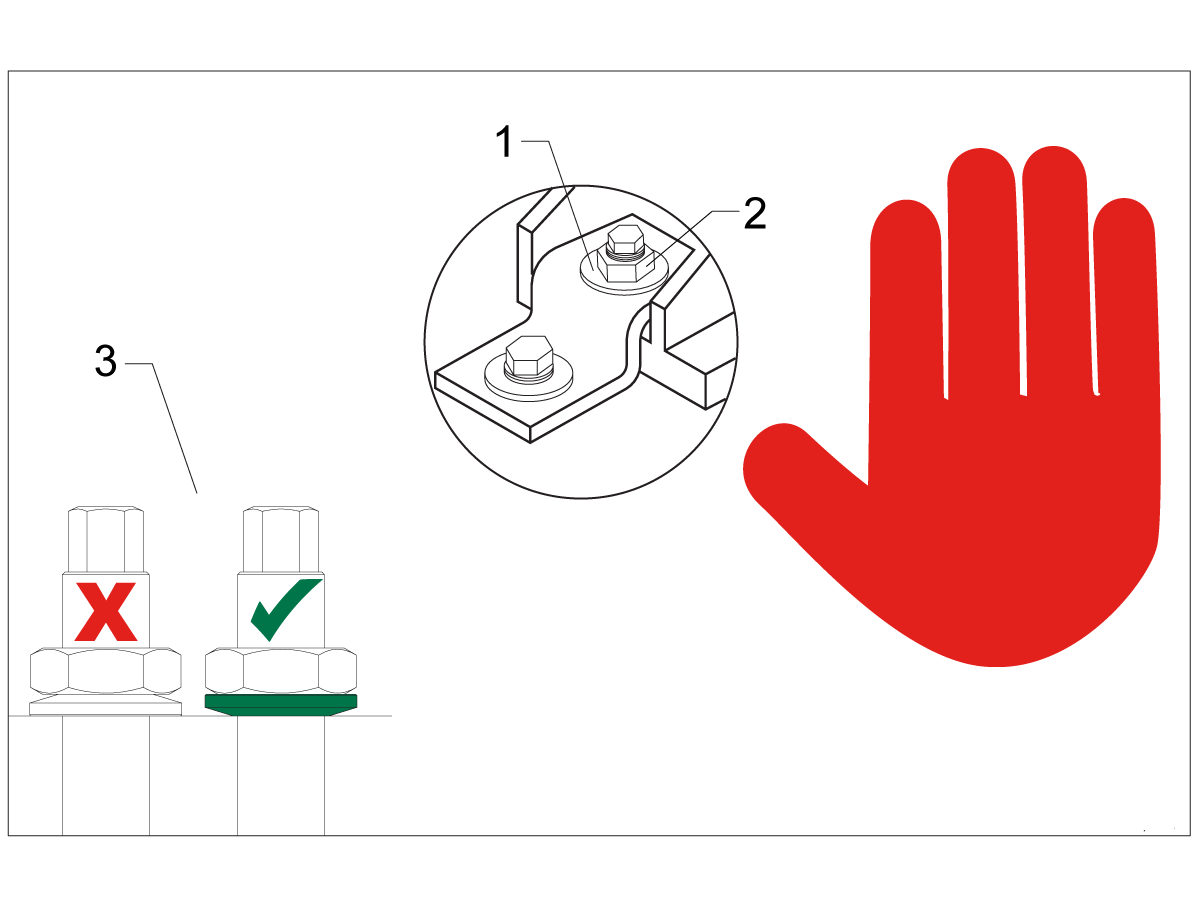
Leveling Screws Hardware

Note: The washers [1] and nuts [2] are installed during shipping and should be saved for installation and not be discarded.

Note: The washer orientation [3] is important.  The conical part of the washer should be against the casting,  see illustration.

Remove Rust Inhibitor

To safely and effectively remove rust inhibitor from way covers and other non-painted surfaces:

Initial Scraping

  • Use a plastic scraper to remove the bulk of the rust inhibitor.
  • Avoid using metal tools to prevent scratching or damaging the surface.

 Important: Do not use scotch-brite or metal scrapers, these will scratch the way covers.

Chemical Cleaning

  • Spray the affected areas with a heavy-duty citrus cleaner or Simple Green.
  • Ensure full coverage of all non-painted surfaces coated with rust inhibitor.

Soak Time

  • Allow the cleaner to soak for several minutes to loosen remaining residue.

Wipe Down

  • Use a clean shop towel to thoroughly wipe off the softened rust inhibitor.

Rust Proofing

  • Apply mineral spirits or WD-40 to all exposed metal surfaces to prevent future rust formation.

Important: Always wear gloves and eye protection when handling chemical cleaners. Dispose of used towels and cleaning agents according to local environmental regulations.

 Important: To avoid any contamination of the way cover seals with the sticky residue. Do not move any of the axes until all the rust inhibitor has been removed.

Rust Inhibitor - Safety Data Sheet (SDS)

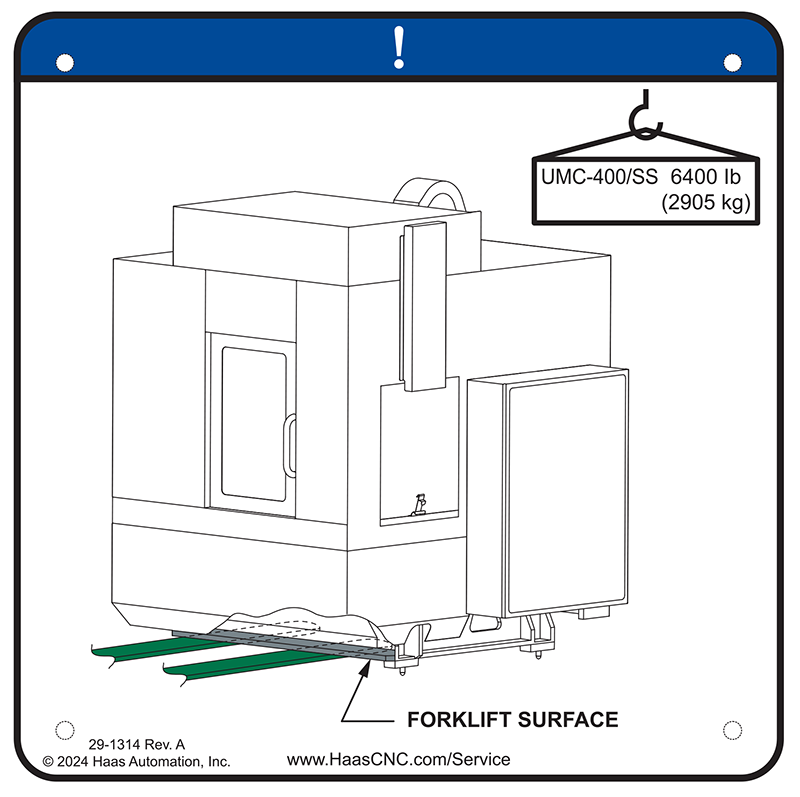
Lifting Machine

1

Make sure to use the proper lifting equipment when lifting and moving the machine. Refer to the lifting sticker on the machine.

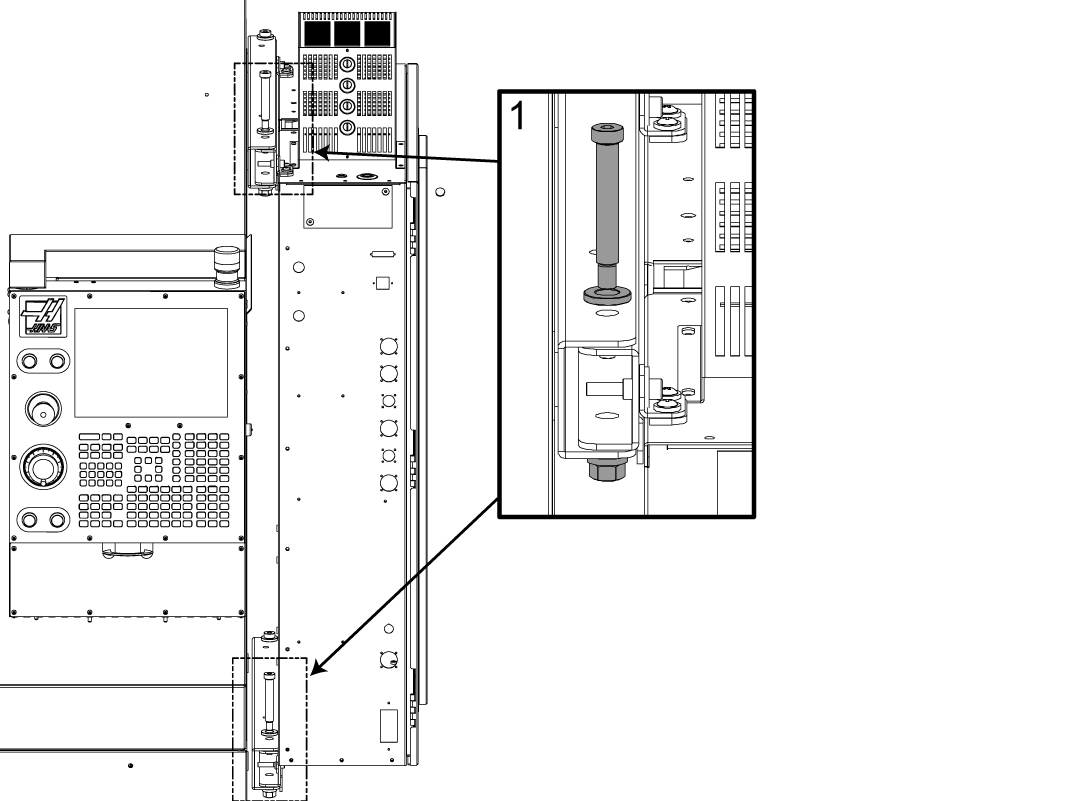
Machines With 90 Degree Control Cabinet

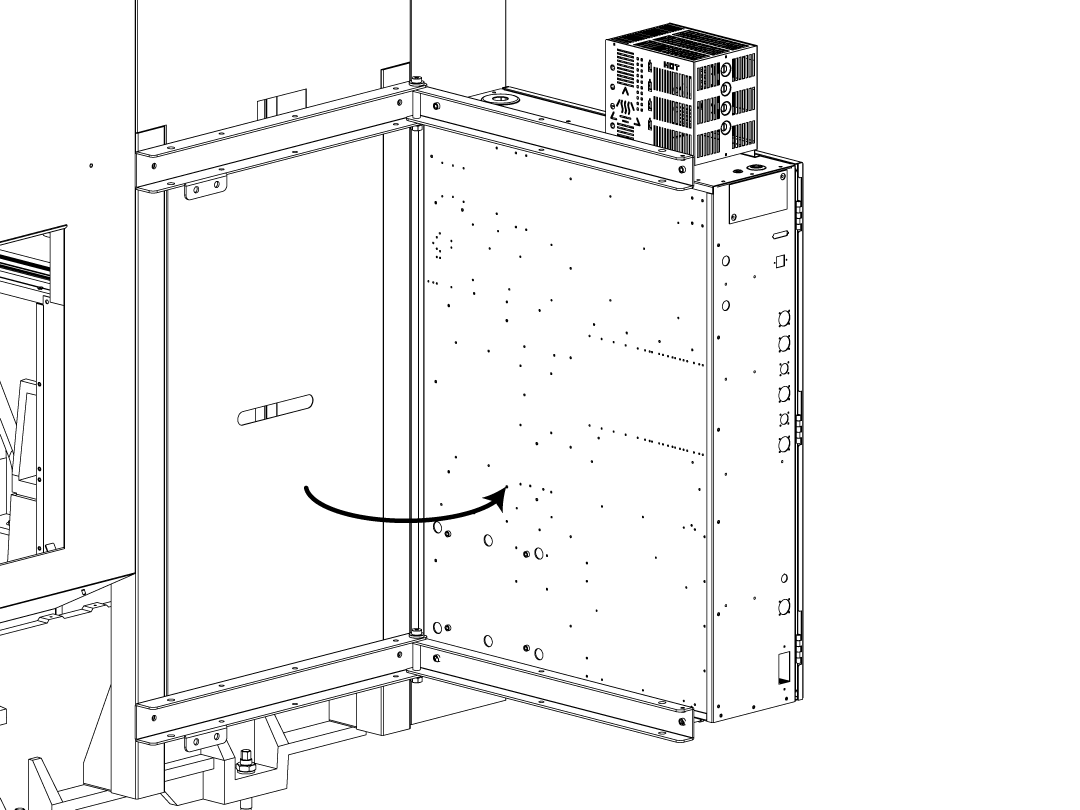
Machines with the APL and Pallet Pool options built after 4/2021 may come equipped with the 90 degree control cabinet. Please refer to the instructions below on how to prepare the 90 degree control cabinet. 

1

Remove the shoulder bolt, washer and nut assembly [1] from the side closest to the pendant.

2

Begin to swing open the control to the 90 degree position. 

3

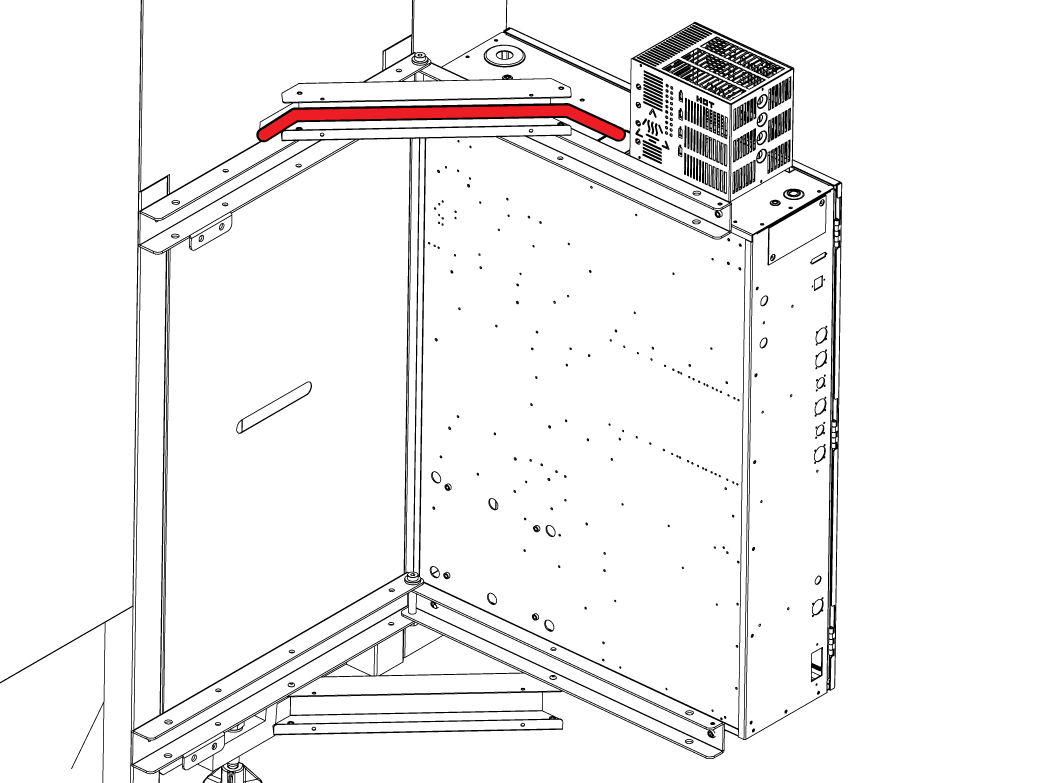
Position the C-channel on the top as shown and begin to pull the control cables out of the opening while keeping the cables inside the C-channel bracket as you open the control cabinet.

Make sure there is no tension on any of the cables before bolting down to the support brackets.  

NOTE: The C-channels can be found inside the machine for shipping.

4

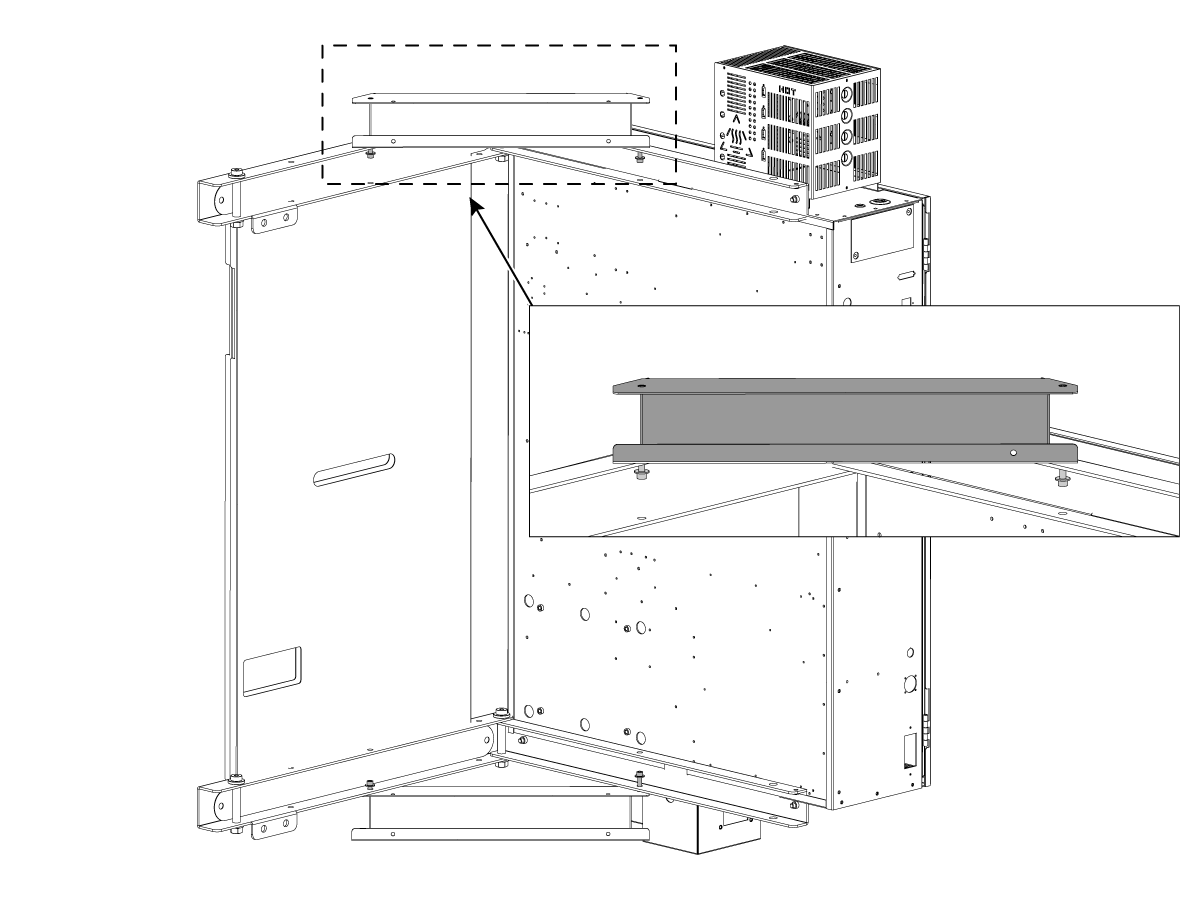
Once the cables have been pulled out of the opening and there is no tension present use the (4X) SHCS 5/16-18 X 7/8 and (4X) WASHER 5/16 HARD 11/32ID X 3/4OD to bolt the upper and lower sheet metal to the support brackets.


Pendant Installation

1

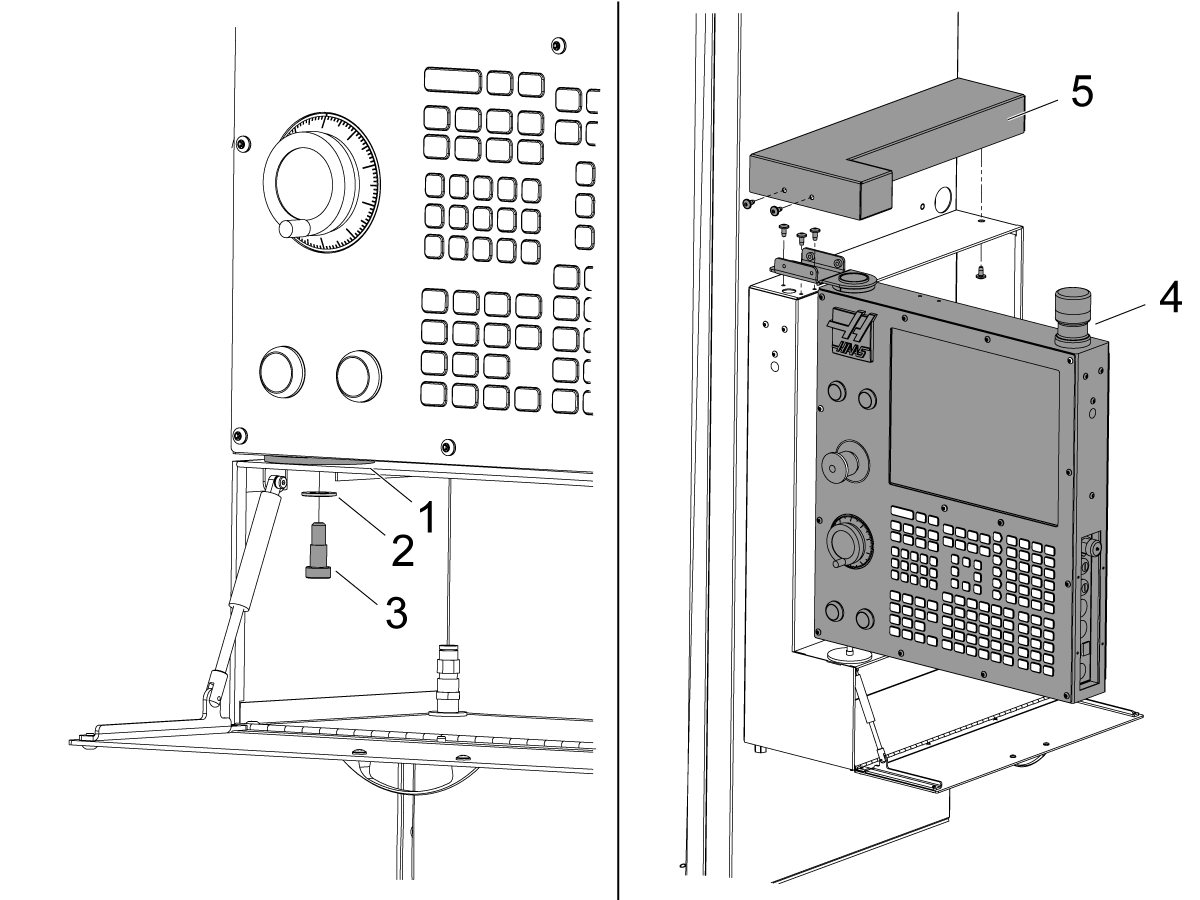
Attach the storage cabinet to the side of the machine.

Put the pendant spacer [1] onto the storage cabinet. Place the pendant onto the spacer.

Attach the washer [2] and shoulder screw [3] to the bottom of the pendant.

Attach the pendant [4] to the top of the storage cabinet.

Pull the pendant cables sticking outside the machine's enclosure. Push the pendant cables into the pendant [4]. Install the cover [5] over the wires.

 NOTE: Make sure not to pinch any wires when installing the cover.

2

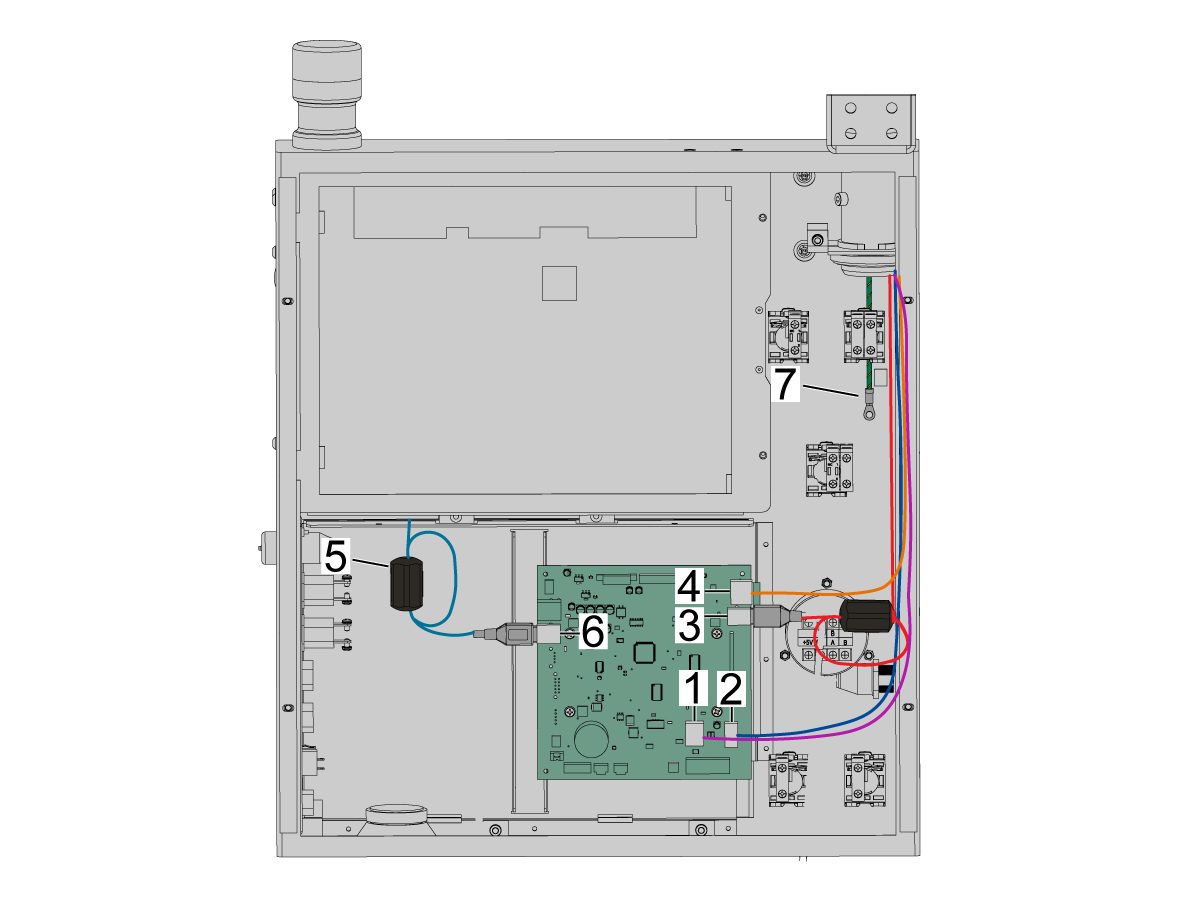
Remove the rear panel of the pendant. Connect these cables:

  • Remote Jog handle cable [1] to P9
  • Power cable [2] to J20
  • USB cable [3] to J9
  • Ethernet cable [4] to J28
Install a ferrite [5] onto the USB cable [3] connected to SKBIF J9 connection.
 
Install a ferrite [5] on the touchscreen cable [6] connected to SKBIF J11 connection.
 
 NOTE: Make sure to loop the USB cable within the ferrite [5] as shown. 
 
Attach the ground wire [7] from pendant to the control cabinet. Use any available grounding screw on the inside of the control cabinet. 

Air Connection

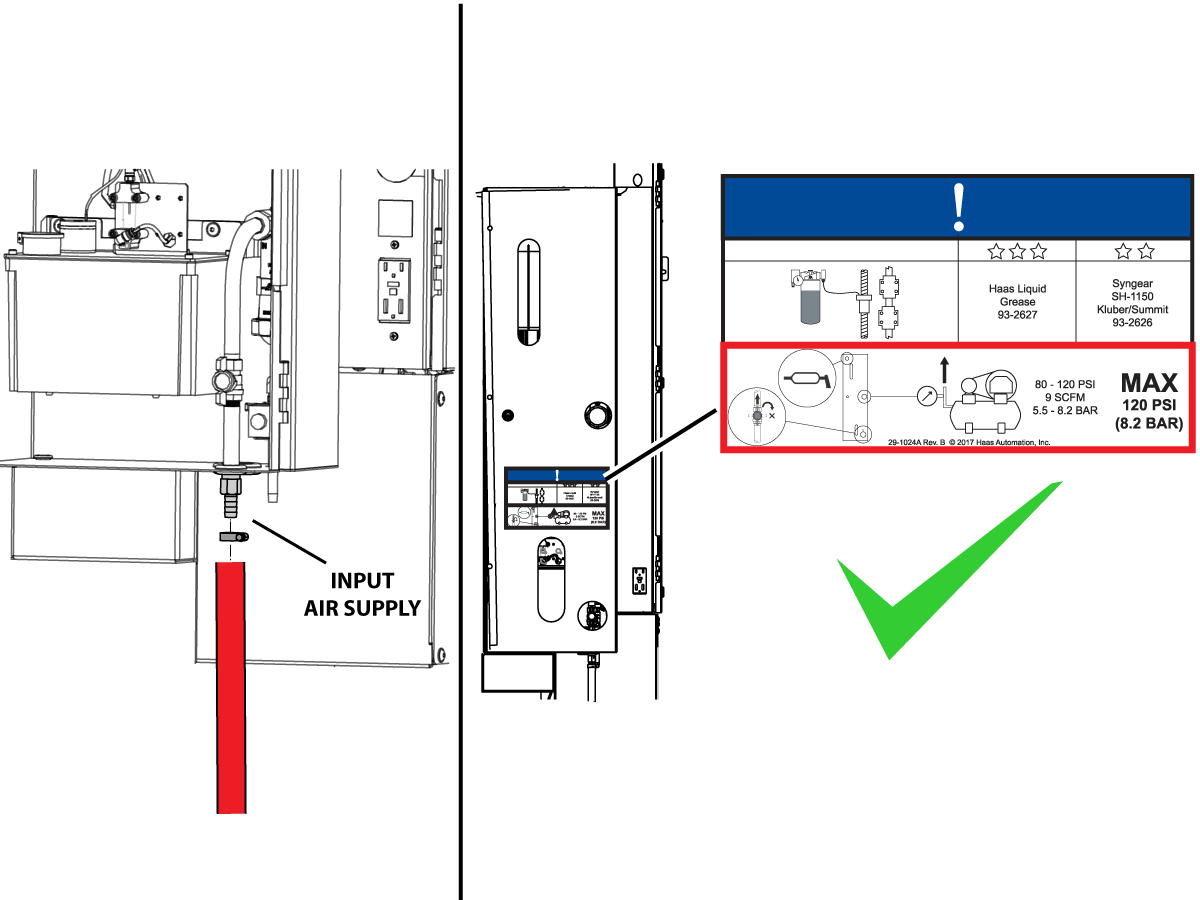
Connect the air supply at the lube panel.

 Note: For air requirements refer to the decal that is located on the lube cabinet door.

Follow the Air Gun and Hose Installation procedure to install or replace the Air Gun.

 Note: Some installation kits will come with a spare air gun assembly.

Electrical Installation

 DANGER: Working with the electrical services required for CNC machines is extremely hazardous and can result in serious injury or death.

Before connecting line wires to the CNC:

  • Turn off all power to the machine at the source.
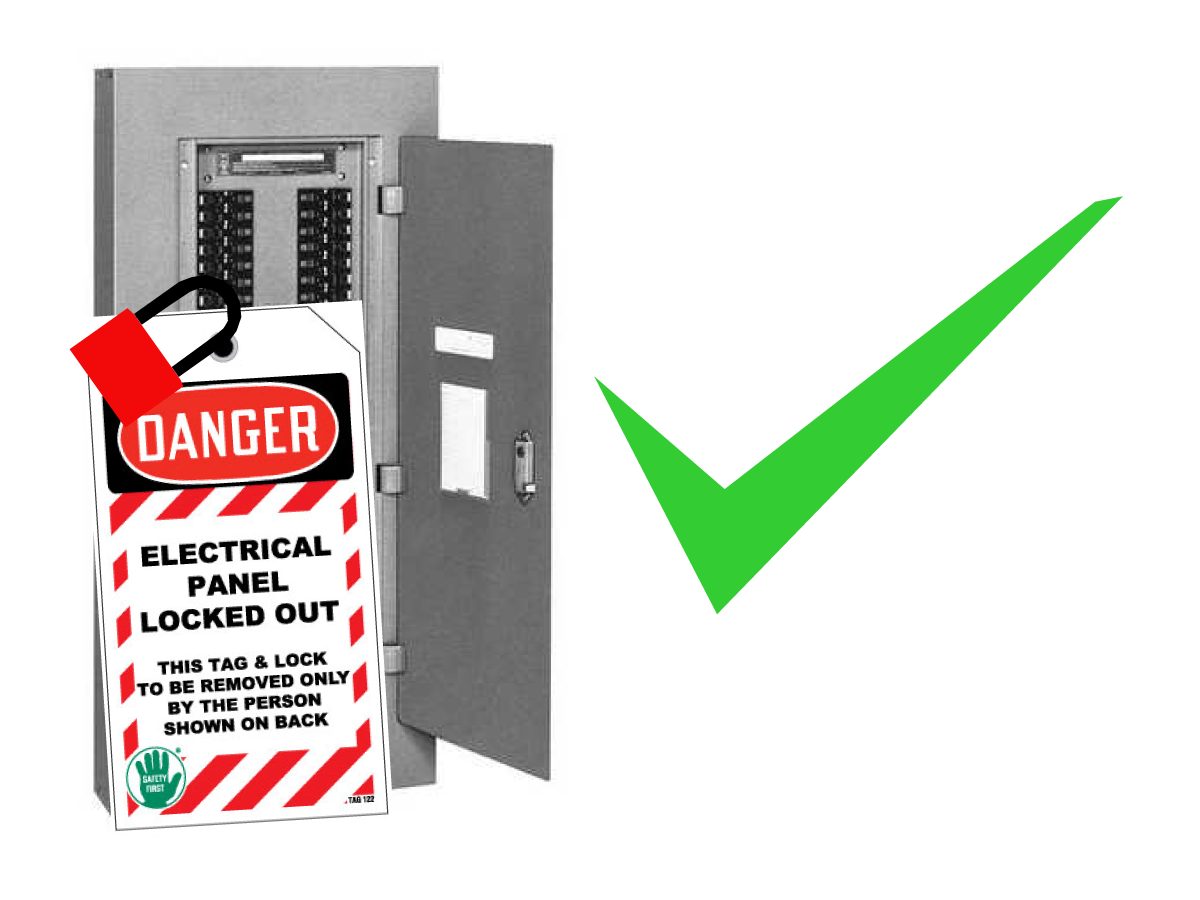
  • Perform a Lockout-Tagout (LOTO) procedure to ensure the power remains off during service.
  • Verify that power has been disconnected by using an AC voltage detector on all incoming lines.

If you are uncertain about how to safely disconnect power or perform LOTO procedures:

  • Do not proceed.
  • Contact qualified personnel or obtain appropriate assistance before continuing.

Failure to follow these precautions may result in electrical shock, equipment damage, or fatal injury.

1

Initial Control Inspection

Danger: At this point, there should be no electrical connection to the machine. Electrical panel must be closed and secured. When main switch is on, there is HIGH VOLTAGE throughout the electrical panel (including the circuit boards and logic circuits) and some components operate at high temperatures. Therefore, exercise extreme caution when working in the panel.

  • Set the main breaker switch at the upper right of the electrical panel on the back of the machine to OFF.
  • Using a screwdriver, unlock the two latches on the panel door, unlock the cabinet with the key and open the door.
  • Take sufficient time to check all the components and connectors associated with the circuit boards. Look for any cables that have become disconnected, look for any signs damage and loose parts in the bottom of the panel box. If there are any signs that the machine was mishandled, call the factory before proceeding.

2

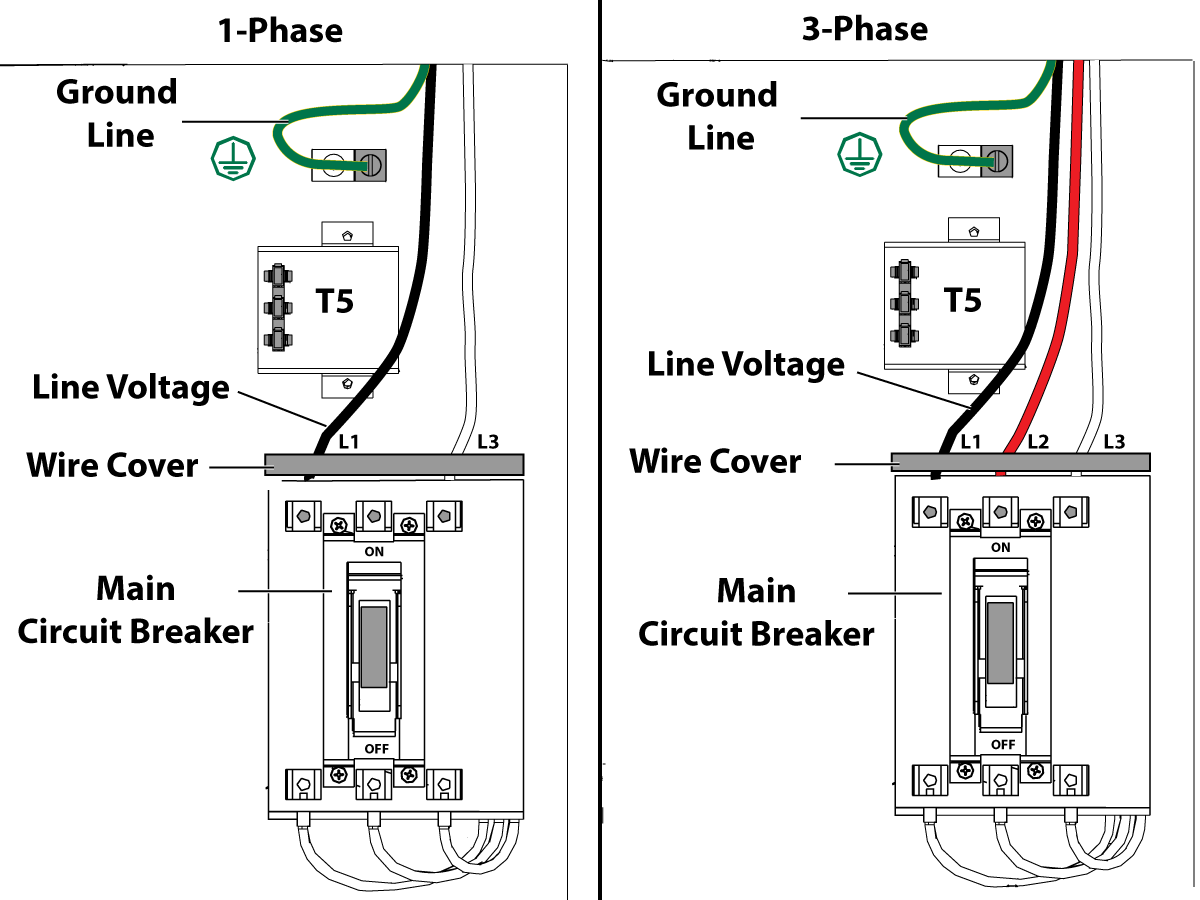
1-Phase Machines: Insert each power lead into the wire cover.  Connect the two power leads to L1 and L3 terminals on top of the main circuit breaker.

3-Phase Machines: Insert each power lead into the wire cover.  Connect the three power leads to L1, L2 and L3 terminals on top of the main circuit breaker.

Connect the separate ground line to the ground bus to the left of the terminals.

For 3-phase machines, check to see what type of power configuration is supplying the machine. Take voltage measurements of each power lead to ground line. Then refer to RD0084 - Input Power Configurations to determine which power lead should be connected to the L1 terminal based of the voltage readings and power configuration.

Refer to Haas Main Circuit Breaker - Torque Specifications for what value to torque the circuit breaker power leads.

 Note: Make sure that the leads actually go into the terminal-block clamps . (A poor connection will cause the machine to run intermittently or have other problems, such as servo overloads.) To check, simply pull on the wires after the screws are tightened.

3

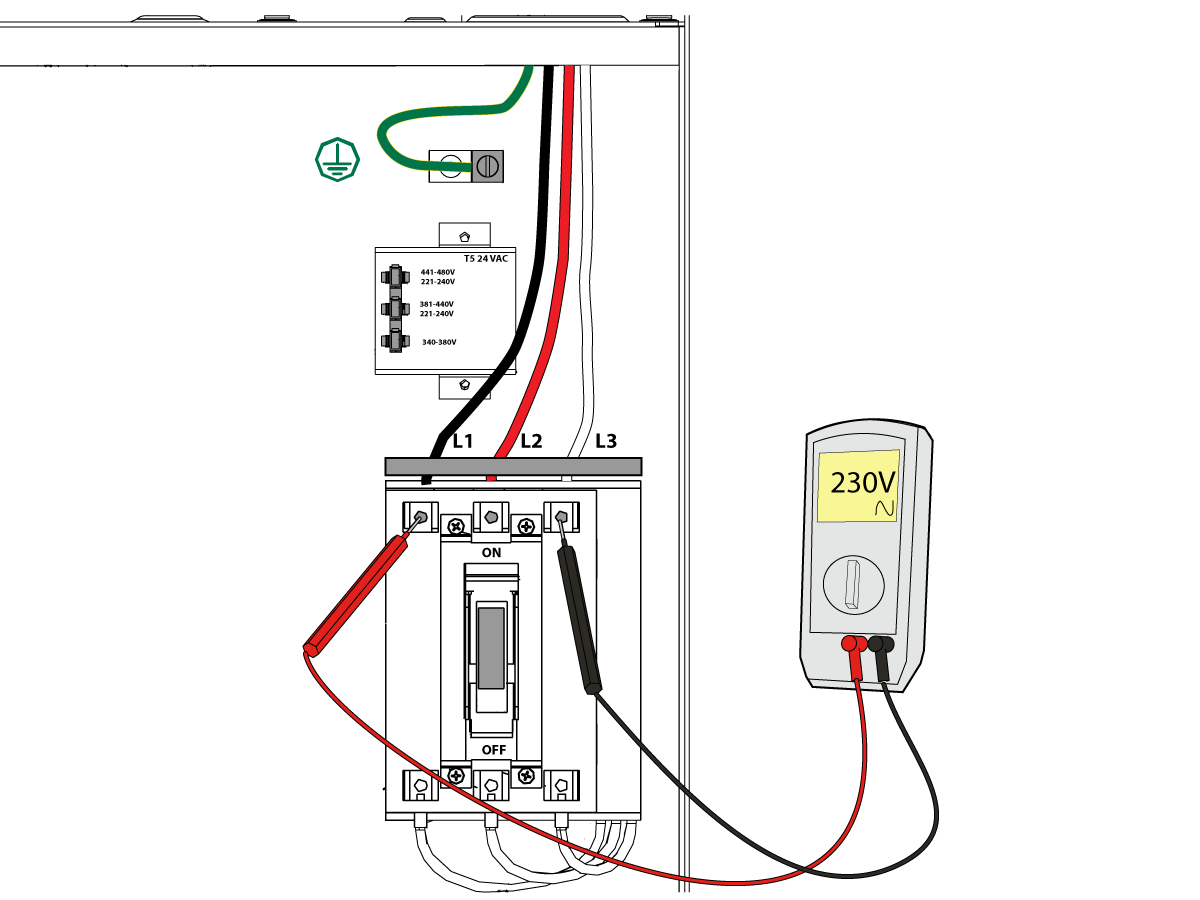
After the line voltage is connected to the machine, make sure that main circuit breaker (at top-right of rear cabinet) is OFF . Remove the Lockout / Tagout and Turn ON the power at the source. Using a digital voltmeter and appropriate safety procedures: 

1-Phase Machines: Measure the AC voltage across L1 & L3 at the main circuit breaker.  The AC voltage must be between 220 - 250 volts .
Note: Lower or higher than this voltage can generate low/high voltage alarms.

3-Phase Machines : Measure the AC voltage between all three pair phases at the main circuit breaker. 

The AC voltage must be between 195 and 260 volts (360 and 480 volts for high voltage option).

SMinimill - Reboot: The AC voltage must be between 198 and 242 volts for machines without a high voltage transformer.  Refer to the Minimill/SMinimill - Identification document.

 Note: Wide voltage fluctuations are common in many industrial areas; minimum and maximum voltage supplied to a machine while it is in operation must be known. U.S. National Electrical Code specifies that machines should operate with a variation of +5% to -5% around an average supply voltage. If problems with line voltage occur, or low line voltage is suspected, an external transformer may be used. If you suspect voltage problems, voltage should be checked every hour or two during a typical day to be sure it does not fluctuate more than +5% or -5% from an average.

4

Important: With the main circuit breaker turned OFF.

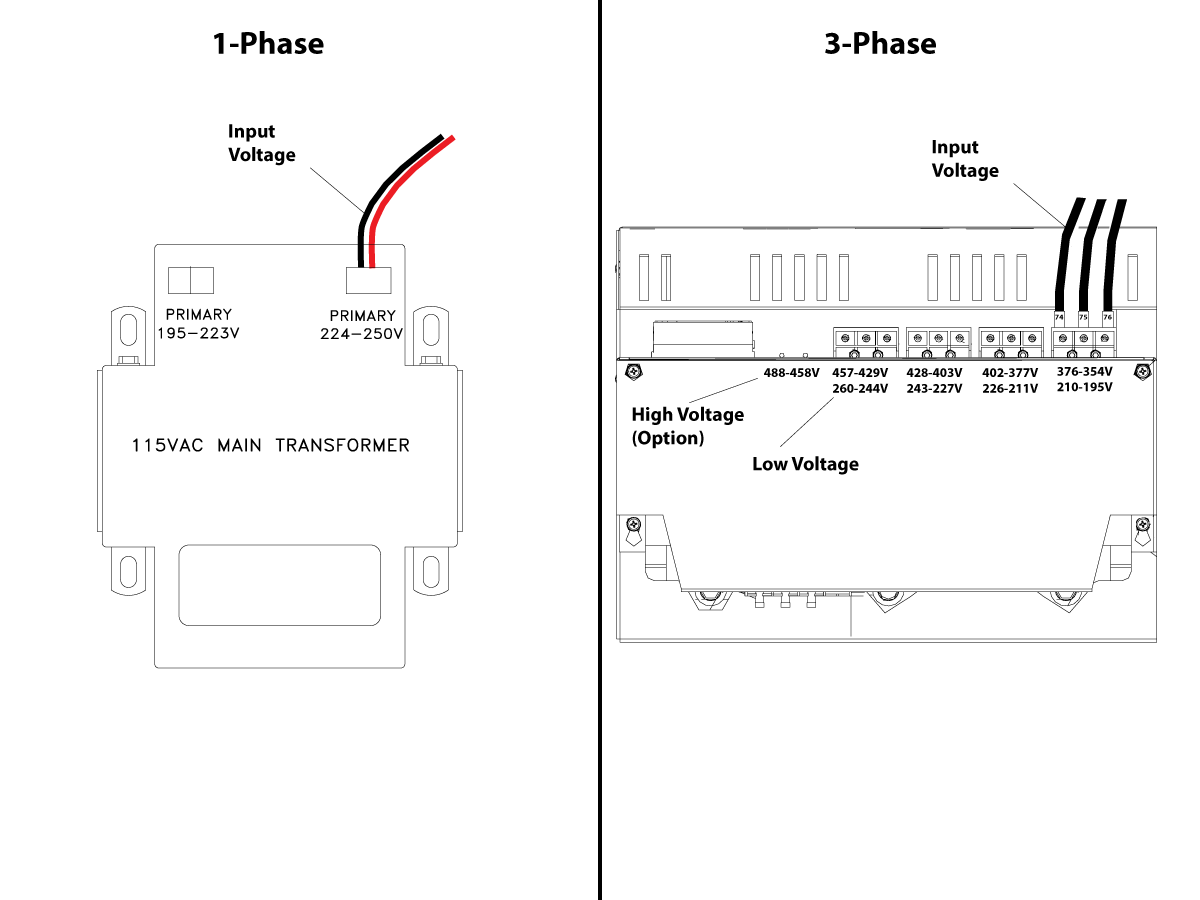
Check the transformer taps at the bottom-right corner of the rear cabinet.

1-Phase Machines: The input voltage cable must be moved to the connector which corresponds to the average voltage measured in the above step.

3-Phase Machines:  The input voltage cables labeled 74, 75, and 76 must be moved to the terminal block triple which corresponds to the average voltage measured in the above step.

5

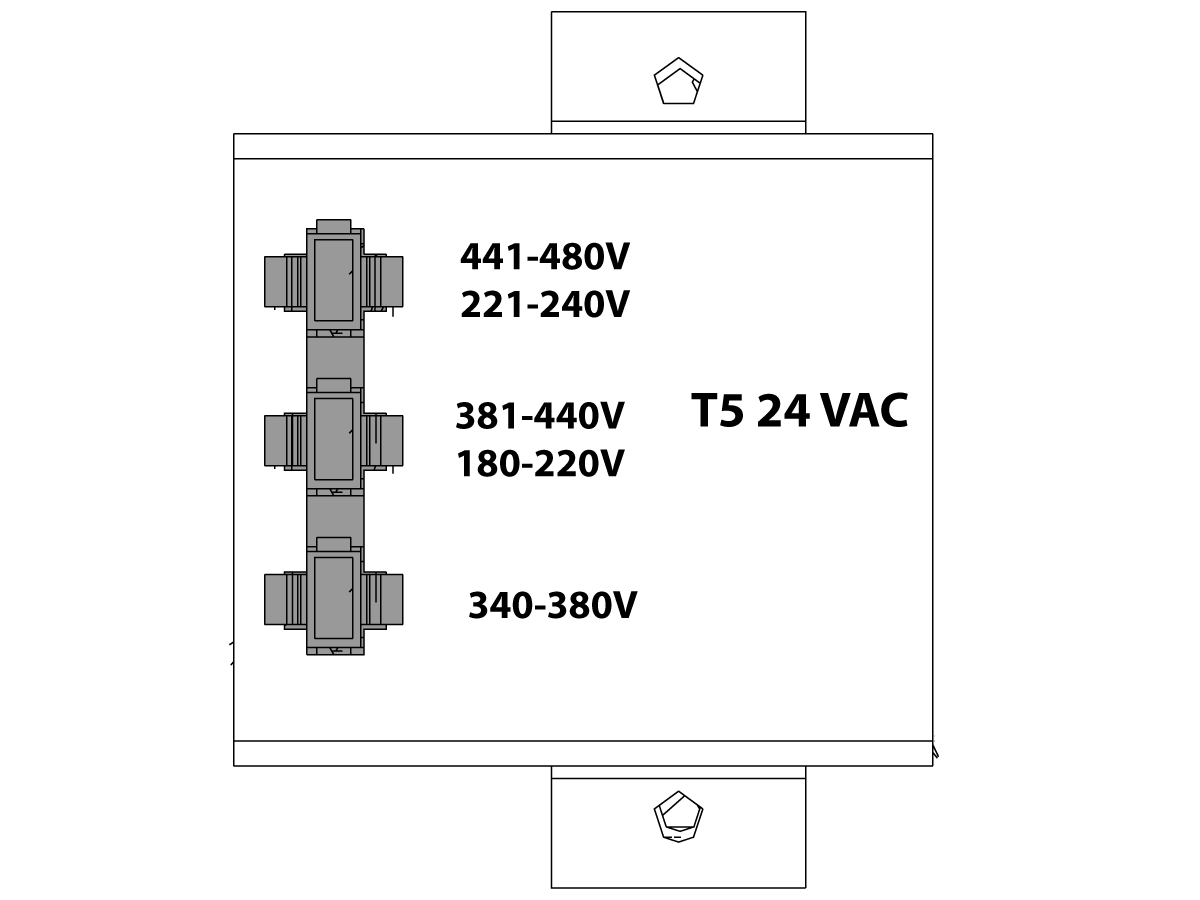
Transformer T5 supplies 24VAC used to power the main contactor. There are two versions of this transformer for use on a 240 and 400V machines. The 240V transformer has two input connectors located about two inches from the transformer, which allow it to be connected to either 180-220V or 221-240V.

Users that have 220V-240V RMS input power should use the connector labeled 221-240V, while users with 190-220V input power should use the connector labeled 180-220V. Failure to use the correct input connector will result in either overheating of the main contactor or failure to reliably engage the main contactor.

The 480V (option) T5 transformer has three input connectors, labeled 340-380V, 381-440V and 441-480V.

Users with 340-380V 50/60Hz power should use the 340-380V connector while users with 380V-440V 50/60Hz power should use the 381-440V connector.

Important: Set the main circuit breaker to ON. Check for evidence of problems, such as the smell of overheating components or smoke. If such problems are indicated, immediately set the main circuit breaker to OFF and call the factory before proceeding.

After the power is on, measure the voltage across the bottom terminals on the main circuit breaker. It should be the same as the measurements where the input power connects to the main breaker. If there are any problems, check the wiring.

6

Apply power to the control by pressing the Power-On switch on the front panel.

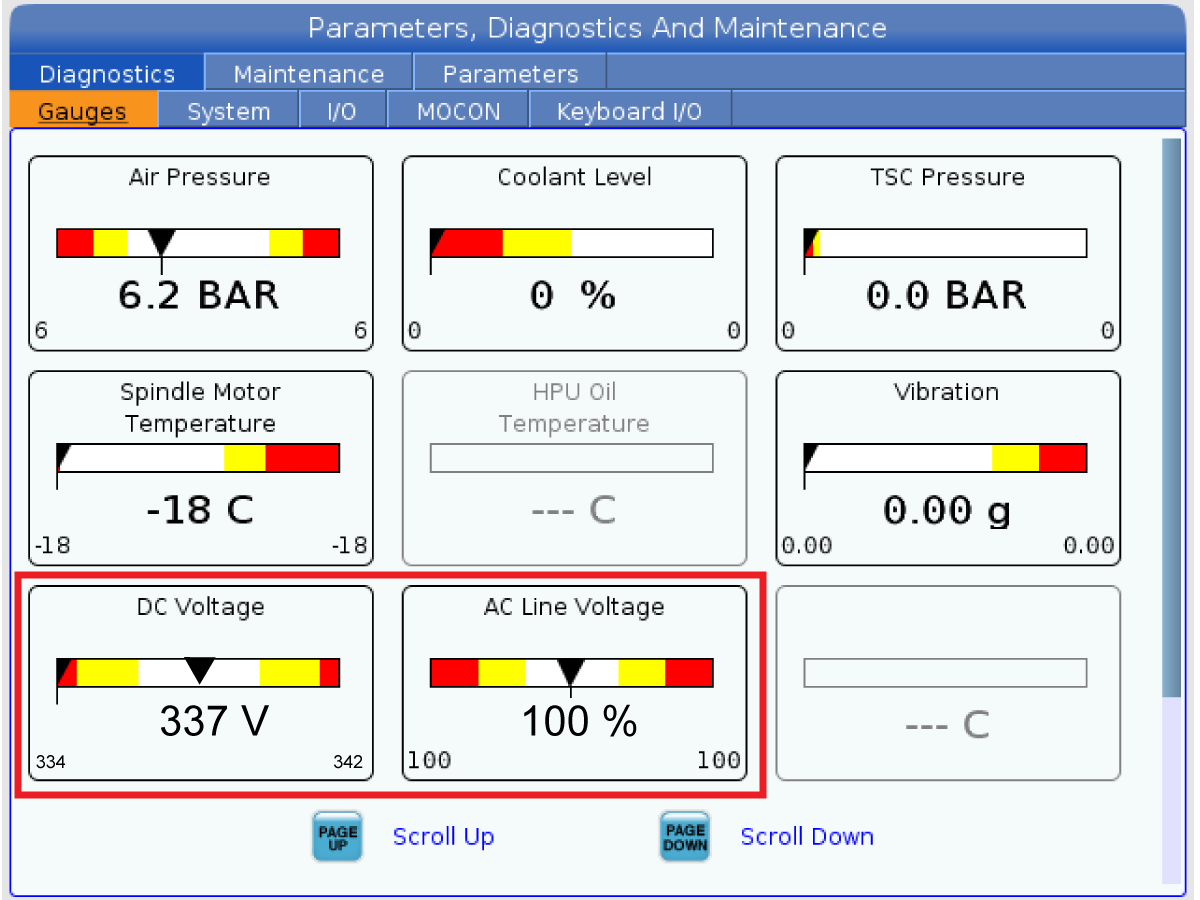
Check the DC Voltage and AC Line Voltage gauges in Diagnostics. The DC Voltage gauge must read between 310 - 360V. The AC Line Voltage must be between 90 and 105 percent. If the voltage is outside these limits, turn off the power and recheck steps 2 and 3. If the voltage is still outside these limits, call the factory.

7

Electrical power must be phased properly to avoid damage to your equipment. The Power Supply Assembly PC board incorporates a "Phase Detect" circuit with neon indicators. When the orange neon is lit (NE5), the phasing is incorrect. If the green neon is lit (NE6), the phasing is correct. If both neon indicators are lit, you have a loose wire; check the connections. Adjust phasing by setting the source power to off and then swapping L1 and L2 of the incoming power lines at the main circuit breaker.

Danger: ALL POWER TO CNC MUST BE TURNED OFF LOCKOUT-TAGOUT AT THE SOURCE PRIOR TO ADJUSTING PHASING. ALWAYS DOUBLE CHECK THE INCOMING LINES WITH AN AC VOLTAGE DETECTOR.

Turn off the power and set the main circuit breaker to OFF. Close the door, lock the latches, and turn the power back on.

Remove the key from the control cabinet and give it to the shop manager.

8

Activation

When the machine is properly placed and connected to both air and electrical power, it is ready for final installation (removing shipping blocks, leveling, spindle sweep, etc.) and software activation. The HFO service technician does this. Contact the local HFO to schedule the work.

IMPORTANT:  Machines equipped with motion sensors must be rough‑leveled before attempting to arm the motion sensor.  For detailed instructions, refer to Service Notification - SA0007.  Access to this document is restricted to Haas Factory Outlet personnel.

Shipping Brackets Removal

1

Remove the door shipping bracket [1] from the door.

2

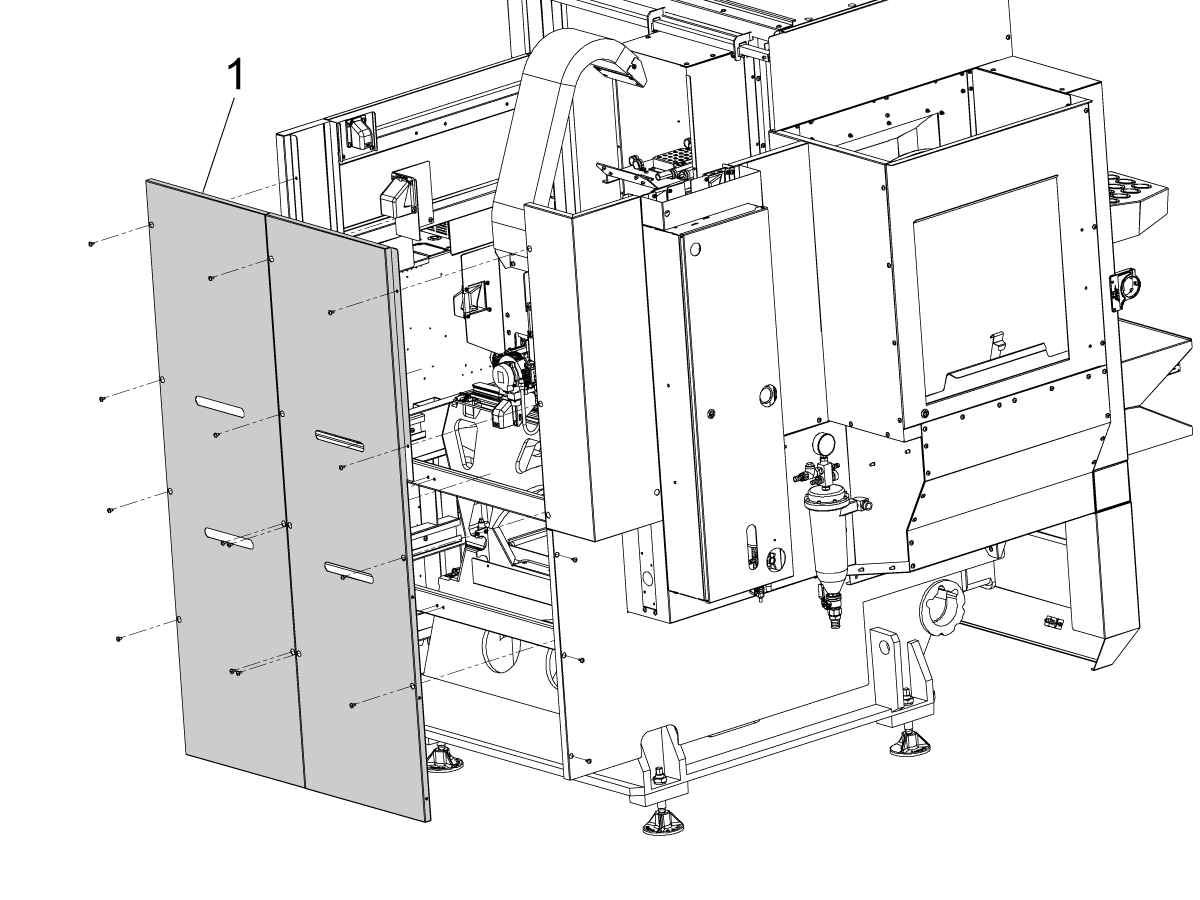
Remove the rear panels and remove the four shoulder bolts [1] for the X and Y axes at the back of the bridge.

Note: The shoulder bolts are red in the image for locating puposes only. The actual shoulder bolts are grey with a yellow tags around them to help locate them on the machine.

3

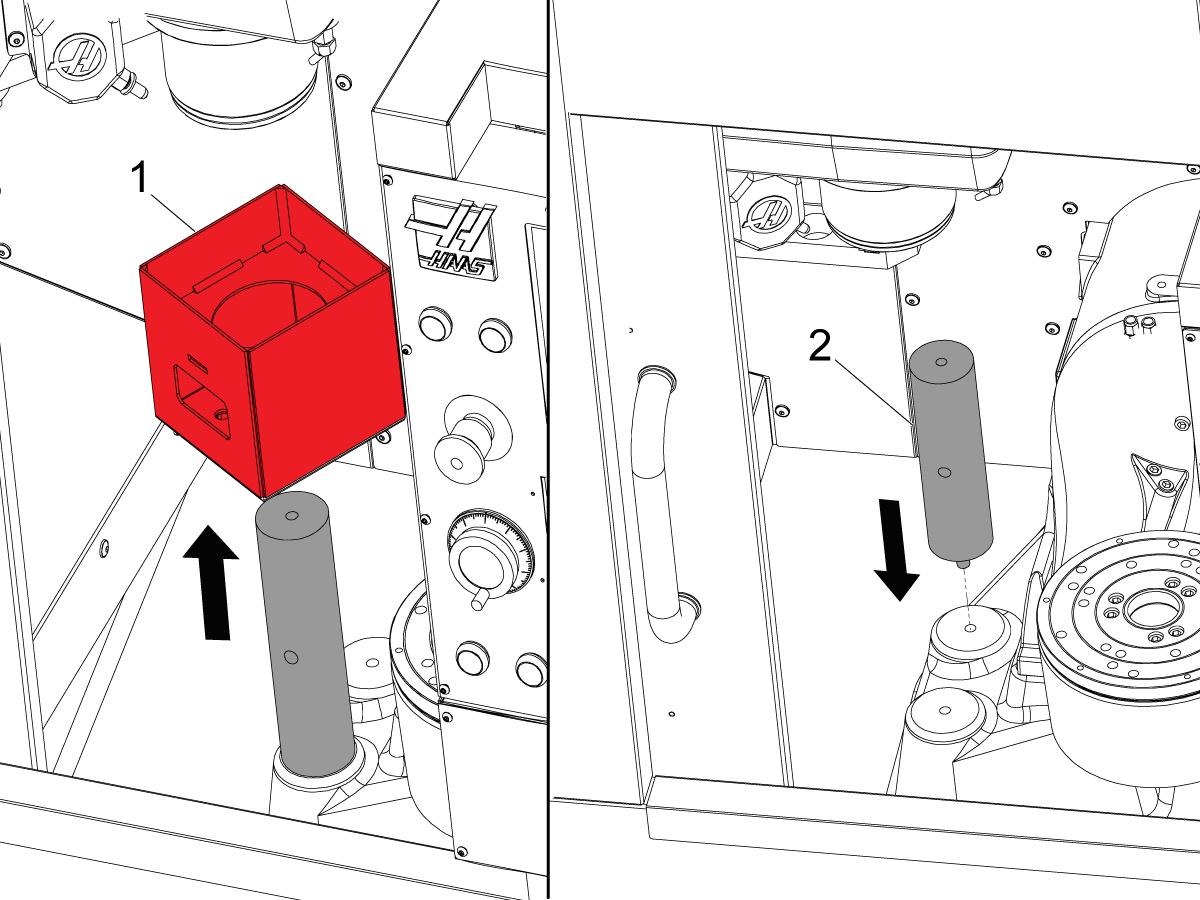
Raise the Z-axis [1] and remove the shipping bracket [2].  The Z axis is not bolted to the bracket, it only sits on top of the bracket.

4

Remove the shipping bracket [1] from the WIPS stand [2] and install the stand into the WIPS mount position on the base.

Machine Rough Leveling

This section tells you how to correctly level and check geometric alignment on a UMC. The machine must be leveled and checked for proper geometric alignment before it will provide optimal performance and accuracy.

Important: Before attempting this procedure the machine must have air and power connected and be operational.

 Note: It is recommended for machines with CDF conveyors to do a fitment check for the coolant tank and the CDF conveyor before leveling.

1

Zero return each axis one at a time or press [POWER UP]. Go through the leveling process.

Repeat these steps to achieve correct machine level.

2

Adjust the (4) corner leveling screws to lift the casting off of the ground.

Set [H] to 4".


3

Place the precision level [1] on one of the X-Axis linear guide. 

First level the machine side to side. Lift or lower one side with even adjustments of the two screws [2] to center the bubble in the tool.

4

Place the precision level parallel to the Y-Axis on the linear guide.

 Note:  You can also place a granite block across the X-axis linear guides, and put the precision level on top. 

Adjust either the front or back screws evenly to level the machine front to back and center the bubble in the level tool.

X-Axis Roll Adjustment

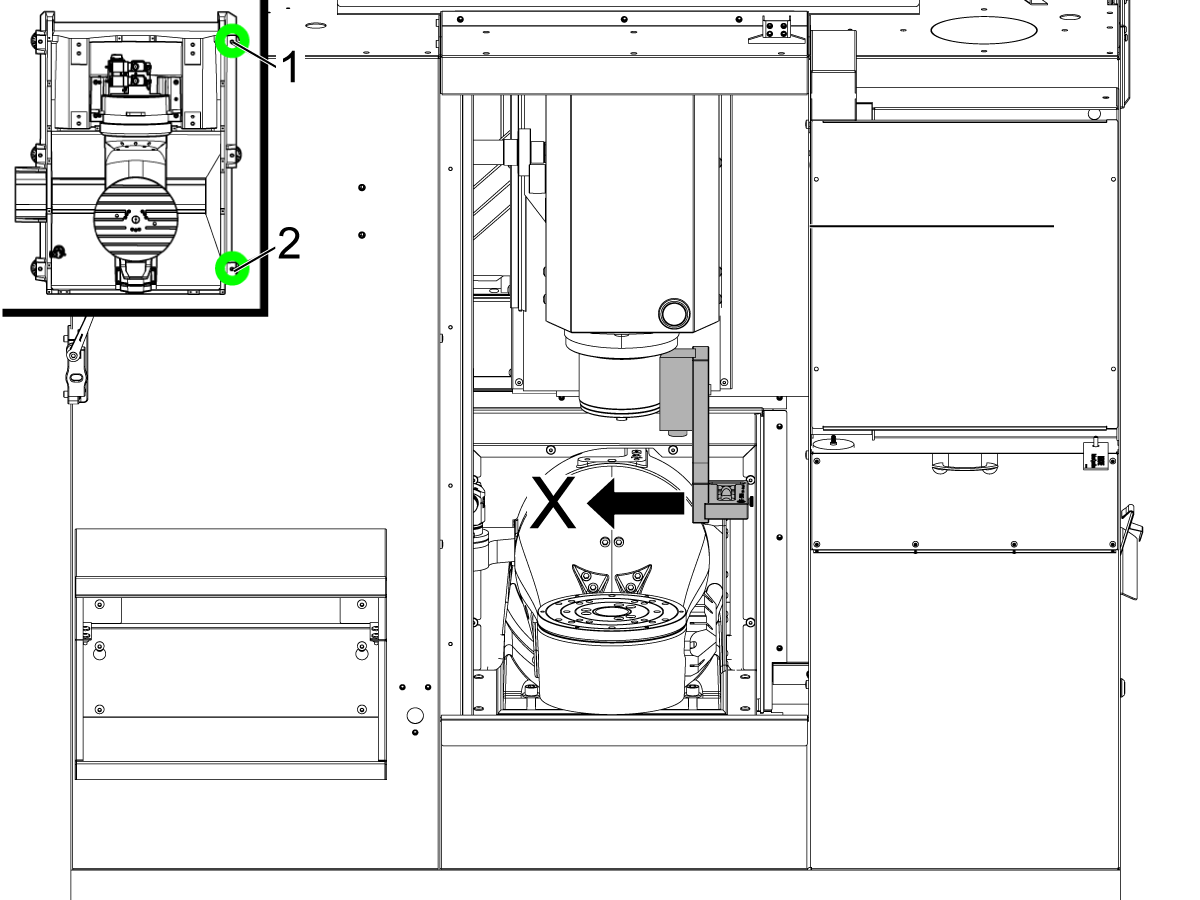
With the Y-Axis and Z-Axis at mid-travel, set the leveling tool (T-2181A / T-2192) parallel to the Y-Axis.

 Note:  Leveling tool (T-2182/T-2192) needs to be manually adjusted after mounted to the spindle.  Snug the mag base mounting bolt and bump the level by hand until the bubble level is in the middle of the travel.

 Note: For better results position the Z-axis closest to the work envelope as possible.

Handle jog X-axis. Take readings at the Home, the middle, and at the end of X-Axis travel. At the end of X-Axis travel, note whether the front or back side of the machine is lower.

Raise or lower side, [1] or [2], until the bubble in the tool reads zero. Repeat this step at each end of travel until the tool reads zero at both ends.

B-Axis to Y-Axis Parallelism Setup

1

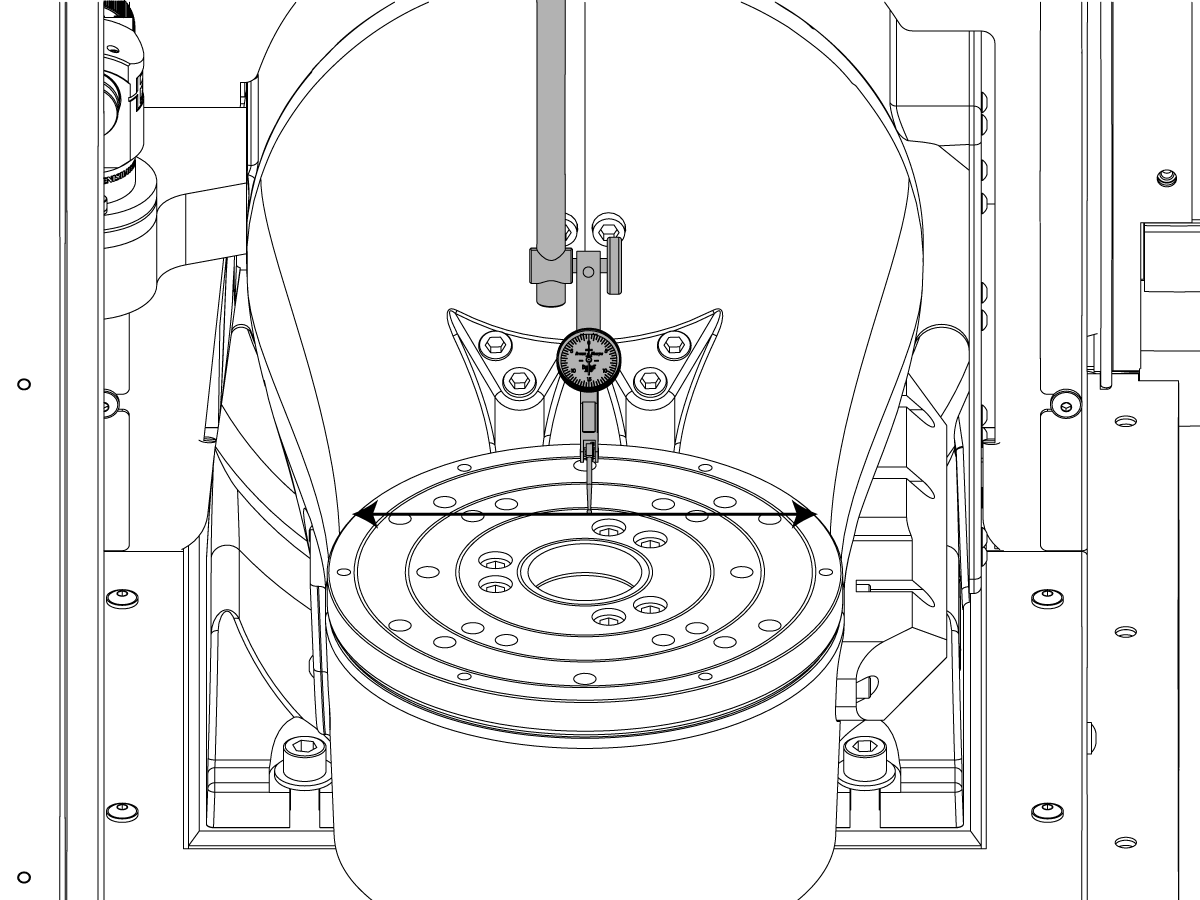
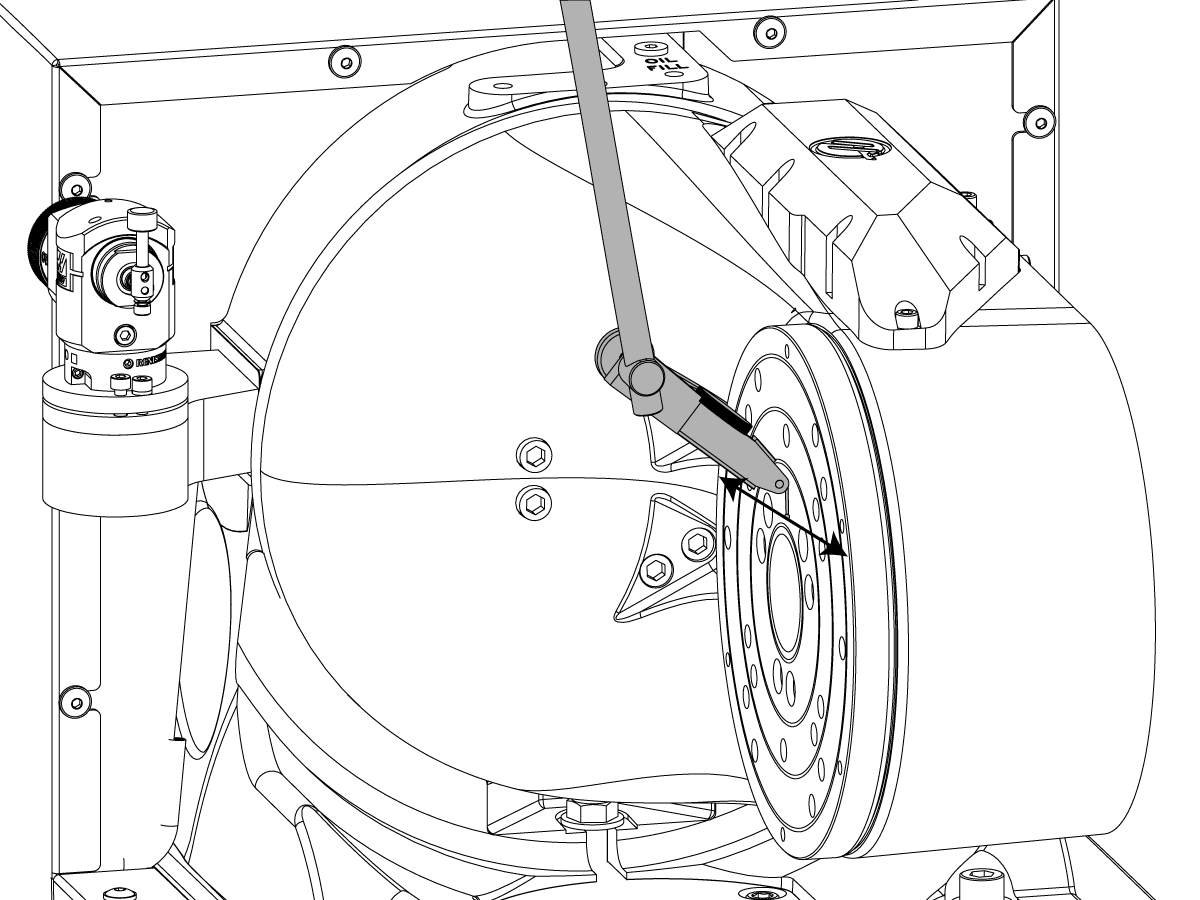
[ZERO RETURN] [B] [C] Axis. Indicate the table face along the X-Axis over a distance of 15" (381mm).

If the reading is not zero, jog the B-axis (in 0.0001" increments) until the indicator reads zero over 15". Note the B-axis position for later.

2

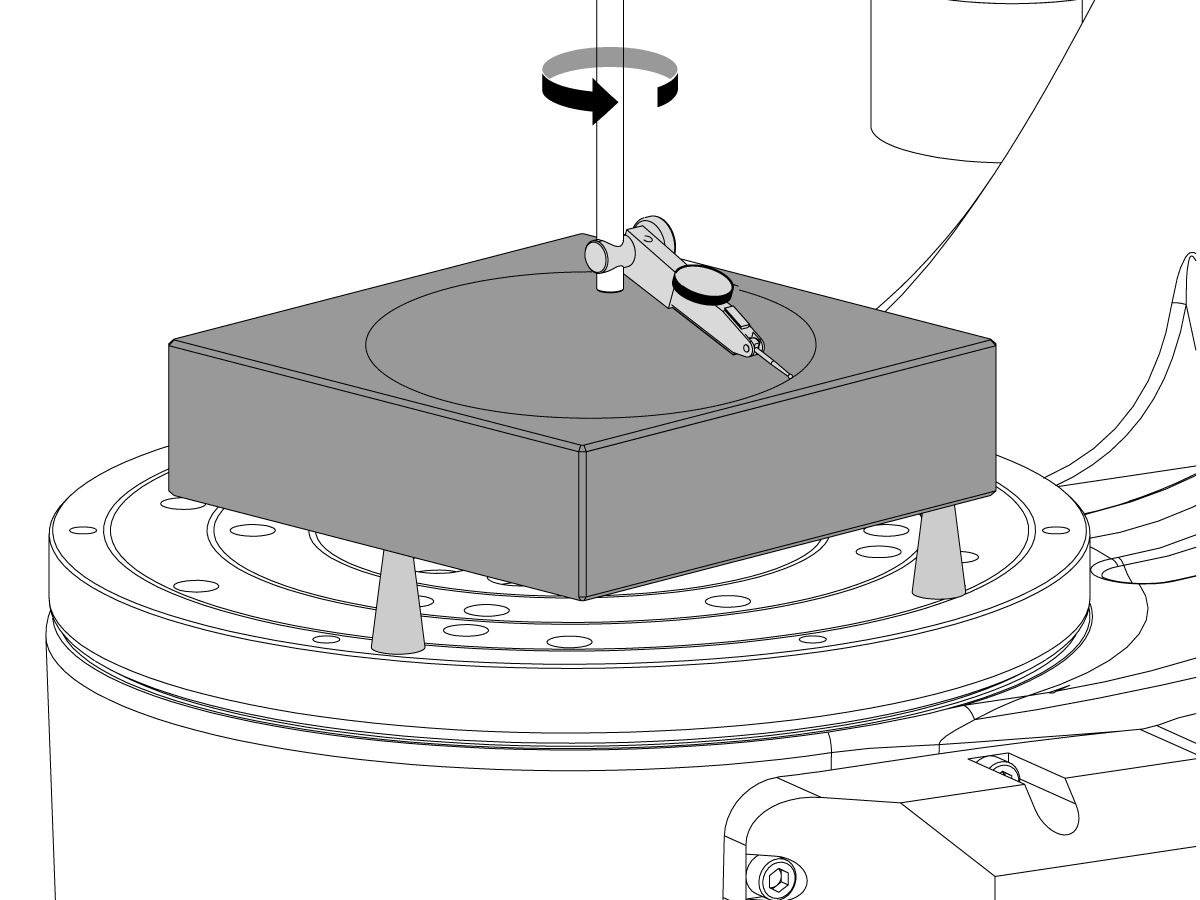
Handle Jog C Axis to C90. Check the parallelism of the table surface to the Y-Axis in the up and down direction.

Zero your indicator at the back, on the table face. Sweep forward with the Y-Axis over 15" (381 mm). Record the indicator reading, noting both the magnitude and the direction.


3

Add 90 degrees to the value you adjusted B-Axis to earlier. Command the B-Axis to this position (for example B90.003 degrees).

Zero the indicator on the rear table face and jog the Y Axis from back to front over 15" (381 mm). Record the indicator reading, noting both the magnitude and the direction. This measurement shows the position of the table relative to the Y-Axis in the side to side direction.

If the trunnion leans to the right, lift with the right front leveling screw and lower with the left front leveling screw in small, equal, increments.

If the trunnion leans to the left, lift with the left front leveling screw, lower with the right front.

Sweep the table again to make sure that it is aligned to read zero over the 15" (381mm) sweep.

B-Axis and C-Axis Home Position Check

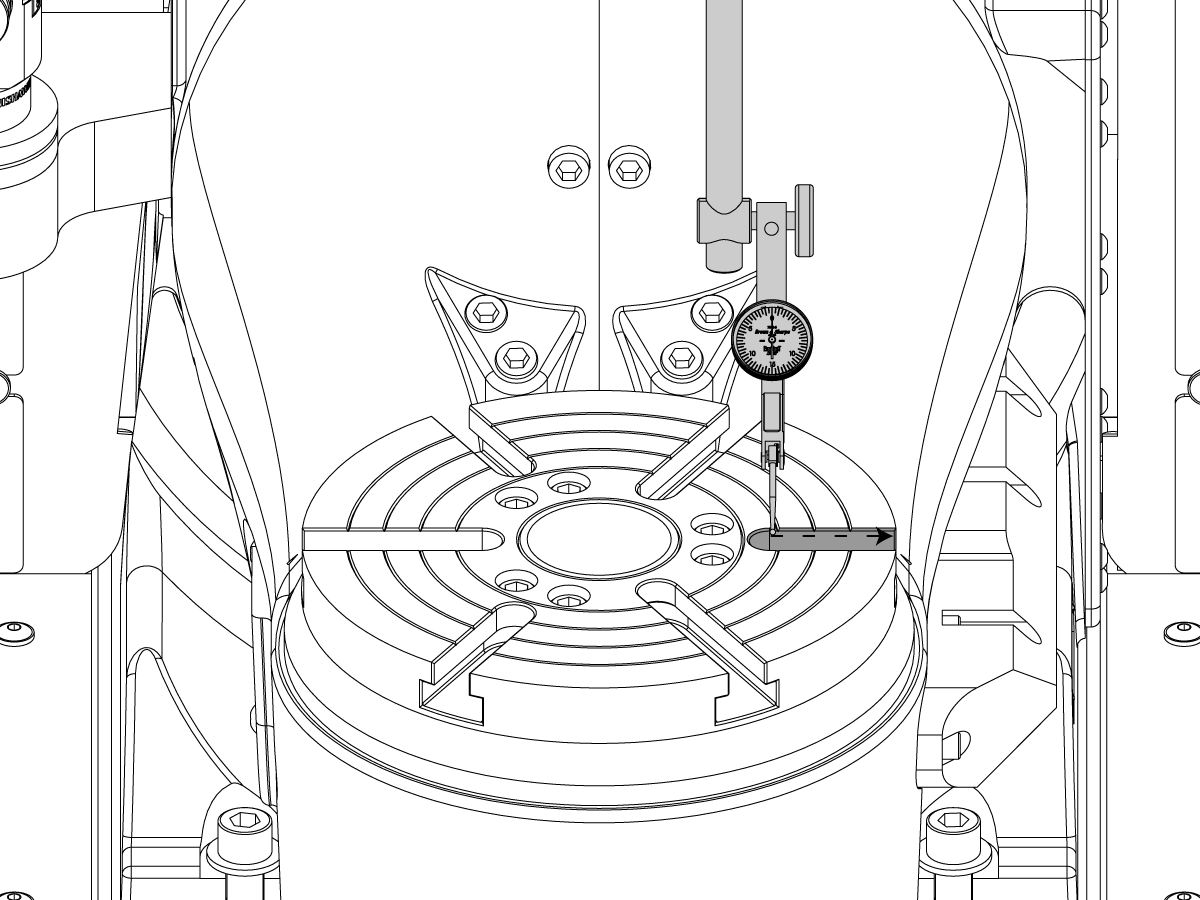
[ZERO RETURN] [B] and indicate the table surface [1]. Sweep the table over 20 inches (500 mm), with the value NTE 0.001"/15" (0.025 mm/381 mm).

[ZERO RETURN] [C] and indicate one of the t-slot walls [2] over 15" (381 mm), with the error value not to exceed (NTE) 0.001"/15" (0.025 mm/ 381 mm).

Note: If either reading is higher than one thousandth (0.001", 0.025mm), repeat the machine leveling process. Small errors in the leveling sequence can negatively influence the B and C home positions.

If you verify the level is correct but the B or C home positions are still not within specification, you can slightly adjust the left or right front screw to change the B and C home positions a small amount. Check both home positions after you make any adjustments.

Spindle Sweep Check

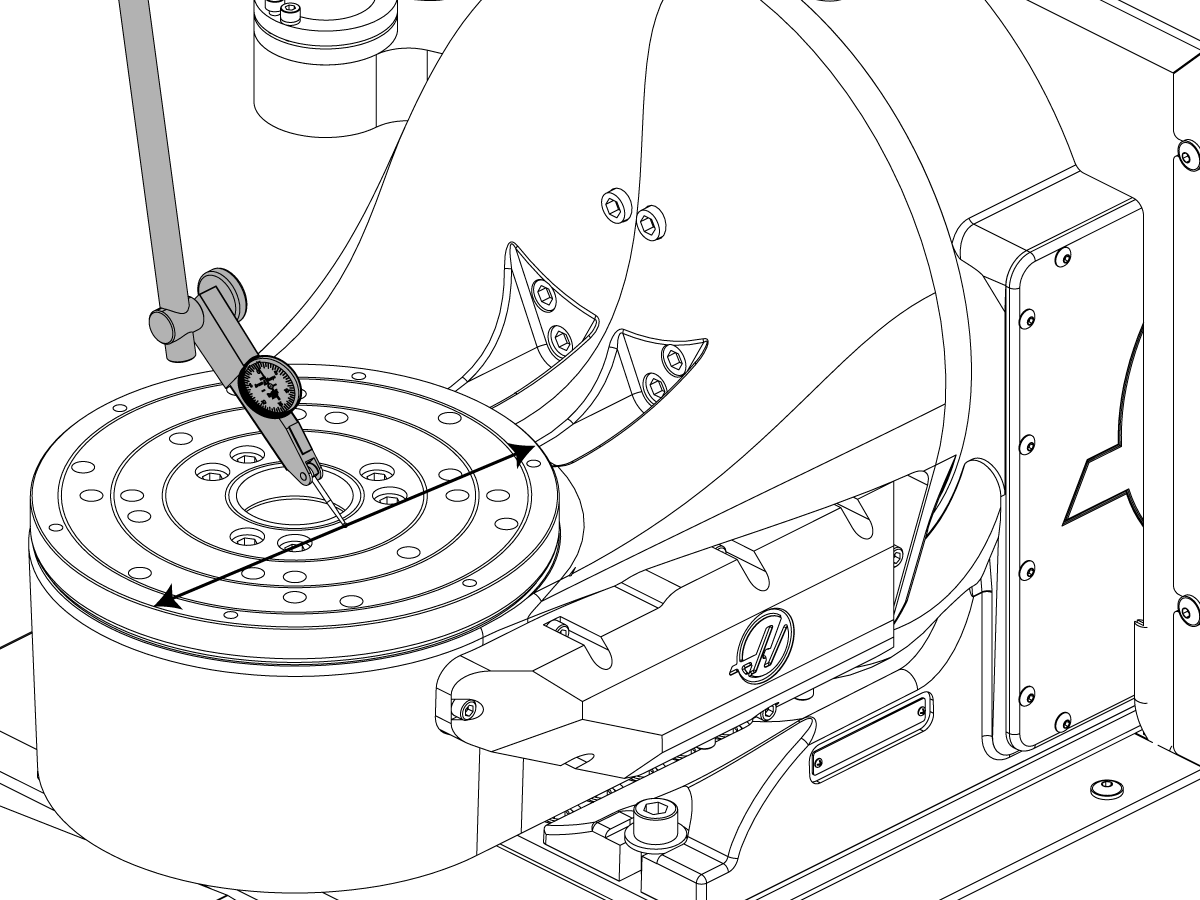
Move the spindle head to the middle of the Z-Axis travel. Position the test indicator on the spindle to measure a 10" (250mm) diameter circle at the center of the table. Zero the test indicator at the operator side of the table [1].

Take a measurement every 90 degrees of rotation, [2], [3], [4]. Total indicated runout (TIR) for all four positions is not to exceed (NTE) 0.0005" (0.012 mm).

Note: The spindle sweep values are also affected by the precision of the leveling sequence; if the values exceed specification, check the machine level again.

Note: If equipped with the 50 pocket tool changer check the alignment to the spindle.

Install and Calibrate WIPS

1

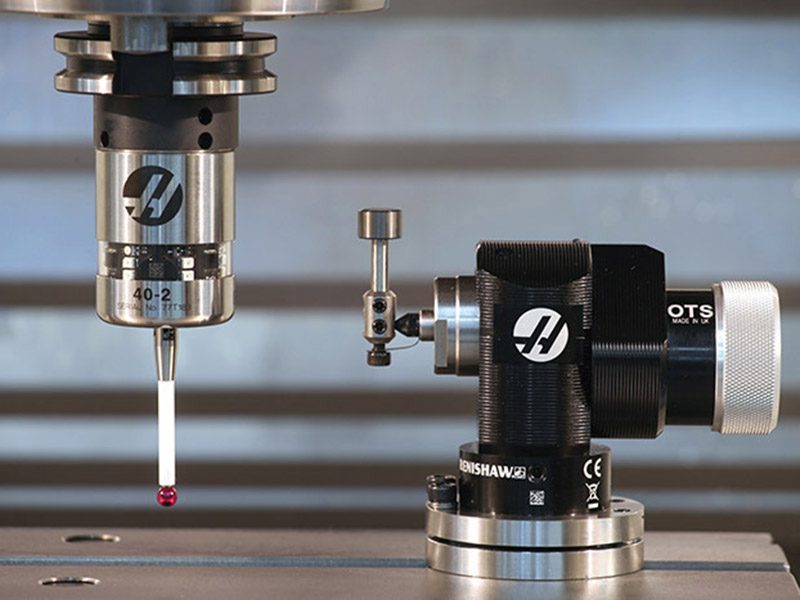
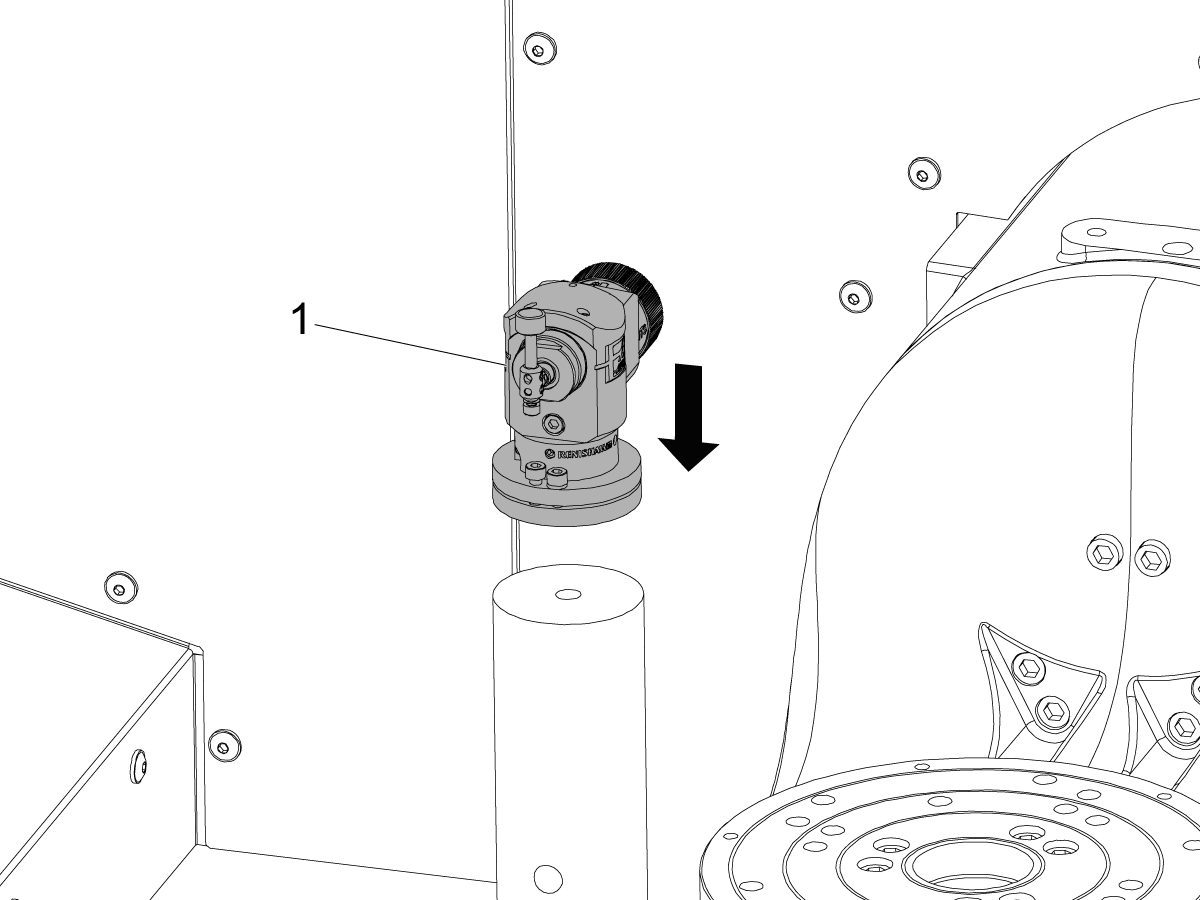
Install and calibrate the Wireless Intuitive Probe System (WIPS) (if equipped).

For an in depth guide on WIPS installation and calibration, please see:

WIPS Installation

Note: Have the the probe on the OTS facing towards the front of the machine.

MRZP Offsets Settings

1

This tells you how to set Machine Rotary Zero Point (MRZP) Offsets. The MRZP Offsets are settings in the Haas CNC control that tell the control these distances:

  1. the distance of the tilt axis (B axis) centerline from the X-Axis home position
  2. the distance of the tilt axis (B axis) centerline from the Z-Axis home position
  3. the distance of the table rotary axis (C axis) centerline from the Y-Axis home position

This procedure shows images that use both calibration assemblies.

 Important: The spindle probe must be calibrated before doing this procedure. This makes sure the accuracy of the probe to the machine position is correct. Refer to the Next Generation Control - Probe Calibration (VPS) procedure, in the diy.haascnc.com

2

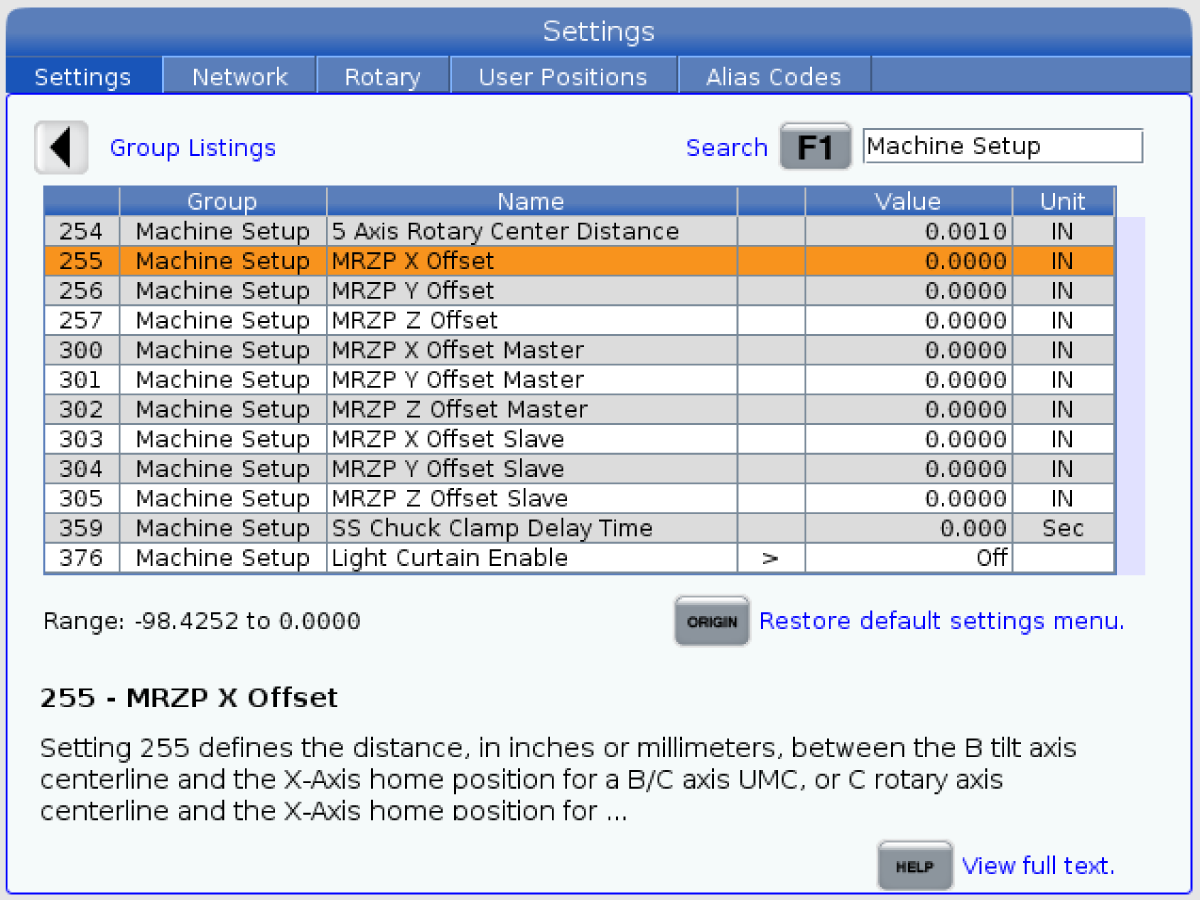
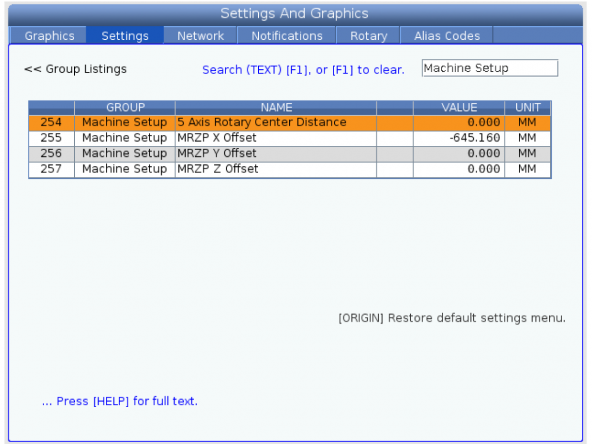
Press [Setting] and navigate to Machine Setup. Check settings 255, 256, and 257. The values should not be zero. If they are perform the following procedure.

MRZP A-C or B-C Axis Rough Set

3

[ZERO RETURN] [ALL] axes.

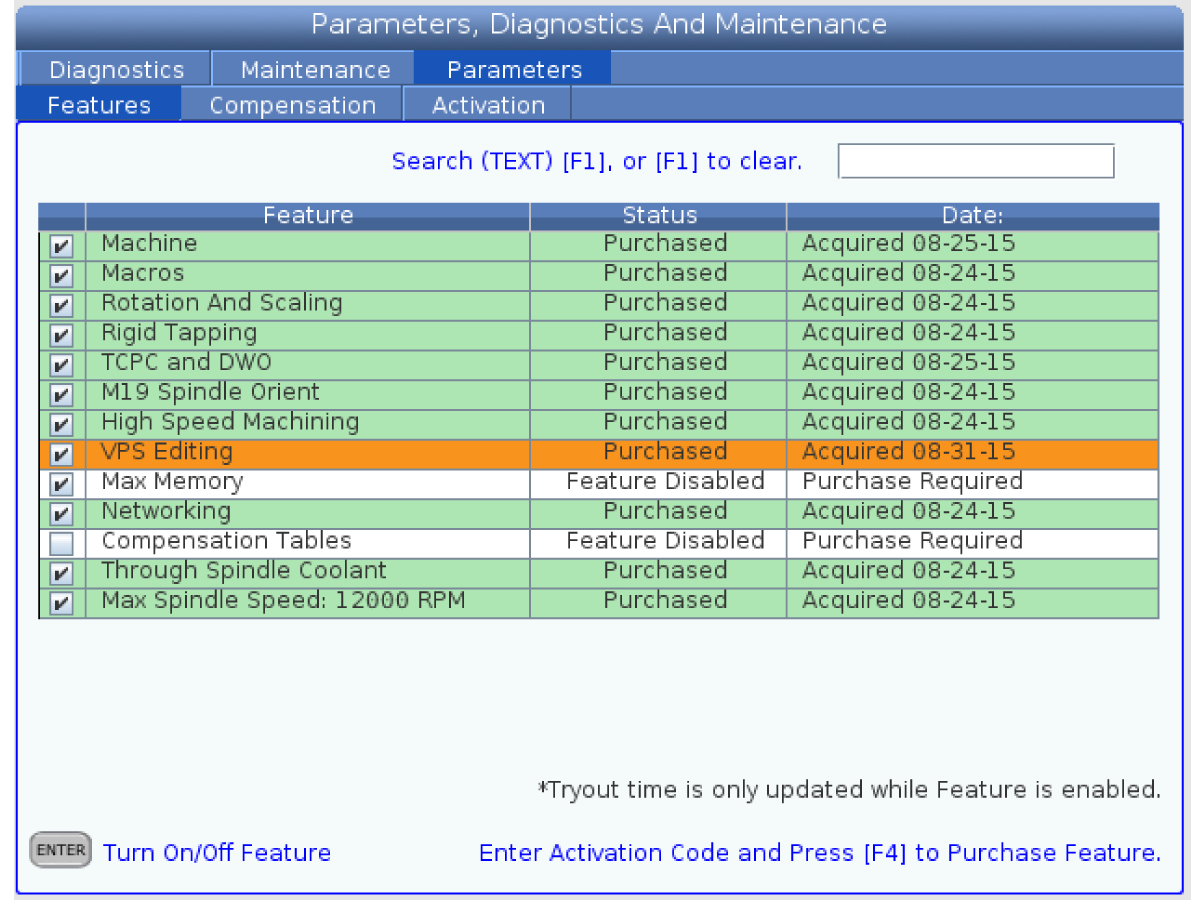
Go to Features tab in [DIAGNOSTIC] and make sure the VPS Editing is on.

Put the work probe in the spindle.

Push [EDIT] button.

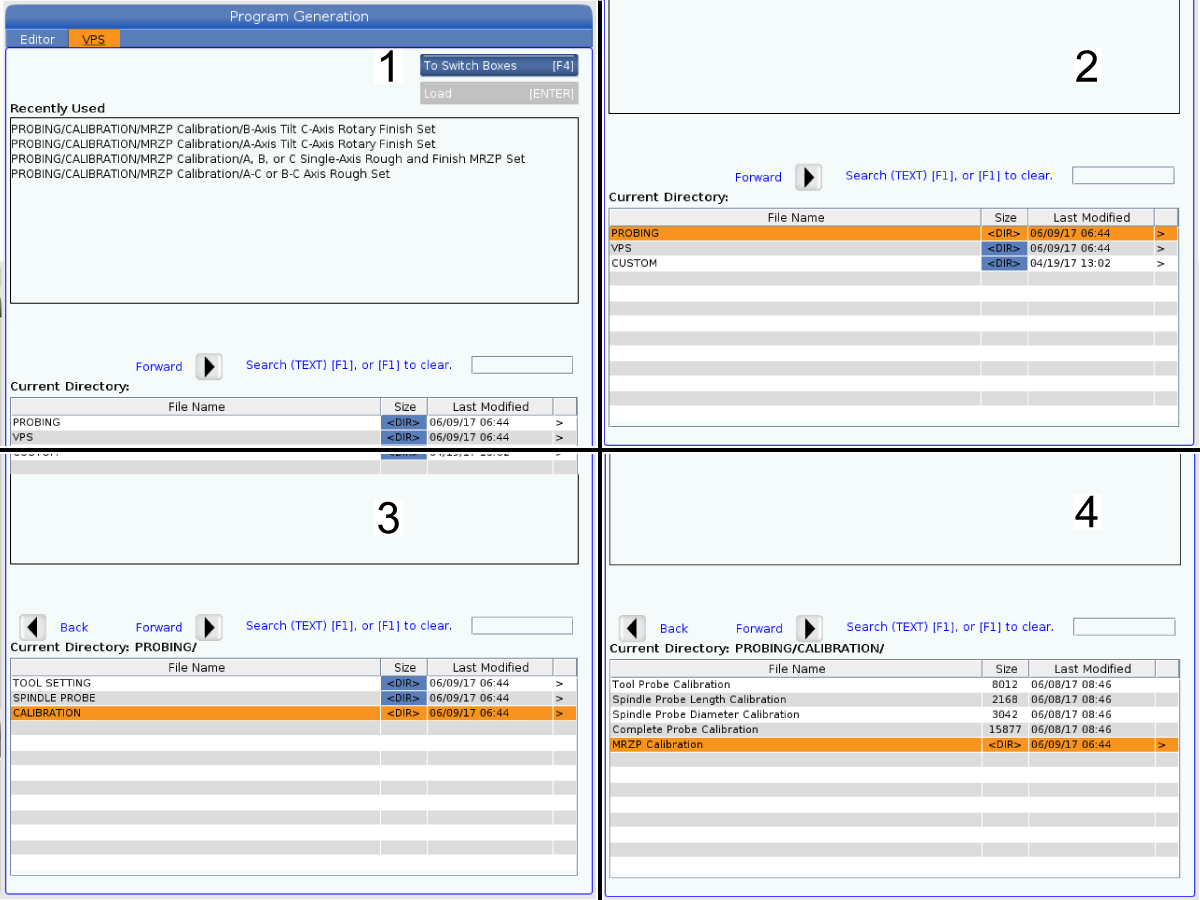
Select VPS .

Push the [DOWN] cursor arrow to PROBING [1].

Select CALIBRATION [2]. Push the [RIGHT] cursor arrow.

Select MRZP CALIBRATION [3].

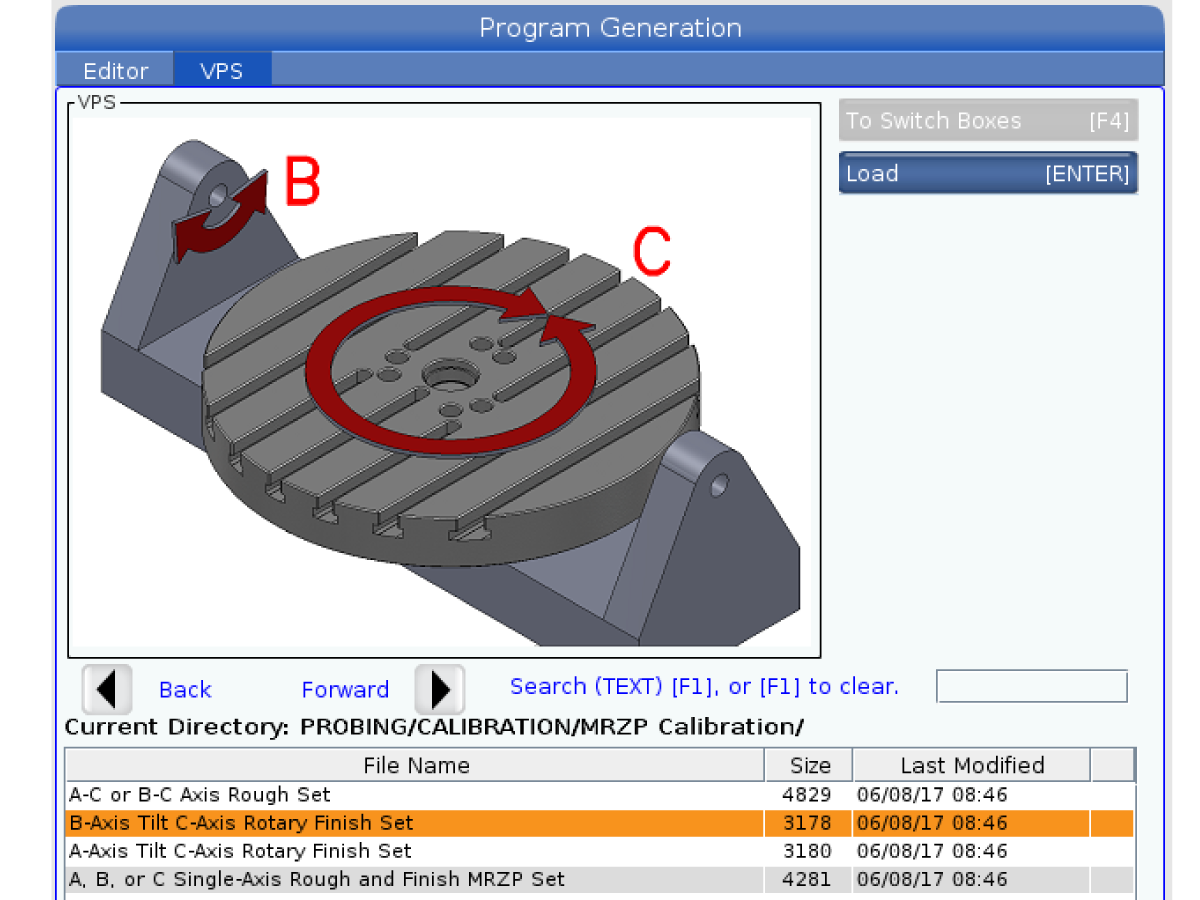
4

Push the [DOWN] cursor arrow and select B-AXIS TILT C-AXIS ROTARY FINISH SET.

Note: A-C Or B-C MRZP ROUGH SET is used only when there are no MZRP offset settings (255, 256, 257) set.

5

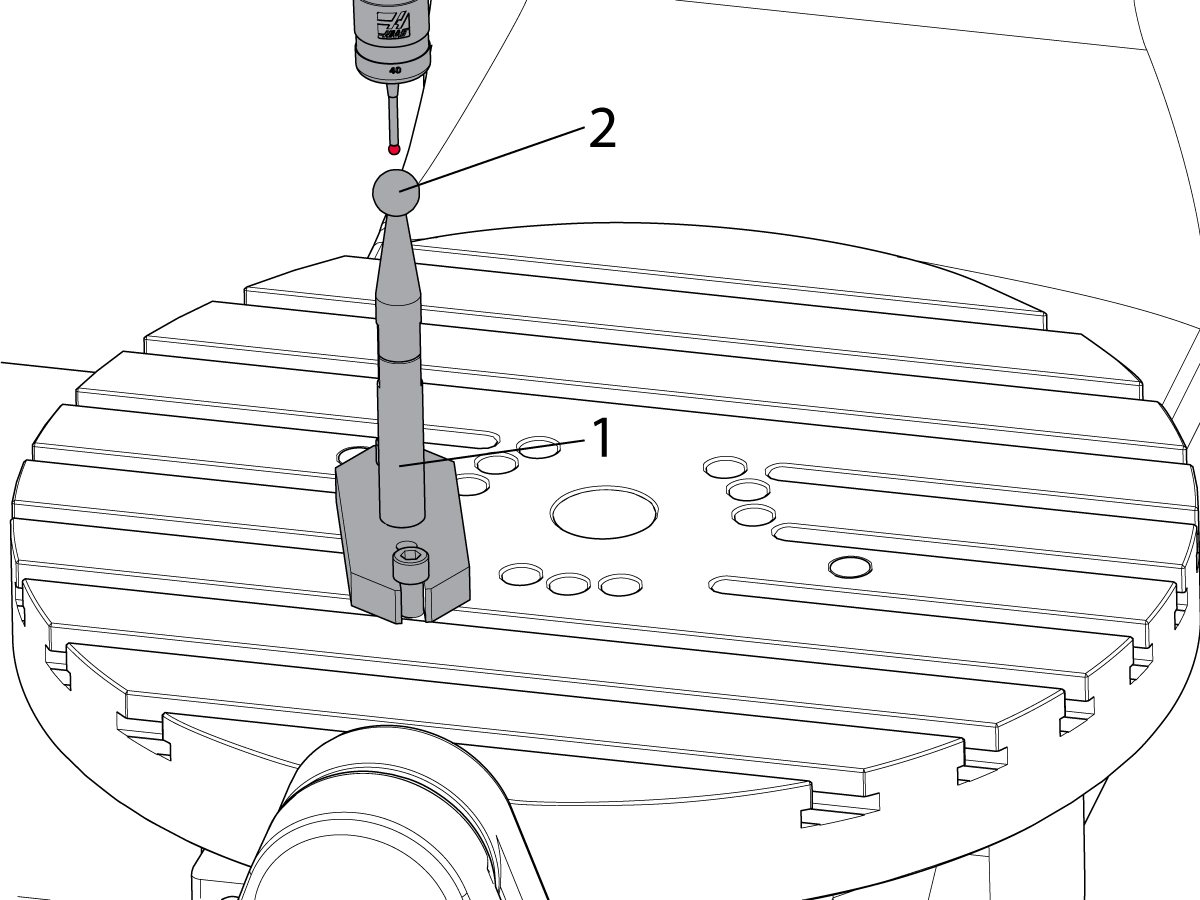
Enter the diameter of the tooling ball [2].

Important: Always measure the tooling ball with a calibrated micrometer to ensure the correct ball diameter.

 Note: If you are in metric mode make sure you enter the ball size in millimeters. If you are in inch mode enter the ball size in inches

Push [ENTER] .

Push [F4] .

Select Output MDI .


6

Install the calibration sphere assembly [1] near the center of the platter.

Note:  On a UMC-1000 if the calibration sphere is too far out from the center, an overtravel alarm will be generated during the MRZP calibration cycle.

Make sure that the tooling ball [2] is tightly attached to the calibration assembly.

Note:  On UMC machines that are equipped with the Pallet Pool the calibration sphere will need to be secured to the pallet using toe clamps.

Note: Do not over-tighten the tooling ball.

Jog the Z Axis until the probe tip [2] is 0.1" (2.54 mm) above and centered over the tooling ball [1].

Start the program in MDI. This program is O099994 B AXIS TILT AND C AXIS ROT AXIS .

7

The probe measures many positions on the B and C axes at different degrees.

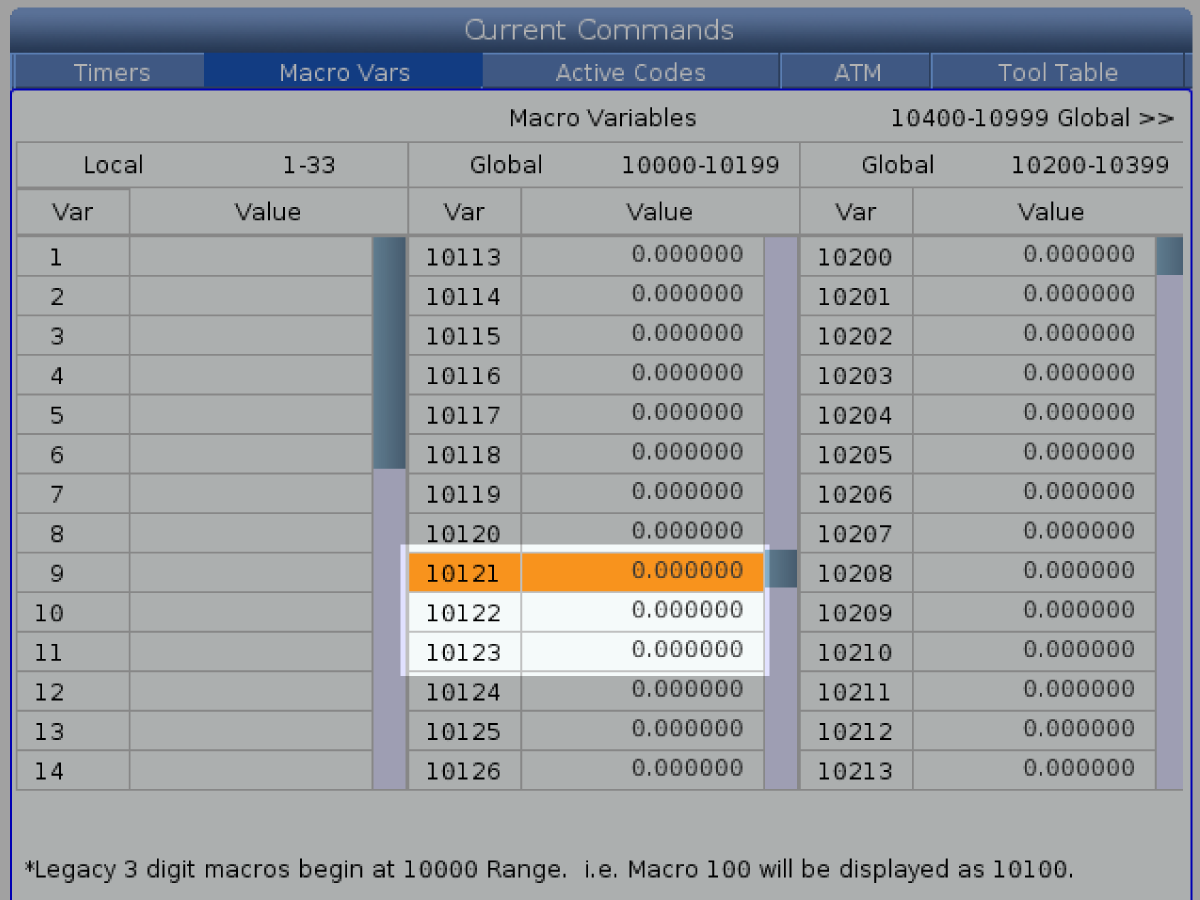
The program puts values in macro variables 10121, 10122, and 10123. Record those values.

8

Put the recorded values in these settings:

  • Enter the value for macro variable 10121 in setting 255; MRZP X Offset.
  • Enter the value for macro variable 10122 in setting 256; MRZP Y Offset.
  • Enter the value for macro variable 10123 in setting 257; MRZP Z Offset.

If you think that you possibly entered incorrect numbers, start the MRZP FINISH SET program again. The values that the program puts into the variables must be within five counts or less of the setting numbers.

 Note: Setting 9 determines if the values are shown in inches or millimeters.

Rear Panel - Installation

Install the rear panels. Refer to the decal that is located behind the machine.

Complete & Submit Inspection Report

Complete an inspection report after leveling, verifying geometry, and setting the MRZP Offsets.

The Inspection Report EA0454 can be found on the Haas Business Center.

Note: This site is available only to Haas Service Techs.

Attach the inspection report to the machine history using the Haas Service App.

Lubrication Verification

1

Run the spindle run-in program.

 Note: For 10K spindles and above use a balanced tool holder

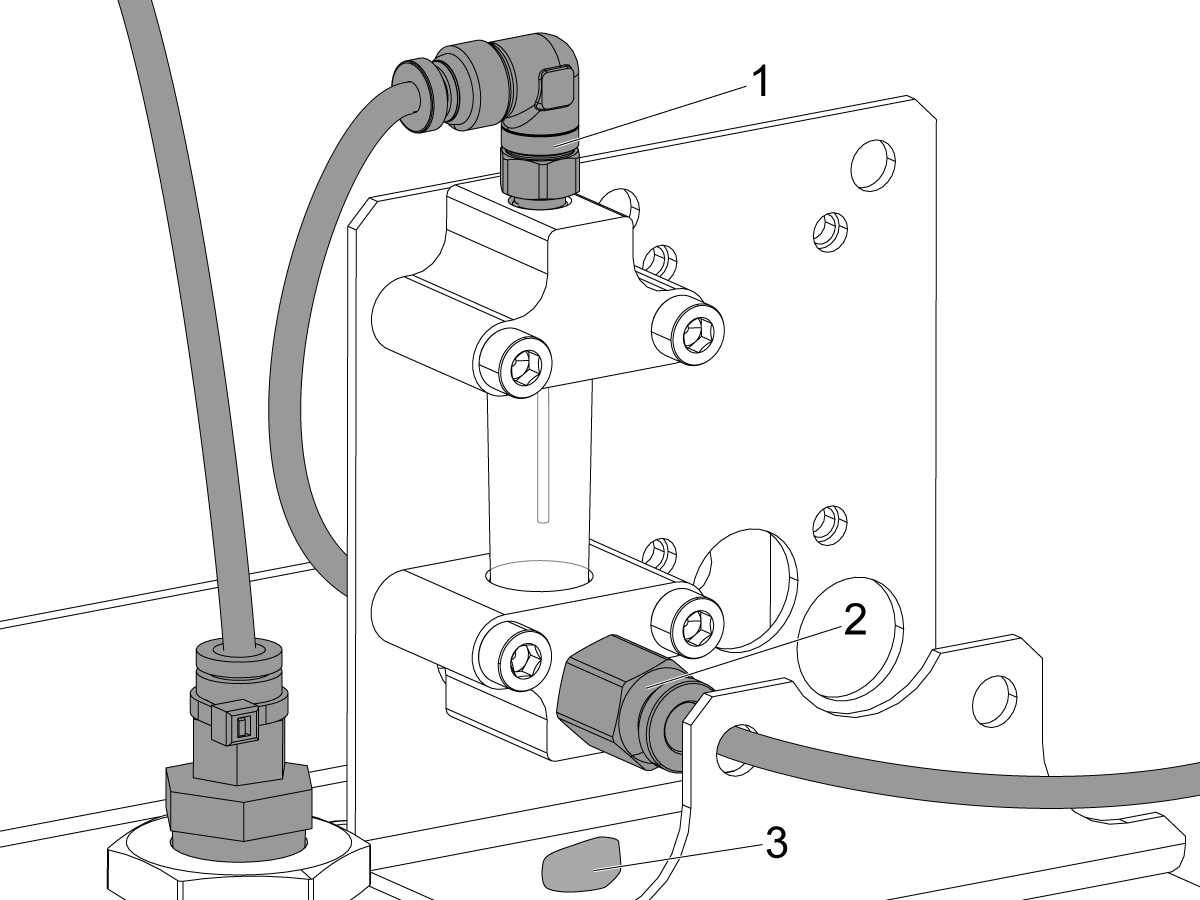
Examine the sight glass, make sure the correct number of drops are fall through the sight glass.

Examine the fittings [1,2] on top of the oil pump tank.

The oil collects on top of the oil pump tank [3] either behind or in front of the sight glass bracket, underneath the leaking fitting.

Tighten any leaking fittings.

2

Go to the Maintenance tab.

Press [F2] to cycle an axis lubrication test.

Inspect the gauge on the lubrication system.  Make sure it holds pressure.

Coolant Tank Installation

1

Power off the machine.

Install coolant tank handle [1], tank lids [2], and chip tray [3]. 


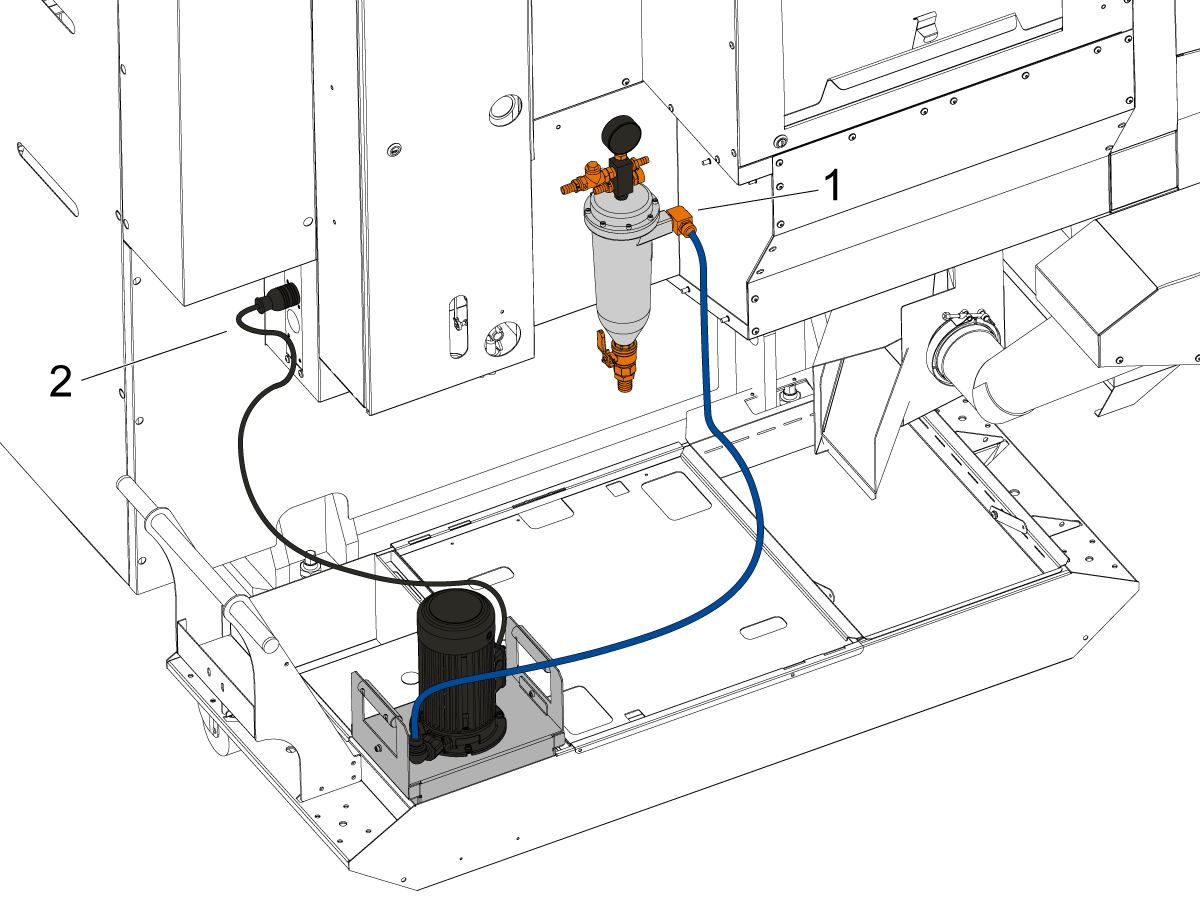
Position coolant tank under the left side of machine (when viewing from the front). Ensure that the chip tray [3] is directly under the machine's drain slots, to ensure that coolant flows into the tank. 

2

Insert the coolant pump assembly in the position shown. Connect the coolant hose to the coolant filter [1].

Connect the coolant pump power cable to the socket labeled Low Pressure Coolant. 

Fill the coolant tank with coolant. Install the coolant float sensor into the coolant tank. Refer to Coolant Float Sensor - NGC - Installation or Coolant Float Sensor - CHC - Installation for more information. 

3

TSC Option: 

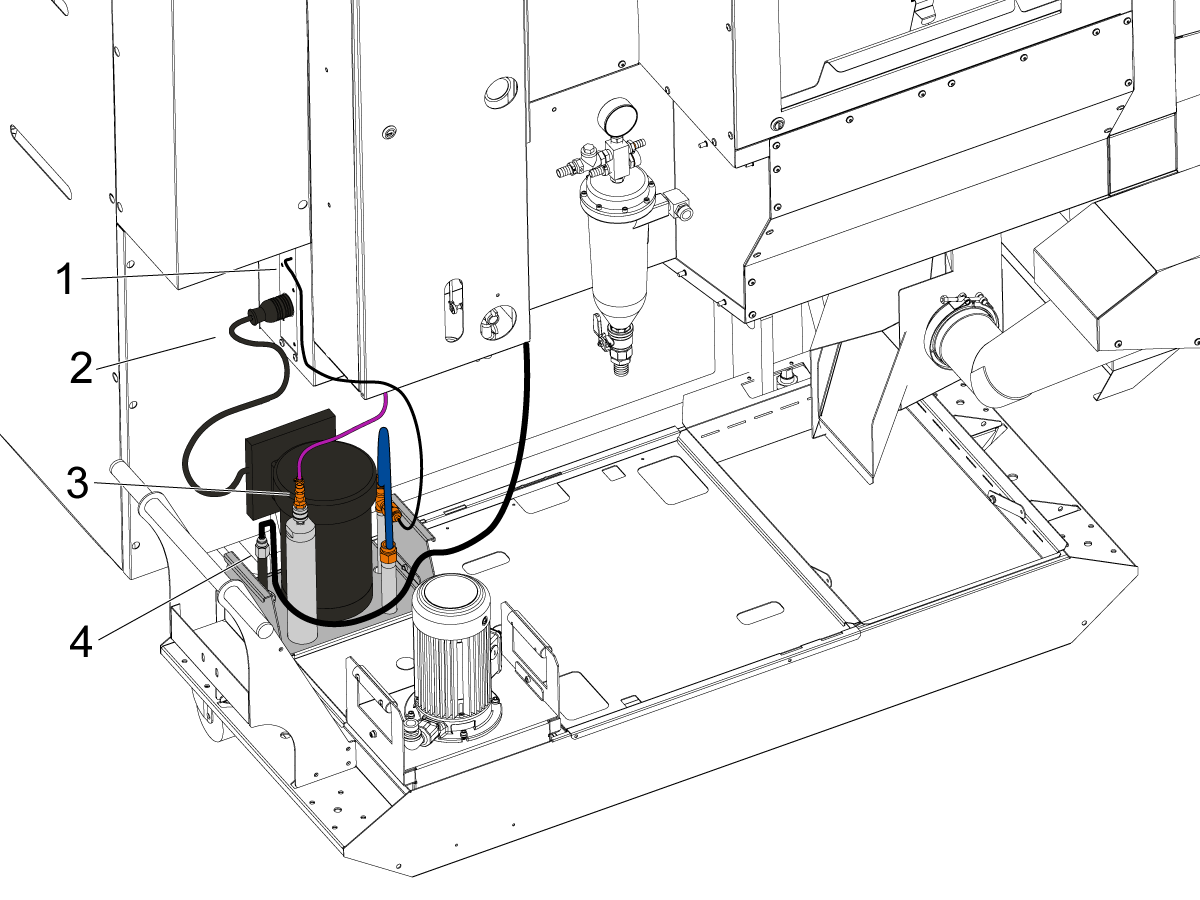
Insert the TSC pump assembly into the coolant tank in the position shown. 

Connect the TSC pressure sensor [1] into the socket labeled Coolant Filter Sensor. Connect the TSC power cable [2] into the socket labeled High Pressure Coolant. 

Connect the purple air hose from the TSC pump assembly's cylinder [3] and into the lube cabinet. 

Connect the coolant hose [4]. Ensure that the connection between the coolant hose and TSC pump assembly is firmly torqued. 

Note: Improper tightening of the TSC coolant hose will cause leaks. 


Conveyor Spillway Extension

Install the conveyor wings to properly direct coolant into the designated channel and ensure correct coolant flow during machine operation. Verify the wings are fully seated and securely fastened before proceeding. For standard chip conveyor installation procedures and additional setup requirements, refer to the  UMC Conveyor Spillway Extension – Installation (Chip Conveyor – UMC – Haas Service Manual).

Option Installation Guides

Verify and test that all the options have been properly installed.

Remote Jog Handle (RJH-Touch) - Installation
Broken Tool Detection (BTD) - Calibration
Wi-Fi Camera Option Installation
VMC Convenience Package
Auxilary Coolant Filter
Accesory Tooling Block
Anchoring Instructions
CABCOOL installation
HAAS Oil Skimmer
Table work light
Auto Air Gun

Machine Operation

Verify that all machine functions are operational:

  • Connect the coolant pump and TSC pump.
  • Connect Auxiliary Filter.
  • Test the tool changer.
  • Test the pallet changer.
  • Test the spindle RPM..
  • Test the coolant operation
  • Test the chip auger.
  • Test the remote jog handle.
  • Test the door interlocks.

Recently Viewed Items

You Have No Recently Viewed Items Yet

Feedback
Haas Logo

Haas Delivered Price

This price includes shipping cost, export and import duties, insurance, and any other expenses incurred during shipping to a location in France agreed with you as a buyer. No other mandatory costs can be added to the delivery of a Haas CNC Product.

KEEP UP WITH THE LATEST HAAS TIPS AND TECHNOLOGY...

Sign up now!   

HAAS TOOLING ACCEPTS THE FOLLOWING:

  • Service & Support
  • Owners
  • Request Service
  • Operator Manuals
  • Haas Parts
  • Rotary Repair Request
  • Pre-Install Guides
  • Shopping Tools
  • Build & Price a New Haas
  • Available Inventory
  • The Haas Price List
  • CNCA Financing
  • About Haas
  • Accessibility Statement
  • DNSH Statement
  • Export Compliance
  • Careers
  • Certifications & Safety
  • Contact Us
  • History
  • Terms & Conditions
  • Haas Tooling Terms & Conditions
  • Privacy
  • Warranty
  • Haas Community
  • Haas Certification Program
  • Haas Motorsports
  • Gene Haas Foundation
  • Haas Technical Education Community
  • Events
  • Join the Conversation
  • Facebook
  • X
  • Flickr
  • YouTube
  • LinkedIn
  • Instagram
  • TikTok
© 2026 Haas Automation, Inc – CNC Machine Tools

This site is protected by reCAPTCHA and the Google Privacy Policy and Terms of Service apply.

2800 Sturgis Rd., Oxnard, CA 93030
Toll Free: (888) 817-4446 / Fax: 805-278-8554