My Haas Welcome,
!
Haas Tooling MyHaas/HaasConnect Sign In Register Haas Tooling MyHaas/HaasConnect Sign Out Welcome, My Machines Latest Activity My Quotes My Account My Users Sign Out
Find Your Distributor
  1. Select Language
    1. English
    2. Deutsch
    3. Español - España
    4. Español - México
    5. Français
    6. Italiano
    7. Português
    8. Český
    9. Dansk
    10. Nederlands
    11. Magyar
    12. Polski
    13. Svenska
    14. Türkçe
    15. 中文
    16. Suomi
    17. Norsk
    18. الإنجليزية
    19. български
    20. Hrvatski
    21. Ελληνικά
    22. Română
    23. Slovenský
    24. Slovenščina
    25. 한국어
    26. 日本語
    27. Українська
  • machines Main Menu
    • Vertical Mills
      Vertical Mills
      Vertical Mills View All
      • Vertical Mills
      • VF Series
      • Universal Machines
      • VR Series
      • VP-5 Prismatic
      • Pallet-Changing VMCs
      • Mini Mills
      • Mold Machines
      • High-Speed Drill Centers
      • Drill/Tap/ Mill Series
      • Toolroom Mills
      • Pocket Mill
      • Compact Mills
      • Gantry Series
      • SR Sheet Routers
      • Extra-Large VMC
      • Double-Column Mills
      • 3+2 Positioning Machines
    • Multi-Axis Solutions
      Multi-Axis Solutions
      Multi-Axis Solutions View All
      • Multi-Axis Solutions
      • Y-Axis Lathes
      • 5-Axis Mills
    • Lathes
      Lathes
      Lathes View All
      • Lathes
      • ST Series
      • Dual-Spindle
      • Box Way Series
      • Toolroom Lathes
      • Chucker Lathe
      • Haas Bar Feeders
    • Horizontal Mills
      Horizontal Mills
      Horizontal Mills View All
      • Horizontal Mills
      • 50-Taper
      • 40-Taper
    • Rotaries & Indexers
      Rotaries & Indexers
      Rotaries & Indexers View All
      • Rotaries & Indexers
      • Rotary Tables
      • Indexers
      • 5-Axis Rotaries
      • Extra-Large Rotaries
    • Special Series
      Special Series
      Special Series View All
      • Special Series
      • EU_Series_Redirect
    • Automation Systems
      Automation Systems
      Automation Systems View All
      • Automation Systems
      • Mill Automation
      • Lathe Automation
      • Automatic Parts Loaders
      • Automation Models
    • Desktop Machines
      Desktop Machines
      Desktop Machines View All
      • Desktop Machines
      • Desktop Mill
      • Desktop Lathe
      • Control Simulator, Standard
      • Control Simulator, Premium
    • Shop Equipment
      Shop Equipment
      Shop Equipment View All
      • Shop Equipment
      • Knee Mill
      • Haas Manual Lathes
      • Haas Saws
    • Fabrication Machines
      Fabrication Machines
      Fabrication Machines View All
      • Fabrication Machines
      • Laser Cutting Machines
      • CNC Press Brakes
    • QUICK LINKS Special Series  Special Series 
      EU SERIES EU SERIES BUILD & PRICE | PRICE LIST BUILD & PRICE | PRICE LIST In-Stock Machines In-Stock Machines WHAT’S NEW WHAT’S NEW YOUR FIRST CNC YOUR FIRST CNC
      SHOPPING TOOLS
      • Build & Price a Haas
      • Price List
      • Available Inventory
      • CNCA Financing
      WANT TO TALK TO SOMEONE?

      A Haas Factory Outlet (HFO) can answer your questions, and walk you through your best options.

      CONTACT YOUR DISTRIBUTOR >
  • Options Main Menu
    • The Haas Control Value Option Packages
      Value Option Packages
      Value Option Packages View All
      • Value Option Packages
    • Product Image Spindles
      Spindles
      Spindles View All
      • Spindles
    • Product Image Tool Changers
      Tool Changers
      Tool Changers View All
      • Tool Changers
    • Product Image 4th- | 5th-Axis
      4th- | 5th-Axis
      4th- | 5th-Axis View All
      • 4th- | 5th-Axis
    • Product Image Turrets & Live Tooling
      Turrets & Live Tooling
      Turrets & Live Tooling View All
      • Turrets & Live Tooling
    • Product Image Probing
      Probing
      Probing View All
      • Probing
    • Haas Chip & Coolant Management Chip & Coolant Management
      Chip & Coolant Management
      Chip & Coolant Management View All
      • Chip & Coolant Management
    • The Haas Control The Haas Control
      The Haas Control
      The Haas Control View All
      • The Haas Control
    • Product Image Product Options
      Product Options
      Product Options View All
      • Product Options
    • Product Image Tooling & Fixturing
      Tooling & Fixturing
      Tooling & Fixturing View All
      • Tooling & Fixturing
    • Product Image Workholding
      Workholding
      Workholding View All
      • Workholding
    • Product Image 5-Axis Solutions
      5-Axis Solutions
      5-Axis Solutions View All
      • 5-Axis Solutions
      • 5 Easy Steps to 5-Axis
    • QUICK LINKS Special Series  Special Series 
      EU SERIES EU SERIES BUILD & PRICE | PRICE LIST BUILD & PRICE | PRICE LIST In-Stock Machines In-Stock Machines WHAT’S NEW WHAT’S NEW YOUR FIRST CNC YOUR FIRST CNC
      SHOPPING TOOLS
      • Build & Price a Haas
      • Price List
      • Available Inventory
      • CNCA Financing
      WANT TO TALK TO SOMEONE?

      A Haas Factory Outlet (HFO) can answer your questions, and walk you through your best options.

      CONTACT YOUR DISTRIBUTOR >
  • Why Haas Main Menu
      Discover the Haas Difference
    • Why Haas
    • MyHaas
    • Education Community
    • Industry 4.0
    • Haas Certification
    • Customer Testimonials
  • Service Main Menu
      Welcome to Haas Service
      SERVICE HOME Operator’s Manuals How-To Procedures Troubleshooting Guides Preventive Maintenance Haas Parts Haas Tooling Videos
  • Videos Main Menu
  • Main Menu
    • View All
    • View All
    • View All
    • View All
      • HTEC Curriculum Support
      • Haas Value Option Packages (VOP) Journey
    • View All
      • Haas 10 kg Cobot Package
      • Cobot Kits
      • DC-1 Drill Center
      • CNC Sales News
      • Do More With Your Haas
    • View All
    • View All
      • contact-us-test
      • 4 - AUTOMATION SYSTEMS
      • Carousel-V2
      • expert test
      • Demo_Day_Trident-test
      • Link Test
      • image-sale-tag-test
      • article-list-test
      • Haas 25 kg Robot Package
      • test-algolia-page
    • View All
    • View All
    • View All
    • View All
      • calc-test
    • View All
    • QUICK LINKS Special Series  Special Series 
      EU SERIES EU SERIES BUILD & PRICE | PRICE LIST BUILD & PRICE | PRICE LIST In-Stock Machines In-Stock Machines WHAT’S NEW WHAT’S NEW YOUR FIRST CNC YOUR FIRST CNC
      SHOPPING TOOLS
      • Build & Price a Haas
      • Price List
      • Available Inventory
      • CNCA Financing
      WANT TO TALK TO SOMEONE?

      A Haas Factory Outlet (HFO) can answer your questions, and walk you through your best options.

      CONTACT YOUR DISTRIBUTOR >
  • Haas Tooling Main Menu
  • Haas Service Parts Main Menu

My Haas Welcome,
!
Haas Tooling MyHaas/HaasConnect Sign In Register Haas Tooling MyHaas/HaasConnect Sign Out Welcome, My Machines Latest Activity My Quotes My Account My Users Sign Out
Find Your Distributor
  1. Select Language
    1. English
    2. Deutsch
    3. Español - España
    4. Español - México
    5. Français
    6. Italiano
    7. Português
    8. Český
    9. Dansk
    10. Nederlands
    11. Magyar
    12. Polski
    13. Svenska
    14. Türkçe
    15. 中文
    16. Suomi
    17. Norsk
    18. الإنجليزية
    19. български
    20. Hrvatski
    21. Ελληνικά
    22. Română
    23. Slovenský
    24. Slovenščina
    25. 한국어
    26. 日本語
    27. Українська
×

Search Results

Web Pages

Images

    • <
    • 1
    • >

4 - CAN Bus Systems - E-Vise

CAN Bus Systems - Service Manual


  • 1 - CAN Bus Systems - Introduction
  • 2 - CAN Bus Systems - Diagnostics
  • 3 - CAN Systems - Autodoor
  • 4 - CAN Bus Systems - E-Vise
  • 5 - CAN Bus Systems - CAN Lube Panel and Spindle Head
  • 6 - CAN Bus Systems - Compact APL
  • 7 - CAN Bus Systems - Active Ballscrew Compensation
  • 8 - Can Systems - Motion Sensor
  • 9 - CAN Bus Systems - Troubleshooting

Go To :

  • 4.1 E-Vise - Field Installation
  • 4.2 E-Vise Ready - Installation
  • 4.3 E-Vise LVPS - Replacement
  • 4.4 E-Vise 5in Screw - Replacement

4.1 E-Vise - Field Installation

Recently Updated

E-Vise - Field Install Kit


AD0527

Introduction

This product has been discontinued, documentation is for reference only.

This procedure will show you how to install the Haas E-Vise on a VMC machine.

Machine Requirements

  • E-Vise Ready Field Install. E-Vise Ready - Installation
  • Note: If the I/O hinge door is already installed, check that it has the CAN system hole pattern.
  • Software version 100.21.000.1100 or higher
  • I/O PCB 34-349xB or higher
  • I/O Firmware 4.10 or higher
  • E-Vise Firmware 1.30
  • TC Firmware 2.06 or higher 

This Kit Applies to the Following Service Kits

  • 93-1000614 HEV 4 INCH FIELD INSTALL KIT
  • 93-1000565 HESCV 5 INCH FIELD INSTALL KIT
  • 93-1000613 HEV 6 INCH FIELD INSTALL KIT

Installation

1

Install and square the vise to the table.

See video for a how to guide.

2

Plug cable 33-0645 from J6 on the E-Vise CAN PCB to the E-Vise connector. 

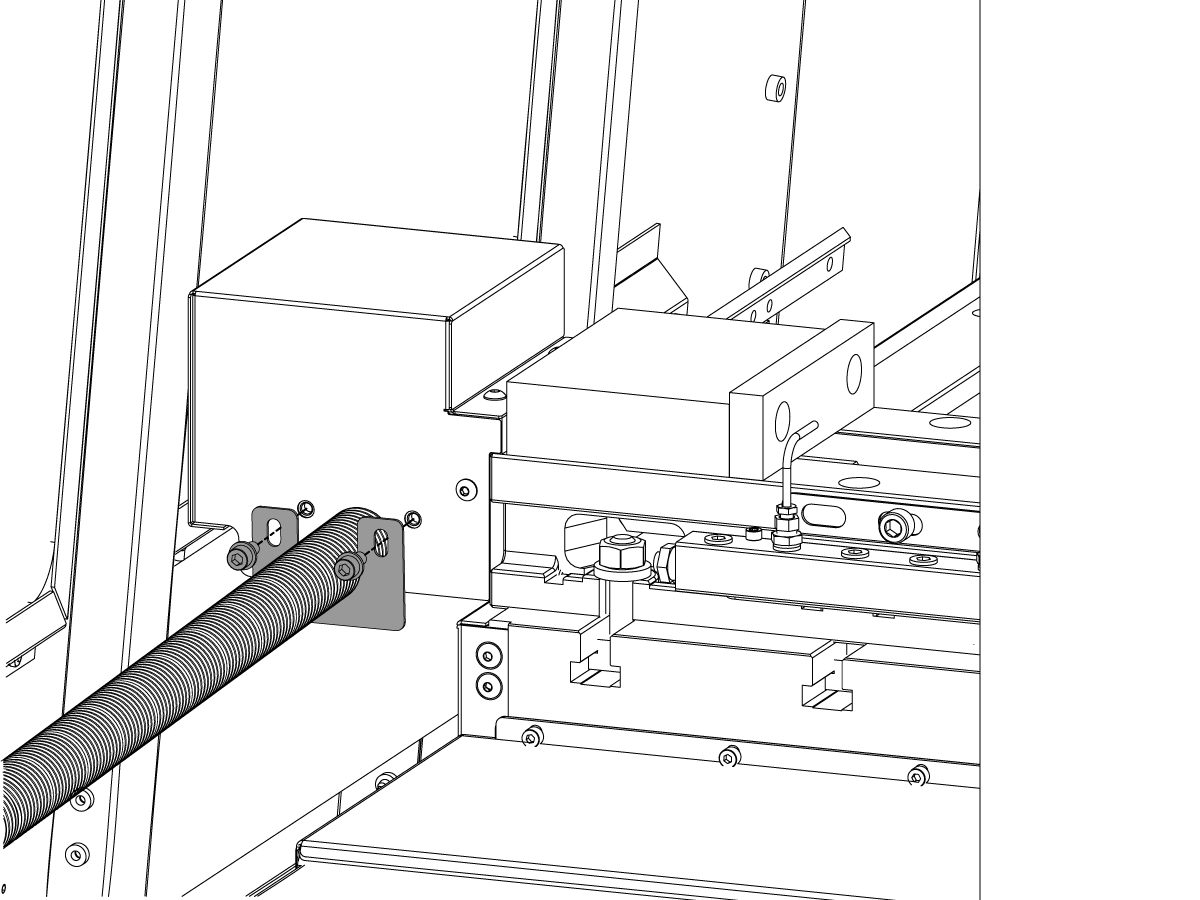
Clamp the conduit to the E-Vise body.

Verify that there is enough slack in the conduit when at the far end of travel of the X-axis and Y-axis. Verify that the conduit isn't caught between the table and sheet metal when at the close end of travel of the X-axis and Y-axis.

Parameters and Firmware Updates

1

Turn on the machine.

Go into Service Mode and set parameter 9011.001 CAN NODE 11 (EVISE) ENABLE to TRUE.

Go to the Diagnostics > System tab. Verify that you have:

  • Software version 100.21.000.1100 or higher
  • I/O Firmware 4.10 or higher
  • E-Vise Firmware 1.29 or higher
  • TC Firmware 2.06 or higher

Refer to the following procedures:

  • Software Update - (Option 2) - NGC
  • I/O PCB, Regen Vector Drive, Auto Door Firmware - Update - NGC

E-Vise - Setup

1

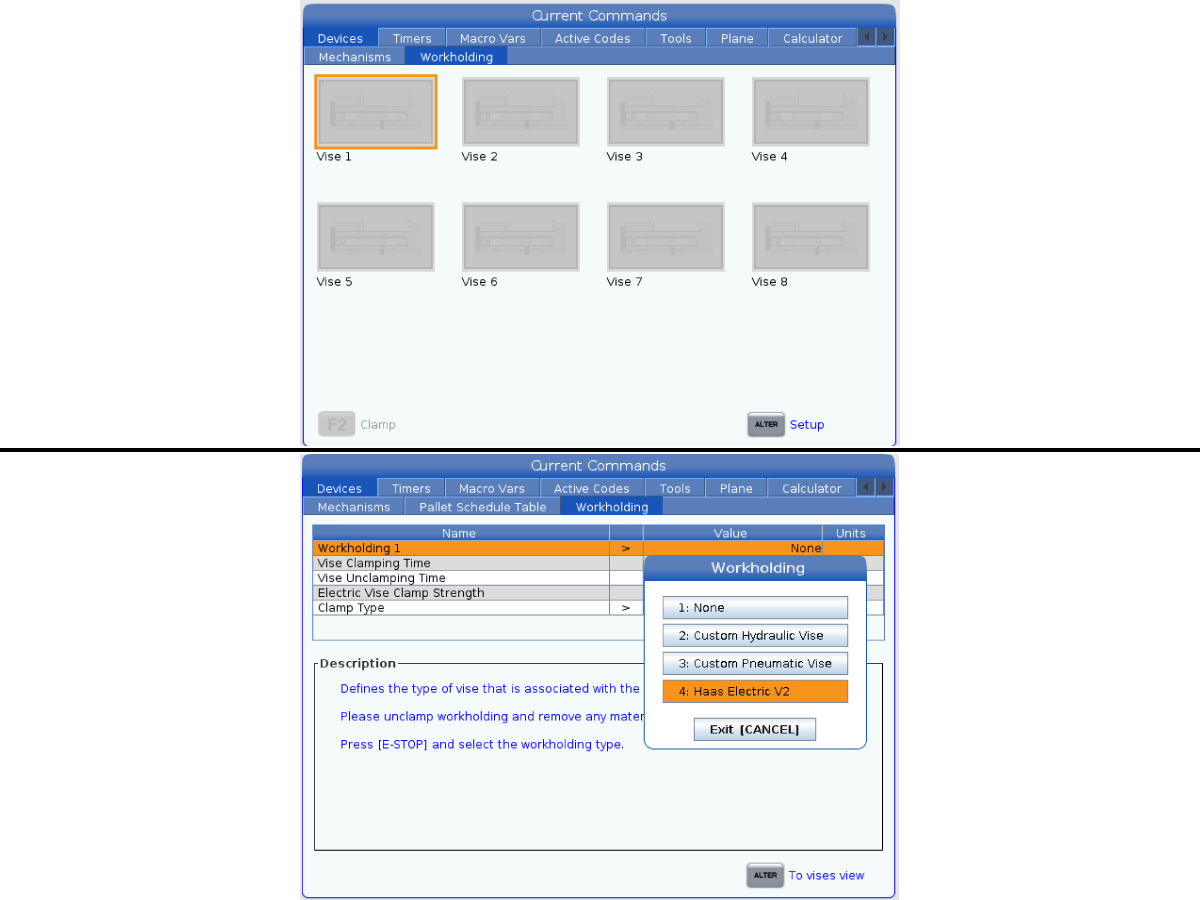
Press [CURRENT COMMANDS] and navigate to Devices > Workholding > Vise 1.

Press [ALTER] to setup the vise

Press [E-Stop] and select 4: Haas Electric V2

Press [ALTER] to go back to the vises view

Press [F2] to clamp/unclamp the vise in the Workholding tab


E-Vise - Air Blast

1

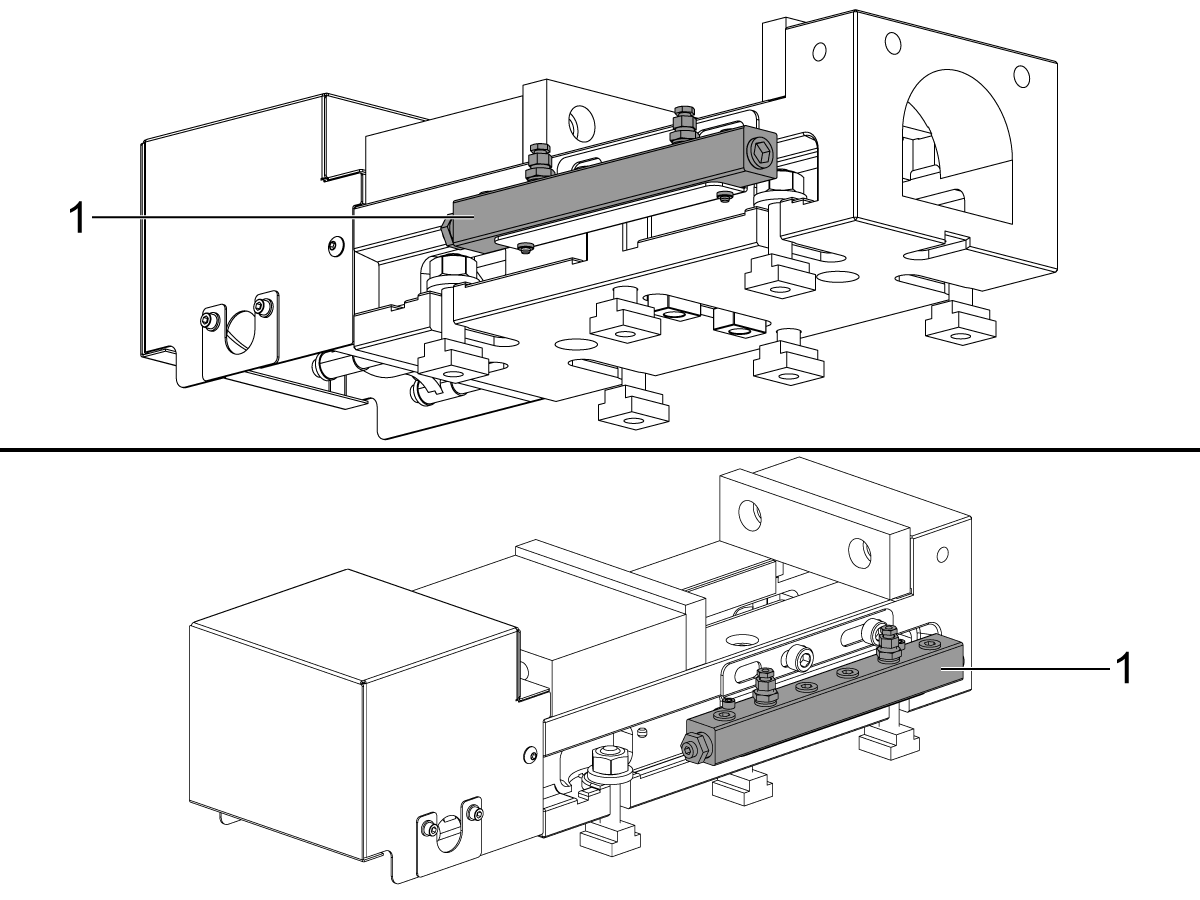
Follow these steps for the E-Vise - Air Blast

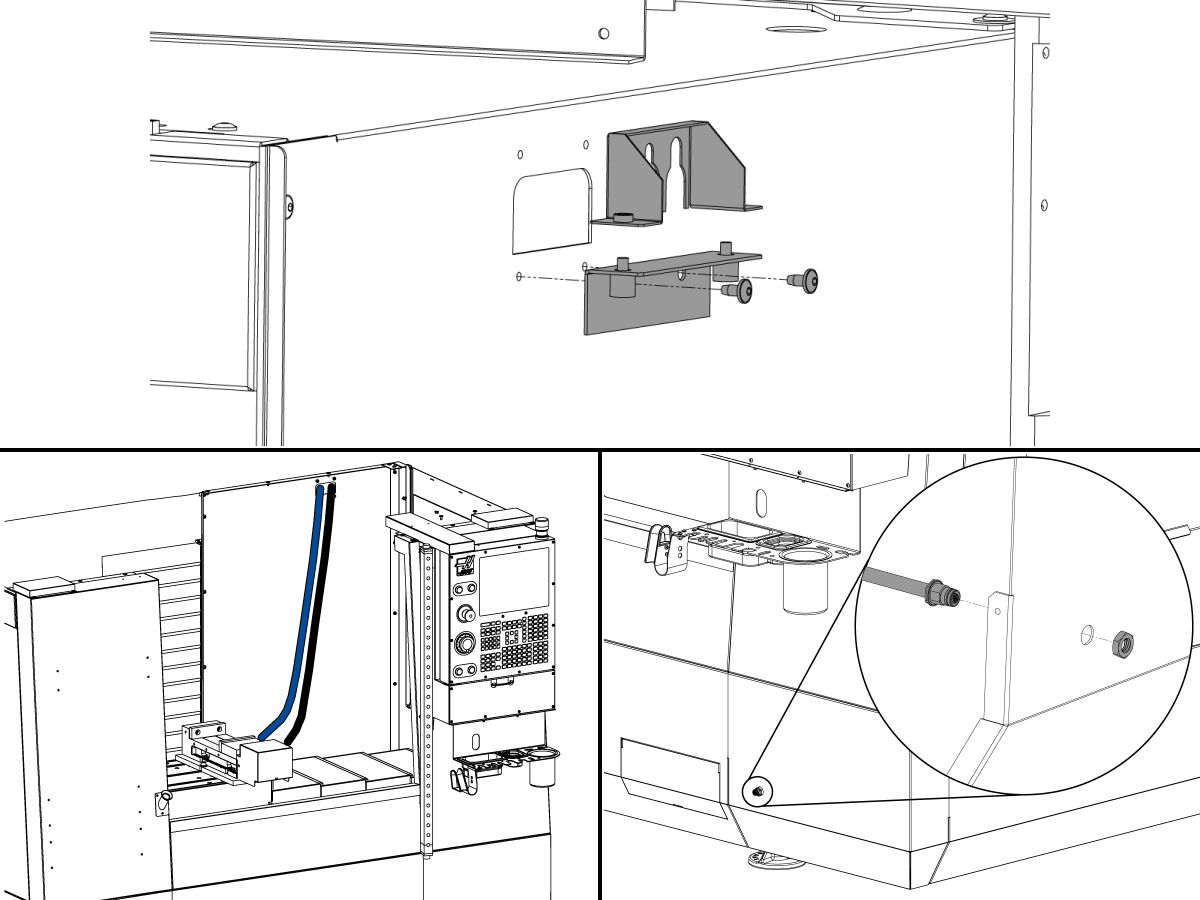
Attach the air blast manifold [1] to the E-Vise as shown, use the hardware provided.

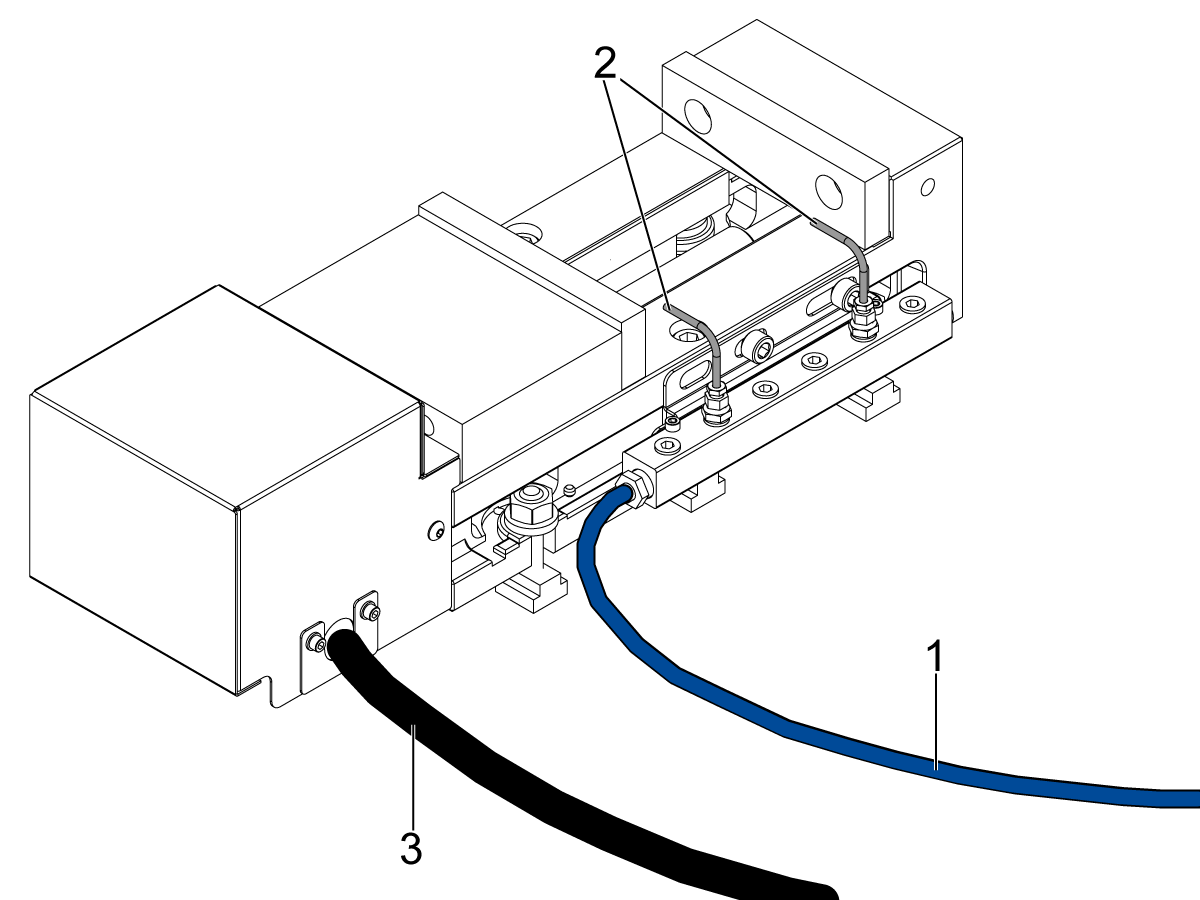
2

Route the air blast hose [1]  to the manifold from the solenoid in the lube panel and attach as shown.

Attach the air blast hoses [2] to the air blast manifold where needed.

3

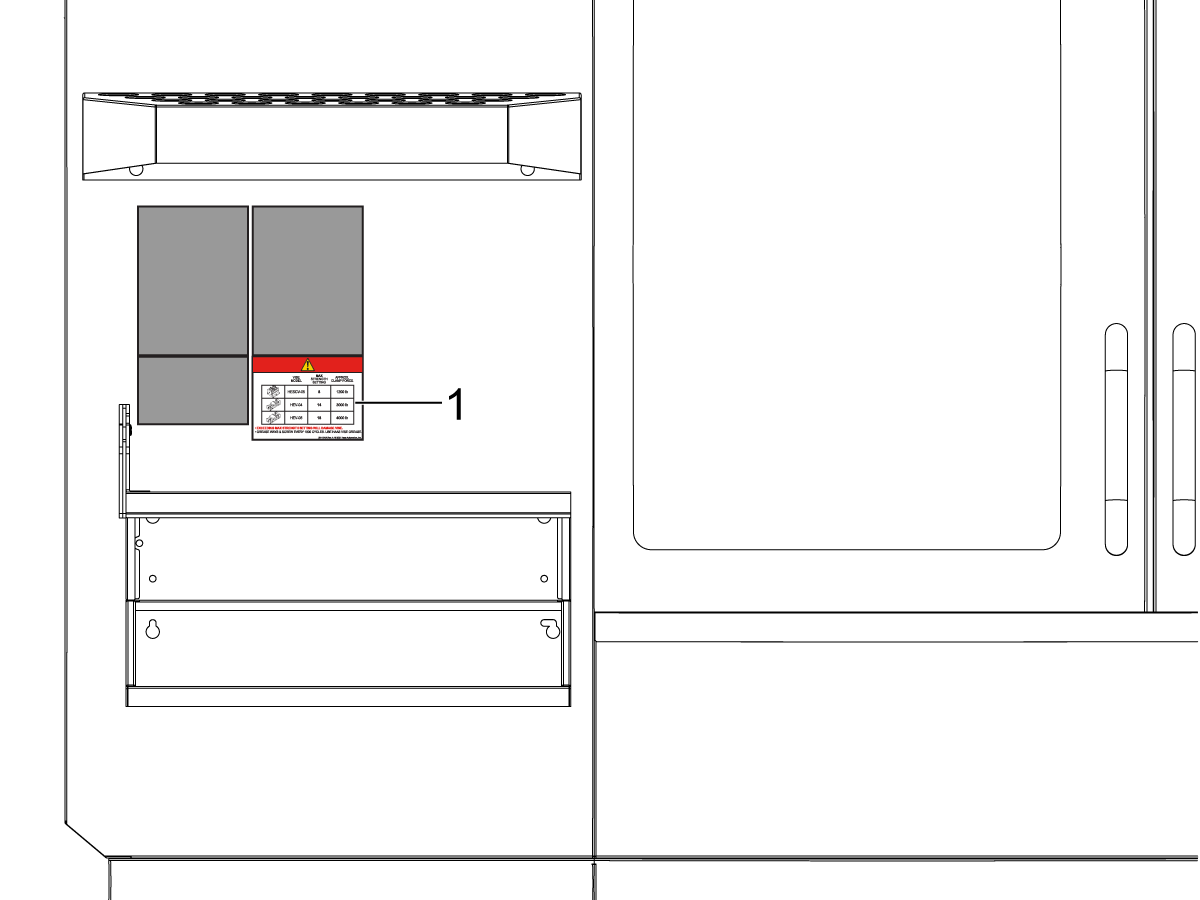
Place the e-vise decal [1] on the front of the machine as shown.

E-Vise - Electrical Diagram

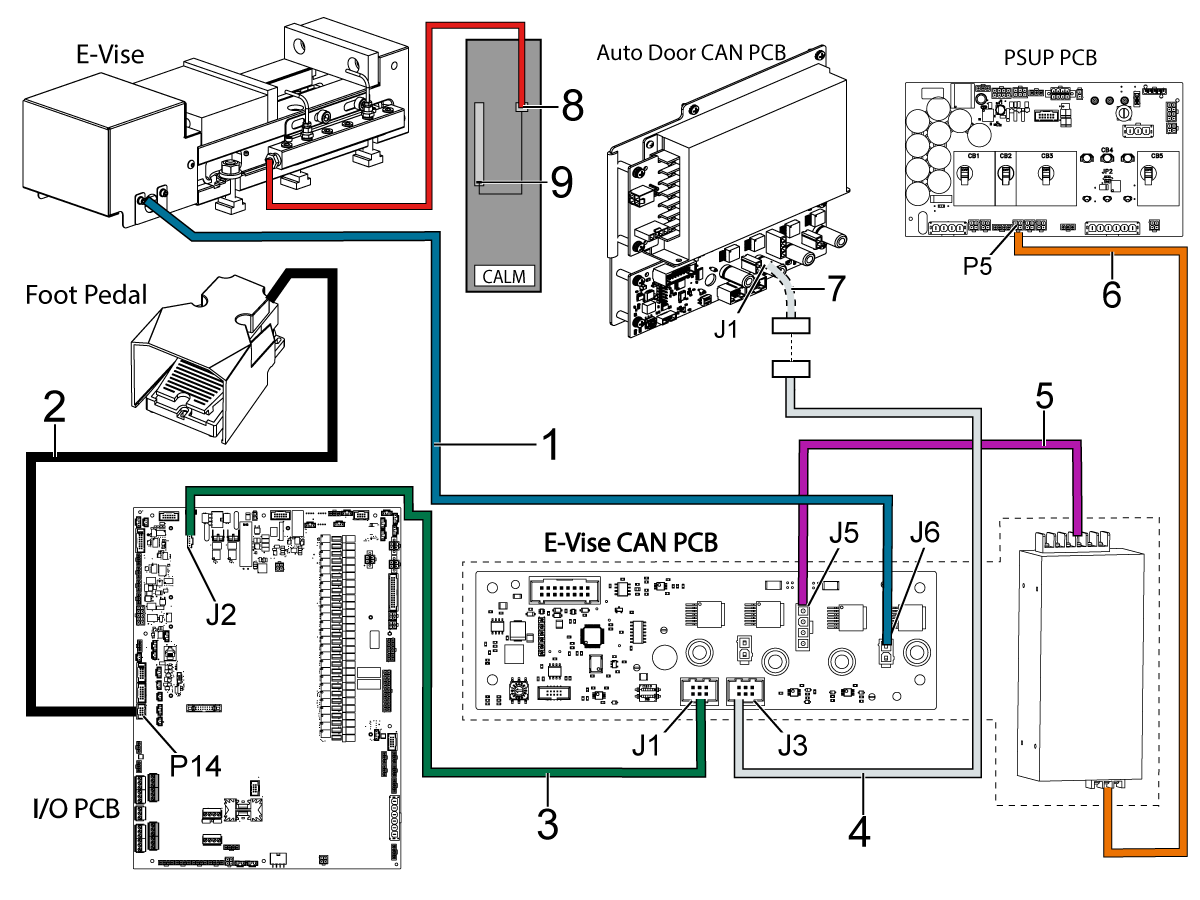
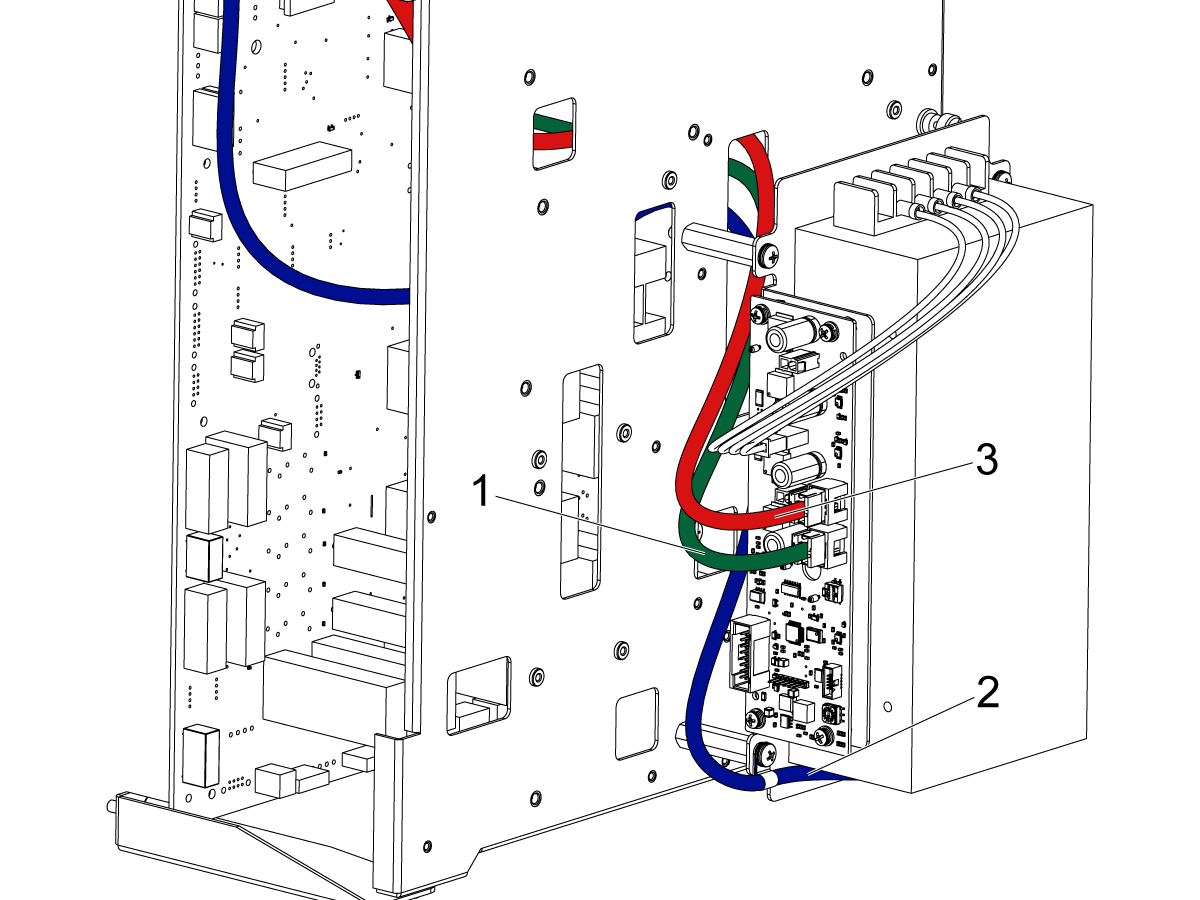
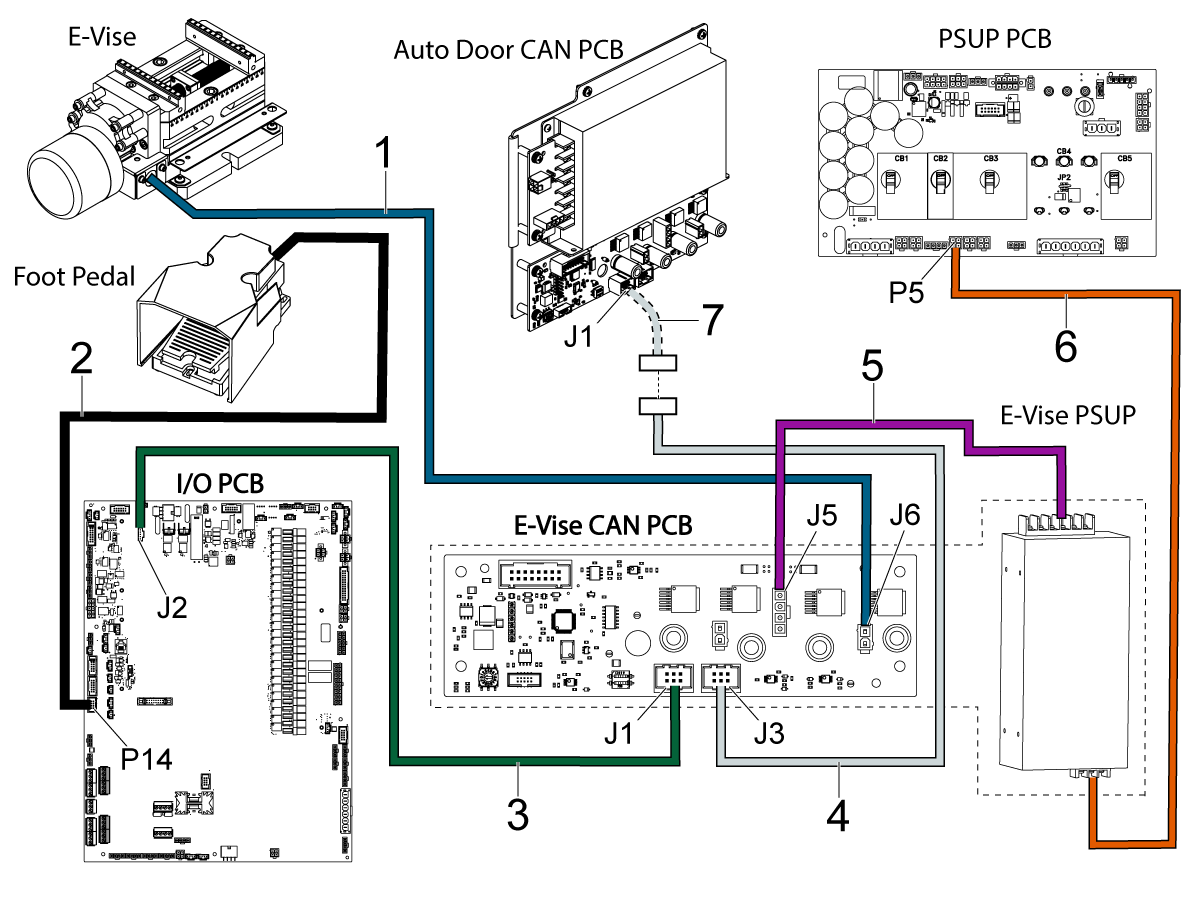
Connect cable 33-0645 [1] from J6 on the E-Vise CAN PCB to the E-Vise connector.

Connect cable 32-1390 [2] from P14 on the I/O PCB to the foot pedal.

Connect cable 33-5308 [3] from J1 on the E-Vise CAN PCB to J2 on the I/O PCB.

Note: If the machine is equipped with CAN Auto Door. Unplug cable 33-5310 [7] from J2 on the I/O PCB. Connect cable 33-5400 [4] from J3 on the E-Vise CAN PCB to cable 33-5310 [7] plugged into J1 on the Auto Door CAN PCB. If it does not have CAN Auto Door, coil the cable and zip tie it to the I/O Hinge Door.

Note: Cable 33-0647 is wired from the factory. For reference only.

Connect cable 33-0644 [6] from the E-Vise PSUP to P5 on the PSUP PCB.

Note: If there is a cable plugged into P5, unplug it and plug it into the pigtail connection on cable 33-0644.

Solenoid 30-13226 - Air Blast:

Remove a NPT plug from the air manifold inside the lubrication cabinet and install the solenoid to the air manifold into the PROGRAMMABLE AIR BLAST SOLENOID [8] location shown.

Connect the black hose to the solenoid.

Plug the solenoid into the PALLET AIR BLAST/PROGRAMMABLE AIR molex connector [9].

 Note: The air lube cable part number will determine where this solenoid connects to:

  • If 33-9085A, plug the solenoid into the TAB UNION SOL connector.
  • If 33-9085C, plug the solenoid into the PALLET AIR BLAST connector.
  • If 33-9085D or 33-9085F, plug the solenoid into the PALLET AIR BLAST/PROGRAMMABLE AIR connector.

4.2 E-Vise Ready - Installation

Recently Updated

E-Vise Ready - Installation


AD0523

Introduction

This product has been discontinued, documentation is for reference only.

This procedure will show you how to install E-Vise Ready on a VMC machine.

Machine Requirements

  • Note: If the I/O hinge door is already installed, check that it has the CAN system hole pattern.
  • Software version 100.21.000.1100 or higher
  • I/O PCB 34-349xB or higher
  • I/O Firmware 4.10 or higher
  • E-Vise Firmware 1.30
  • TC Firmware 2.06 or higher 

 Important: The E-Vise Ready option is NOT COMPATIBLE with machines with the TAB option built before June 2019.

This Kit Applies to the Following Service Kits

  • 93-1000650: E-VISE READY FIELD INSTALL KIT SMALL
  • 93-1000790: E-VISE READY FIELD INSTALL KIT MED VF
  • 93-1000791: E-VISE READY FIELD INSTALL KIT LARGE VF

To install the Haas E-Vise use the following procedure. E-Vise - Field Install Kit

Install E-Vise CAN PCB

1

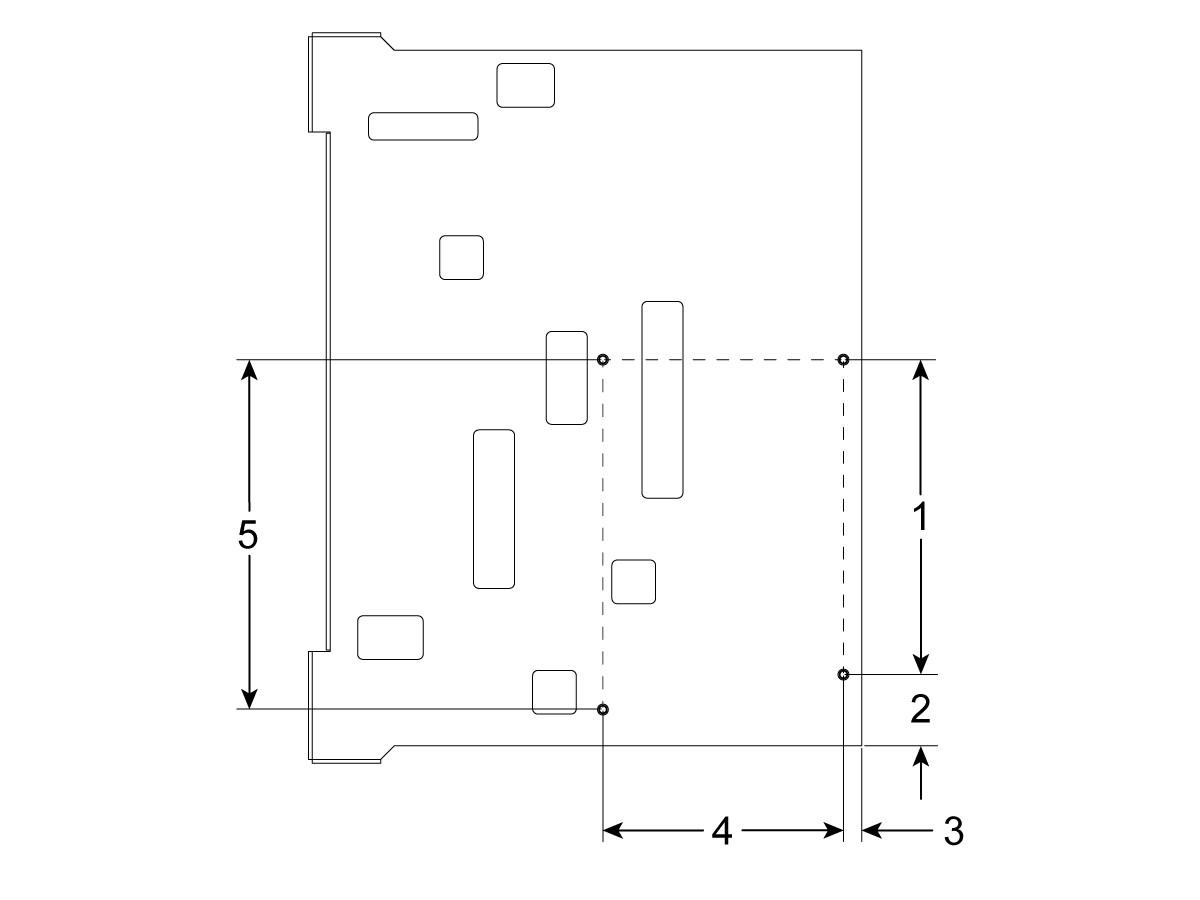
If a I/O hinge door is already installed, check that it has the CAN system hole pattern. If not, you can modify your existing hinge door with the hole pattern dimensioned in the drawing.

  • [1] 7.2"
  • [2] 1.718"
  • [3] 0.51"
  • [4] 5.5"
  • [5] 8.0"

2

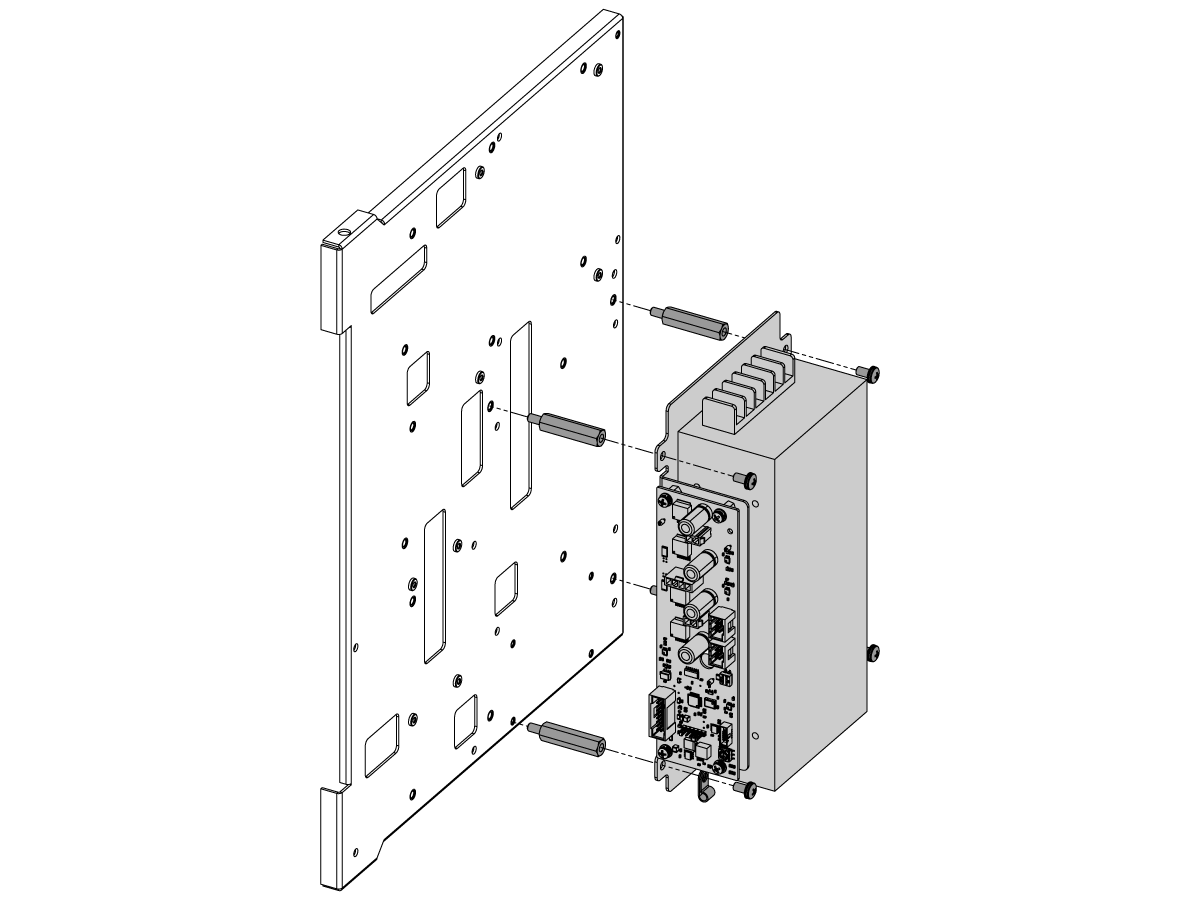
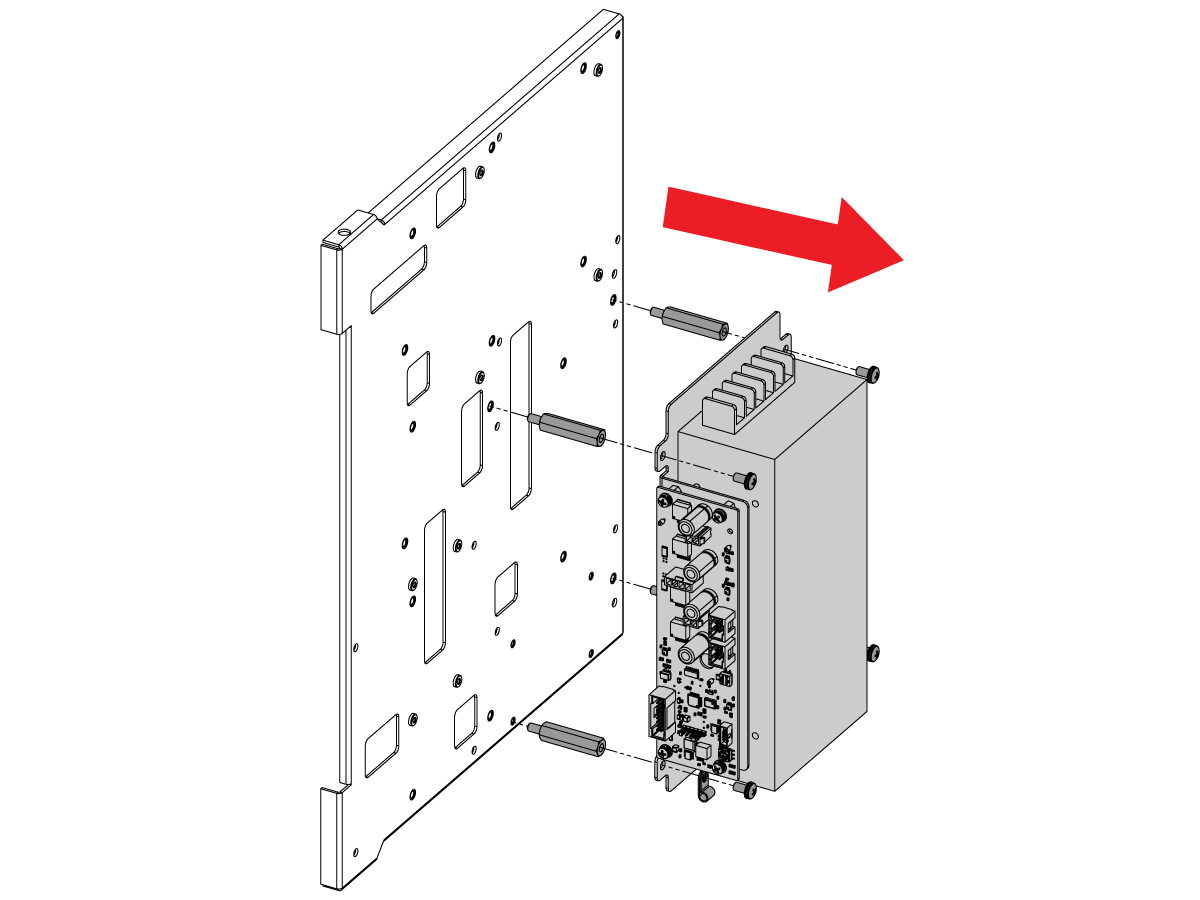
Use the supplied standoffs, cable clamp, and screws to mount the can board to the I/O hinge door.

3

Route the cables behind the E-vise CAN PCB through the hinged I/O door.


33-5308 [1] E-Vise CAN PCB to I/O PCB

33-0644 [2] E-Vise CAN PSUP to PSUP PCB

33-5400 [3] E-Vise CAN PCB to Smart CAN Auto Door PCB

E-Vise Ready - Electrical Installation

1

Install the conduit clamp to the access hole sheet metal of the machine.

Route cable 33-0645 from J6 on the E-Vise CAN PCB to the E-Vise connector. 

Drill a 5/8" hole in the front skirt below the pendant to install the foot pedal cable.

Route cable 32-1390 from P14 on the I/O PCB to the front skirt of the machine to connect to the foot pedal

Air Blast:

The cable from the air blast solenoid goes to the air blast manifold on the E-Vise, route the cable along the same path as the E-Vise cable.

2

Connect cable 33-0645 [1] from J6 on the E-Vise CAN PCB to the E-Vise connector.

Connect cable 32-1390 [2] from P14 on the I/O PCB to the foot pedal.

Connect cable 33-5308 [3] from J1 on the E-Vise CAN PCB to J2 on the I/O PCB.

Note: If the machine is equipped with CAN Auto Door. Unplug cable 33-5310 [7] from J2 on the I/O PCB. Connect cable 33-5400 [4] from J3 on the E-Vise CAN PCB to cable 33-5310 [7] plugged into J1 on the Auto Door CAN PCB. If it does not have CAN Auto Door, coil the cable and zip tie it to the I/O Hinge Door.

Note: Cable 33-0647 is wired from the factory. For reference only.

Connect cable 33-0644 [6] from the E-Vise PSUP to P5 on the PSUP PCB.

Note: If there is a cable plugged into P5, unplug it and plug it into the pigtail connection on cable 33-0644.

Solenoid 30-13226 - Air Blast:

Remove a NPT plug from the air manifold inside the lubrication cabinet and install the solenoid to the air manifold into the PROGRAMMABLE AIR BLAST SOLENOID [8] location shown.

Connect the black hose to the solenoid.

Plug the solenoid into the PALLET AIR BLAST/PROGRAMMABLE AIR molex connector [9].

 Note: The air lube cable part number will determine where this solenoid connects to:

  • If 33-9085A, plug the solenoid into the TAB UNION SOL connector.
  • If 33-9085C, plug the solenoid into the PALLET AIR BLAST connector.
  • If 33-9085D or 33-9085F, plug the solenoid into the PALLET AIR BLAST/PROGRAMMABLE AIR connector.

3

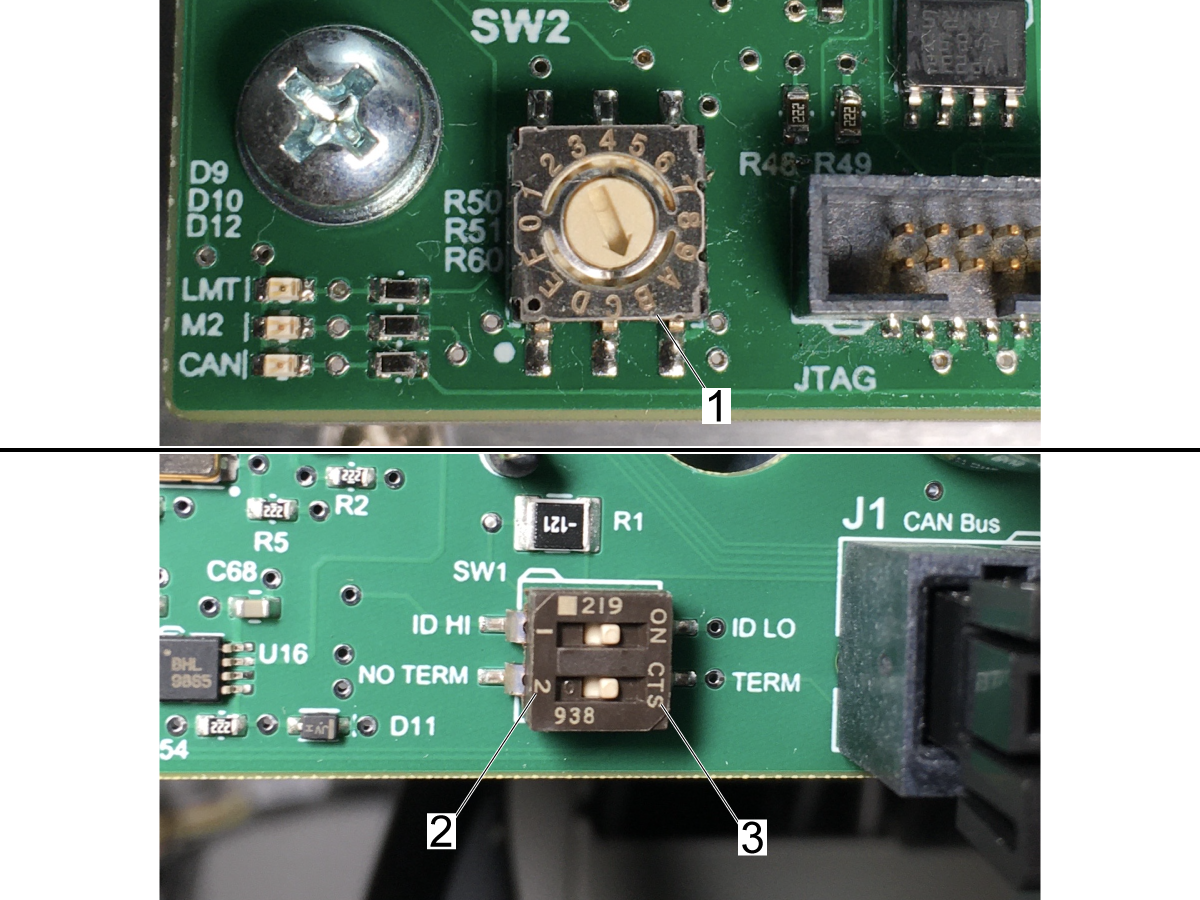
The CAN node selector should be set to B [1].

If the machine is equipped with CAN Auto Door, the termination should be set to NO TERM [2]. If the machine does not have CAN Auto Door, the termination should be set to TERM [3]. 

4.3 E-Vise LVPS - Replacement

Recently Updated

E-Vise LVPS - Replacement


AD0589

Introduction

This product has been discontinued, documentation is for reference only.

This procedure oulines how to replace the E-Vise LVPS and PCB assembly.

Note: This procedure is only the the E-Vise LVPS and PCB replacement, refer to the E-Vise Field Install and E-Vise Ready Install procedures for the field install instructions.

This procedure applies to the following service kit:

  • 93-3270: CAN E-VISE ELECTRICAL ASSEMBLY KIT 2020

Removal

1

Remove the old e-vise power supply and PCB assembly from the I/O hinge door.

Replacement

1

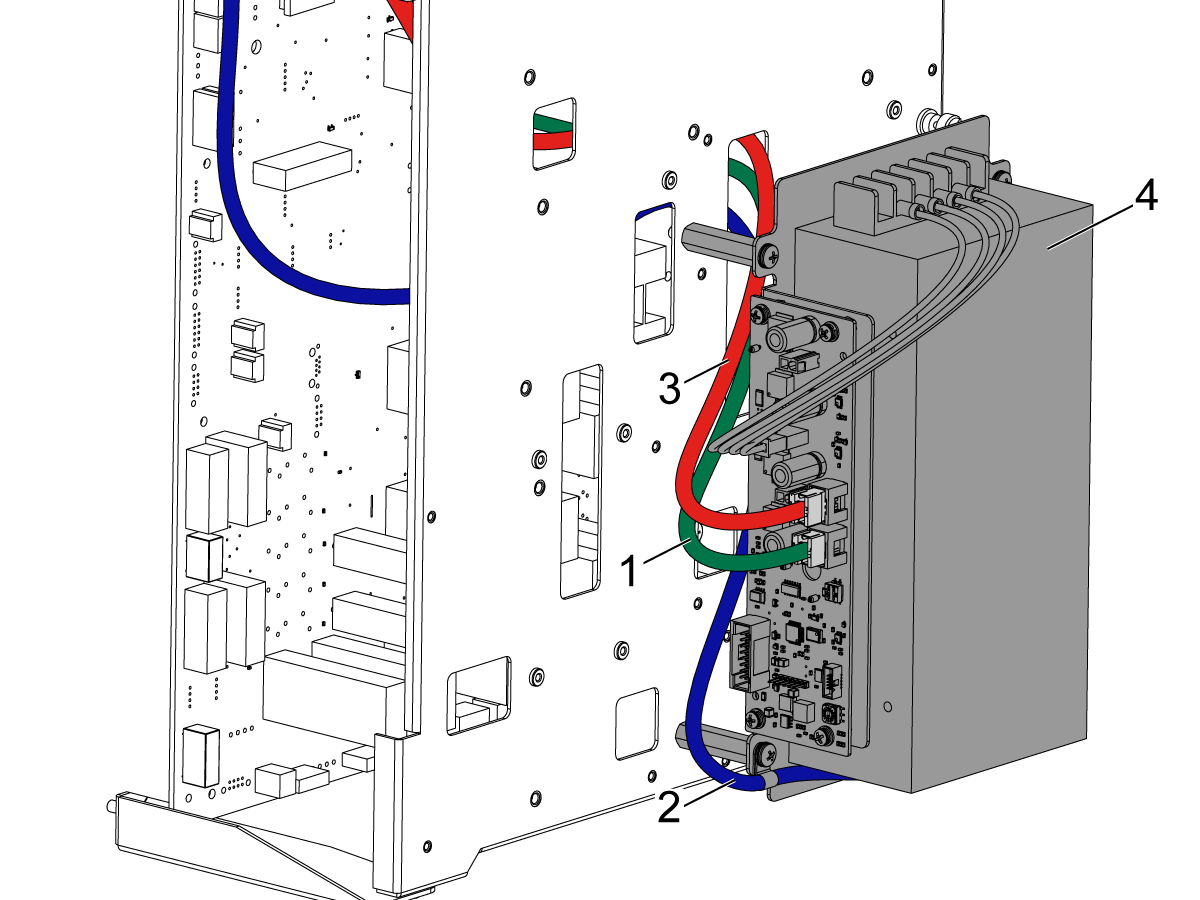
Install the power supply and PCB assembly [4] to the I/O hinge door.

Connect the cables to the new e-vise power supply and PCB assembly as they were to the old assembly:

33-5308 [1] E-Vise CAN PCB to I/O PCB

33-0644 [2] E-Vise CAN PSUP to PSUP PCB

33-5400 [3] E-Vise CAN PCB to Smart CAN Auto Door PCB

2

Verify that all cables for the CAN device(s) are correct.

Connect cable 33-0645 [1] from J6 on the E-Vise CAN PCB to the E-Vise connector.

Connect cable 32-1390 [2] from P14 on the I/O PCB to the foot pedal.

Connect cable 33-5308 [3] from J1 on the E-Vise CAN PCB to J2 on the I/O PCB.

 Note: If the machine is equipped with CAN Auto Door. Unplug cable 33-5310 [7] from J2 on the I/O PCB. Connect cable 33-5400 [4] from J3 on the E-Vise CAN PCB to cable 33-5310 [7] plugged into J1 on the Auto Door CAN PCB. If it does not have CAN Auto Door, coil the cable and zip tie it to the I/O Hinge Door.

 Note: Cable 33-0647 is wired from the factory. For reference only.

Connect cable 33-0644 [6] from the E-Vise PSUP to P5 on the PSUP PCB.

 Note: If there is a cable plugged into P5, unplug it and plug it into the pigtail connection on cable 33-0644.

4.4 E-Vise 5in Screw - Replacement

Recently Updated

E-Vise Screw - 5 inch - Replacement


AD0596

Introduction

This product has been discontinued, documentation is for reference only.

This procedure outlines how to replace the screw and nuts on the 5 inch E-Vise.

This procedure applies to the following kit:

  • 93-3434: E-VISE 5 INCH SCREW SERVICE KIT

Removal

1

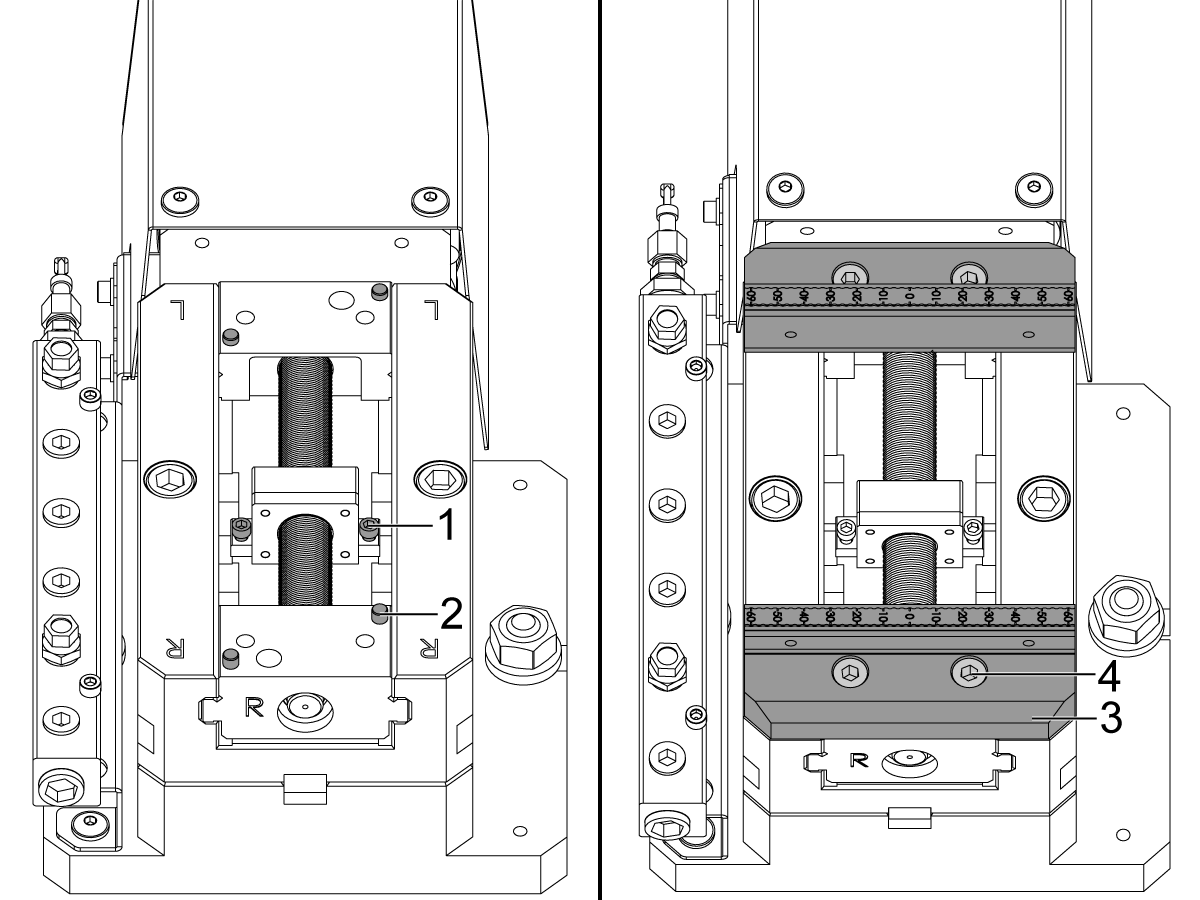
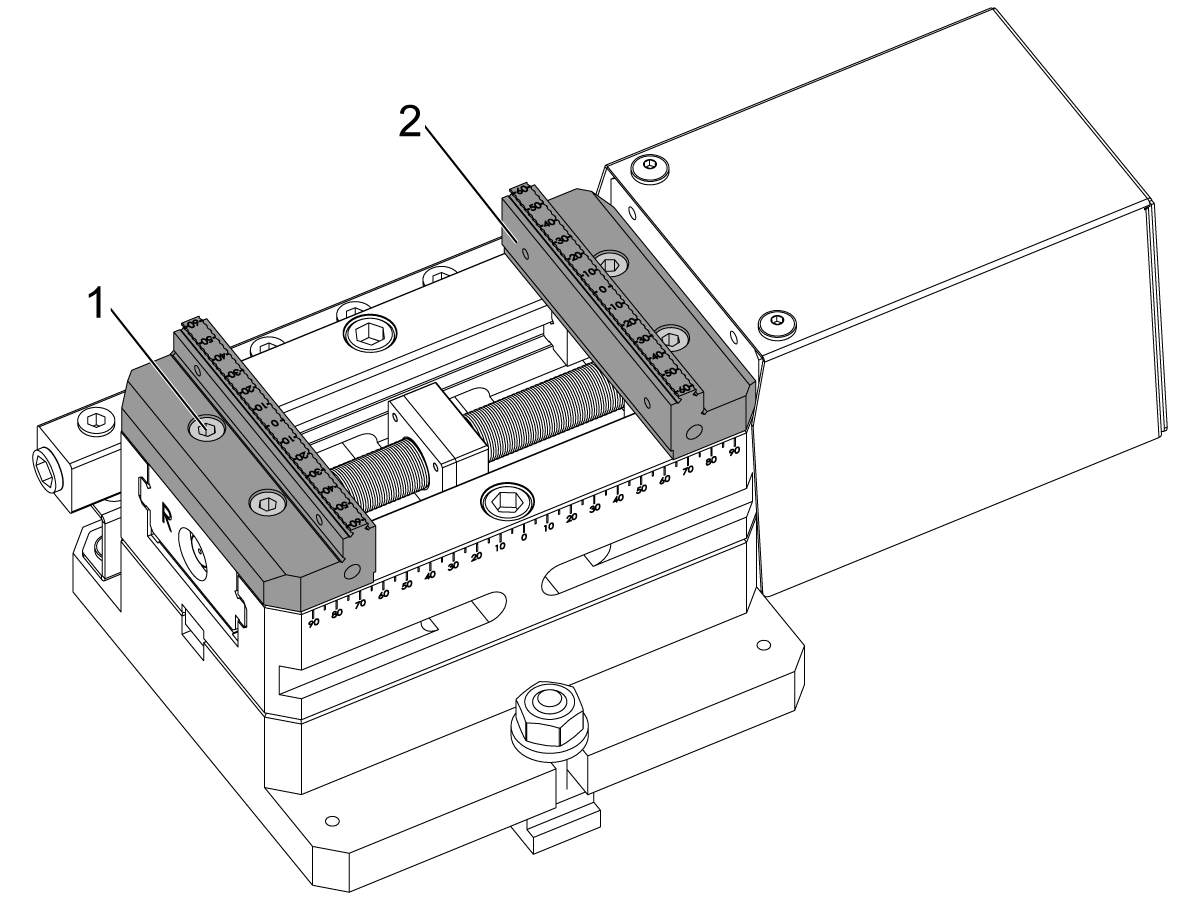
Remove the bolts [1] from the jaws.

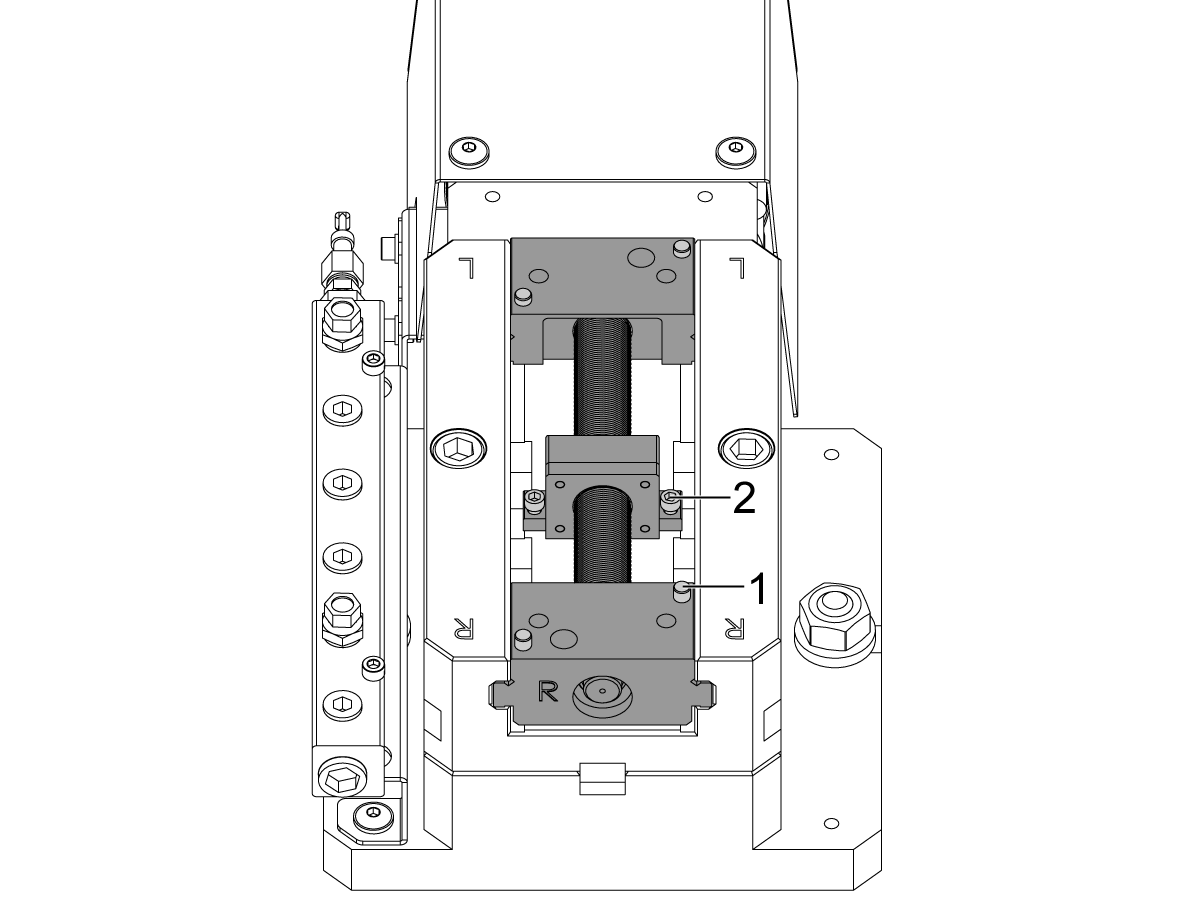
Pry off the vise jaws [2].

2

Remove the pins notated as [1]. Save these as they will be reused later.

Remove the bolts [2] from the middle bracket.

Slide the screw and nut assembly out of the vise.

3

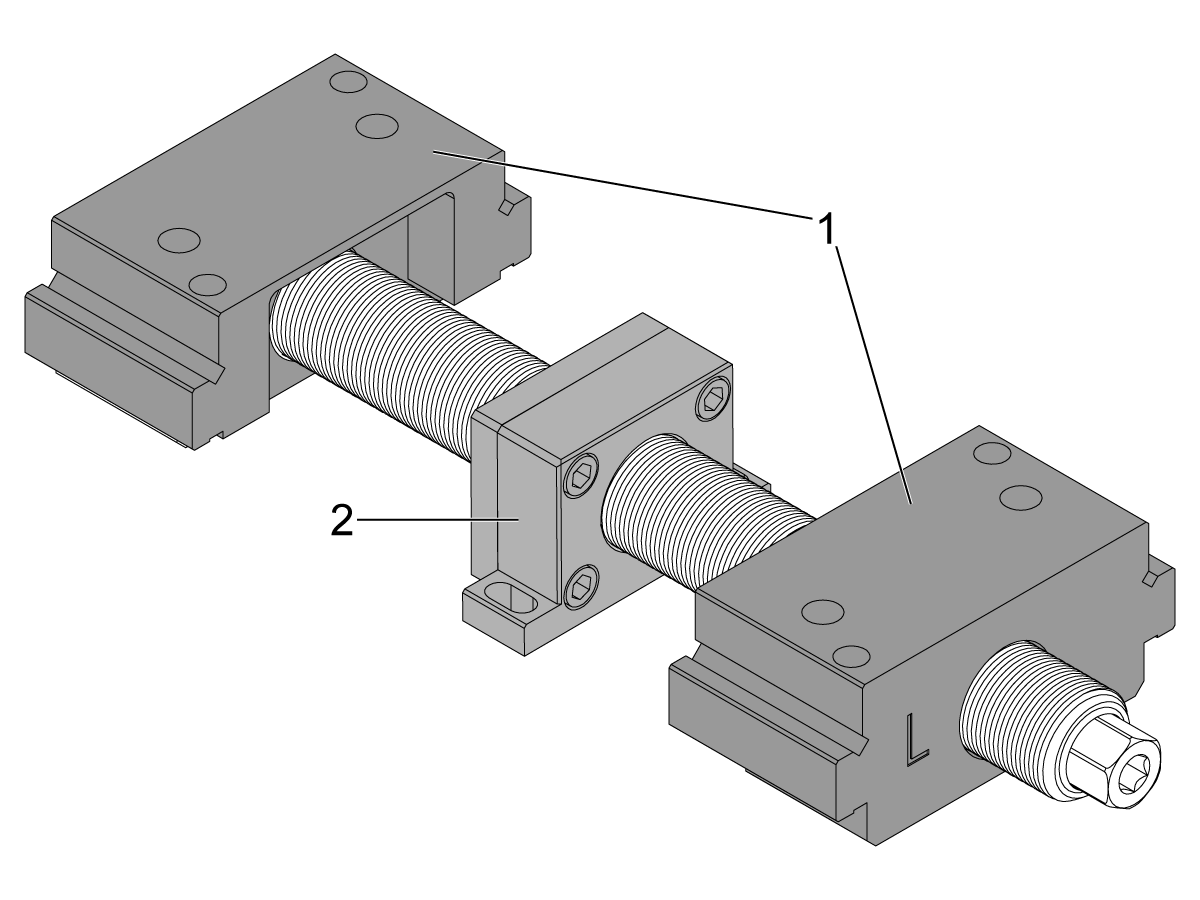
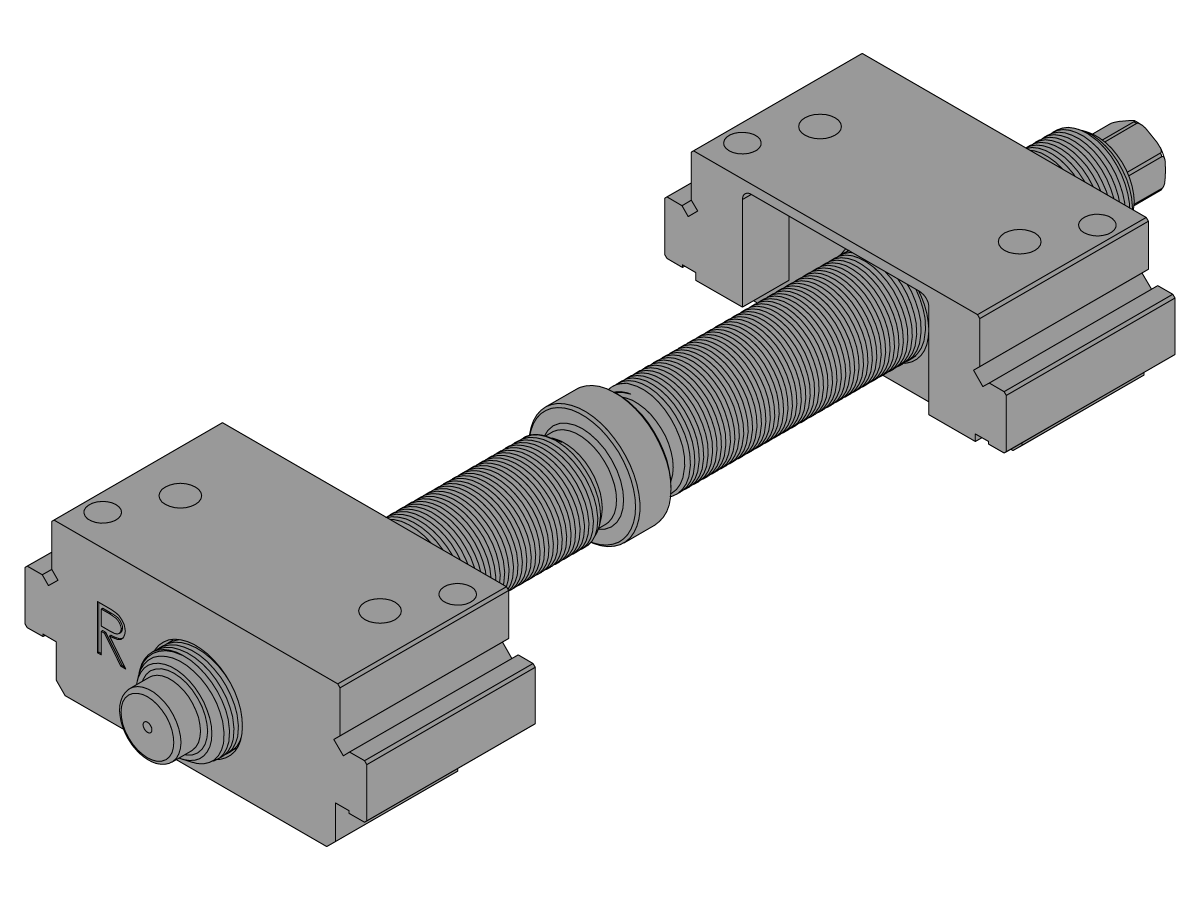
Unscrew the nuts [1] off of the screw.

Take off the bolts and remove the center bracket [2].

Note: Keep the center block assembly as it will be reused later.

Replacement

1

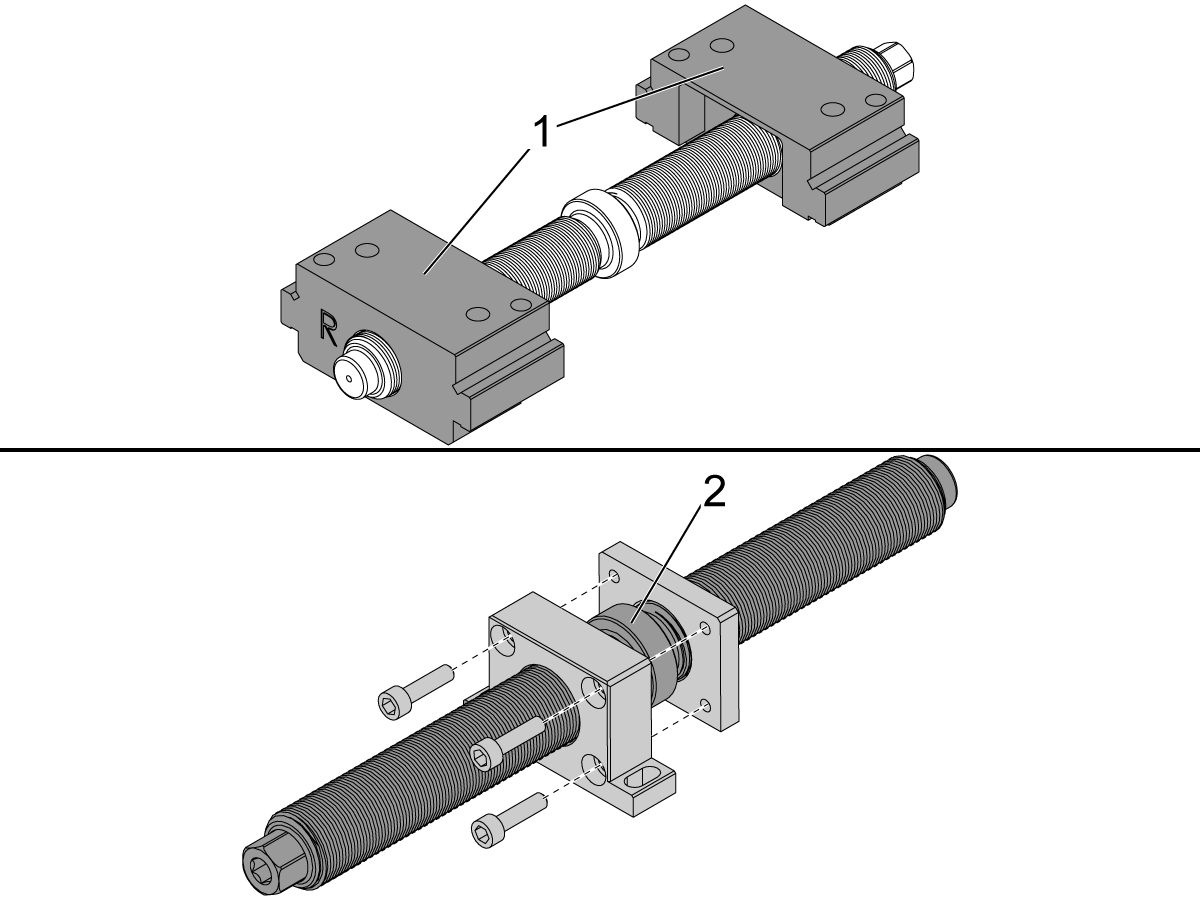
Remove the nuts [1] from the new screw.

Add molybdenum grease to the center [2] of the new screw.

 Note: Use the molybdenum grease that came with the e-vise.

Attach the center block assembly to the new screw as shown.

2

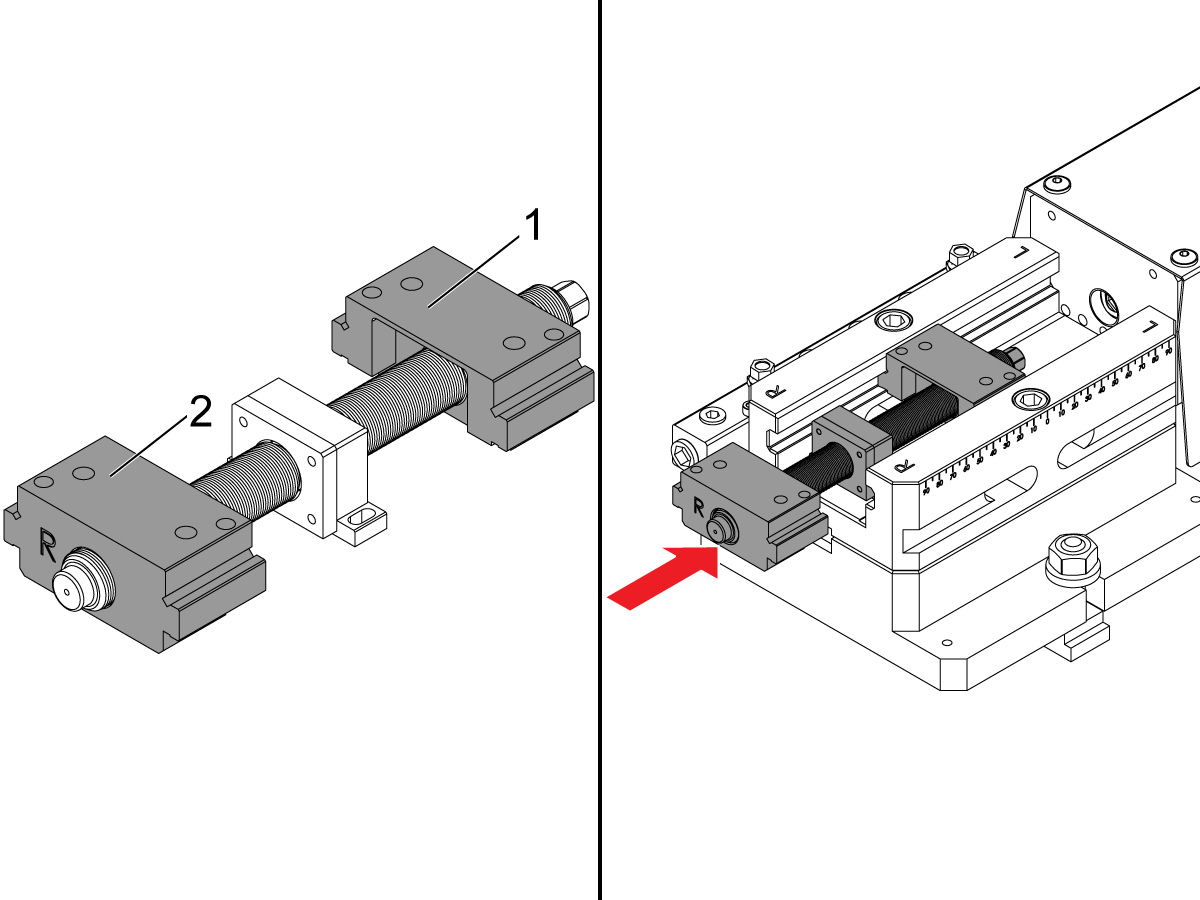
Reattach the left nut [1] to the new screw on the hexed side.

Reattach the right nut [2] to the otherside of the new screw.

Slide the new screw and nut assembly on the vise in the direction shown.

3

Screw in the bolts for the center bracket assembly [1].

Reinsert the pins [2] as shown.

Line the jaws [3] up with the pins and screw in the bolts [4] to secure the jaws.

Verification

Press [CURRENT COMMANDS] and navigate to the E-Vise under Devices > Workholding.

Press [F2] to clamp/unclamp the vise to make sure the vise actuates correctly.

Feedback

Recently Viewed Items

You Have No Recently Viewed Items Yet

Feedback
Haas Logo

Haas Delivered Price

This price includes shipping cost, export and import duties, insurance, and any other expenses incurred during shipping to a location in France agreed with you as a buyer. No other mandatory costs can be added to the delivery of a Haas CNC Product.

KEEP UP WITH THE LATEST HAAS TIPS AND TECHNOLOGY...

Sign up now!   

HAAS TOOLING ACCEPTS THE FOLLOWING:

  • Service & Support
  • Owners
  • Request Service
  • Operator Manuals
  • Haas Parts
  • Rotary Repair Request
  • Pre-Install Guides
  • Shopping Tools
  • Build & Price a New Haas
  • Available Inventory
  • The Haas Price List
  • CNCA Financing
  • About Haas
  • Accessibility Statement
  • DNSH Statement
  • Export Compliance
  • Careers
  • Certifications & Safety
  • Contact Us
  • History
  • Terms & Conditions
  • Haas Tooling Terms & Conditions
  • Privacy
  • Warranty
  • Haas Community
  • Haas Certification Program
  • Haas Motorsports
  • Gene Haas Foundation
  • Haas Technical Education Community
  • Events
  • Join the Conversation
  • Facebook
  • X
  • Flickr
  • YouTube
  • LinkedIn
  • Instagram
  • TikTok
© 2026 Haas Automation, Inc – CNC Machine Tools
This site is protected by reCAPTCHA and the Google Privacy Policy and Terms of Service apply.

2800 Sturgis Rd., Oxnard, CA 93030
Toll Free: (888) 817-4446 / Fax: 805-278-8554