My Haas Welcome,
!
Haas Tooling MyHaas/HaasConnect Sign In Register Haas Tooling MyHaas/HaasConnect Sign Out Welcome, My Machines Latest Activity My Quotes My Account My Users Sign Out
Find Your Distributor
  1. Select Language
    1. English
    2. Deutsch
    3. Español - España
    4. Español - México
    5. Français
    6. Italiano
    7. Português
    8. Český
    9. Dansk
    10. Nederlands
    11. Magyar
    12. Polski
    13. Svenska
    14. Türkçe
    15. 中文
    16. Suomi
    17. Norsk
    18. الإنجليزية
    19. български
    20. Hrvatski
    21. Ελληνικά
    22. Română
    23. Slovenský
    24. Slovenščina
    25. 한국어
    26. 日本語
    27. Українська
  • machines Main Menu
    • Vertical Mills
      Vertical Mills
      Vertical Mills View All
      • Vertical Mills
      • VF Series
      • Universal Machines
      • VR Series
      • VP-5 Prismatic
      • Pallet-Changing VMCs
      • Mini Mills
      • Mold Machines
      • High-Speed Drill Centers
      • Drill/Tap/ Mill Series
      • Toolroom Mills
      • Pocket Mill
      • Compact Mills
      • Gantry Series
      • SR Sheet Routers
      • Extra-Large VMC
      • Double-Column Mills
      • 3+2 Positioning Machines
    • Multi-Axis Solutions
      Multi-Axis Solutions
      Multi-Axis Solutions View All
      • Multi-Axis Solutions
      • Y-Axis Lathes
      • 5-Axis Mills
    • Lathes
      Lathes
      Lathes View All
      • Lathes
      • ST Series
      • Dual-Spindle
      • Box Way Series
      • Toolroom Lathes
      • Chucker Lathe
      • Haas Bar Feeders
    • Horizontal Mills
      Horizontal Mills
      Horizontal Mills View All
      • Horizontal Mills
      • 50-Taper
      • 40-Taper
    • Rotaries & Indexers
      Rotaries & Indexers
      Rotaries & Indexers View All
      • Rotaries & Indexers
      • Rotary Tables
      • Indexers
      • 5-Axis Rotaries
      • Extra-Large Rotaries
    • Special Series
      Special Series
      Special Series View All
      • Special Series
      • EU_Series_Redirect
    • Automation Systems
      Automation Systems
      Automation Systems View All
      • Automation Systems
      • Mill Automation
      • Lathe Automation
      • Automatic Parts Loaders
      • Automation Models
    • Desktop Machines
      Desktop Machines
      Desktop Machines View All
      • Desktop Machines
      • Desktop Mill
      • Desktop Lathe
      • Control Simulator, Standard
      • Control Simulator, Premium
    • Shop Equipment
      Shop Equipment
      Shop Equipment View All
      • Shop Equipment
      • Knee Mill
      • Haas Manual Lathes
      • Haas Saws
    • Fabrication Machines
      Fabrication Machines
      Fabrication Machines View All
      • Fabrication Machines
      • Laser Cutting Machines
      • CNC Press Brakes
    • QUICK LINKS Special Series  Special Series 
      EU SERIES EU SERIES BUILD & PRICE | PRICE LIST BUILD & PRICE | PRICE LIST In-Stock Machines In-Stock Machines WHAT’S NEW WHAT’S NEW YOUR FIRST CNC YOUR FIRST CNC
      SHOPPING TOOLS
      • Build & Price a Haas
      • Price List
      • Available Inventory
      • CNCA Financing
      WANT TO TALK TO SOMEONE?

      A Haas Factory Outlet (HFO) can answer your questions, and walk you through your best options.

      CONTACT YOUR DISTRIBUTOR >
  • Options Main Menu
    • The Haas Control Value Option Packages
      Value Option Packages
      Value Option Packages View All
      • Value Option Packages
    • Product Image Spindles
      Spindles
      Spindles View All
      • Spindles
    • Product Image Tool Changers
      Tool Changers
      Tool Changers View All
      • Tool Changers
    • Product Image 4th- | 5th-Axis
      4th- | 5th-Axis
      4th- | 5th-Axis View All
      • 4th- | 5th-Axis
    • Product Image Turrets & Live Tooling
      Turrets & Live Tooling
      Turrets & Live Tooling View All
      • Turrets & Live Tooling
    • Product Image Probing
      Probing
      Probing View All
      • Probing
    • Haas Chip & Coolant Management Chip & Coolant Management
      Chip & Coolant Management
      Chip & Coolant Management View All
      • Chip & Coolant Management
    • The Haas Control The Haas Control
      The Haas Control
      The Haas Control View All
      • The Haas Control
    • Product Image Product Options
      Product Options
      Product Options View All
      • Product Options
    • Product Image Tooling & Fixturing
      Tooling & Fixturing
      Tooling & Fixturing View All
      • Tooling & Fixturing
    • Product Image Workholding
      Workholding
      Workholding View All
      • Workholding
    • Product Image 5-Axis Solutions
      5-Axis Solutions
      5-Axis Solutions View All
      • 5-Axis Solutions
      • 5 Easy Steps to 5-Axis
    • QUICK LINKS Special Series  Special Series 
      EU SERIES EU SERIES BUILD & PRICE | PRICE LIST BUILD & PRICE | PRICE LIST In-Stock Machines In-Stock Machines WHAT’S NEW WHAT’S NEW YOUR FIRST CNC YOUR FIRST CNC
      SHOPPING TOOLS
      • Build & Price a Haas
      • Price List
      • Available Inventory
      • CNCA Financing
      WANT TO TALK TO SOMEONE?

      A Haas Factory Outlet (HFO) can answer your questions, and walk you through your best options.

      CONTACT YOUR DISTRIBUTOR >
  • Why Haas Main Menu
      Discover the Haas Difference
    • Why Haas
    • MyHaas
    • Education Community
    • Industry 4.0
    • Haas Certification
    • Customer Testimonials
  • Service Main Menu
      Welcome to Haas Service
      SERVICE HOME Operator’s Manuals How-To Procedures Troubleshooting Guides Preventive Maintenance Haas Parts Haas Tooling Videos
  • Videos Main Menu
  • Main Menu
    • View All
    • View All
    • View All
    • View All
      • HTEC Curriculum Support
    • View All
      • Haas 10 kg Cobot Package
      • Cobot Kits
      • DC-1 Drill Center
      • CNC Sales News
      • Do More With Your Haas
    • View All
    • View All
      • contact-us-test
      • 4 - AUTOMATION SYSTEMS
      • Carousel-V2
      • expert test
      • Demo_Day_Trident-test
      • Link Test
      • image-sale-tag-test
      • article-list-test
      • Haas 25 kg Robot Package
    • View All
      • Choose Options
    • View All
    • View All
    • View All
    • View All
    • View All
      • calc-test
    • View All
    • QUICK LINKS Special Series  Special Series 
      EU SERIES EU SERIES BUILD & PRICE | PRICE LIST BUILD & PRICE | PRICE LIST In-Stock Machines In-Stock Machines WHAT’S NEW WHAT’S NEW YOUR FIRST CNC YOUR FIRST CNC
      SHOPPING TOOLS
      • Build & Price a Haas
      • Price List
      • Available Inventory
      • CNCA Financing
      WANT TO TALK TO SOMEONE?

      A Haas Factory Outlet (HFO) can answer your questions, and walk you through your best options.

      CONTACT YOUR DISTRIBUTOR >
  • Haas Tooling Main Menu
  • Haas Service Parts Main Menu

My Haas Welcome,
!
Haas Tooling MyHaas/HaasConnect Sign In Register Haas Tooling MyHaas/HaasConnect Sign Out Welcome, My Machines Latest Activity My Quotes My Account My Users Sign Out
Find Your Distributor
  1. Select Language
    1. English
    2. Deutsch
    3. Español - España
    4. Español - México
    5. Français
    6. Italiano
    7. Português
    8. Český
    9. Dansk
    10. Nederlands
    11. Magyar
    12. Polski
    13. Svenska
    14. Türkçe
    15. 中文
    16. Suomi
    17. Norsk
    18. الإنجليزية
    19. български
    20. Hrvatski
    21. Ελληνικά
    22. Română
    23. Slovenský
    24. Slovenščina
    25. 한국어
    26. 日本語
    27. Українська
×

Search Results

Web Pages

Images

    • <
    • 1
    • >

Area Scanner - Software Setup - AD0688

Service Home How To Procedures Area Scanner - Software Setup - AD0688
Recently Updated Last updated: 12/14/2023

Area Scanner - Software Setup


AD0688

Introduction

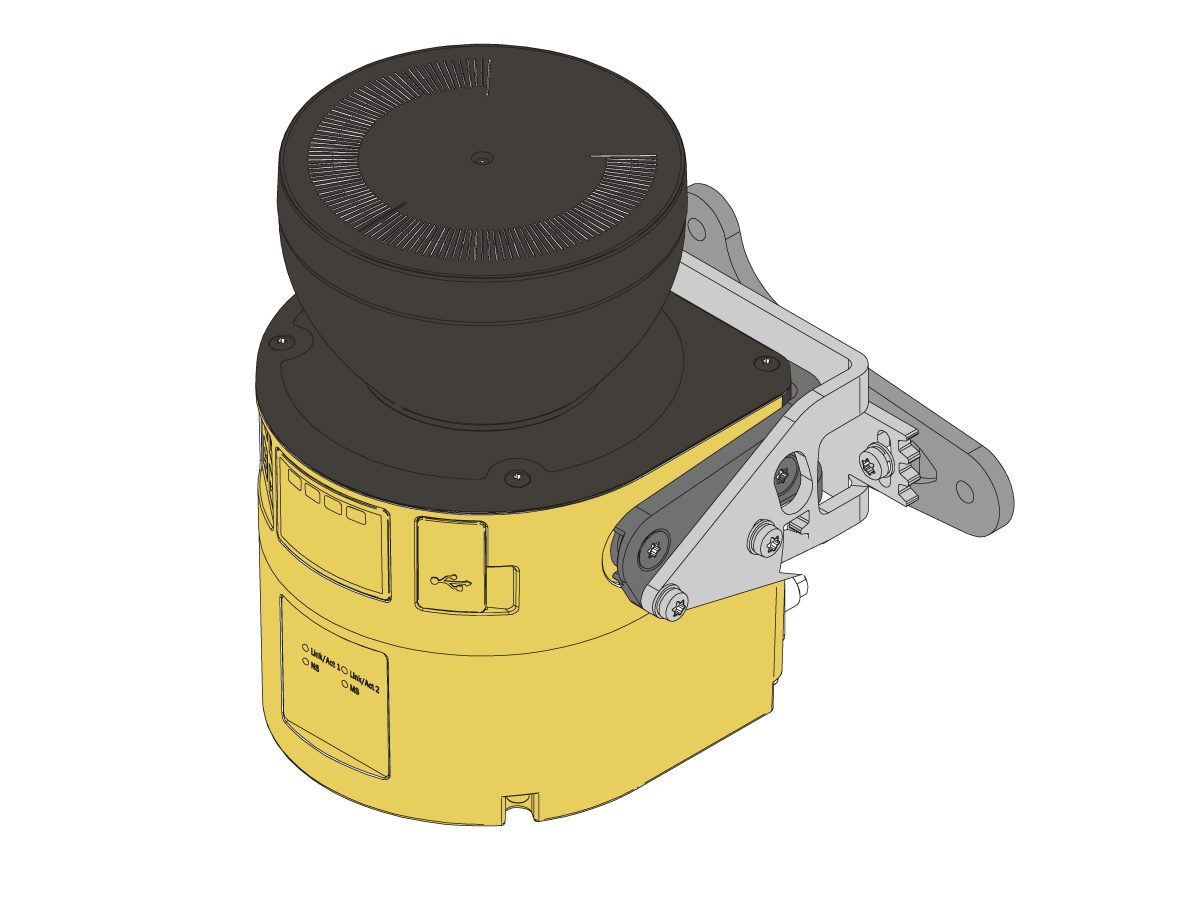
This procedure will show how to set this protective field and configure the area scanner properly.

IMPORTANT: DO NOT OPERATE THE ROBOT UNTIL YOU HAVE PROPERLY CONFIGURED AND TESTED THE OPERATION OF THE SAFETY DEVICE.

For more information directly on the SICK Safety Area Scanner, refer to the SICK microScan3 Safety Laser Scanner manual for more information. 

NOTE: For any troubleshooting information, refer to the Area Scanner - Troubleshooting Guide. 

Machine Requirements:

  • 32-9010 HRP-1 18' ELEC SAFETY INTF BOX
  • 32-9018 CBT/HRP-2/3 18' ELECT SAFETY INTF BOX

 IMPORTANT: Without the area scanner compatible interface box, the area scanner won't be connected to the machine.These upgraded interface boxes were added to all COBOT packages & HRP-1/2/3 packages built after 07/10/2023. If the machine's interface box was built before these dates, refer to the Robot Safety Device Interface Box Installation - AD0703 procedure for more information. 

Software Requirements:

  • 100.23.000.1120 version or higher

IMPORTANT: The area scanner will need to be re-configure after relocating the area scanner or anything inside its protective field. 

Risk Assessment

IMPORTANT: Before any installation, an appropriate risk-assessment must be performed and appropriate safety requirements must be met. 

Download Safety Designer Software

Download Safety Designer installation file on to a computer. This is the software used to configure the area scanner's protective field. 

IMPORTANT: The Safety Designer software requires Window 10 operating system.  

Extract the installation file. 

Open the installation file and complete the downloading process. 

Setup Tutorial

The following service video will get you comfortable with the Safety Designer software and show how to configure the SICK microScan 3 area scanner.

  NOTE:  This  service video is for reference only and does not replace the written procedure. 

The following service video will give a demonstration of configuring a protective field for the area scanner through Safety Designer.  

  NOTE:  This  service video is for reference only and does not replace the written procedure. 

First Power Up

1

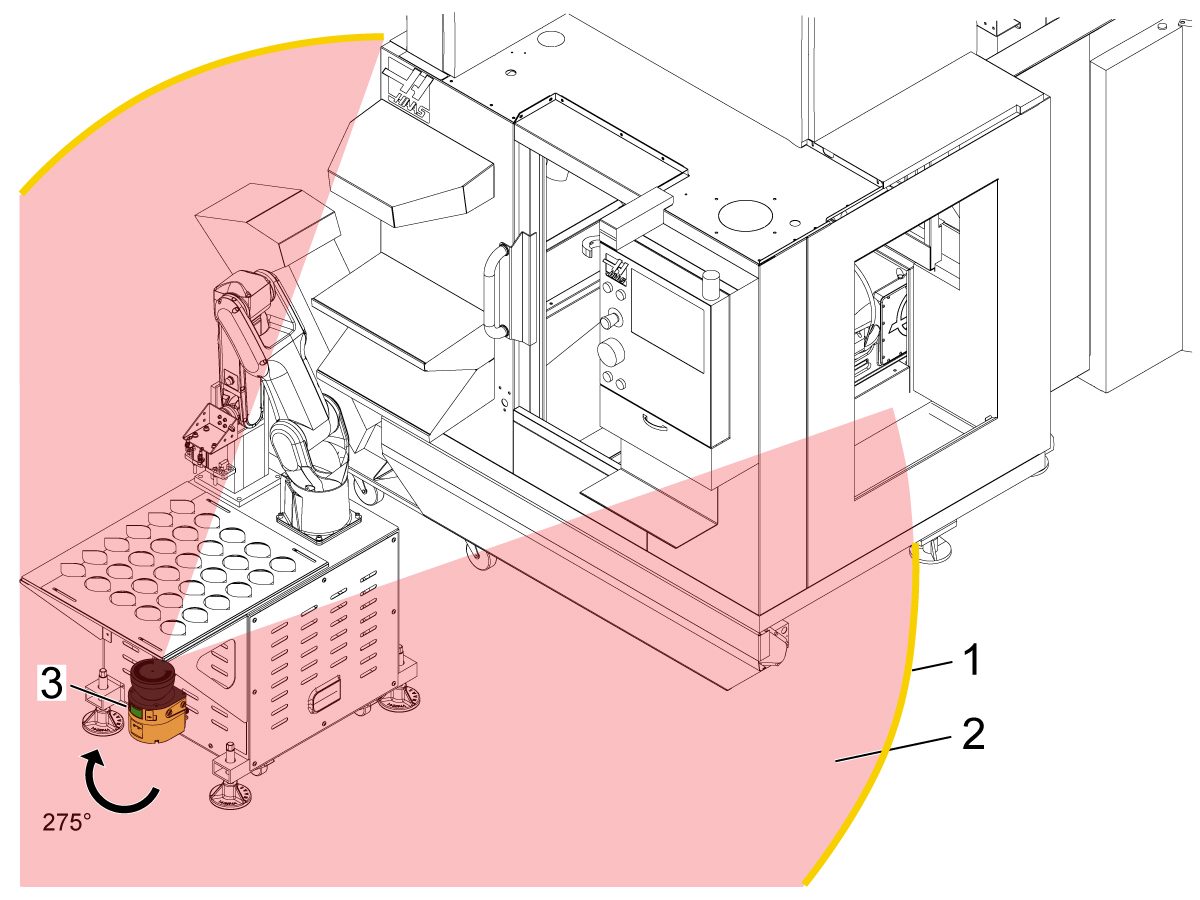
Make sure that the area scanner is mounted into the desire location where the area scanner can view it's maximum range of ~275°. 

IMPORTANT: If area scanner isn't mounted yet, refer to the Area Scanner - Installation - AD0687 procedure for more information. 

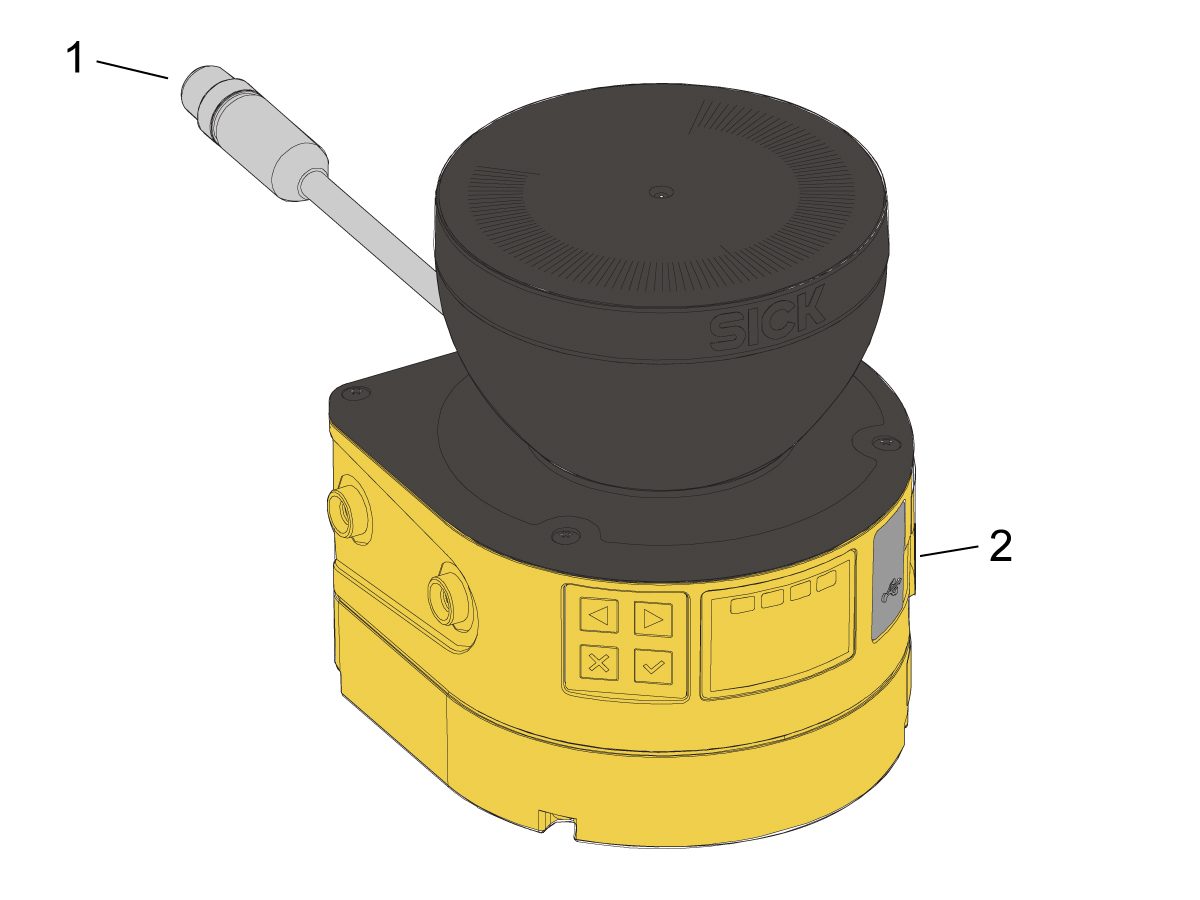
Plug the area scanner connector [1] into the power source--either the wall if a stand alone area scanner OR the machine's interface box if an integrated area scanner. 

Plug the micro USB cable from the area scanner [2] into the computer. 

2

Once powered, the area scanner's LED screen will turn yellow and say "No Configuration".

This will remain until the factory setting password is reset. Refer to the following video to reset the password.

The factory setting password is "SICKSAFE".

NOTE: This password is case sensitive. 

Setup

1

Using Safety Designer, click on New Project. 

Click Connect. 

NOTE: After a connection is established once between the area scanner and computer, click on Search for Devices next time.

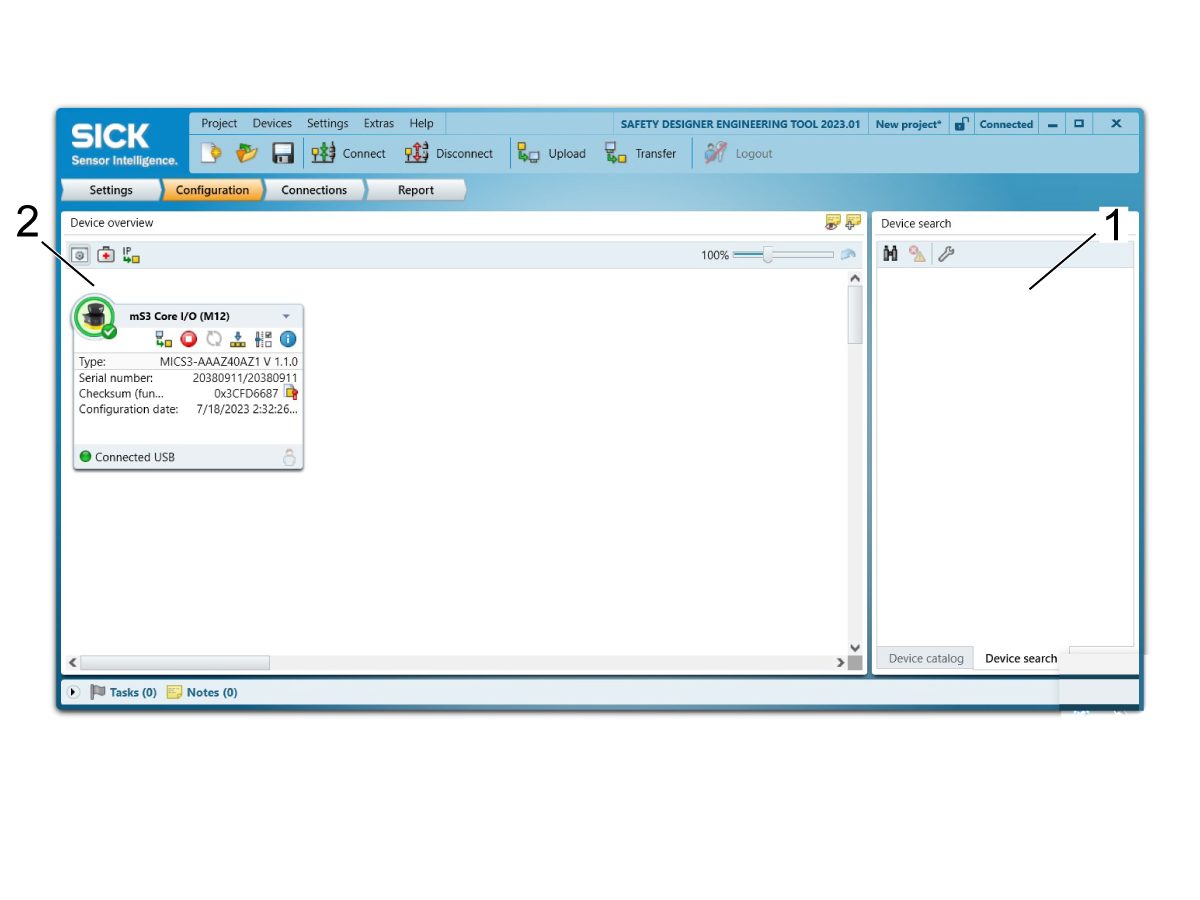
Once the safety designer has established a connection with the area scanner, an icon of the connected area scanner should pop up on the right under Device Search [1]. Double click on the icon to make a connection. 

Now an icon of the connected area scanner should pop up on the left under Device Overview [2]. Double click on the icon to open the device window. 

2

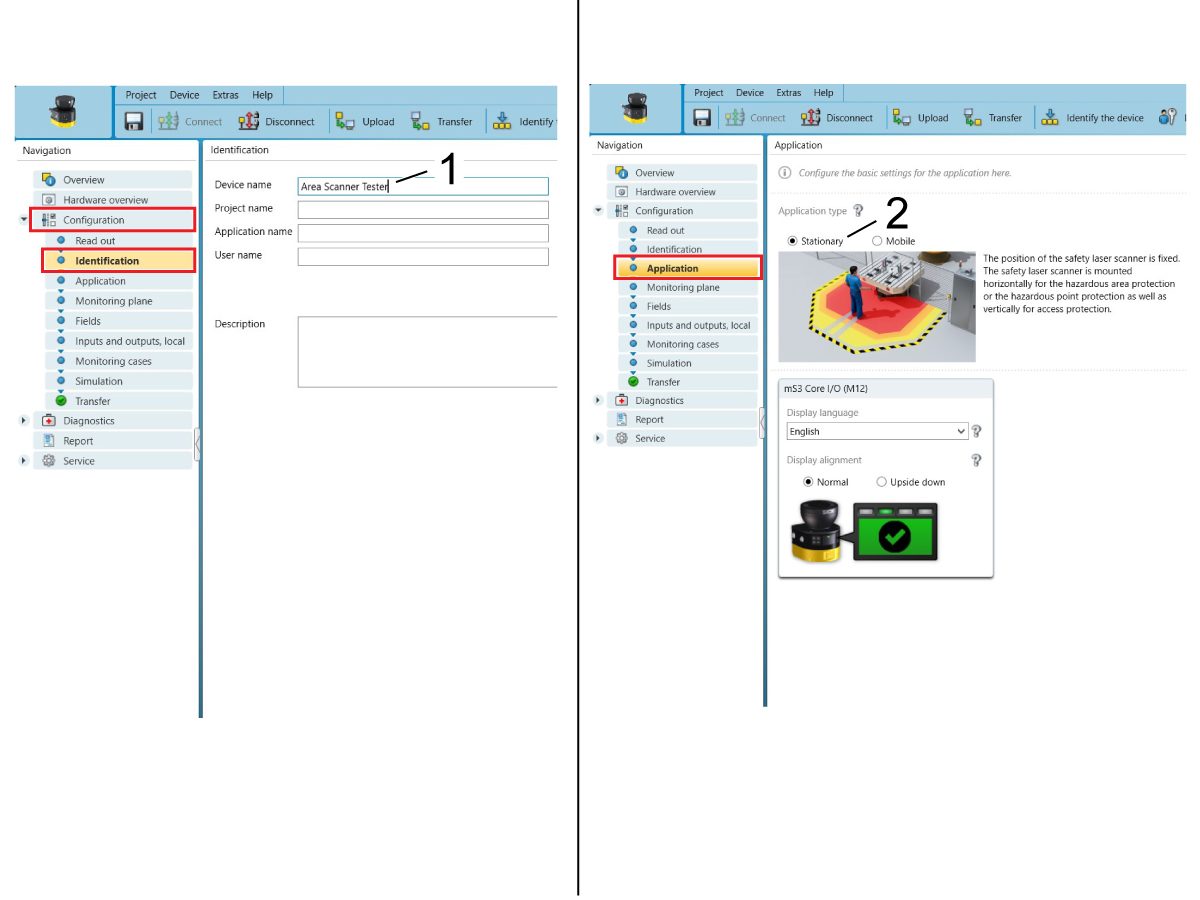
Click Configuration on the left side Navigation menu. 

Under Configuration, click on Identification. Insert a name [1] for the area scanner here if desired. 

Click on Application to chose between Stationary or Mobile [2]. For machining purposes, make sure that the application type is set to Stationary. 

Select the desired language. 

3

Click on Monitoring Plane to set a 2D horizontal or vertical monitoring plane [1]. In this case, a horizontal monitoring plane is the most common monitoring for machining applications.

 NOTE: If a vertical monitoring plane is used, then reference contour monitoring [2] is required. For more information, refer to page 84 on the SICK service manual.

Object resolution [3] sets the minimum size that the area scanner can detect. With a horizontal monitoring plane, the object resolution should be set around 50 to 70 mm. With a vertical monitoring plane, the object resolution should be set around 150 mm. 

Multiple sampling [4] sets the amount of times an object must be scanned by the area scanner before reacting. A higher multiple sampling reduces the likelihood that anything unwanted is detected such as insects, dust, etc. For stationary applications, there is a recommended multiple sampling of x2 under clean conditions whereas there is a recommended multiple sampling of x8 under dirty conditions. Play around within this range to find the amount that reacts the best. 

Scan cycle time [5] effects the response time of the area scanner. A normal scan cycle time of 40 ms is used for full protective field range whereas a fast scan cycle time of 30 ms is used for small protective field range with an even shorter response time. Typically, the normal scan time is selected. 

Additional interference protection [6] takes into account if other area scanners are present. Mode 1 should be selected when using only one area scanner on the machine. 

4

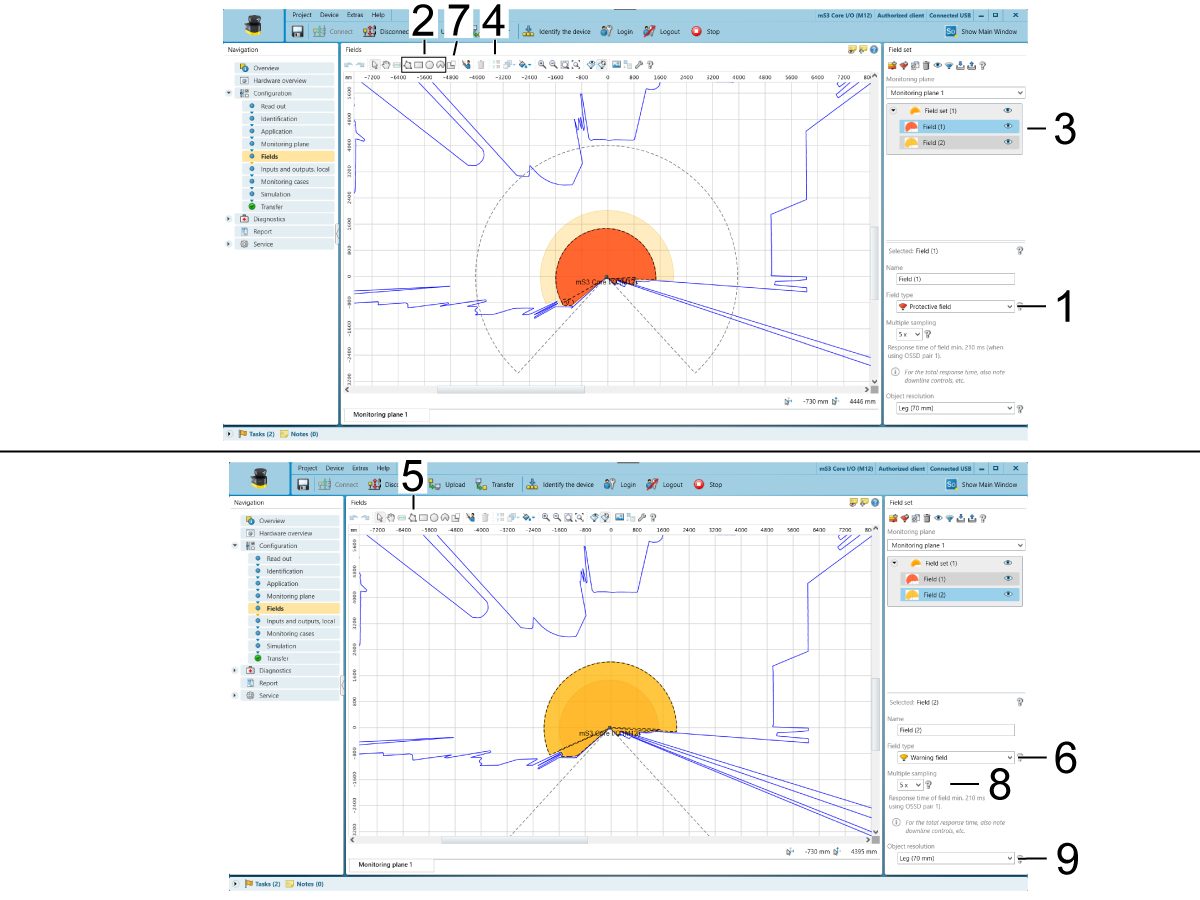
Click on Fields to set the protective field [1] that triggers the safety area scanner and stops robot motion. Using the drawing tools [2], you can draw the desired field set. Multiple fields can be configured in the same field set [3] to achieve the proper size and shape.

NOTE: For more accuracy, assign coordinates [4] or use the polygon tool [5].

Another field type is a warning field [6]. This field only triggers the yellow LED on the area scanner and doesn't stop robot motion. 

 IMPORTANT: Make sure to always have a protective field [1] set as this is what stops the robot motion. Warning fields [6] can be helpful, but not always needed, as it will never trigger the light curtain causing the robot to always stay running even in unsafe states. 

A masked area [7] can be drawn into the field. This represents an area that does not trigger the safety area scanner. 

Each field can be individually configured by changing the multiple sampling [8] and object resolution [9]. 

5

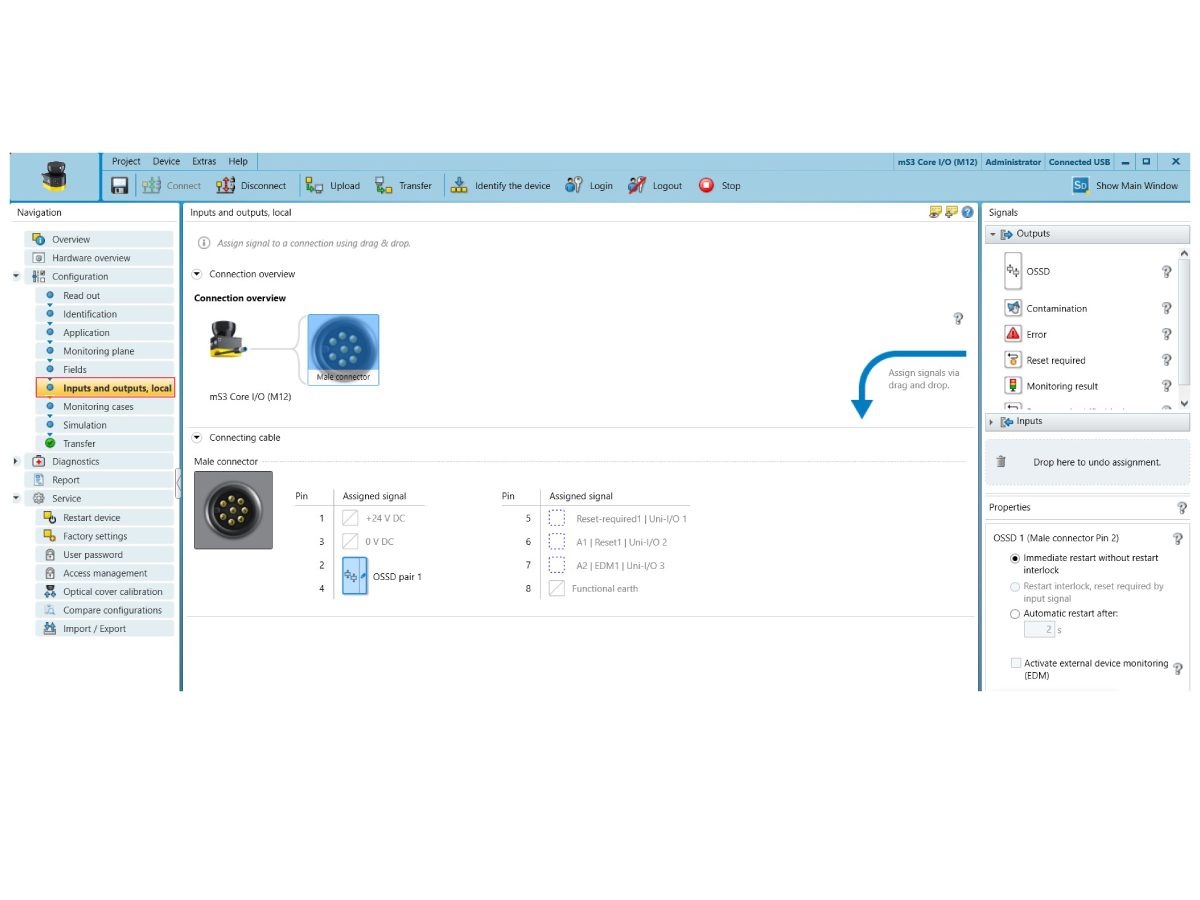
Click on Inputs and Outputs, Local to configure the Area Scanners universal inputs/outputs. There are 3 avaliable universal inputs/outputs.

For a basic machining set up, there is no need to configure any universal inputs/outputs. Leave this page blank, unless wanting to make a special configuration. 

NOTE: Make sure Pin 2 & 4 are always configured to OSSD pair 1. 

6

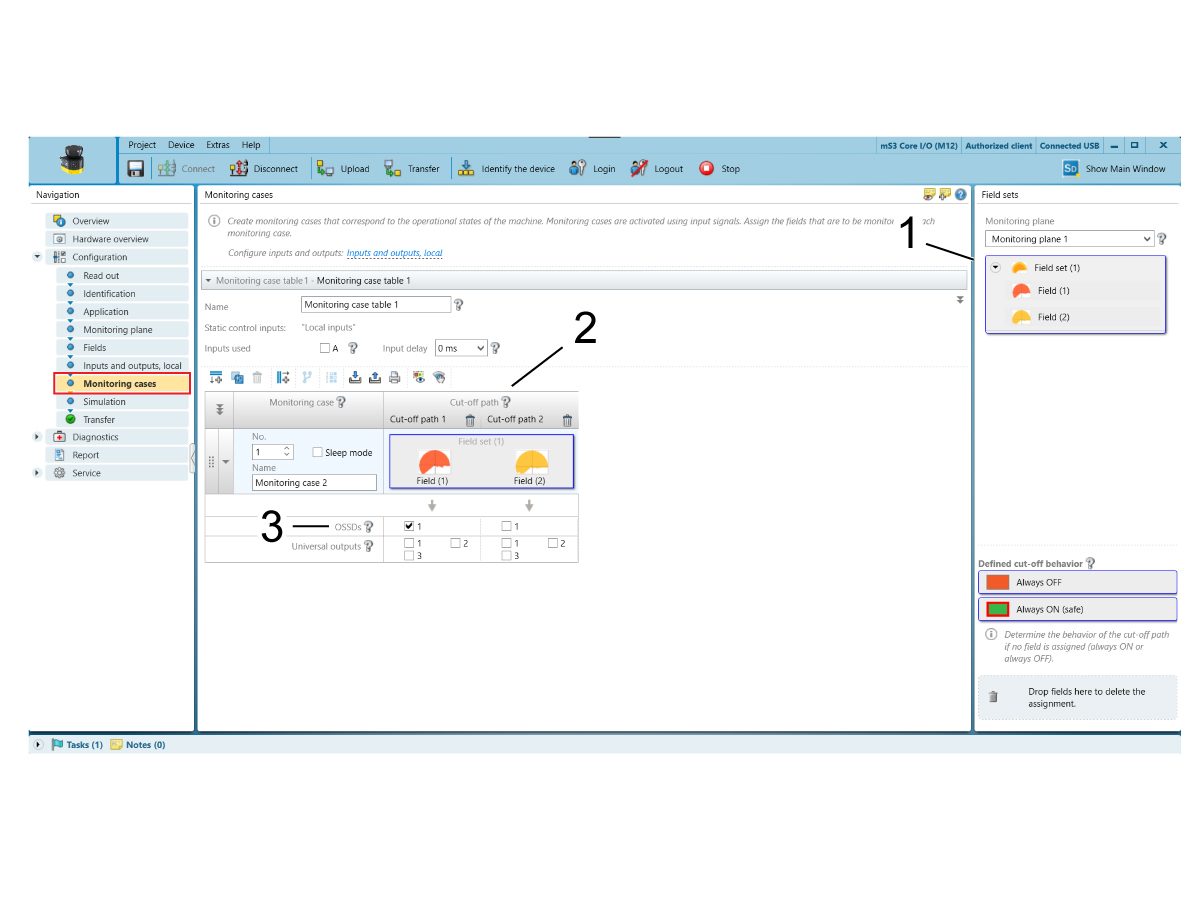
Click on Monitoring Cases to applies the field set to the area scanner.

Drag Monitoring Plane 1 field set [1] into Monitoring Case 1's cut off path 1 [2]. 

Check the OSSD box [3] below the protective field. This turns the output safety switching device ON when the protective field is triggered. With the output safety switching device ON, the robot motion will stop. 

7

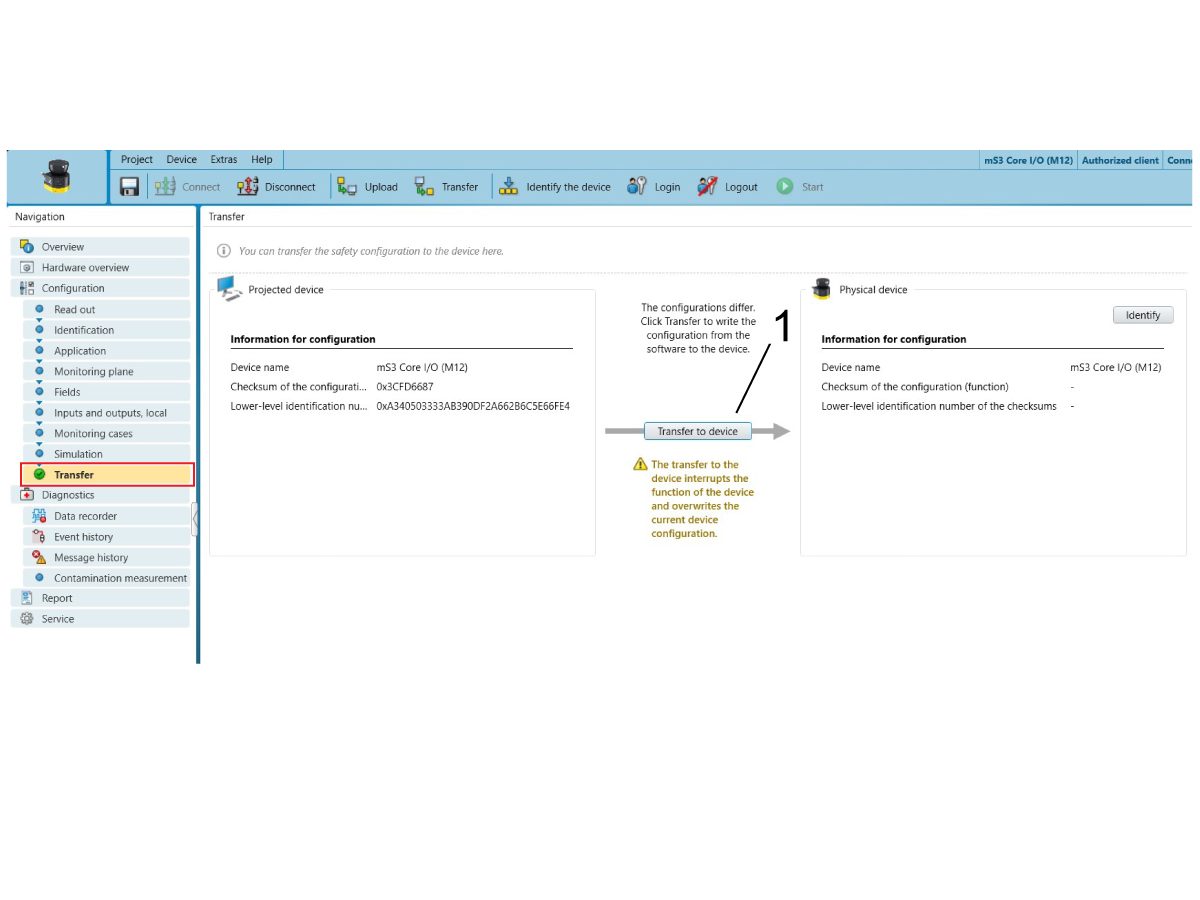
Click on Transfer to move the configuration from the computer software to the safety area scanner. 

Click Transfer to Device [1]. 

A pop up appears asking if the device can enter Test Mode. Click Yes. 

Enter the Authorized client's password as needed. 

Read through the configuration report and Verify. 

8

Tape [1] the safety area scanner protective field [2] onto the floor.

Test the configured safety area scanner. 

Make sure that the green LED above the safety area scanner display screen [3] shines when outside the protective field and the red LED shines when inside the protective field. 

NOTE: If the actual protective field doesn't match the desired protective field—edit the protective field, insert the protective field into Monitoring Case 1's cut off path and transfer the configuration over again. Play around until the desired protective field is reached. 

IMPORTANT: Make sure that there are no blind spots in the protective field.

Remove the micro USB from the area scanner to computer.

9

With the machine in service mode, go to Parameters > Factory tab.

Set parameter 2191 [694] LIGHT CURTAIN TYPE to LC_TYPE_1.

NOTE: Machines with software version 100.20.000.1010 or higher will need to set parameter 2192 [:] LIGHT CURTAIN TRIGGER THRESHOLD to 0. 

Set the setting 376 LIGHT CURTAIN ENABLED to ON. 


Recently Viewed Items

You Have No Recently Viewed Items Yet

Feedback
Haas Logo

Haas Delivered Price

This price includes shipping cost, export and import duties, insurance, and any other expenses incurred during shipping to a location in France agreed with you as a buyer. No other mandatory costs can be added to the delivery of a Haas CNC Product.

KEEP UP WITH THE LATEST HAAS TIPS AND TECHNOLOGY...

Sign up now!   

HAAS TOOLING ACCEPTS THE FOLLOWING:

  • Service & Support
  • Owners
  • Request Service
  • Operator Manuals
  • Haas Parts
  • Rotary Repair Request
  • Pre-Install Guides
  • Shopping Tools
  • Build & Price a New Haas
  • Available Inventory
  • The Haas Price List
  • CNCA Financing
  • About Haas
  • Accessibility Statement
  • DNSH Statement
  • Export Compliance
  • Careers
  • Certifications & Safety
  • Contact Us
  • History
  • Terms & Conditions
  • Haas Tooling Terms & Conditions
  • Privacy
  • Warranty
  • Haas Community
  • Haas Certification Program
  • Haas Motorsports

  • Gene Haas Foundation
  • Haas Technical Education Community
  • Events

  • Join the Conversation
  • Facebook
  • X
  • Flickr
  • YouTube
  • LinkedIn
  • Instagram
  • TikTok
© 2026 Haas Automation, Inc – CNC Machine Tools

This site is protected by reCAPTCHA and the Google Privacy Policy and Terms of Service apply.

2800 Sturgis Rd., Oxnard, CA 93030
Toll Free: (888) 817-4446 / Fax: 805-278-8554