My Haas Welcome,
!
Haas Tooling MyHaas/HaasConnect Sign In Register Haas Tooling MyHaas/HaasConnect Sign Out Welcome, My Machines Latest Activity My Quotes My Account My Users Sign Out
Find Your Distributor
  1. Select Language
    1. English
    2. Deutsch
    3. Español - España
    4. Español - México
    5. Français
    6. Italiano
    7. Português
    8. Český
    9. Dansk
    10. Nederlands
    11. Magyar
    12. Polski
    13. Svenska
    14. Türkçe
    15. 中文
    16. Suomi
    17. Norsk
    18. الإنجليزية
    19. български
    20. Hrvatski
    21. Ελληνικά
    22. Română
    23. Slovenský
    24. Slovenščina
    25. 한국어
    26. 日本語
    27. Українська
  • machines Main Menu
    • Vertical Mills
      Vertical Mills
      Vertical Mills View All
      • Vertical Mills
      • VF Series
      • Universal Machines
      • VR Series
      • VP-5 Prismatic
      • Pallet-Changing VMCs
      • Mini Mills
      • Mold Machines
      • High-Speed Drill Centers
      • Drill/Tap/ Mill Series
      • Toolroom Mills
      • Pocket Mill
      • Compact Mills
      • Gantry Series
      • SR Sheet Routers
      • Extra-Large VMC
      • Double-Column Mills
      • 3+2 Positioning Machines
    • Multi-Axis Solutions
      Multi-Axis Solutions
      Multi-Axis Solutions View All
      • Multi-Axis Solutions
      • Y-Axis Lathes
      • 5-Axis Mills
    • Lathes
      Lathes
      Lathes View All
      • Lathes
      • ST Series
      • Dual-Spindle
      • Box Way Series
      • Toolroom Lathes
      • Chucker Lathe
      • Haas Bar Feeders
    • Horizontal Mills
      Horizontal Mills
      Horizontal Mills View All
      • Horizontal Mills
      • 50-Taper
      • 40-Taper
    • Rotaries & Indexers
      Rotaries & Indexers
      Rotaries & Indexers View All
      • Rotaries & Indexers
      • Rotary Tables
      • Indexers
      • 5-Axis Rotaries
      • Extra-Large Rotaries
    • Special Series
      Special Series
      Special Series View All
      • Special Series
      • EU_Series_Redirect
    • Automation Systems
      Automation Systems
      Automation Systems View All
      • Automation Systems
      • Mill Automation
      • Lathe Automation
      • Automatic Parts Loaders
      • Automation Models
    • Desktop Machines
      Desktop Machines
      Desktop Machines View All
      • Desktop Machines
      • Desktop Mill
      • Desktop Lathe
      • Control Simulator, Standard
      • Control Simulator, Premium
    • Shop Equipment
      Shop Equipment
      Shop Equipment View All
      • Shop Equipment
      • Knee Mill
      • Haas Manual Lathes
      • Haas Saws
    • Fabrication Machines
      Fabrication Machines
      Fabrication Machines View All
      • Fabrication Machines
      • Laser Cutting Machines
      • CNC Press Brakes
    • QUICK LINKS Special Series  Special Series 
      EU SERIES EU SERIES BUILD & PRICE | PRICE LIST BUILD & PRICE | PRICE LIST In-Stock Machines In-Stock Machines WHAT’S NEW WHAT’S NEW YOUR FIRST CNC YOUR FIRST CNC
      SHOPPING TOOLS
      • Build & Price a Haas
      • Price List
      • Available Inventory
      • CNCA Financing
      WANT TO TALK TO SOMEONE?

      A Haas Factory Outlet (HFO) can answer your questions, and walk you through your best options.

      CONTACT YOUR DISTRIBUTOR >
  • Options Main Menu
    • The Haas Control Value Option Packages
      Value Option Packages
      Value Option Packages View All
      • Value Option Packages
    • Product Image Spindles
      Spindles
      Spindles View All
      • Spindles
    • Product Image Tool Changers
      Tool Changers
      Tool Changers View All
      • Tool Changers
    • Product Image 4th- | 5th-Axis
      4th- | 5th-Axis
      4th- | 5th-Axis View All
      • 4th- | 5th-Axis
    • Product Image Turrets & Live Tooling
      Turrets & Live Tooling
      Turrets & Live Tooling View All
      • Turrets & Live Tooling
    • Product Image Probing
      Probing
      Probing View All
      • Probing
    • Haas Chip & Coolant Management Chip & Coolant Management
      Chip & Coolant Management
      Chip & Coolant Management View All
      • Chip & Coolant Management
    • The Haas Control The Haas Control
      The Haas Control
      The Haas Control View All
      • The Haas Control
    • Product Image Product Options
      Product Options
      Product Options View All
      • Product Options
    • Product Image Tooling & Fixturing
      Tooling & Fixturing
      Tooling & Fixturing View All
      • Tooling & Fixturing
    • Product Image Workholding
      Workholding
      Workholding View All
      • Workholding
    • Product Image 5-Axis Solutions
      5-Axis Solutions
      5-Axis Solutions View All
      • 5-Axis Solutions
      • 5 Easy Steps to 5-Axis
    • QUICK LINKS Special Series  Special Series 
      EU SERIES EU SERIES BUILD & PRICE | PRICE LIST BUILD & PRICE | PRICE LIST In-Stock Machines In-Stock Machines WHAT’S NEW WHAT’S NEW YOUR FIRST CNC YOUR FIRST CNC
      SHOPPING TOOLS
      • Build & Price a Haas
      • Price List
      • Available Inventory
      • CNCA Financing
      WANT TO TALK TO SOMEONE?

      A Haas Factory Outlet (HFO) can answer your questions, and walk you through your best options.

      CONTACT YOUR DISTRIBUTOR >
  • Why Haas Main Menu
      Discover the Haas Difference
    • Why Haas
    • MyHaas
    • Education Community
    • Industry 4.0
    • Haas Certification
    • Customer Testimonials
  • Service Main Menu
      Welcome to Haas Service
      SERVICE HOME Operator’s Manuals How-To Procedures Troubleshooting Guides Preventive Maintenance Haas Parts Haas Tooling Videos
  • Videos Main Menu
  • Main Menu
    • View All
    • View All
    • View All
    • View All
      • HTEC Curriculum Support
      • Haas Value Option Packages (VOP) Journey
    • View All
      • Haas 10 kg Cobot Package
      • Cobot Kits
      • DC-1 Drill Center
      • CNC Sales News
      • Do More With Your Haas
    • View All
    • View All
      • contact-us-test
      • 4 - AUTOMATION SYSTEMS
      • Carousel-V2
      • expert test
      • Demo_Day_Trident-test
      • Link Test
      • image-sale-tag-test
      • article-list-test
      • Haas 25 kg Robot Package
      • test-algolia-page
    • View All
    • View All
    • View All
    • View All
      • calc-test
    • View All
    • QUICK LINKS Special Series  Special Series 
      EU SERIES EU SERIES BUILD & PRICE | PRICE LIST BUILD & PRICE | PRICE LIST In-Stock Machines In-Stock Machines WHAT’S NEW WHAT’S NEW YOUR FIRST CNC YOUR FIRST CNC
      SHOPPING TOOLS
      • Build & Price a Haas
      • Price List
      • Available Inventory
      • CNCA Financing
      WANT TO TALK TO SOMEONE?

      A Haas Factory Outlet (HFO) can answer your questions, and walk you through your best options.

      CONTACT YOUR DISTRIBUTOR >
  • Haas Tooling Main Menu
  • Haas Service Parts Main Menu

My Haas Welcome,
!
Haas Tooling MyHaas/HaasConnect Sign In Register Haas Tooling MyHaas/HaasConnect Sign Out Welcome, My Machines Latest Activity My Quotes My Account My Users Sign Out
Find Your Distributor
  1. Select Language
    1. English
    2. Deutsch
    3. Español - España
    4. Español - México
    5. Français
    6. Italiano
    7. Português
    8. Český
    9. Dansk
    10. Nederlands
    11. Magyar
    12. Polski
    13. Svenska
    14. Türkçe
    15. 中文
    16. Suomi
    17. Norsk
    18. الإنجليزية
    19. български
    20. Hrvatski
    21. Ελληνικά
    22. Română
    23. Slovenský
    24. Slovenščina
    25. 한국어
    26. 日本語
    27. Українська
×

Search Results

Web Pages

Images

    • <
    • 1
    • >

3 - Pallet Pool - UMC Installation

Pallet Pool - Service Manual


  • 1 - Pallet Pool - Introduction
  • 2 - Pallet Pool - HMC Installation
  • 3 - Pallet Pool - UMC Installation
  • 4 - Pallet Pool - VMC Installation
  • 5 - Pallet Pool - Operation
  • 6 - Pallet Pool - Lifter
  • 7 - Pallet Pool - Maintenance
  • 8 - Pallet Pool - Troubleshooting

Go To :

  • 3.1 UMC PP - 6 Station
  • 3.2 UMC PP - 8/10 Station - Version 2
  • 3.3 UMC PP - 16/20 Station - Version 2
  • 3.4 UMC-1000 PP Version 1

3.1 UMC PP - 6 STATION

Recently Updated

UMC PP - 6 Station Version 2 - Installation


Revision B - 06/2026

Introduction

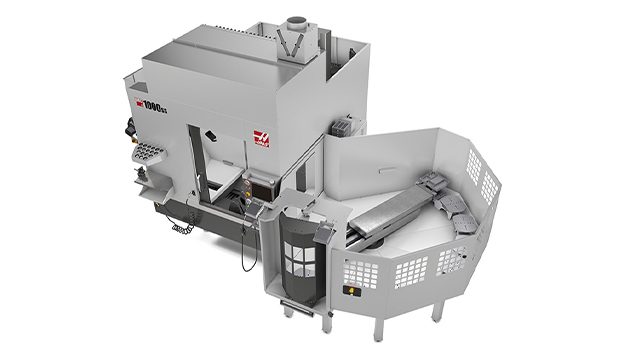
The following procedure will show you how to install a 6 station Pallet Pool on a the following machines:

  • UMC-1250/SS

The Next Generation software on the machine must be version 100.20.000.1110 or higher.

The Pallet Pool option is currently not field installable.

Important: To ensure that the Pallet Pool does not become mis-aligned, it is recommended that the machine and Pallet Pool be anchored. Refer to the following link: Anchoring Instructions.

The Pallet Pool option has a room for a total of 7 pallets that can be installed on a UMC-1250 with the 6 station Pallet Pool option.

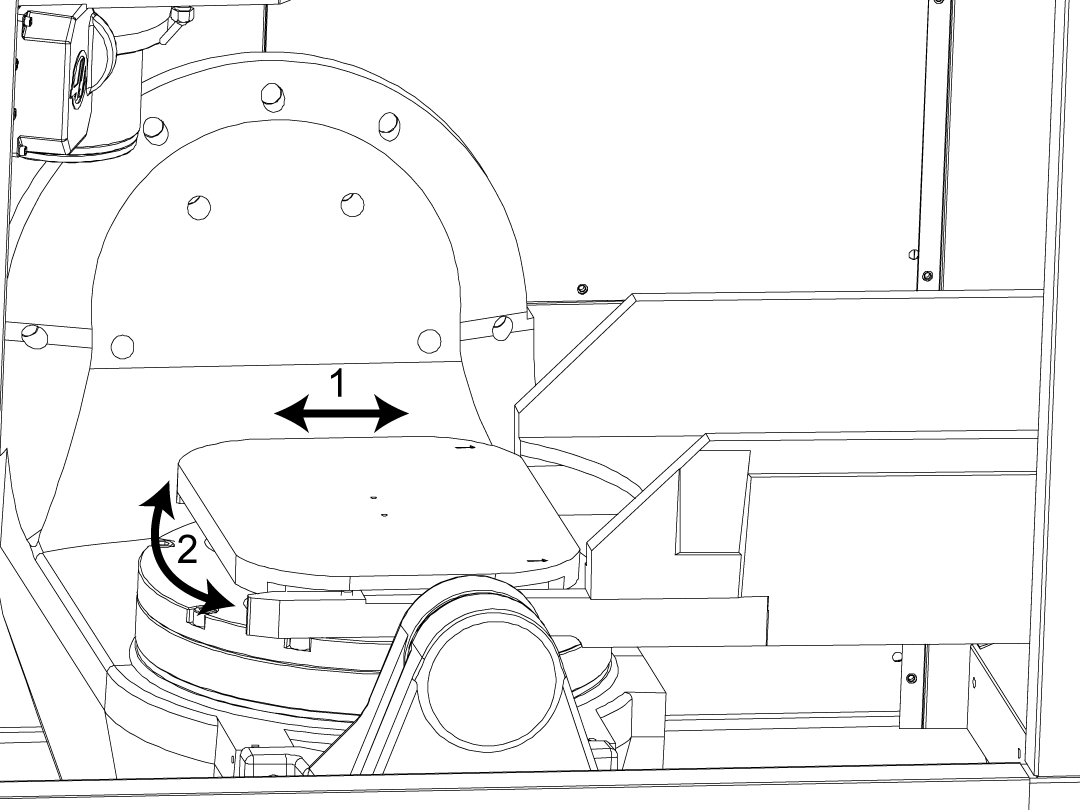
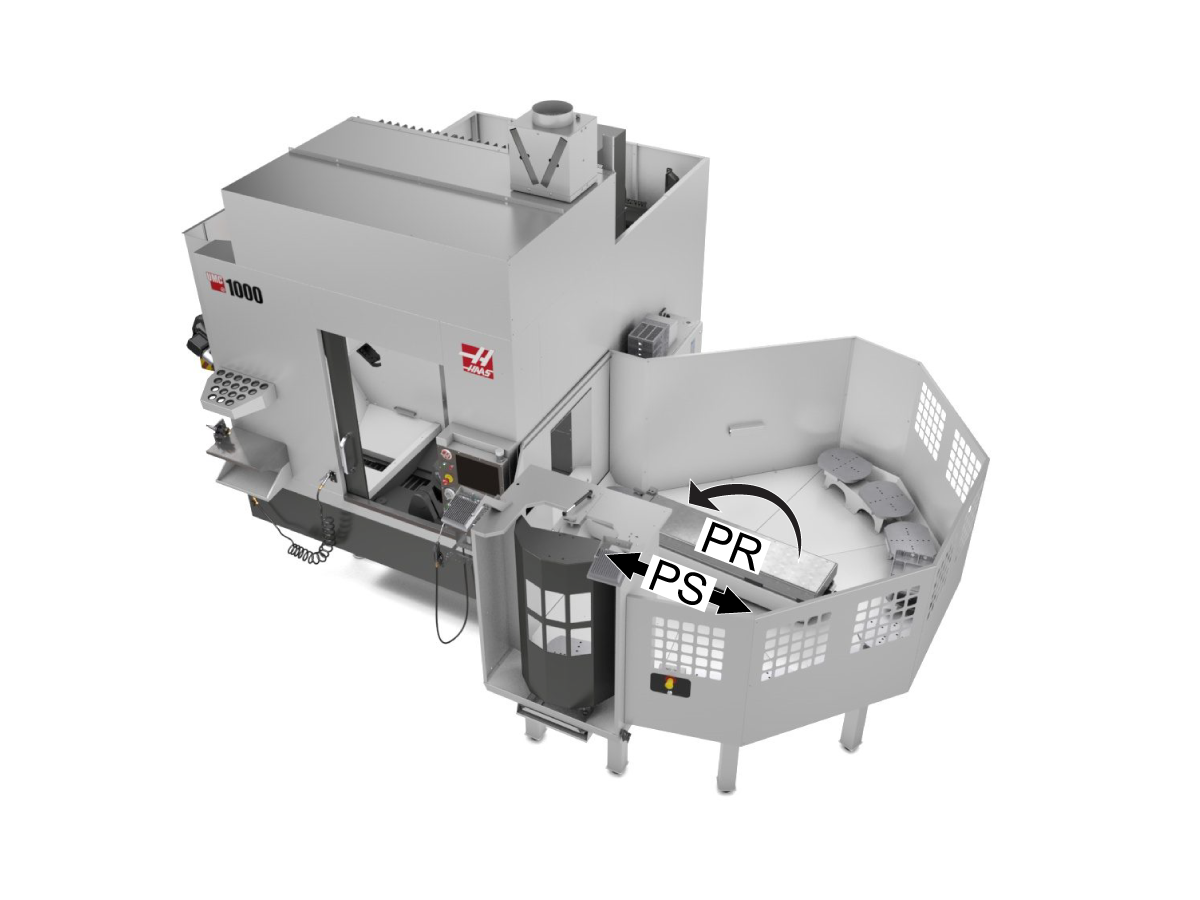
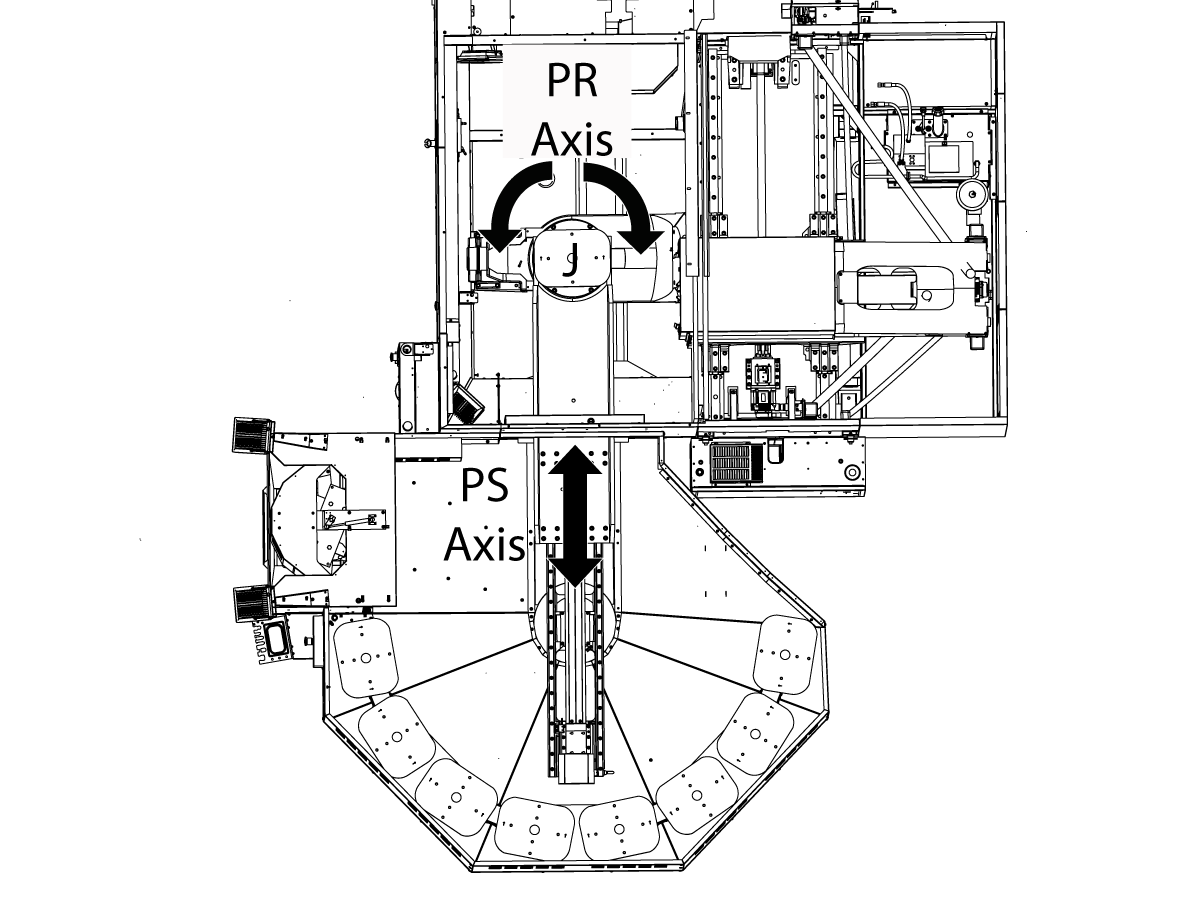
The Pallet Pool has 2 servo axes. The PR axis rotates the Pallet Pool ram and the PS axis extends and retracts the Pallet Pool ram to load/unload the pallets.

The UMC-1250 must be level before the Pallet Pool can be installed. Refer to the installation procedures linked below:

  • UMC-1250 Installation

Push [POWER OFF].

Set the main circuit breaker to the OFF position.

Lock the main circuit breaker. Use an approved lock with an approved safety tag.

Caution: When you handle a PCB, you must wear an Electrostatic Discharge (ESD) strap.

To level the machine without the Pallet Pool connected to the machine, do the following: 

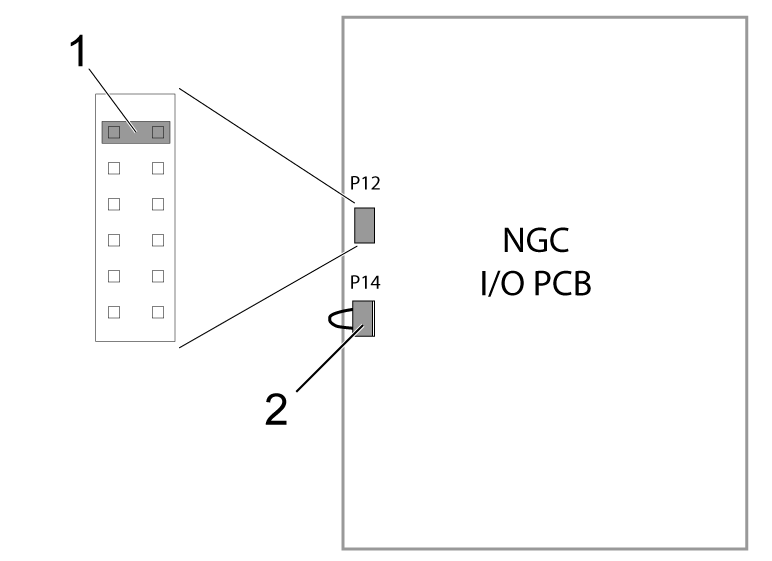
Make sure that there is a shorting block [1] installed on the top two pins of the P12 connector on the I/O PCB 

Make sure there is a jumper (P/N 33-0527) [2] connected to I/O PCB at P14.
 Note: These jumpers are needed to operate the machine without the Pallet Pool.

Disable the pallet pool, change setting 382 Disable Pallet Changer to Pallet Pool.


Note: The above step will disabled the Pallet Pool to allow you to zero return the machine so it can be leveled.

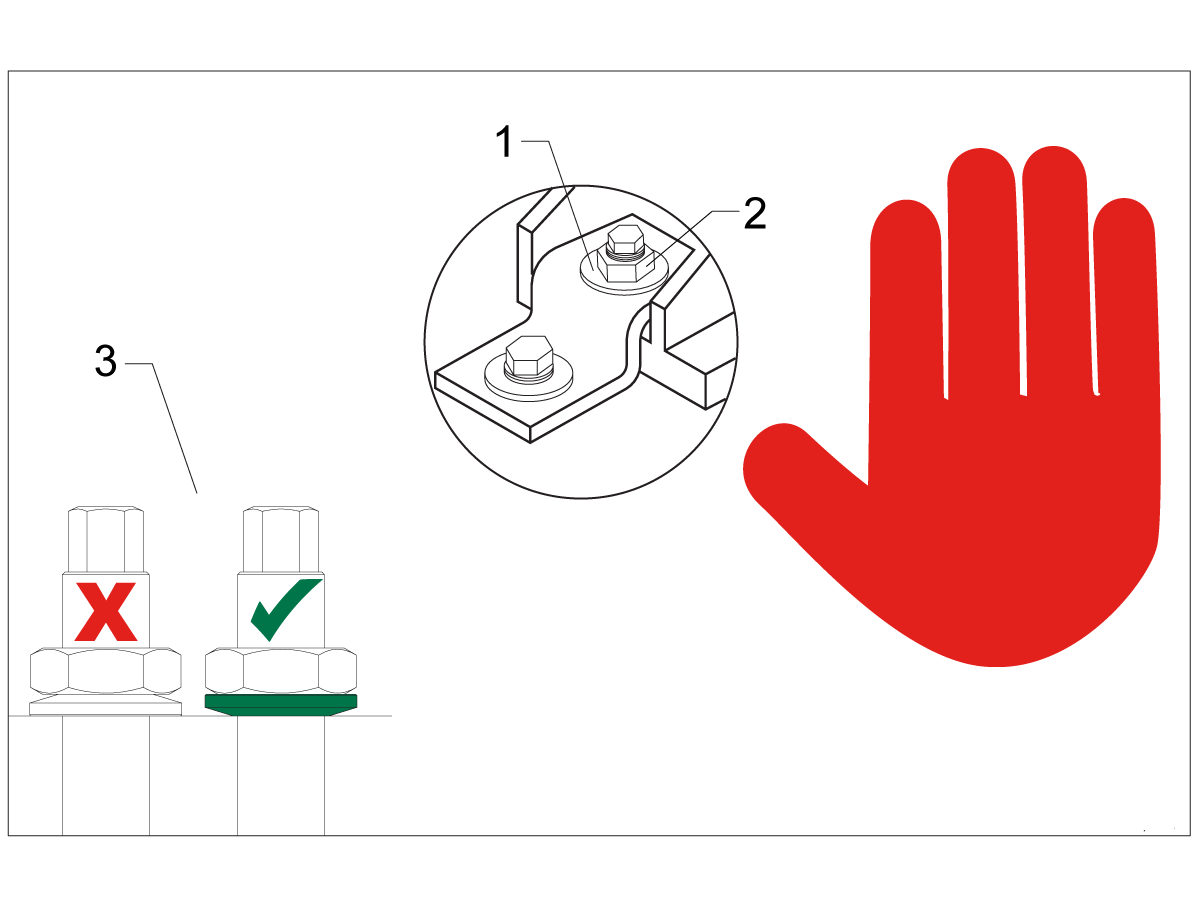
Leveling Screws Hardware

Note: The washers [1] and nuts [2] are installed during shipping and should be saved for installation and not be discarded.

Note: The washer orientation [3] is important.  The conical part of the washer should be against the casting,  see illustration.

Mating the Pallet Pool


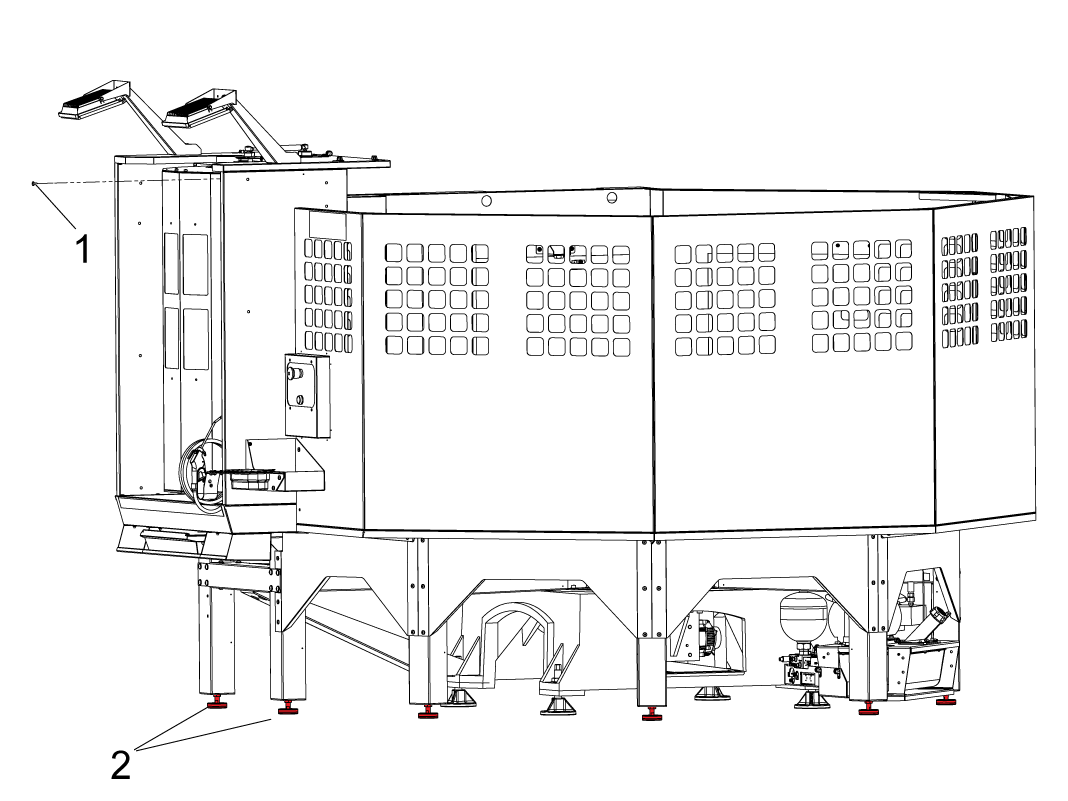
1

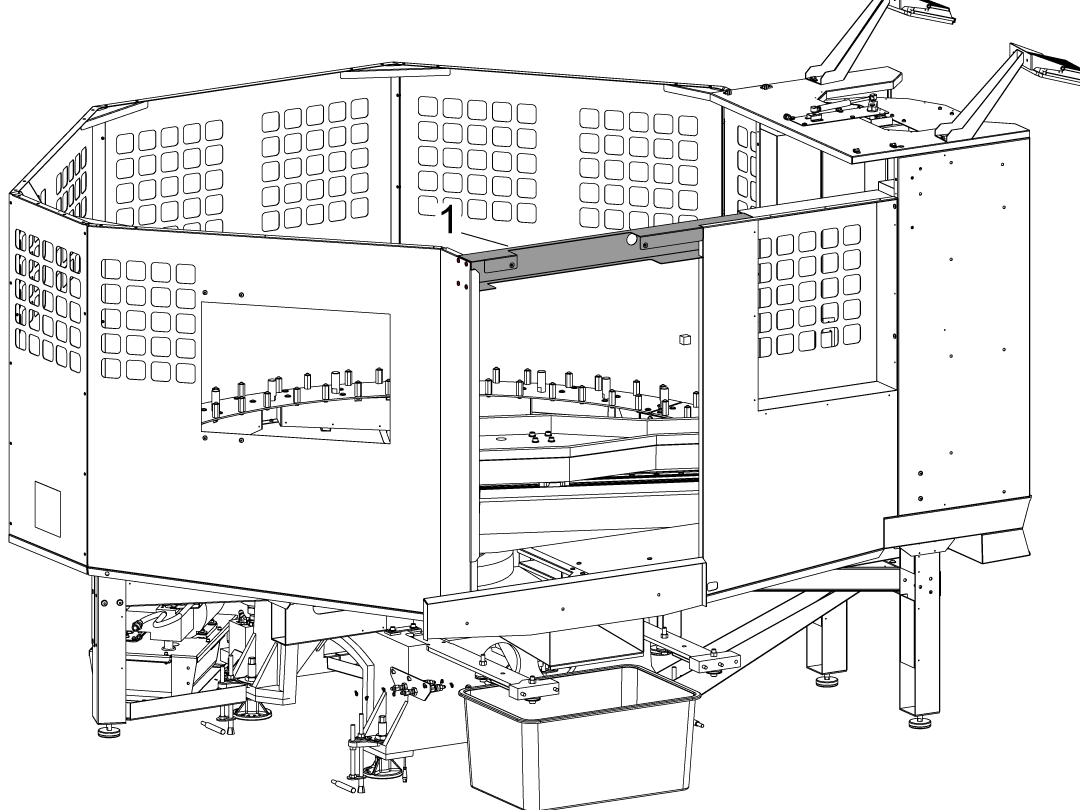
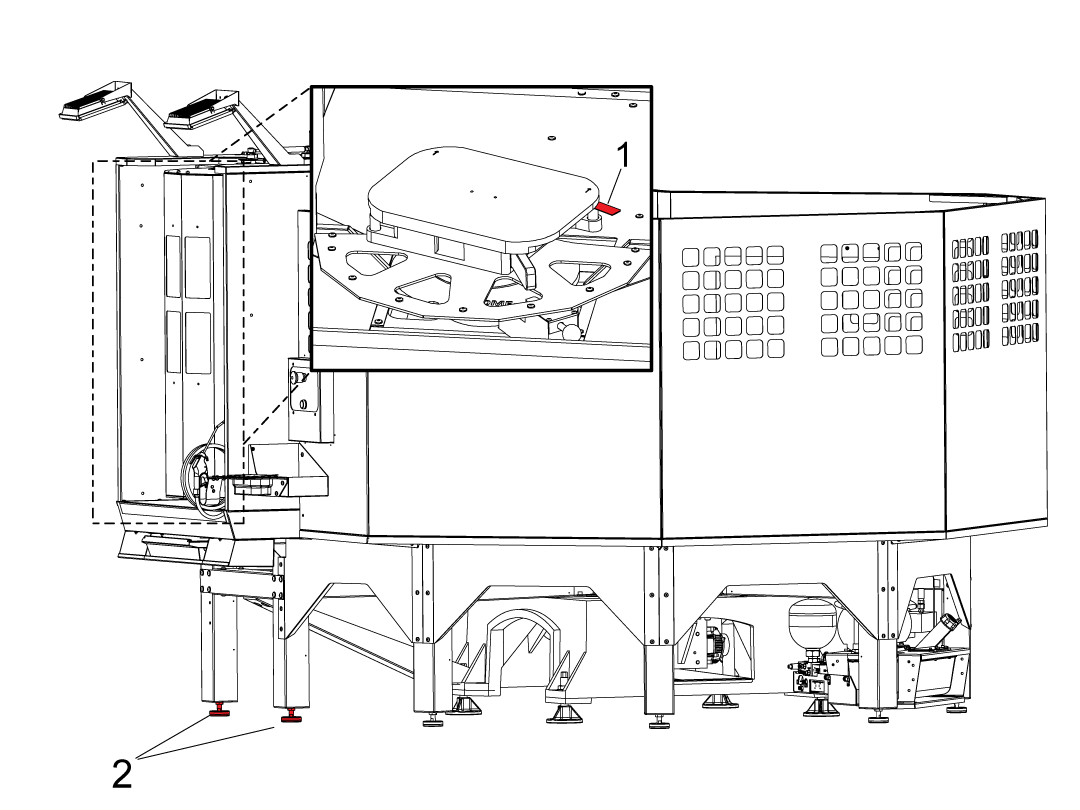
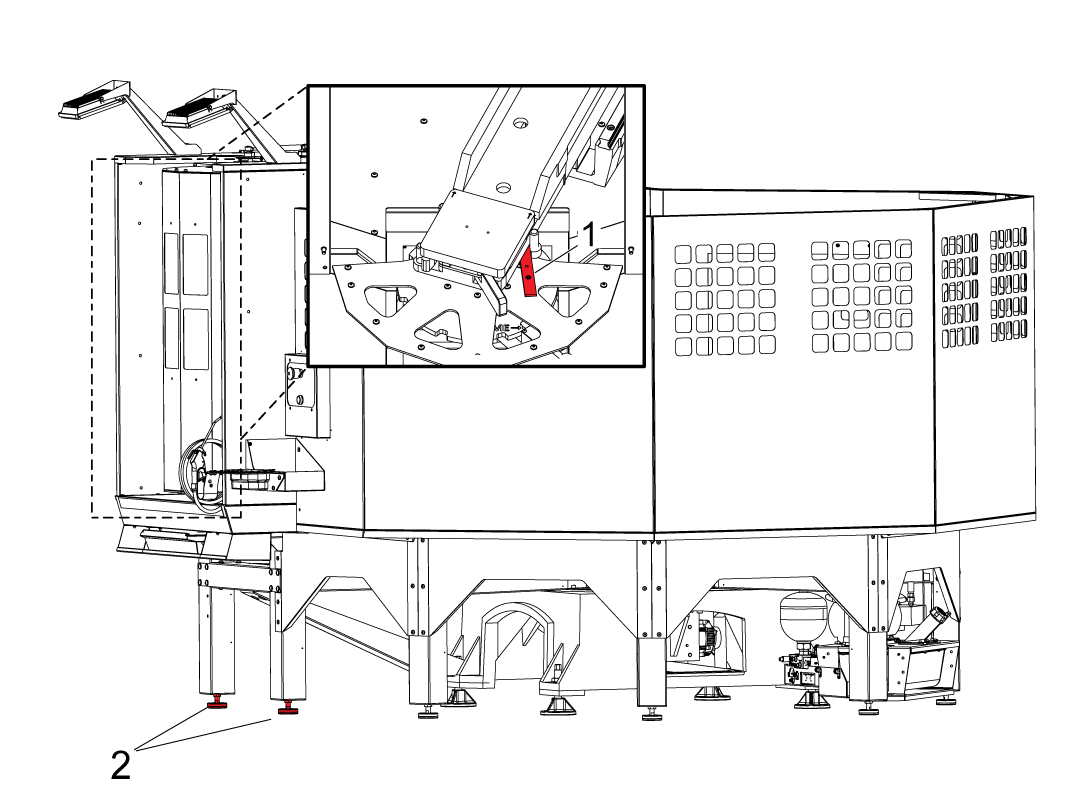
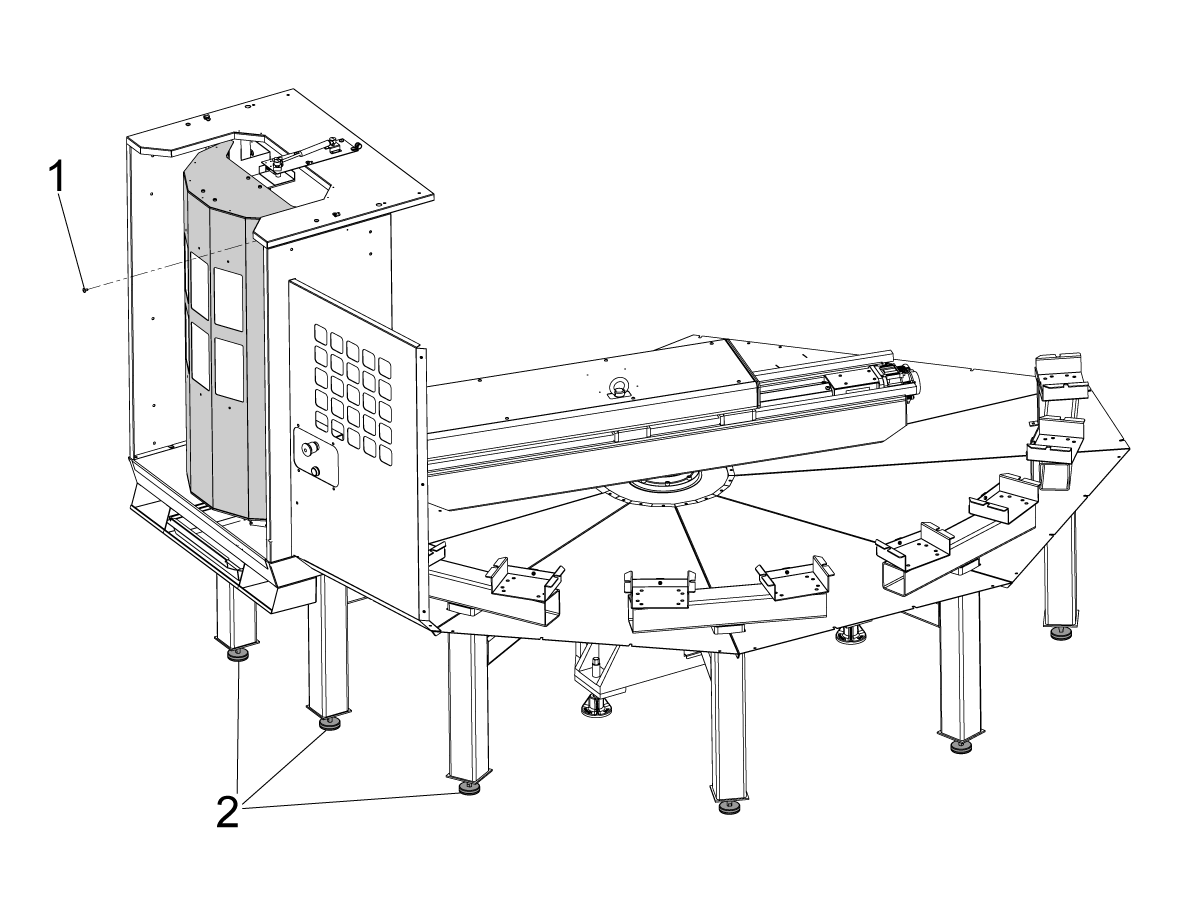
Remove the loading station door blocking bolt [1].

Make sure to raise all of the pallet shelf supporting screws [2] before placing the pallet pool on the floor. 

2

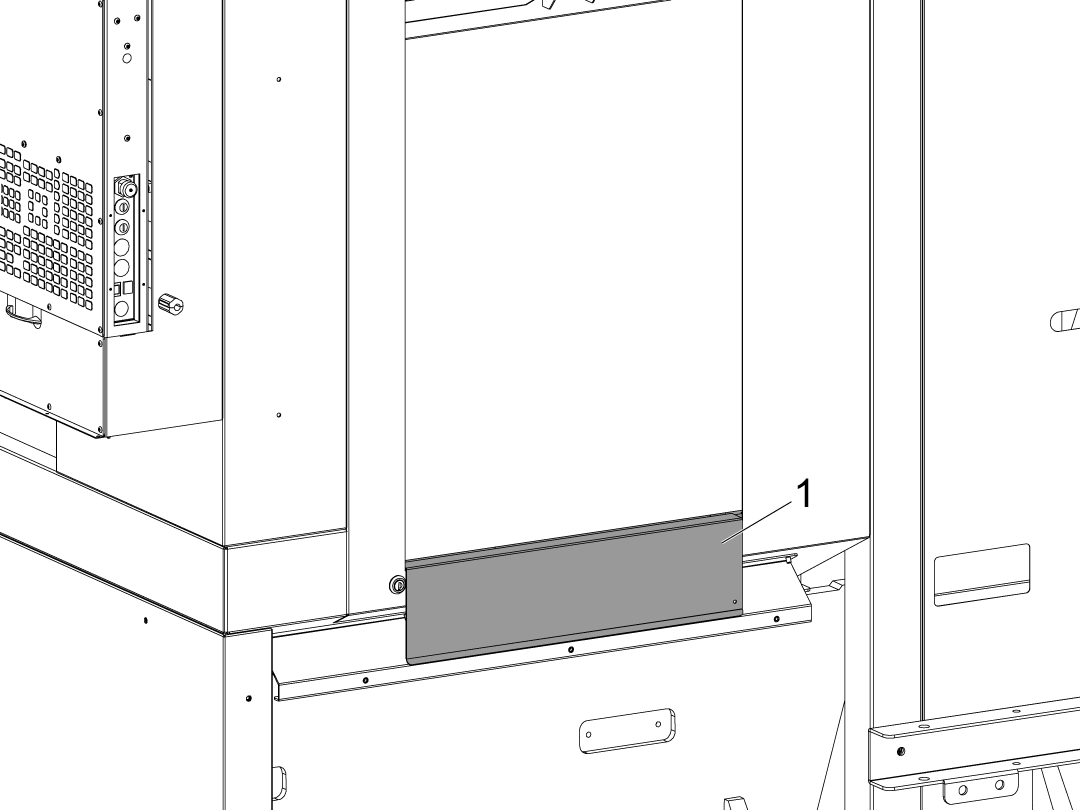
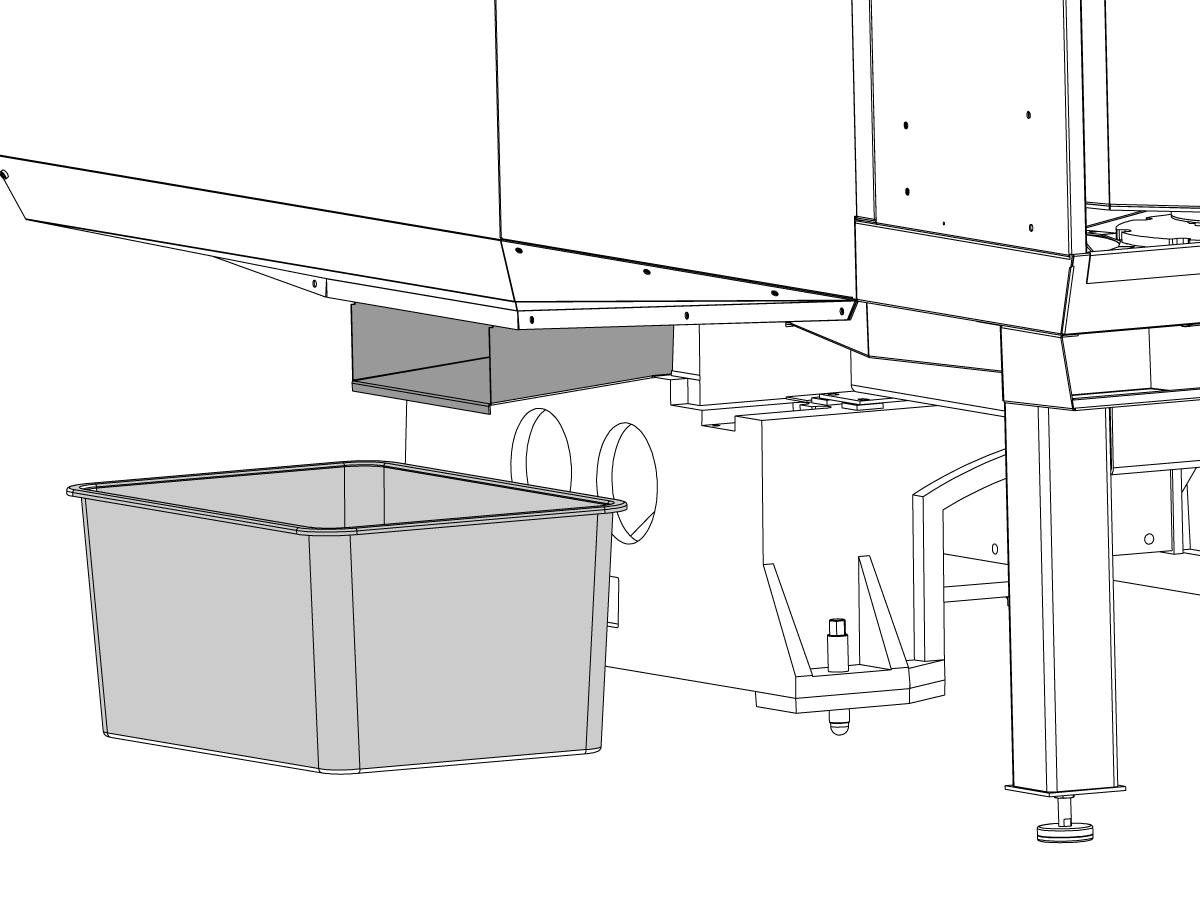
Verify that the drip tray [1] is installed on the machine. Contact Haas service if it is not.

3

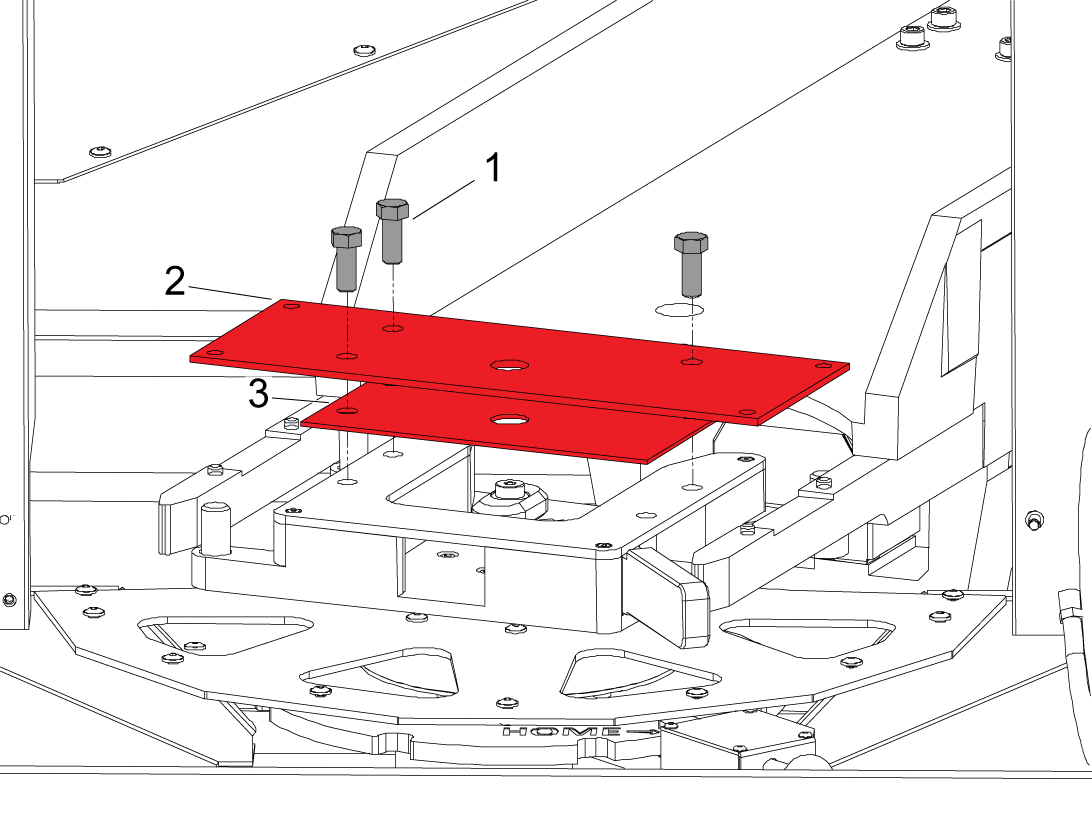
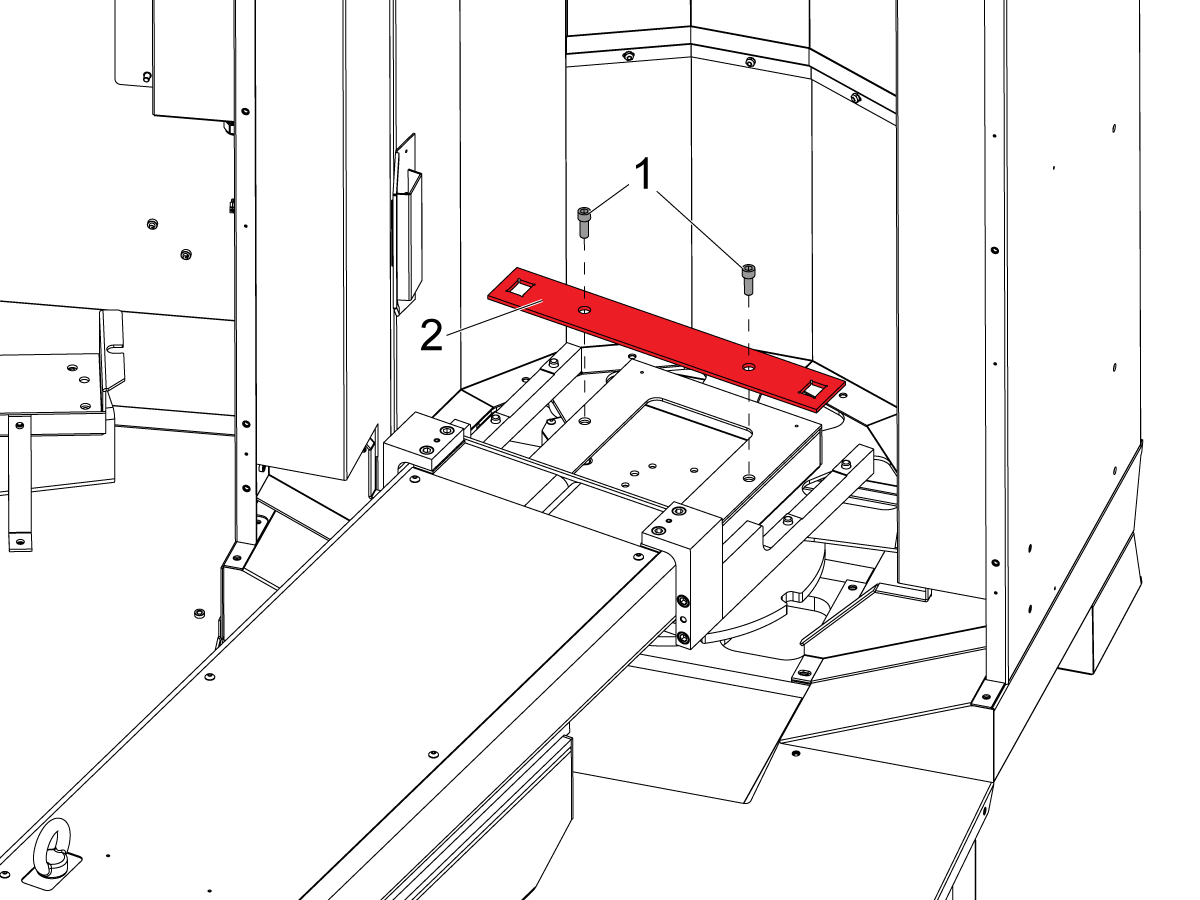
Remove the bolts [1] to remove the shipping brackets. There are two brackets, the first [2] that hold the forks to the loading station, and the bottom [3] that just holds the loading station. 

4

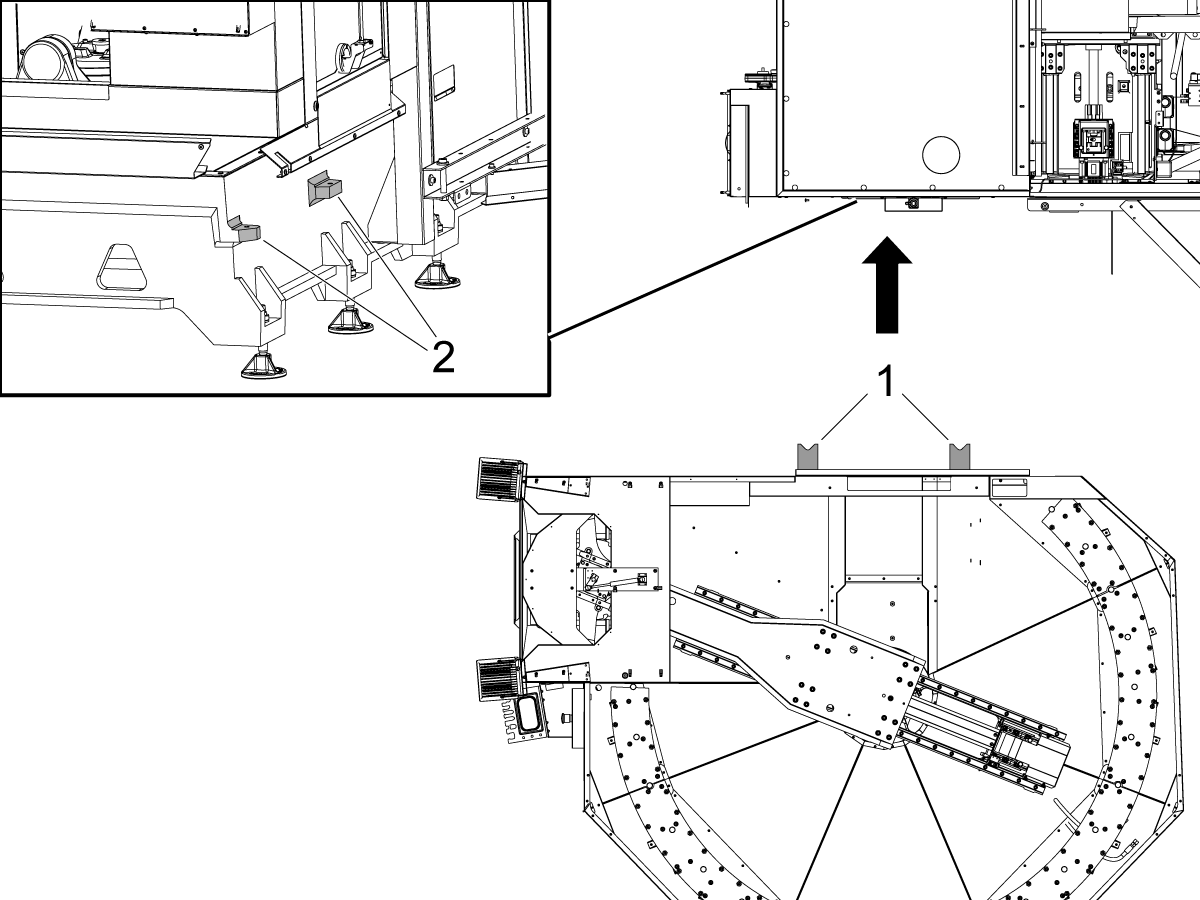
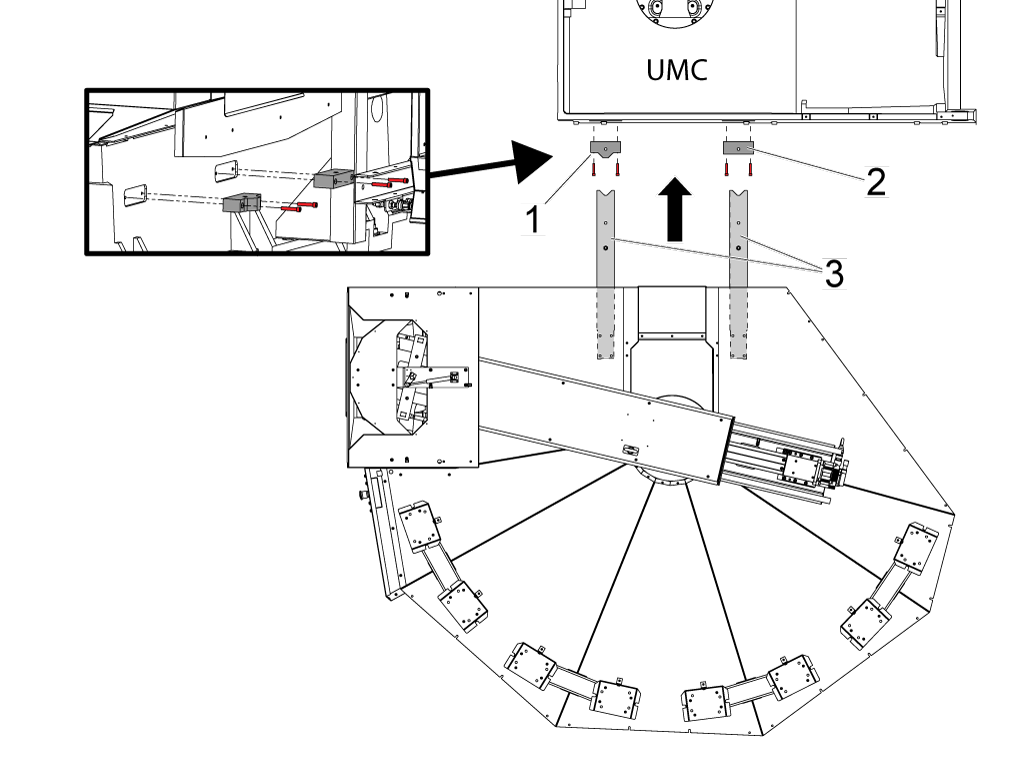
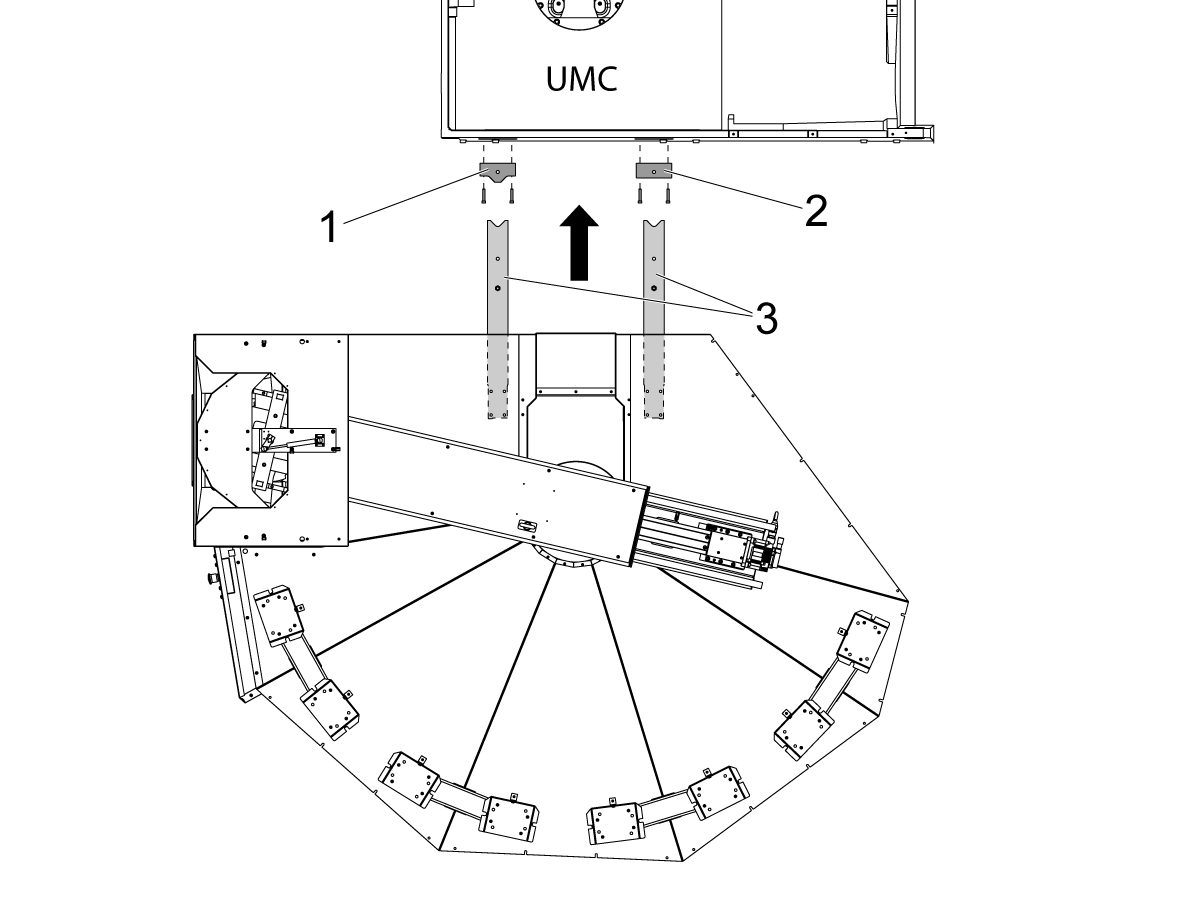
Install the alignment bars [1] onto the pallet pool base.

 NOTE: Use the CABCOOL as a height reference in relation to the pallet pool enclosure opening.

Move the pallet pool assembly so the alignment arms are 3 - 6” (76 - 152 mm) away from the alignment blocks [2]. 

Install the leveling pads under the pallet pool and lower the pallet pool. 

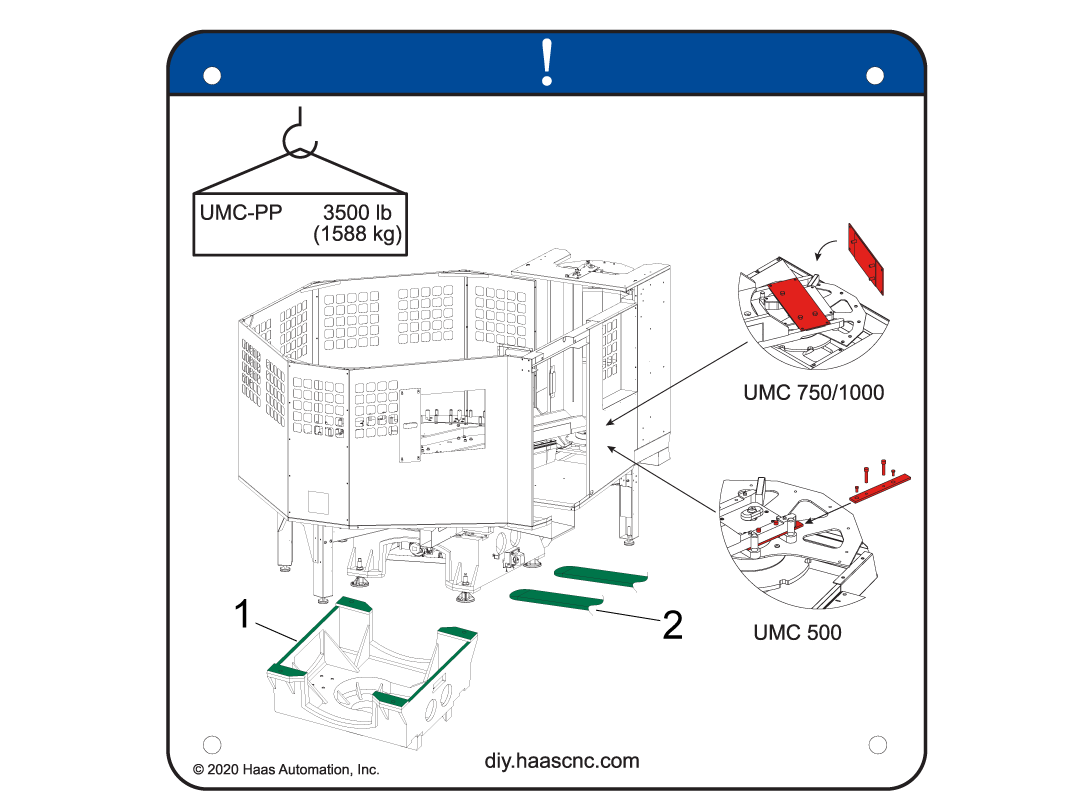
 NOTE: The image shown is for the UMC-500 and 16 station UMC pallet pool but the process is the same.

5

Use a long pallet jack or forklift to move the pallet pool close to the machine.

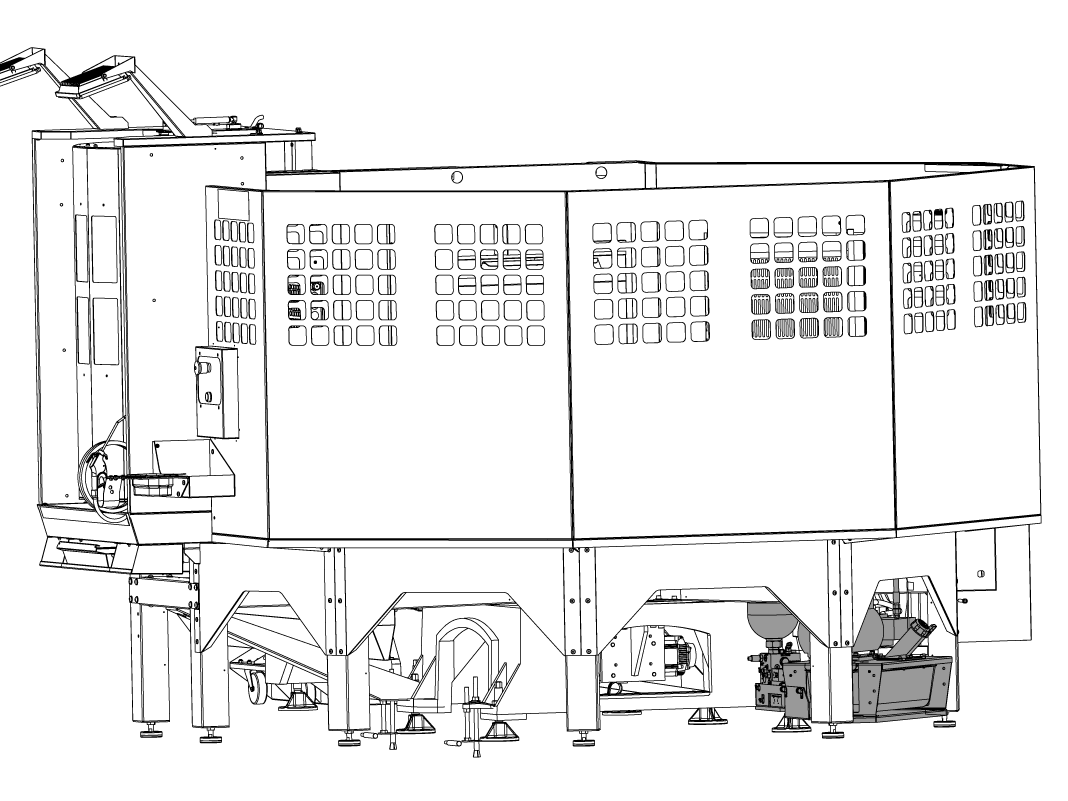
A decal has been placed on the rear of the machine to indicate where the pallet forks should lift the machine from.

NOTE: Have the pallet jack pick up the pallet pool from the opposite side of where the slide window would be.

6

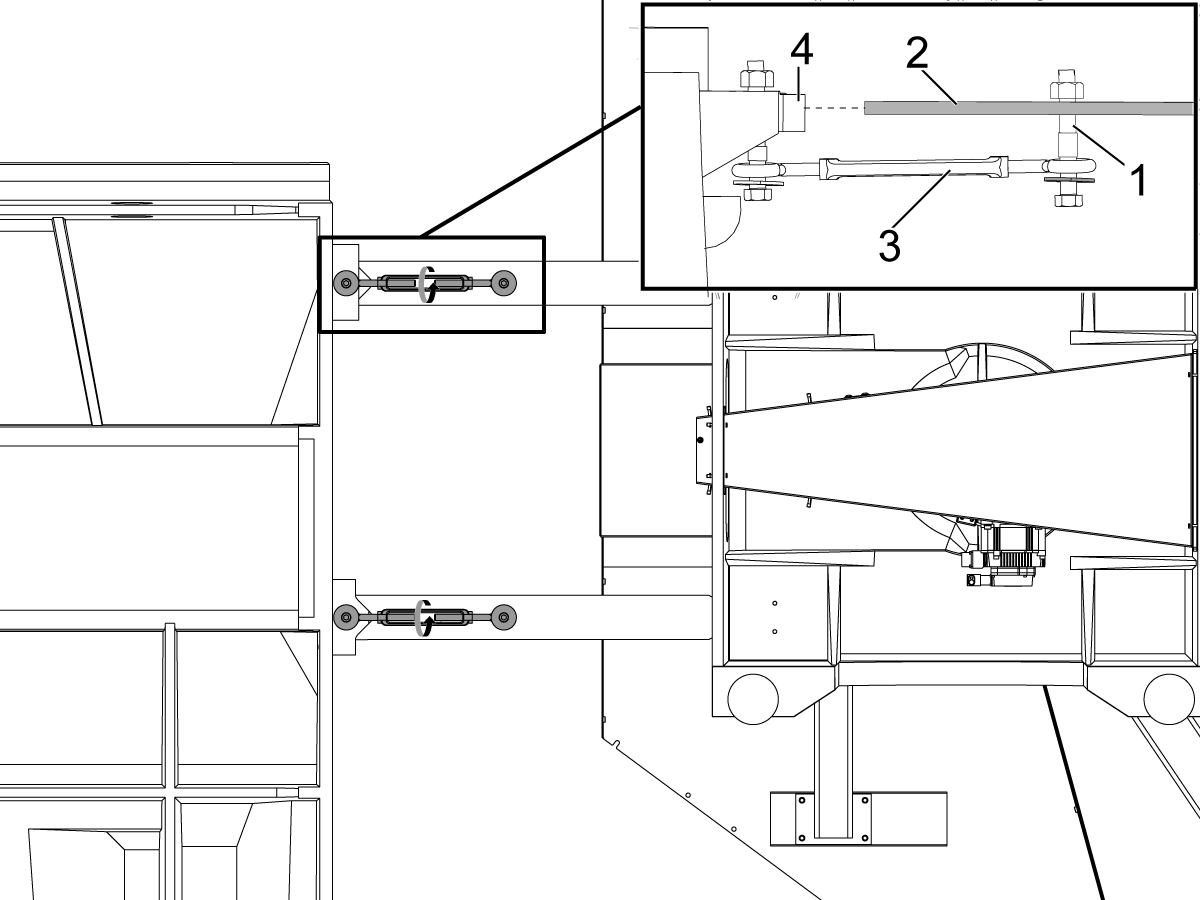
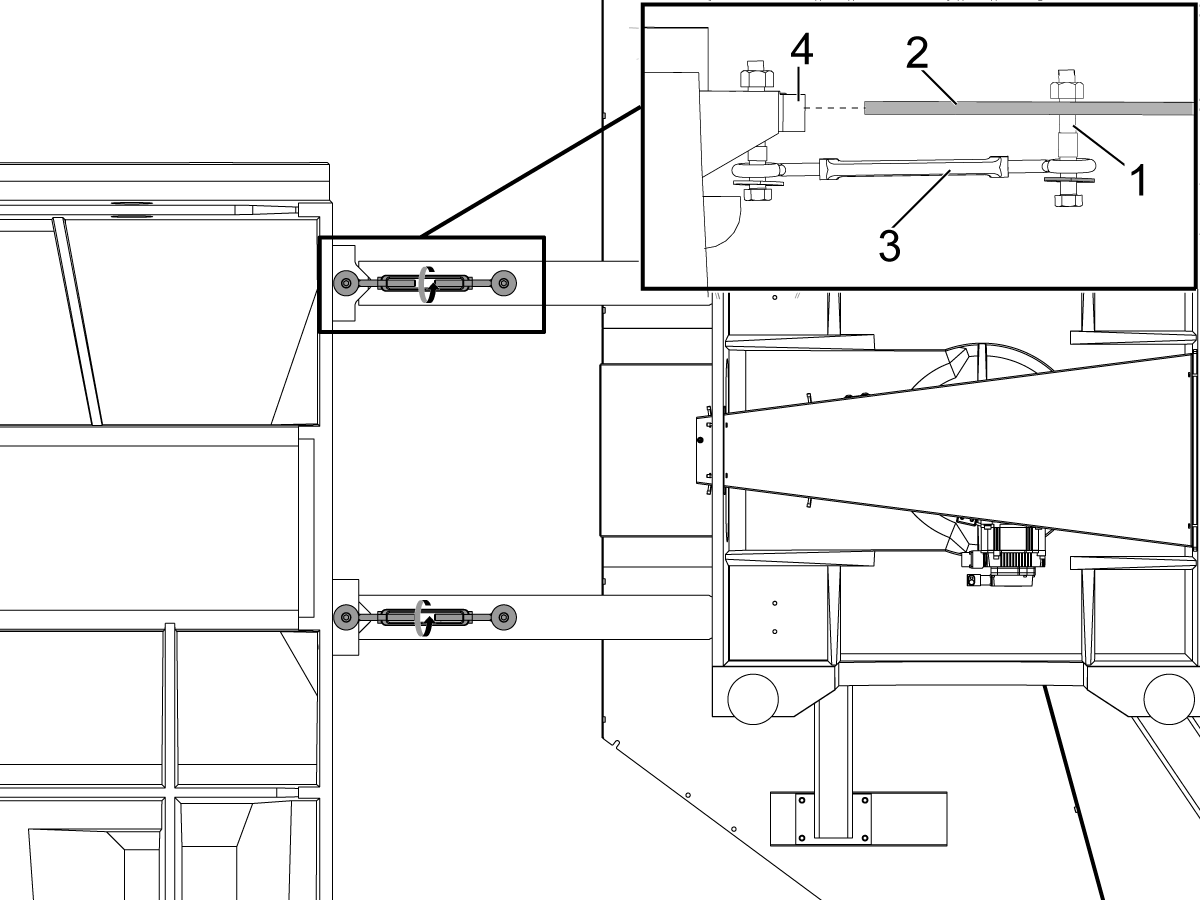
Install the turnbuckles [3] with the provided hardware (SHCS, washer, and bushings [1]) onto the alignment arms [2] and the base casting [4].

NOTE: The side of the turnbuckle with the two bushings should be installed on the side of the pallet pool.

Evenly tighten the turnbuckles until the alignment arms are almost tight against the alignment bars, STOP once the alignment bars areapproximately 1-2" away from the alignment blocks.

Adjust the height of the pallet pool so that the height of the alignment bars are to the center of the blocks before tightening the turnbuckles flush to the alignment blocks. Raise or lower the pallet pool leveling screws evenly when doing so.

Continue to evenly tighten the turnbuckles until the alignment arms are tight against the alignment blocks.

Once the alignment bars and blocks are evenly flush to each other loosen up the turn buckles.

7

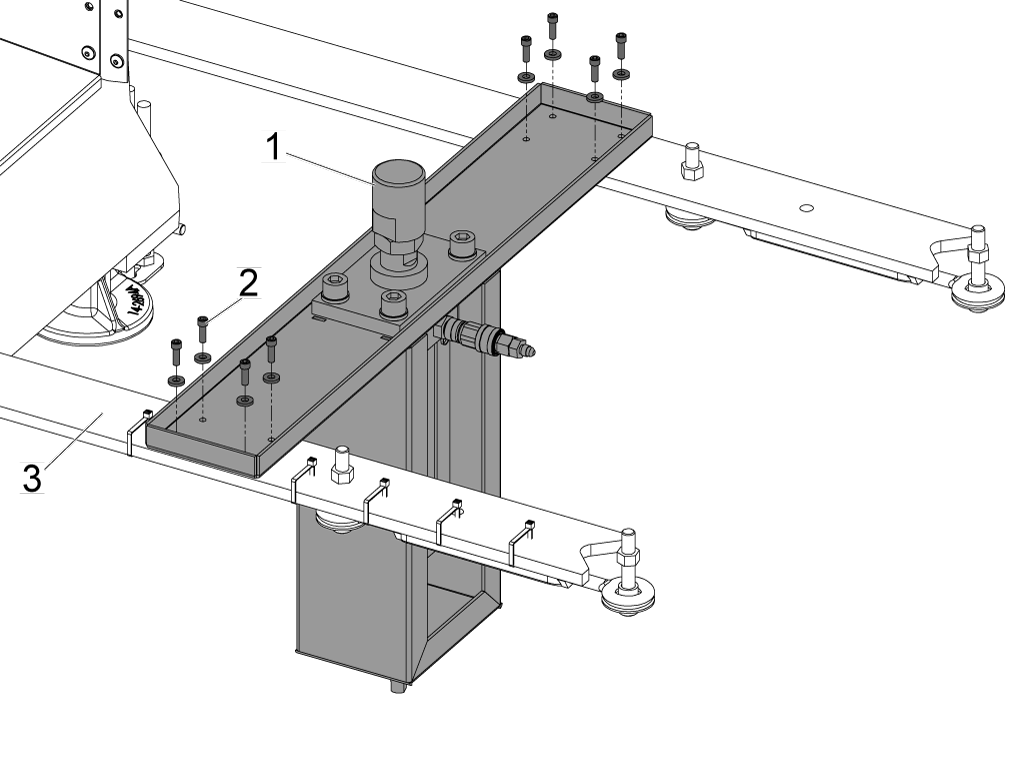
Install the HPU lift assist using the provided hardware.

The jam nut has been pre-adjusted so there is no need to adjust that any further. 

8

Updated

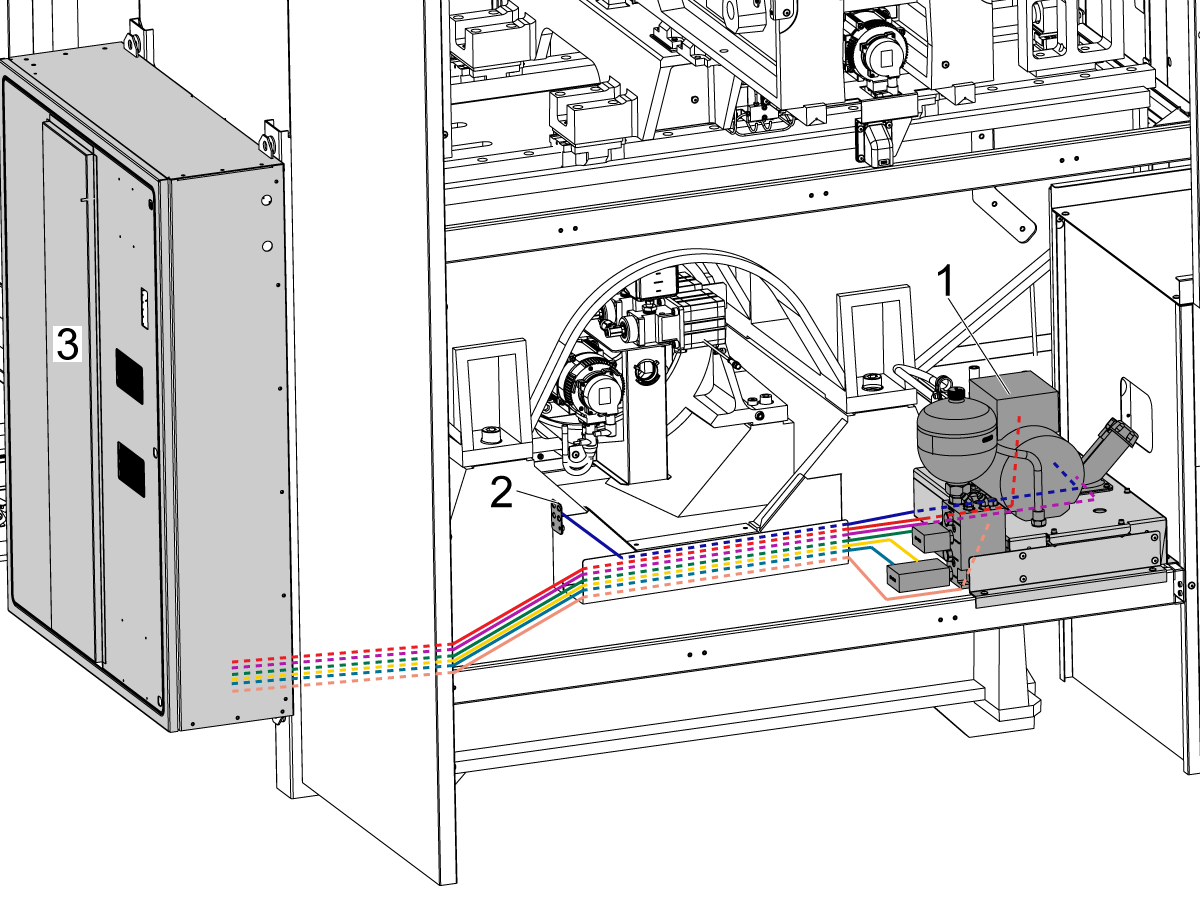
Turn [OFF] the main circuit breaker and wait until the Vector Drive High-Voltage light turns off.

 Note: The PR (Pallet Rotate) and PS (Pallet Slide) amps are already installed at the factory.

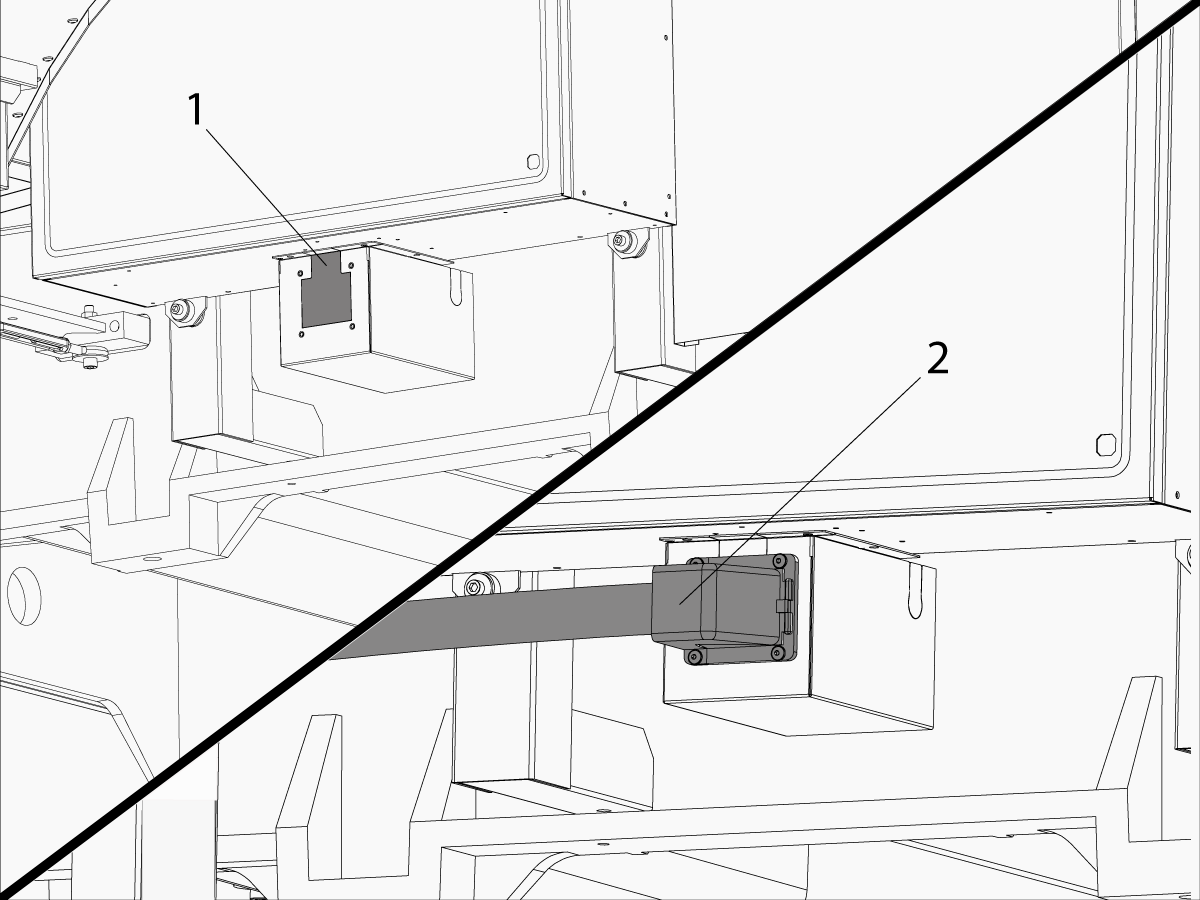
Knock out the pre-cut access panel [1].

Route the pallet pool cables [2] into the control cabinet as shown in the illustration.

Connect the PR motor encoder cable (32-0482) to Maincon PCB channel 15.
Connect the PS motor encoder cable (32-0484) to Maincon PCB channel 16.

Connect the PR motor power cable (32-1644A) to the amplifier labeled PR. Install the ferrite filter bead on the motor power cable.

Connect the PS motor power cable (32-1648A) to the amplifier labeled PS. Install the ferrite filter bead on the motor power cable.

9

Updated

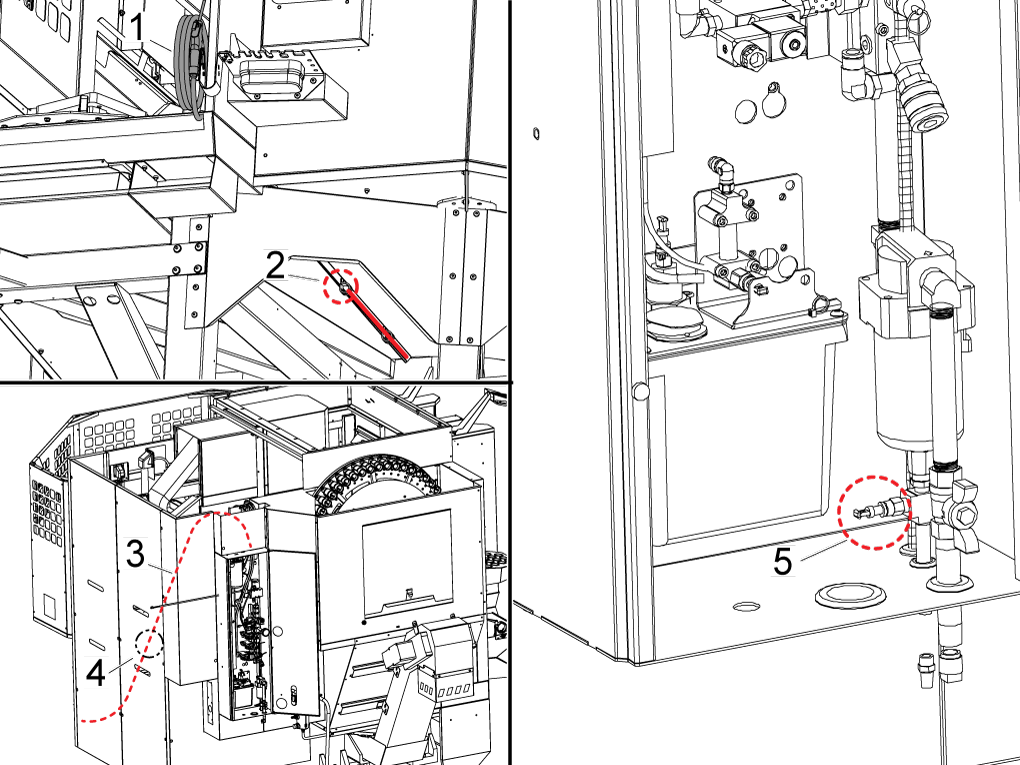
Connect the air gun hose [1] to the air line under the pallet pool [2]. 

Route the air hose from the pallet pool to line coming from the the lube cabinet [3].

Connect the air line from the pallet pool to the to the T-fitting [4] connecting the machine air gun line to the lube cabinet.

Follow the line from the lube cabinet [5] to help locate the T-fitting.

10

Updated

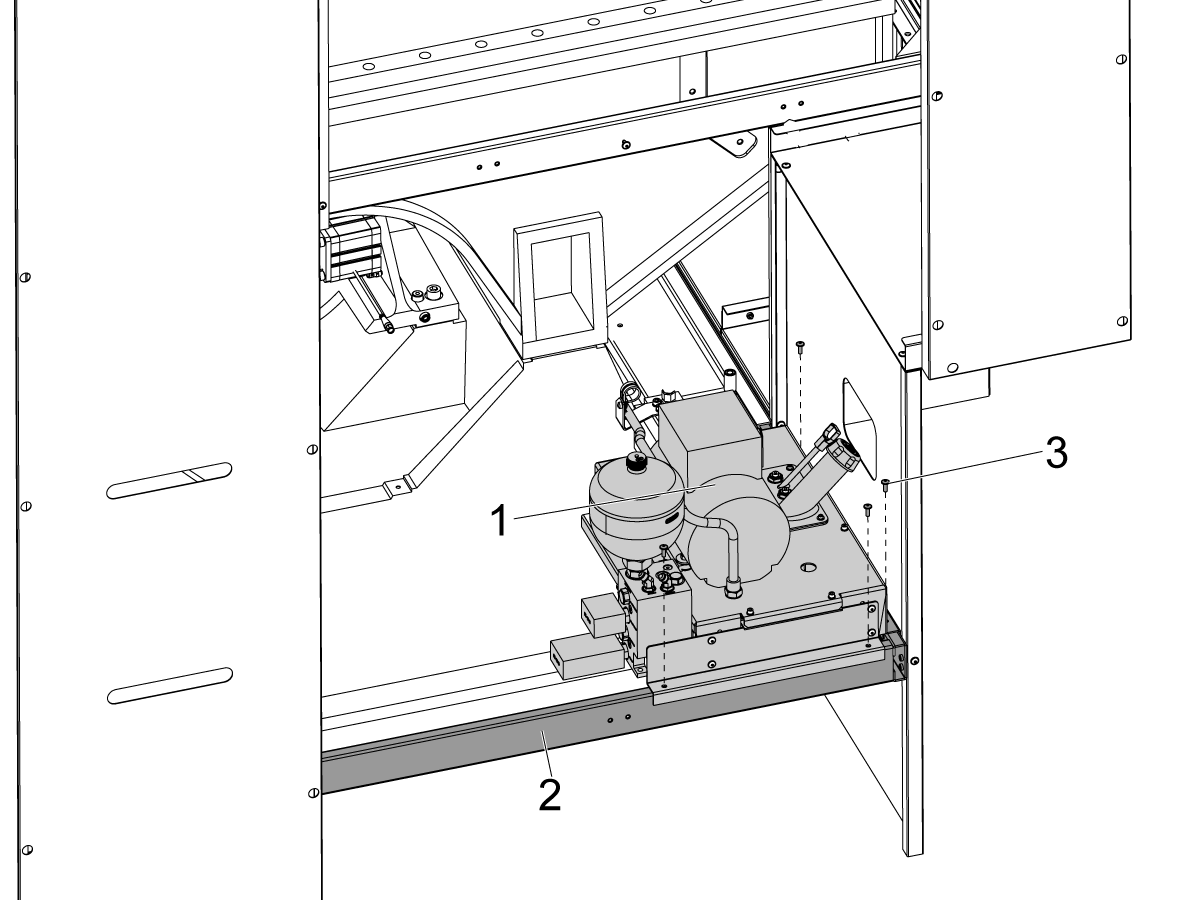
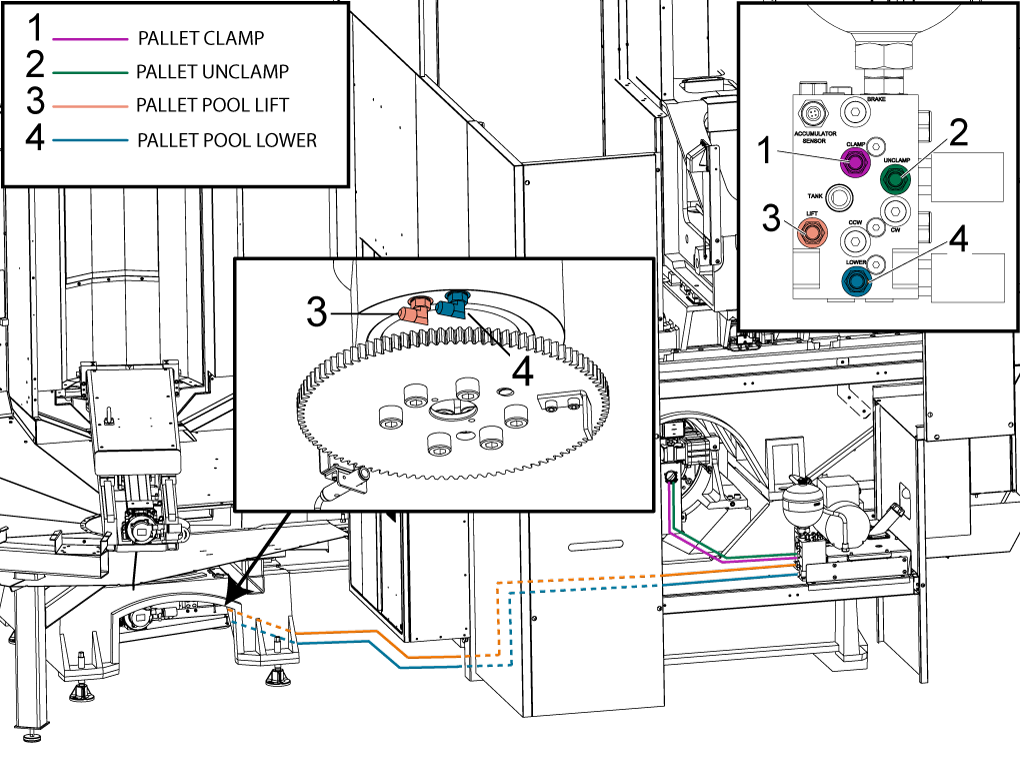
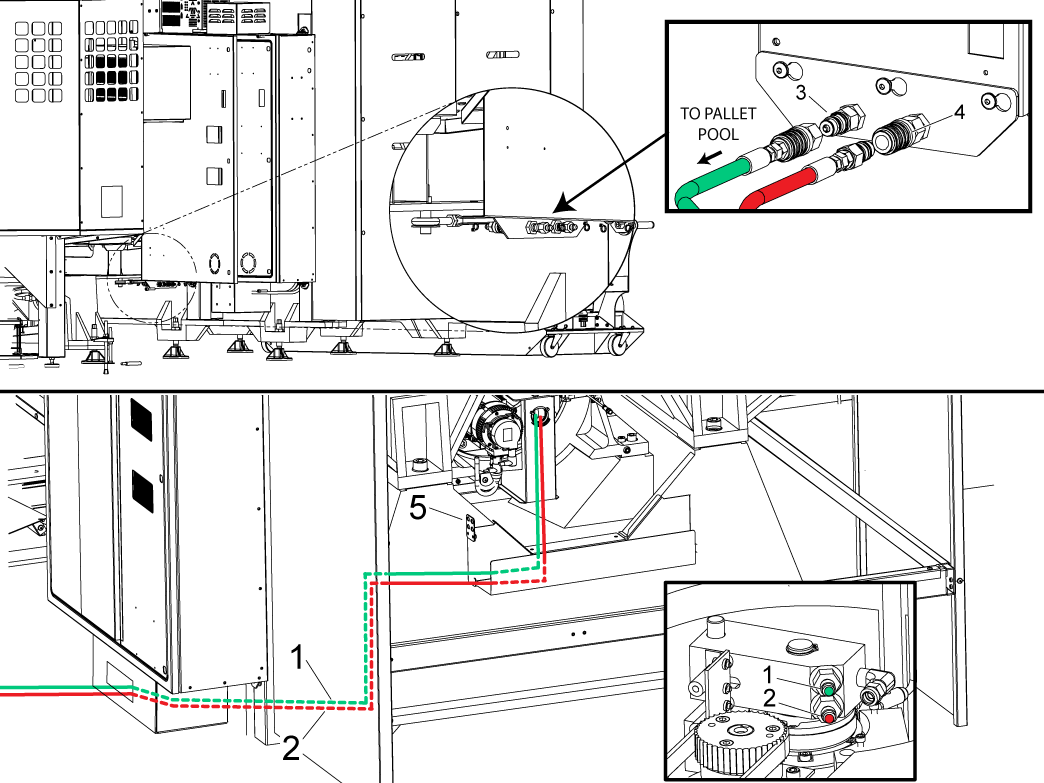
Connect the hydrualic lines to the bulkhead. The pallet clamp [1] is marked with a green zip tie and pallet unclamp [2] is marked with a red zip tie. The hydraulic lines should run through the conduit neatly.

NOTE: The bulkhead uses quick disconnects  for the hydraulic hoses. The clamp side has the male side quick disconnect [3] and the unclamp has the female side [4], this is to avoid switching the hoses.

Route the HPU oil level sensor cable 32-0423 from the HPU to the connector bracket [5].

NOTE: The image shows a machine without a 90 degree control cabinet, but the bulkhead will be attached to the bottom of the 90 degree control cabinet. 

11

Attach the lift and lower hoses from the HPU to the lift assist, these hoses are tee'd off and color coated.

The lower hose [1] will attach to the top fitting with the grey zip tie.

The lift hose [2] will attach to the lower fitting with the purple zip tie. 

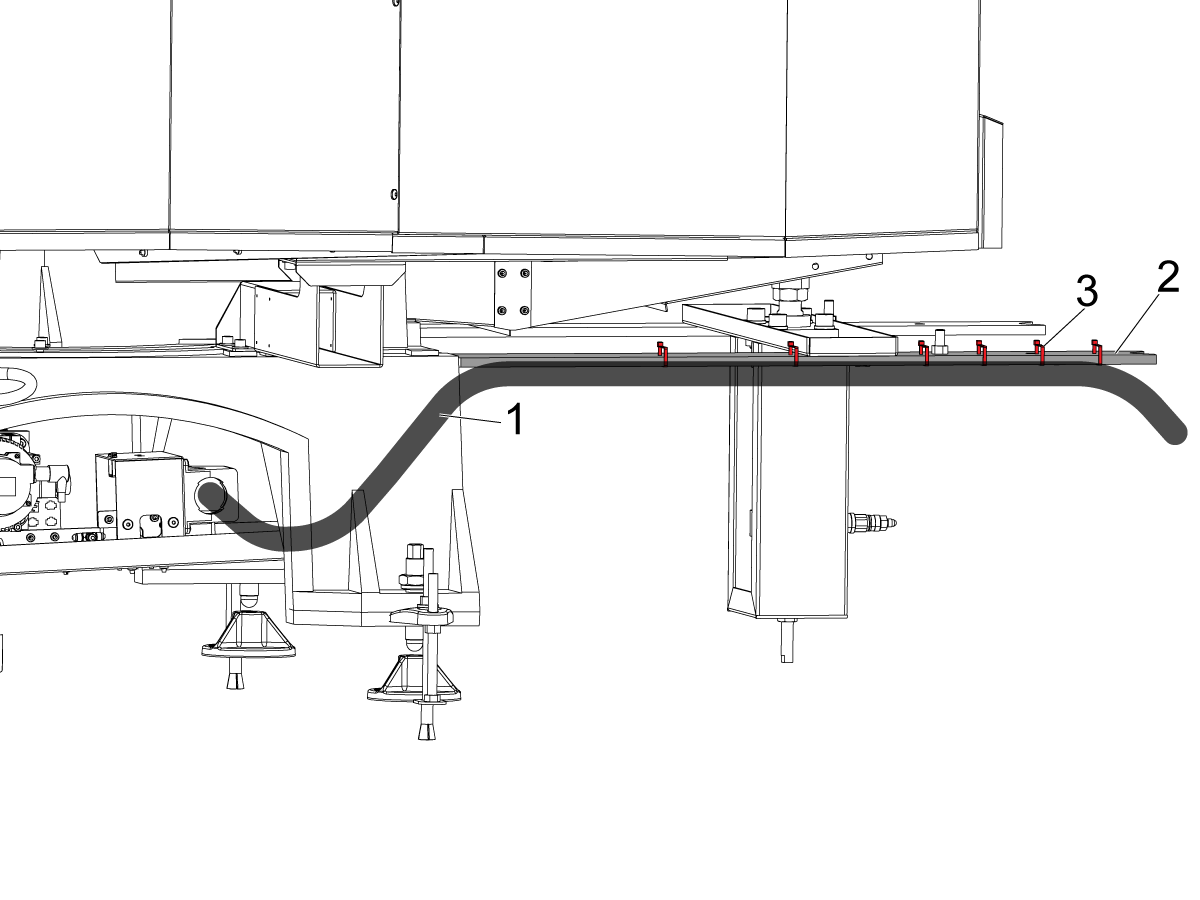
12

Route the conduit [1] to the machine securing the conduit to the alignment arms [2] using the zip ties [3] included in the installation kit. 

13

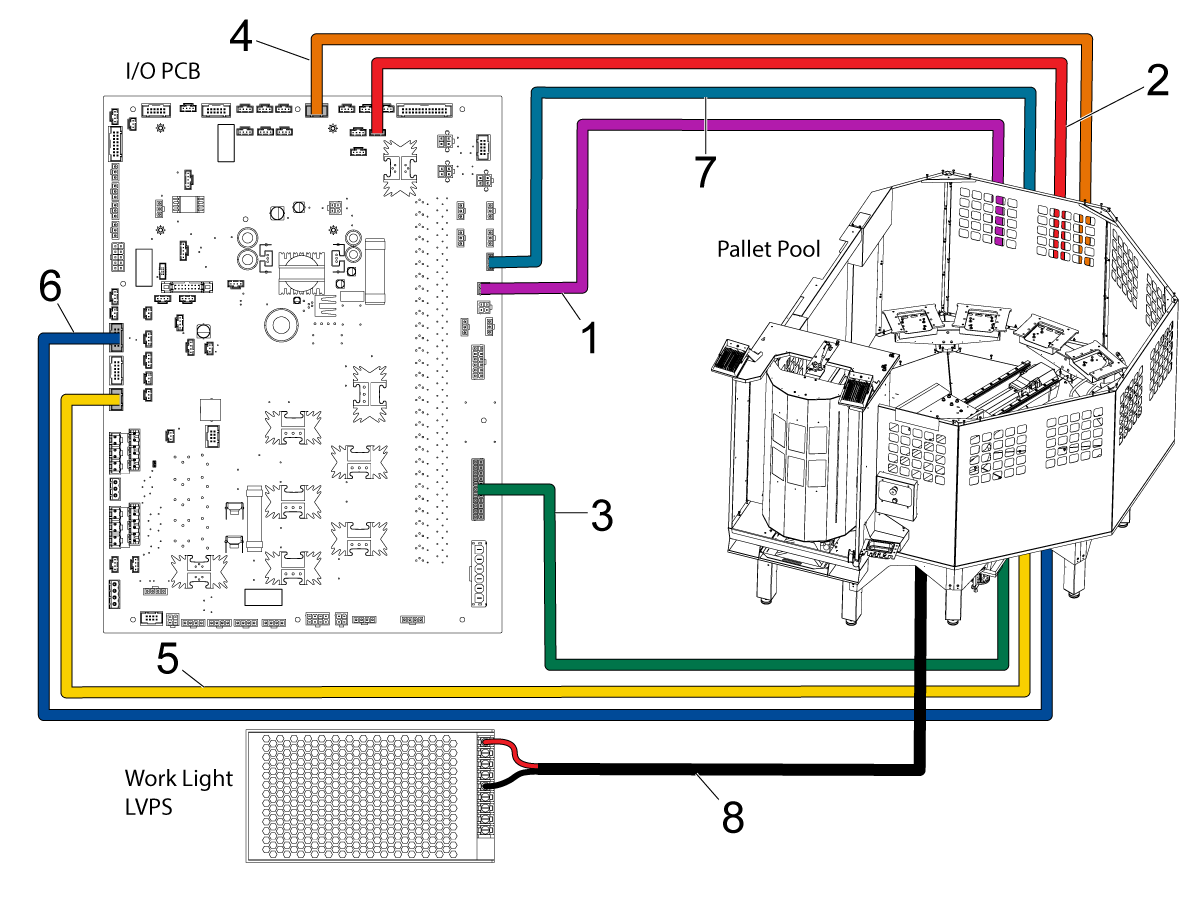
Connect HPU UP/ DWN SOL (cable 33-1581)  [1] to P38.

Connect HPU THRML PROBE (cable 32-1808) [2] to P46.

Connect HPU PALLET CLMP SOL (cable 33-1522) [3] to the pigtail coming off of P35.

Connect HPU PRESSURE SNSR (cable 33-2562) [4] to the pigtail coming off of P48.

Remove the jumper connection from the P14 connector on the I/O PCB.

Connect PP STATUS SWITCHES (cable 33-0523) [5] to P14.

Remove the shorting block from the P12 connector on the I/O PCB.

Connect PALLET CHNGR STATION (cable 32-0961) [6] to P12.

Connect PALLET ALRAM (cable 32-0961) [7]  to P50.

Make sure all the Pallet Pool status bracket connectors are plugged into the correct location.

Connect the Pallet Load Station worklights (cable 33-8543) [8] to the Work Light LVPS power supply.

 NOTE: Store the Pallet Pool jumpers in a safe location, these will be used by the service personnel to move or service the machine.

14

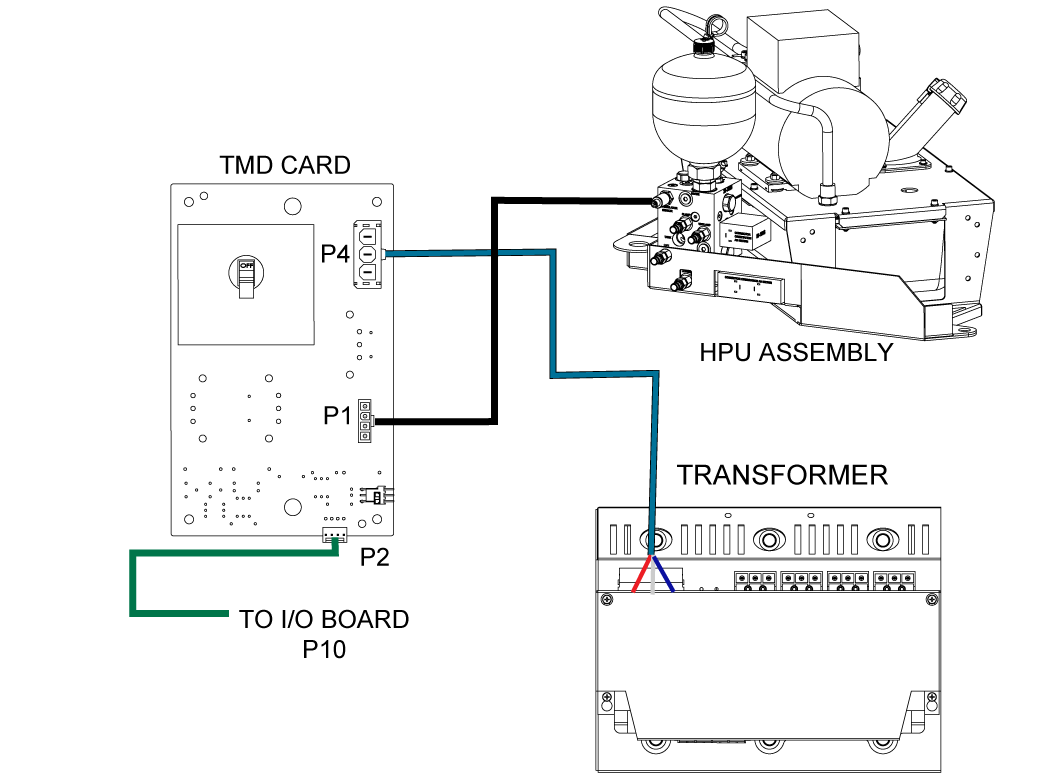
Route the HPU PUMP PWR cable (33-1529) to P1 on the TMD card located on the I/O PCB hinged door. 

The rest of the components in this image are already connected but this diagram can be used as reference. 

Parameters and Settings

1

Set the main circuit breaker to the ON position.

Push [POWER ON].

Zero Return all the Axes

Do the following to enable the pallet pool option.

Important:  You will need to do this step if you perform a option 5 clean install option on a UMC with a pallet pool.

Set setting 382 Disable Pallet Changer to None.

For machines that were not originally ordered with the pallet pool option, set the following factory parameters to these values:

  1. 2128 [:] Pallet Pool Type = HPU Lift with Assist
  2. 40.011 (HPU 1 Type ) = On Demand
  3. 15.019 [:] PR-Axis Invisible = False
  4. 16.019 [:] PS-Axis Invisible = False
  5. 15.004 [:] PR-Axis Disable = False
  6. 16.004 [16:3] PS-Axis Disabled = False
  7. Turn TMD card on in the electrical cabinet

Note: Machine may need to cycle power for parameters to display. 

2

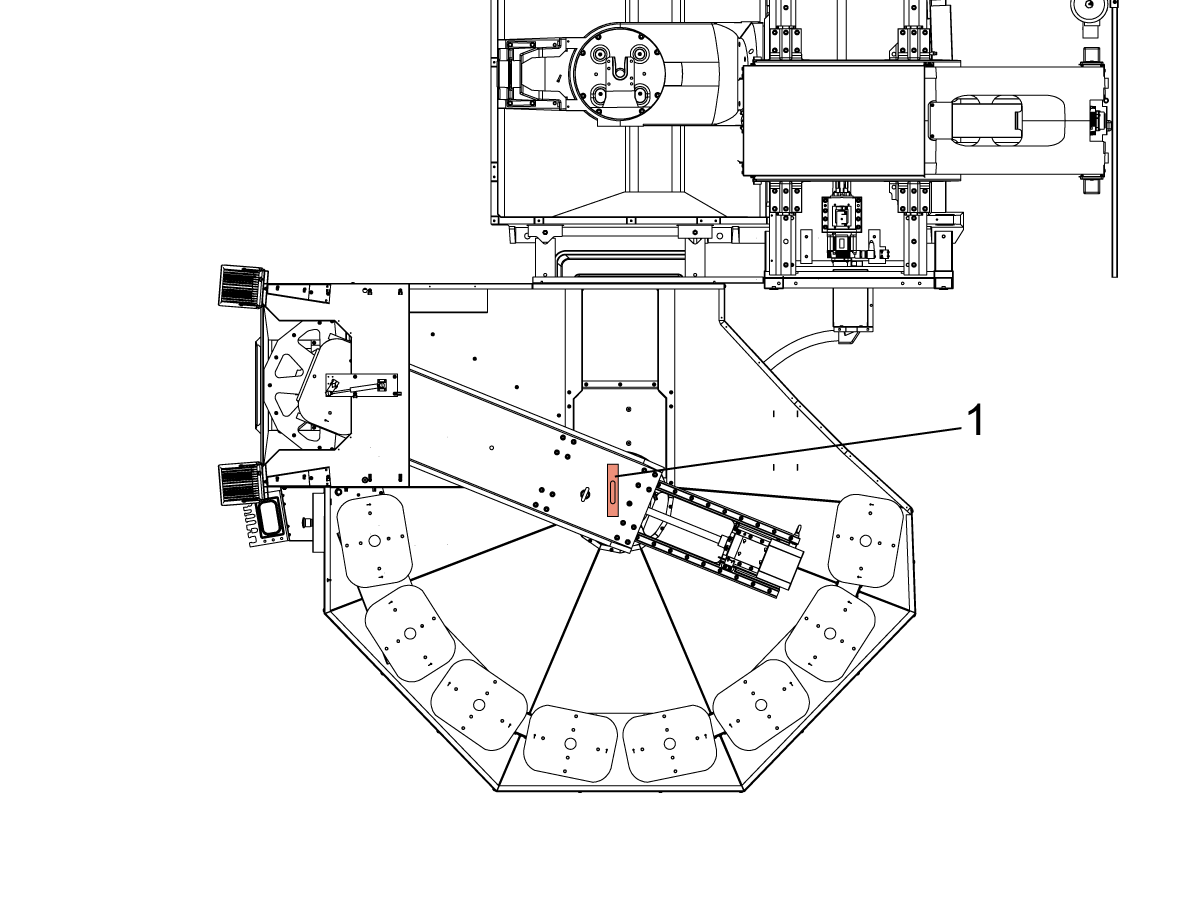
Find the Haas Pallet Pool Parameters decal on the E-Stop on the Pallet Pool machine.  Write down the values.

Use the USB Service key to go into Service Mode.

Press [DIAGNOSTIC] Go to the PARAMETERS> Factory setting tab.

Set the following factory parameter values:

  1. 15.078 PR-Axis Tool Change Offset = Use the decal value.
  2. 15.140 PR-Axis Grid Offset = Use the decal value.
  3. 16.078 PS-Axis Tool Change Offset = Use the decal value.
  4. 16.140 PS-Axis Grid Offset = Use the decal value.
  5. Zero Return after the grid offset is adjusted.

 NOTE: If "No Pallet" message appears when selecting "Put away Load Station Pallet" and "Get highlighted Pallet", refer to the symptom table section in UMC Pallet Pool - Troubleshooting Guide - NGC

Base Level Pallet Pool

1

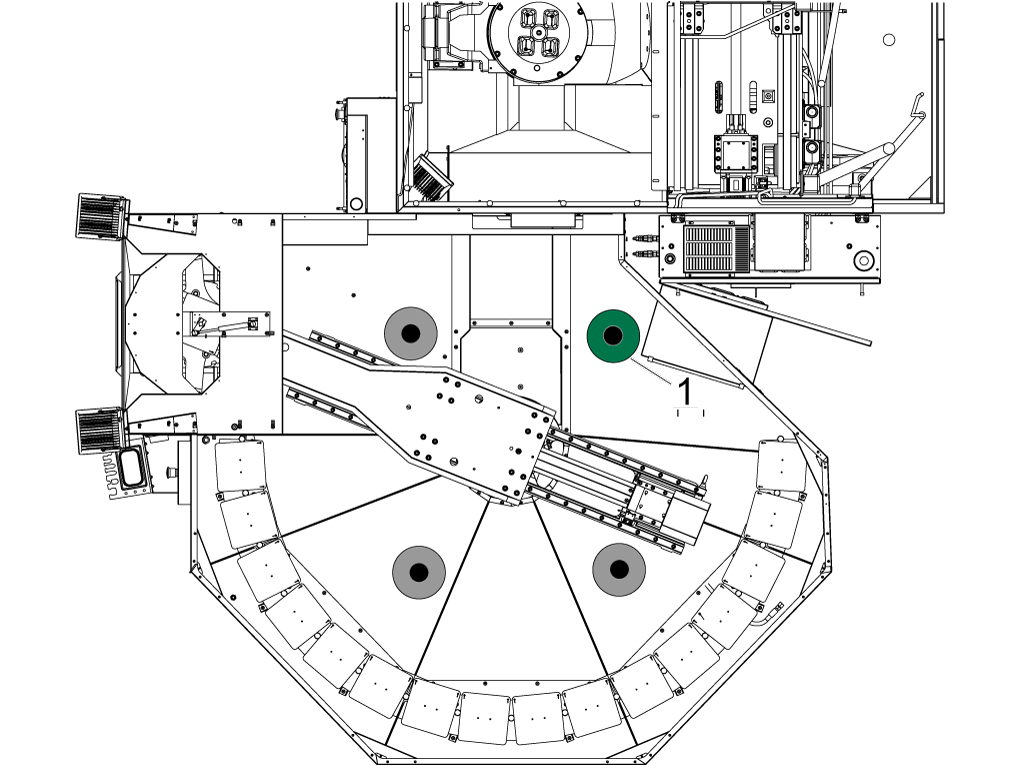
Verify all outer supports legs are NOT touching the floor.

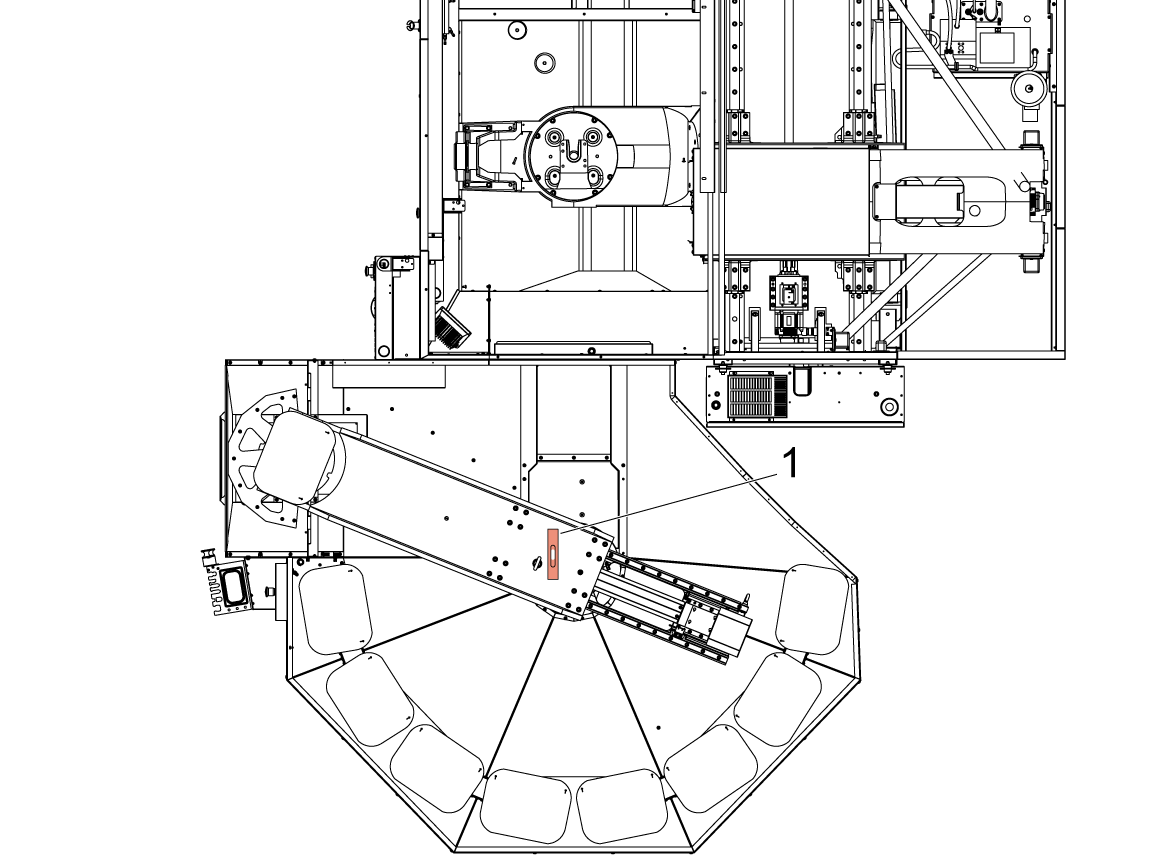
Make sure the pallet pool sit on 3 points, the leveling foot that is not touching the puck is the one closest to the machine control cabinet [1].

2

Move the ram to its home position if it is not already, place the bubble level on ram and rough level with respect to X & Y. 

NOTE: Rough level by adjusting the 3 leveling feet without adjusting the 4th in the air.

Assigning Missing Pallets on Scheduler

1

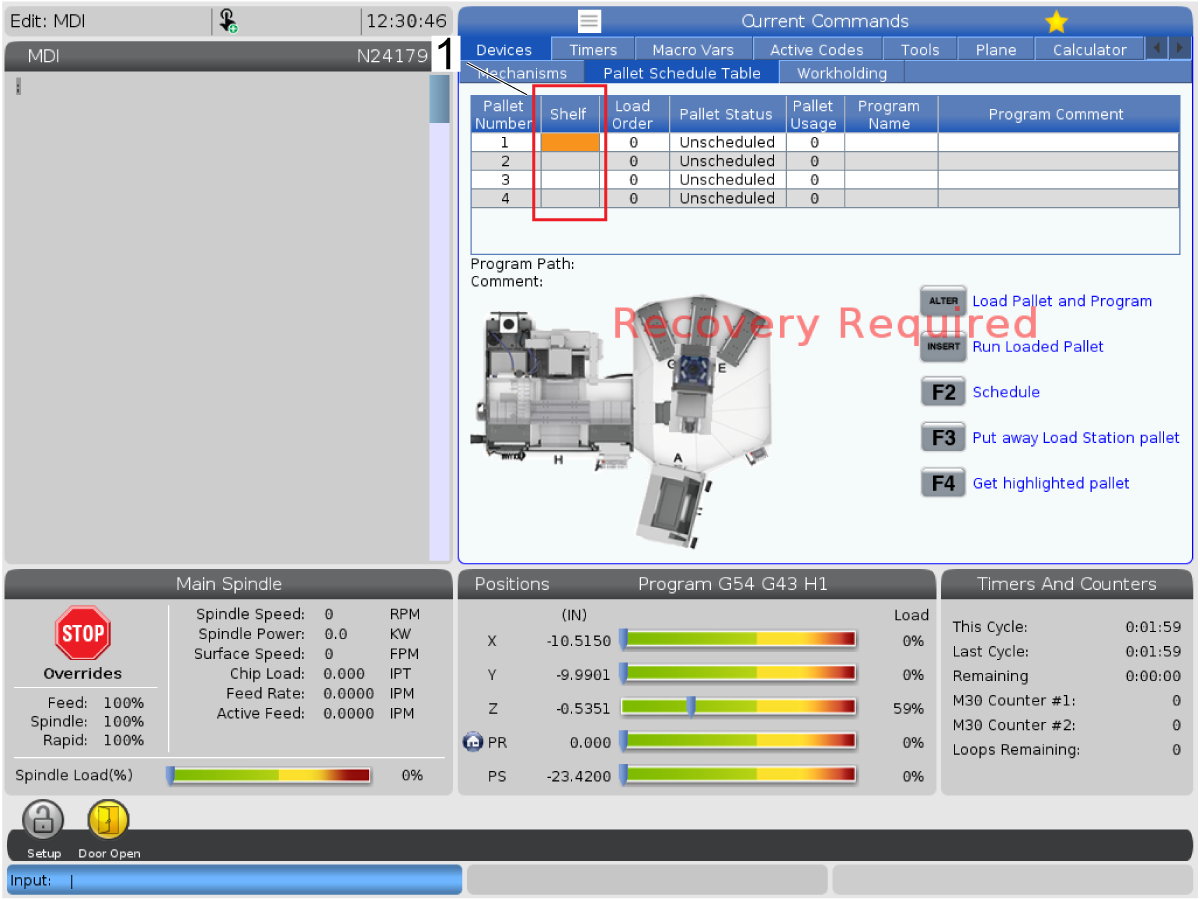
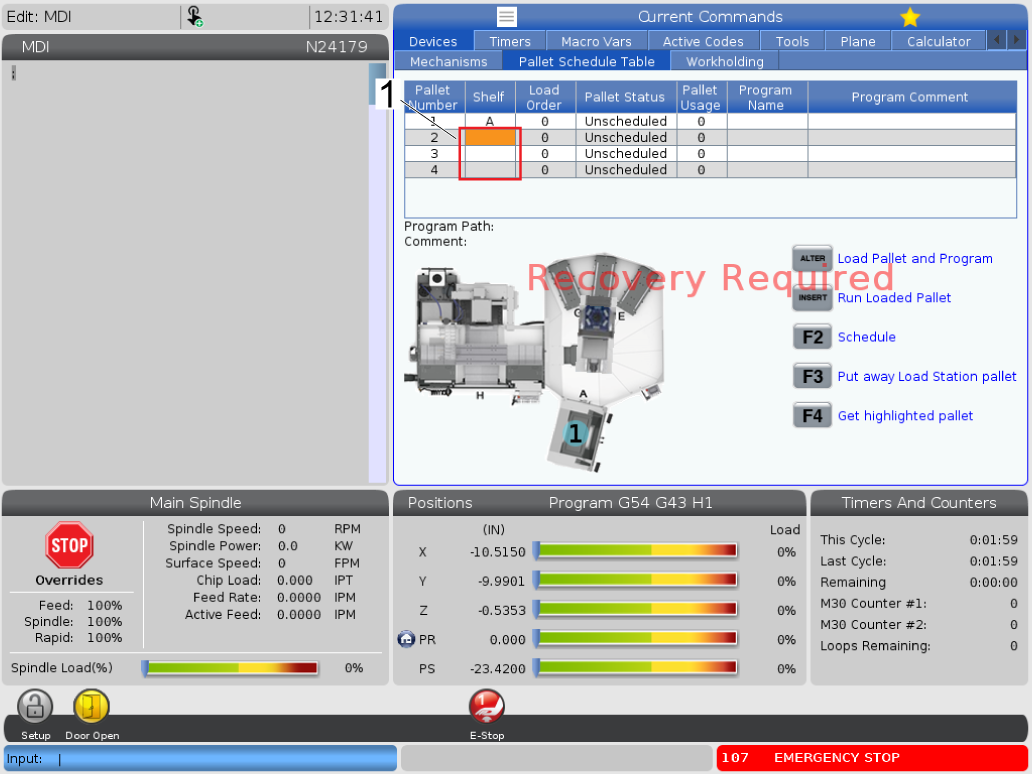
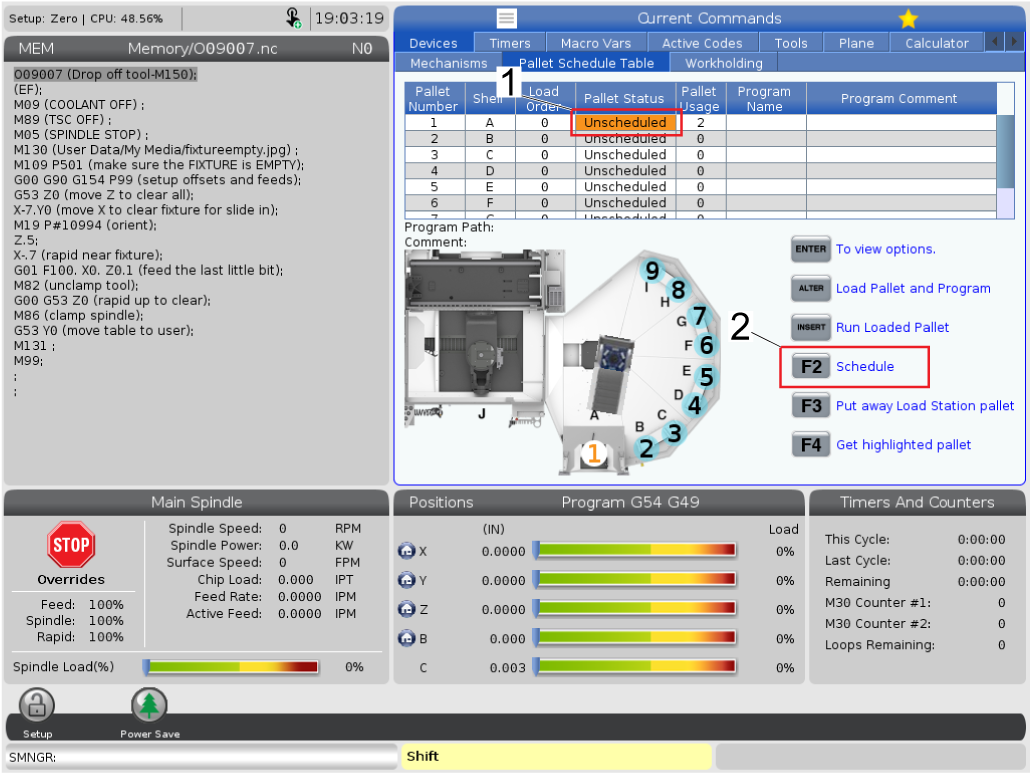
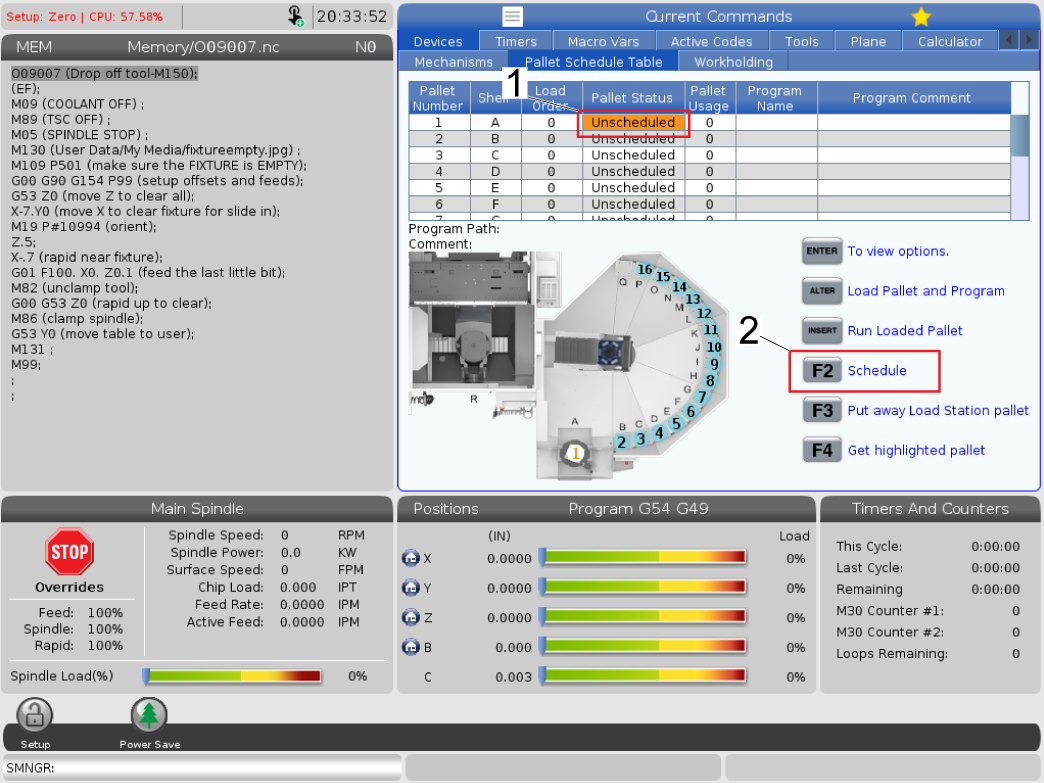
It is a possible to enter a condition where the shelves in the pallet scheduling page are not assigned [1]. This will not allow the PR and PS to zero return or recover the machine. 

This section will explain how to assign the missing shelves, if your machine is not in this condition please skip to the next section. 

First, press [CURRENT COMMANDS] and navigate to the Pallet Schedule Table tab.

2

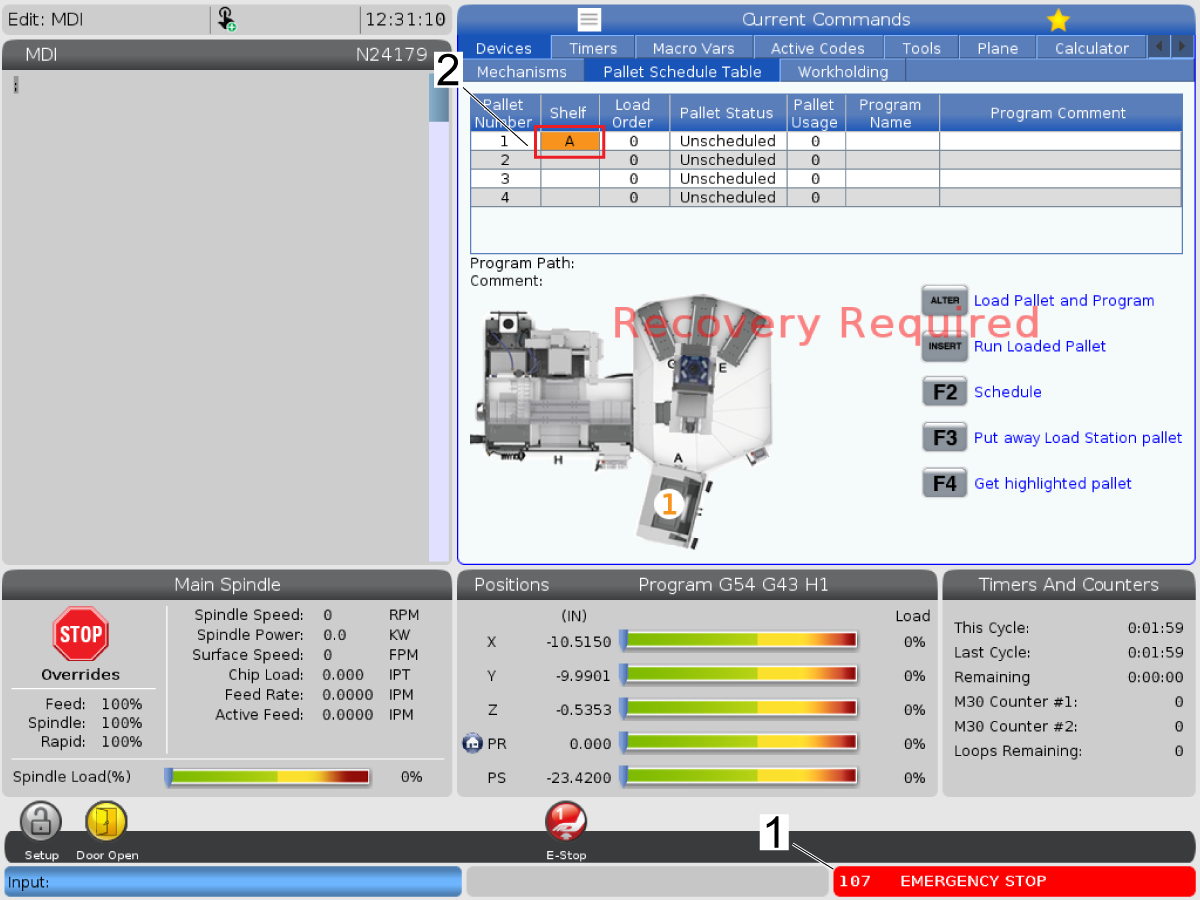
Press [EMERGENCY STOP] [1] and highlight the shelf tab on pallet number one.

With [EMERGENCY STOP] pressed, type the letter A and press [ENTER]. This will assign shelf A to pallet number 1 [2].

3

Repeat the previous step for the remaining pallet numbers in alphabetical number [1].

NOTE: The shelves can be re-assigned at any point  however the user chooses by repeating the same process (e.g. pallet number 3 can be assigned shelf B).


Align Pallet Drop Off Station

1

Insert the Service Key USB and put the machine in Service Mode.

Make sure there are no obstructions inside the machine or inside the pallet pool area. Pull out all the [E-STOPS] and [RESET] the alarms.

Press [ZERO RETURN] and then press [ALL]. The machine will zero return all the axes.

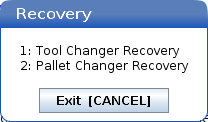
Once all the axis are zero returned press [RECOVER]. A pop up box will appear, select [2] for Pallet Changer Recovery.

2

The Pallet Changer Recovery screen shows the Pallet Pool Status. Make sure the Pallet Lifter is Down [1]. If not press [ALTER] to bring the Pallet Lifter down.

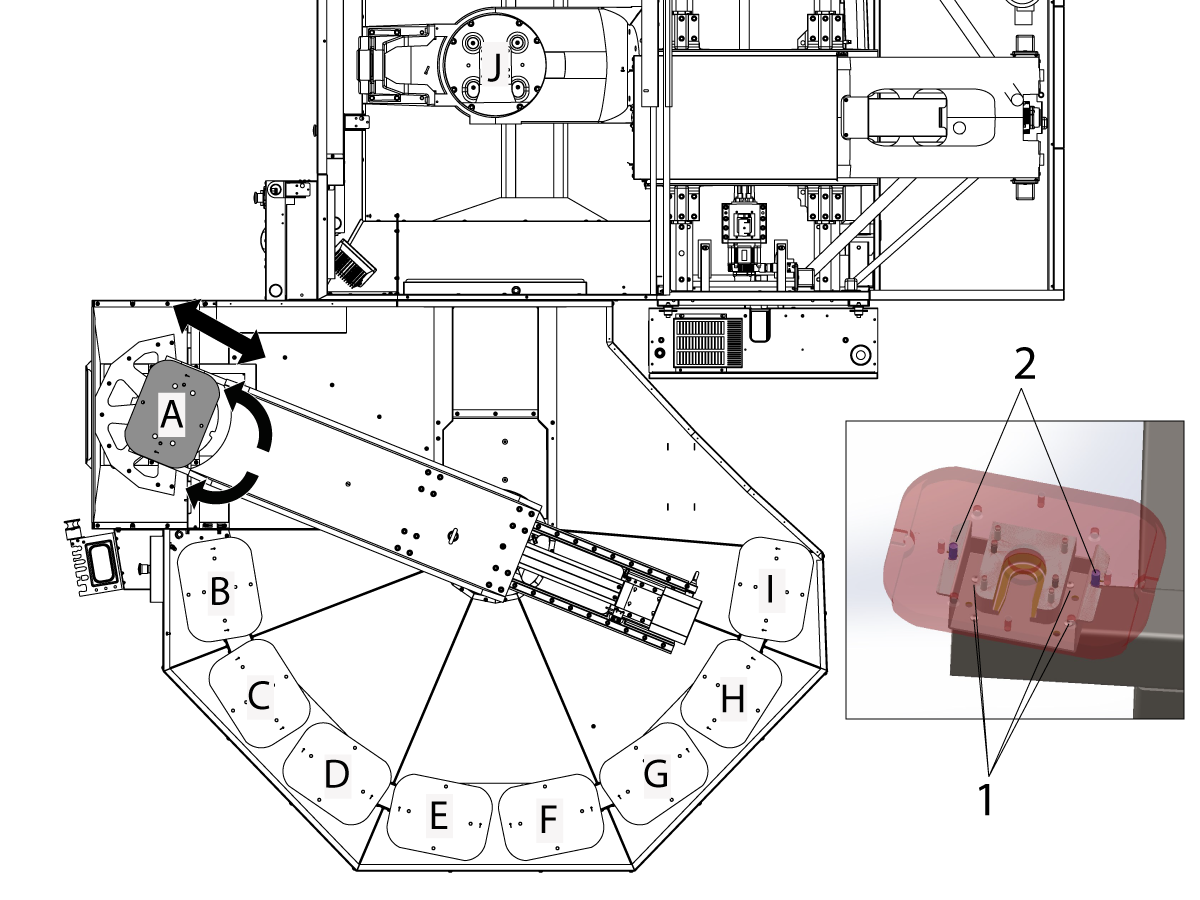
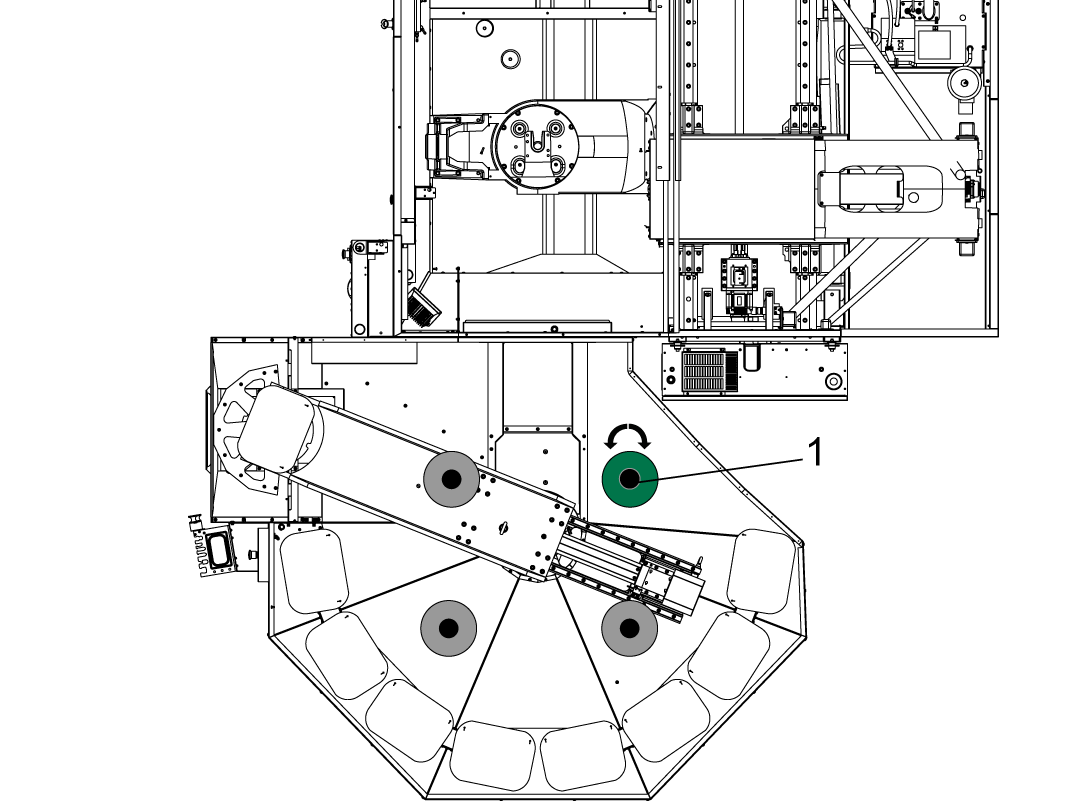
Press [H] and then the [DELETE] button. This will rotate the pallet lifter towards station H.

Press [F1] to open the auto window [3].


3

While still in the pallet recovery page press [H] then [DELETE] to rotate pallet pool to H position.

Open the window by pressing [F1] then press [+Z] to select Pallet slide Axis manually slide the RAM in the machine to the pickup location.

  NOTE: Jog the slide axis slownly and make sure the bottom of the forks clear the receiver casting. Raise the pallet pool evenly if they do not.

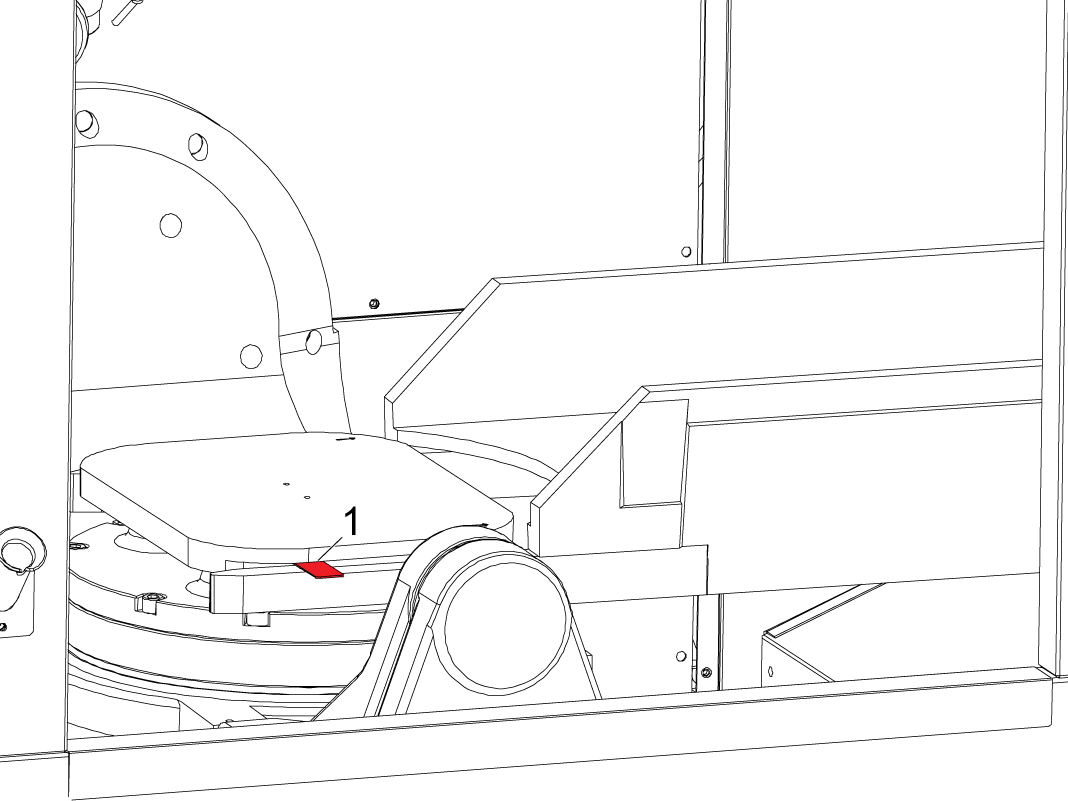
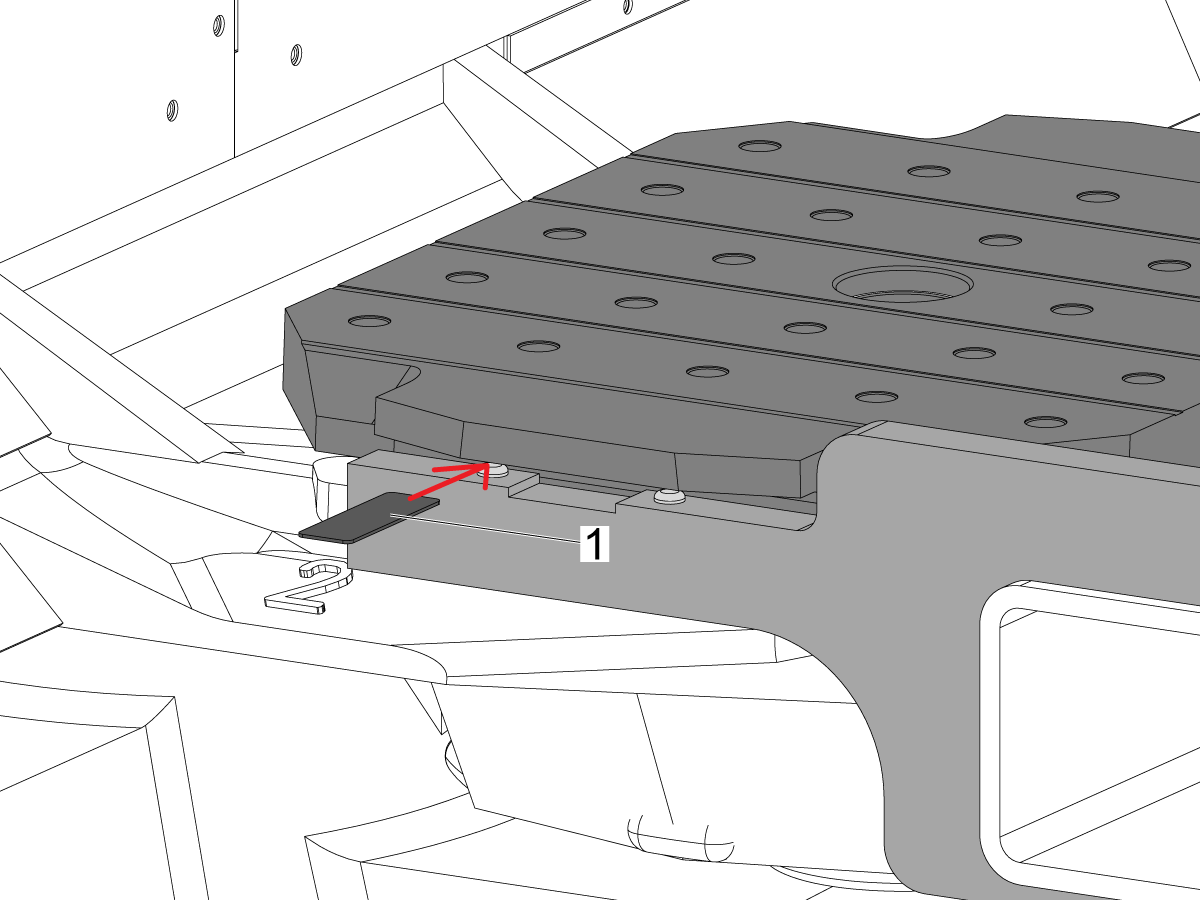
With the Pallet Pool in the down position, use the Gap Gauge [1] (0.134 in or 3.4 mm) to set the gap by adjusting the height of the Pallet Pool. Evenly raise or lower the pallet pool leveling screws in accordance to the gap gauge.

  NOTE: The pallet pool should still be only on 3 points while adjusting the gap.

4

Updated

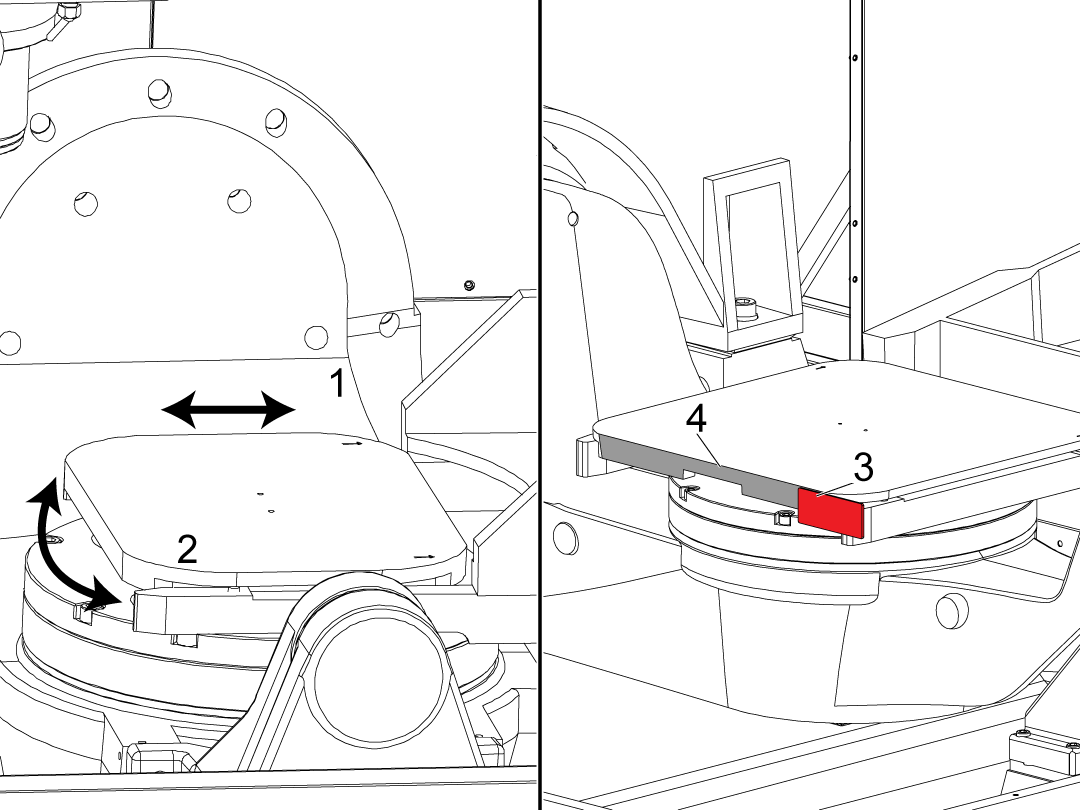
Adjust the pallet pool RAM by jogging the PS or PR axis so the forks align correctly underneath the pallet.

Using the gap gauge [3] make sure the pallet forks are flush with the edge pallet [4]. If only one side is flush and there is a gap on the other side adjust the PR position by pressing [-Z] to select the Pallet Rotate Axis on the pallet recovery page.

 NOTE: You should be able to align the pallet pool by adjusting the PR and PS axis, if it becomes difficult to do so with only these two adjust the C-axis to a position that the pallet is flush with the edge of the forks. Then set Parameter 7.310 C-AXIS PALLET OFFSET to the current position. This is the position that the C-axis will rotate to during a pallet change operation.

Press [F2] to unclamp the pallet and press [ALTER] to lift and lower the pallet to make sure the pallet falls onto the pins smoothly. Continuously adjust the PR and PS axis to make sure the pins are aligned to the holes.

 WARNING: The air blast on the receiver makes a loud noise ear plugs are recommended.

With the Pallet Pool in the desired PR and PS position , press [Recovery] to get out of pallet recovery and go to Factory Settings 2137 [:] Shelf H Slide Offset and 2147 [:] Shelf H Rotary Offset. Press [F2], to set the value of the parameter to the current axis postion.

Manually remove the pallet from the machine. 

Finally, drop the fourth leveling screw onto the puck.

5

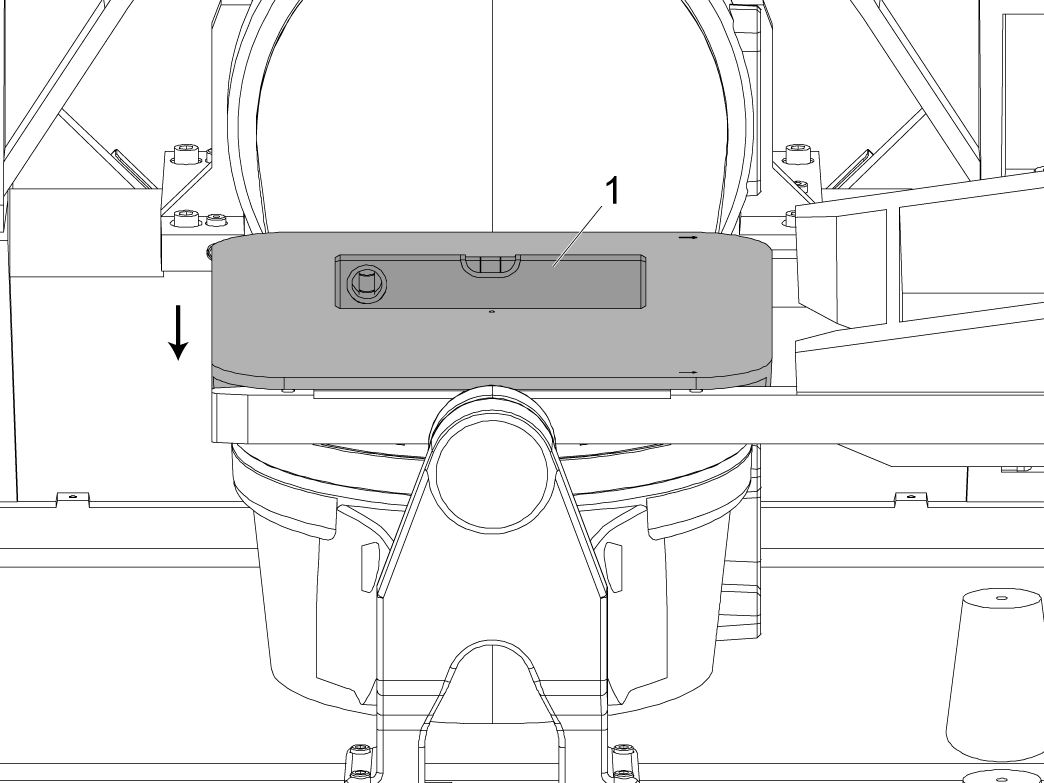
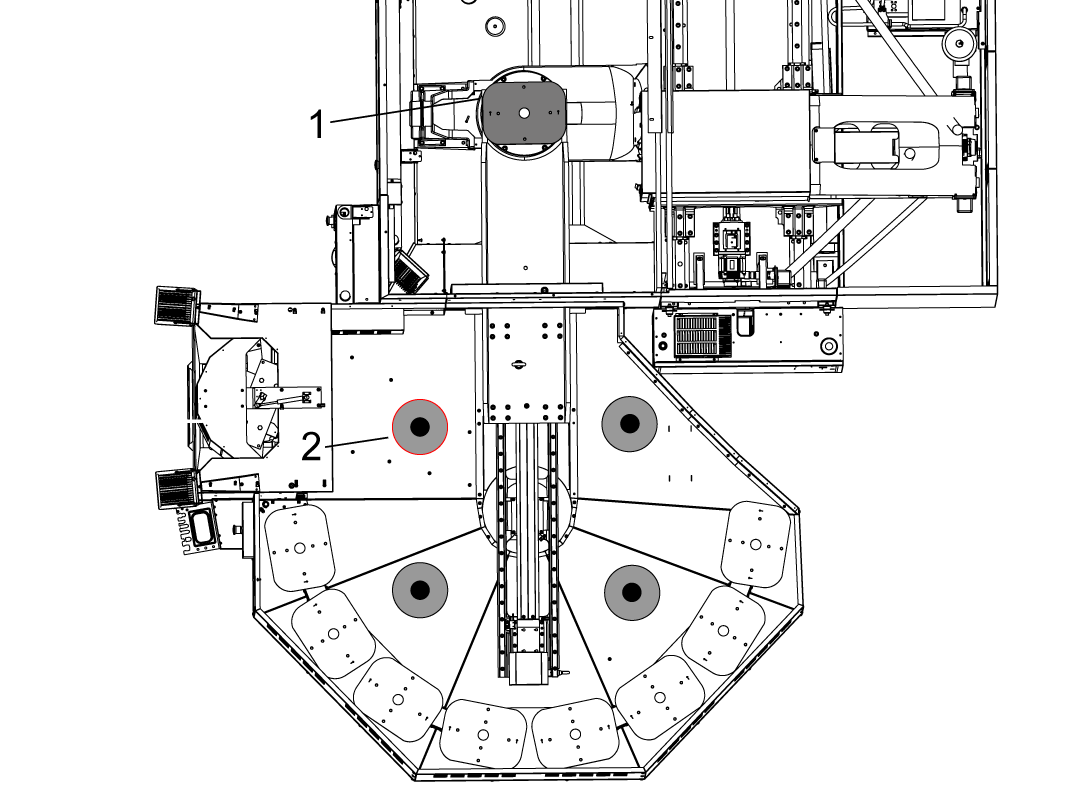
Make sure there is a pallet in the machine and place a level on the pallet in the UMC receiver as shown in the image.


6

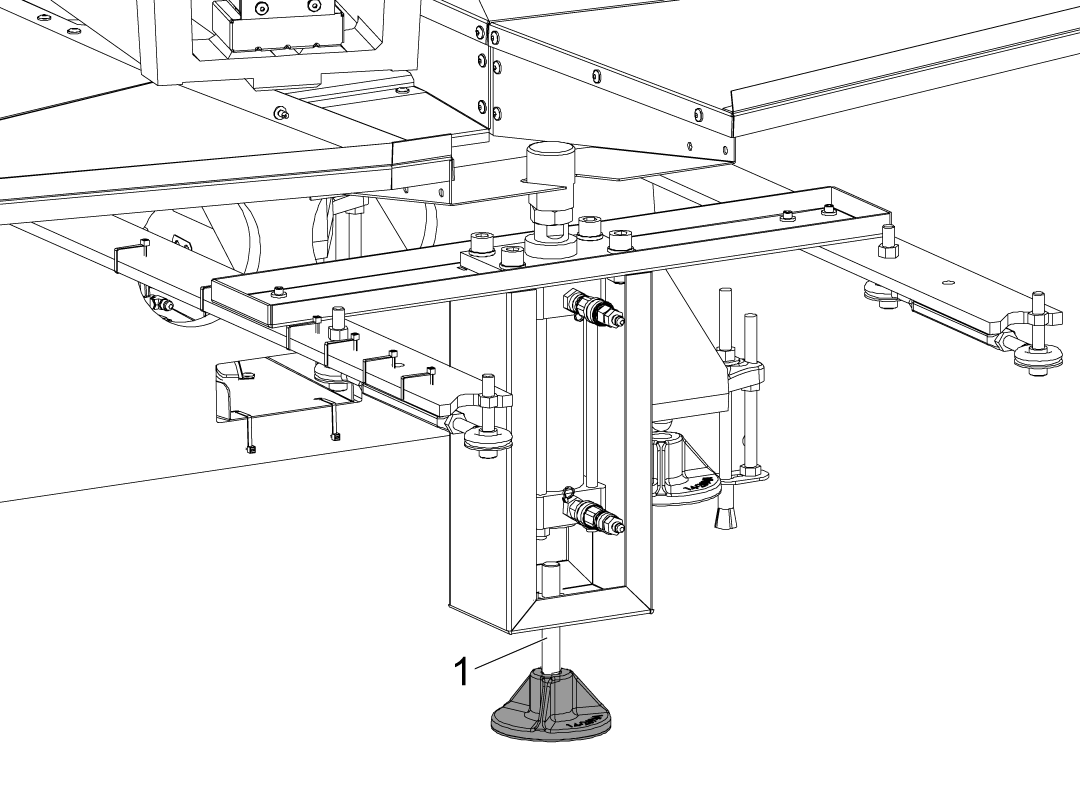
Place a puck under the lift assist leveling screw and make sure the puck and screw are in contact 

Unclamp the receiver and raise the pallet. 

NOTE: The hydraulic lift assist will not come with a leveling screw but a hex bolt.

7

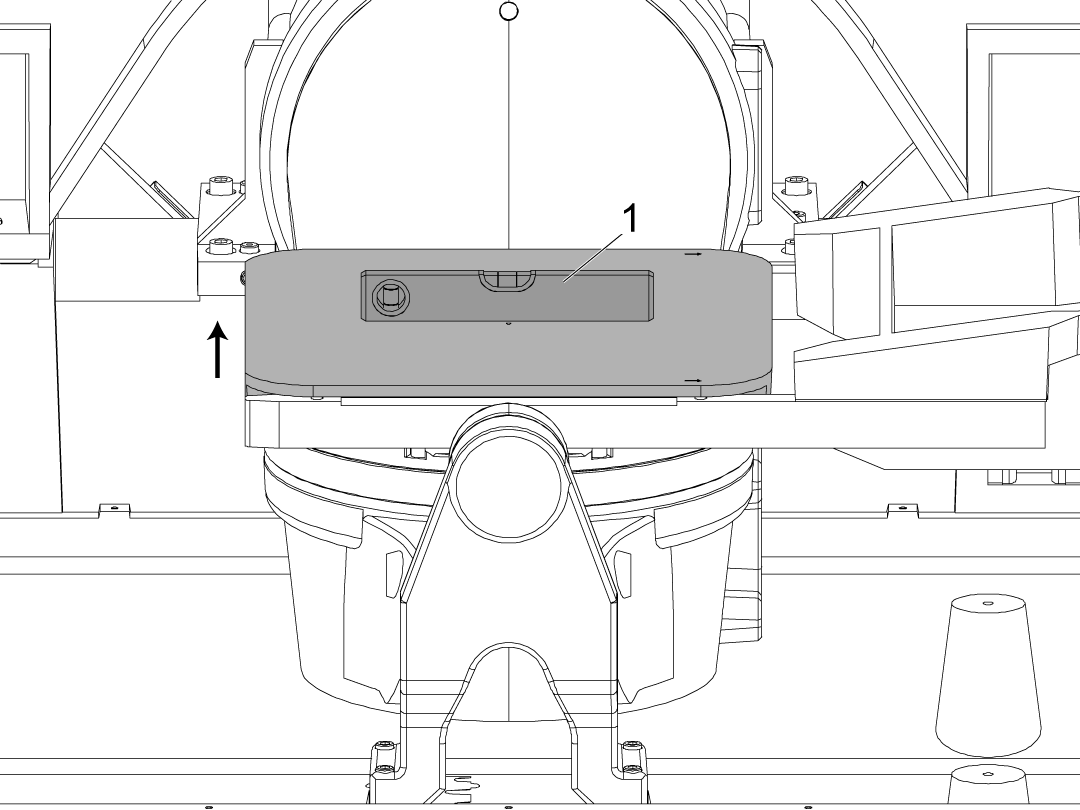
With the pallet raised check the level on the pallet and adjust this using the leveling screw on the lift assist.

Confirm that the pallet is clear from the receiver at the pins and the locking clamp. 

8

Re-enter the pallet recovery page and make sure the pallet is unclamped before pressing [INSERT] to return the RAM to the pallet pool area.

Press [A] then [DELETE] to rotate the RAM to its home position.

Press [A] and [UNDO] to slide the RAM to its home position.

Verify that the level is still acceptable in the X & Y direction [1].

Once verified, zero return the PR and PS axis.

Setting Up Pallet Stations

1

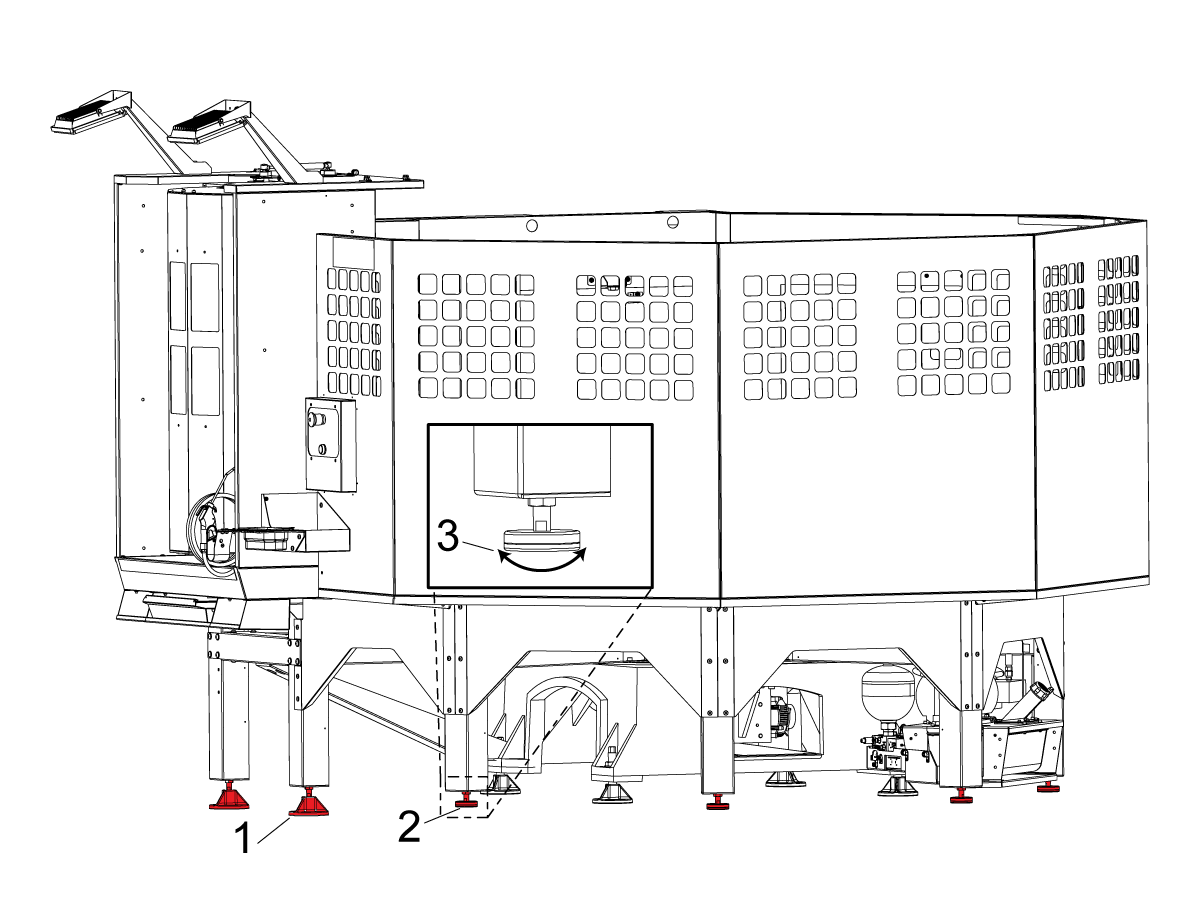
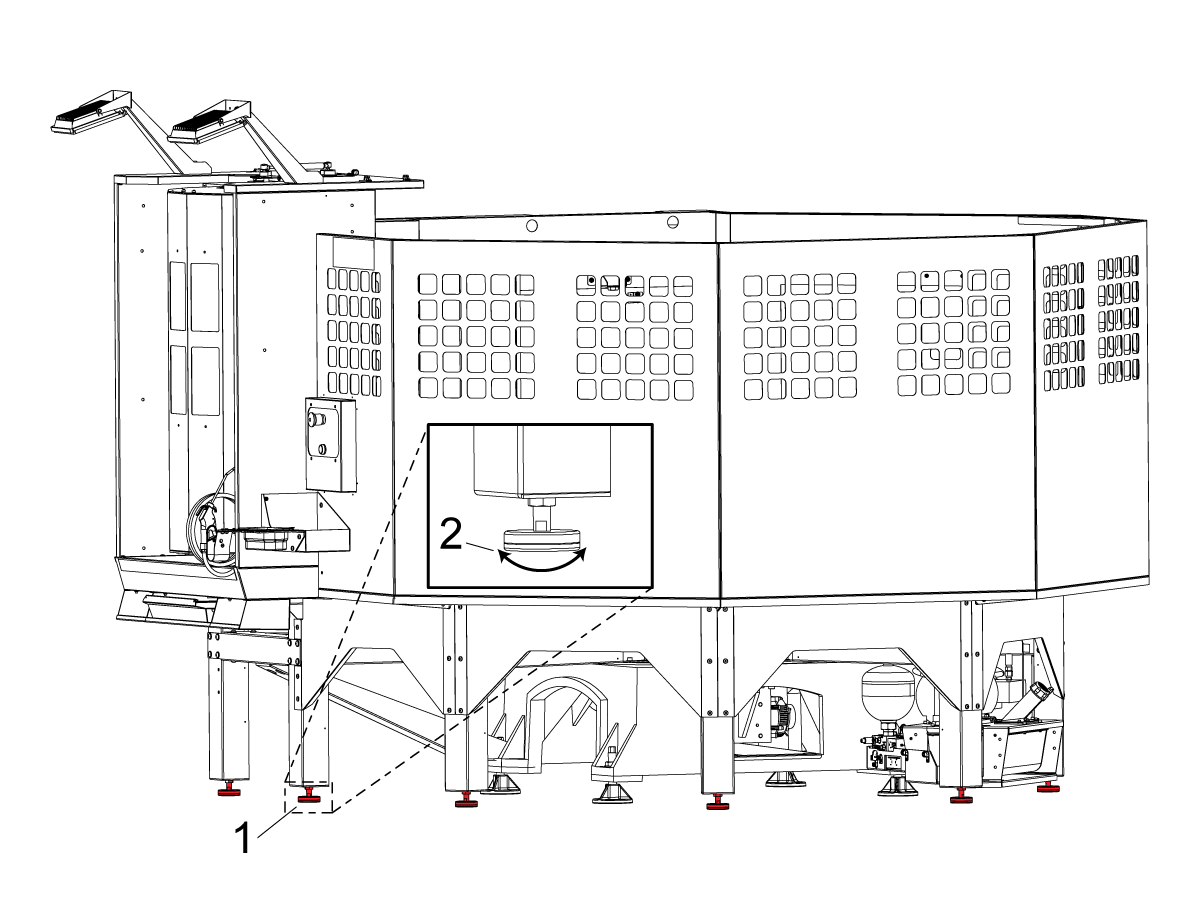
Adjust the load station feet [1] so that it sounds smooth as it goes through a pick up and drop off cycle.

The load station for this machine will have leveling pucks rather than the typical feet seen on the other stations.

Lower all outer leveling feet [2] to the ground by hand then rotate each leveling foot by another 1/2 turn [3]. 

2

Please refer to the PALLET POOL OPERATORS MANUAL for how to load the pallets onto the machine using the Pallet Scheduling Table.

3

Place the provided tote under the Pallet Pool coolant discharge tray to catch the coolant and chips that drains from the pallets.

Empty the tote as needed. 

Test the pick up / drop off operation on the remaining stations by using the pallet pool recovery functions.  

Install the anchors.

Install the Pallet Pool guard panels.

3.2 UMC PP - 8/10 Station - Version 2

Recently Updated

UMC PP - 8/10 Station Version 2 - Installation


Revision B - 06/2026

Introduction

The following procedure will show you how to install an 8/10 station Pallet Pool on the following machines:

  • UMC-500/SS
  • UMC-750/SS
  • UMC-1000/SS

The Next Generation software on the machine must be version 100.20.000.1110 or higher.

The Pallet Pool option is currently not field installable.

Important: To ensure that the Pallet Pool does not become mis-aligned, it is recommended that the machine and Pallet Pool be anchored. Refer to the following link: Anchoring Instructions.

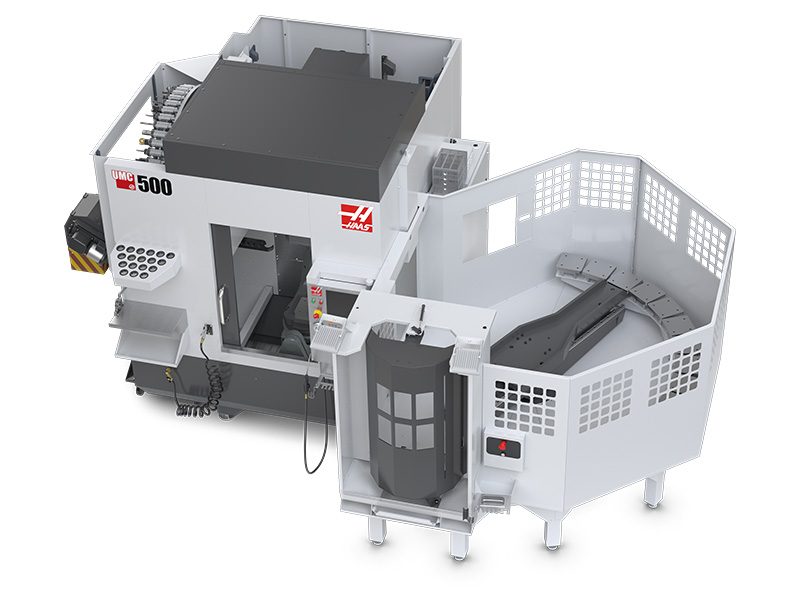
The Pallet Pool option has a room for a total of 9 pallets that can be installed on a UMC-500/750/1000 with the Pallet Pool option.

The Pallet Pool has 2 servo axes. The PR axis rotates the Pallet Pool ram and the PS axis extends and retracts the Pallet Pool ram to load/unload the pallets.

The UMC-500/750/1000 must be level before the Pallet Pool can be installed. Refer to the installation procedures linked below:

  • UMC-500 Installation
  • UMC-750 Installation
  • UMC-1000 Installation

Push [POWER OFF].

Set the main circuit breaker to the OFF position.

Lock the main circuit breaker. Use an approved lock with an approved safety tag.

Caution: When you handle a PCB, you must wear an Electrostatic Discharge (ESD) strap.

To level the machine without the Pallet Pool connected to the machine, do the following: 

Make sure that there is a shorting block [1] installed on the top two pins of the P12 connector on the I/O PCB 

Make sure there is a jumper (P/N 33-0527) [2] connected to I/O PCB at P14.
 Note: These jumpers are needed to operate the machine without the Pallet Pool.

Disable the pallet pool, change setting 382 Disable Pallet Changer to Pallet Pool.


Note: The above step will disabled the Pallet Pool to allow you to zero return the machine so it can be leveled.

Pallet Pool Installation Video

This video demonstrates how to install your UMC Pallet Pool.

Note: This service video is for reference only and does not replace the written procedure.

Leveling Screws Hardware

Note: The washers [1] and nuts [2] are installed during shipping and should be saved for installation and not be discarded.

Note: The washer orientation [3] is important.  The conical part of the washer should be against the casting,  see illustration.

Mating the Pallet Pool


1

Remove the loading station door blocking bolt [1].

Make sure to raise all of the pallet shelf supporting screws [2] before placing the pallet pool on the floor. 

2

Remove 25-14314 cross bracing from the pallet pool

3

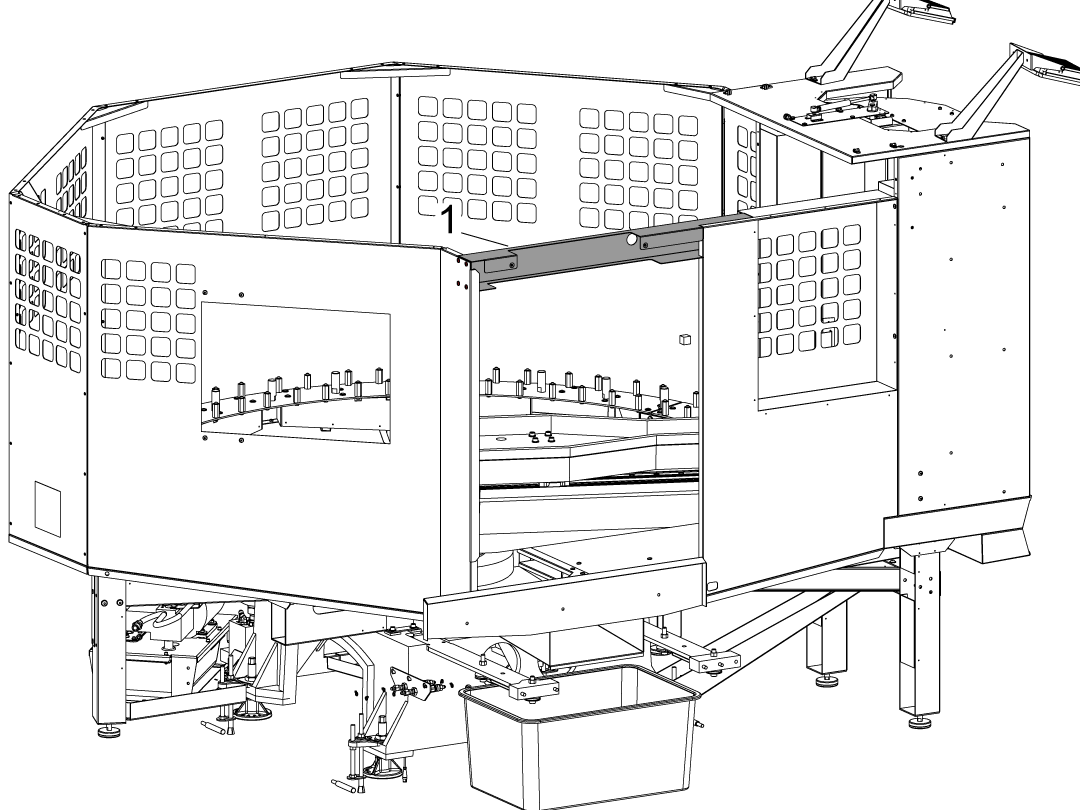
Install the drip tray [1] on the bottom of the auto window, this component should slide right on the window. 

4

Remove the bolts [1] to remove the shipping brackets. There are two brackets, the first [2] that hold the forks to the loading station, and the bottom [3] that just holds the loading station. 

5

For machines built before (3/2022):

Install the Pallet Pool alignment blocks [2] onto the host machine's base.

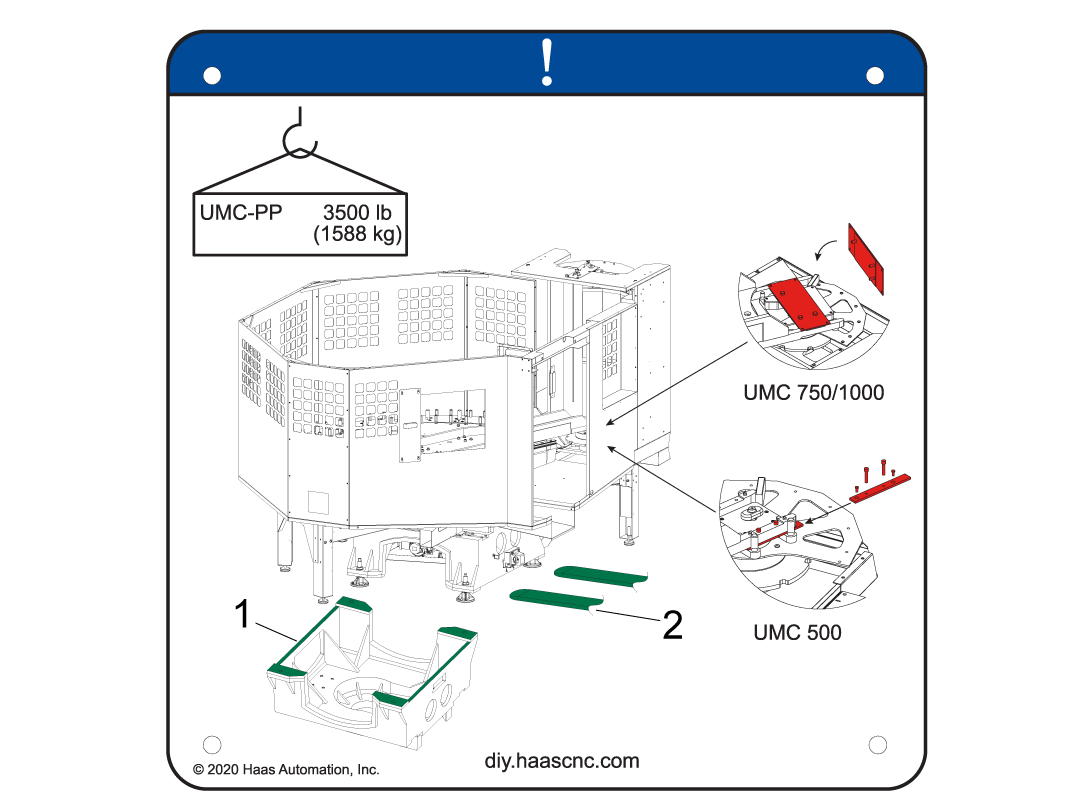
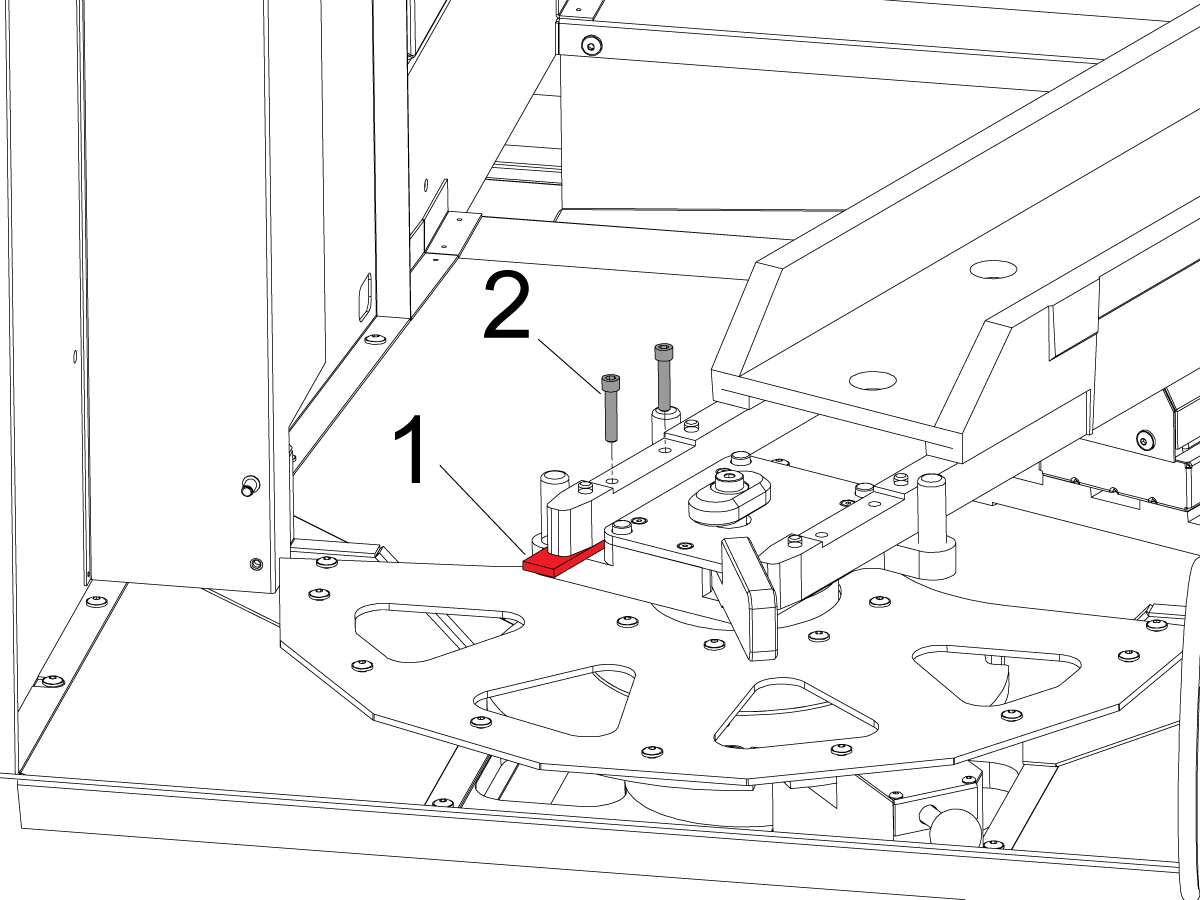
Note: The alignment block with the radius [2] must be installed towards the back of the UMC and the alignment block with the flat side [1] must be installed towards the front of the machine. Use the three SHCS 3/8-16 X 2 and the one SHCS 3/8-16 X 1 3/8.

Install the alignment bars [3] onto the pallet pool base.

 NOTE: Use the CABCOOL as a height reference in relation to the pallet pool enclosure opening.

Move the pallet pool assembly so the alignment arms are 3 - 6” (76 - 152 mm) away from the alignment blocks. 

Install the leveling pads under the pallet pool and lower the pallet pool. 

For machines built after (3/2022):

Install the alignment bars [1] onto the pallet pool base.

 NOTE: Use the CABCOOL as a height reference in relation to the pallet pool enclosure opening.

Move the pallet pool assembly so the alignment arms are 3 - 6” (76 - 152 mm) away from the alignment blocks [2]. 

Install the leveling pads under the pallet pool and lower the pallet pool. 

6

Use a long pallet jack or forklift to move the pallet pool close to the machine.

A decal has been placed on the rear of the machine to indicate where the pallet forks should lift the machine from.

NOTE: Have the pallet jack pick up the pallet pool from the opposite side of where the slide window would be.

7

Install the turnbuckles [3] with the provided hardware (SHCS, washer, and bushings [1]) onto the alignment arms [2] and the base casting [4].

NOTE: The side of the turnbuckle with the two bushings should be installed on the side of the pallet pool.

Evenly tighten the turnbuckles until the alignment arms are almost tight against the alignment bars, STOP once the alignment bars areapproximately 1-2" away from the alignment blocks.

Adjust the height of the pallet pool so that the height of the alignment bars are to the center of the blocks before tightening the turnbuckles flush to the alignment blocks. Raise or lower the pallet pool leveling screws evenly when doing so.

Continue to evenly tighten the turnbuckles until the alignment arms are tight against the alignment blocks.

Once the alignment bars and vlocks are evenly flush to each other loosen up the turn buckles.

8

Turn [OFF] the main circuit breaker and wait until the Vector Drive High-Voltage light turns off.

 Note: The PR (Pallet Rotate) and PS (Pallet Slide) amps are already installed at the factory.

Knock out the pre-cut access panel [1].

Route the pallet pool cables [2] into the control cabinet as shown in the illustration.

Connect the PR motor encoder cable (32-0478) to Maincon PCB channel 15.
Connect the PS motor encoder cable (32-0484) to Maincon PCB channel 16.

Connect the PR motor power cable (32-1644A) to the amplifier labeled PR. Install the ferrite filter bead on the motor power cable.

Connect the PS motor power cable (32-1648A) to the amplifier labeled PS. Install the ferrite filter bead on the motor power cable.

9

Updated

Connect the air gun hose [1] to the air line under the pallet pool [2]. 

Route the air hose from the pallet pool to line coming from the the lube cabinet [3].

Connect the air line from the pallet pool to the to the T-fitting [4] connecting the machine air gun line to the lube cabinet.

Follow the line from the lube cabinet [5] to help locate the T-fitting.

10

Updated

Connect the hydrualic lines to the bulkhead. The pallet clamp [1] is marked with a green zip tie and pallet unclamp [2] is marked with a red zip tie. The hydraulic lines should run through the conduit neatly.

NOTE: The bulkhead uses quick disconnects  for the hydraulic hoses. The clamp side has the male side quick disconnect [3] and the unclamp has the female side [4], this is to avoid switching the hoses.

Route the HPU oil level sensor cable 32-0423 from the HPU to the connector bracket [5].

11

Connect HPU UP/ DWN SOL (cable 33-1579)  [1] to P38.

Connect HPU THRML PROBE (cable 32-1804) [2] to P46.

Connect HPU PALLET CLMP SOL (cable 33-1528) [3] to the pigtail coming off of P35.

Connect HPU PRESSURE SNSR (cable 33-2562) or (cable 33-2563) [4] to the pigtail coming off of P48.

Remove the jumper connection from the P14 connector on the I/O PCB.

Connect PP STATUS SWITCHES (cable 33-0523) [5] to P14.

Remove the shorting block from the P12 connector on the I/O PCB.

Connect PALLET CHNGR STATION (cable 32-0961) [6] to P12.

Connect PALLET ALRAM (cable 32-0961) [7]  to P50.

Make sure all the Pallet Pool status bracket connectors are plugged into the correct location.

Connect the Pallet Load Station worklights (cable 33-5838) [8] to the Work Light LVPS power supply.

 NOTE: Store the Pallet Pool jumpers in a safe location, these will be used by the service personnel to move or service the machine.

12

Route the HPU PUMP PWR (cable 33-0429) to P1 on the TMD card located on the I/O PCB hinged door. 

The rest of the components in this image are already connected but this diagram can be used as reference. 

Parameters and Settings

1

Set the main circuit breaker to the ON position.

Push [POWER ON].

Zero Return all the Axes

Do the following to enable the pallet pool option.

Important:  You will need to do this step if you perform a option 5 clean install option on a UMC with a pallet pool.

Set setting 382 Disable Pallet Changer to None.

For machines that were not originally ordered with the pallet pool option, set the following factory parameters to these values:

  1. 2128 [:] Pallet Pool Type = HPU Lift
  2. 40.011 (HPU 1 Type ) = On Demand
  3. 15.019 [:] PR-Axis Invisible = False
  4. 16.019 [:] PS-Axis Invisible = False
  5. 15.004 [:] PR-Axis Disable = False
  6. 16.004 [16:3] PS-Axis Disabled = False
  7. Turn TMD card on in the electrical cabinet

Note: Machine may need to cycle power for parameters to display. 

2

Find the Haas Pallet Pool Parameters decal on the E-Stop on the Pallet Pool machine.  Write down the values.

Use the USB Service key to go into Service Mode.

Press [DIAGNOSTIC] Go to the PARAMETERS> Factory setting tab.

Set the following factory parameter values:

  1. 15.078 PR-Axis Tool Change Offset = Use the decal value.
  2. 15.140 PR-Axis Grid Offset = Use the decal value.
  3. 16.078 PS-Axis Tool Change Offset = Use the decal value.
  4. 16.140 PS-Axis Grid Offset = Use the decal value.
  5. Zero Return after the grid offset is adjusted.

 NOTE: If "No Pallet" message appears when selecting "Put away Load Station Pallet" and "Get highlighted Pallet", refer to the symptom table section in UMC Pallet Pool - Troubleshooting Guide - NGC

Base Level Pallet Pool

1

Verify all outer supports legs are NOT touching the floor.

Make sure the pallet pool sit on 3 points, the leveling foot that is not touching the puck is the one closest to the machine control cabinet [1].

2

Move the ram to its home position if it is not already, place the bubble level on ram and rough level with respect to X & Y. 

NOTE: Rough level by adjusting the 3 leveling feet without adjusting the 4th in the air.

Assigning Missing Pallets on Scheduler

1

It is a possible to enter a condition where the shelves in the pallet scheduling page are not assigned [1]. This will not allow the PR and PS to zero return or recover the machine. 

This section will explain how to assign the missing shelves, if your machine is not in this condition please skip to the next section. 

First, press [CURRENT COMMANDS] and navigate to the Pallet Schedule Table tab.

2

Press [EMERGENCY STOP] [1] and highlight the shelf tab on pallet number one.

With [EMERGENCY STOP] pressed, type the letter A and press [ENTER]. This will assign shelf A to pallet number 1 [2].

3

Repeat the previous step for the remaining pallet numbers in alphabetical number [1].

NOTE: The shelves can be re-assigned at any point  however the user chooses by repeating the same process (e.g. pallet number 3 can be assigned shelf B).


Align Pallet Drop Off Station

1

Insert the Service Key USB and put the machine in Service Mode.

Make sure there are no obstructions inside the machine or inside the pallet pool area. Pull out all the [E-STOPS] and [RESET] the alarms.

Press [ZERO RETURN] and then press [ALL]. The machine will zero return all the axes.

Once all the axis are zero returned press [RECOVER]. A pop up box will appear, select [2] for Pallet Changer Recovery.

2

Updated

The Pallet Changer Recovery screen shows the Pallet Pool Status. Make sure the Pallet Lifter is Down [1]. If not press [ALTER] to bring the Pallet Lifter down.

Press [J] and then the [DELETE] button for the 8 station pallet pool. Press [L] and then the [DELETE] button for the 10 station pallet pool. This will rotate the pallet lifter towards work station.

Press [F1] to open the auto window [3].


3

Updated

Open the window by pressing [F1] then press [+Z] to select Pallet slide Axis manually slide the RAM in the machine to the pickup location.

NOTE: Jog the slide axis slowly and make sure the bottom of the forks clear the receiver casting. Raise the pallet pool evenly if they do not.

Adjust the PR position if necessary by pressing [-Z] to select the Pallet Rotate Axis  on the pallet recovery page.  

NOTE: You should be able to align the pallet pool by adjusting the PR and PS axis, if it becomes difficult to do so with only these two adjust the C-axis to a position that the pallet is flush with the edge of the forks. Then set Parameter 7.310 C-AXIS PALLET OFFSET to the current position. This is the position that the C-axis will rotate to during a pallet change operation.

With the Pallet Pool in the down position, use the Gap Gauge [1] 25-14354 to set the gap by adjusting the height of the Pallet Pool. Evenly raise or lower the pallet pool leveling screws in accordance to the gap gauge.

NOTE: The pallet pool should still be only on 3 points while adjusting the gap.


4

Updated

Adjust the PR or PS axis so the fork pins align correctly underneath the pallet.

Press [F2] to un-clamp the pallet and press [ALTER] to lift and lower the pallet to make sure the pallet falls onto the pins smoothly.  Continuously make adjustments to the PR and PS axis to make sure the pins are aligned to the holes.

 WARNING: The air blast on the receiver makes a loud noise ear plugs are recommended.

With the Pallet Pool in the desired PR and PS postion, press [Recovery] to get out of pallet recovery and go to Factory Settings 2139 [:] Shelf J Slide Offset and 2149 [:] Shelf J Rotary Offset for the 8 station pallet pool. For the 10 station pallet pool, go to Factory Settings 2307 [:] Shelf L Slide Offset and 2315 [:] Shelf L Rotary Offset. Press [F2], to set the value of the parameter to the current axis postion.

Manually remove the pallet from the machine. 

Finally, drop the fourth leveling screw onto the puck.

5

Re-enter the pallet recovery page and make sure the pallet is unclamped before pressing [INSERT] to return the RAM to the pallet pool area.

Press [A] then [DELETE] to rotate the RAM to its home position.

Press [A] and [UNDO] to slide the RAM to its home position.

Verify that the level is still acceptable in the X & Y direction [1].

Once verified, zero return the PR and PS axis.

Align Pallet Loading Station

1

Load a pallet onto the loading station, and with the RAM in the loading station use the gap gauge 25-14354 to set the gap between the pins on the RAM forks and the pallet. 

Adjust the two loading station leveling feet until the gap is set. Raise and lower the pallet to ensure it does so smoothly. 

Setting Up Pallet Stations

1

Lower all outer leveling feet [1] to the ground by hand then rotate each leveling foot by another 1/2 turn [2]. 

2

Please refer to the PALLET POOL OPERATORS MANUAL for how to load the pallets onto the machine using the Pallet Scheduling Table.

3

Place the provided tote under the Pallet Pool coolant discharge tray to catch the coolant and chips that drains from the pallets.

Empty the tote as needed. 

Test the pick up / drop off operation on the remaining stations by using the pallet pool recovery functions.  

Install the anchors.

Install the Pallet Pool guard panels.

3.3 UMC PP - 16/20 Station - Version 2

Recently Updated

UMC PP - 16/20 Station - Version 2 - Installation


Revision B - 06/2026

Introduction

The following procedure will show you how to install a 16/20 staion Pallet Pool on the following machines:

  • UMC-500/SS

The Next Generation software on the machine must be version 100.20.000.1110 or higher.

The Pallet Pool option is currently not field installable.

Important: To ensure that the Pallet Pool does not become mis-aligned, it is recommended that the machine and Pallet Pool be anchored. Refer to the following link: Anchoring Instructions.

The Pallet Pool option has a room for a total of 17 pallets that can be installed on a UMC-500 with the Pallet Pool option.

The Pallet Pool has 2 servo axes. The PR axis rotates the Pallet Pool ram and the PS axis extends and retracts the Pallet Pool ram to load/unload the pallets.

The UMC-500 must be level before the Pallet Pool can be installed. Refer to the UMC-500 Installation procedure.

Push [POWER OFF].

Set the main circuit breaker to the OFF position.

Lock the main circuit breaker. Use an approved lock with an approved safety tag.

Caution: When you handle a PCB, you must wear an Electrostatic Discharge (ESD) strap.

To level the machine without the Pallet Pool connected to the machine, do the following: 

Make sure that there is a shorting block [1] installed on the top two pins of the P12 connector on the I/O PCB 

Make sure there is a jumper (P/N 33-0527) [2] connected to I/O PCB at P14.
 Note: These jumpers are needed to operate the machine without the Pallet Pool.

Disable the pallet pool, change setting 382 Disable Pallet Changer to Pallet Pool.


Note: The above step will disabled the Pallet Pool to allow you to zero return the machine so it can be leveled.

Refer to the UMC-500 Installation procedure.

Pallet Pool Installation Video

This video demonstrates how to install your UMC Pallet Pool.

Note: This service video is for reference only and does not replace the written procedure.

Leveling Screws Hardware

Note: The washers [1] and nuts [2] are installed during shipping and should be saved for installation and not be discarded.

Note: The washer orientation [3] is important.  The conical part of the washer should be against the casting,  see illustration.

Mating the Pallet Pool


1

Remove the loading station door blocking bolt [1].

Make sure to raise all of the pallet shelf supporting screws [2] before placing the pallet pool on the floor. 

2

Remove cross bracing [1] from the pallet pool before mating the pallet pool.

3

Install the drip tray [1] on the bottom of the auto window, this component should slide right on the window. 

4

For machines built before (3/2022):

Install the Pallet Pool alignment blocks [2] onto the host machine's base.

Note: The alignment block with the radius [2] must be installed towards the back of the UMC and the alignment block with the flat side [1] must be installed towards the front of the machine. Use the three SHCS 3/8-16 X 2 and the one SHCS 3/8-16 X 1 3/8.

Install the alignment bars [3] onto the pallet pool base.

 NOTE: Use the CABCOOL as a height reference in relation to the pallet pool enclosure opening.

Move the pallet pool assembly so the alignment arms are 3 - 6” (76 - 152 mm) away from the alignment blocks. 

Install the leveling pads under the pallet pool and lower the pallet pool. 

For machines built after (3/2022):

Install the alignment bars [1] onto the pallet pool base.

 NOTE: Use the CABCOOL as a height reference in relation to the pallet pool enclosure opening.

Move the pallet pool assembly so the alignment arms are 3 - 6” (76 - 152 mm) away from the alignment blocks [2]. 

Install the leveling pads under the pallet pool and lower the pallet pool. 

5

Use a long pallet jack or forklift to move the pallet pool close to the machine.

A decal has been placed on the rear of the machine to indicate where the pallet forks [2] should lift the machine from [1].

Note: Have the pallet jack pick up the pallet pool from the opposite side of where the slide window would be.

6

Install the turnbuckles [3] with the provided hardware (SHCS, washer, and bushings [1]) onto the alignment arms [2] and the base casting [4].

Note: The side of the turnbuckle with the two bushings should be installed on the side of the pallet pool.

Evenly tighten the turnbuckles until the alignment arms are almost tight against the alignment bars, STOP once the alignment bars areapproximately 1-2" away from the alignment blocks.

Adjust the height of the pallet pool so that the height of the alignment bars are to the center of the blocks before tightening the turnbuckles flush to the alignment blocks. Raise or lower the pallet pool leveling screws evenly when doing so.

Continue to evenly tighten the turnbuckles until the alignment arms are tight against the alignment blocks.

Once the alignment bars and blocks are evenly flush to each other loosen up the turn buckles.

7

Remove the bolts [2] that attach the RAM forks to the shipping bracket [1].

8

Remove the shipping brackets [1] by removing the hardware [2] attaching the shipping bracket to the loading station.

9

Turn [OFF] the main circuit breaker and wait until the Vector Drive High-Voltage light turns off.

 Note: The PR (Pallet Rotate) and PS (Pallet Slide) amps are already installed at the factory.

Knock out the pre-cut access panel [1].

Route the pallet pool cables [2] into the control cabinet as shown in the illustration.

Connect the PR motor encoder cable (32-0478) to Maincon PCB channel 15.
Connect the PS motor encoder cable (32-0484) to Maincon PCB channel 16.

Connect the PR motor power cable (32-1644A) to the amplifier labeled PR. Install the ferrite filter bead on the motor power cable.

Connect the PS motor power cable (32-1648A) to the amplifier labeled PS. Install the ferrite filter bead on the motor power cable.

10

Updated

Connect the air gun hose [1] to the air line under the pallet pool [2]. 

Route the air hose from the pallet pool to line coming from the the lube cabinet [3].

Connect the air line from the pallet pool to the to the T-fitting [4] connecting the machine air gun line to the lube cabinet.

Follow the line from the lube cabinet [5] to help locate the T-fitting.

11

Updated

Connect the hydrualic lines to the bulkhead. The pallet clamp [1] is marked with a green zip tie and pallet unclamp [2] is marked with a red zip tie. The hydraulic lines should run through the conduit neatly.

Note: The bulkhead uses quick disconnects  for the hydraulic hoses. The clamp side has the male side quick disconnect [3] and the unclamp has the female side [4], this is to avoid installing the hoses backwards..

Route the HPU oil level sensor cable 32-0423 from the HPU to the connector bracket [5].

12

Connect HPU UP/ DWN SOL (cable 33-1579)  [1] to P38.

Connect HPU THRML PROBE (cable 32-1804) [2] to P46.

Connect HPU PALLET CLMP SOL (cable 33-1528) [3] to the pigtail coming off of P35.

Connect HPU PRESSURE SNSR (cable 33-2562) [4] to the pigtail coming off of P48.

Remove the jumper connection from the P14 connector on the I/O PCB.

Connect PP STATUS SWITCHES (cable 33-0523) [5] to P14.

Remove the shorting block from the P12 connector on the I/O PCB.

Connect PALLET CHNGR STATION (cable 32-0961) [6] to P12.

Connect PALLET ALRAM (cable 32-0961) [7]  to P50.

Make sure all the Pallet Pool status bracket connectors are plugged into the correct location.

Connect the Pallet Load Station worklights (cable 33-5838) [8] to the Work Light LVPS power supply.

 NOTE: Store the Pallet Pool jumpers in a safe location, these will be used by the service personnel to move or service the machine.

13

Route the HPU PUMP PWR (cable 33-0429) to P1 on the TMD card located on the I/O PCB hinged door. 

The rest of the components in this image are already connected but this diagram can be used as reference. 

Parameters and Settings

1

Set the main circuit breaker to the ON position.

Push [POWER ON].

Zero Return all the Axes

Do the following to enable the pallet pool option.

Important:  You will need to do this step if you perform a option 5 clean install option on a UMC with a pallet pool.

Set setting 382 Disable Pallet Changer to None.

For machines that were not originally ordered with the pallet pool option, set the following factory parameters to these values:

  1. 2128 [:] Pallet Pool Type = HPU Lift with Assist
  2. 40.011 (HPU 1 Type ) = On Demand
  3. 15.019 [:] PR-Axis Invisible = False
  4. 16.019 [:] PS-Axis Invisible = False
  5. 15.004 [:] PR-Axis Disable = False
  6. 16.004 [16:3] PS-Axis Disabled = False
  7. Turn TMD card on in the electrical cabinet

Note: Machine may need to cycle power for parameters to display. 

2

Find the Haas Pallet Pool Parameters decal on the E-Stop on the Pallet Pool machine.  Write down the values.

Use the USB Service key to go into Service Mode.

Press [DIAGNOSTIC] Go to the PARAMETERS> Factory setting tab.

Set the following factory parameter values:

  1. 15.078 PR-Axis Tool Change Offset = Use the decal value.
  2. 15.140 PR-Axis Grid Offset = Use the decal value.
  3. 16.078 PS-Axis Tool Change Offset = Use the decal value.
  4. 16.140 PS-Axis Grid Offset = Use the decal value.
  5. Zero Return after the grid offset is adjusted.

 NOTE: If "No Pallet" message appears when selecting "Put away Load Station Pallet" and "Get highlighted Pallet", refer to the symptom table section in UMC Pallet Pool - Troubleshooting Guide - NGC

Base Level Pallet Pool

1

Verify all outer supports legs are NOT touching the floor.

Make sure the pallet pool sit on 3 points, the leveling foot that is not touching the puck is the one closest to the machine control cabinet [1].

2

Move the ram to its home position if it is not already, place the bubble level on ram and rough level with respect to X & Y. 

Note: Rough level by adjusting the 3 leveling feet without adjusting the 4th in the air.

Assigning Missing Pallets on Scheduler

1

It is a possible to enter a condition where the shelves in the pallet scheduling page are not assigned [1]. This will not allow the PR and PS to zero return or recover the machine. 

This section will explain how to assign the missing shelves, if your machine is not in this condition please skip to the next section. 

First, press [CURRENT COMMANDS] and navigate to the Pallet Schedule Table tab.

2

Press [EMERGENCY STOP] [1] and highlight the shelf tab on pallet number one.

With [EMERGENCY STOP] pressed, type the letter A and press [ENTER]. This will assign shelf A to pallet number 1 [2].

3

Repeat the previous step for the remaining pallet numbers in alphabetical number [1].

Note: The shelves can be re-assigned at any point  however the user chooses by repeating the same process (e.g. pallet number 3 can be assigned shelf B).


Align Pallet Drop Off Station

1

Insert the Service Key USB and put the machine in Service Mode.

Make sure there are no obstructions inside the machine or inside the pallet pool area. Pull out all the [E-STOPS] and [RESET] the alarms.

Press [ZERO RETURN] and then press [ALL]. The machine will zero return all the axes.

Once all the axis are zero returned press [RECOVER]. A pop up box will appear, select [2] for Pallet Changer Recovery.

2

Updated

The Pallet Changer Recovery screen shows the Pallet Pool Status. Make sure the Pallet Lifter is Down [1]. If not press [ALTER] to bring the Pallet Lifter down.

Press [R] and then the [DELETE] button for the 16 station pallet pool. Press [V] and then the [DELETE] button for the 20 station pallet pool. This will rotate the pallet lifter towards work station.

Press [F1] to open the auto window [3].


3

Updated

Open the window by pressing [F1] then press [+Z] to select Pallet slide Axis manually slide the RAM in the machine to the pickup location.

NOTE: Jog the slide axis slowly and make sure the bottom of the forks clear the receiver casting. Raise the pallet pool evenly if they do not.

Adjust the PR position if necessary by pressing [-Z] to select the Pallet Rotate Axis  on the pallet recovery page.  

NOTE: You should be able to align the pallet pool by adjusting the PR and PS axis, if it becomes difficult to do so with only these two adjust the C-axis to a position that the pallet is flush with the edge of the forks. Then set Parameter 7.310 C-AXIS PALLET OFFSET to the current position. This is the position that the C-axis will rotate to during a pallet change operation.

With the Pallet Pool in the down position, use the Gap Gauge [1] 25-14354 to set the gap by adjusting the height of the Pallet Pool. Evenly raise or lower the pallet pool leveling screws in accordance to the gap gauge.

NOTE: The pallet pool should still be only on 3 points while adjusting the gap.


4

Updated

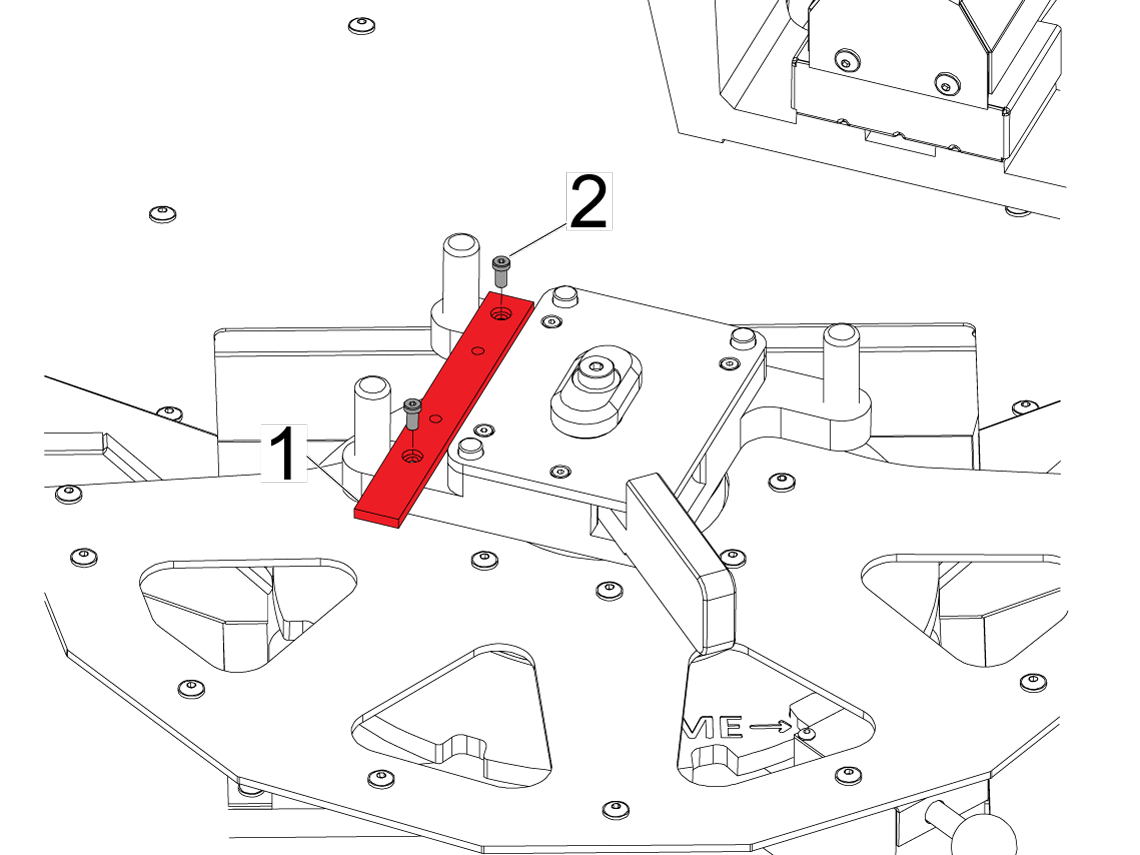
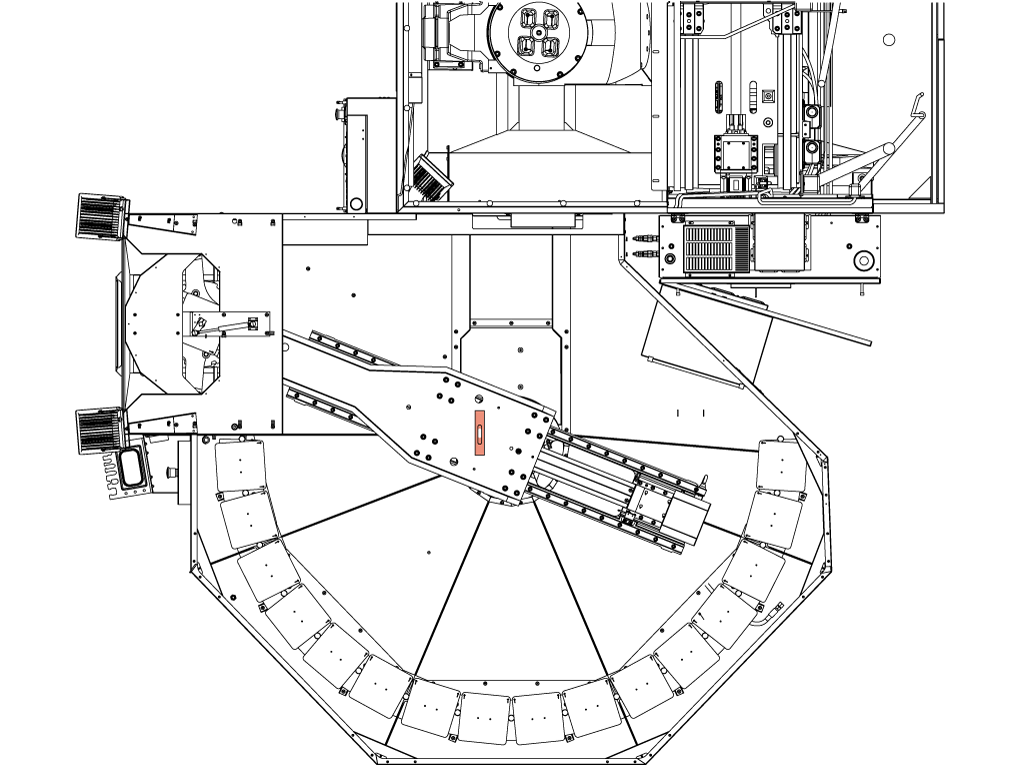
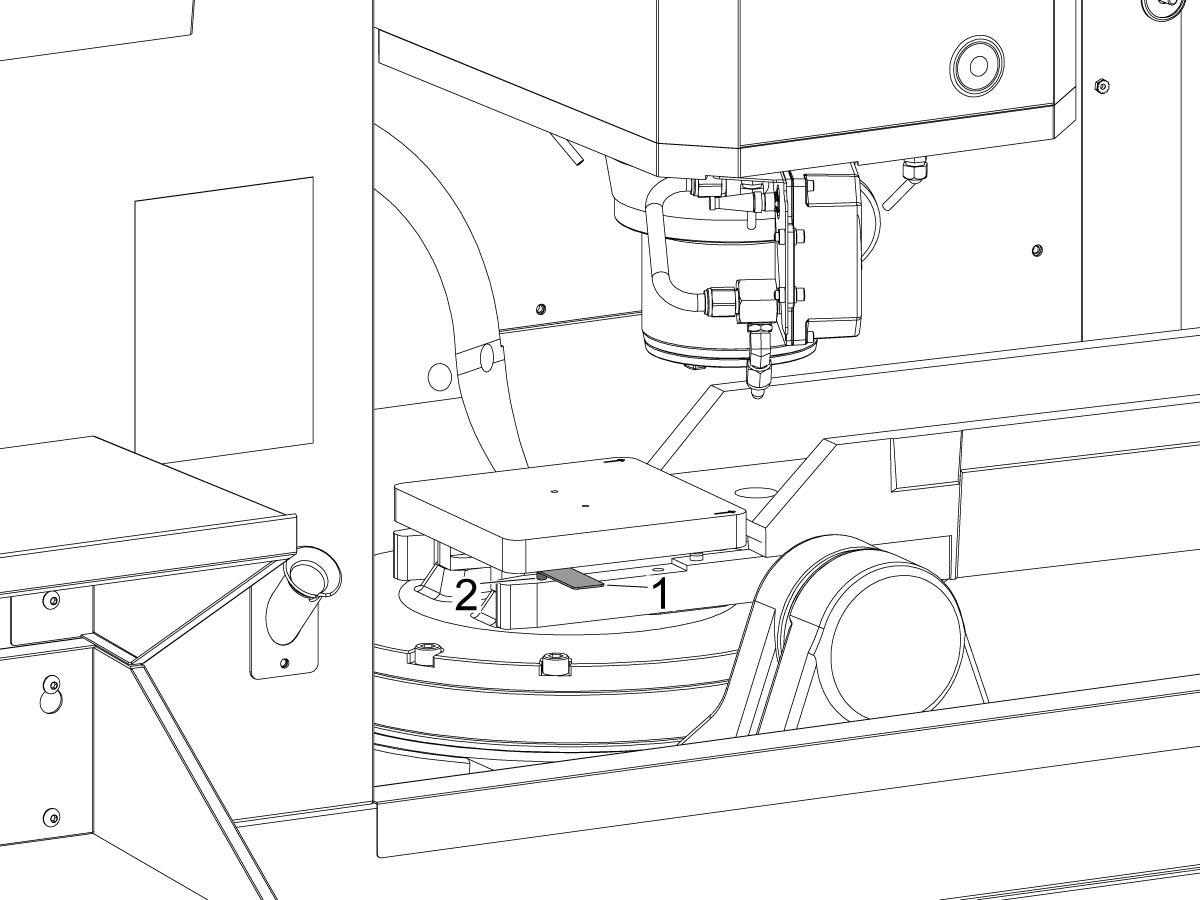
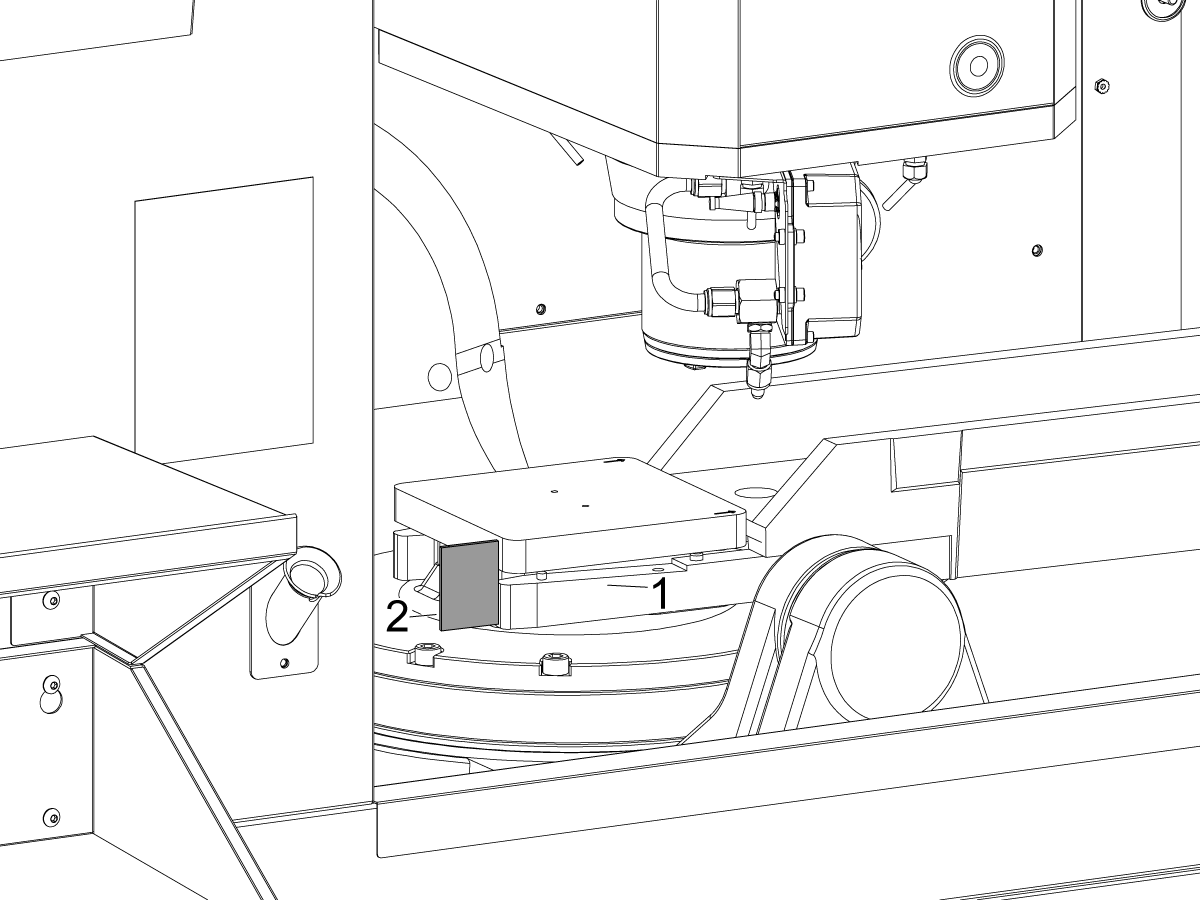
Adjust the PR or PS axis so the fork pins align correctly underneath the pallet. You can use the provided shim 25-14354 [2] as a straight edge to align the pallet to the fork [1] as shown in the image.

Press [F2] to un-clamp the pallet and press [ALTER] to lift and lower the pallet to make sure the pallet falls onto the pins smoothly.  Continuously make adjustments to the PR and PS axis to make sure the pins are aligned to the holes.

 WARNING: The air blast on the receiver makes a loud noise ear plugs are recommended.

With the Pallet Pool in the desired PR and PS postion, press [Recovery] to get out of pallet recovery and go to Factory Settings 2313 [:] Shelf R Slide Offset and 2321 [:] Shelf R Rotary Offset for the 16 station pallet pool. For the 20 station pallet pool, go to Factory Settings 2375 [:] Shelf V Slide Offset and 2383 [:] Shelf V Rotary Offset. Press [F2], to set the value of the parameter to the current axis postion.

Manually remove the pallet from the machine. 

Finally, drop the fourth leveling screw onto the puck.

5

Re-enter the pallet recovery page and make sure the pallet is unclamped before pressing [INSERT] to return the RAM to the pallet pool area.

Press [A] then [DELETE] to rotate the RAM to its home position.

Press [A] and [UNDO] to slide the RAM to its home position.

Verify that the level is still acceptable in the X & Y direction [1].

Once verified, zero return the PR and PS axis.

Align Pallet Loading Station

1

Load a pallet onto the loading station, and with the RAM in the loading station use the shipping bracket [1] to set the gap between the bottom of the RAM forks and the loading station.

Adjust the two loading station leveling feet [2] until the gap is set. Raise and lower the pallet to ensure it does so smoothly. 

Note: The gap should be set evenly on both side. 

Setting Up Pallet Stations

1

Lower all outer leveling feet [1] to the ground by hand then rotate each leveling foot by another 1/2 turn [2]. 

2

Please refer to the PALLET POOL OPERATORS MANUAL for how to load the pallets onto the machine using the Pallet Scheduling Table.

3

Place the provided tote under the Pallet Pool coolant discharge tray to catch the coolant and chips that drains from the pallets.

Empty the tote as needed. 

Test the pick up / drop off operation on the remaining stations by using the pallet pool recovery functions.  

Install the anchors.

Install the Pallet Pool guard panels.

3.4 UMC-1000 PP Version 1

Recently Updated

UMC-1000 Pallet Pool - Version 1 - Installation


IMPORTANT: Haas no longer sells the Version 1 pallet pool, this procedure is only available for reference. Please refer to the following procedures for installation instructions.

  • UMC 6 Station Pallet Pool 
  • UMC 8/10 Station Pallet Pool 
  • UMC 16/20 Station Pallet Pool 

Introduction

The following procedure will show you how to install a Pallet Pool on a UMC-1000 machine.

The Next Generation software on the machine must be version 100.19.000.1110 or higher.

The Pallet Pool option is currently not field installable.

Important: To ensure that the Pallet Pool does not become mis-aligned, it is recommended that the machine and Pallet Pool be anchored. Refer to the following link: Anchoring Instructions.

The Pallet Pool option has 8 pallet stations plus 1 pallet in the machine. A maximum of 9 pallets can be installed on a UMC-1000 with the Pallet Pool option.

The Pallet Pool has 2 servo axes. The PR axis rotates the Pallet Pool ram and the PS axis extends and retracts the Pallet Pool ram to load/unload the pallets.

The UMC-1000 must be level before the Pallet Pool can be installed. Refer to the UMC-1000 Installation procedure.

To level the machine without the Pallet Pool connected to the machine, do the following: 

Make sure that there is a shorting block [1] installed on the top two pins of the P12 connector on the I/O PCB 

Make sure there is a jumper (P/N 33-0527) [2] connected to I/O PCB at P14.
 Note: These jumpers are needed to operate the machine without the Pallet Pool.

Disable the pallet pool, change setting 382 Disable Pallet Changer to Pallet Pool.


Note: The above step will disabled the Pallet Pool to allow you to zero return the machine so it can be leveled.

Refer to the UMC-1000 Installation procedure.

Leveling Screws Hardware

Note: The washers [1] and nuts [2] are installed during shipping and should be saved for installation and not be discarded.

Note: The washer orientation [3] is important.  The conical part of the washer should be against the casting,  see illustration.

Pallet Pool - Remove Shipping Brackets


1

Remove the loading station door blocking bolt [1].

Make sure to raise all of the pallet shelf supporting screws [2] before placing the pallet pool on the floor. 

2

Remove the bolts [1] that secure the Pallet Pool shipping bracket [2].

Remove the shipping bracket [2].


Pallet Pool - Placement

1

Install the Pallet Pool alignment blocks onto the host machine's base.

Note: The alignment block with the radius [1] must be installed towards the front of the UMC and the alignment block with the flat side [2] must be installed towards the rear of the machine.

Install the alignment bars [3] onto the pallet pool base.

Use the forklift or the pallet jack to place the pallet pool on the right side of the host machine.

Move the pallet pool assembly so the alignment arms are 3 - 6” (76 - 152 mm) away from the alignment blocks. 

Install the leveling pads under the pallet pool and lower the pallet pool. 

2

Install the turnbuckles [3] with the provided hardware (SHCS, washer, and bushings [1]) onto the alignment arms [2] and the base casting [4].

Evenly tighten the turnbuckles until the alignment arms mate with the alignment blocks.

UMC - Version 1 Pallet Pool HPU - Installation

1

If the pallet pool has the HPU located under the pallet pool itself, skip to the UMC- Version 2 Pallet Pool HPU - Installation section.

2

Install the HPU assembly [1] on top of the rear enclosure frame [2].

Install the HPU mounting bolts [3].

3

Wire the HPU.

  • Route the hydraulic pressure sensor cable from the control cabinet to the HPU and connect the hydraulic pressure sensor on the back of the HPU manifold.
  • Route the Pallet Pool lift and lower solenoid cables from the control cabinet to the HPU and connect it to the coils on the Pallet Pool Lift/Lower solenoid that is located on the side of the HPU manifold. Note: Connect the Pallet Pool Lift cable to the outer coil and the Pallet Pool Lower cable to the inner coil.
  • Route the Pallet Clamp solenoid cable from the control cabinet to the HPU and connect it to the coil on the Pallet Clamp/Unclamp solenoid. 
  • Route the HPU power cable from the HPU to the control cabinet and connect it to the P1 on the TMD PCB.
  • Route the HPU Oil Temperature sensor cable from the HPU to the control cabinet and connect it to the P46 on the SIO PCB.
  • Route the HPU Oil Level Sensor cable from the HPU to the connector bracket [2] and connect it to the HPU Oil Level sensor plug.  

4

Route the Pallet Clamp [1] and the Pallet Unclamp [2] hydraulic lines from the back of the B anc C axes assembly to the HPU manifold and connect to the corresponding ports.

Route the Pallet Pool Lift [3] and Pallet Pool Lower [4] hydraulic lines from the pallet pool to the HPU manifold and connect to the corresponding ports. 

NOTE: The lower port is the hole closes to the edge of the lift/lower cylinder.  

UMC - Pallet Pool - Electrical Connections

1

The following procedure will show you how to connect the electrical connections to the UMC-1000.


 Note: The PR (Pallet Rotate) and PS (Pallet Slide) amps are already installed at the factory.

Turn [OFF] the main circuit breaker and wait until the Vector Drive High-Voltage light turns off.

Knock out the pre-cut access panel [1].
Route the pallet pool cables [2] into the control cabinet as shown in the illustration.
Connect the PR motor encoder cable to Maincon PCB channel 15
Connect the PS motor encoder cable to Maincon PCB channel 16.
Connect the PR motor power cable to the amplifier labeled PR. Install the ferrite filter bead on the motor power cable.

Connect the PS motor power cable to the amplifier labeled PS. Install the ferrite filter bead on the motor power cable.

2

Remove the shorting block from the P12 connector on the I/O PCB.

Route the aux front panel cable (P/N 33-0424A) [1] from the Pallet Pool and connect it to the P12 on the I/O PCB.

Remove jumper (P/N 33-0527) [2] from I/O PCB at P14. Route the Pallet Pool status cable (P/N 33-0427) from the Pallet Pool and connect it to the I/O PCB at P14 [3].

Connect pallet alarm cable [4] (P/N 33-0482) to the I/O PCB at P50.
Make sure all the Pallet Pool status bracket connectors are plugged into the correct location.

 NOTE: Store the Pallet Pool jumpers in a safe location, these will be used by the service personnel to move or service the machine.

Enable Pallet Pool

Do the following to enable the pallet pool option on a UMC-1000.  

Important:  You will need to do this step if you perform a option 5 clean install option on a UMC-1000 with a pallet pool.

Set setting 382 Disable Pallet Changer to None.

Find the Haas Pallet Pool Parameters decal on the E-Stop on the Pallet Pool machine.  Write down the values.

Use the USB Service key to go into Service Mode.

Press [DIAGNOSTIC] Go to the PARAMETERS> Factory setting tab.

Set the following factory settings values:

  • 15.004 [:] PR-Axis Disable = False
  • 16.004 [16:3] PS-Axis Disabled = False
  • 16.078 PS-Axis Tool Change Offset = Use the decal value.
  • 15.078 PR-Axis Tool Change Offset = Use the decal value.15.140 PR-Axis Grid Offset = Use the decal value.
  • 16.140 PS-Axis Grid Offset = Use the decal value.
    • Zero Return after the grid offset is adjusted    
  • 2128 [:] Pallet Pool Type = HPU Lift

 NOTE: If "No Pallet" message appears when selecting "Put away Load Station Pallet" and "Get highlighted Pallet", refer to the symptom table section in UMC/EC Pallet Pool - Troubleshooting Guide - NGC

Assigning Missing Pallets on Scheduler

1

It is a possible to enter a condition where the shelves in the pallet scheduling page are not assigned [1]. This will not allow the PR and PS to zero return or recover the machine. 

This section will explain how to assign the missing shelves, if your machine is not in this condition please skip to the next section. 

First, press [CURRENT COMMANDS] and navigate to the Pallet Schedule Table tab.

NOTE: The VF-2SSYT 3 Station Pallet Pool was used to create the images, but the same process will apply for all pallet pool machines. 

2

Press [EMERGENCY STOP] [1] and highlight the shelf tab on pallet number one.

With [EMERGENCY STOP] pressed, type the letter A and press [ENTER]. This will assign shelf A to pallet number 1 [2].

3

Repeat the previous step for the remaining pallet numbers in alphabetical number [1].

NOTE: The shelves can be re-assigned at any point  however the user chooses by repeating the same process (e.g. pallet number 3 can be assigned shelf B).


UMC - Pallet Pool - Leveling and Alignment

1

Use a bubble level [1] to roughly level the pallet pool before making any pallet changes. Steps 5 and 6 cover leveling in more detail.

2

Insert the Service Key USB and put the machine in Service Mode.

Make sure there are no obstructions inside the machine or inside the pallet pool area. Pull out all the [E-STOPS] and [RESET] the alarms.

Type [PS], press [ZERO RETURN] and press [SINGLE]. The machine will zero return PS-axis.

Type [PR], press [ZERO RETURN], and press [SINGLE]. The machine will zero return PR-axis.

Press [ZERO RETURN] and then press [ALL]. The machine will zero return all the axes.

Once all the axis are zero returned press [RECOVER]. A pop up box will appear, select [2] for Pallet Changer Recovery.

3

The Pallet Changer Recovery screen shows the Pallet Pool Status. Make sure the Pallet Lifter is Down [1]. If not press [ALTER] to bring the Pallet Lifter down.

Press [J] and then the [DELETE] button. This will rotate the pallet lifter towards station J.


4

Adjust the pallet pool slider by jogging the PS or PR axis so the forks align correctly underneath the pallet. This can be done by pressing [+Z] for Pallet Slide Axis and pressing [-Z] for Pallet Rotate Axis on the pallet recovery page.

With the RAM extended and the pallet over the Pallet Receiver adjust the C axis so the pins on the receiver line up with the holes on the pallet. Raise and lower the pallet using the [ALTER] on the Pallet Recovery Page until the pallet falls smoothly onto the dowels on the receiver. Record the C-axis position in Parameter 7.310.

NOTE: This is the position that the C-axis will rotate to during a pallet change operation.

Go to Factory Settings 2136 [:] Shelf J Slide Offset and 2146 [:] Shelf J Rotary Offset, and make sure the values match the PS and PR axis position, if they do not update the values.

NOTE: You can use the provided gap gauge 25-14354 as a straight edge to verify the side is flush with the end of the pallet. 

5

With the Pallet Pool in the down position, use the Gap Gauge [1] 25-14354 to set the gap by adjusting the height of the Pallet Pool.  See step 6 for more details on how to adjust the height. 

The Distance between the pins on the forks and the bottom of the Pallet surface should be the thickness of the Gap Gauge (.054") at all 4 pins, to set the gap the leveling screws will need to be adjusted.  See step 6 for more details on how to adjust the gap. 

6

The gap gauge must be touching the pins and the bottom of the pallet [1].

To do so adjust the leveling screws [2] that correlated to the pin in the same position.

For example when setting the gap of the top left pin (using the same image orientation) adjust the top left leveling screw. Continue adjusting the leveling screws in the same fashion to adjust the gap for each pin.

7

Lower the support feet until they touch the ground. 

The pallet lifter should be raised. 

Press the [INSERT] button to return the slide home.

Press the letter [A] and then [DELETE] button. This will rotate the pallet lifter to the A station.

Select the pallet slide axis use the RJH slowly jog the PS axis towards the A station.

Verify that the Pallet Pool will pick up and drop off the pallet at the A station.

Test the pick up / drop off operation on the remaining stations by using the pallet pool recovery functions. 

NOTE: If the station tray has been adjusted and it sounds like the pallet is sliding into the pin holes, adjust the feet to make sure it falls into place smoothly

Install the anchors.

Install the Pallet Pool guard panels.

Go to the Pallet Schedule Table and press [F3] to put away the pallet from the load station. 

Load the remaining pallets using the load station.

8

Place the provided tote under the Pallet Pool coolant discharge tray to catch the coolant that drains from the pallets.

Empty the tote as needed. 

Recently Viewed Items

You Have No Recently Viewed Items Yet

Feedback
Haas Logo

Haas Delivered Price

This price includes shipping cost, export and import duties, insurance, and any other expenses incurred during shipping to a location in France agreed with you as a buyer. No other mandatory costs can be added to the delivery of a Haas CNC Product.

KEEP UP WITH THE LATEST HAAS TIPS AND TECHNOLOGY...

Sign up now!   

HAAS TOOLING ACCEPTS THE FOLLOWING:

  • Service & Support
  • Owners
  • Request Service
  • Operator Manuals
  • Haas Parts
  • Rotary Repair Request
  • Pre-Install Guides
  • Shopping Tools
  • Build & Price a New Haas
  • Available Inventory
  • The Haas Price List
  • CNCA Financing
  • About Haas
  • Accessibility Statement
  • DNSH Statement
  • Export Compliance
  • Careers
  • Certifications & Safety
  • Contact Us
  • History
  • Terms & Conditions
  • Haas Tooling Terms & Conditions
  • Privacy
  • Warranty
  • Haas Community
  • Haas Certification Program
  • Haas Motorsports
  • Gene Haas Foundation
  • Haas Technical Education Community
  • Events
  • Join the Conversation
  • Facebook
  • X
  • Flickr
  • YouTube
  • LinkedIn
  • Instagram
  • TikTok
© 2026 Haas Automation, Inc – CNC Machine Tools
This site is protected by reCAPTCHA and the Google Privacy Policy and Terms of Service apply.

2800 Sturgis Rd., Oxnard, CA 93030
Toll Free: (888) 817-4446 / Fax: 805-278-8554