My Haas Welcome,
!
Haas Tooling MyHaas/HaasConnect Sign In Register Haas Tooling MyHaas/HaasConnect Sign Out Welcome, My Machines Latest Activity My Quotes My Account My Users Sign Out
Find Your Distributor
  1. Select Language
    1. English
    2. Deutsch
    3. Español - España
    4. Español - México
    5. Français
    6. Italiano
    7. Português
    8. Český
    9. Dansk
    10. Nederlands
    11. Magyar
    12. Polski
    13. Svenska
    14. Türkçe
    15. 中文
    16. Suomi
    17. Norsk
    18. الإنجليزية
    19. български
    20. Hrvatski
    21. Ελληνικά
    22. Română
    23. Slovenský
    24. Slovenščina
    25. 한국어
    26. 日本語
    27. Українська
  • machines Main Menu
    • Vertical Mills
      Vertical Mills
      Vertical Mills View All
      • Vertical Mills
      • VF Series
      • Universal Machines
      • VR Series
      • VP-5 Prismatic
      • Pallet-Changing VMCs
      • Mini Mills
      • Mold Machines
      • High-Speed Drill Centers
      • Drill/Tap/ Mill Series
      • Toolroom Mills
      • Pocket Mill
      • Compact Mills
      • Gantry Series
      • SR Sheet Routers
      • Extra-Large VMC
      • Double-Column Mills
      • 3+2 Positioning Machines
    • Multi-Axis Solutions
      Multi-Axis Solutions
      Multi-Axis Solutions View All
      • Multi-Axis Solutions
      • Y-Axis Lathes
      • 5-Axis Mills
    • Lathes
      Lathes
      Lathes View All
      • Lathes
      • ST Series
      • Dual-Spindle
      • Box Way Series
      • Toolroom Lathes
      • Chucker Lathe
      • Haas Bar Feeders
    • Horizontal Mills
      Horizontal Mills
      Horizontal Mills View All
      • Horizontal Mills
      • 50-Taper
      • 40-Taper
    • Rotaries & Indexers
      Rotaries & Indexers
      Rotaries & Indexers View All
      • Rotaries & Indexers
      • Rotary Tables
      • Indexers
      • 5-Axis Rotaries
      • Extra-Large Rotaries
    • Special Series
      Special Series
      Special Series View All
      • Special Series
      • EU_Series_Redirect
    • Automation Systems
      Automation Systems
      Automation Systems View All
      • Automation Systems
      • Mill Automation
      • Lathe Automation
      • Automatic Parts Loaders
      • Automation Models
    • Desktop Machines
      Desktop Machines
      Desktop Machines View All
      • Desktop Machines
      • Desktop Mill
      • Desktop Lathe
      • Control Simulator, Standard
      • Control Simulator, Premium
    • Shop Equipment
      Shop Equipment
      Shop Equipment View All
      • Shop Equipment
      • Knee Mill
      • Haas Manual Lathes
      • Haas Saws
    • Fabrication Machines
      Fabrication Machines
      Fabrication Machines View All
      • Fabrication Machines
      • Laser Cutting Machines
      • CNC Press Brakes
    • QUICK LINKS Special Series  Special Series 
      EU SERIES EU SERIES BUILD & PRICE | PRICE LIST BUILD & PRICE | PRICE LIST In-Stock Machines In-Stock Machines WHAT’S NEW WHAT’S NEW YOUR FIRST CNC YOUR FIRST CNC
      SHOPPING TOOLS
      • Build & Price a Haas
      • Price List
      • Available Inventory
      • CNCA Financing
      WANT TO TALK TO SOMEONE?

      A Haas Factory Outlet (HFO) can answer your questions, and walk you through your best options.

      CONTACT YOUR DISTRIBUTOR >
  • Options Main Menu
    • The Haas Control Value Option Packages
      Value Option Packages
      Value Option Packages View All
      • Value Option Packages
    • Product Image Spindles
      Spindles
      Spindles View All
      • Spindles
    • Product Image Tool Changers
      Tool Changers
      Tool Changers View All
      • Tool Changers
    • Product Image 4th- | 5th-Axis
      4th- | 5th-Axis
      4th- | 5th-Axis View All
      • 4th- | 5th-Axis
    • Product Image Turrets & Live Tooling
      Turrets & Live Tooling
      Turrets & Live Tooling View All
      • Turrets & Live Tooling
    • Product Image Probing
      Probing
      Probing View All
      • Probing
    • Haas Chip & Coolant Management Chip & Coolant Management
      Chip & Coolant Management
      Chip & Coolant Management View All
      • Chip & Coolant Management
    • The Haas Control The Haas Control
      The Haas Control
      The Haas Control View All
      • The Haas Control
    • Product Image Product Options
      Product Options
      Product Options View All
      • Product Options
    • Product Image Tooling & Fixturing
      Tooling & Fixturing
      Tooling & Fixturing View All
      • Tooling & Fixturing
    • Product Image Workholding
      Workholding
      Workholding View All
      • Workholding
    • Product Image 5-Axis Solutions
      5-Axis Solutions
      5-Axis Solutions View All
      • 5-Axis Solutions
      • 5 Easy Steps to 5-Axis
    • QUICK LINKS Special Series  Special Series 
      EU SERIES EU SERIES BUILD & PRICE | PRICE LIST BUILD & PRICE | PRICE LIST In-Stock Machines In-Stock Machines WHAT’S NEW WHAT’S NEW YOUR FIRST CNC YOUR FIRST CNC
      SHOPPING TOOLS
      • Build & Price a Haas
      • Price List
      • Available Inventory
      • CNCA Financing
      WANT TO TALK TO SOMEONE?

      A Haas Factory Outlet (HFO) can answer your questions, and walk you through your best options.

      CONTACT YOUR DISTRIBUTOR >
  • Why Haas Main Menu
      Discover the Haas Difference
    • Why Haas
    • MyHaas
    • Education Community
    • Industry 4.0
    • Haas Certification
    • Customer Testimonials
  • Service Main Menu
      Welcome to Haas Service
      SERVICE HOME Operator’s Manuals How-To Procedures Troubleshooting Guides Preventive Maintenance Haas Parts Haas Tooling Videos
  • Videos Main Menu
  • Main Menu
    • View All
    • View All
    • View All
    • View All
      • HTEC Curriculum Support
      • Haas Value Option Packages (VOP) Journey
    • View All
      • Haas 10 kg Cobot Package
      • Cobot Kits
      • DC-1 Drill Center
      • CNC Sales News
      • Do More With Your Haas
    • View All
    • View All
      • contact-us-test
      • 4 - AUTOMATION SYSTEMS
      • Carousel-V2
      • expert test
      • Demo_Day_Trident-test
      • Link Test
      • image-sale-tag-test
      • article-list-test
      • Haas 25 kg Robot Package
      • test-algolia-page
    • View All
    • View All
    • View All
    • View All
      • calc-test
    • View All
    • QUICK LINKS Special Series  Special Series 
      EU SERIES EU SERIES BUILD & PRICE | PRICE LIST BUILD & PRICE | PRICE LIST In-Stock Machines In-Stock Machines WHAT’S NEW WHAT’S NEW YOUR FIRST CNC YOUR FIRST CNC
      SHOPPING TOOLS
      • Build & Price a Haas
      • Price List
      • Available Inventory
      • CNCA Financing
      WANT TO TALK TO SOMEONE?

      A Haas Factory Outlet (HFO) can answer your questions, and walk you through your best options.

      CONTACT YOUR DISTRIBUTOR >
  • Haas Tooling Main Menu
  • Haas Service Parts Main Menu

My Haas Welcome,
!
Haas Tooling MyHaas/HaasConnect Sign In Register Haas Tooling MyHaas/HaasConnect Sign Out Welcome, My Machines Latest Activity My Quotes My Account My Users Sign Out
Find Your Distributor
  1. Select Language
    1. English
    2. Deutsch
    3. Español - España
    4. Español - México
    5. Français
    6. Italiano
    7. Português
    8. Český
    9. Dansk
    10. Nederlands
    11. Magyar
    12. Polski
    13. Svenska
    14. Türkçe
    15. 中文
    16. Suomi
    17. Norsk
    18. الإنجليزية
    19. български
    20. Hrvatski
    21. Ελληνικά
    22. Română
    23. Slovenský
    24. Slovenščina
    25. 한국어
    26. 日本語
    27. Українська
×

Search Results

Web Pages

Images

    • <
    • 1
    • >

RPL - 2nd Pallet Rack - Installation - AD0895

Service Home How To Procedures RPL - 2nd Pallet Rack - Installation - AD0895

RPL - 2nd Pallet Rack - Installation - AD0895

- Jump to Section - 1. Introduction 2. Modify Base Plate (2 steps) 3. 2nd Pallet Rack Installation (9 steps) 4. Configure Rack 2 for Setup (3 steps) 5. Set and Test Initial Pickup on Rack 2 (5 steps) 6. Reset 2nd Rack Frame (3 steps) 7. Test Operation and Verify DCS Back to Top
Recently Updated Last updated: 09/02/2025

RPL - 2nd Pallet Rack - Installation - AD0895


Revision A - 09/2025

Introduction

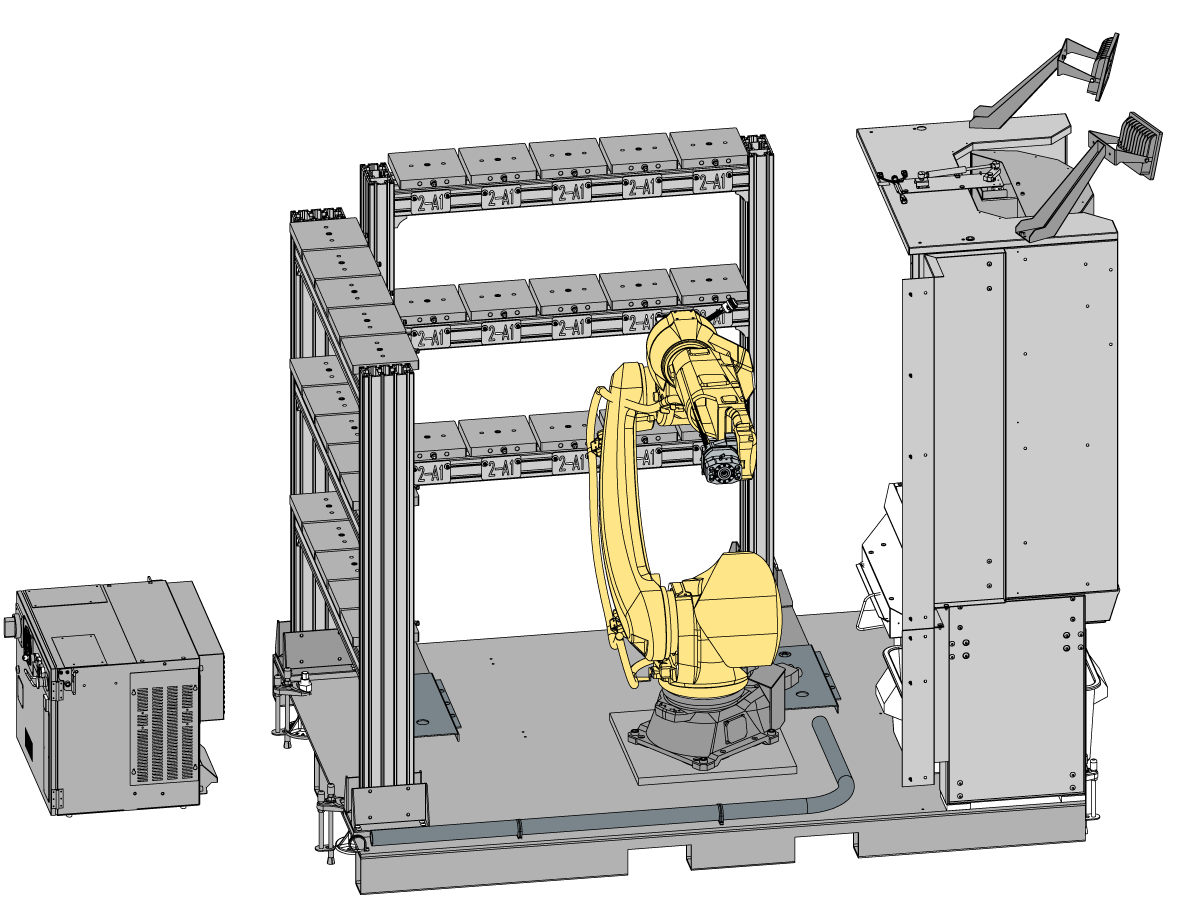
This procedure shows how to field install a 2nd pallet rack onto the Robot Pallet Loader System.

This procedure applies to the following part numbers:

  • 93-1001225 - 2nd Pallet Rack RPL-25KG Install Kit
  • 93-1001226 - 2nd Pallet Rack Safety Fence Field Install Kit

Note: The safety fence kit is only needed in CE regions.

Below are the requirements in order to field install a 2nd pallet rack onto an existing RPL system:

  • 19-inch monitor machines with 100.25.001.1100 series software.

Note: The minimum software version required for dual shelf RPL is 100.25.001.1100 or later. This means that 15-inch monitor NGC machines are not compatible with dual shelf RPL.

This installation requires the second rack to be lifted into position. The rack could weigh 100 lbs.

Modify Base Plate

1

The base plate should have hole patterns for where the second rack gets installed.

Note: If the base plate does not have these hole patterns then the base plate is a previous revision. Base plates that are revision 25-10797B or higher have these hole patterns. 

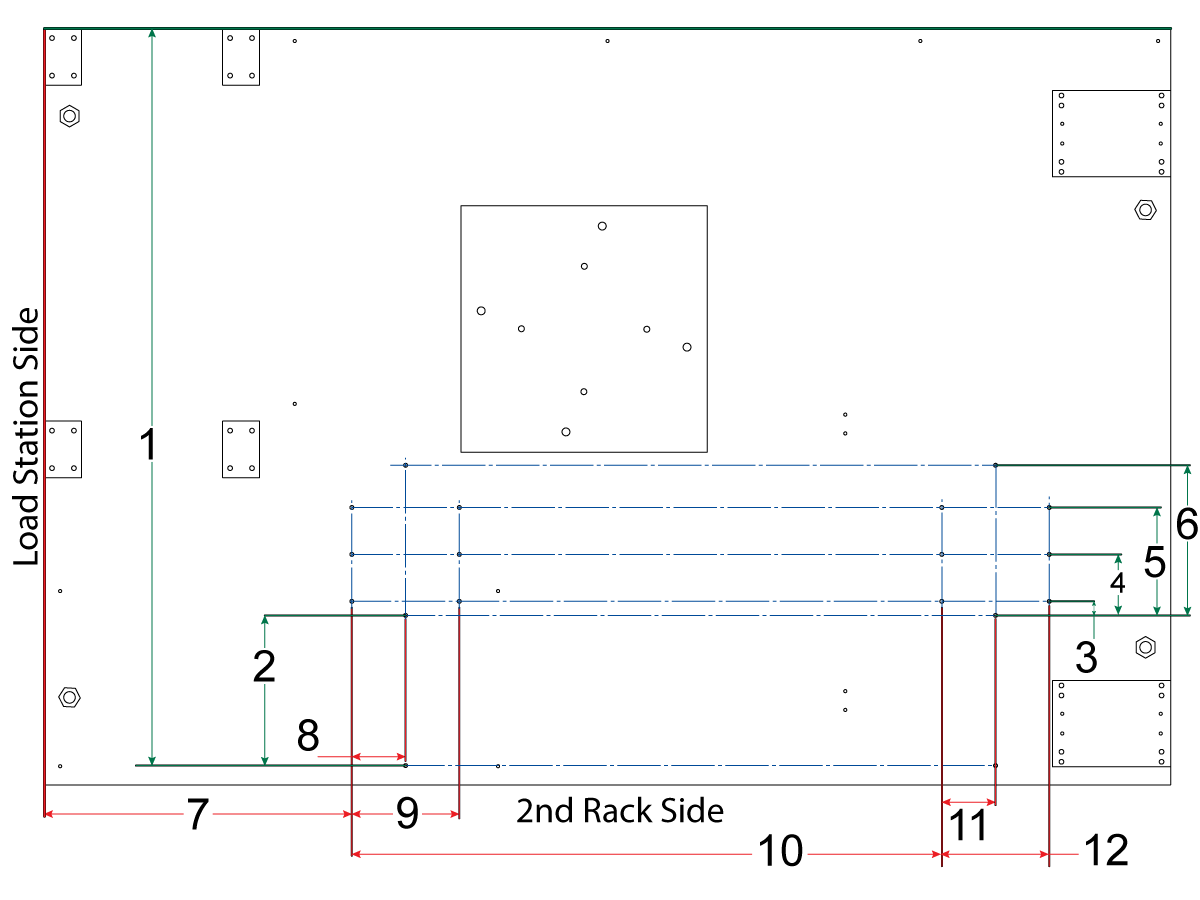
If you do not want to mount the C-Channel guides then only the 6 support leg mounting holes [1] will need to be drilled and tapped.

To use the C-Channel guides the remaining 12 holes [2] will need to be tapped.

Note: The C-Channel guides assist in sliding the pallet rack in and out when a dual rack RPL is shipped. For field installs of the second rack the C-Channel guides are optional.

2

 IMPORTANT: The size and thread of all holes shown in the image are: 

  • 3/8-16 Coarse Thread to depth of 0.4in (10.2mm)

Rack Support Leg Mounting Hole Locations:

  • [1]  = 59.0in (1497.5mm)
  • [2]  = 12.0in (304.8mm)
  • [6]  = 12.0in (304.8mm)
  • [7 + 8]  = 24.56in + 4.296in -> 28.856in
    • (623.89mm + 109.10mm -> 732.99mm)
  • [7 + 10 + 11] = 24.56in + 47.1in + 4.296in -> 79.956in 
    • (623.89mm + 1197.6mm + 109.10mm -> 1930.59mm)

C-Channel Guide Mounting Hole Locations (Optional):

  • [3] = 1.125in (28.575mm)
  • [4] = 4.875in (123.825mm)
  • [5] = 8.625in (219.075mm)
  • [7] = 24.56in (623.89mm)
  • [9] = 8.591in (218.211mm)
  • [10] = 47.1in (1197.6mm)
  • [12] = 8.591in (218.211mm)

Note: The C-Channel guide mounting holes only need to be drill / tapped if you wish to use the C-Channel guides.

The dimensions for the callouts in the drawing below are listed in both inches and mm:
  1. [1]  = 59.0in (1497.5mm)
  2. [2]  = 12.0in (304.8mm)
  3. [3] = 1.125in (28.575mm)
  4. [4] = 4.875in (123.825mm)
  5. [5] = 8.625in (219.075mm)
  6. [6]  = 12.0in (304.8mm)
  7. [7] = 24.56in (623.89mm)
  8. [8] = 4.296in (109.10mm)
  9. [9] = 8.591in (218.211mm)
  10. [10] = 47.1in (1197.6mm)
  11. [11] = 4.296in (109.10mm)
  12. [12] = 8.591in (218.211mm)

2nd Pallet Rack Installation

1

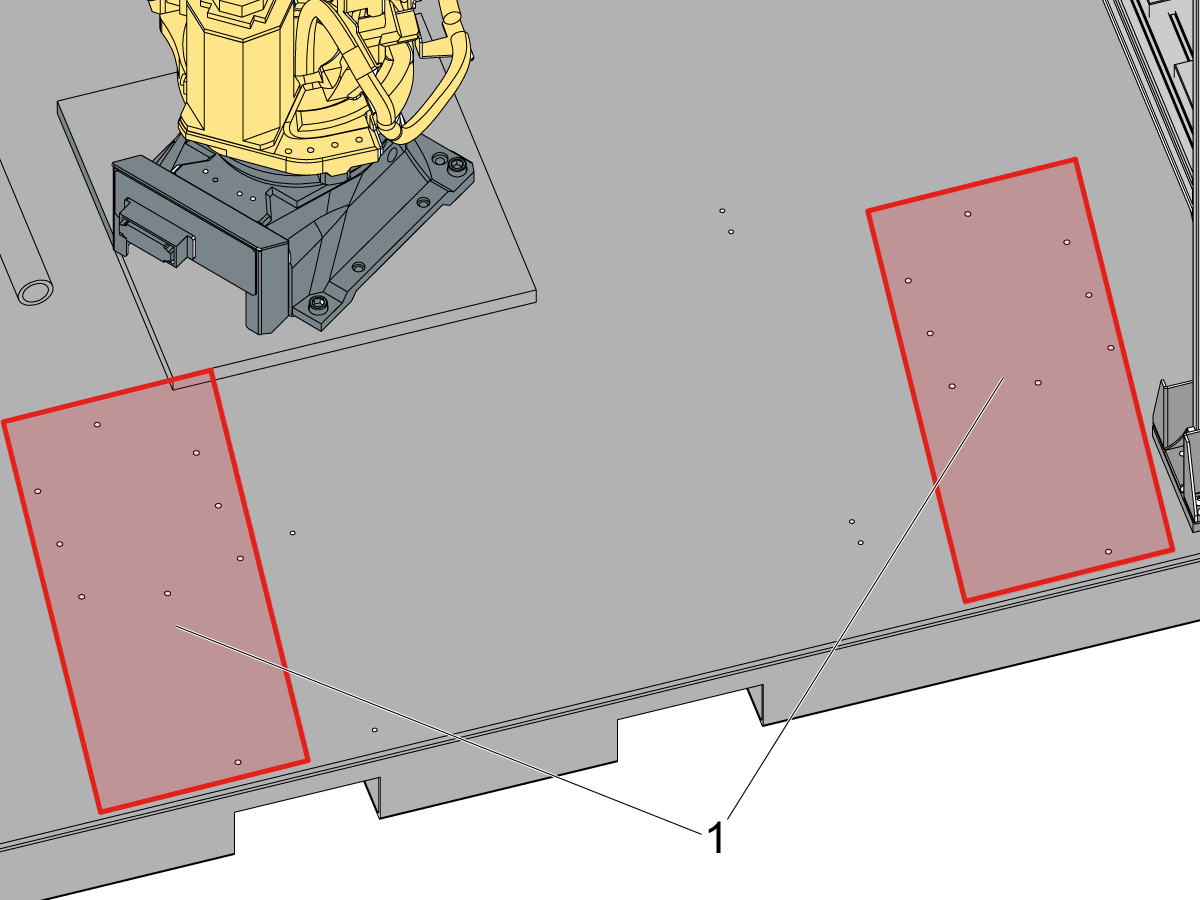
The base plate should have hole patterns for where the second rack gets installed. These hole patterns [1] are where the rack support legs and C-Channel guides get installed.

Note: If the base plate does not have these hole patterns then the base plate is a previous revision. Base plates that are revision 25-10797B or higher have these hole patterns. 

These holes will have to be drill and tapped. See the modify base plate section for making the plate compatible with the second rack.

2

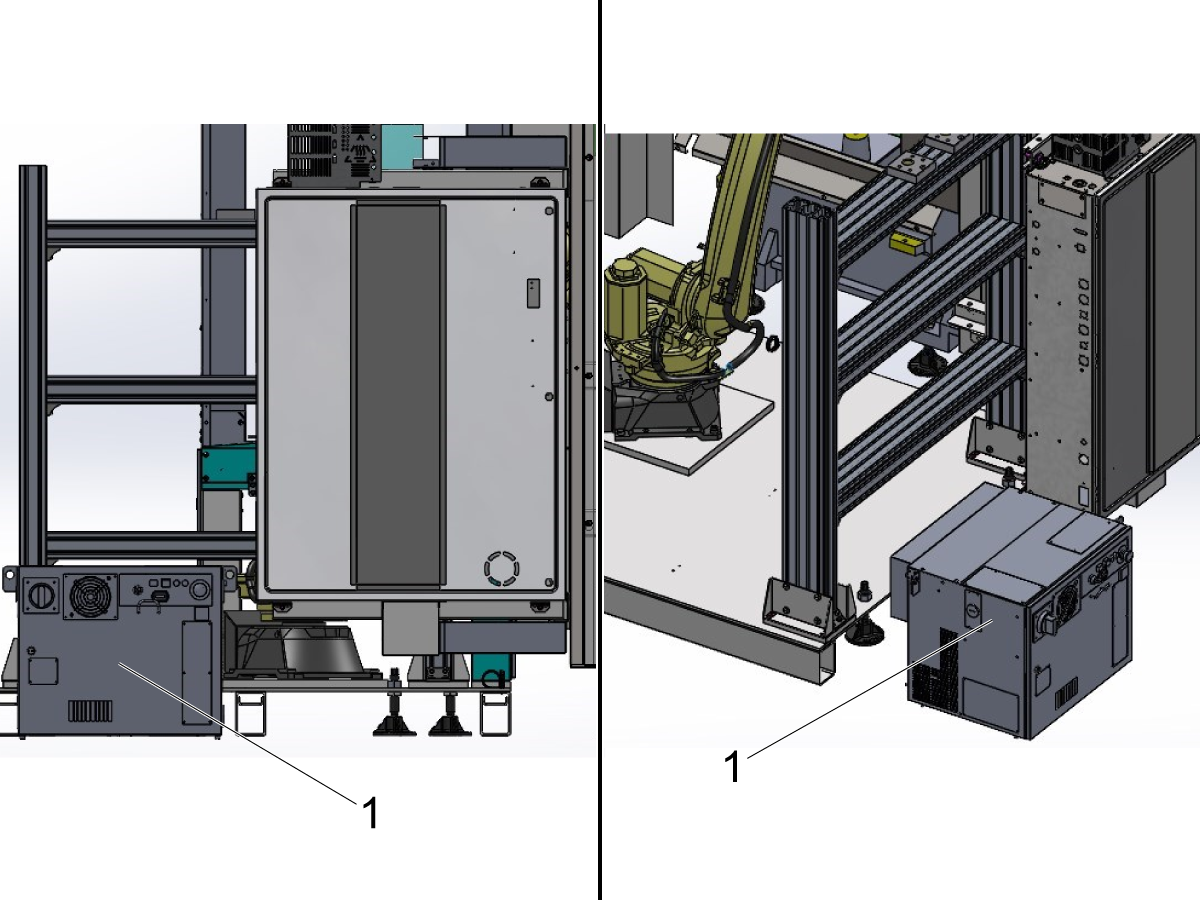
Note: For dual rack RPL's, the HRP electrical box cannot be on the pallet. Move the electrical box behind rack 1 as shown in the image.

For example on a UMC the electrical box will be under or next the electrical cabinet of the machine.

Reroute the robot power cables coming from the electrical box underneath the machine so they are not coiled up. 

Note: Having the power cabled coiled up can cause electrical noise that could cause alarms coming from the robot control box. Make sure the power cables are not routed on top of eachother.

3

Place the second rack support legs [1] on the base plate.

Use the 3/8-16 x 1-1/4 SHCS [2] and the 3/8 washers [3] (1.25in OD) to fasten the support legs to the pallet.

Note: Make sure to use the middle [4] and outside [5] mounting positions. That way you don't need to slide the rack out once the rack is placed on the legs.

4

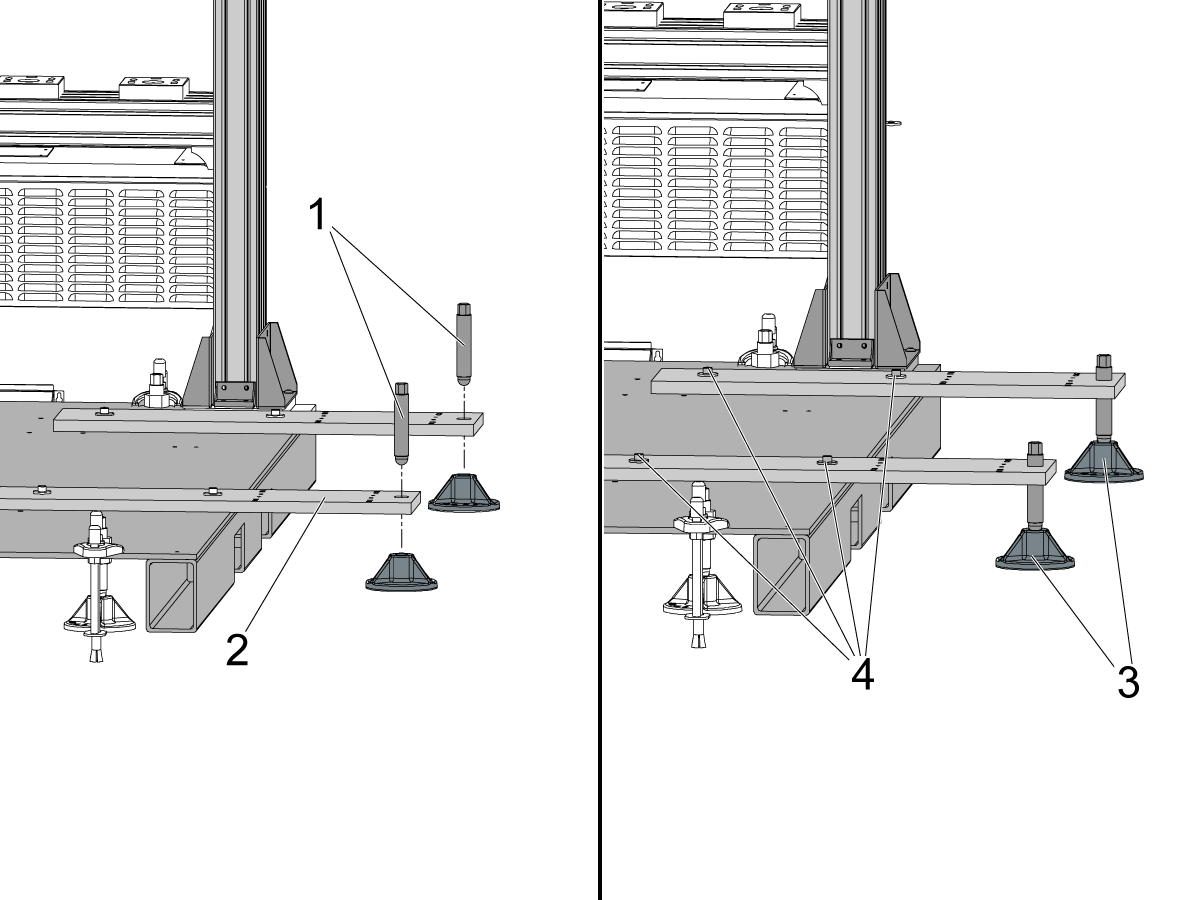
Put down the leveling screws [1] into the 2nd rack support legs [2].

Run the studs down so that they sit inside the leveling pucks [3].

Once the leveling screws are touching the pucks, break loose the 4 SHCS [4] holding the support legs in position.

Note: These are the same SHCS installed in the previous step. They need to be broken loose to allow for adjustments to the support legs in the next steps.

5

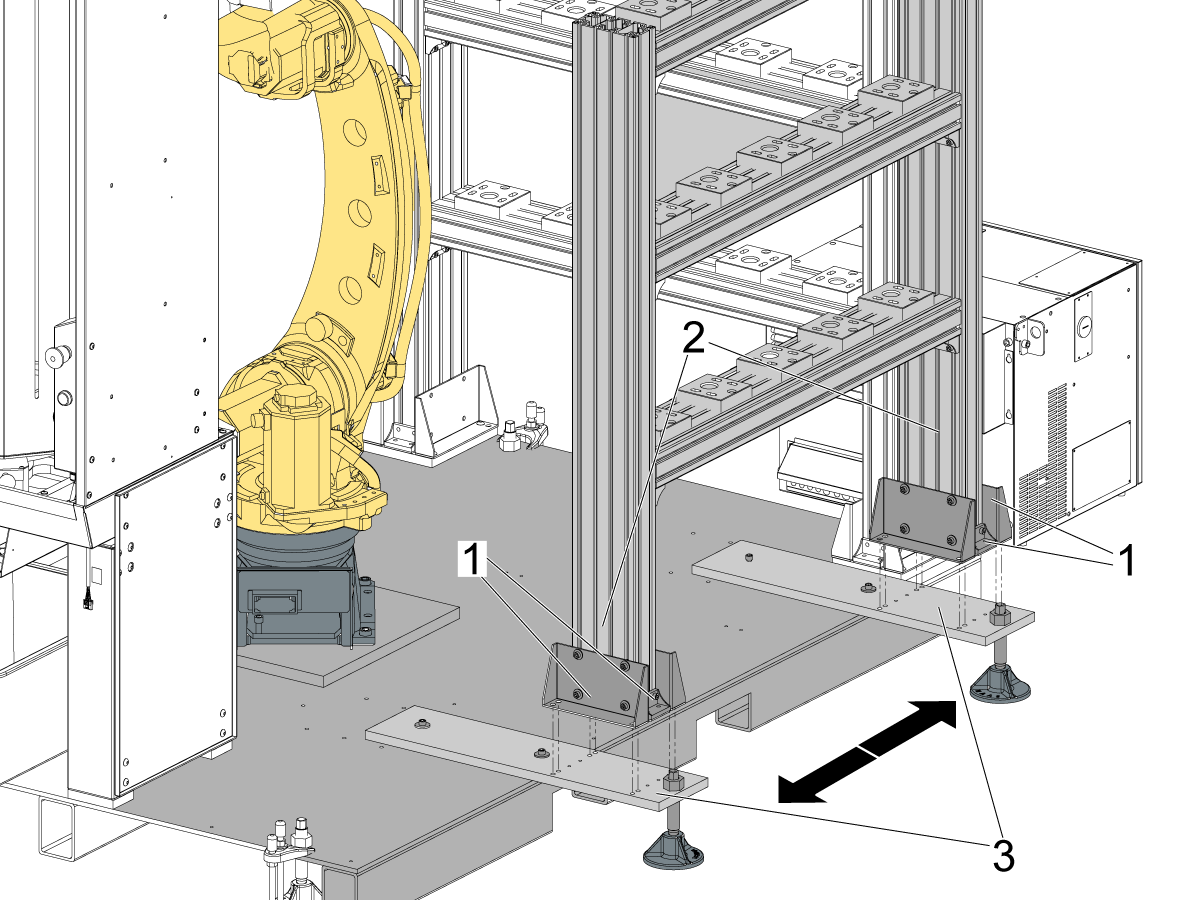
Note: This step requires 2 people to help lift the pallet rack into position. If 2 people are not available you may need to use a forklift or something else to aid in lifting the pallet rack.

Keep the pallet rack mounting brackets [1] fastened to the posts [2] of the pallet rack. 

Lift the pallet rack and place it in position on top of the support legs [3].

Rest the rack on the support legs. Make small adjustments to the position of the rack and/or support legs until the mounting brackets are aligned with the holes in the support legs.

6

Use the 3/8-16 x 1/2 BHCS [1] to fasten the mounting brackets [2] to the rack rack support legs.

Use the washers and 1/4-20 SHCS [3] to fasten the smaller mounting brackets [4] in position on the support legs for the rack.

Once the pallet rack is fastened to the support legs, move on to rough leveling the rack using the leveling screws.

7

Install both the C-Channel guide covers [1] over the support legs using 12 of the 3/8-16 BHCS [2].

Note: The cut out in the top of the C-Channel guide covers [1] should be centered on the washer and bolt [3] that fastens the support legs to the base pallet.

8

Start leveling by using a bubble level on the vertical posts [1] of the rack.

Raise/lower the leveling screws [2] as needed to get each post vertical.

Continue adjusting the leveling screws until the level is in the middle for each post. 

9

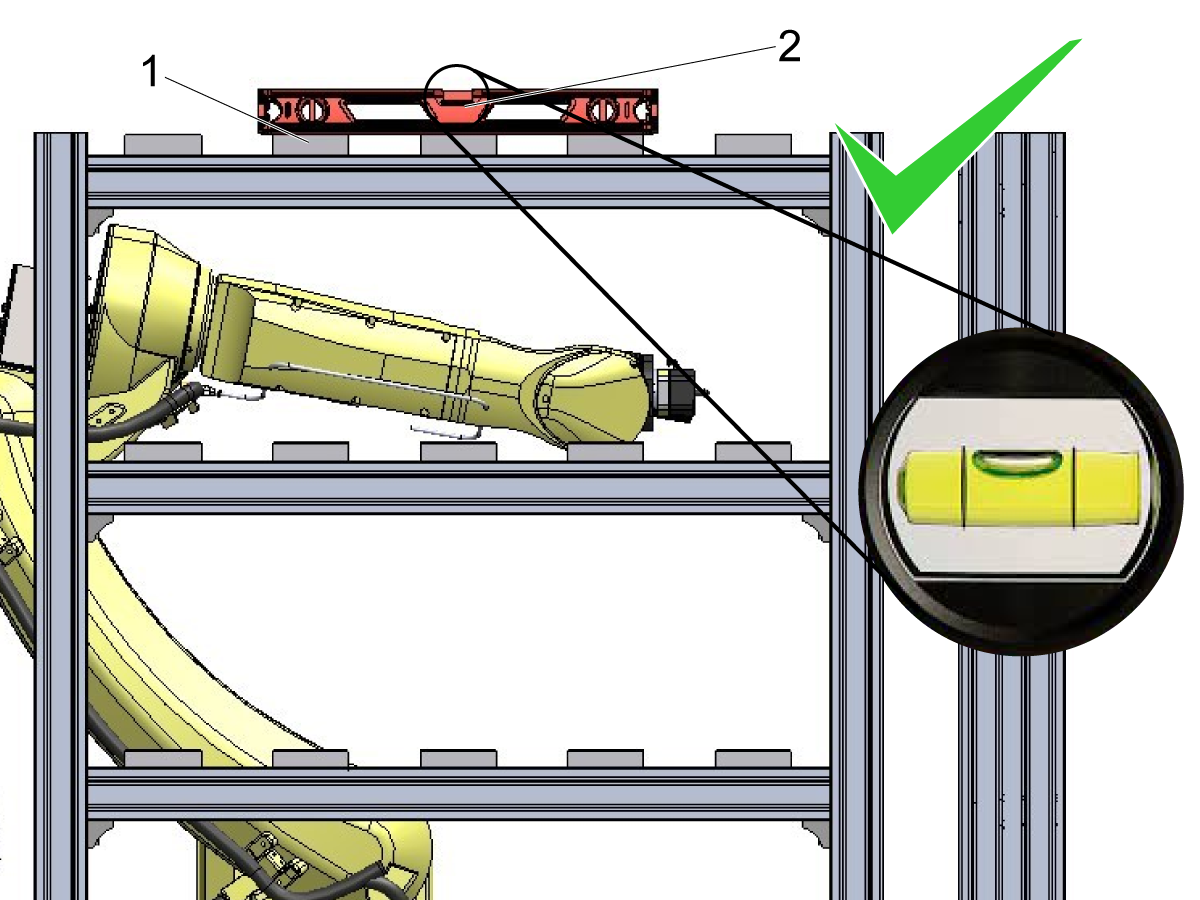
Once the posts are vertical, move the level to the top shelf.

Place the level [2] on top of the pallet holders [1].

Adjust the leveling screws as needed.

Note: The rack just needs to be rough leveled. Prioritize this level over the previous step where the posts were made vertical.

Important: It's recommended to adjust the robot frame to match the shelf rather than attempt to adjust the level of the rack match the frame. Refer to the section below for creating a frame that matches the shelf.

Configure Rack 2 for Setup

1

In order to setup the positions on Rack 2, start by navigating to the Pallet Pool and then Pallet Station Setup tab in current commands.

Change the value for the Rack Count to 2 [1]. 

This will populate the menu with more fields for the additional rack.

2

Check the rest of the fields in the template. Change the Total Pallets on Rack 2 [1] to 15 for the purposes of setup. 

Note: Even if you do not have 15 pallets its recommended to change it to 15 pallets for setup. This will be needed so that you can command the robot to move to any location on the rack.

3

In order to go through the Pallet Shelf Setup tab you need to assign all pallets to a shelf position.

Go to the Pallet Schedule Table and enter the shelf location for every pallet. Pallet designations on Dual Rack are specified by <Rack number>-<shelf position>. For example to assign pallet to shelf C5 on Rack 2 you would enter 2-C5 and press enter highlighting the shelf value for the pallet.

See the image for where to highlight when assigning shelf location [1].

Once all 15 spots on Rack 2 are assigned you can move on to setting/verifying the initial pickup location. This is detailed in next section.

Set and Test Initial Pickup on Rack 2

1

The initial pickup location for Rack 2 will need to be set.

To set this position, start by clamping the red setup pallet in the gripper.

Use the Pallet Shelf Setup tab inside current commands. On this page press [F1] to switch between Rack 1 and Rack 2.

Highlight Position 2-A1 and press [F3] move to highlighted station. Don't let it go all the way to the position. Be ready to E-Stop the robot when you are close to the rack.

IMPORTANT: Run the robot slowly so that you can E-stop the robot in case it gets close to colliding with the rack.

When the setup pallet is extended above the rack, press E-Stop. You will jog the robot in cartesian motion to align the setup pallet to the 2-A1 pallet holder.

2

After pressing E-Stop, switch to the Robot Motions Setup tab.

Press [Handle Jog] so and select Cartesian mode on the RJH.

Jog the robot so that the red setup pallet lines up with the sides and back  of the pallet holder. Jog down so that the setup pallet is sitting flush or a few mm above the pallet holder.

Refer to the images for what good alignment looks like.

3

Once Aligned, highlight the Initial Pickup Position in the Rack 2 menu [3] and press [F2] to record the position.

Note: Make sure your Active Frame is set to Pallet Station R2 [4]. To change the frame press [F3].

4

Before testing the initial pickup position, check that the frame matches the shelf.

To test the frame, you will first need to recover the robot.

Once recovered, return to the Pallet Shelf Setup tab and clamp the setup pallet in the gripper.

Highlight station 2-A5 [1] and press [F3] [2] to move this pallet location. This will test if the frame matches the shelf, or if a new frame needs to be created.

Warning: Watch the robot carefully as it approaches the 2-A5 location. Its recommended to run the robot slowly to ensure it moves as expected. 

Note: If the robot alarms out moving across the shelf, recover the robot and then return to the ready location before going to the 2-A5 location. 

Note: If the frame is set correctly, the setup pallet will be just above the pallet holder. You should be able to slid the pallet holder underneath the setup pallet, with less than 1/4" gap.

If the setup pallet is way off as shown in the image, then the frame needs to be reset, as well as the initial pickup position.

Note: Refer to the section below for resetting the frame.

5

If the height of setup pallet is correct above the A5 location then the remaining pallet holders can be setup on the second rack.

Move to each of the pallet positions that will be used on the shelf.

Line up the pallet holders [1] underneath where the red setup pallet is located [2].

Once the pallet holder is aligned to the setup pallet, tighten the 4 SHCS [3] to secure the pallet holder in position.

Reset 2nd Rack Frame

1

If the frame needs to be reset for the 2nd rack, enter the Frames tab in Current commands and use the 3-point method option for the frame named "Shelf 2"

Use the following shelf areas to create the frame with the 3-point method. This will ensure your Z-direction is pointing the correct direction:

  1. Location 2-C1 (use shelf post and pallet holder)
  2. Location 2-C5 (use shelf post and pallet holder)
  3. Location 2-A5 (use shelf post and pallet holder)

Clamp the red setup pallet in the robot gripper.

Use the pallet holders [1] and the inside edge of the rack post [2] to set each point in the 3-point method for the frame.

Start by jogging the robot down near rack station 2-C1 as shown (lower left corner).

Note: Image is shown from the backside of Rack 2. The setup pallet is closest to the 2-C1 pallet position in the image.

2

Press [F2] to record the first position. Then jog the robot to station 2-C5 (lower right corner) to set the second reference position.

Do the same process that was used to set reference position 1. Use the pallet holder [1] and inside edge of the shelf post [2] to align the setup pallet.

Once the setup pallet is aligned, press [F2] to record the current position as the second reference position. Then continue to setting the final reference position for the 3-point method.

Note: The image is from the backside of Rack2. The setup pallet is closest to the 2-C5 pallet position in the image.

3

Updated

Do the same process that was used to set the first two reference positions except this time using the shelf 2-A5 as the approximate location. Use the pallet holder [1] and inside edge of the shelf post [2] to align the setup pallet.

Once the setup pallet is aligned, press [F2] to record the current position as the final reference point.

Now the frame will be created. 

Important: Use this frame and reset your initial pickup location as outlined in the step above. If you need to adjust motion files, use this new frame as well. You could also direct entry this frame into the SHELF 2.

Test Operation and Verify DCS

To test the 2nd rack, schedule all the pallets that will be used and slowly watch as the robot goes to pick up and drop off at each pallet location.

Refer to Chapter 9 - RPL Setup and Chapter 10 - RPL Operation for more details on running the RPL system.

Important: The DCS zone may need to be adjusted to allow the robot to reach the second rack. Run the RPL in RUN Mode to see if any DCS alarms are generated. If you get alarms, expand the DCS zone so that the 2nd rack positions are inside the zone. Refer to chapter 8 - RPL - DCS Setup for more information.

Recently Viewed Items

You Have No Recently Viewed Items Yet

Feedback
Haas Logo

Haas Delivered Price

This price includes shipping cost, export and import duties, insurance, and any other expenses incurred during shipping to a location in France agreed with you as a buyer. No other mandatory costs can be added to the delivery of a Haas CNC Product.

KEEP UP WITH THE LATEST HAAS TIPS AND TECHNOLOGY...

Sign up now!   

HAAS TOOLING ACCEPTS THE FOLLOWING:

  • Service & Support
  • Owners
  • Request Service
  • Operator Manuals
  • Haas Parts
  • Rotary Repair Request
  • Pre-Install Guides
  • Shopping Tools
  • Build & Price a New Haas
  • Available Inventory
  • The Haas Price List
  • CNCA Financing
  • About Haas
  • Accessibility Statement
  • DNSH Statement
  • Export Compliance
  • Careers
  • Certifications & Safety
  • Contact Us
  • History
  • Terms & Conditions
  • Haas Tooling Terms & Conditions
  • Privacy
  • Warranty
  • Haas Community
  • Haas Certification Program
  • Haas Motorsports
  • Gene Haas Foundation
  • Haas Technical Education Community
  • Events
  • Join the Conversation
  • Facebook
  • X
  • Flickr
  • YouTube
  • LinkedIn
  • Instagram
  • TikTok
© 2026 Haas Automation, Inc – CNC Machine Tools

This site is protected by reCAPTCHA and the Google Privacy Policy and Terms of Service apply.

2800 Sturgis Rd., Oxnard, CA 93030
Toll Free: (888) 817-4446 / Fax: 805-278-8554