My Haas Welcome,
!
Haas Tooling MyHaas/HaasConnect Sign In Register Haas Tooling MyHaas/HaasConnect Sign Out Welcome, My Machines Latest Activity My Quotes My Account My Users Sign Out
Find Your Distributor
  1. Select Language
    1. English
    2. Deutsch
    3. Español - España
    4. Español - México
    5. Français
    6. Italiano
    7. Português
    8. Český
    9. Dansk
    10. Nederlands
    11. Magyar
    12. Polski
    13. Svenska
    14. Türkçe
    15. 中文
    16. Suomi
    17. Norsk
    18. الإنجليزية
    19. български
    20. Hrvatski
    21. Ελληνικά
    22. Română
    23. Slovenský
    24. Slovenščina
    25. 한국어
    26. 日本語
    27. Українська
  • machines Main Menu
    • Vertical Mills
      Vertical Mills
      Vertical Mills View All
      • Vertical Mills
      • VF Series
      • Universal Machines
      • VR Series
      • VP-5 Prismatic
      • Pallet-Changing VMCs
      • Mini Mills
      • Mold Machines
      • High-Speed Drill Centers
      • Drill/Tap/ Mill Series
      • Toolroom Mills
      • Pocket Mill
      • Compact Mills
      • Gantry Series
      • SR Sheet Routers
      • Extra-Large VMC
      • Double-Column Mills
      • 3+2 Positioning Machines
    • Multi-Axis Solutions
      Multi-Axis Solutions
      Multi-Axis Solutions View All
      • Multi-Axis Solutions
      • Y-Axis Lathes
      • 5-Axis Mills
    • Lathes
      Lathes
      Lathes View All
      • Lathes
      • ST Series
      • Dual-Spindle
      • Box Way Series
      • Toolroom Lathes
      • Chucker Lathe
      • Haas Bar Feeders
    • Horizontal Mills
      Horizontal Mills
      Horizontal Mills View All
      • Horizontal Mills
      • 50-Taper
      • 40-Taper
    • Rotaries & Indexers
      Rotaries & Indexers
      Rotaries & Indexers View All
      • Rotaries & Indexers
      • Rotary Tables
      • Indexers
      • 5-Axis Rotaries
      • Extra-Large Rotaries
    • Special Series
      Special Series
      Special Series View All
      • Special Series
      • EU_Series_Redirect
    • Automation Systems
      Automation Systems
      Automation Systems View All
      • Automation Systems
      • Mill Automation
      • Lathe Automation
      • Automatic Parts Loaders
      • Automation Models
    • Desktop Machines
      Desktop Machines
      Desktop Machines View All
      • Desktop Machines
      • Desktop Mill
      • Desktop Lathe
      • Control Simulator, Standard
      • Control Simulator, Premium
    • Shop Equipment
      Shop Equipment
      Shop Equipment View All
      • Shop Equipment
      • Knee Mill
      • Haas Manual Lathes
      • Haas Saws
    • Fabrication Machines
      Fabrication Machines
      Fabrication Machines View All
      • Fabrication Machines
      • Laser Cutting Machines
      • CNC Press Brakes
    • QUICK LINKS Special Series  Special Series 
      EU SERIES EU SERIES BUILD & PRICE | PRICE LIST BUILD & PRICE | PRICE LIST In-Stock Machines In-Stock Machines WHAT’S NEW WHAT’S NEW YOUR FIRST CNC YOUR FIRST CNC
      SHOPPING TOOLS
      • Build & Price a Haas
      • Price List
      • Available Inventory
      • CNCA Financing
      WANT TO TALK TO SOMEONE?

      A Haas Factory Outlet (HFO) can answer your questions, and walk you through your best options.

      CONTACT YOUR DISTRIBUTOR >
  • Options Main Menu
    • The Haas Control Value Option Packages
      Value Option Packages
      Value Option Packages View All
      • Value Option Packages
    • Product Image Spindles
      Spindles
      Spindles View All
      • Spindles
    • Product Image Tool Changers
      Tool Changers
      Tool Changers View All
      • Tool Changers
    • Product Image 4th- | 5th-Axis
      4th- | 5th-Axis
      4th- | 5th-Axis View All
      • 4th- | 5th-Axis
    • Product Image Turrets & Live Tooling
      Turrets & Live Tooling
      Turrets & Live Tooling View All
      • Turrets & Live Tooling
    • Product Image Probing
      Probing
      Probing View All
      • Probing
    • Haas Chip & Coolant Management Chip & Coolant Management
      Chip & Coolant Management
      Chip & Coolant Management View All
      • Chip & Coolant Management
    • The Haas Control The Haas Control
      The Haas Control
      The Haas Control View All
      • The Haas Control
    • Product Image Product Options
      Product Options
      Product Options View All
      • Product Options
    • Product Image Tooling & Fixturing
      Tooling & Fixturing
      Tooling & Fixturing View All
      • Tooling & Fixturing
    • Product Image Workholding
      Workholding
      Workholding View All
      • Workholding
    • Product Image 5-Axis Solutions
      5-Axis Solutions
      5-Axis Solutions View All
      • 5-Axis Solutions
      • 5 Easy Steps to 5-Axis
    • QUICK LINKS Special Series  Special Series 
      EU SERIES EU SERIES BUILD & PRICE | PRICE LIST BUILD & PRICE | PRICE LIST In-Stock Machines In-Stock Machines WHAT’S NEW WHAT’S NEW YOUR FIRST CNC YOUR FIRST CNC
      SHOPPING TOOLS
      • Build & Price a Haas
      • Price List
      • Available Inventory
      • CNCA Financing
      WANT TO TALK TO SOMEONE?

      A Haas Factory Outlet (HFO) can answer your questions, and walk you through your best options.

      CONTACT YOUR DISTRIBUTOR >
  • Why Haas Main Menu
      Discover the Haas Difference
    • Why Haas
    • MyHaas
    • Education Community
    • Industry 4.0
    • Haas Certification
    • Customer Testimonials
  • Service Main Menu
      Welcome to Haas Service
      SERVICE HOME Operator’s Manuals How-To Procedures Troubleshooting Guides Preventive Maintenance Haas Parts Haas Tooling Videos
  • Videos Main Menu
  • Main Menu
    • View All
    • View All
    • View All
    • View All
      • HTEC Curriculum Support
      • Haas Value Option Packages (VOP) Journey
    • View All
      • Haas 10 kg Cobot Package
      • Cobot Kits
      • DC-1 Drill Center
      • CNC Sales News
      • Do More With Your Haas
    • View All
    • View All
      • contact-us-test
      • 4 - AUTOMATION SYSTEMS
      • Carousel-V2
      • expert test
      • Demo_Day_Trident-test
      • Link Test
      • image-sale-tag-test
      • article-list-test
      • Haas 25 kg Robot Package
      • test-algolia-page
    • View All
    • View All
    • View All
    • View All
      • calc-test
    • View All
    • QUICK LINKS Special Series  Special Series 
      EU SERIES EU SERIES BUILD & PRICE | PRICE LIST BUILD & PRICE | PRICE LIST In-Stock Machines In-Stock Machines WHAT’S NEW WHAT’S NEW YOUR FIRST CNC YOUR FIRST CNC
      SHOPPING TOOLS
      • Build & Price a Haas
      • Price List
      • Available Inventory
      • CNCA Financing
      WANT TO TALK TO SOMEONE?

      A Haas Factory Outlet (HFO) can answer your questions, and walk you through your best options.

      CONTACT YOUR DISTRIBUTOR >
  • Haas Tooling Main Menu
  • Haas Service Parts Main Menu

My Haas Welcome,
!
Haas Tooling MyHaas/HaasConnect Sign In Register Haas Tooling MyHaas/HaasConnect Sign Out Welcome, My Machines Latest Activity My Quotes My Account My Users Sign Out
Find Your Distributor
  1. Select Language
    1. English
    2. Deutsch
    3. Español - España
    4. Español - México
    5. Français
    6. Italiano
    7. Português
    8. Český
    9. Dansk
    10. Nederlands
    11. Magyar
    12. Polski
    13. Svenska
    14. Türkçe
    15. 中文
    16. Suomi
    17. Norsk
    18. الإنجليزية
    19. български
    20. Hrvatski
    21. Ελληνικά
    22. Română
    23. Slovenský
    24. Slovenščina
    25. 한국어
    26. 日本語
    27. Українська
×

Search Results

Web Pages

Images

    • <
    • 1
    • >

Haas Robot - Quick Start Guide

Service Home How To Procedures Haas Robot - Quick Start Guide

Haas Robot - Quick Start Guide

- Jump to Section - Back to Top
Recently Updated Last updated: 02/02/2021

Haas Robot - Quick Start Guide


Introduction

This procedure will help you set up a job with your Haas Robot.

Follow the First Power Up section in the Haas Robot Installation Guide to connect the robot to your Haas machine.

 Note: If the machine is Cycle Powered before saving a job, the template info may be lost.

Haas Robot Package-1 - Installation - VMC
Haas Robot Package-1 - Installation - Lathe

General Safety Notes

Operation Safety:
  • Check for damaged grippers every time a new job is run.
  • In the event of a power loss the grippers will remain in the clamp position.
  • In the event of air loss, the grippers will temporary remain in the clamp position.  It is necessary to remedy the situation as overtime the air in the system will bleed off and may cause the part to fall.

Periodic inspection of machine safety features:

  • Inspect fence door interlock mechanism for proper fit and function.  To check the interlock operation refer to the Haas Robot Installation Guides.

Setup / Run Mode Operation

All Haas CNC machines are equipped with a key switch on the side of the control pendant to lock and unlock setup mode. The robot will have the following behaviors depending on what mode is selected. 

  • When the Haas control is in Run mode, mode 1, unlocking the interlock and opening up the gate stops all motion, and no motion can be started until it is closed and locked.
  • When the Haas control is in Set up mode, mode 2, speed limited motion such as jogging an axis of the robot can be performed in order to program a robot's path of motion, pick up position, set a robot's tool center point, (an offset), load and pick up parts from the spindle or part holder in the machine, etc. The programmed path will also be able to be run slowly to prove out the programmed path of the robot. The robot in setup mode can only be handle jogged while the F2 button the RJH is pressed.
Haas Robot Package-1 - Installation - VMC
Haas Robot Package-1 - Installation - Lathe

Setup

1

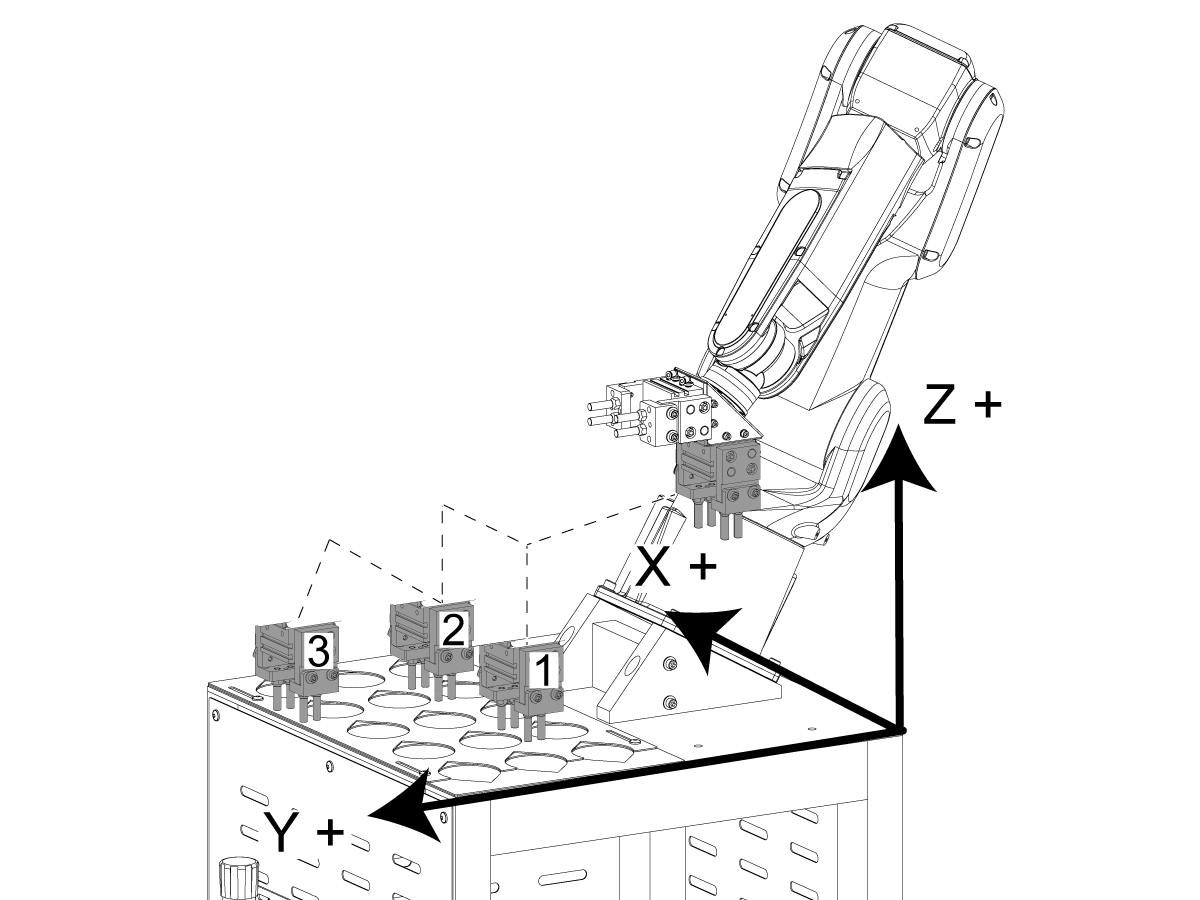
Before setting up a robot job you will need to create a user frame. The user frame will be off the parts table. This will set our X, Y, and Z axes.

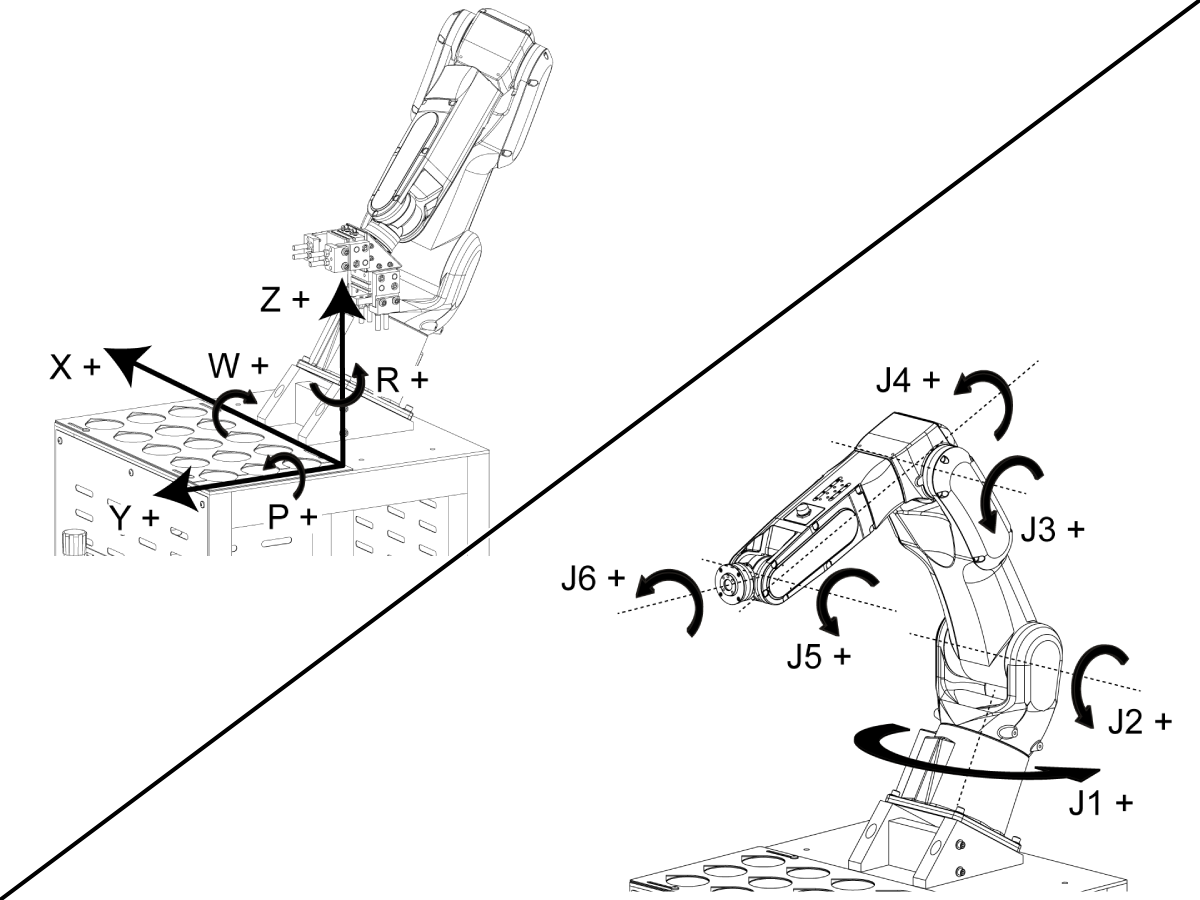
There are two coordinate types to jog the robot in. These are Cartesian and Joint. 

The Cartesian coordinate system consists of:

  • X, Y, and Z are linear axes.
  • W rotates about the X axis.
  • P rotates about the Y axis.
  • R rotates about the Z axis.

The Joint coordinate system consists of:

  • J1, J2, J3, J4, J5, and J6.


2

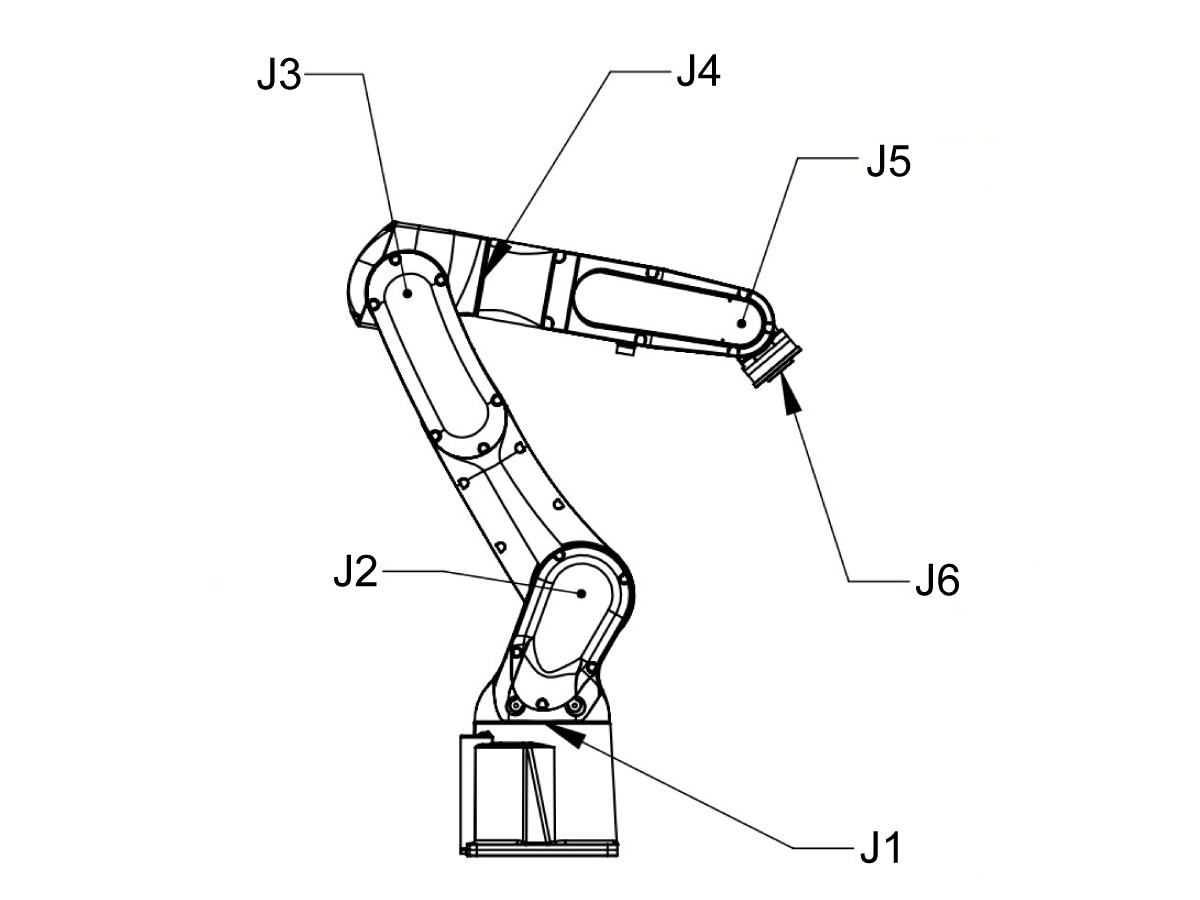
Robot Joint Travel Limits

J1 (+/-170°)

J2 (+/-122.5°)

J3 (+/-215°)

J4 (+/-190°)

J5 (+/-125°)

J6 (+/-360°)


3

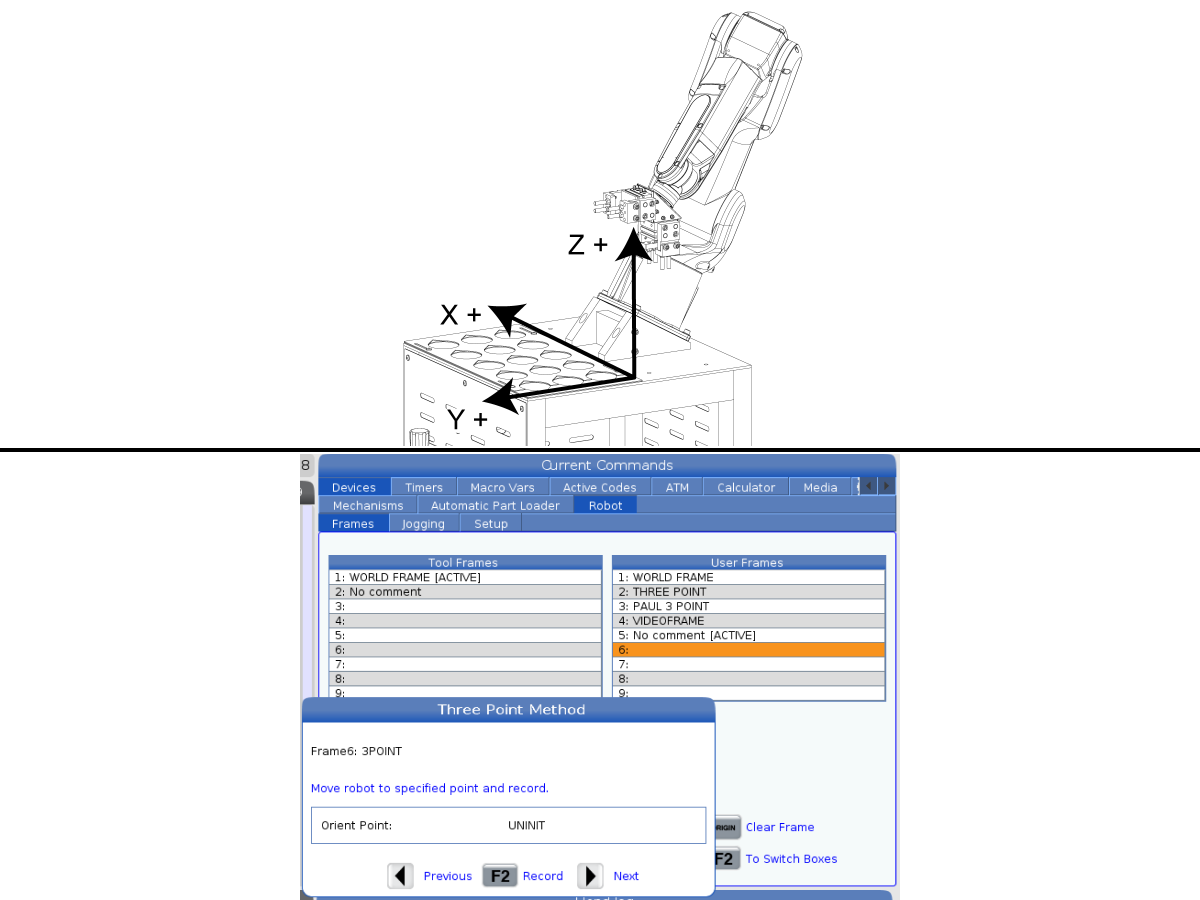
The Three Point Method is used to set our User Frame. Navigate to Current Commands > Devices > Robot > Frames and to the User Frames window. Press [F2] to switch boxes.

Press [INSERT] for the Three Point Method. Then enter a name for the User Frame and press [F2] to record.

4

The first point you will record is the orient point. This will be set with gripper 1’s fingers pointing down and on the table. Jog the robot to this location. Check to make sure all 4 grippers are flat on the table with a piece of paper like touching off a tool on a part. Once our orient point[1] is set, press [F2] to record.

The next point is the X Direction point. Record the Z position on the RJH when in Cartesian Position. Jog the robot up in the Z direction so the gripper fingers clear the table when jogging in the X direction. Jog the robot in the X direction and back to the recorded Z position. The fingers should be touching the table, use the piece of paper to set the grippers back on the table. Record the X direction point[2] by pressing [F2].

Jog the robot in the Y direction. Because the robot is mounted at a 30 degree angle, the Y-direction will travel up away from the table. Jog down in the Z direction back to the table and use the piece of paper to touch off the gripper fingers. Record the Y direction point[3] by pressing [F2].

5

The Direct Entry Method can also be used to set our User Frame. Navigate to Current Commands > Devices > Robot > Frames and to the User Frames window. Press [F2] to switch boxes.

For Robot Package 1 VF/VM & ST Machines Only

Press [ENTER] for the Direct Entry Method. To set the User Frame off of the robot stand. Enter a name for the User Frame and add the following values:

  • X = 0.0
  • Y = 0.0
  • Z = 0.0
  • W = 0.0
  • P = -30.0
  • R = 180.0

This will rotate the robot about Y 30 degrees and Z 180 degrees. The robot will jog with the Z direction perpendicular to the table. Press [ENTER] to record.

6

For Robot Package 2 Machines Only

Navigate to Current Commands > Devices > Robot > Frames and to the User Frames window. Press [F2] to switch boxes.

Press [ENTER] for the Direct Entry Method. To set the User Frame off of the robot stand. Enter a name for the User Frame and add the value from the table below.

This adds a negative degree rotation about the Z-Axis to the world frame to cancel out the rotation of the robot base. Press [ENTER] to record.

Machine

Robot With Weldment Base R Rotation Angle

Robot With Cast Base R Rotation Angle UMC Robot Base Plate R Rotation Angle

ST-20/25 & VF-5

-32.14 -42.91 N/A

ST-20L/25L/30L/35L & VF-1/2/3/4

-36.5 -45.23 N/A
ST-30/35 -40.35 -47.46 N/A
UMC-500/750/1000/1250 N/A N/A -35

7

Press [Insert] to create the User Frame. Navigate to the Jogging tab and select the User Frame that was created to make it active.

FANUC Dual Check Safety (DCS) – Setup

Each Haas Robot is provided with FANUC's DCS System. This allows the user to define speed and positional limits to the robot. If the robot goes outside of these limits, DCS will stop the robot and remove power to the motors.

This procedure will show you how to set up a Fanuc Dual Check Safety (DCS) zone.

FANUC Dual Check Safety (DCS) – Setup

Setup

1

Operation

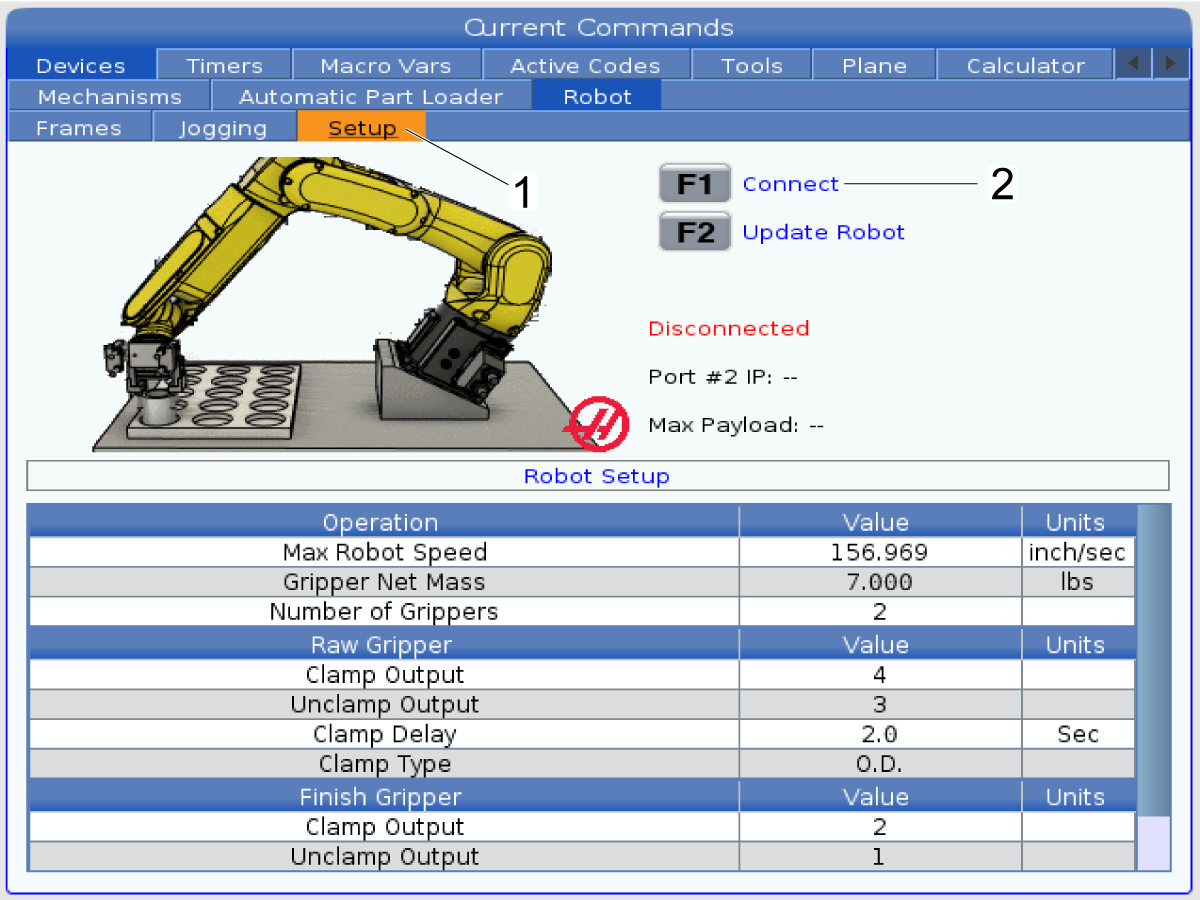
  • Max Robot Speed – This setting specifies the maximum robot  speed when the machine is in Run Mode. Enter the speed in the correct units (in/sec or mm/sec) to run the job. This setting can be adjusted up or down if the program requires.

    Note: The maximum Robot speed in Run Mode is 157 in/sec (4000 mm/sec). 
    The maximum Robot speed in Setup Mode is 7.9 in/sec (200 mm/sec).

  • Gripper Net Mass - Enter the Net Mass of the gripper. Refer to the Machine Layout Drawings to get the correct value for this setting.
HRP-1 Single Gripper Layout Drawing
HRP-1 Dual Gripper Layout Drawing
HRP-2 Machine Layout Drawing
HRP-3 Machine Layout Drawing

Warning: 
Setting this value incorrectly can cause the Robot Arm to not move correctly.
 
  • Number of Grippers - Enter the number of grippers.


2

Raw Gripper

  • Clamp Output - Select the output to clamp gripper 1.
  • Unclamp Output - Select the output to unclamp gripper 1.
  • Clamp Delay - Enter the number of seconds to delay after gripper 1 has been commanded to clamp or unclamp.
  • Clamp Type - Enter 1 for OD or 2 for ID clamping. 

Finish Gripper

  • Clamp Output - Select the output to clamp gripper 2.
  • Unclamp Output - Select the output to unclamp gripper 2.
  • Clamp Delay - Enter the number of seconds to delay after gripper 2 has been commanded to clamp or unclamp.
  • Clamp Type - Enter 1 for OD or 2 for ID clamping. 

Disable the Robot

To disable the robot to run the machine in stand-alone mode. Press [SETTING]. Change the following Settings:

  • 372 Parts Loader Type to 0: None
  • 376 Light Curtain Enabled to Off


Dual Gripper Can Not Reach The Vise On UMC Platter

1

In order for the dual grippers to reach the vise, the B axis may need to be tilted away from the robot. 

This is the case for all UMCs with HRP-2. 

2

Once a loading position is determined, the loading position can be saved by going to Current Commands -> Devices -> Automatic Part Loader -> Load part [2] -> Internal Axes Location for Load [1].  Press F2 to set the current position of the machine as the loading position. 

More information about setting up HRP templates can be found at HRP - Operations. 

If the load and unload locations need to be different, custom templates will need to be used. HRP - Operations - 9.3 - Custom template. 

Recently Viewed Items

You Have No Recently Viewed Items Yet

Feedback
Haas Logo

Haas Delivered Price

This price includes shipping cost, export and import duties, insurance, and any other expenses incurred during shipping to a location in France agreed with you as a buyer. No other mandatory costs can be added to the delivery of a Haas CNC Product.

KEEP UP WITH THE LATEST HAAS TIPS AND TECHNOLOGY...

Sign up now!   

HAAS TOOLING ACCEPTS THE FOLLOWING:

  • Service & Support
  • Owners
  • Request Service
  • Operator Manuals
  • Haas Parts
  • Rotary Repair Request
  • Pre-Install Guides
  • Shopping Tools
  • Build & Price a New Haas
  • Available Inventory
  • The Haas Price List
  • CNCA Financing
  • About Haas
  • Accessibility Statement
  • DNSH Statement
  • Export Compliance
  • Careers
  • Certifications & Safety
  • Contact Us
  • History
  • Terms & Conditions
  • Haas Tooling Terms & Conditions
  • Privacy
  • Warranty
  • Haas Community
  • Haas Certification Program
  • Haas Motorsports
  • Gene Haas Foundation
  • Haas Technical Education Community
  • Events
  • Join the Conversation
  • Facebook
  • X
  • Flickr
  • YouTube
  • LinkedIn
  • Instagram
  • TikTok
© 2026 Haas Automation, Inc – CNC Machine Tools

This site is protected by reCAPTCHA and the Google Privacy Policy and Terms of Service apply.

2800 Sturgis Rd., Oxnard, CA 93030
Toll Free: (888) 817-4446 / Fax: 805-278-8554