My Haas Welcome,
!
Haas Tooling MyHaas/HaasConnect Sign In Register Haas Tooling MyHaas/HaasConnect Sign Out Welcome, My Machines Latest Activity My Quotes My Account My Users Sign Out
Find Your Distributor
  1. Select Language
    1. English
    2. Deutsch
    3. Español - España
    4. Español - México
    5. Français
    6. Italiano
    7. Português
    8. Český
    9. Dansk
    10. Nederlands
    11. Magyar
    12. Polski
    13. Svenska
    14. Türkçe
    15. 中文
    16. Suomi
    17. Norsk
    18. الإنجليزية
    19. български
    20. Hrvatski
    21. Ελληνικά
    22. Română
    23. Slovenský
    24. Slovenščina
    25. 한국어
    26. 日本語
    27. Українська
  • machines Main Menu
    • Vertical Mills
      Vertical Mills
      Vertical Mills View All
      • Vertical Mills
      • VF Series
      • Universal Machines
      • VR Series
      • VP-5 Prismatic
      • Pallet-Changing VMCs
      • Mini Mills
      • Mold Machines
      • High-Speed Drill Centers
      • Drill/Tap/ Mill Series
      • Toolroom Mills
      • Pocket Mill
      • Compact Mills
      • Gantry Series
      • SR Sheet Routers
      • Extra-Large VMC
      • Double-Column Mills
      • 3+2 Positioning Machines
    • Multi-Axis Solutions
      Multi-Axis Solutions
      Multi-Axis Solutions View All
      • Multi-Axis Solutions
      • Y-Axis Lathes
      • 5-Axis Mills
    • Lathes
      Lathes
      Lathes View All
      • Lathes
      • ST Series
      • Dual-Spindle
      • Box Way Series
      • Toolroom Lathes
      • Chucker Lathe
      • Haas Bar Feeders
    • Horizontal Mills
      Horizontal Mills
      Horizontal Mills View All
      • Horizontal Mills
      • 50-Taper
      • 40-Taper
    • Rotaries & Indexers
      Rotaries & Indexers
      Rotaries & Indexers View All
      • Rotaries & Indexers
      • Rotary Tables
      • Indexers
      • 5-Axis Rotaries
      • Extra-Large Rotaries
    • Special Series
      Special Series
      Special Series View All
      • Special Series
      • EU_Series_Redirect
    • Automation Systems
      Automation Systems
      Automation Systems View All
      • Automation Systems
      • Mill Automation
      • Lathe Automation
      • Automatic Parts Loaders
      • Automation Models
    • Desktop Machines
      Desktop Machines
      Desktop Machines View All
      • Desktop Machines
      • Desktop Mill
      • Desktop Lathe
      • Control Simulator, Standard
      • Control Simulator, Premium
    • Shop Equipment
      Shop Equipment
      Shop Equipment View All
      • Shop Equipment
      • Knee Mill
      • Haas Manual Lathes
      • Haas Saws
    • Fabrication Machines
      Fabrication Machines
      Fabrication Machines View All
      • Fabrication Machines
      • Laser Cutting Machines
      • CNC Press Brakes
    • QUICK LINKS Special Series  Special Series 
      EU SERIES EU SERIES BUILD & PRICE | PRICE LIST BUILD & PRICE | PRICE LIST In-Stock Machines In-Stock Machines WHAT’S NEW WHAT’S NEW YOUR FIRST CNC YOUR FIRST CNC
      SHOPPING TOOLS
      • Build & Price a Haas
      • Price List
      • Available Inventory
      • CNCA Financing
      WANT TO TALK TO SOMEONE?

      A Haas Factory Outlet (HFO) can answer your questions, and walk you through your best options.

      CONTACT YOUR DISTRIBUTOR >
  • Options Main Menu
    • The Haas Control Value Option Packages
      Value Option Packages
      Value Option Packages View All
      • Value Option Packages
    • Product Image Spindles
      Spindles
      Spindles View All
      • Spindles
    • Product Image Tool Changers
      Tool Changers
      Tool Changers View All
      • Tool Changers
    • Product Image 4th- | 5th-Axis
      4th- | 5th-Axis
      4th- | 5th-Axis View All
      • 4th- | 5th-Axis
    • Product Image Turrets & Live Tooling
      Turrets & Live Tooling
      Turrets & Live Tooling View All
      • Turrets & Live Tooling
    • Product Image Probing
      Probing
      Probing View All
      • Probing
    • Haas Chip & Coolant Management Chip & Coolant Management
      Chip & Coolant Management
      Chip & Coolant Management View All
      • Chip & Coolant Management
    • The Haas Control The Haas Control
      The Haas Control
      The Haas Control View All
      • The Haas Control
    • Product Image Product Options
      Product Options
      Product Options View All
      • Product Options
    • Product Image Tooling & Fixturing
      Tooling & Fixturing
      Tooling & Fixturing View All
      • Tooling & Fixturing
    • Product Image Workholding
      Workholding
      Workholding View All
      • Workholding
    • Product Image 5-Axis Solutions
      5-Axis Solutions
      5-Axis Solutions View All
      • 5-Axis Solutions
      • 5 Easy Steps to 5-Axis
    • QUICK LINKS Special Series  Special Series 
      EU SERIES EU SERIES BUILD & PRICE | PRICE LIST BUILD & PRICE | PRICE LIST In-Stock Machines In-Stock Machines WHAT’S NEW WHAT’S NEW YOUR FIRST CNC YOUR FIRST CNC
      SHOPPING TOOLS
      • Build & Price a Haas
      • Price List
      • Available Inventory
      • CNCA Financing
      WANT TO TALK TO SOMEONE?

      A Haas Factory Outlet (HFO) can answer your questions, and walk you through your best options.

      CONTACT YOUR DISTRIBUTOR >
  • Why Haas Main Menu
      Discover the Haas Difference
    • Why Haas
    • MyHaas
    • Education Community
    • Industry 4.0
    • Haas Certification
    • Customer Testimonials
  • Service Main Menu
      Welcome to Haas Service
      SERVICE HOME Operator’s Manuals How-To Procedures Troubleshooting Guides Preventive Maintenance Haas Parts Haas Tooling Videos
  • Videos Main Menu
  • Main Menu
    • View All
    • View All
    • View All
    • View All
      • HTEC Curriculum Support
    • View All
      • Haas 10 kg Cobot Package
      • Cobot Kits
      • DC-1 Drill Center
      • CNC Sales News
      • Do More With Your Haas
    • View All
    • View All
      • contact-us-test
      • 4 - AUTOMATION SYSTEMS
      • Carousel-V2
      • expert test
      • Demo_Day_Trident-test
      • Link Test
      • image-sale-tag-test
      • article-list-test
      • Haas 25 kg Robot Package
    • View All
      • Choose Options
    • View All
    • View All
    • View All
    • View All
    • View All
      • calc-test
    • View All
    • QUICK LINKS Special Series  Special Series 
      EU SERIES EU SERIES BUILD & PRICE | PRICE LIST BUILD & PRICE | PRICE LIST In-Stock Machines In-Stock Machines WHAT’S NEW WHAT’S NEW YOUR FIRST CNC YOUR FIRST CNC
      SHOPPING TOOLS
      • Build & Price a Haas
      • Price List
      • Available Inventory
      • CNCA Financing
      WANT TO TALK TO SOMEONE?

      A Haas Factory Outlet (HFO) can answer your questions, and walk you through your best options.

      CONTACT YOUR DISTRIBUTOR >
  • Haas Tooling Main Menu
  • Haas Service Parts Main Menu

My Haas Welcome,
!
Haas Tooling MyHaas/HaasConnect Sign In Register Haas Tooling MyHaas/HaasConnect Sign Out Welcome, My Machines Latest Activity My Quotes My Account My Users Sign Out
Find Your Distributor
  1. Select Language
    1. English
    2. Deutsch
    3. Español - España
    4. Español - México
    5. Français
    6. Italiano
    7. Português
    8. Český
    9. Dansk
    10. Nederlands
    11. Magyar
    12. Polski
    13. Svenska
    14. Türkçe
    15. 中文
    16. Suomi
    17. Norsk
    18. الإنجليزية
    19. български
    20. Hrvatski
    21. Ελληνικά
    22. Română
    23. Slovenský
    24. Slovenščina
    25. 한국어
    26. 日本語
    27. Українська
×

Search Results

Web Pages

Images

    • <
    • 1
    • >

6 - Side Mount Tool Changer - Alignment

Mill Tool Changer - Service Manual


  • 0 - Mill Tool Changer - Table of Contents
  • 1 - Mill Tool Changer - Introduction
  • 2 - Mill Tool Changer - Overviews
  • 3 - Umbrella Tool Changer - Service Replacements
  • 4 - Umbrella Tool Changer - Alignment
  • 5 - Side Mount Tool Changer - Service Replacements
  • 6 - Side Mount Tool Changer - Alignment
  • 7 - Double Arm and Cambox - Service Replacements
  • 8 - Track Tool Changer - Service Replacements
  • 9 - Tool Changer - Troubleshooting Guides
  • 10 - Side-mount Tool Changer - Maintenance

Go To :

  • 6.1 SMTC - Z-Axis Tool Change Offset - NGC
  • 6.2 SMTC - Spindle Orientation Offset - NGC
  • 6.3 SMTC - HSK - Spindle Orientation Offset - NGC
  • 6.4 SMTC - Z-Axis Tool Change Offset - CHC
  • 6.5 SMTC - Set Parameter 257 - Spindle Orientation Offset - CHC
  • 6.6 SMTC-30/50 - Carousel Offsets - NGC
  • 6.7 Servo-Driven SMTC - Double Arm Grid Offset and Tool Changer Offset - NGC
  • 6.8 Servo Driven SMTC - Grid Offset and Tool Change Offset - VMC - CHC
  • 6.9 UMC - X and Y Axes - Tool Change Offsets

6.1 Side-Mount Tool Changer - Z-Axis Tool Change Offset - NGC

Recently Updated

Side-Mount Tool Changer - Z-Axis Tool Change Offset - NGC


Revision A - 08/2025

Z-Axis Tool Change Offset

1

 Note: This procedure also applies to the HSK-A63.

Power on the machine with your Haas Control Key.

Set the grid offsets, refer to NGC - Axis Grid Offset.

Push [ZERO RETURN].

Push [ALL].

Place a tool holder into the double-arm.

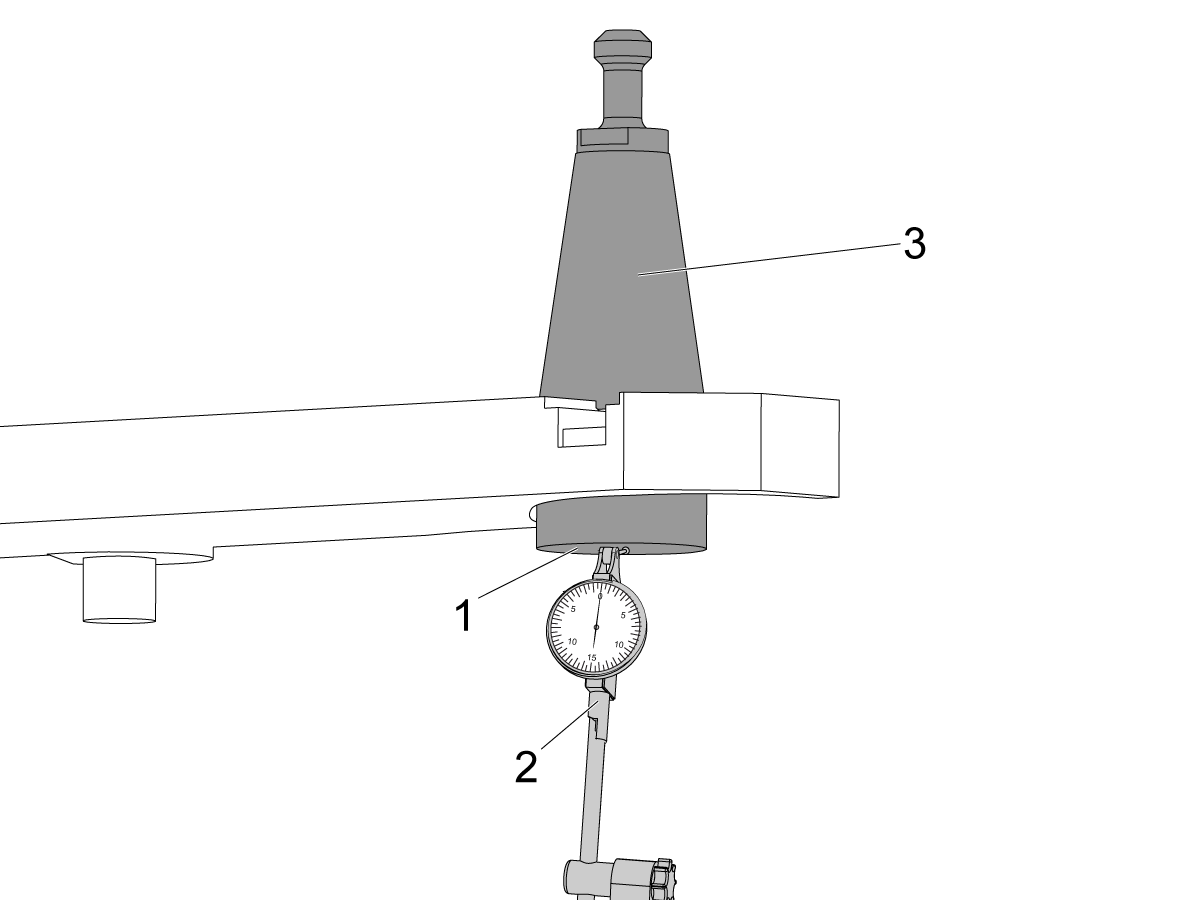
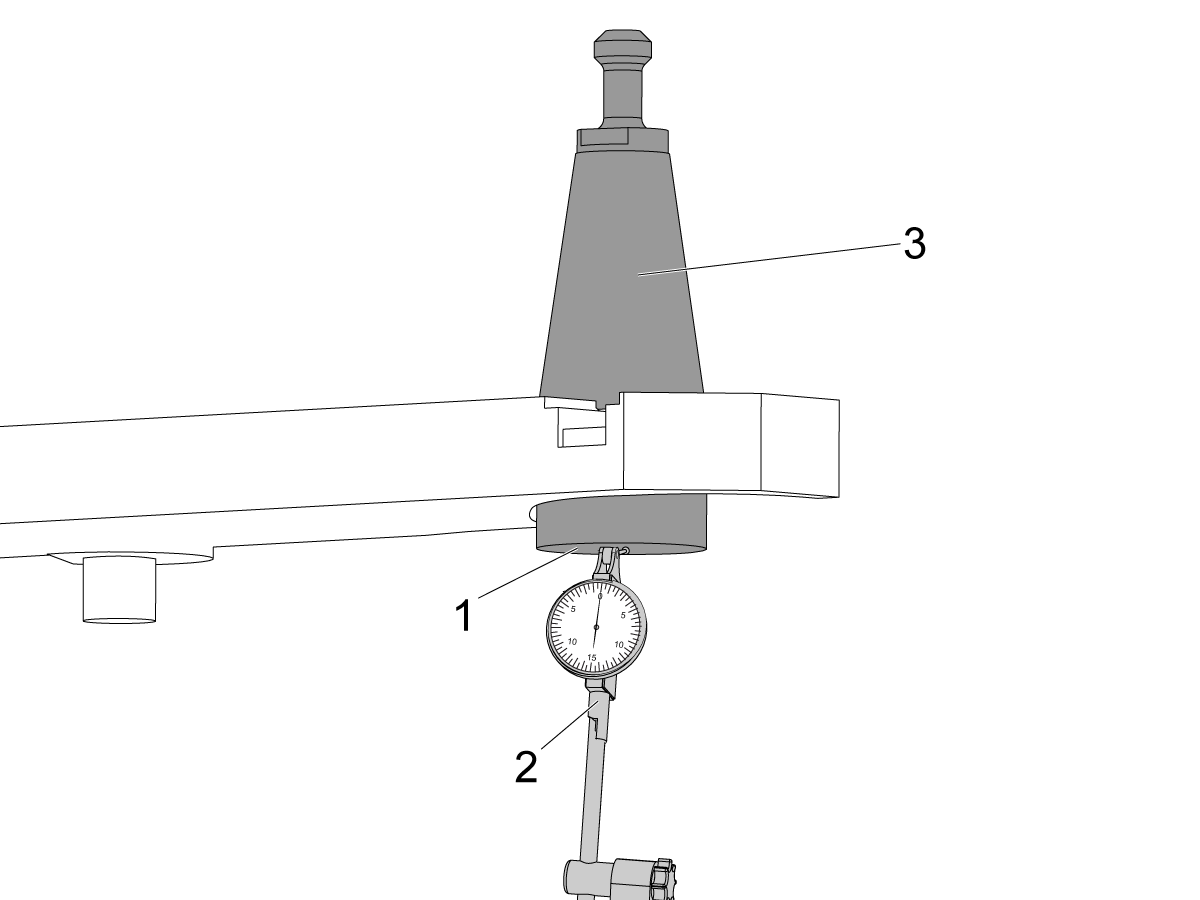
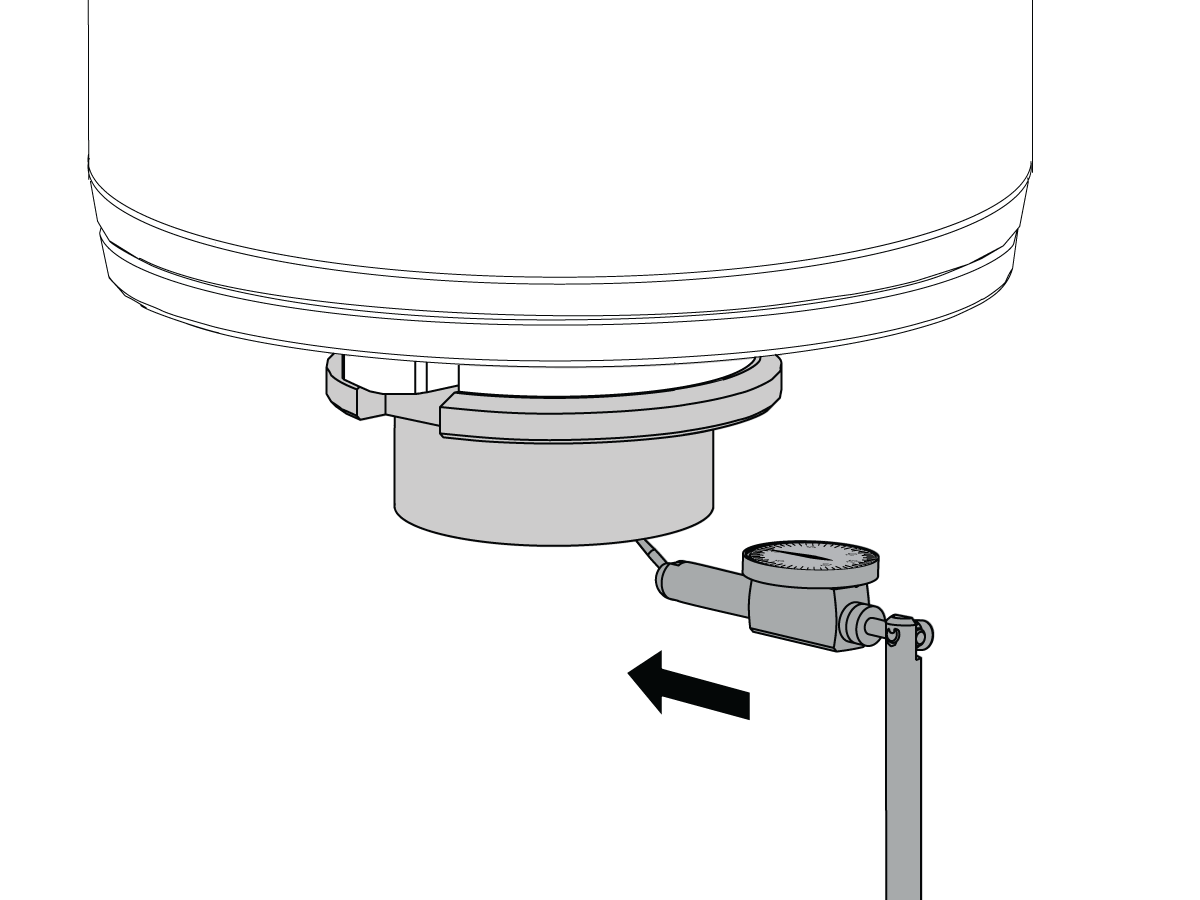
Mount a 0.0005" indicator [2] and mag-base to the machine table.

Place the indicator tip on the bottom [1] of the toolholder [3].

Set the indicator to 0.

Jog the table away from the toolholder.

Do not move the indicator.

Move the toolholder from the double-arm to the spindle.

2

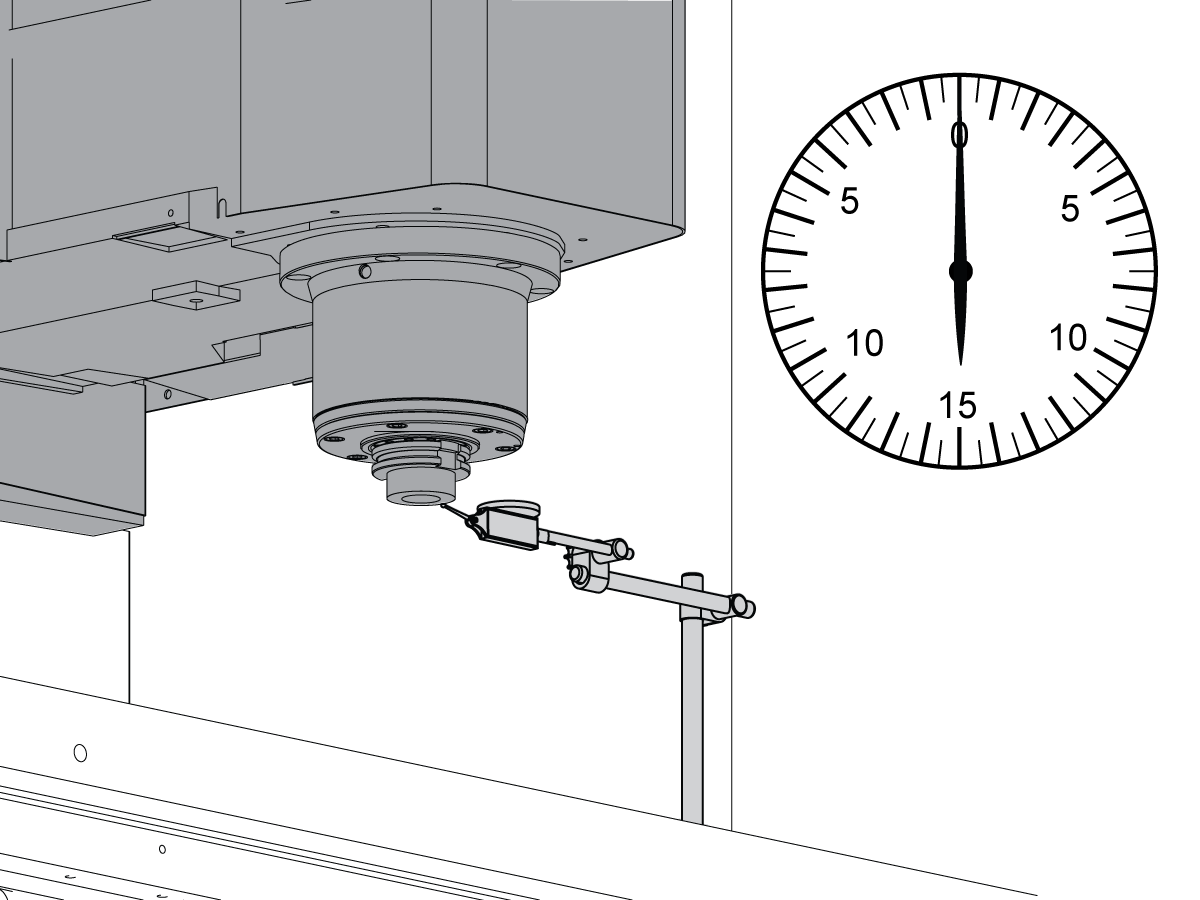
Jog the table to position the indicator under the toolholder.

Do not hit the spindle with the indicator.

Jog the Z Axis up or down until the indicator goes back to zero.

3

Push [DIAGNOSTIC].

Navigate to the Factory tab in the Parameters tab.

Type 3.078 and push [F1].

Push [F2] Set Z Axis Tool Changer Offset.

The Z Axis Tool Changer Offset Done prompt appears.

Set the spindle orientation offset, refer to NGC- Side-Mount Tool Changer - Spindle Orientation Offset.

Note: For HSK-A63 spindle, refer to Side-Mount Tool Changer - HSK - Spindle Orientation Offset - NGC

Do several tool changes to test the tool changer operation.

Note: After you do this procedure, inform the customer they need to reset their tool length offsets.

6.2 Side-Mount Tool Changer - Spindle Orientation Offset - NGC

Recently Updated

Side-Mount Tool Changer - Spindle Orientation Offset - NGC


Revision A - 08/2025

Introduction

This procedure shows how to set the spindle orientation on a 40/50T Mill.  For an HSK spindle refer to the HSK - Spindle Orientation Offset - NGC procedure.

Tools required:

  • Haas Service USB Key

Set Side-Mount Tool Changer - Spindle Orientation Offset

1

Press [POWER ON].

Press [CANCEL].

Press [ZERO RETURN] and press [ALL].

Press [HOME G28].

Insert your Haas Service USB key and go into Service Mode.

Press [RECOVER].

Select Tool Changer Recovery.

Press [ENTER].

Press [M] to select Manual Recovery.

2

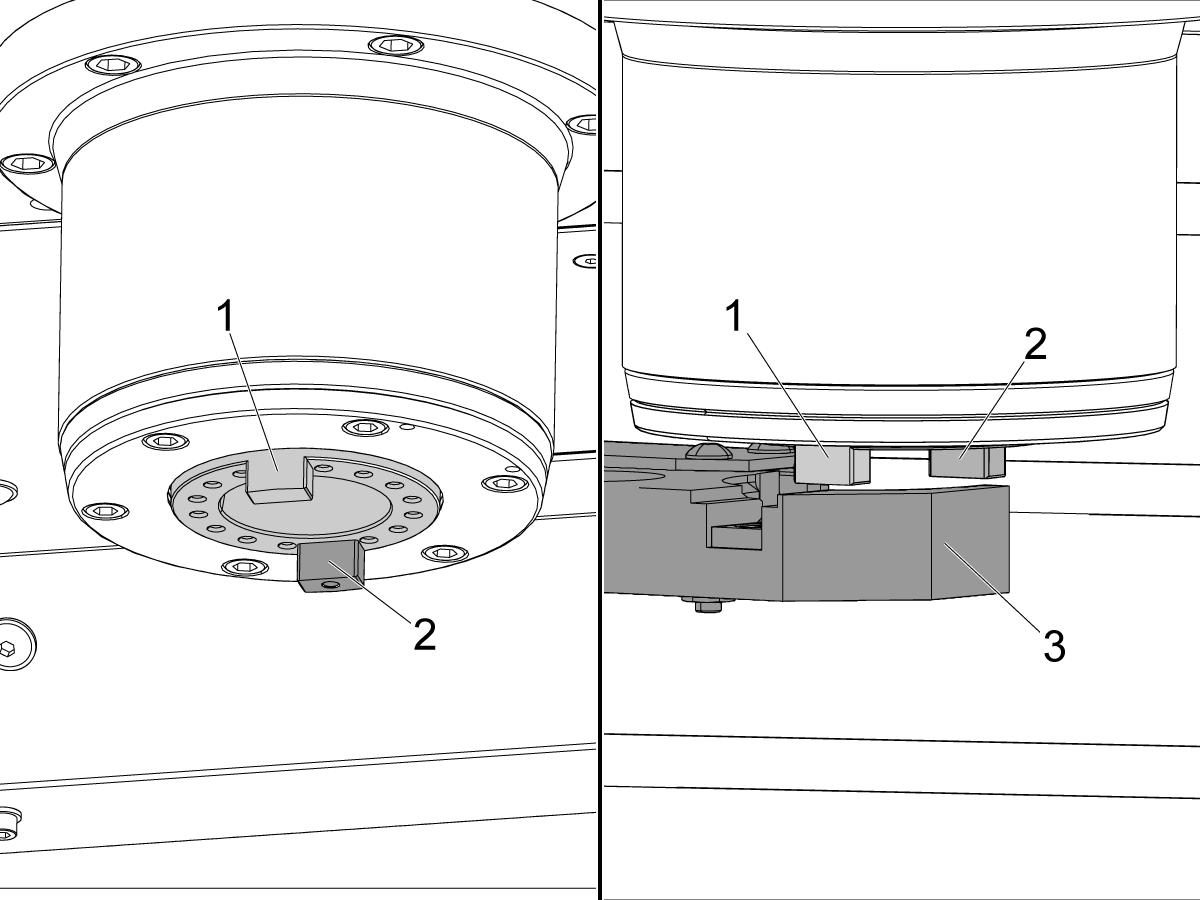
Press [F4] to lower the tool pocket.

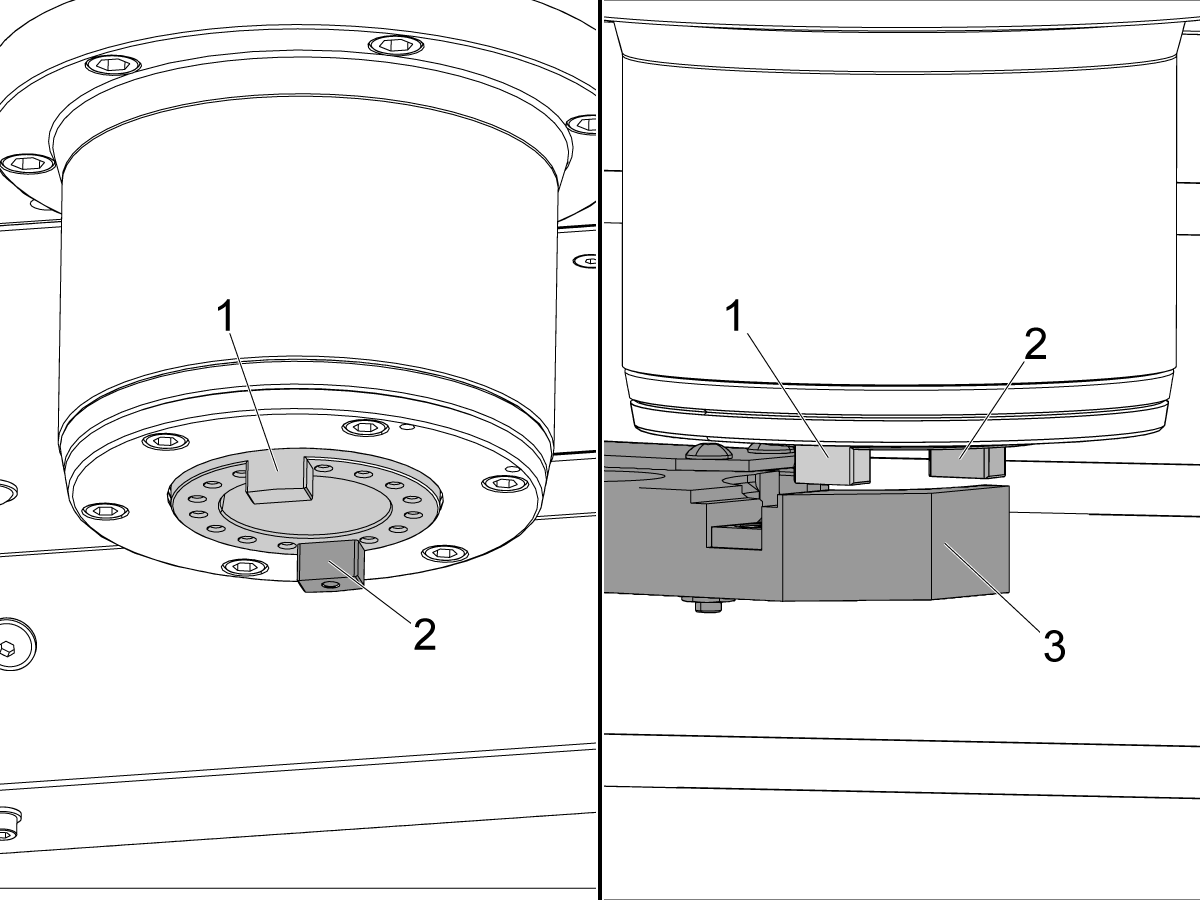
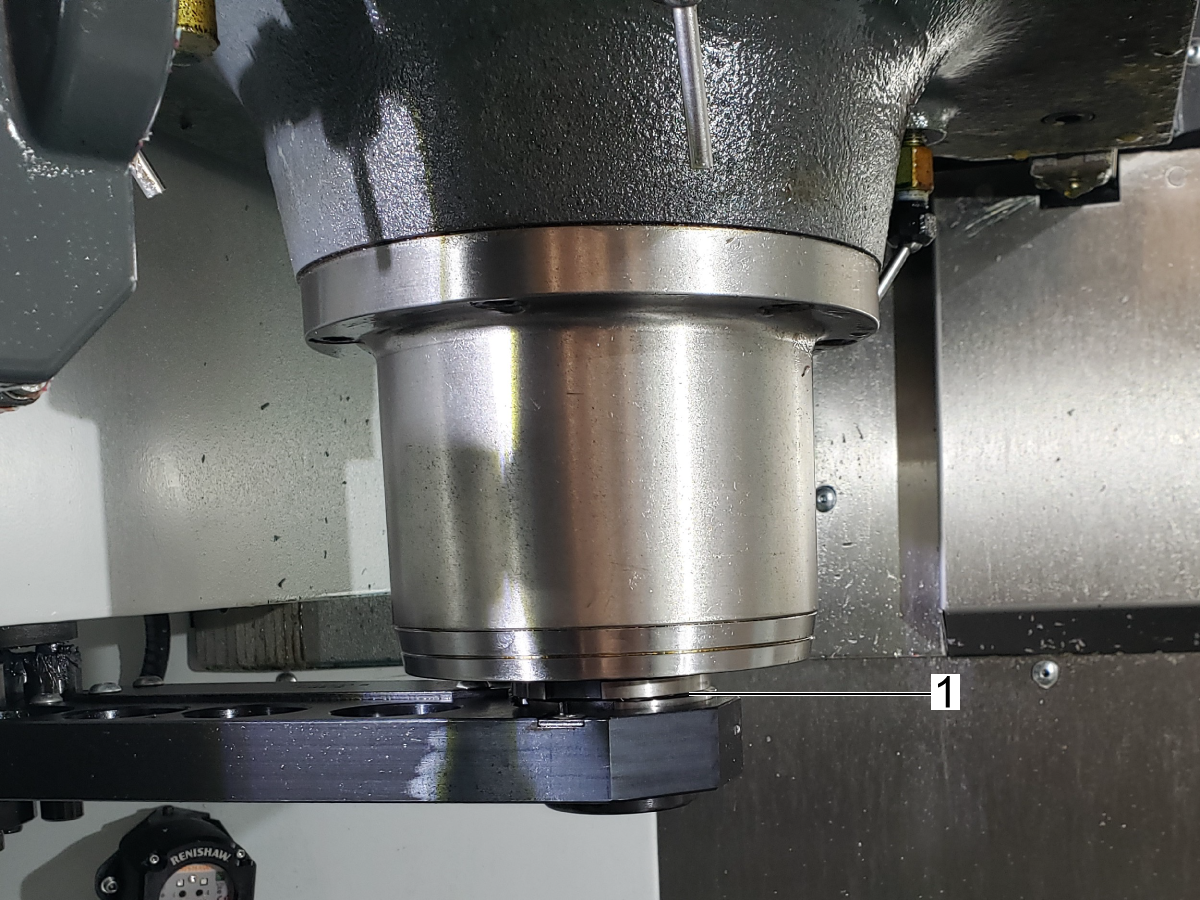
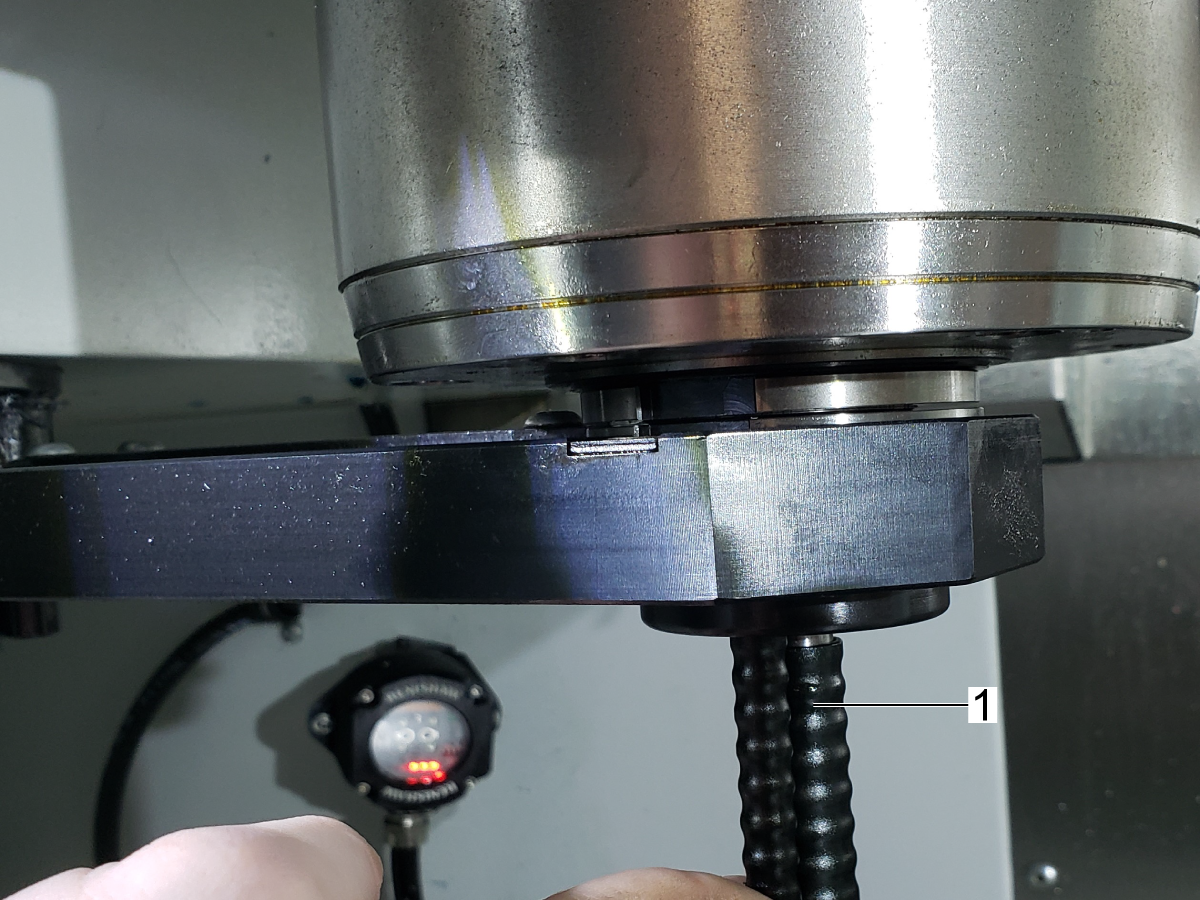
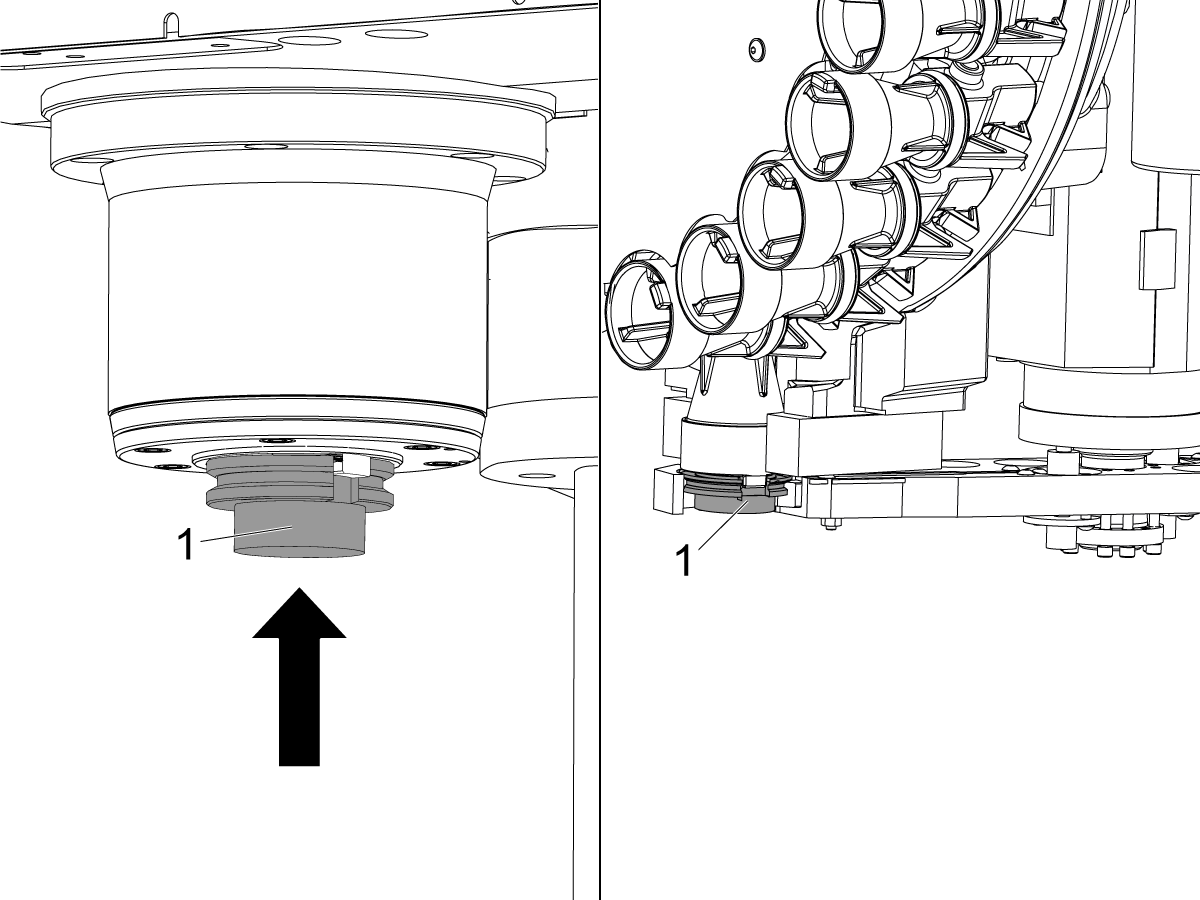
Rotate the double arm [3] near the spindle dogs [1].

Keep enough space to let you to turn the spindle dogs [1].

Align either of the dogs with the slot in the double arm.

Note: 50 taper only Make sure that the long spindle dog [2] is turned away from the double arm [3]. On a 50 taper, the long spindle dog [2] has a hole on the bottom.

3

Press [E] to exit Tool Change Recovery.

Press [DIAGNOSTIC].

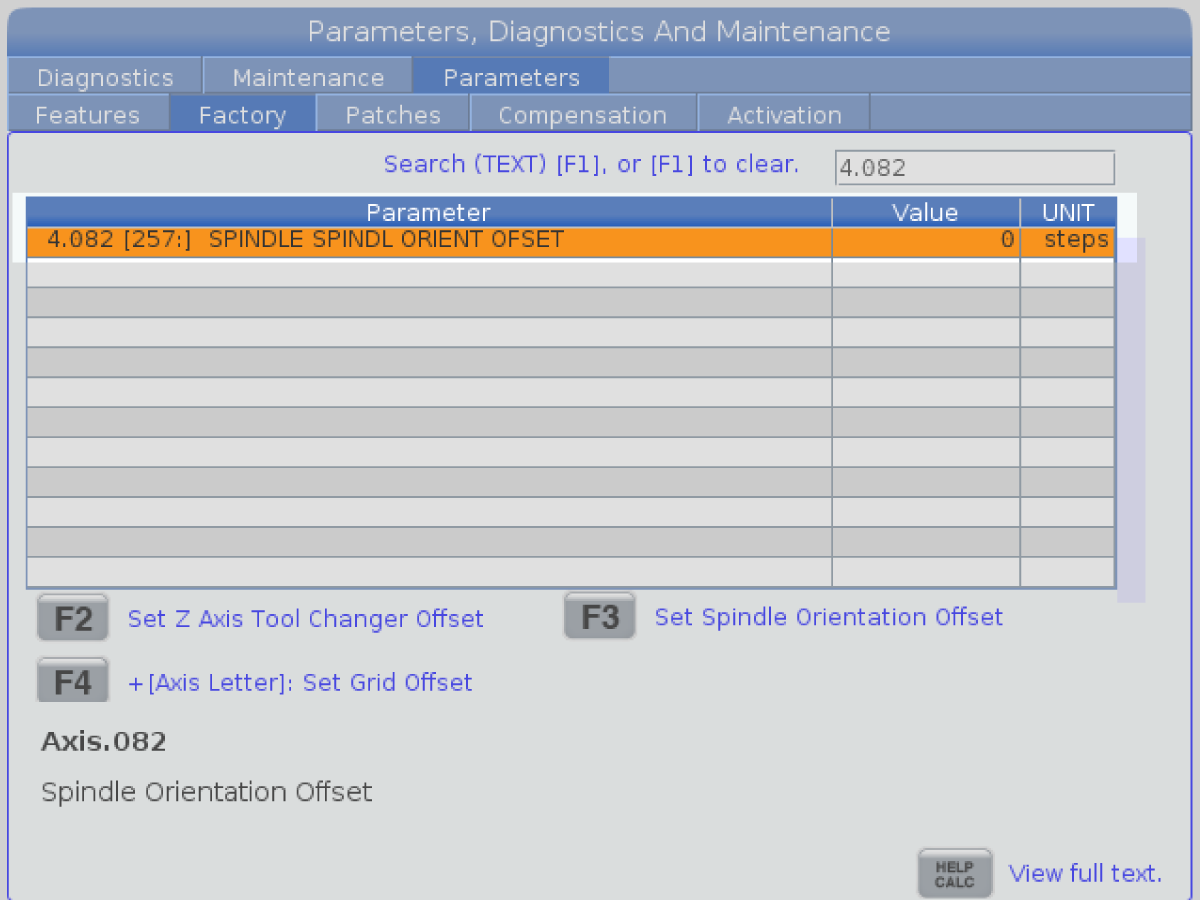
Navigate to the Factory tab in the Parameters tab.

Type 4.082. Press [F1] to search the parameter.

Press [S] [F3] Set Spindle Orientation Offset.

The Spindle Orientation Offset Done prompt shows.

4

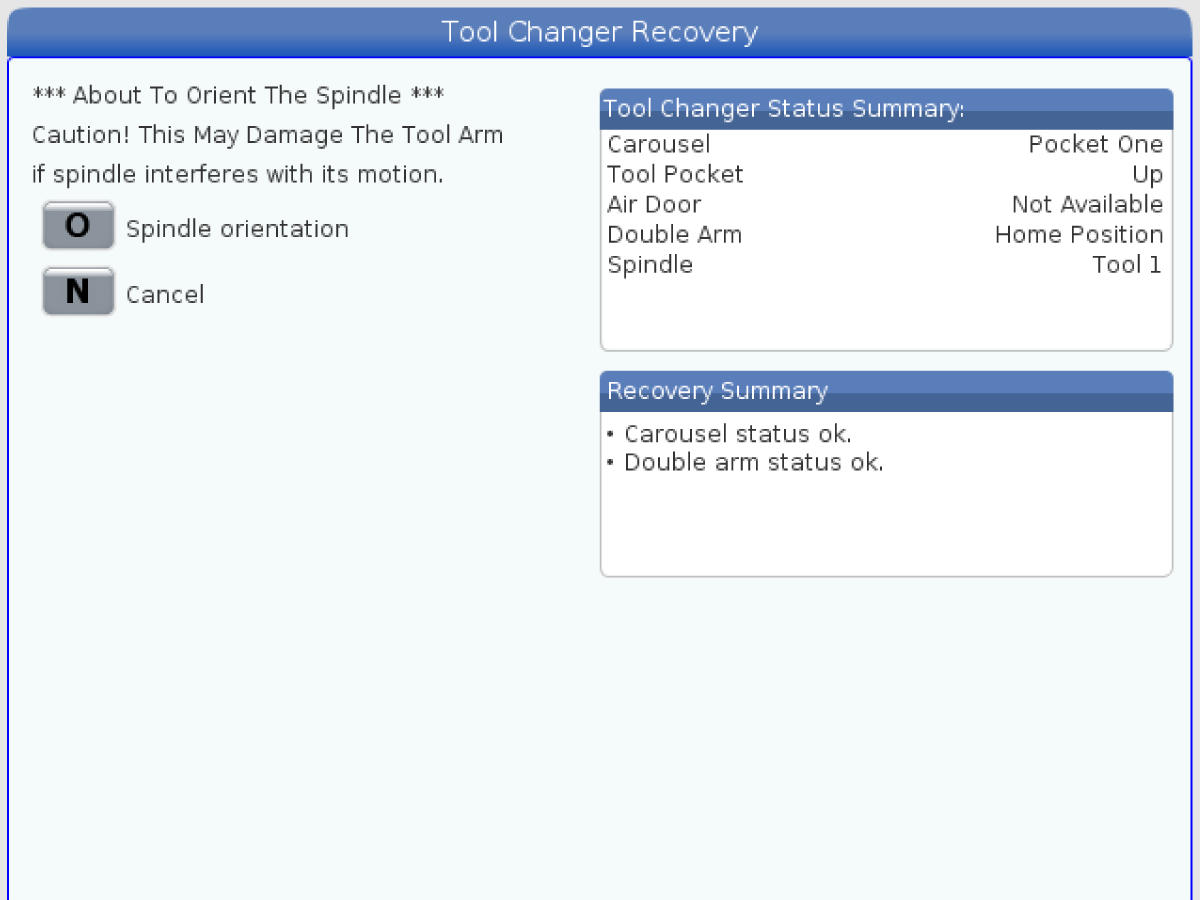
Press [RECOVER].

Select Tool Changer Recovery.

Press [ENTER].

Press M to select Manual Recovery.

Rotate the double arm until the Tool Changer Status Summary: Double Arm status shows Home Position.

5

Move the spindle dogs out of orientation.

Press [O] to select Spindle Orientation.

Press [O] again to orient the spindle.

Rotate the double arm until the Tool Changer Status Summary: Double Arm status shows Clamp/Unclamp.

Check the alignment of the spindle dogs in relation to the double arm.

Rotate the double arm until the screen shows Home Position.

Press [F3] to raise the tool pocket.

Press [E] to exit Tool Change Recovery.

6.3 Side-Mount Tool Changer - HSK - Spindle Orientation Offset - NGC

Recently Updated

Side-Mount Tool Changer - HSK - Spindle Orientation Offset - NGC


HSK - Spindle Orientation Offset - Introduction

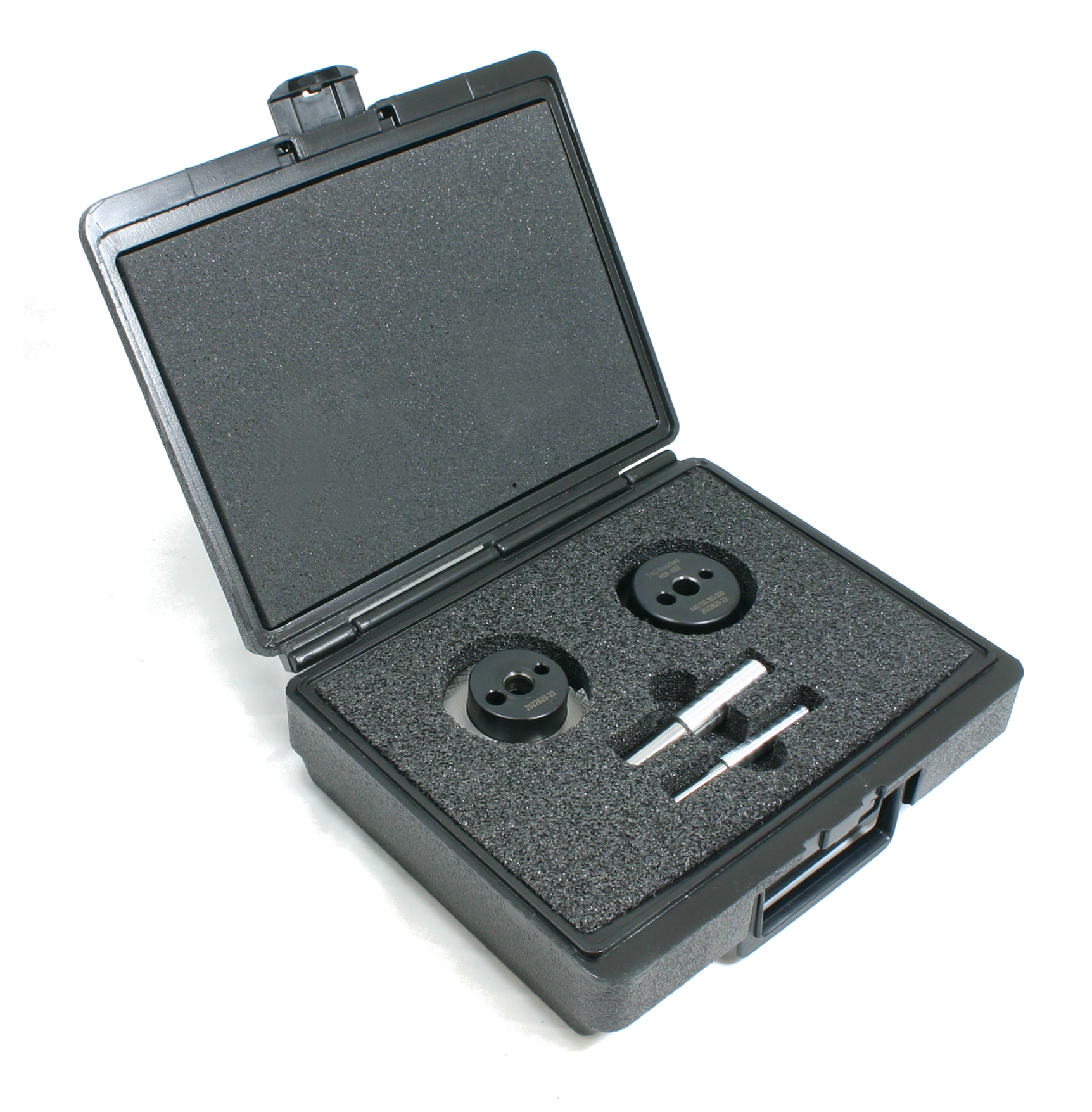
This procedure outlines how to set the spindle orientation offset on the HSK-A63 Spindle.

Tools Required:

  • The HSK-A63 Tool Changer Alignment Gauge needs to be purchased. It can be bought from TAC Rockford.

Note: Make sure to purchase part number 440.135.163.000.

HSK - Spindle Orientation Offset - Align SMTC

1

Double Arm Alignment Half

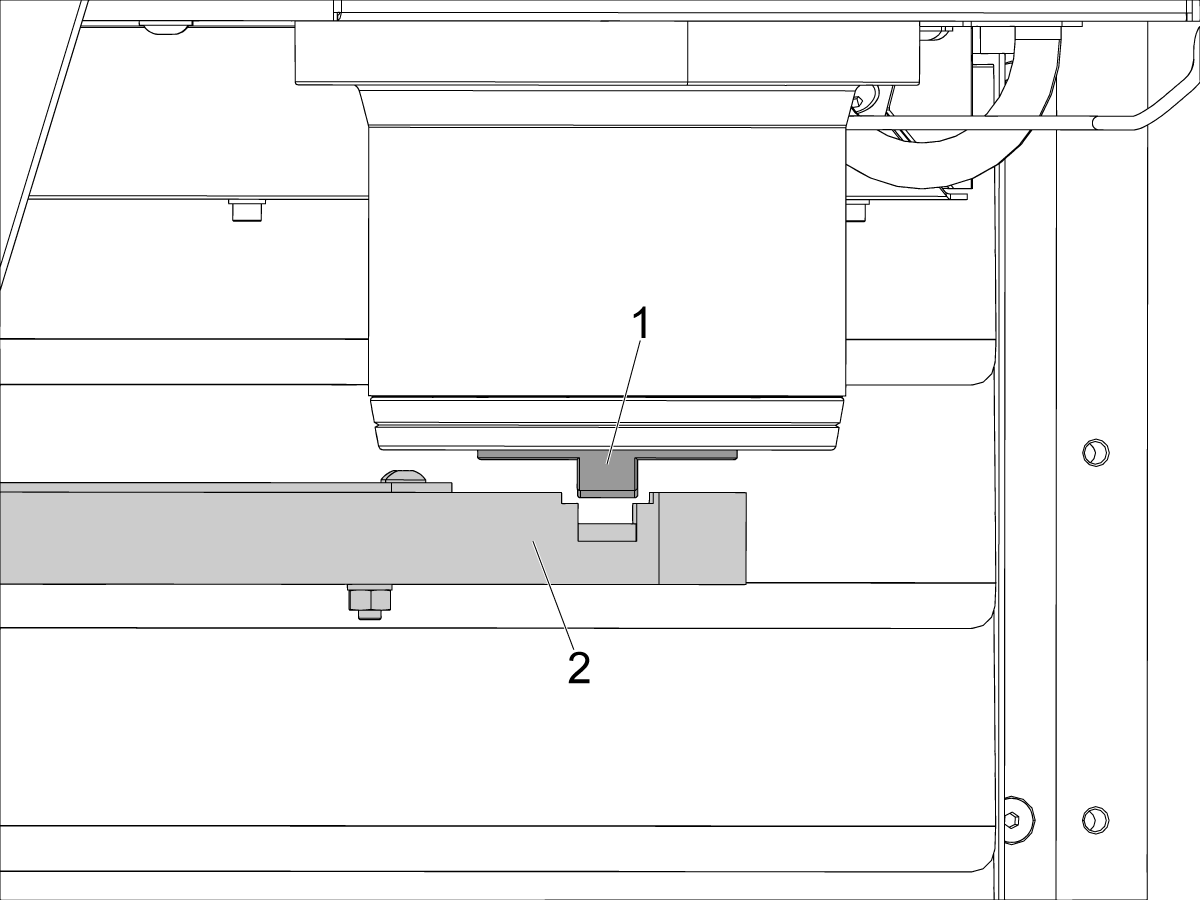
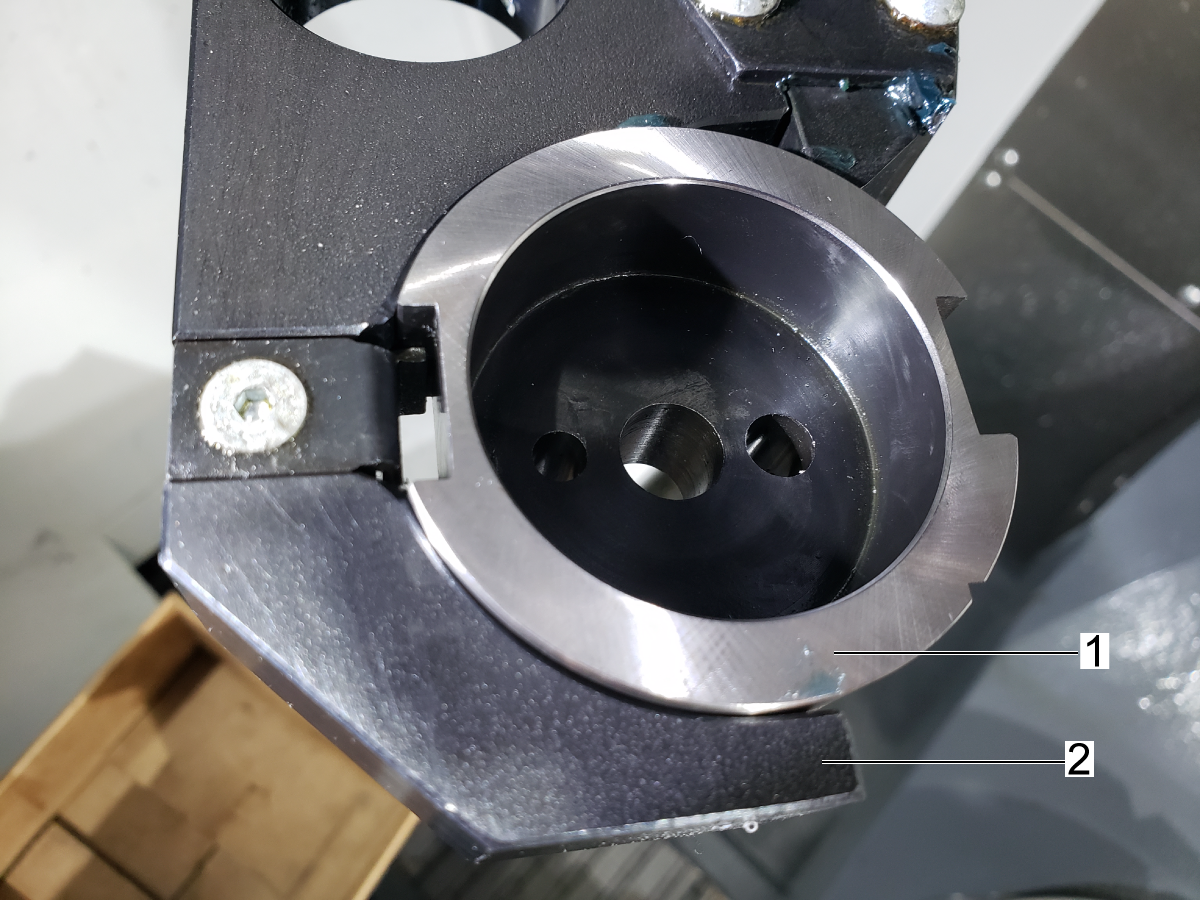
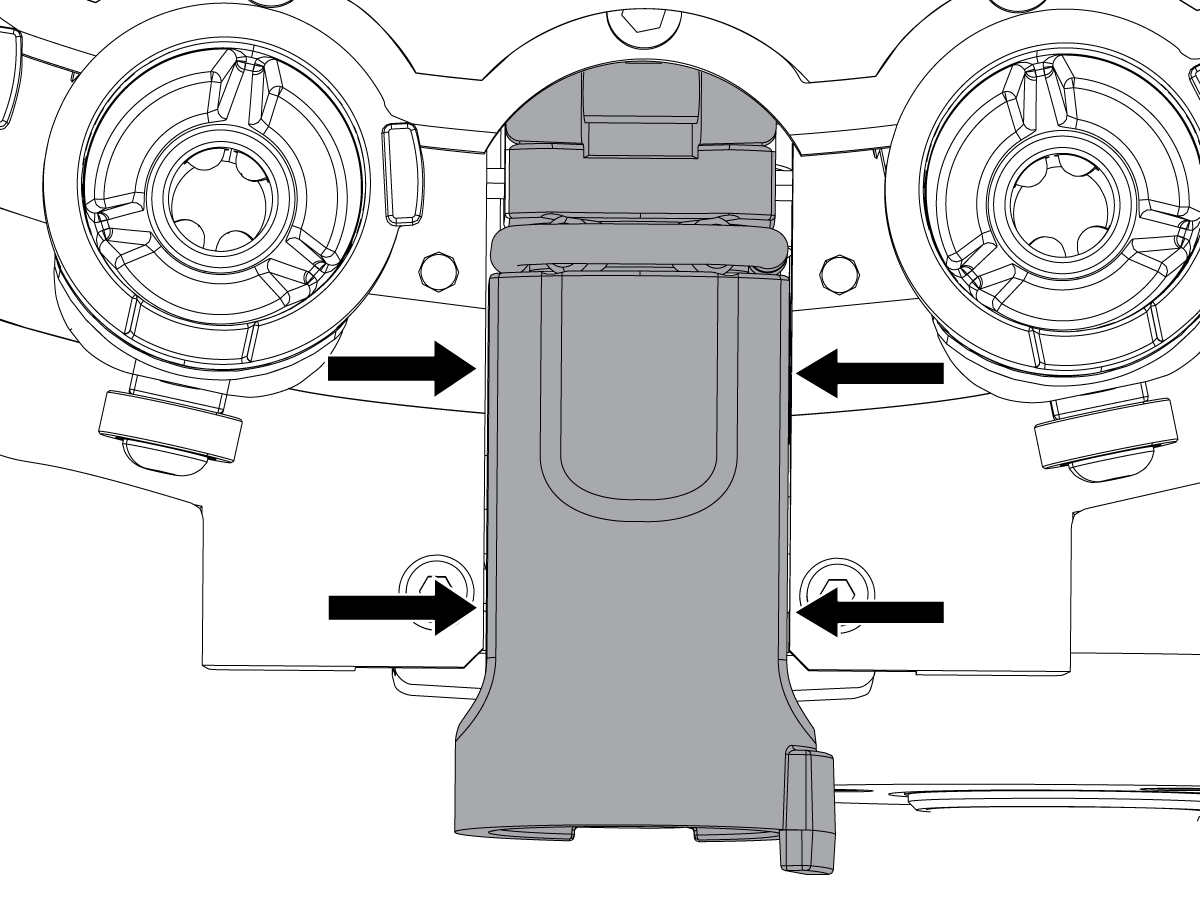
Install the respective Alignment half into the double arm.

Note: The bottom alignment half [1] should be installed to the double arm [2] so that the larger slot is installed into the double arm key as shown.

Spindle Alignment Half

Install the respective Alignment half into the spindle.

Make sure the spindle alignment half is correctly installed into the spindle such that it is fully seated with the taper.

Note: If it is not fully seated, then the tool-release icon will show up on the screen. If the tool-release icon is not showing up when the spindle alignment half is on in the wrong direction the TRP clamp switch will need to be adjusted, refer to the HSK-A63 - Spindle Drawbar - Push Out procedure to adjust the switch.

2

Skip this step if the Double Arm is already aligned.

Refer to SMTC - Double Arm - Alignment - VMC

3

Enter service mode.

Press [RECOVER] to enter recovery mode. Then press [M] to enter manual recovery.

Press [ORIGIN] to move the spindle to TC position, then jog the z-axis up so that the spindle alignment half will allow clearance for the double arm alignment half.

Press the down arrow to move the double arm until the double arm says [Clamp/Unclamp] in the Tool Changer Status Summary.

Jog the z-axis back down until the two alignment halves mate correctly [1].


4

Insert the Alignment pin [1] to ensure the alignment halves are properly aligned.

Note: The alignment pin does not need to be flush with the alignment half, but it does need to engage both alignment halves.

HSK - Spindle Orientation Offset - Set Spindle Orientation

1

With the Alignment Pin still in the (2) halves, insert the Orientation pin into the Double arm Half.

Rotate the spindle until the Orientation Pin engages both the spindle half, and the double arm half of the alignment tool.

2

Set Orientation Offset, while both pins are still in the alignment halves.

Press [DIAGNOSTIC].

Go to the PARAMETER tab then navigate to to FACTORY tab.

Locate parameter 4.082 [1].

Press [S], then  [F3] to set the Spindle Orientation.

6.4 Side-Mount Tool Changer - Z-Axis Tool Change Offset - CHC

Recently Updated

Side-Mount Tool Changer - Z-Axis Tool Change Offset - CHC


Revision A - 08/2025

VMC - Side-Mount Tool Changer - Set Parameter 64 - Z-Axis Tool Change Offset

1

Push [Zero Return], then push [All].

Change Setting 7 to OFF.

Put a tool holder into the double-arm.

Put a 0.0005" indicator [2] and base on the machine table.

Put the indicator [2] tip on the bottom [1] of the toolholder [3].

Set the indicator [2] to 0.

HANDLE JOG the table away from the toolholder [3]. Do not move the indicator [2].

 Caution: Do not push ATC FWD or ATC REV.

Manually move the toolholder from the double-arm to the spindle.

2

HANDLE JOG the table to put the indicator under the toolholder in the spindle.

 Caution: Do not hit the spindle with the indicator. Use the small jog increment (.0001) to approach the toolholder.

HANDLE JOG the Z Axis up or down until the indicator goes back to zero.

 Note: This puts tool holder at the same height in the spindle as in the double-arm.

3

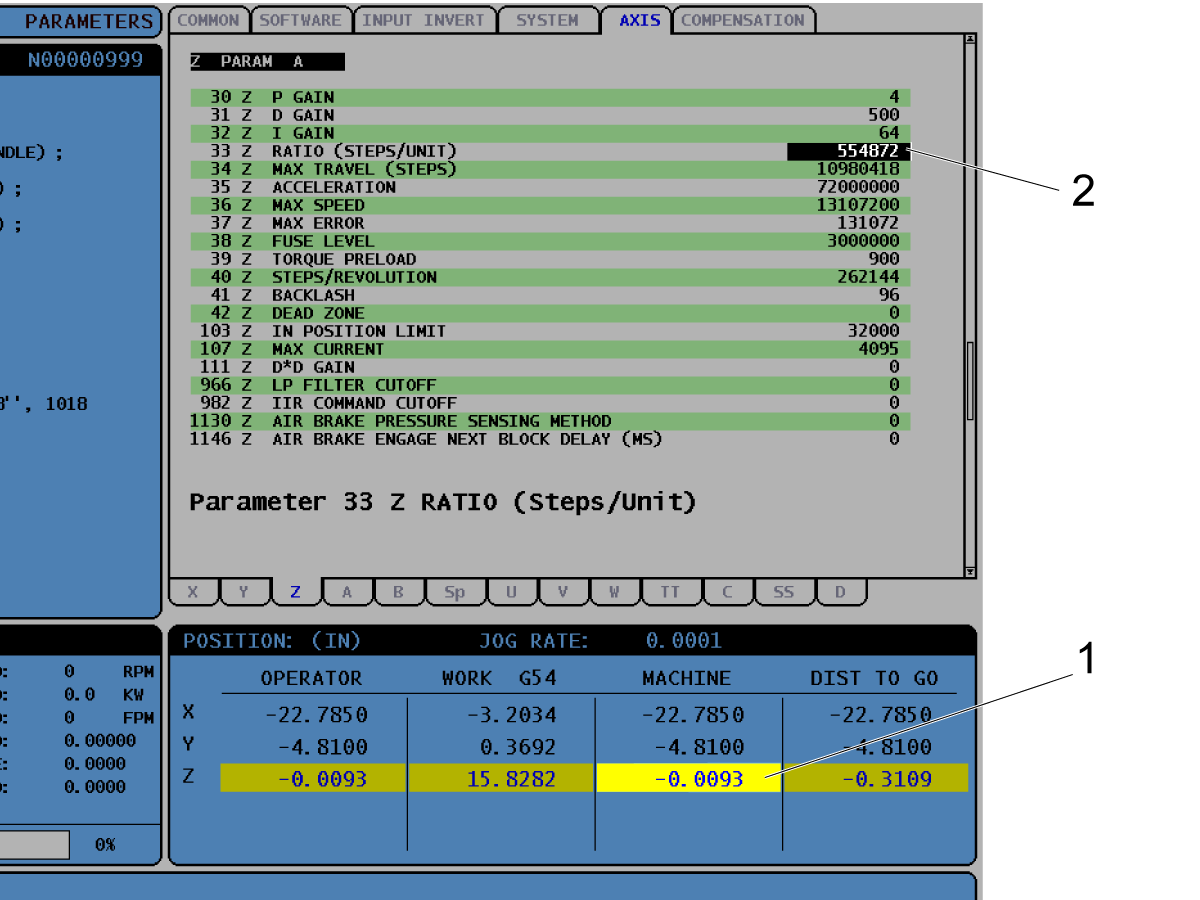
Record the MACHINE Z Position value [1].

Multiply the MACHINE Z Position value by the value in Parameter 33 Z RATIO (STEPS/UNIT).

 Note: The value of Parameter 33 Z RATIO (STEPS/UNIT) is not the same for each machine.

In this example the value of Parameter 33 Z RATIO (STEPS/UNIT) is 554872 [2].

(Z position value) x (Z Ratio) = Calculated value

-0.0093 x 554872 = -5160

4

Push [EMERGENCY STOP].

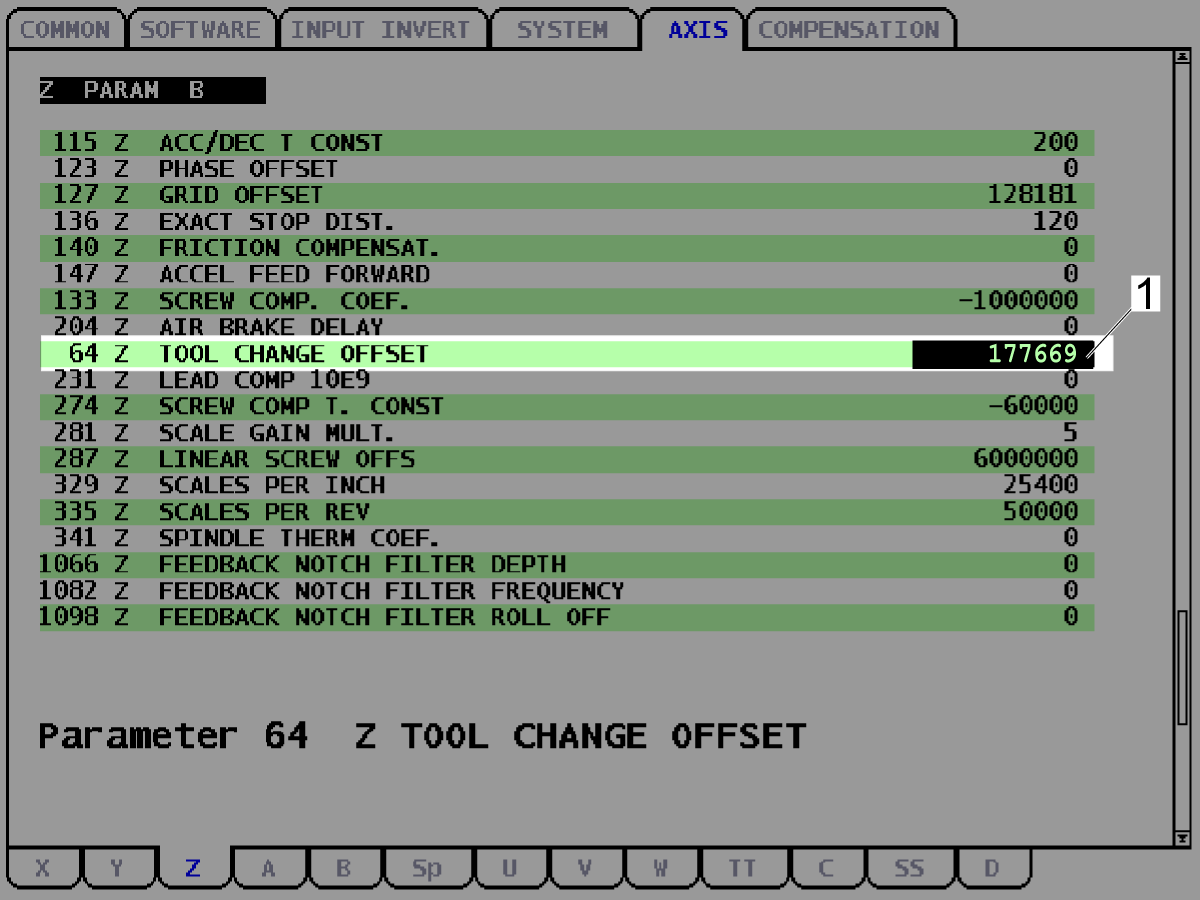
If the calculated value is negative, add the value to Parameter 64 [1]. If the calculated value is positive, subtract the value from Parameter 64 [1]. Refer to the examples that follow.

5

Example 1, negative calculated value:

The calculated value = -5160.

The initial value of Parameter 64 = 172509.

Do the calculation 172509 + 5160 = 177669.

Change Parameter 64 to 177669 [1].

Release the [EMERGENCY STOP].

Push [RESET] to stop each alarm.

6

Example 2, positive calculated value:

Calculated value = 5160.

The initial value of Parameter 64 = 172509 [1].

Do the calculation 172509 - 5160 = 167349.

Change Parameter 64 to 167349.

Release the [EMERGENCY STOP].

Push [RESET].

7

Push [ZERO RET], [Z], then [SINGL..] This makes the new value of Parameter 64 active.

Push [5% RAPID], [ZERO RETURN], [Z], then [HOME G28].

The Z Axis moves to the tool change height. If the tool change height is correct, the indicator goes back to zero.

If the indicator does not go back to zero, do this procedure again.

Change Setting 7 to ON.


Make sure Parameter 257 is correct. Refer to Side-Mount Tool Changer - Spindle Orientation Offset - Parameter 257.

Do several tool changes to test tool changer operation.

 Note: After doing the procedure, tell the customer to reset the tool length offsets.

6.5 Side-Mount Tool Changer - Set Parameter 257 - Spindle Orientation Offset - Classic Haas Control (CHC)

Recently Updated

Side-Mount Tool Changer - Set Parameter 257 - Spindle Orientation Offset - Classic Haas Control (CHC)


Revision A - 08/2025

Side-Mount Tool Changer - Set Parameter 257 - Spindle Orientation Offset

1

How to align the spindle dogs parallel to the X Axis without a dial indicator:

  1. Push [ORIENT SPINDLE]. Push [EMERGENCY STOP].
  2. Push [SETTING]. Set Setting 7 to OFF.
  3. Push [PARAMETER/DIAGNOSTIC]. Go to Parameter 257.
  4. Increase the value of Parameter 257 in increments until the spindle dogs are parallel to the x axis after you push [ORIENT SPINDLE].

 Note: If you add 1000 to the value of Parameter 257, this equals approximately 1/4 turn of the spindle orientation location.

          5. Release [EMERGECY STOP]. Push [RESET].

          6. Align spindle dogs parallel to X-axis. Push [ORIENT SPINDLE].

2

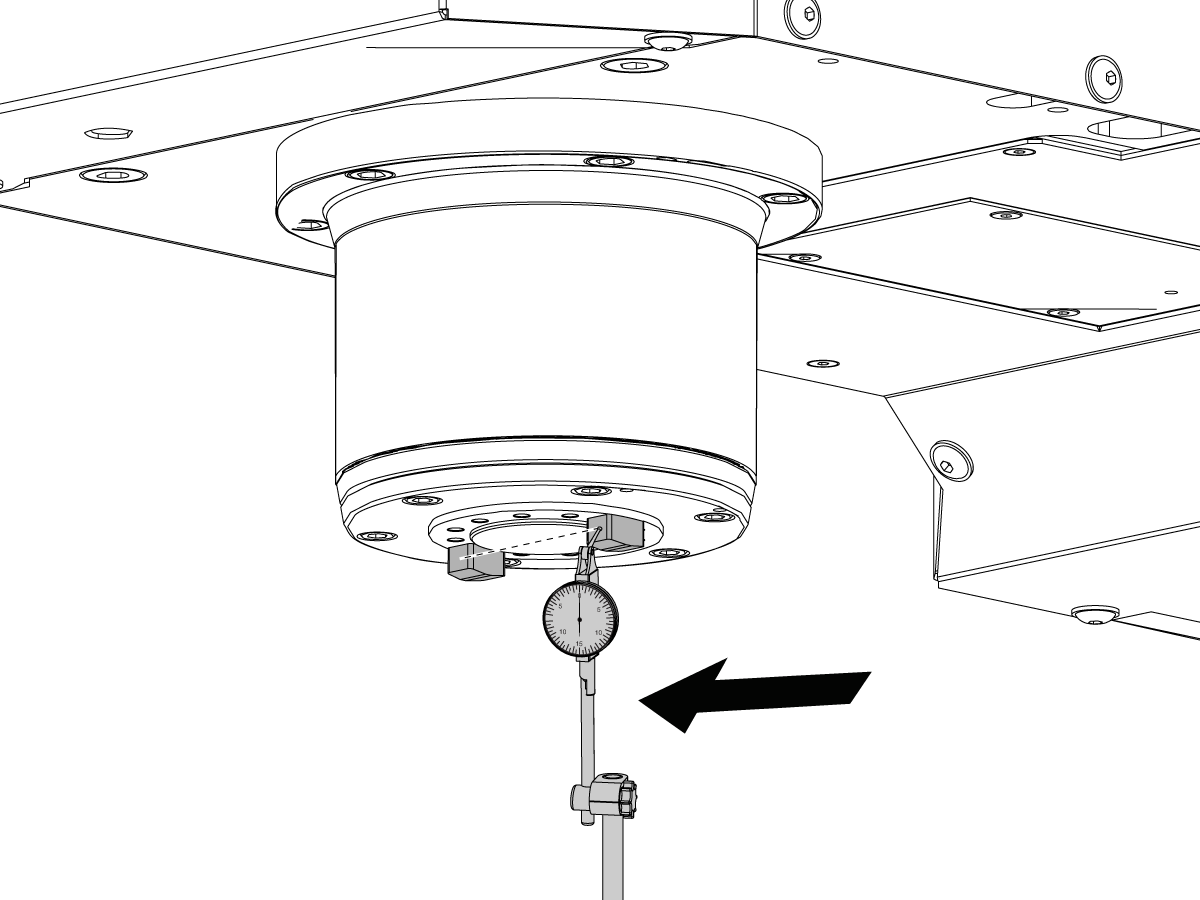
Put the magnetic base with the indicator on the table.

Handle jog the machine to indicate the alignment of the spindle dogs and the X Axis.

The spindle dogs must be aligned within 0.010" (0.254 mm) of the X Axis.

Perform STEP 1 instructions again until the spindle dogs align with the X Axis. Make sure the alignment error is not more than 0.010" (0.254 mm) of the X Axis. Increase or decrease the value of Parameter 257 by much smaller increments.

 Caution: After you change the value of Parameter 257, make sure the indicator is out of the path of the spindle dogs.

3

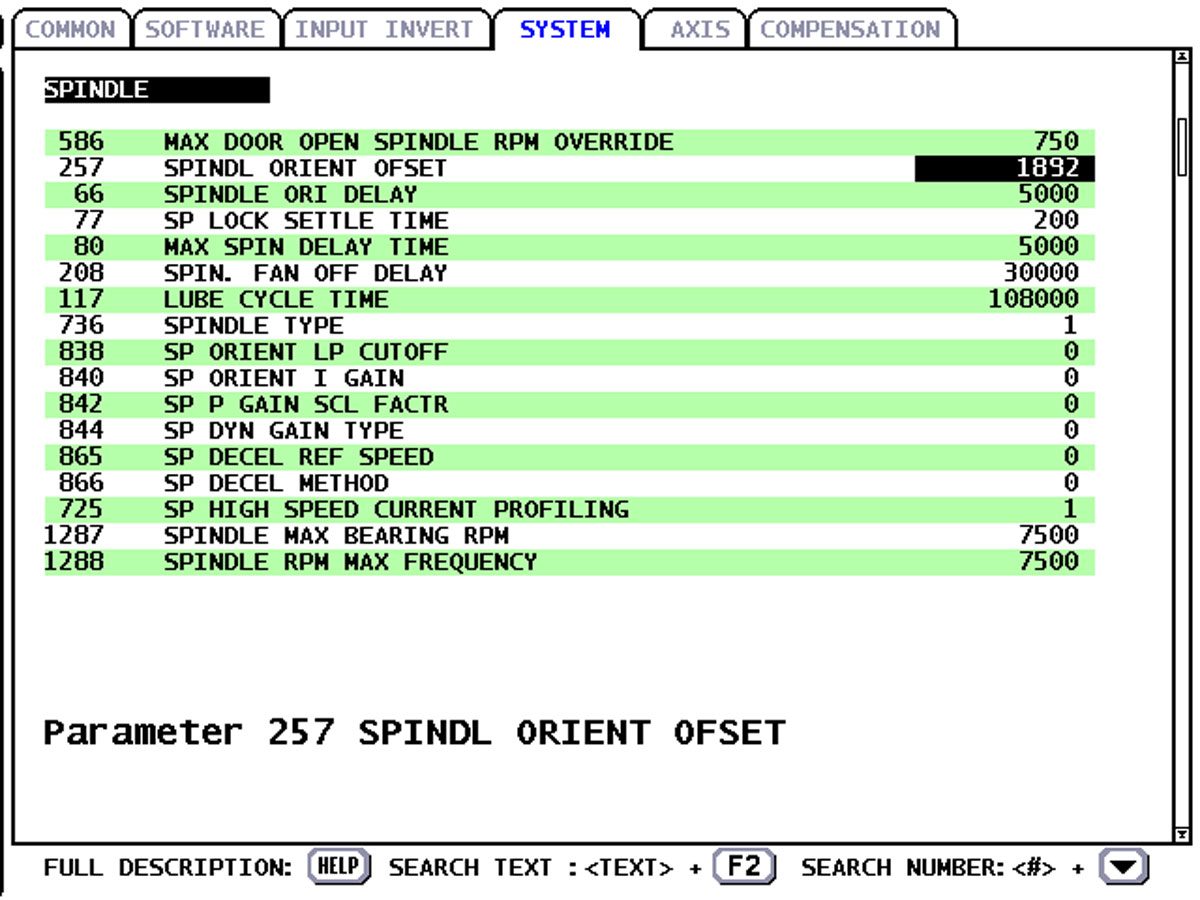
Determine the correct value for Parameter 257:

Divide the value of Parameter 79 by 360. This tells you the number of encoder counts per degree of spindle rotation.

Example: Parameter 79 = 4096 ; 4096 / 360 = 11.37

Multiply the number of encoder counts per degree of spindle rotation by the correct value for your machine: 30-Taper = 88.6; 40-Taper = 74; 50-Taper = 66.6. Round the result to the closest whole number. Subtract the rounded number from Parameter 257. Refer to examples in the table below.

4

Operate a tool change with no tools in the spindle or pocket.

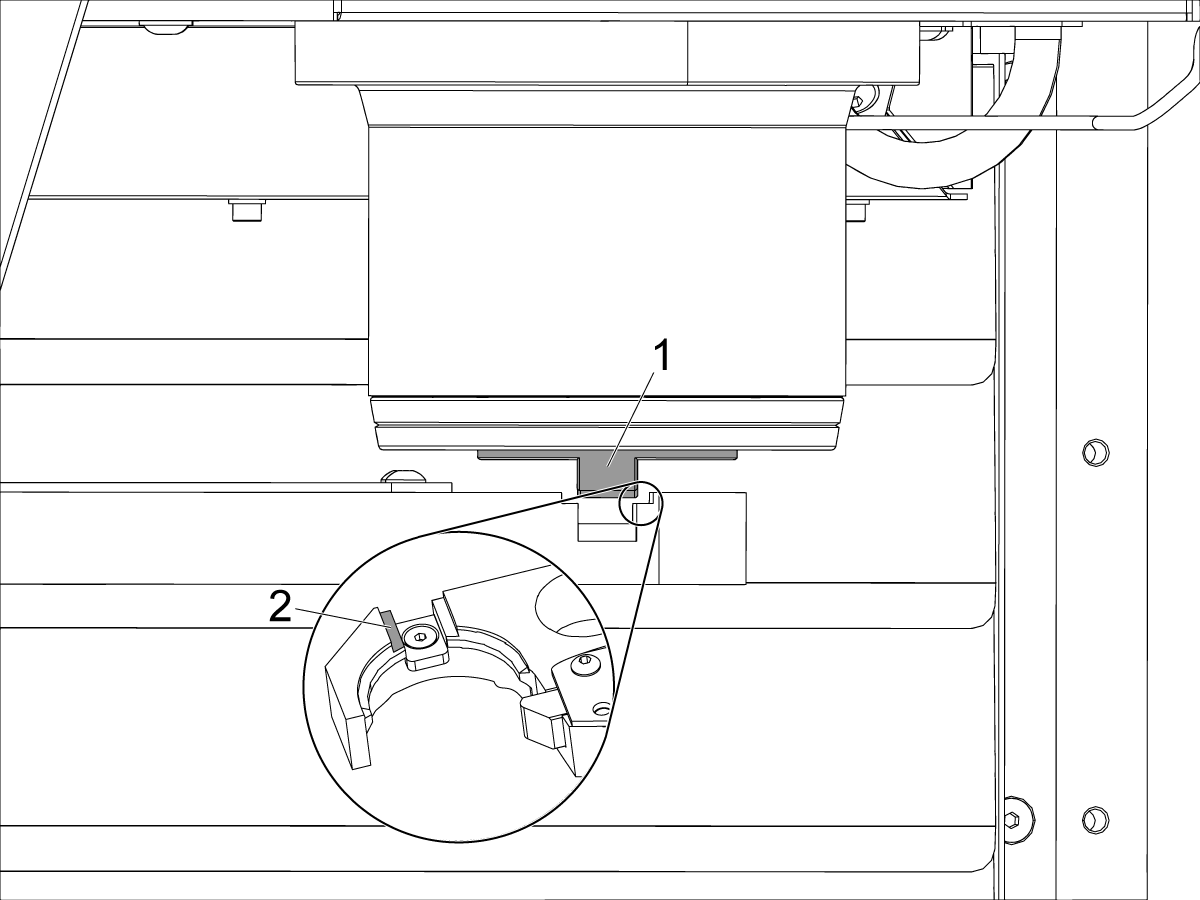
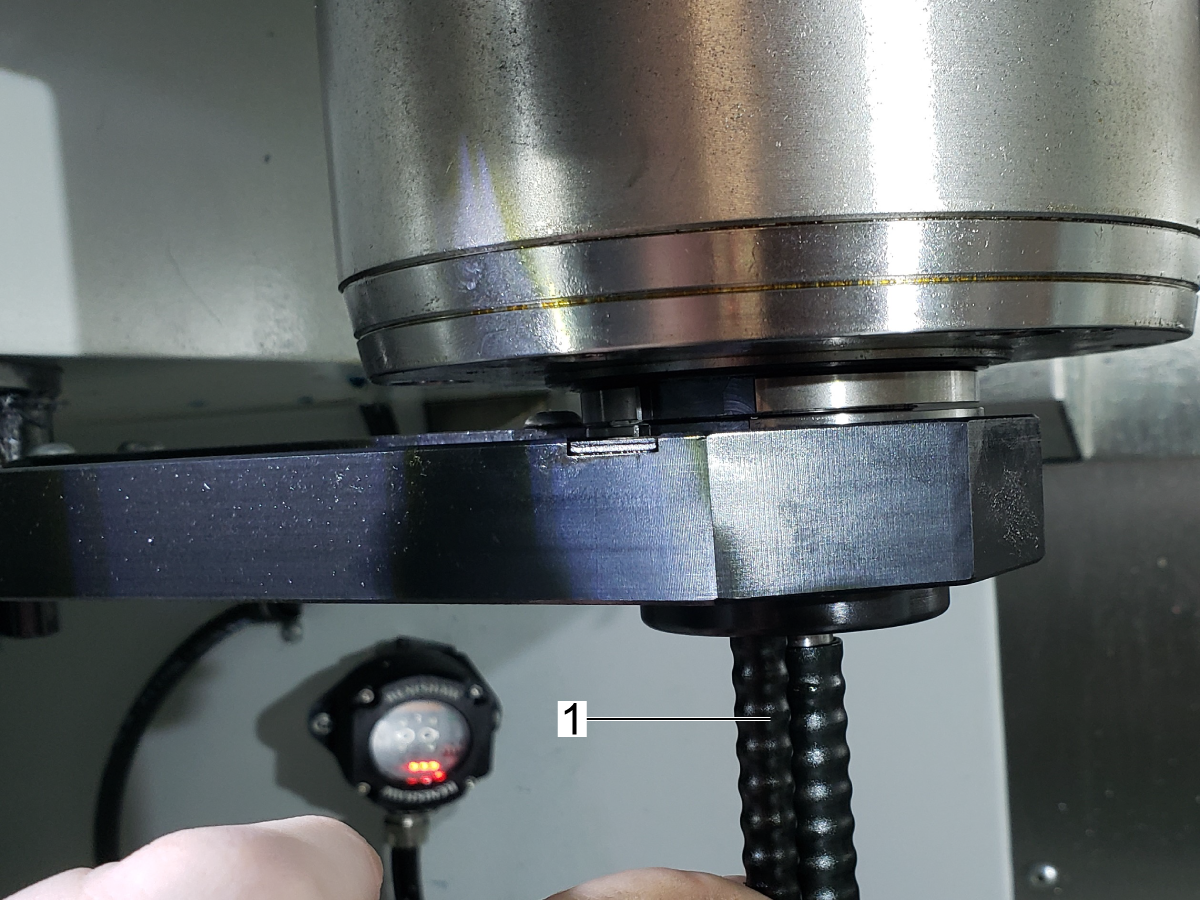
Push [FEED HOLD] when the tool changer arm is at the spindle. Make sure the spindle dog [1] is aligned to the key [2] on the tool changer arm.

 Note: To make a fine adjustment to Parameter 257, push [CYCLE START] to complete the tool change. Increase or decrease the value of Parameter 257 in increments of 10 until the spindle dogs are aligned.  Repeat this step if necessary.

Push [SETTING]. Set Setting 7 to ON.

Example Table

Taper Multiply encoder counts per degree of spindle rotation by the correct value for your machine Round to the closest whole number Subtract from Parameter 257
30‑Taper 11.37 * 88.6 = 1007.382 1007 1892 - 1007 = 885
40‑Taper 11.37 * 74 = 841.38 841 1892 - 841 = 1051
50‑Taper 11.37 * 66.6 = 757.242 757 1892 - 757 = 1135

Side-Mount Tool Changer - Set Parameter 257 - Spindle Orientation Offset - Service

1

Press [ZERO RETURN], [ALL], and [HOME G28], in that order.

Enter DEBUG mode and TOOL CHANGER RECOVERY mode.

Press [ATC FWD] to move the double arm [3] toward the spindle dogs [1].

Make sure that there is enough clearance to turn the spindle dogs.

 Note: If your spindle has a spindle dog [2] longer than the other, make sure it is turned away from the double arm. The long spindle dog has a hole on the bottom.

Press [POSIT].

Select the VAR tab and then select the RAW DATA tab.

2

Turn the spindle dogs with your hand until the value of SPINDLE POS is near 0 and not a negative number. Align the spindle dogs with the slot in the arm.

Enter TOOL CHANGER RECOVERY mode.

Press [ATC FWD] until ARM at CL/UNCL has a value of 1.

Turn spindle dogs [1] until the spindle dog touches the shoulder [2].

Record the number shown in SPINDLE POS.

Turn until the spindle dog touches the other shoulder.

Record the number shown in SPINDLE POS.

3

Add the value of the two spindle positions. Divide the sum by 2.

Example: 1401 + 101 = 1502. 1502/2 = 751

Enter the new value into parameter 257.

Enter TOOL CHANGER RECOVERY mode.

Press [ATC FWD] until ARM at CL/UNCL is 1.

Press [ATC REV] until the screen shows the Arm At Origin and/ or message [1].

Press [Orient Spindle], then press [O].

Press [ATC FWD] repeatedly to verify alignment.

Press [ATC REV] until the screen shows the Arm At Orgin and/ or message [1].

Exit TOOL CHANGER RECOVERY mode and DEBUG mode.

6.6 SMTC-30/50 - Carousel Offsets - NGC

Recently Updated

SMTC-30/50 - Carousel Offsets - NGC


Revision A - 08/2025

SMTC-30/50 - Carousel Offsets

1

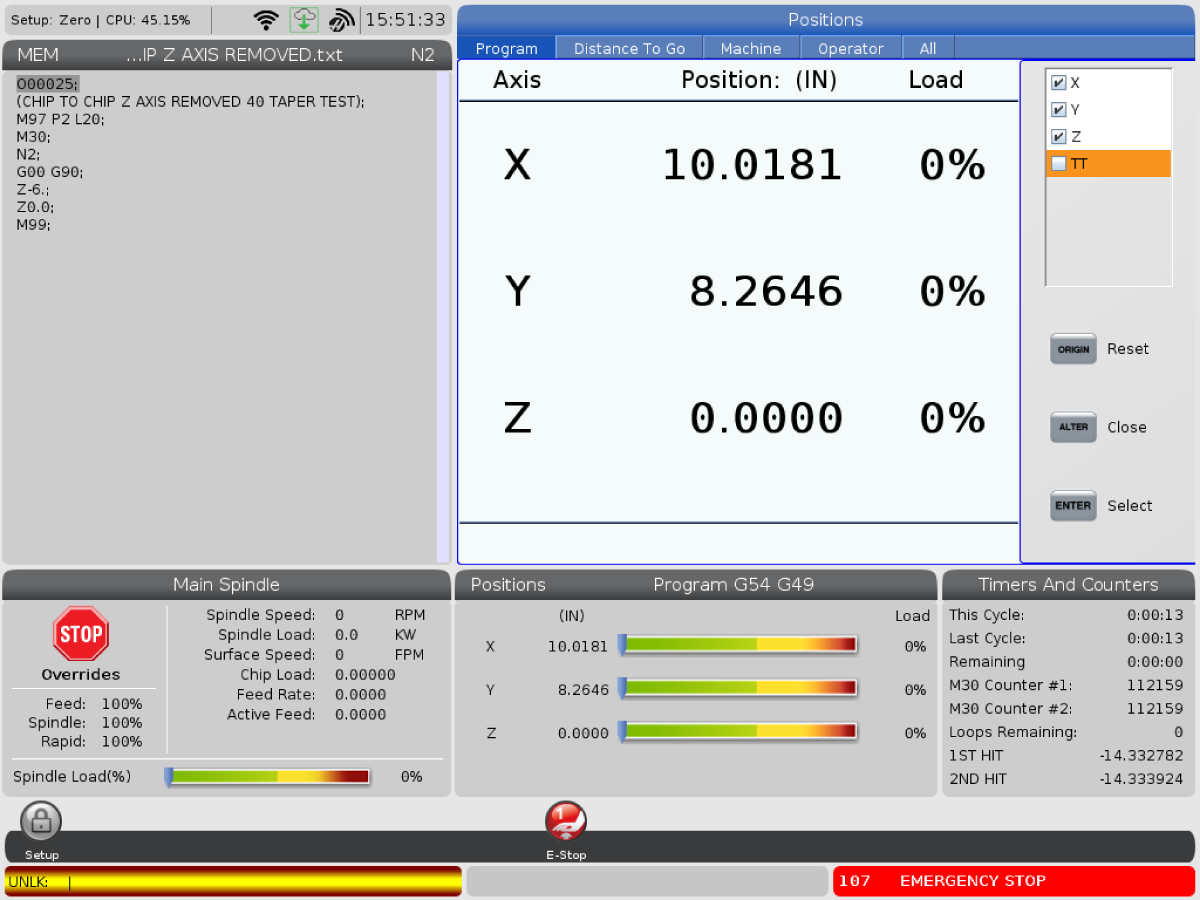
WIth a Service Key installed, change parameter 9.019 to FALSE. Make the axis visible on the display page by pressing [ALTER] then select the TT (or V) axis and press [ENTER].

Remove ESTOP and clear the alarms. Press [RECOVER] then 1 to select tool changer recovery. Press M for manual recovery.

Press F to find pocket #1.

Press [DIAGNOSTICS] to get back to the parameters. Type TT (or V) and press [F4] to set the grid offset. Zero Return the TT axis.

2

Handle jog the TT (or V) axis until pocket 1 is aligned with the slider.

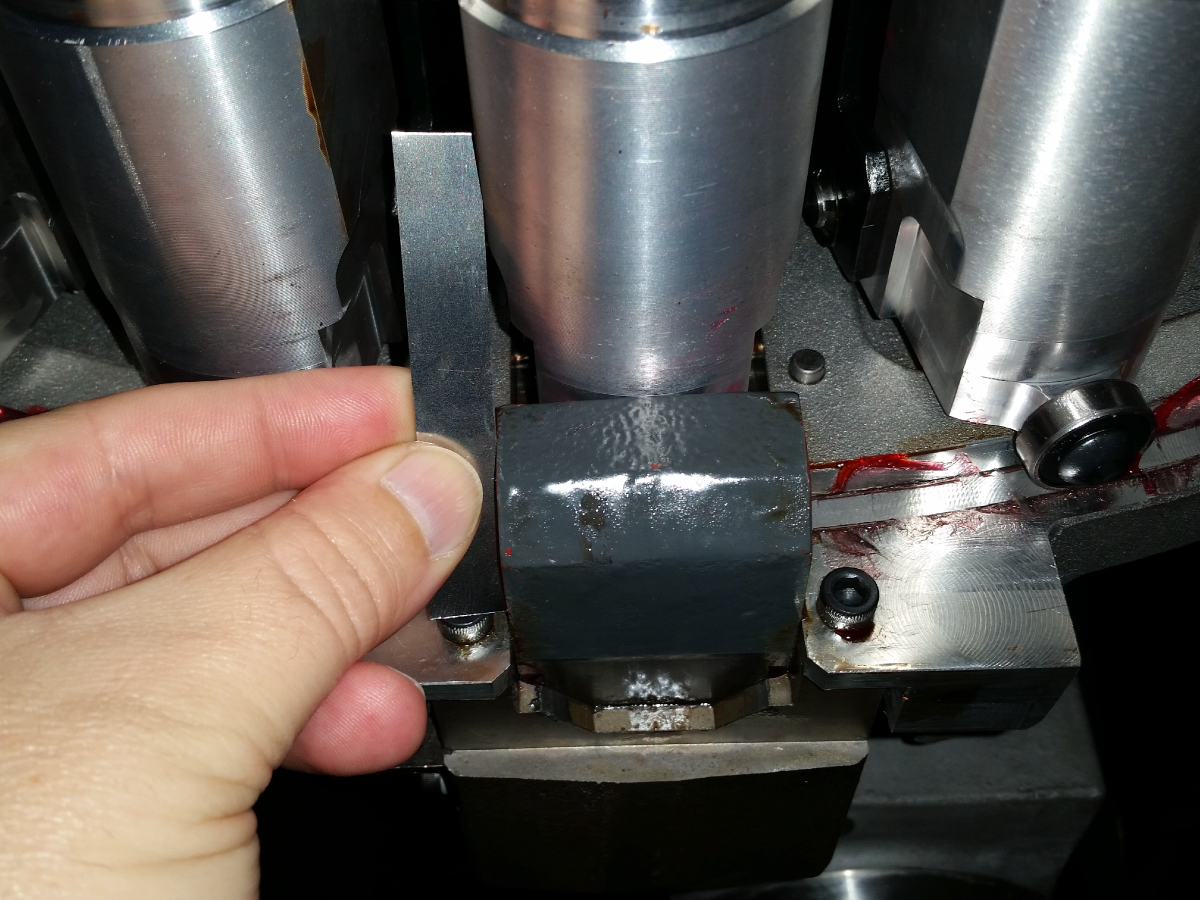
Use a straight edge and check both sides to center the pocket in the slider.

Once he pocket is in place, press [DIAGNOSTICS] to get back to the parameters and press TT (or V) then F2 to set the tool change offset. Zero Return the TT axis.

3

Enter Tool Changer Recovery and press [F4] to lower the pocket. Use a .005" (.127 mm) shim to check the gap on both sides of the pocket.

If the shim is binding on either side, repeat the process from Step 2 to center the pocket.

Press [F3] to raise the pocket up. Exit [RECOVERY] mode.

Perform the following procedure:

Next Generation Control - Servo-Driven SMTC - Double Arm Grid Offset and Tool Changer Offset

6.7 Servo-Driven SMTC - Double Arm Grid Offset and Tool Changer Offset - NGC

Recently Updated

Servo-Driven SMTC - Double Arm Grid Offset and Tool Changer Offset - NGC


Revision B - 08/2025

Introduction

This procedure tells you how to reset the double arm grid offset and tool changer offset.

Note: In software version 100.17.000.1037 and later the TA axis is now the tool arm axis. Refer to the Next Generation Control - Axis Assignments procedure.

 NOTE:  This procedure can only be performed by a Haas certified service technician. 

Tools Required:
  • Haas Control Key

NGC - Servo-Driven SMTC - Double Arm Grid Offset and Tool Changer Offset

1

Power on the machine with your Haas Control Key.

Go to DIAGNOSTIC>FACTORY tab.

Press E-STOP.

Set parameters 11.078 and 11.140 to zero.

Release E-STOP and press [RESET].

Press [ZERO RETURN] and ALL.

Press [RECOVER], and [Y] to continue.

2

Press [M] for manual recovery mode [1]. 

Press ▼ to advance the TC arm until it first reads home. 

Note: The home position should be reached within 0 to 15 degrees. Jogging the arm too far can crash into the spindle head if the Z-axis isn't homed.

 Important: Verify that the pocket is in the up position before exiting recovery.

Press [E] to exit recovery.

3

Enter the DIAGNOSTICS>FACTORY tab.

Type [TA] and press [F4] and then [Y] for yes.

A value for parameter 11.140 should populate. 

Press [ZERO RETURN] and [ALL]. 

Press [RECOVER] and [Y] for yes.

Enter [M] manual mode again.

Note that the arm will read off position again. 

4

Press ▼ until the double arm reads home [1].

Take note of the first arm position to read home.

  • I.e. 5.000 in [1].

Press ▼ until the double arm reads off position [2] then press ▲ once.

Take note of the last arm position to read home.

  • I.e. 13.000 in [3].

Add the two arm positions and divide by 2 to find the center.

  • Example:

5.000 + 13.000 = 18.000

18.000 ÷ 2 = 9.000

Multiple by -1.

  • Example:

9.000 x -1 = -9.000

 Important: Verify that the pocket is in the up position before exiting recovery.

Leave the arm at a position reading home. Press [E] to exit.

5

Go to the DIAGNOSTICS>FACTORY tab.

Press E-STOP.

Enter the value calculated in the previous step to parameter 11.078. 

  • I.e. -9.000

Release E-STOP and press [RESET].

Press [ZERO RETURN] and [ALL].

6

  • Follow the SMTC - Spindle Orientation Offset procedure to verify the spindle orentation.
  • Perform a few tool changes to verify eveything works correctly.

6.8 Servo Driven SMTC - Grid Offset and Tool Change Offset - VMC - CHC

Recently Updated

Servo-Driven SMTC - Grid Offset and Tool Changer Offset - VMC - CHC


Revision A - 08/2025

Arm at Origin Position - Check

1

Press [POWER ON].

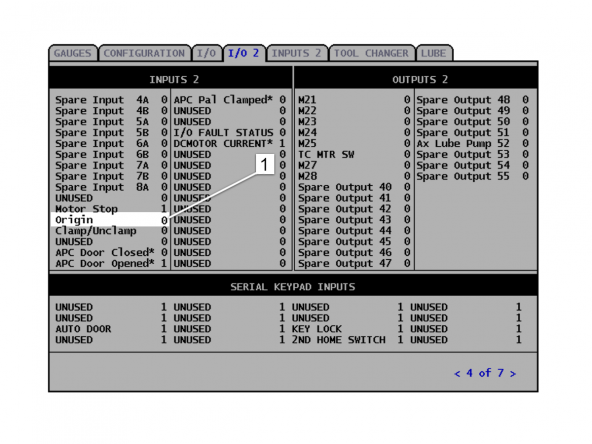
Press [PARAMETER DIAGNOSTIC] (2) times. Select the I/O 2 tab.

If Origin is 1 . Go to the Grid Offset and Tool Changer Offset section.

2

If Origin is 0 [1], put the machine in DEBUG mode.

Press [RESET] to clear alarms.

Press [M] for manual recovery if you have software version 18.01A or higher.

Press [Y] (3) times if you have software lower than 18.01A.

Press [ATC FWD] or [ATC REV] until Arm at Origin changes to 1.

Set Grid Offset

Press [RESET] to clear alarms.

Change setting 7 to OFF.

Put the machine in [DEBUG] mode.

Press [ZERO RETURN]. Press [ALL].

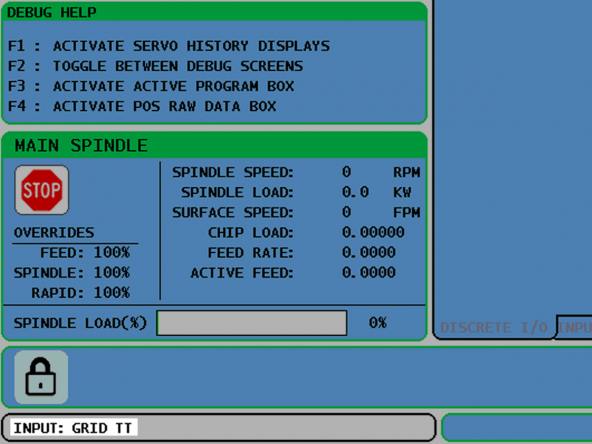
Press [POSITION].

Type GRID TT and press [WRITE ENTER]. The screen shows the message GRID OFFSET DONE.

Set Tool Change Offset

1

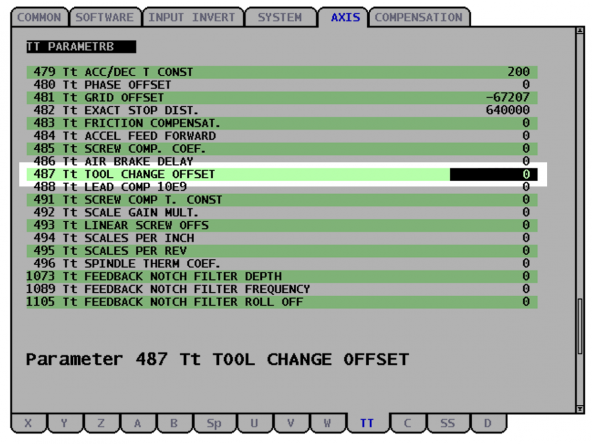
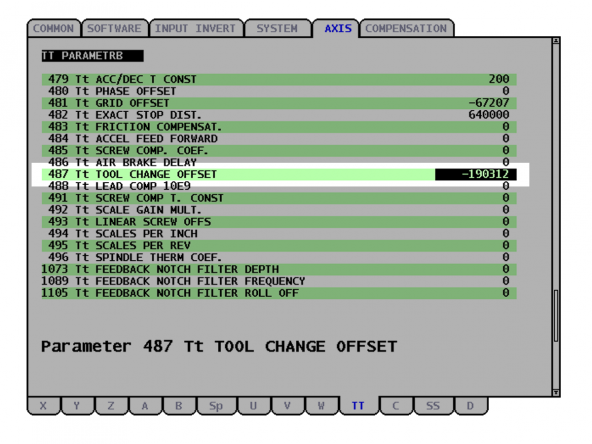
Change Parameter 487 to 0.

Go into MDI. Press [RECOVER], press [F1], and press [M].

Press [ATC REV] to bring Arm at Origin to 1.

2

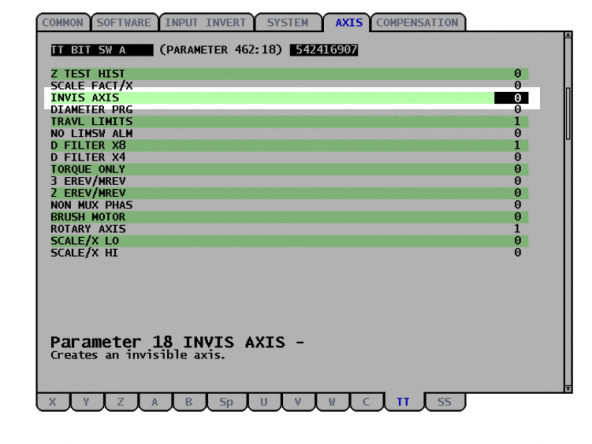
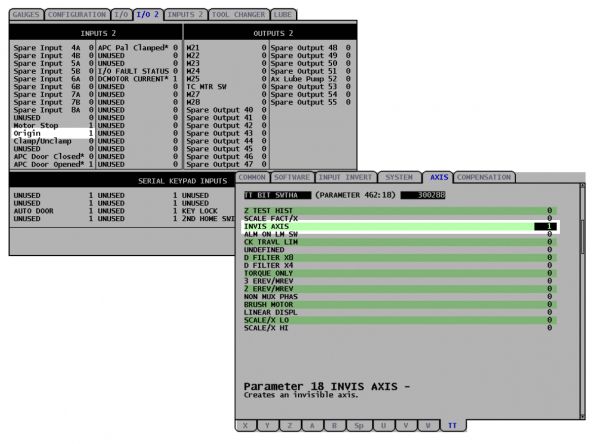
Change Parameter 462:18 to 0.

Press [ZERO RETURN]. Press [ALL].

Jog the TT-Axis in .01 increments.

3

Press [POSITION].

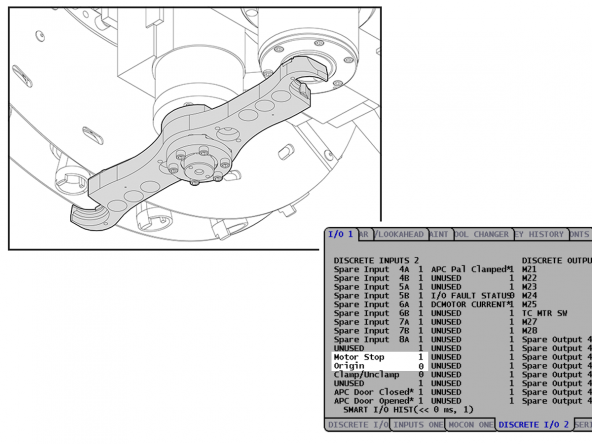
Jog the double-arm in the positive direction until it is under the spindle. The MOTOR STOP is 1 and the ORIGIN is 0.

Note: Make sure to jog the double arm slowly. Stop the arm rotation as soon as the bit changes. If you turn the arm too far, do the procedure again.

4

Jog the double-arm in the negative direction. Jog until MOTOR STOP is 1 and the ORIGIN is 1.

 Note: The arm is near the origin position but not under the spindle.

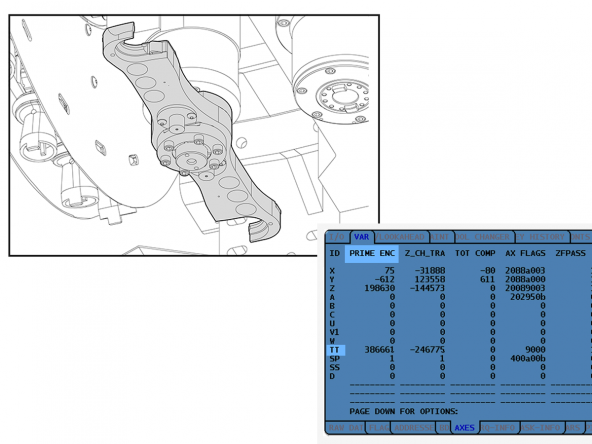
Record the TT PRIME ENC value 1.

Jog the double-arm in the negative direction until the Motor Stop or the Origin is 0.

Record the TT PRIME ENC value 2.

5

Add value 1 and 2 that you recorded in the step before. Divide by 2.

Type as a negative value the TT PRIME ENC value into Parameter 487.

For example, if the result is 190312, set Parameter 487 to -190312.

Press [ZERO RETURN]. Press [ALL].

6

Press [PARAMETER DIAGNOSTIC] (2) times. Select the I/O 2 tab.

Make sure the Origin bit is 1.

Change Parameter 462:18 to 1.

Go out of DEBUG mode.

Change setting 7 to ON.

6.9 UMC - X and Y Axes - Tool Change Offsets

Recently Updated

UMC - X and Y Axes - Tool Change Offsets


Revision A 08/2025

X and Y-Axes - Tool Change Offsets

1

Go into DEBUG mode. Push [RESET], [ZERO RETURN], then [ALL]. Put the top part of the split tool into the pocket. Put the bottom part of the split tool into the double-arm.

Use the tool changer RECOVER mode to move the arm until the value of Arm at CL/UNCL is 1.

Jog the X and Y Axes to align the top and bottom parts of the split tool. Push [.0001/.0]. Jog the Z-Axis towards the double-arm until the top and bottom parts of the split tool almost touch. Do not let the two parts touch.

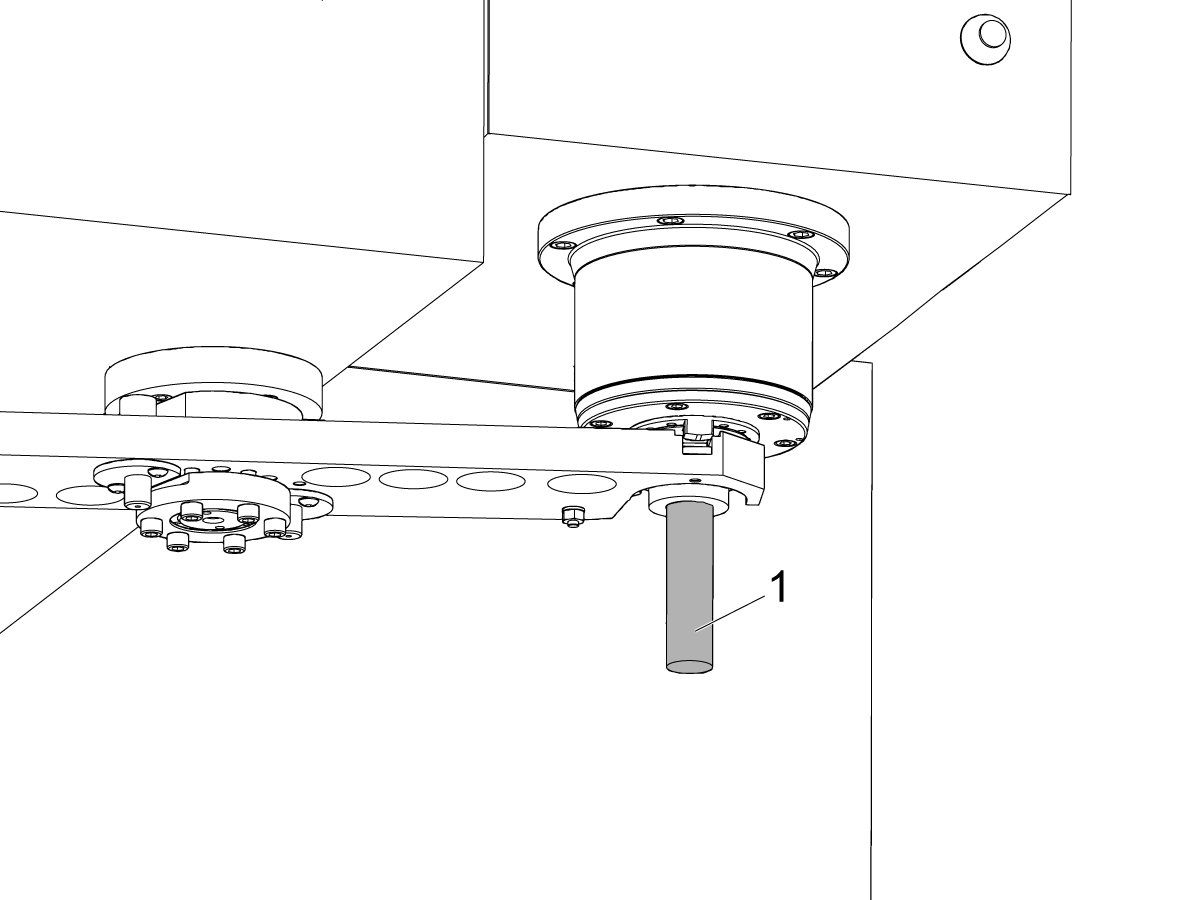
Jog the X and Y Axes until the alignment pin [1] goes smoothly in and out of the split tool parts.

 Caution: Do not let the spindle hit with the double-arm. This bends the double-arm.

Next Generation Control

1

For Next Generation Control:

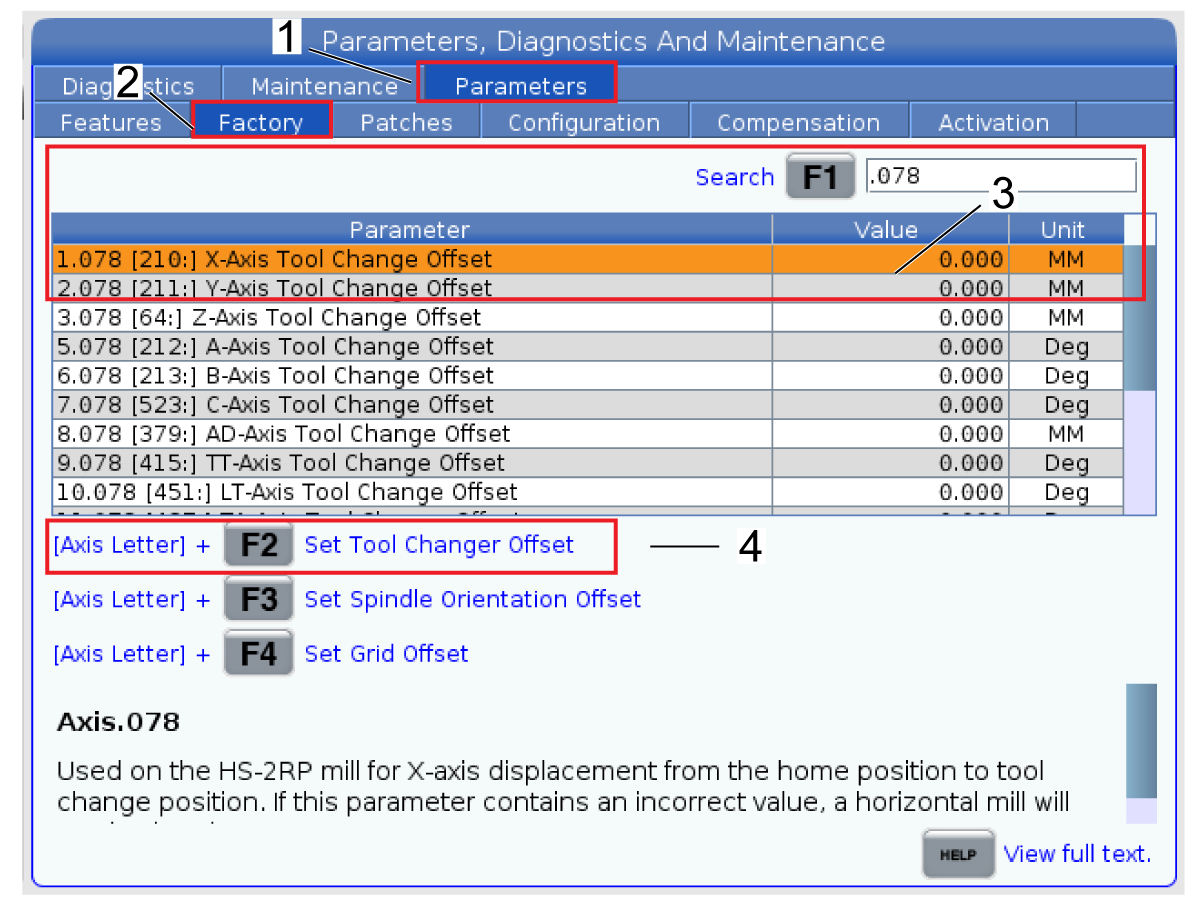
Go into Service mode.  Go to the Parameters > Factory Settings [1,2] page.

Type in .078 press [F1] [3]

Enter the axis letter and press [F2] to set the tool change offset [4].

Set the offset for both X and Y axis.

Use the tool changer RECOVER mode to move the arm until the values of Arm at Origin and Arm at Stop are 1.

Push [ZERO RETURN], then [ALL]. Remove the split tool from the double-arm and spindle. Go out of Service mode.

Classic Haas Control

1

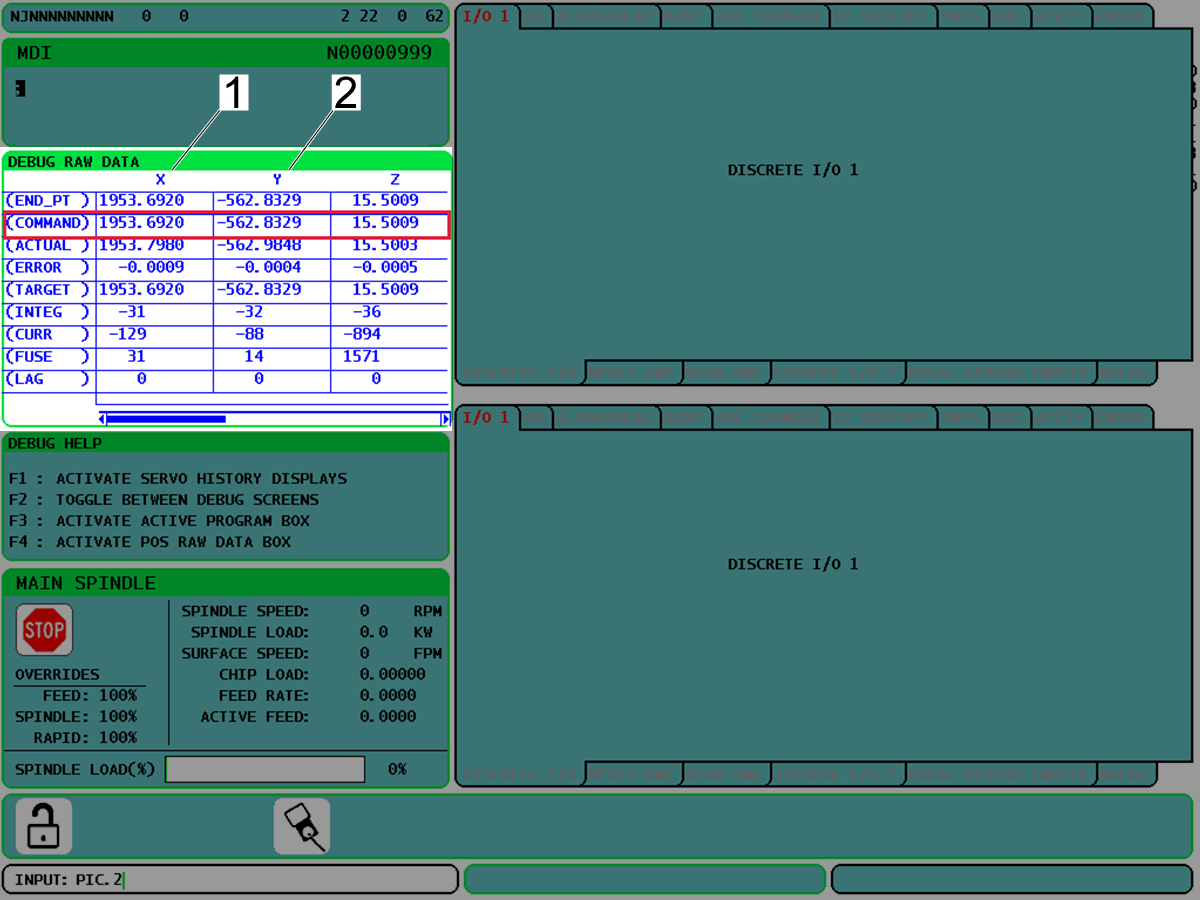
For Classic Haas Control: Go to the DEBUG RAW DATA page. Record the COMMAND values for the X and Y Axes.

Enter the recorded values to Parameter 210 X TOOL CHANGE OFFSET and Parameter 211 Y TOOL CHANGE OFFSET. Enter the values as negative numbers. Do not include the decimal point.

For example, set Parameter 210 to ‑19536920, and set Parameter 211 to ‑5628329.

Use the tool changer RECOVER mode to move the arm until the values of Arm at Origin and Arm at Stop are 1.

Push [ZERO RETURN], then [ALL]. Remove the split tool from the double-arm and spindle. Go out of Service mode.

4

Put a soft material on the table to protect the table if a tool holder falls.

Put a tool holder [1] into the spindle.

Close the operator door.

If your machine has a servo tool changer, push [25% RAPID].

Go into MDI mode.

Push [ATC FWD] and [ATC REV] many times.

If you have no problems at 25% do this step again at 100%.

Recently Viewed Items

You Have No Recently Viewed Items Yet

Feedback
Haas Logo

Haas Delivered Price

This price includes shipping cost, export and import duties, insurance, and any other expenses incurred during shipping to a location in France agreed with you as a buyer. No other mandatory costs can be added to the delivery of a Haas CNC Product.

KEEP UP WITH THE LATEST HAAS TIPS AND TECHNOLOGY...

Sign up now!   

HAAS TOOLING ACCEPTS THE FOLLOWING:

  • Service & Support
  • Owners
  • Request Service
  • Operator Manuals
  • Haas Parts
  • Rotary Repair Request
  • Pre-Install Guides
  • Shopping Tools
  • Build & Price a New Haas
  • Available Inventory
  • The Haas Price List
  • CNCA Financing
  • About Haas
  • Accessibility Statement
  • DNSH Statement
  • Export Compliance
  • Careers
  • Certifications & Safety
  • Contact Us
  • History
  • Terms & Conditions
  • Haas Tooling Terms & Conditions
  • Privacy
  • Warranty
  • Haas Community
  • Haas Certification Program
  • Haas Motorsports
  • Gene Haas Foundation
  • Haas Technical Education Community
  • Events
  • Join the Conversation
  • Facebook
  • X
  • Flickr
  • YouTube
  • LinkedIn
  • Instagram
  • TikTok
© 2026 Haas Automation, Inc – CNC Machine Tools
This site is protected by reCAPTCHA and the Google Privacy Policy and Terms of Service apply.

2800 Sturgis Rd., Oxnard, CA 93030
Toll Free: (888) 817-4446 / Fax: 805-278-8554