My Haas Welcome,
!
Haas Tooling MyHaas/HaasConnect Sign In Register Haas Tooling MyHaas/HaasConnect Sign Out Welcome, My Machines Latest Activity My Quotes My Account My Users Sign Out
Find Your Distributor
  1. Select Language
    1. English
    2. Deutsch
    3. Español - ES
    4. Español - MX
    5. Français
    6. Italiano
    7. Português
    8. Český
    9. Dansk
    10. Nederlands
    11. Magyar
    12. Polski
    13. Svenska
    14. Türkçe
    15. 中文
    16. Suomi
    17. Norsk
    18. الإنجليزية
    19. български
    20. Hrvatski
    21. Ελληνικά
    22. Română
    23. Slovenský
    24. Slovenščina
    25. 한국어
    26. 日本語
    27. Українська
  • machines Main Menu
    • Vertical Mills
      Vertical Mills
      Vertical Mills View All
      • Vertical Mills
      • VF Series
      • Universal Machines
      • VR Series
      • VP-5 Prismatic
      • Pallet-Changing VMCs
      • Mini Mills
      • Mold Machines
      • High-Speed Drill Centers
      • Drill/Tap/ Mill Series
      • Toolroom Mills
      • Pocket Mill
      • Compact Mills
      • Gantry Series
      • SR Sheet Routers
      • Extra-Large VMC
      • Double-Column Mills
      • 3+2 Positioning Machines
    • Multi-Axis Solutions
      Multi-Axis Solutions
      Multi-Axis Solutions View All
      • Multi-Axis Solutions
      • Y-Axis Lathes
      • 5-Axis Mills
    • Lathes
      Lathes
      Lathes View All
      • Lathes
      • ST Series
      • Dual-Spindle
      • Box Way Series
      • Toolroom Lathes
      • Chucker Lathe
      • Pocket Lathe
      • Haas Bar Feeders
    • Horizontal Mills
      Horizontal Mills
      Horizontal Mills View All
      • Horizontal Mills
      • 50-Taper
      • 40-Taper
    • Rotaries & Indexers
      Rotaries & Indexers
      Rotaries & Indexers View All
      • Rotaries & Indexers
      • Rotary Tables
      • Indexers
      • 5-Axis Rotaries
      • Extra-Large Rotaries
    • Special Series
      Special Series
      Special Series View All
      • Special Series
      • EU_Series_Redirect
    • Automation Systems
      Automation Systems
      Automation Systems View All
      • Automation Systems
      • Mill Automation
      • Lathe Automation
      • Automatic Parts Loaders
      • Automation Models
    • Desktop Machines
      Desktop Machines
      Desktop Machines View All
      • Desktop Machines
      • Desktop Mill
      • Desktop Lathe
      • Control Simulator, Standard
      • Control Simulator, Premium
    • Shop Equipment
      Shop Equipment
      Shop Equipment View All
      • Shop Equipment
      • Knee Mill
      • Haas Manual Lathes
      • Haas Saws
    • Fabrication Machines
      Fabrication Machines
      Fabrication Machines View All
      • Fabrication Machines
      • Laser Cutting Machines
      • CNC Press Brakes
    • QUICK LINKS Special Series  Special Series 
      EU SERIES EU SERIES BUILD & PRICE | PRICE LIST BUILD & PRICE | PRICE LIST In-Stock Machines In-Stock Machines WHAT’S NEW WHAT’S NEW YOUR FIRST CNC YOUR FIRST CNC
      SHOPPING TOOLS
      • Build & Price a Haas
      • Price List
      • Available Inventory
      • CNCA Financing
      WANT TO TALK TO SOMEONE?

      A Haas Factory Outlet (HFO) can answer your questions, and walk you through your best options.

      CONTACT YOUR DISTRIBUTOR >
  • Options Main Menu
    • The Haas Control Value Option Packages
      Value Option Packages
      Value Option Packages View All
      • Value Option Packages
    • Product Image Spindles
      Spindles
      Spindles View All
      • Spindles
    • Product Image Tool Changers
      Tool Changers
      Tool Changers View All
      • Tool Changers
    • Product Image 4th- | 5th-Axis
      4th- | 5th-Axis
      4th- | 5th-Axis View All
      • 4th- | 5th-Axis
    • Product Image Turrets & Live Tooling
      Turrets & Live Tooling
      Turrets & Live Tooling View All
      • Turrets & Live Tooling
    • Product Image Probing
      Probing
      Probing View All
      • Probing
    • Haas Chip & Coolant Management Chip & Coolant Management
      Chip & Coolant Management
      Chip & Coolant Management View All
      • Chip & Coolant Management
    • The Haas Control The Haas Control
      The Haas Control
      The Haas Control View All
      • The Haas Control
    • Product Image Product Options
      Product Options
      Product Options View All
      • Product Options
    • Product Image Tooling & Fixturing
      Tooling & Fixturing
      Tooling & Fixturing View All
      • Tooling & Fixturing
    • Product Image Workholding
      Workholding
      Workholding View All
      • Workholding
    • Product Image 5-Axis Solutions
      5-Axis Solutions
      5-Axis Solutions View All
      • 5-Axis Solutions
      • 5 Easy Steps to 5-Axis
    • QUICK LINKS Special Series  Special Series 
      EU SERIES EU SERIES BUILD & PRICE | PRICE LIST BUILD & PRICE | PRICE LIST In-Stock Machines In-Stock Machines WHAT’S NEW WHAT’S NEW YOUR FIRST CNC YOUR FIRST CNC
      SHOPPING TOOLS
      • Build & Price a Haas
      • Price List
      • Available Inventory
      • CNCA Financing
      WANT TO TALK TO SOMEONE?

      A Haas Factory Outlet (HFO) can answer your questions, and walk you through your best options.

      CONTACT YOUR DISTRIBUTOR >
  • Why Haas Main Menu
      Discover the Haas Difference
    • Why Haas
    • MyHaas
    • Education Community
    • Industry 4.0
    • Haas Certification
    • Customer Testimonials
  • Service Main Menu
      Welcome to Haas Service
      SERVICE HOME Operator’s Manuals How-To Procedures Troubleshooting Guides Preventive Maintenance Haas Parts Haas Tooling Videos
  • Videos Main Menu
  • Main Menu
    • View All
    • View All
    • View All
    • View All
      • HTEC Curriculum Support
      • Haas Value Option Packages (VOP) Journey
    • View All
      • Haas 10 kg Cobot Package
      • Cobot Kits
      • DC-1 Drill Center
      • CNC Sales News
      • Do More With Your Haas
    • View All
    • View All
      • contact-us-test
      • 4 - AUTOMATION SYSTEMS
      • Carousel-V2
      • expert test
      • Demo_Day_Trident-test
      • Link Test
      • image-sale-tag-test
      • article-list-test
      • Haas 25 kg Robot Package
      • test-algolia-page
    • View All
    • View All
    • View All
    • View All
      • calc-test
    • View All
    • QUICK LINKS Special Series  Special Series 
      EU SERIES EU SERIES BUILD & PRICE | PRICE LIST BUILD & PRICE | PRICE LIST In-Stock Machines In-Stock Machines WHAT’S NEW WHAT’S NEW YOUR FIRST CNC YOUR FIRST CNC
      SHOPPING TOOLS
      • Build & Price a Haas
      • Price List
      • Available Inventory
      • CNCA Financing
      WANT TO TALK TO SOMEONE?

      A Haas Factory Outlet (HFO) can answer your questions, and walk you through your best options.

      CONTACT YOUR DISTRIBUTOR >
  • Haas Tooling Main Menu
  • Haas Service Parts Main Menu
My Haas Welcome,
!
Haas Tooling MyHaas/HaasConnect Sign In Register Haas Tooling MyHaas/HaasConnect Sign Out Welcome, My Machines Latest Activity My Quotes My Account My Users Sign Out
Find Your Distributor
  1. Select Language
    1. English
    2. Deutsch
    3. Español - ES
    4. Español - MX
    5. Français
    6. Italiano
    7. Português
    8. Český
    9. Dansk
    10. Nederlands
    11. Magyar
    12. Polski
    13. Svenska
    14. Türkçe
    15. 中文
    16. Suomi
    17. Norsk
    18. الإنجليزية
    19. български
    20. Hrvatski
    21. Ελληνικά
    22. Română
    23. Slovenský
    24. Slovenščina
    25. 한국어
    26. 日本語
    27. Українська
×

Search Results

Web Pages

Images

    • <
    • 1
    • >

30 - NGC - USB

Next Gen Control Electrical - Service Manual


  • 1 - NGC - Introduction
  • 2 - NGC - Activation
  • 3 - NGC - Software Update
  • 4 - NGC - Firmware Update
  • 5 - NGC - Configuration
  • 6 - NGC - Error Report and Backup
  • 7 - NGC - Main Processor
  • 8 - NGC - I/O and TC PCB
  • 9 - NGC - CAN Systems and Autodoor
  • 10 - NGC - Servo Motors and Axis Cables
  • 11 - NGC - 4th and 5th Axis
  • 12 - NGC - Servo Amplifiers
  • 13 - NGC - Vector Drive
  • 14 - NGC - Regen
  • 15 - NGC - 320V Power Supply
  • 16 - NGC - Wye / Delta
  • 17 - NGC - Circuit Breaker and Transformer
  • 18 - NGC - PSUP PCB
  • 19 - NGC - SKBIF and LCD Monitor
  • 20 - NGC - Remote Jog Handle
  • 21 - NGC - 115V LED - WorkLights
  • 22 - NGC - CabCool
  • 23 - NGC - MyHaas
  • 24 - NGC - Networking
  • 25 - NGC - 8M PCB
  • 26 - NGC - Robot and Automation
  • 27 - NGC - Machine Data Collection
  • 28 - NGC - Control Icons
  • 29 - NGC - Sensors and Switches
  • 30 - NGC - USB
  • 31 - NGC - Keypad
  • 32 - NGC - Broken Tool Detection
  • 33 - NGC - IPFDM PCB
  • 34. NGC - LVPS
  • 35 - NGC - Camera Monitor System
  • 36 - NGC - High Intensity Lights
  • 37 - NGC - 24V LED - Worklights
  • 38 - NGC - Mill - Rotary Scale Cable Installation

Go To :

  • 30.1 USB - Troubleshooting

30.1 USB - Troubleshooting

Recently Updated

USB - Troubleshooting - NGC


TG0154

Introduction

Use this document to troubleshoot USB issues and update problems on a machine with the Next Generation Control. If you can not find the scenario that matches your situation, please submit an error log ([SHIFT] + [F3]) to [email protected].

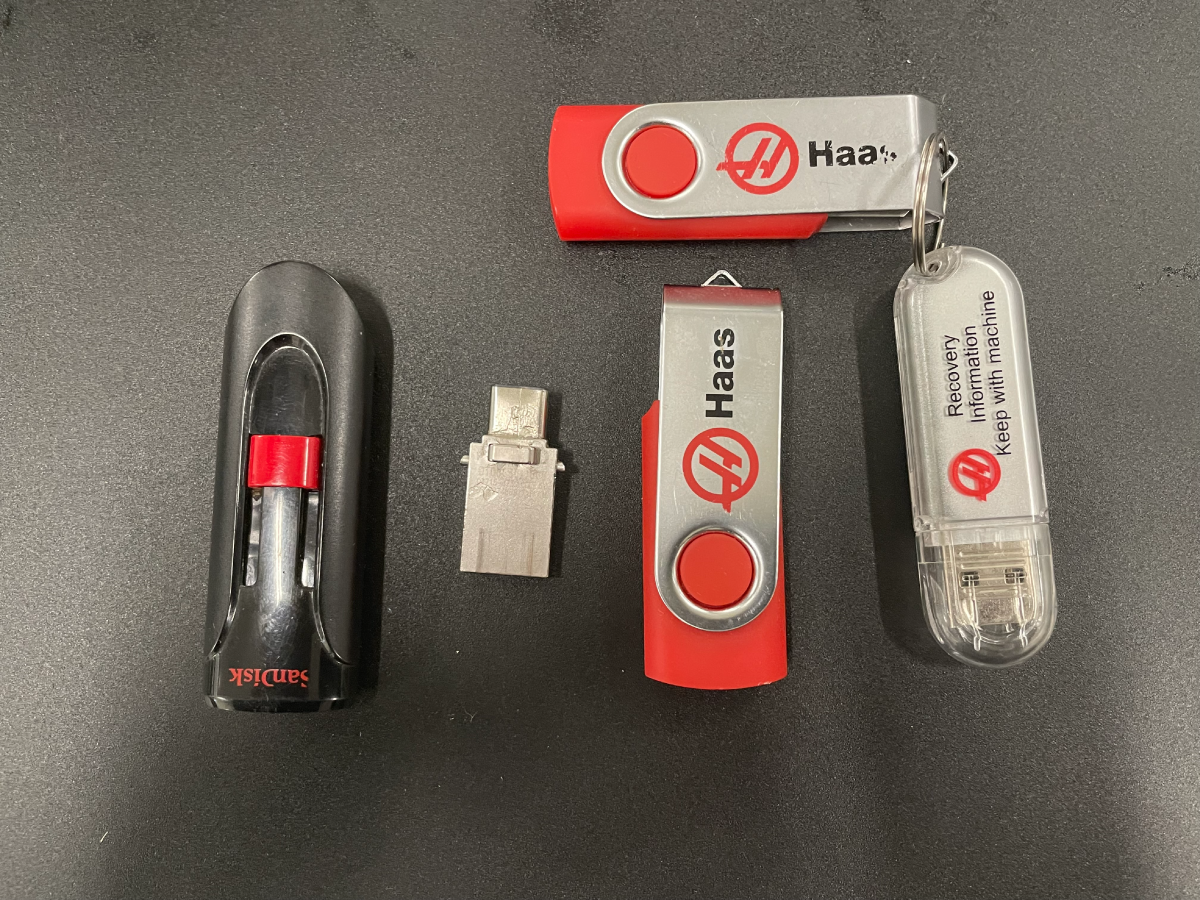
USB Requirements:

  • USB Storage Capacity – Maximum allowed for FAT32. See Reformat USB Flash Drive to FAT32 for Haas Control - NGC procedure for more information.
  • USB Format – FAT32. See Reformat USB Flash Drive to FAT32 for Haas Control - NGC procedure for more information.
  • USB Version – 3.1 and lower.

Symptom Table

Symptom Possible Cause Corrective Action
The USB Drive does not get detected. The USB device is not being read.
  1. Reseat all the USB connections from the pendant to the Main Processor PCB.
  2. Reformat the USB Drive 
  3. Try multiple USB Drives
  4. If all the above fail, send the USB Drive back to Haas for evaluation.
    HSG-A 09-13-2023
After plugging in the USB stick the machine flashes 'USB Mounted' and 'USB Unmounted' on the screen. The USB cable connector has an intermittent connection.

Watch the video below and follow the troubleshooting done.

USB Cable - Troubleshooting

The machine will not boot to the software updater screen when powering on and holding the U button. The USB deviced failed during a software update. Do not replace processor try to recover the software with the Software Update Recovery - NGC procedure.
[ERROR] appears during a software update or platform version update. The USB is not being read.
  1. Press [POWER OFF].
  2. Do the software update again with a different USB memory device.
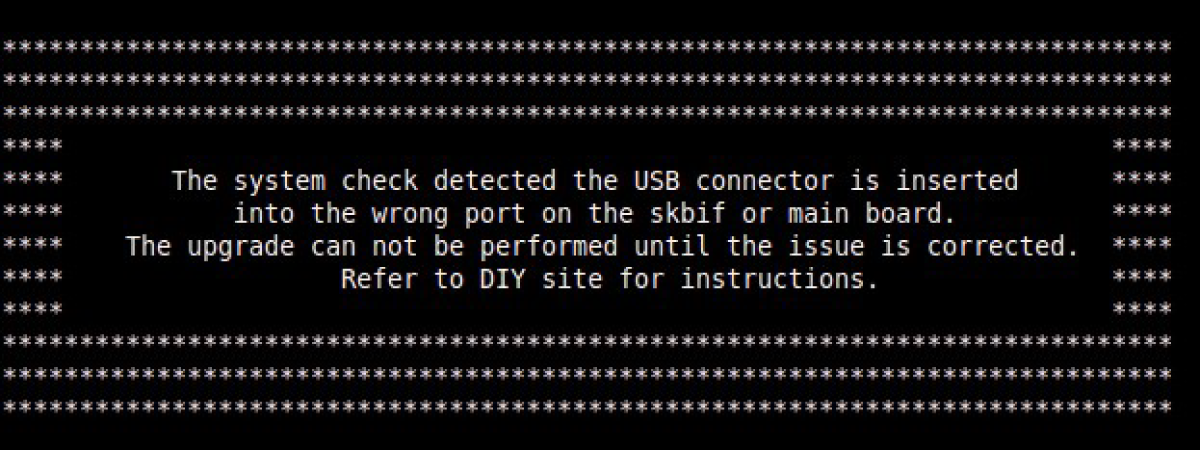
Machines with 100.17.000.2040 of later, during a software update you get the following USB error: "The system check detected the USB connector is inserted into the wrong port on the skbif or main board......"
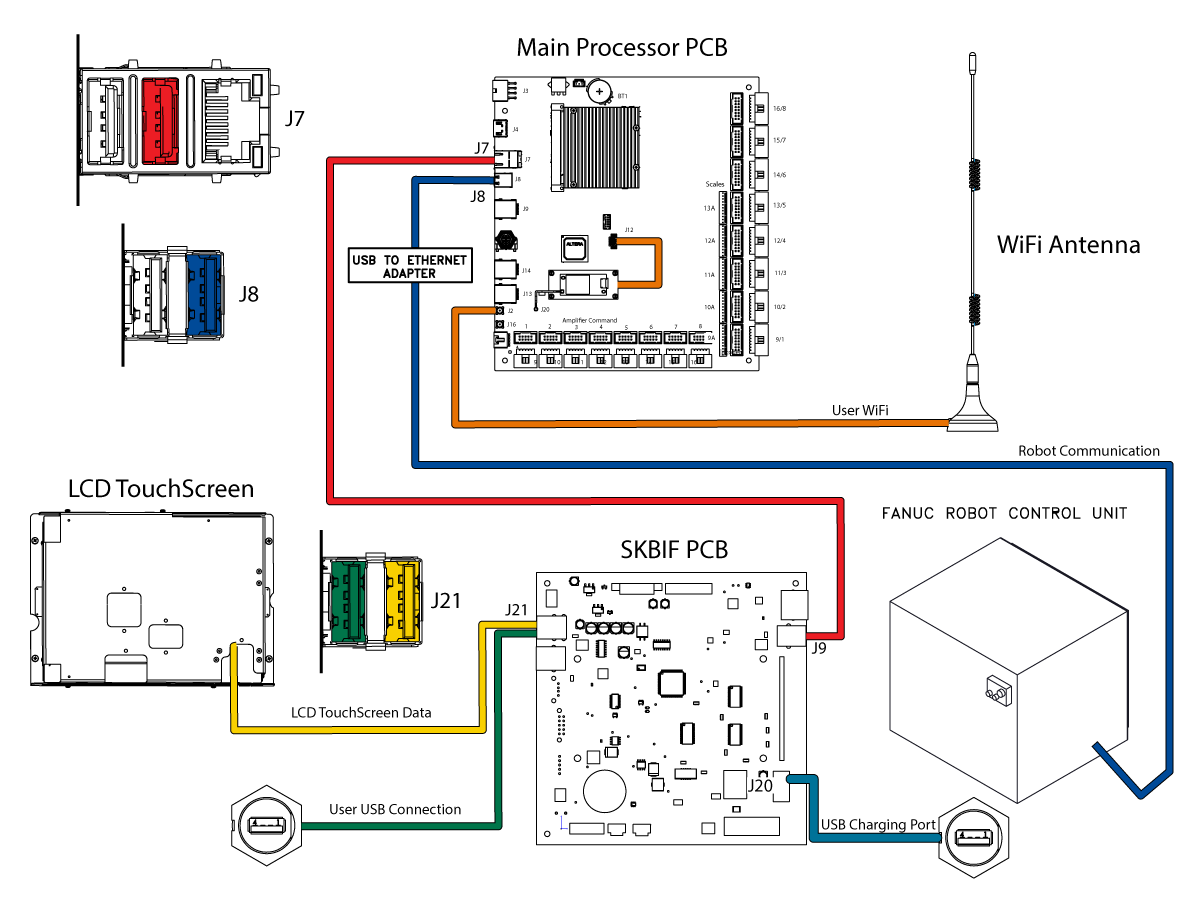
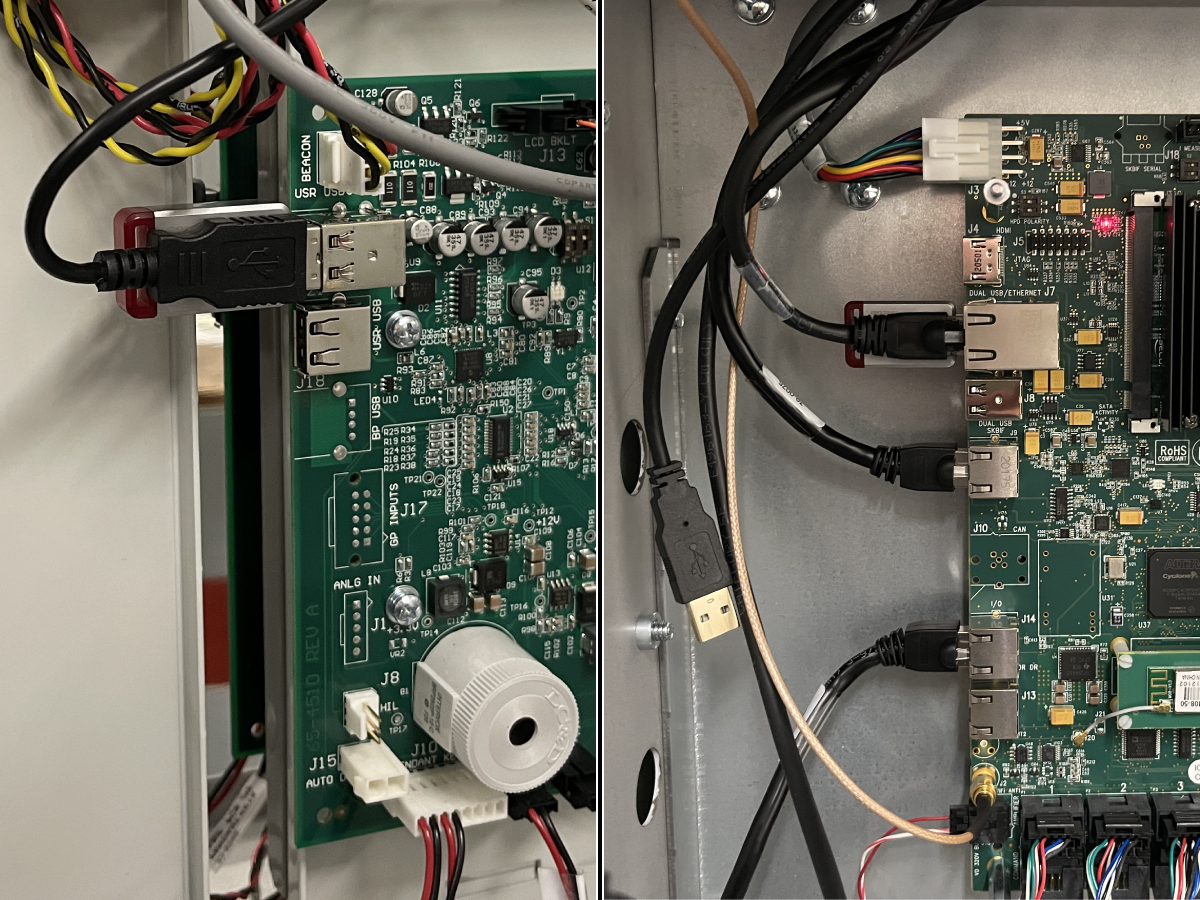
The USB cable on the Maincon or SKIBF PCB is connected to the wrong location. Make sure the USB cable going to the SKIBF PCB is connected to the correct location, #2, on the Maincon PCB (See diagram below).
LCD Touchscreen
The TouchScreen does not respond to touch commands.
The touchscreen USB cable is not connected correctly to the SKBIF PCB. Make sure that the USB cable connection is connected to J21 at SKBIF PCB.
The touchscreen continues to function after turning Setting 381 to OFF. The control does not recognize the touchscreen module.

Expected fix will be Software Version 100.23.000.1000.

Unplug the Touchscreen USB cable from the top port at J21 on the SKBIF PCB.

Note: When Software Version 100.23.000.1000 is released. Update the machine software, plug the touchscreen USB cable back into the SKBIF PCB at J21, and turn Setting 381 to OFF.

HSG-N 02-17-2023

Alarm 488 INTERMITTENT USB ERROR A communication timeout due to a faulty USB device.

Try a different USB device to see if the issue continues. Programs should be run from the control memory and not from the USB. Update the machine to the latest software.

If the alarms continues to generate, take an error report with the alarm present and submit it to Haas Service. Remove the USB device from the side of the pendant. If the alarm does not continue to generate, plug the USB directly into the SKBIF PCB or Main Processor PCB to find the faulty cable or PCB. If it does continue to generate, disconnect the other USB devices. See the Alarms 9100.017 & 9100.018 section below for steps.

Watch the video below and follow the troubleshooting done.

USB Cable - Troubleshooting

After plugging in the USB stick the machine flashes 'USB Mounted' and 'USB Unmounted' on the screen. The USB cable connector has an intermittent connection.

Watch the video below and follow the troubleshooting done.

USB Cable - Troubleshooting

USB Error message and or USB alarms. There may be a grounding error. Cycle power and see if the issue persists. Refer to the following video: USB Read Error Troubleshooting
There may be a connection issue. Refer to the following video to check each connection: USB Read Error Troubleshooting
The control freezes. Faulty USB stick or USB hub on the Main Processor PCB or SKBIF PCB.

Try a different USB device to see if the issue continues. Programs should be run from the control memory and not from the USB.

If the control freezes and the machine is unresponsive, Cycle Power the machine and take an error report and submit it to Haas Service. If the issue does not continue. Install the USB to the bottom port of J21 on the SKBIF PCB. If no, replace the cable from the pendant to the SKBIF PCB.

Too much electrical noise in the system. Add ferrites to two SKBIF USB cables and add a new ground wire connected to the control cabinet. Refer to the SKBIF Reduce Electrical Noise section on the  SKIBF / LCD Monitor - Troubleshooting Guide for more information. 
The control has a laggy/delayed response. Faulty USB stick or USB hub on the Main Processor PCB or SKBIF PCB.

Try a different USB device to see if the issue continues. Programs should be run from the control memory and not from the USB.

If the control is laggy, remove the USB stick from the side of the pendant. If the issue continues, take an error report at the time of the issue and submit it to Haas Service. If it does not continue, install the USB to the bottom port of J21 on the SKBIF PCB. If the issue continues, take an error report at the time of the issue and submit it to Haas Service. If it doesnt continue replace the cable from the pendant to the SKBIF PCB.

Alarms 9100.017 or 9100.018 NON RESETTABLE SOFTWARE ERROR is generated on machines with software version 100.21.000.1133 and lower. A communication timeout due to a faulty USB component.

Update the machine to the latest software. If the alarms continues to generate, take an error report with the alarm present and submit it to Haas Service. Disconnect the following USB devices to troubleshoot the USB device causing the alarm:

•USB drive on pendant.
•Touchscreen and disable the setting
•Wi-Fi and disable the Wireless Connection
•Robot Signal and disable the setting

See the Alarms 9100.017 & 9100.018 section below for steps.

Alarm 9010 TOUCH SCREEN MODULE ERROR A communication timeout due to a faulty Touch Screen USB device.

If installed, remove the USB device from the side of the pendant. Update the machine to the latest software. If the alarms continues to generate, take an error report with the alarm present and submit it to Haas Service.

Inspect and reinsert the touch screen cable. Reinstall the cable on the touch screen module in the same orientation. Disconnect the touchscreen cable at J21 on the SKBIF PCB and disable the touchscreen by changing Setting 381 - Enable Touchscreen to 0: Off. Does the alarm continue to generate?

•If no, replace the touchscreen assembly.
•If yes, disconnect the other USB devices.

Alarm 9011 WIFI MODULE ERROR A communication timeout due to a faulty Wi-Fi USB device.

If installed, remove the USB device from the side of the pendant. Update the machine to the latest software. If the alarms continues to generate, take an error report with the alarm present and submit it to Haas Service.

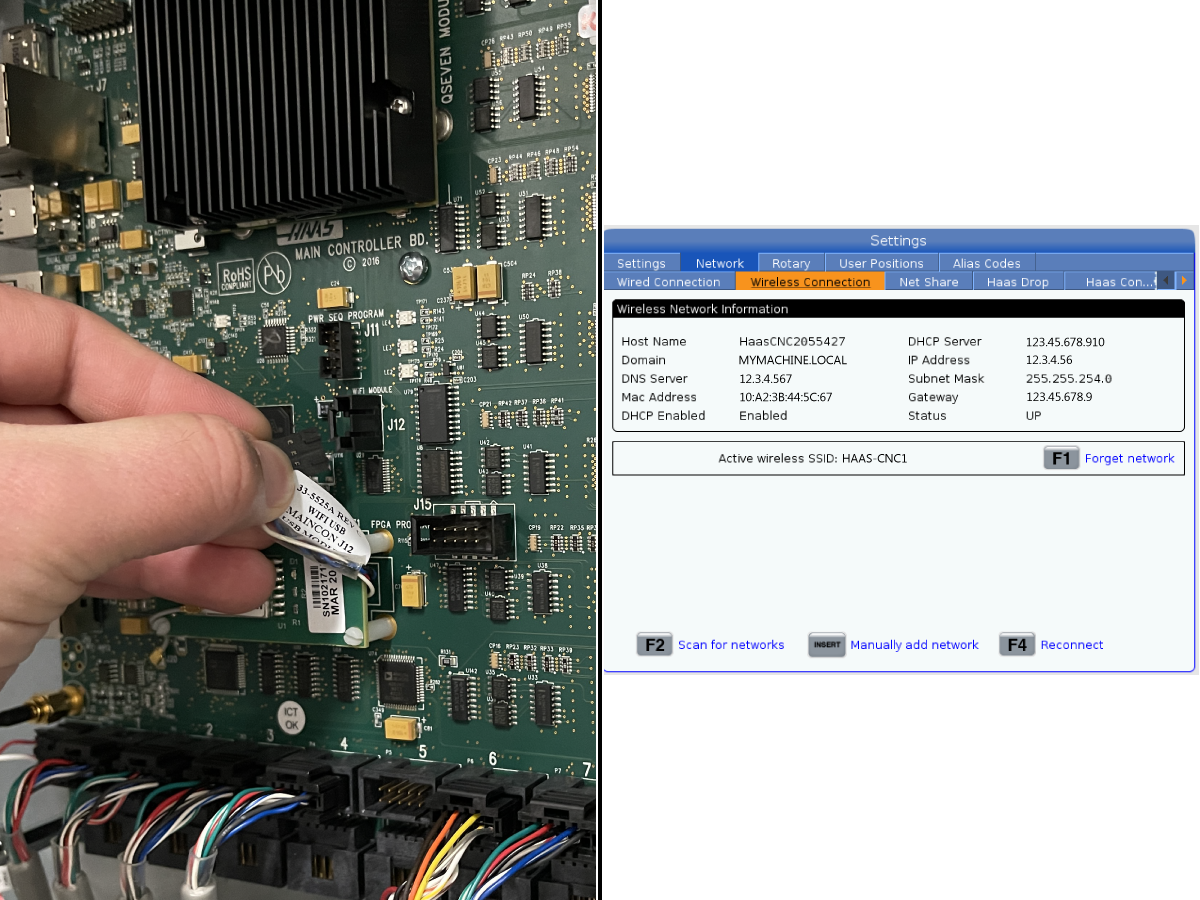
Disconnect the Wi-Fi at J12 on the Main Processor PCB and Disable the Wireless Connection in Settings > Network > Wireless Connection and press F1 to Disconnect. Cycle power the machine. Does the alarm continue to generate?

•If no, replace the Main Processor PCB.
•If yes, disconnect the other USB devices.

Alarm 9012 ETHERNET ADAPTER ERROR A communication timeout due to a faulty Robot signal USB device.

If installed, remove the USB device from the side of the pendant. Update the machine to the latest software. If the alarms continues to generate, take an error report with the alarm present and submit it to Haas Service.

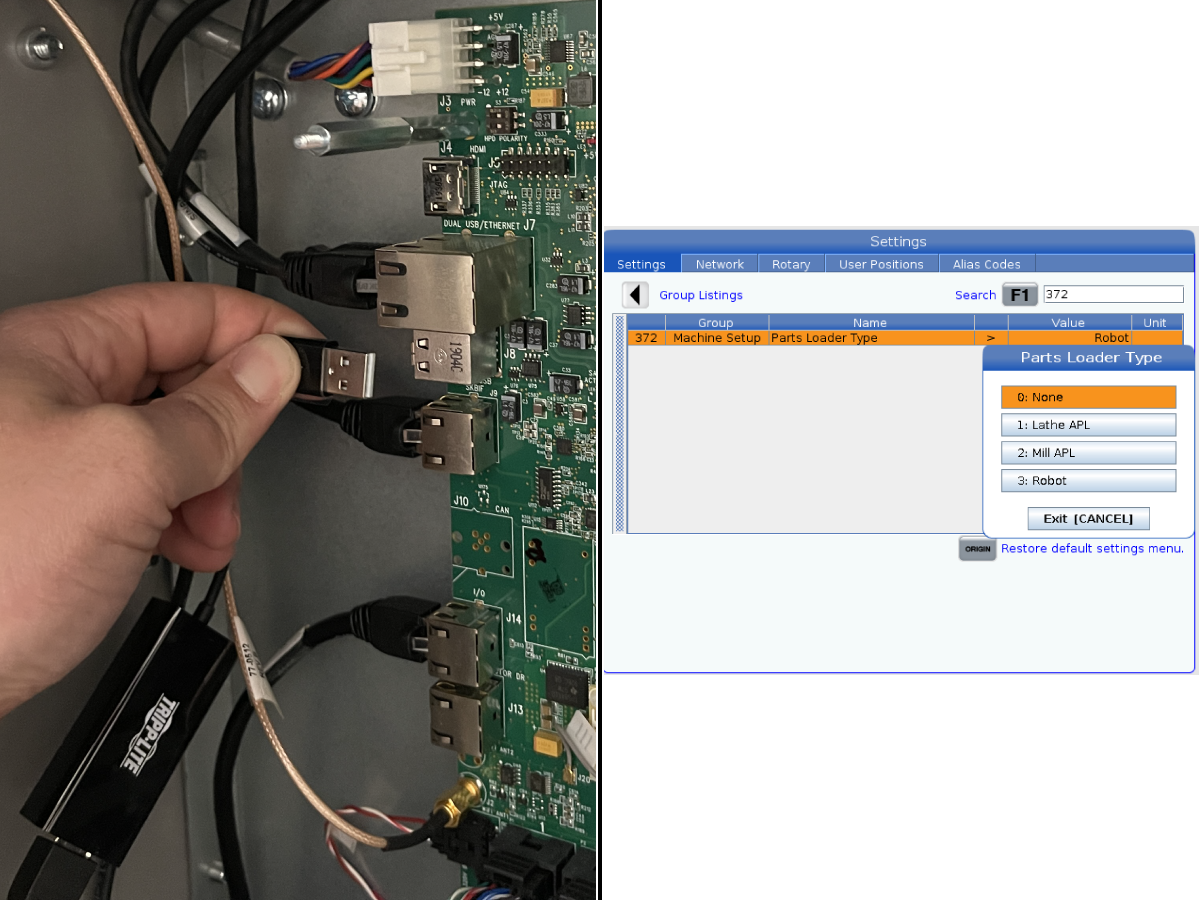
Disconnect the Robot Signal cable at J8 on the Main Processor PCB and disable the Robot by changing Setting 372 – Part Loader Type to 0: Off.

•Does the alarm continue to generate? If no, replace the Main Processor PCB.
•If yes, disconnect the other USB devices.

Machines with USB Charging Port cable 32-1298 and SKBIF 34-4510C

USB Charging Port is not working.

Cable 32-1298 does not work as is with SKBIF 34-4510C. Haas Service Tech's should refer to HSG-A 07-23-2024 for the corrective action.

Alarms 9100.017 & 9100.018 NON RESETTABLE SOFTWARE ERROR

Corrective Action:

  • Update the machine to the latest software.
  • If the alarms continues to generate, take an error report with the alarm present and submit it to Haas Service.
  • Disconnect the following USB devices to troubleshoot the USB device causing the alarm:
    • USB drive on pendant.
    • Touchscreen and disable the setting
    • Wi-Fi and disable the Wireless Connection
    • Robot Signal and disable the setting

1

USB Device

Corrective Action:

  • Remove the USB device from the side of the pendant. Does the alarm continue to generate?
    • If no, plug the USB directly into the SKBIF PCB at J21 or the Main Processor PCB at J7 to find the faulty cable or PCB.
    • If yes, continue to disconnect the other USB devices.

2

Touchscreen

Corrective Action:

  • Disconnect the touchscreen cable at J21 on the SKBIF PCB and disable the touchscreen by changing Setting 381 - Enable Touchscreen to 0: Off. Does the alarm continue to generate?
    • If no, replace the touchscreen assembly.
    • If yes, continue to disconnect the other USB devices.

3

Wi-Fi

Corrective Action:

  • Disconnect the Wi-Fi at J12 on the Main Processor PCB and Disable the Wireless Connection in Settings > Network > Wireless Connection and press F1 to Disconnect. Cycle power the machine. Does the alarm continue to generate?
    • If no, replace the Main Processor PCB.
    • If yes, continue to disconnect the other USB devices.

4

Robot

Corrective Action:

  • Disconnect the Robot Signal cable at J8 on the Main Processor PCB and disable the Robot by changing Setting 372 – Part Loader Type to 0: Off. Does the alarm continue to generate?
    • If no, replace the Main Processor PCB.

Electrical Diagram

SKBIF Diagram P/N 34-4510/B

Note: Machines with SKBIF 34-4510B and a USB Charging Port  will have the USB Charging Port connected to J20 on the SKBIF. The Charging Port is only for charging purposes and not for getting data from USB devices.


SKBIF Diagram P/N 34-4510C

Note: Machines with SKBIF 34-4510C will have the USB Charging Port connected to J3. The Charging Port is only for charging purposes and not for getting data from USB devices.

Recently Viewed Items

You Have No Recently Viewed Items Yet

Feedback
Haas Logo

Haas Delivered Price

This price includes shipping cost, export and import duties, insurance, and any other expenses incurred during shipping to a location in France agreed with you as a buyer. No other mandatory costs can be added to the delivery of a Haas CNC Product.

KEEP UP WITH THE LATEST HAAS TIPS AND TECHNOLOGY...

Sign up now!   

HAAS TOOLING ACCEPTS THE FOLLOWING:

  • Service & Support
  • Owners
  • Request Service
  • Operator Manuals
  • Haas Parts
  • Rotary Repair Request
  • Pre-Install Guides
  • Shopping Tools
  • Build & Price a New Haas
  • Available Inventory
  • The Haas Price List
  • CNCA Financing
  • About Haas
  • Accessibility Statement
  • DNSH Statement
  • Export Compliance
  • Careers
  • Certifications & Safety
  • Contact Us
  • History
  • Terms & Conditions
  • Haas Tooling Terms & Conditions
  • Privacy
  • Warranty
  • Haas Community
  • Haas Certification Program
  • Haas Motorsports
  • Gene Haas Foundation
  • Haas Technical Education Community
  • Events
  • Join the Conversation
  • Facebook
  • X
  • Flickr
  • YouTube
  • LinkedIn
  • Instagram
  • TikTok
© 2026 Haas Automation, Inc – CNC Machine Tools

This site is protected by reCAPTCHA and the Google Privacy Policy and Terms of Service apply.

2800 Sturgis Rd., Oxnard, CA 93030
Toll Free: (888) 817-4446 / Fax: 805-278-8554