My Haas Welcome,
!
Haas Tooling MyHaas/HaasConnect Sign In Register Haas Tooling MyHaas/HaasConnect Sign Out Welcome, My Machines Latest Activity My Quotes My Account My Users Sign Out
Find Your Distributor
  1. Select Language
    1. English
    2. Deutsch
    3. Español - España
    4. Español - México
    5. Français
    6. Italiano
    7. Português
    8. Český
    9. Dansk
    10. Nederlands
    11. Magyar
    12. Polski
    13. Svenska
    14. Türkçe
    15. 中文
    16. Suomi
    17. Norsk
    18. الإنجليزية
    19. български
    20. Hrvatski
    21. Ελληνικά
    22. Română
    23. Slovenský
    24. Slovenščina
    25. 한국어
    26. 日本語
    27. Українська
  • machines Main Menu
    • Vertical Mills
      Vertical Mills
      Vertical Mills View All
      • Vertical Mills
      • VF Series
      • Universal Machines
      • VR Series
      • VP-5 Prismatic
      • Pallet-Changing VMCs
      • Mini Mills
      • Mold Machines
      • High-Speed Drill Centers
      • Drill/Tap/ Mill Series
      • Toolroom Mills
      • Pocket Mill
      • Compact Mills
      • Gantry Series
      • SR Sheet Routers
      • Extra-Large VMC
      • Double-Column Mills
      • 3+2 Positioning Machines
    • Multi-Axis Solutions
      Multi-Axis Solutions
      Multi-Axis Solutions View All
      • Multi-Axis Solutions
      • Y-Axis Lathes
      • 5-Axis Mills
    • Lathes
      Lathes
      Lathes View All
      • Lathes
      • ST Series
      • Dual-Spindle
      • Box Way Series
      • Toolroom Lathes
      • Chucker Lathe
      • Haas Bar Feeders
    • Horizontal Mills
      Horizontal Mills
      Horizontal Mills View All
      • Horizontal Mills
      • 50-Taper
      • 40-Taper
    • Rotaries & Indexers
      Rotaries & Indexers
      Rotaries & Indexers View All
      • Rotaries & Indexers
      • Rotary Tables
      • Indexers
      • 5-Axis Rotaries
      • Extra-Large Rotaries
    • Special Series
      Special Series
      Special Series View All
      • Special Series
      • EU_Series_Redirect
    • Automation Systems
      Automation Systems
      Automation Systems View All
      • Automation Systems
      • Mill Automation
      • Lathe Automation
      • Automatic Parts Loaders
      • Automation Models
    • Desktop Machines
      Desktop Machines
      Desktop Machines View All
      • Desktop Machines
      • Desktop Mill
      • Desktop Lathe
      • Control Simulator, Standard
      • Control Simulator, Premium
    • Shop Equipment
      Shop Equipment
      Shop Equipment View All
      • Shop Equipment
      • Knee Mill
      • Haas Manual Lathes
      • Haas Saws
    • Fabrication Machines
      Fabrication Machines
      Fabrication Machines View All
      • Fabrication Machines
      • Laser Cutting Machines
      • CNC Press Brakes
    • QUICK LINKS Special Series  Special Series 
      EU SERIES EU SERIES BUILD & PRICE | PRICE LIST BUILD & PRICE | PRICE LIST In-Stock Machines In-Stock Machines WHAT’S NEW WHAT’S NEW YOUR FIRST CNC YOUR FIRST CNC
      SHOPPING TOOLS
      • Build & Price a Haas
      • Price List
      • Available Inventory
      • CNCA Financing
      WANT TO TALK TO SOMEONE?

      A Haas Factory Outlet (HFO) can answer your questions, and walk you through your best options.

      CONTACT YOUR DISTRIBUTOR >
  • Options Main Menu
    • The Haas Control Value Option Packages
      Value Option Packages
      Value Option Packages View All
      • Value Option Packages
    • Product Image Spindles
      Spindles
      Spindles View All
      • Spindles
    • Product Image Tool Changers
      Tool Changers
      Tool Changers View All
      • Tool Changers
    • Product Image 4th- | 5th-Axis
      4th- | 5th-Axis
      4th- | 5th-Axis View All
      • 4th- | 5th-Axis
    • Product Image Turrets & Live Tooling
      Turrets & Live Tooling
      Turrets & Live Tooling View All
      • Turrets & Live Tooling
    • Product Image Probing
      Probing
      Probing View All
      • Probing
    • Haas Chip & Coolant Management Chip & Coolant Management
      Chip & Coolant Management
      Chip & Coolant Management View All
      • Chip & Coolant Management
    • The Haas Control The Haas Control
      The Haas Control
      The Haas Control View All
      • The Haas Control
    • Product Image Product Options
      Product Options
      Product Options View All
      • Product Options
    • Product Image Tooling & Fixturing
      Tooling & Fixturing
      Tooling & Fixturing View All
      • Tooling & Fixturing
    • Product Image Workholding
      Workholding
      Workholding View All
      • Workholding
    • Product Image 5-Axis Solutions
      5-Axis Solutions
      5-Axis Solutions View All
      • 5-Axis Solutions
      • 5 Easy Steps to 5-Axis
    • QUICK LINKS Special Series  Special Series 
      EU SERIES EU SERIES BUILD & PRICE | PRICE LIST BUILD & PRICE | PRICE LIST In-Stock Machines In-Stock Machines WHAT’S NEW WHAT’S NEW YOUR FIRST CNC YOUR FIRST CNC
      SHOPPING TOOLS
      • Build & Price a Haas
      • Price List
      • Available Inventory
      • CNCA Financing
      WANT TO TALK TO SOMEONE?

      A Haas Factory Outlet (HFO) can answer your questions, and walk you through your best options.

      CONTACT YOUR DISTRIBUTOR >
  • Why Haas Main Menu
      Discover the Haas Difference
    • Why Haas
    • MyHaas
    • Education Community
    • Industry 4.0
    • Haas Certification
    • Customer Testimonials
  • Service Main Menu
      Welcome to Haas Service
      SERVICE HOME Operator’s Manuals How-To Procedures Troubleshooting Guides Preventive Maintenance Haas Parts Haas Tooling Videos
  • Videos Main Menu
  • Main Menu
    • View All
    • View All
    • View All
    • View All
      • HTEC Curriculum Support
      • Haas Value Option Packages (VOP) Journey
    • View All
      • Haas 10 kg Cobot Package
      • Cobot Kits
      • DC-1 Drill Center
      • CNC Sales News
      • Do More With Your Haas
    • View All
    • View All
      • contact-us-test
      • 4 - AUTOMATION SYSTEMS
      • Carousel-V2
      • expert test
      • Demo_Day_Trident-test
      • Link Test
      • image-sale-tag-test
      • article-list-test
      • Haas 25 kg Robot Package
      • test-algolia-page
    • View All
    • View All
    • View All
    • View All
      • calc-test
    • View All
    • QUICK LINKS Special Series  Special Series 
      EU SERIES EU SERIES BUILD & PRICE | PRICE LIST BUILD & PRICE | PRICE LIST In-Stock Machines In-Stock Machines WHAT’S NEW WHAT’S NEW YOUR FIRST CNC YOUR FIRST CNC
      SHOPPING TOOLS
      • Build & Price a Haas
      • Price List
      • Available Inventory
      • CNCA Financing
      WANT TO TALK TO SOMEONE?

      A Haas Factory Outlet (HFO) can answer your questions, and walk you through your best options.

      CONTACT YOUR DISTRIBUTOR >
  • Haas Tooling Main Menu
  • Haas Service Parts Main Menu

My Haas Welcome,
!
Haas Tooling MyHaas/HaasConnect Sign In Register Haas Tooling MyHaas/HaasConnect Sign Out Welcome, My Machines Latest Activity My Quotes My Account My Users Sign Out
Find Your Distributor
  1. Select Language
    1. English
    2. Deutsch
    3. Español - España
    4. Español - México
    5. Français
    6. Italiano
    7. Português
    8. Český
    9. Dansk
    10. Nederlands
    11. Magyar
    12. Polski
    13. Svenska
    14. Türkçe
    15. 中文
    16. Suomi
    17. Norsk
    18. الإنجليزية
    19. български
    20. Hrvatski
    21. Ελληνικά
    22. Română
    23. Slovenský
    24. Slovenščina
    25. 한국어
    26. 日本語
    27. Українська
×

Search Results

Web Pages

Images

    • <
    • 1
    • >

24 - NGC - Networking

Next Gen Control Electrical - Service Manual


  • 1 - NGC - Introduction
  • 2 - NGC - Activation
  • 3 - NGC - Software Update
  • 4 - NGC - Firmware Update
  • 5 - NGC - Configuration
  • 6 - NGC - Error Report and Backup
  • 7 - NGC - Main Processor
  • 8 - NGC - I/O and TC PCB
  • 9 - NGC - CAN Systems and Autodoor
  • 10 - NGC - Servo Motors and Axis Cables
  • 11 - NGC - 4th and 5th Axis
  • 12 - NGC - Servo Amplifiers
  • 13 - NGC - Vector Drive
  • 14 - NGC - Regen
  • 15 - NGC - 320V Power Supply
  • 16 - NGC - Wye / Delta
  • 17 - NGC - Circuit Breaker and Transformer
  • 18 - NGC - PSUP PCB
  • 19 - NGC - SKBIF and LCD Monitor
  • 20 - NGC - Remote Jog Handle
  • 21 - NGC - 115V LED - WorkLights
  • 22 - NGC - CabCool
  • 23 - NGC - MyHaas
  • 24 - NGC - Networking
  • 25 - NGC - 8M PCB
  • 26 - NGC - Robot and Automation
  • 27 - NGC - Machine Data Collection
  • 28 - NGC - Control Icons
  • 29 - NGC - Sensors and Switches
  • 30 - NGC - USB
  • 31 - NGC - Keypad
  • 32 - NGC - Broken Tool Detection
  • 33 - NGC - IPFDM PCB
  • 34. NGC - LVPS
  • 35 - NGC - Camera Monitor System
  • 36 - NGC - High Intensity Lights
  • 37 - NGC - 24V LED - Worklights

Go To :

  • 24.1 Wire / WIFI Network - Setup
  • 24.2 Wifi PCB - Removal
  • 24.3 WIFI Camera Option - Installation
  • 24.4 Networking - Troubleshooting

24.1 Wire / Wireless Network - Setup

Recently Updated

Wire / Wireless Network - Setup


Networking Terms and Responsibilities

Networks and operating systems are different from company to company. When your HFO Service Technician installs your machine, they can attempt to connect it to your network with your information, and they can troubleshoot connection problems with the machine itself. If the problem is with your network, you need a qualified IT service provider to assist you, at your expense.

If you call your HFO for help with network problems, remember that the technician can help only as far as the machine software and networking hardware.

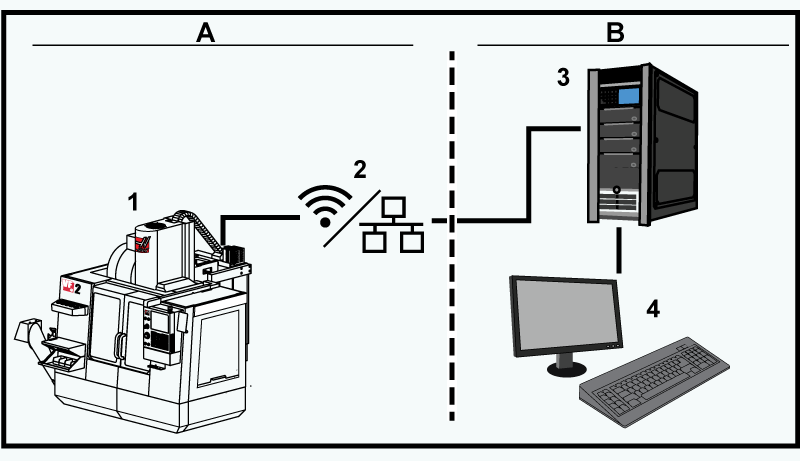
Network Responsibility Diagram: [A] Haas Responsibility, [B] Your Responsibility, [1] Haas Machine, [2] Haas Machine Network Hardware, [3] Your Server, [4] Your computer(s).

Introduction

You can use a computer network through a wired connection (Ethernet) or a wireless connection (WiFi) to transfer program files to and from your Haas machine, and to let multiple machines access files from a central network location. You can also set up Net Share to quickly and easily share programs between the machines in your shop and the computers on your network.

To access the Network page:

  1. Press [SETTING].
  2. Select the Network tab in the tabbed menu.
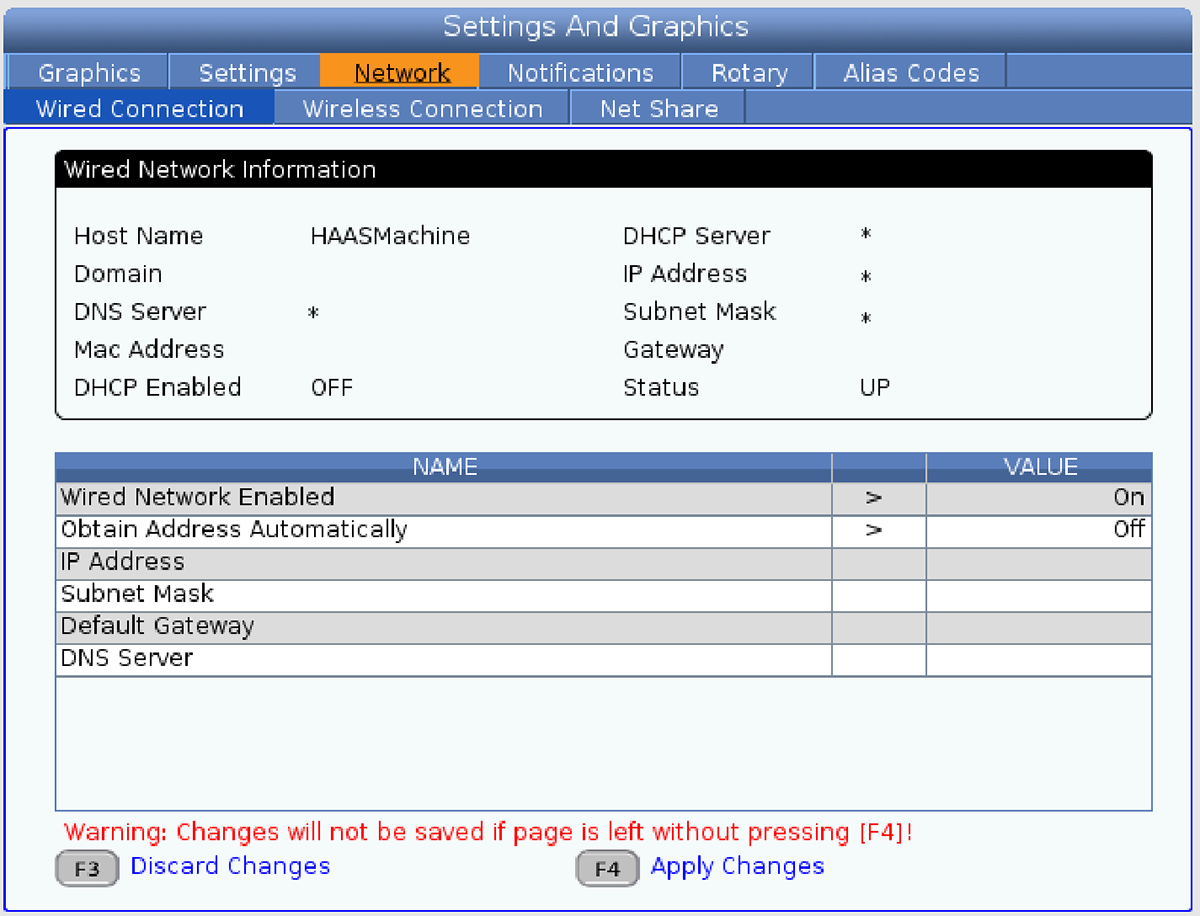
  3. Select the tab for the network settings ( Wired Connection, Wireless Connection, or Net Share) that you want to set up.

 Note: Settings with a > character in the second column have preset values that you select from. Press the [RIGHT] cursor arrow key to see the list of options. Use the [UP] and [DOWN] cursor arrow keys to choose an option, and then press [ENTER] to confirm your choice.

Wired Network Setup

Before you begin, ask your network administrator if your network has a Dynamic Host Configuration Protocol (DHCP) server. If it does not have a DHCP server, collect this information:

  • The IP address that your machine will use on the network
  • The Subnet Mask address
  • The Default Gateway address
  • The DNS Server name

To establish a wired network connection:

  1. Connect an active Ethernet cable to the Ethernet port on your machine.
  2. Select the Wired Connection tab in the Network tabbed menu.
  3. Change the Wired Network Enabled setting to ON.
  4. If your network has a DHCP server, you can let the network assign an IP address automatically. Change the Obtain Address Automatically setting to ON, and then press [F4] to complete the connection. If your network does not have a DHCP server, go to the next step.
  5. Type the machine’s IP Address, the Subnet Mask address, the Default Gateway address, and the DNS Server name into their respective fields.
  6. Press [F4] to complete the connection, or press [F3] to discard your changes.

After the machine successfully connects to the network, the Status indicator in the Wired Network Information box changes to UP.

Wired Network Settings

Wired Network Enabled - This setting activates and deactivates wired networking.

Obtain Address Automatically - Lets the machine retrieve an IP address and other network information from the network’s Dynamic Host Configuration Protocol (DHCP) server. You can use this option only if your network has a DHCP server.

IP Address - The machine’s static TCP/IP address on a network without a DHCP server. Your network administrator assigns this address to your machine.

Subnet Mask - Your network administrator assigns the subnet mask value for machines with a static TCP/IP address.

Default Gateway - An address to gain access to your network through routers. Your network administrator assigns this address.

DNS Server - The name of the Domain Name Server or DHCP server on the network.

 Note: The address format for Subnet Mask, Gateway, and DNS is XXX.XXX.XXX.XXX. Do not end the address with a period. Do not use negative numbers. 255.255.255.255 is the highest possible address.

Wireless Network Setup

1

This option lets your machine connect to a 2.4 GHz, 802.11b/g/n wireless network. 5 GHz is not supported.

Wireless network setup uses a wizard to scan for available networks and then set up the connection with your network information.

Before you begin, ask your network administrator if your network has a Dynamic Host Configuration Protocol (DHCP) server. If it does not have a DHCP server, collect this information:

  • The IP address that your machine will use on the network
  • The Subnet Mask address
  • The Default Gateway address
  • The DNS Server name

You also need this information:

  • The SSID for your wireless network
  • The password to connect to your secured wireless network

To establish a wireless network connection

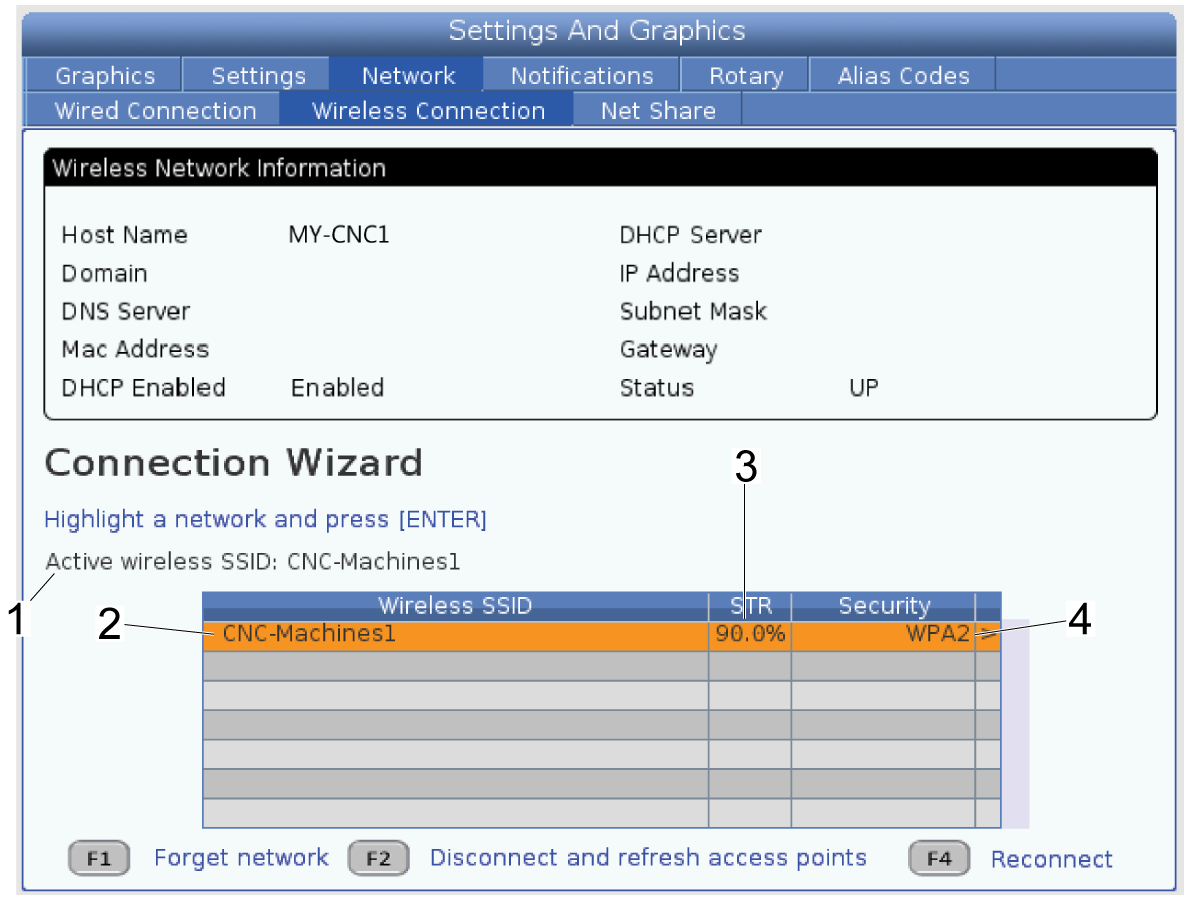
Select the Wireless Connection tab in the Network tabbed menu.

Press [F2] to scan for available networks. The Connection Wizard shows [1] the Current Active Network Connection (if any), [2] the Network SSID, [3] the Signal Strength, and [4] the Security Type for the available wireless networks.

The control supports 64/128 WEP, WPA, WPA2,TKIP, and AES security types.

2

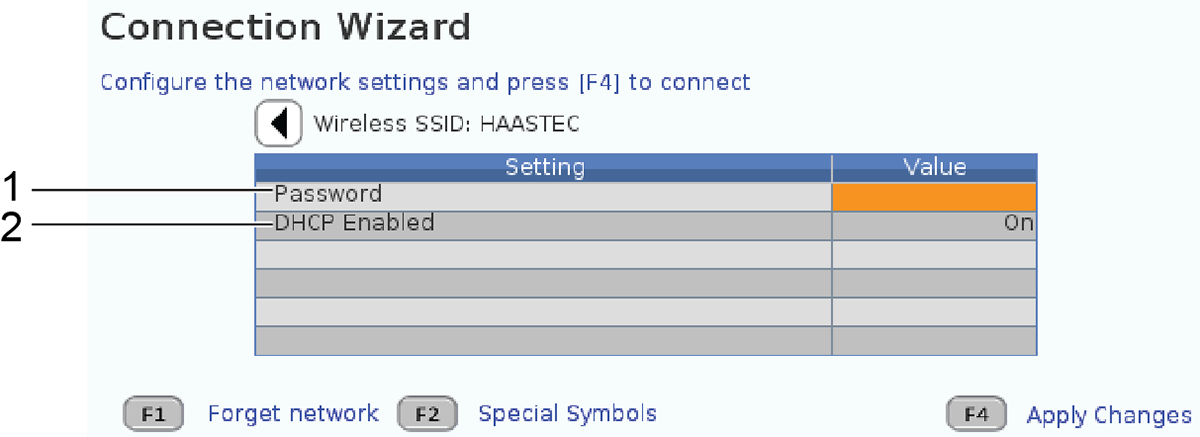
  1. Use the cursor arrow keys to highlight the network you want to connect to, and then press [ENTER]. The network settings table appears, with fields for [1] the network password and [2] DHCP enable/disable.

    Type the access point password in the Password field.

    Note: If you need special symbols such as underscores ( _ ) or carets ( ^ ) for the password, press F2 and use the menu to select the special symbols you need.

  2. If your network does not have a DHCP server, change the DHCP Enabled setting to OFF and type the IP Address, Subnet Mask, Default Gateway, and DNS Server Address into their respective fields.

    Press [F4] to complete the connection, or press [F3] to discard your changes.

3

The possible status indicators are:

  • UP - The machine has an active connection to a wireless network.
  • DOWN - The machine does not have an active connection to a wireless network.
  • DORMANT - The machine is waiting for an external action (typically, waiting for authentication with the wireless access point).
  • UNKNOWN - The machine cannot determine the connection status. A bad link or incorrect network configuration can cause this. You may also see this status while the machine transitions between statuses.

After the machine successfully connects to the network, the Status indicator in the Wireless Network Information box changes to UP. The machine will also automatically connect to this network when it is available, unless you press [F1] and confirm to “forget” the network.

Local Net Share Setup

1

Local Net Share is used to access the file system of a Haas CNC Machine from a shop PC in order to transfer files between the CNC machine and the PC.

To set up Local Net Share:

Press the [SETTINGS] button.  Navigate to the Network tab. Navigate to the Wired Connection or Wireless Connection tab.

Make sure the machine network status [1] is "UP".

2

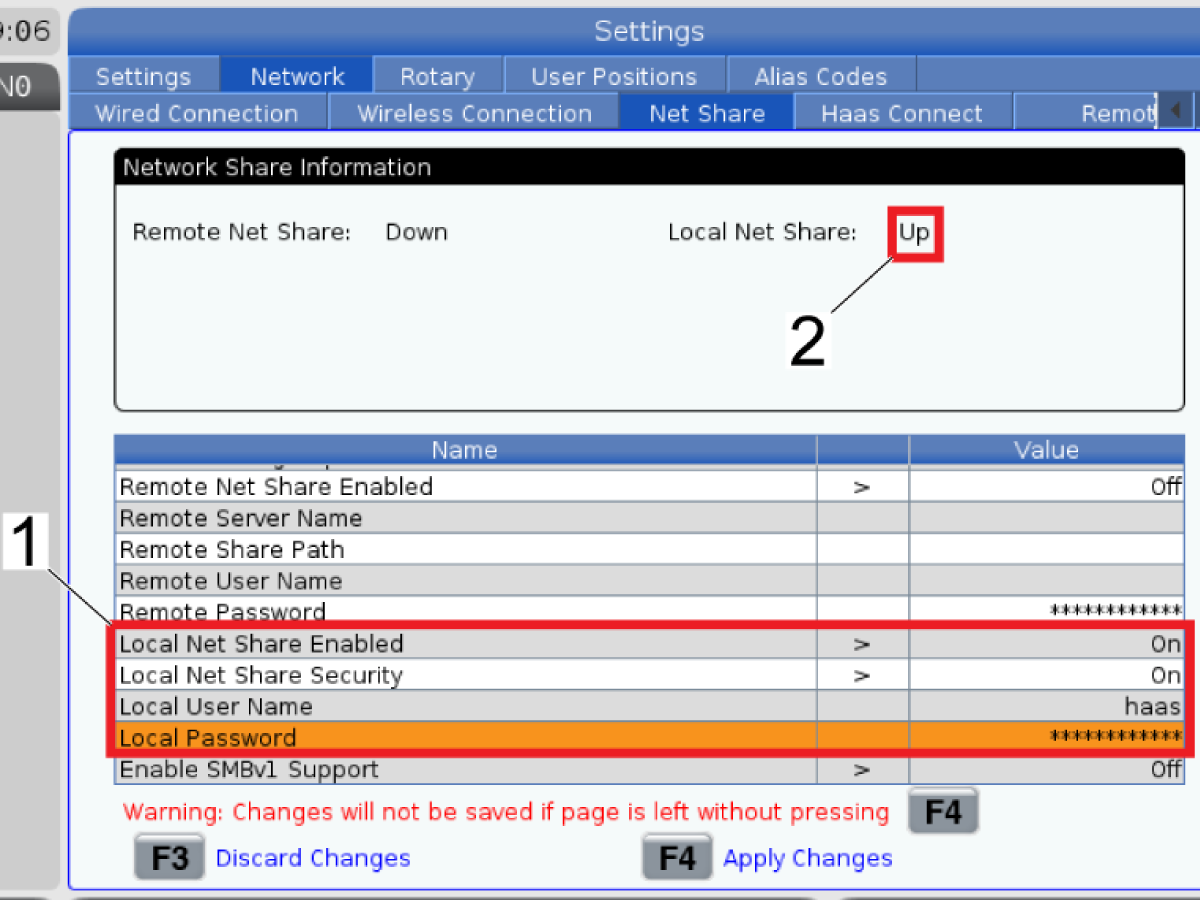
Navigate to the Net Share tab.

In the Cnc Network Name field [1] enter a unique identifiable name.

3

Set the Local Net Share Enabled and Local Net Share Security settings to ON.

The Local User Name setting defaults to haas and cannot be changed.

Choose a password and enter it in the Local Password field.

Press [F4].

Wait for the machine to configure Local Net Share.  When configuration is complete the Local Net Share status will change to "UP".

4

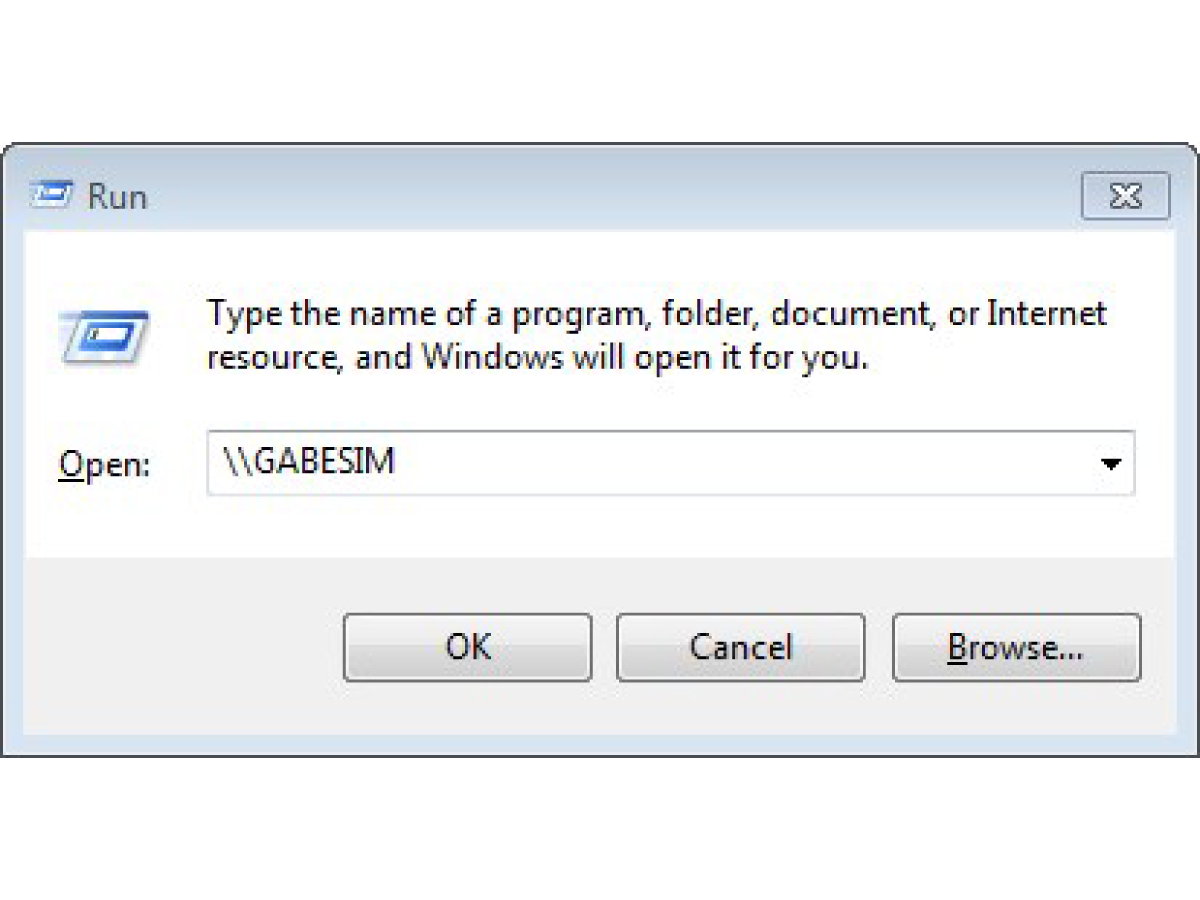
On your shop PC press the windows key and R.

Type "\\" and the Cnc Network Name.  Click the "OK" button.

5

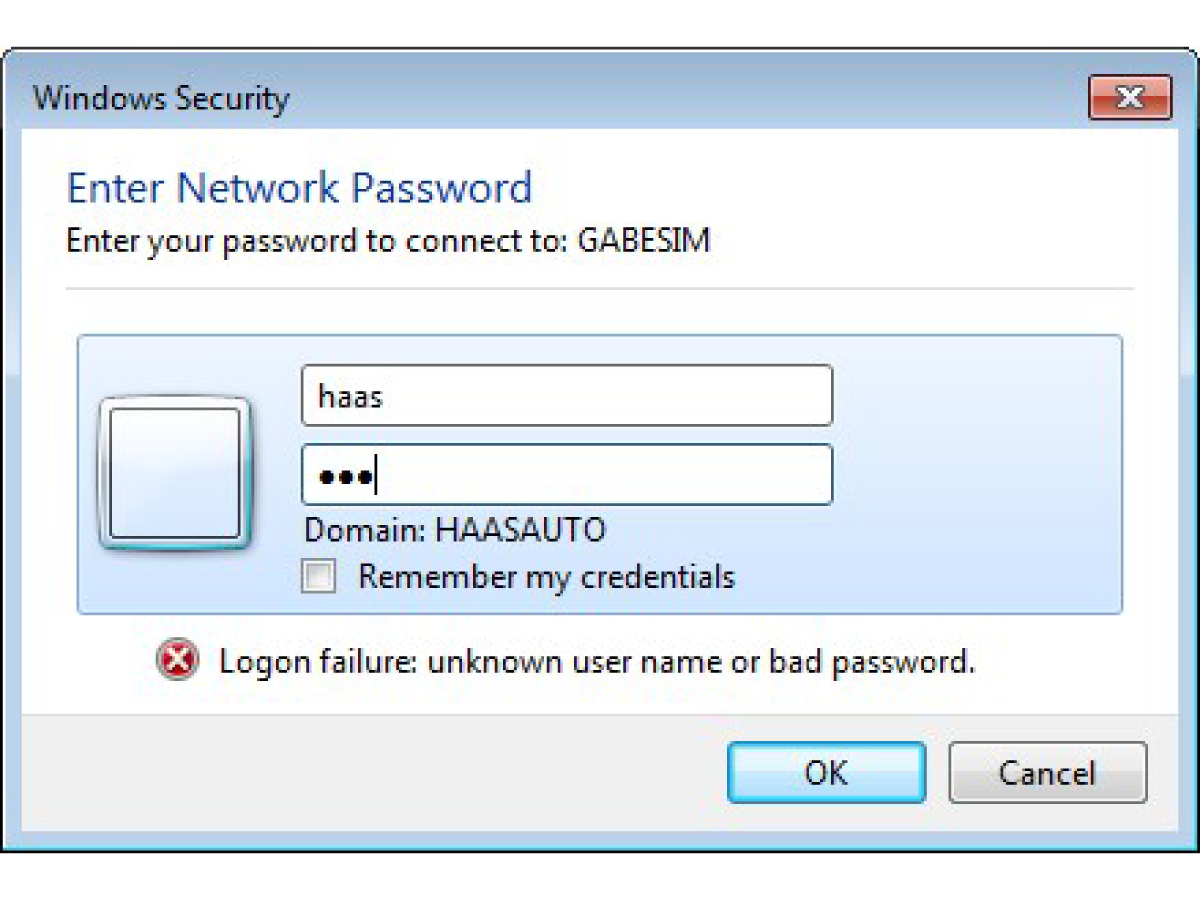
Type ".\haas" in the username field.

Type the Local Password in the password field.

Click the "OK" button.

6

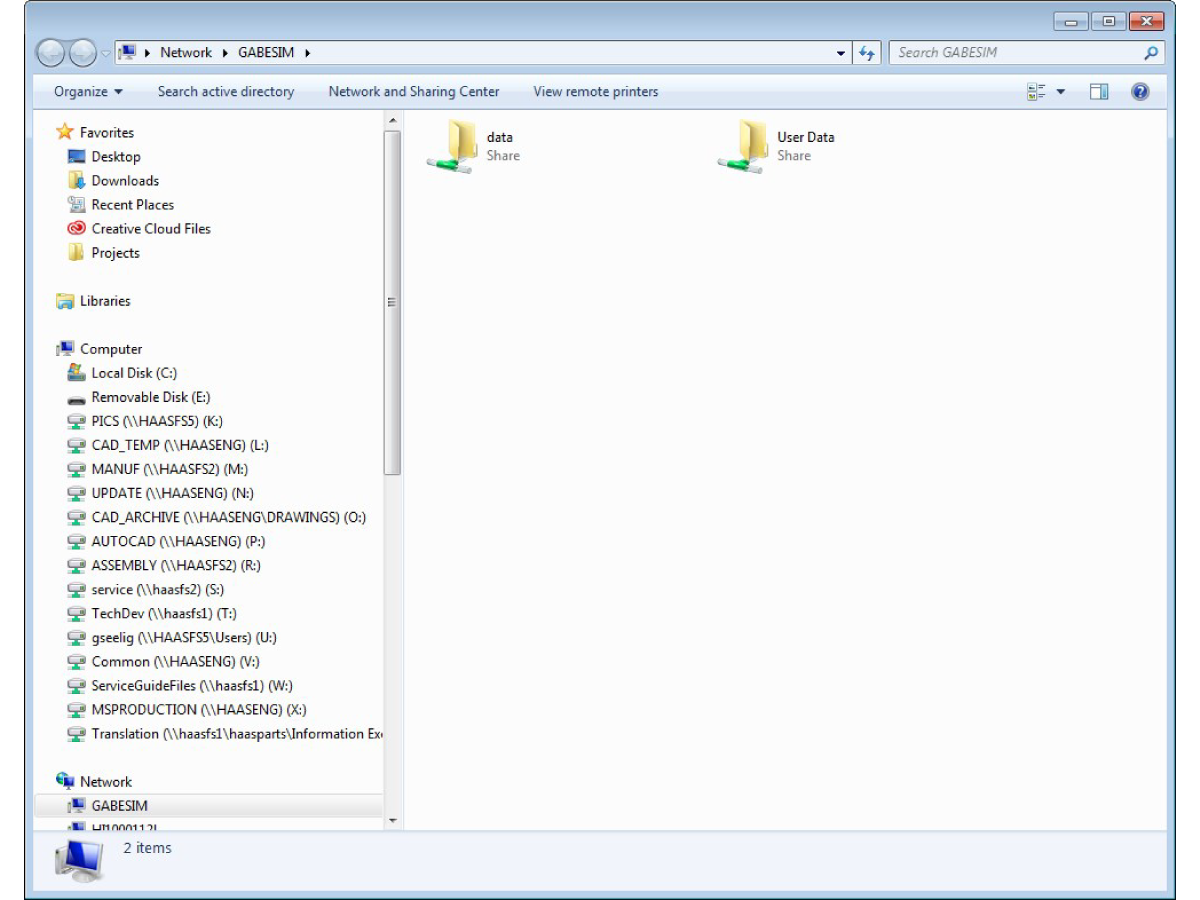
The Cnc Machine Data and User Data folders are now accessable from your shop PC.

Remote Net Share Set Up

1

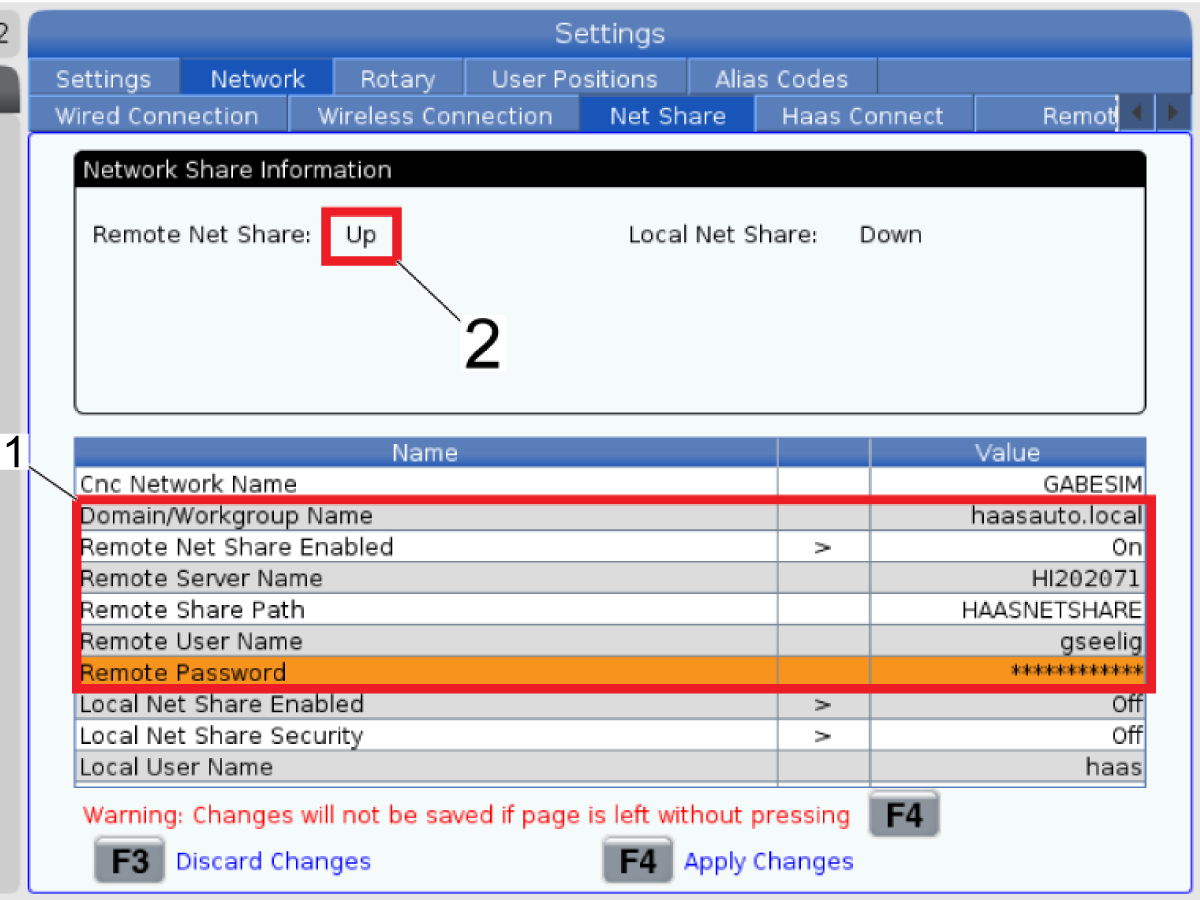
Remote Net Share is used to create a central file storage location hosted on a shop PC that can be accessed by any Haas Cnc Machine in your shop that is connected to the internet and configured for Remote Net Share.

To set up Remote Net Share:

Press the [SETTINGS] button.  Navigate to the Network tab. Navigate to the Wired Connection or Wireless Connection tab.

Make sure the machine network status [1] is "UP".

2

Navigate to the Net Share tab.

In the Cnc Network Name field [1] enter a unique identifiable name.

3

On your shop PC use the file explorer to navigate to the directory where you want to store the netshare folder.

Create and name a new folder.

Right click the folder and click properties.

Select the Sharing tab and click the Share button.

From the drop down menu select "Everyone"

Set the permission level of "Everyone" to "Read/Write"

Click the Share button and enter an adminstrator username and password.


4

Click the "Start" button [1].

Right click computer [2] and click properties [3].

5

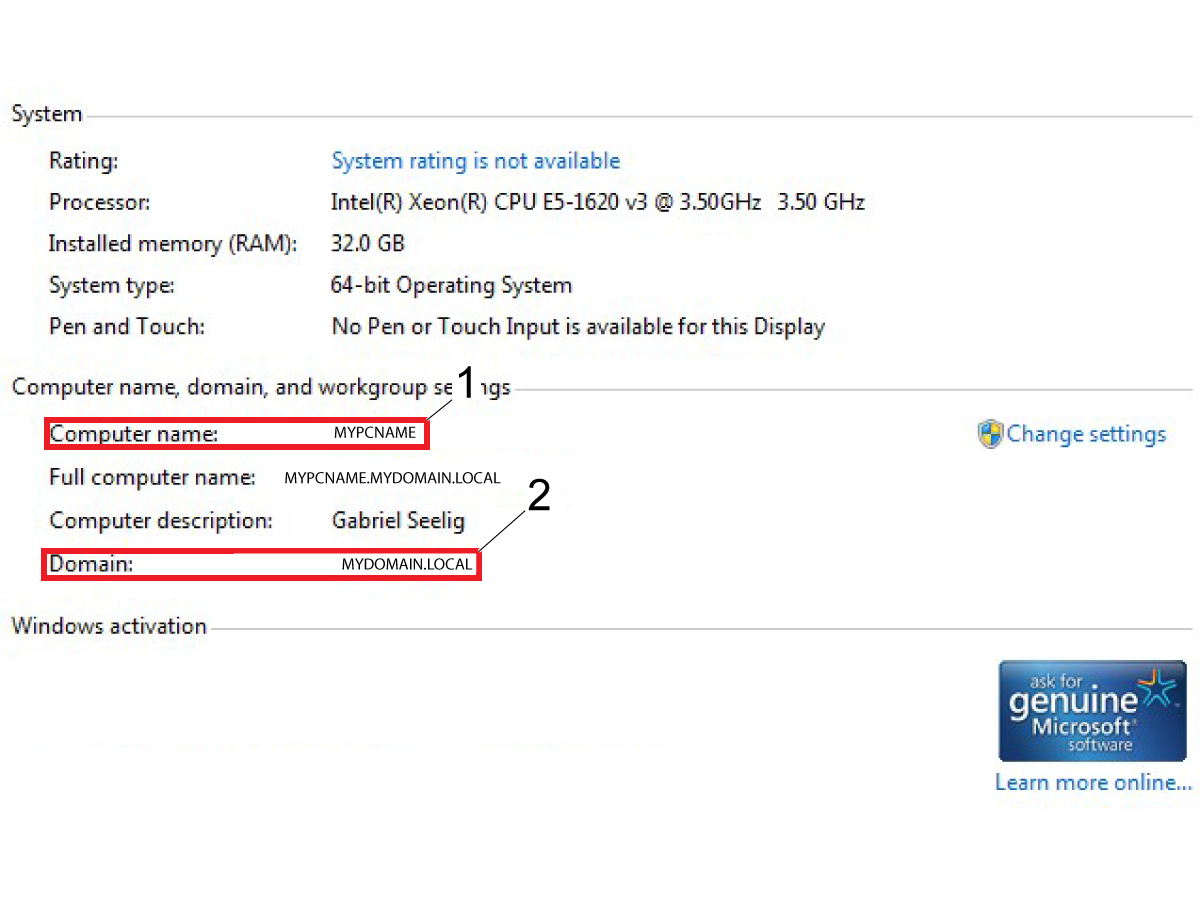
Note the Computer Name [1] and the Domain / Workgroup name [2].

6

 Note: If you need special symbols such as underscores ( _ ) or carets ( ^ ) for these settings, follow these instructions:

  1. Press [LIST PROGRAM] and begin to type the setting value.
  2. When you need a special symbol, press [F3] and select Special Symbols from the drop-down menu.
  3. Highlight the special symbol that you want to use and press [ENTER].
  4. Repeat steps 2 and 3 for each special symbol that you need.
  5. Return to the network settings page.
  6. Highlight the setting you want to change and press [ENTER].

Note: The following settings are case sensitive:

Enter the Domain / Workgroup name into the Domain/Workgroup Name field.

Note: Maximum character length for the Domain Name is 15 characters or less. This includes .LOCAL if used.

Set Remote Net Share Enabled to "ON".

Enter the Computer Name into the Remote Server Name field.

Enter the name of the Net Share folder created in Step 3 into the Remote Share Path field.

Enter the username used to log into the shop PC into the Remote User Name field.

Enter the password used to log into the shop PC into the Remote Password field.

Press [F4].

Wait for the machine to configure Remote Net Share.  When configuration is complete the Remote Net Share status will change to "UP".

7

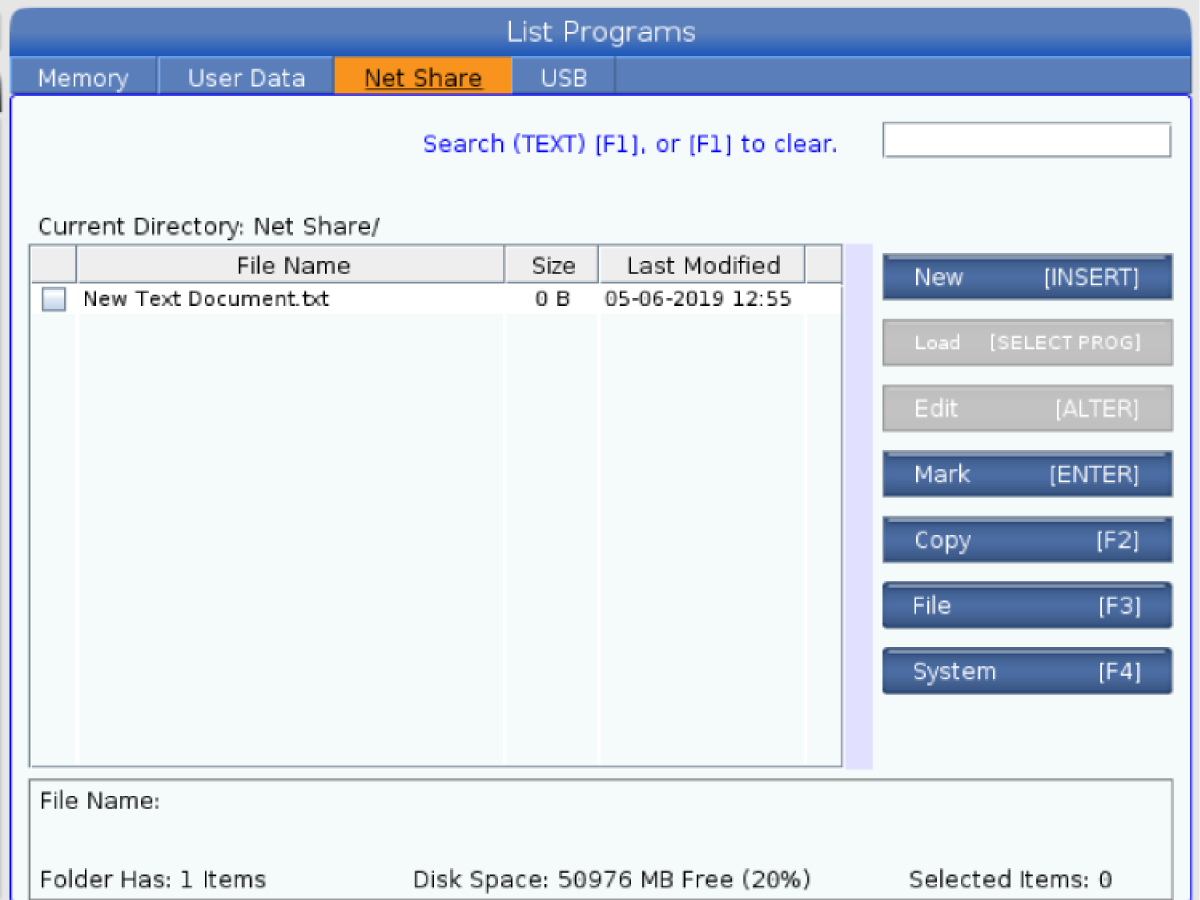
Press [LIST PROGRAM].

Navigate to the Net Share tab.

The Net Share folder hosted on your shop PC is now accessible from your Haas machine.

Troubleshooting

Networking Troubleshooting Guide

If you cannot establish a connection:

  • Remember that changed settings do not take effect until you press [F4].
  • If you use a static IP connection, make sure that the DNS Server setting contains a valid DNS Server address.
  • Be sure to correctly configure any network hardware (routers, bridges, etc.) between the machine and the network server.

24.2 WiFi - PCB - Removal

Recently Updated

WiFi - PCB - Removal


AD0518

Introduction

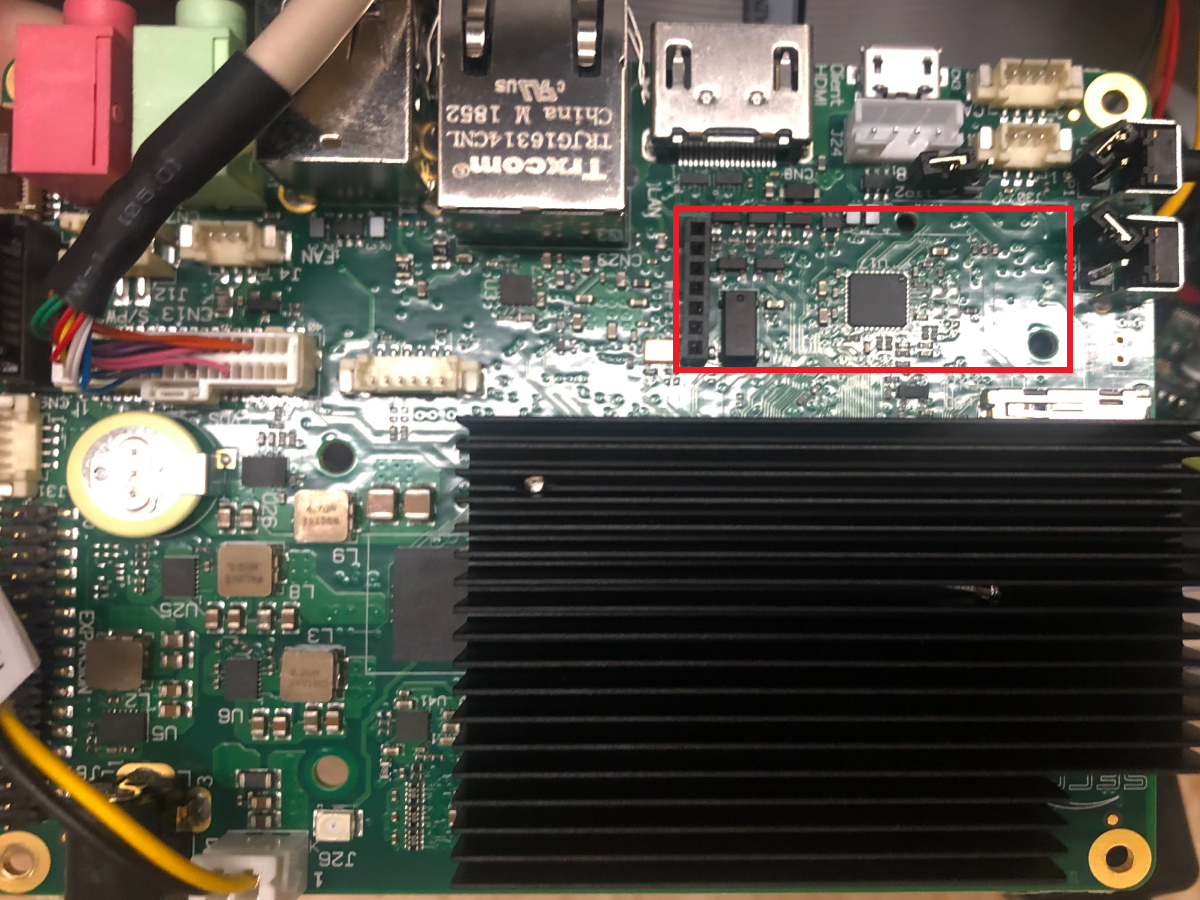
This procedure outlines how to remove the WiFi component from the main PCB.

Note: Make sure to backup the machine before performing this task.

WiFi Removal

1

Follow these steps when performing this custom task on the COR600751.

Power OFF the machine.

Remove the main PCB cover.

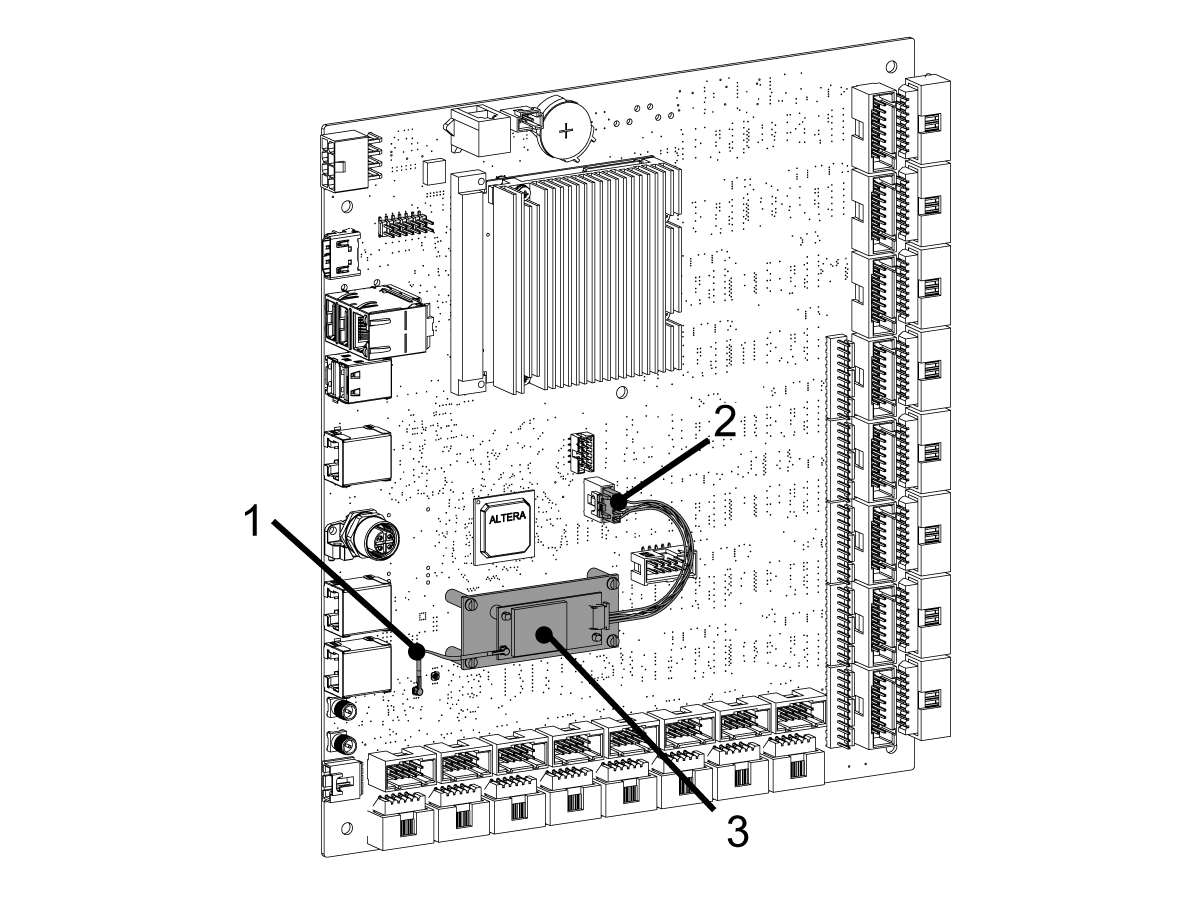
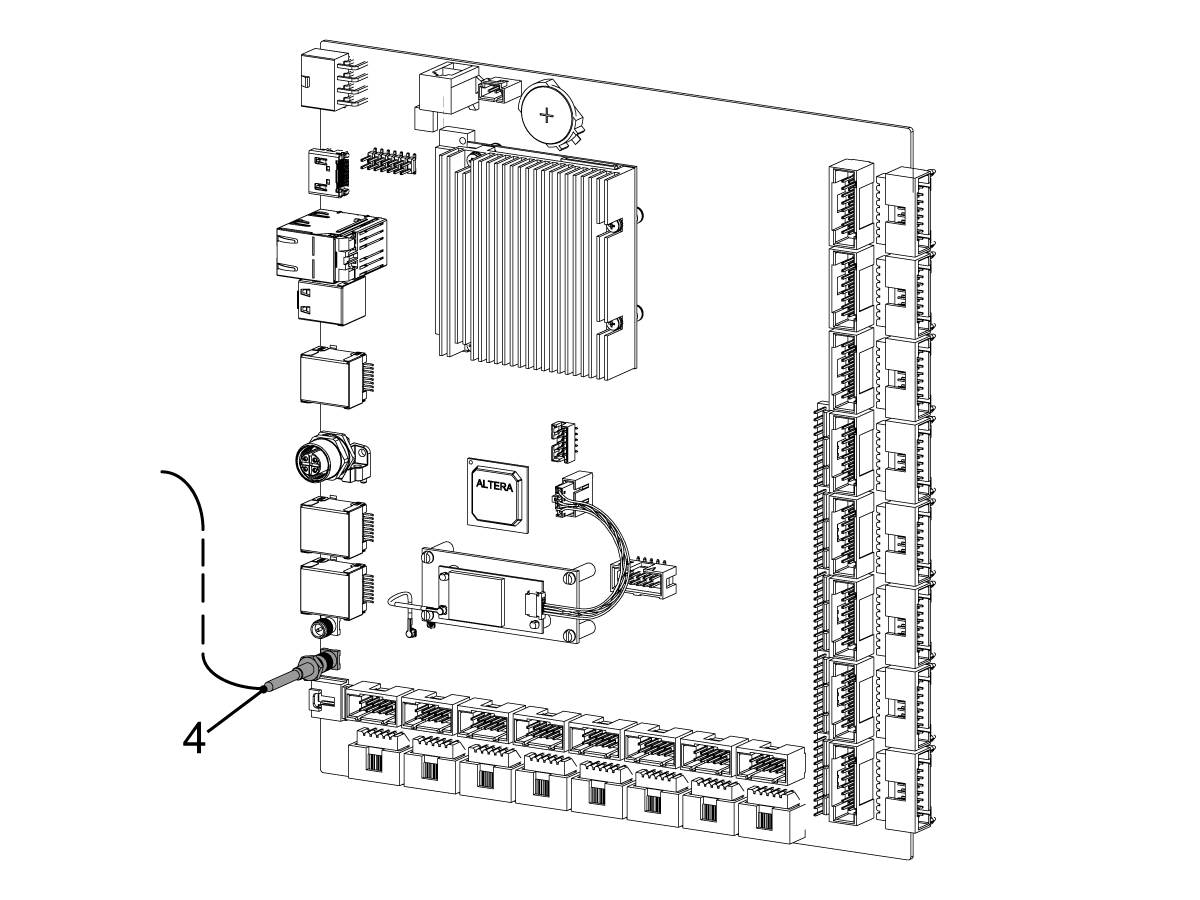
Disconnect the WiFi radio frequency cable [1].

Disconnect the communication/power cable [2].

Remove the WiFi module [3] from the board. Squeeze the snap in plugs on the back side of the board and pull out the board from the top side.

2

Remove the Antenna Cable [4] from the PCB.


3

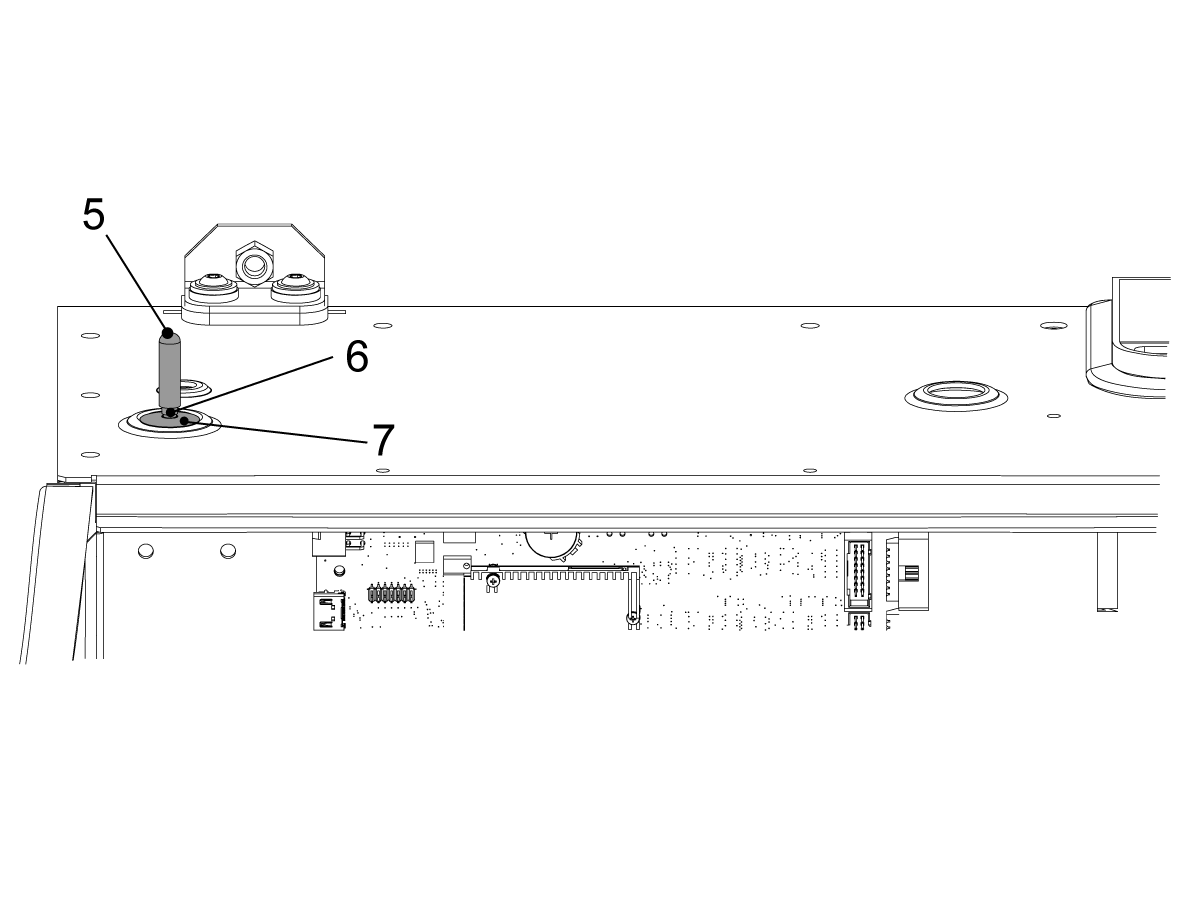
Remove the Antenna Cap [5] from the top of the control.

Remove the Antenna [6] from the top of the control.

Replace the Dome Plug C/W Hole [7] with the Dome Plug C/WO Hole on top of the control.

Put the main PCB cover back on.

Power on the machine and verify everything works correctly.

WiFi Removal - Desktop Mill

1

Follow these steps when performing this custom task on a Desktop Mill.

Tools Required: Micro phillips head screwdriver.

Power OFF the machine.

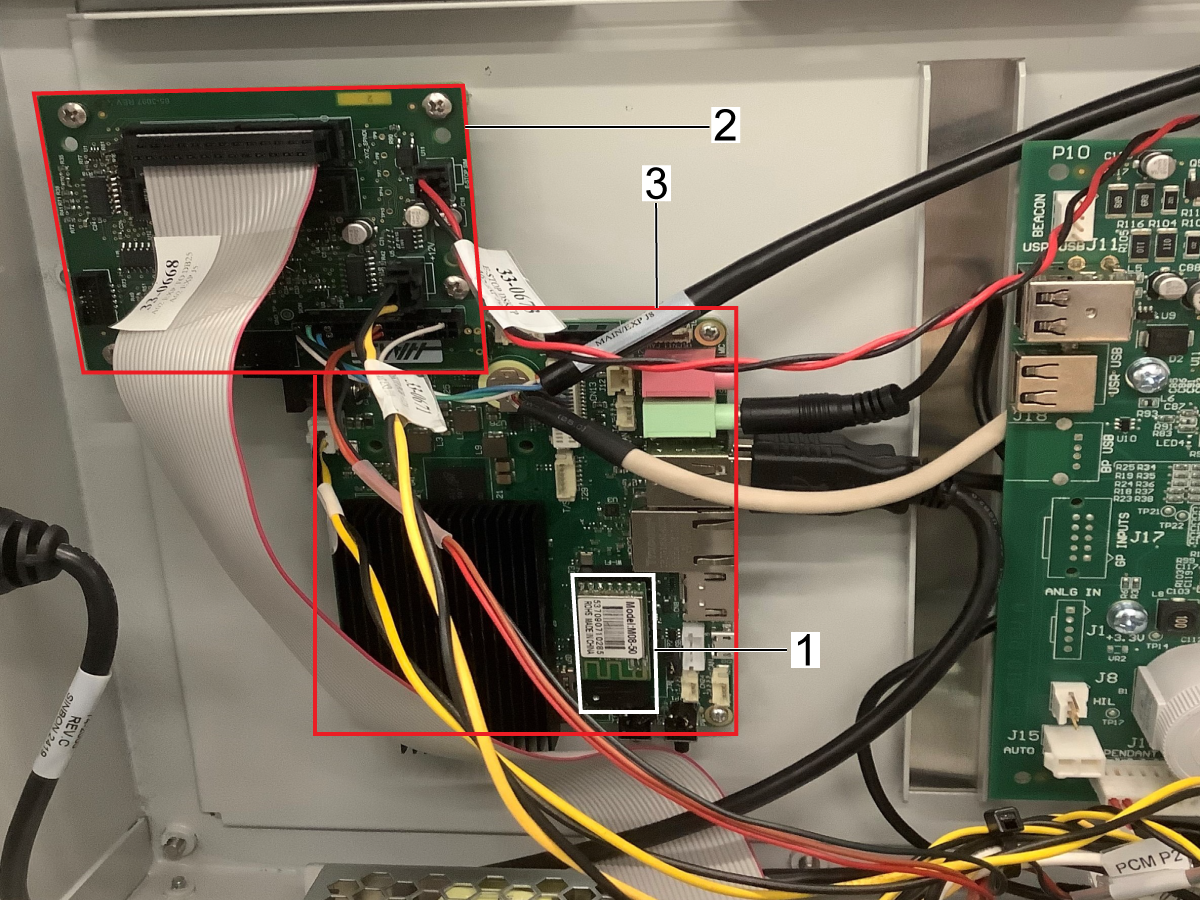
Remove the back panel, the WiFi module is notated at [1].

Remove the PCB at [2].

Remove the PCB with the WiFi module at [3].

2

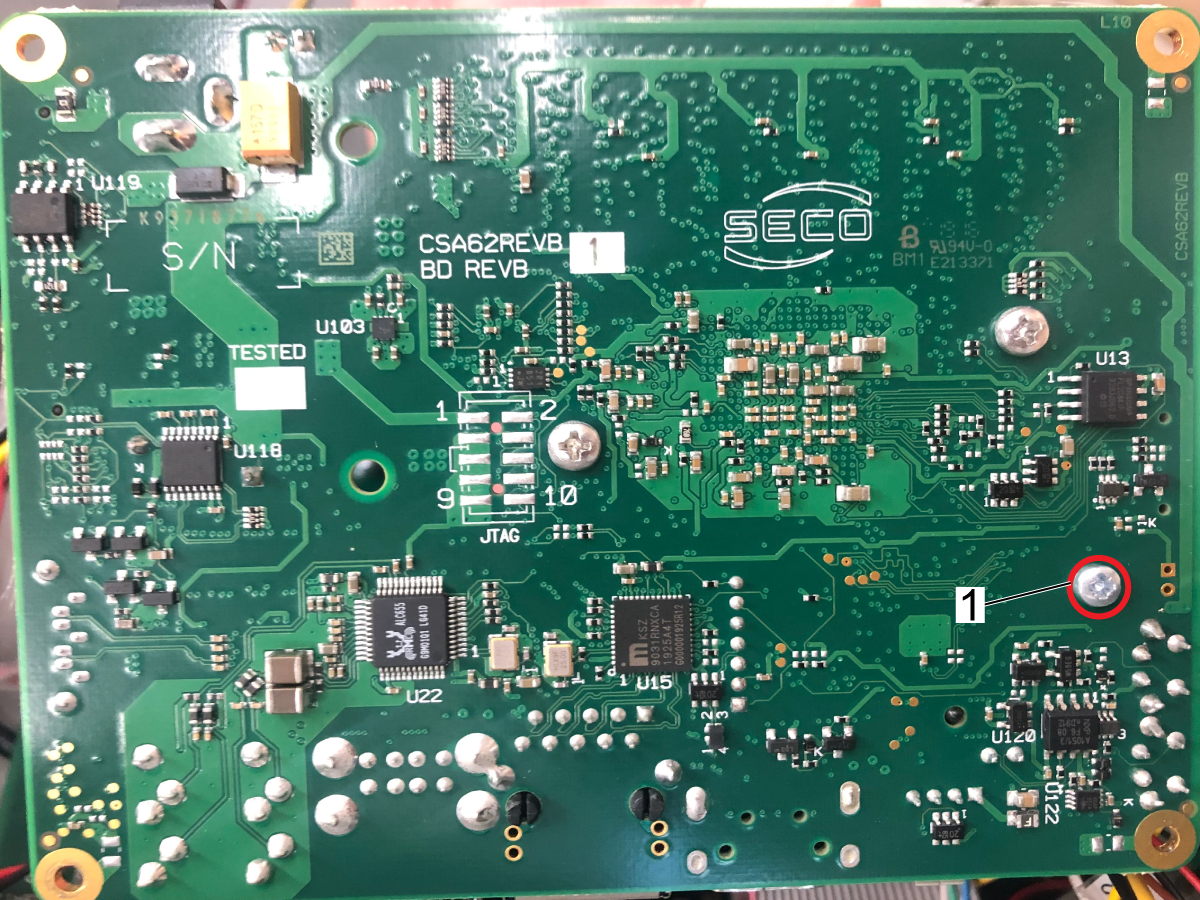
Once the PCB containing the WiFi module is removed, unscrew the WiFi module from the back [1] and remove the WiFi module from the board.

3

Note: The main PCB should look like this when the WiFi module has been removed.

Reattach the removed PCBs.

Reattach the back cover.

Power ON the machine and ensure everything works correctly.

24.3 WiFi Camera Option - Installation

Recently Updated

WiFi Camera Option - Installation


AD0445

Introduction

This procedure will show you how to install the Wifi Camera option all machines.

This procedure applies to the following parts kit:

  • 93-1000291: Wi-Fi Camera Kit

App Download and Activation

Download the mydlink Smartphone application to your mobile device and set up an account.

 NOTE: To be able to stream through multiple devices, it is only possible by using the same account on each device. It will not stream the video feed on different accounts.

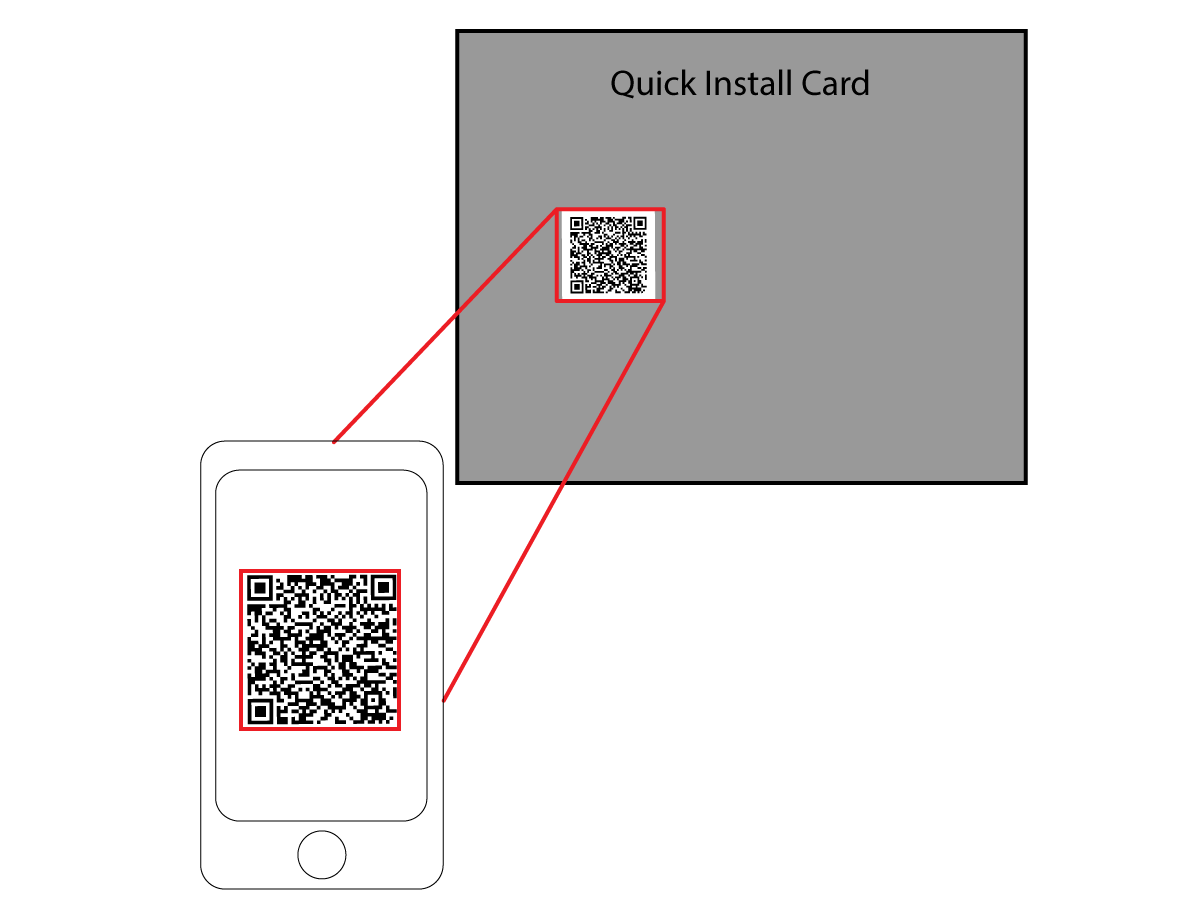
Scan the QR code that is printed on the Quick Install Card that comes with the kit and complete the setup.

Note:  If the the card is damaged, lost, or missing from the kit you can scan the QR code that is located on the back of the camera.  Remove the camera housing cap to get to the camera.

Removal / Installation

Press [POWER OFF].  Set the main circuit breaker to the [OFF] position.

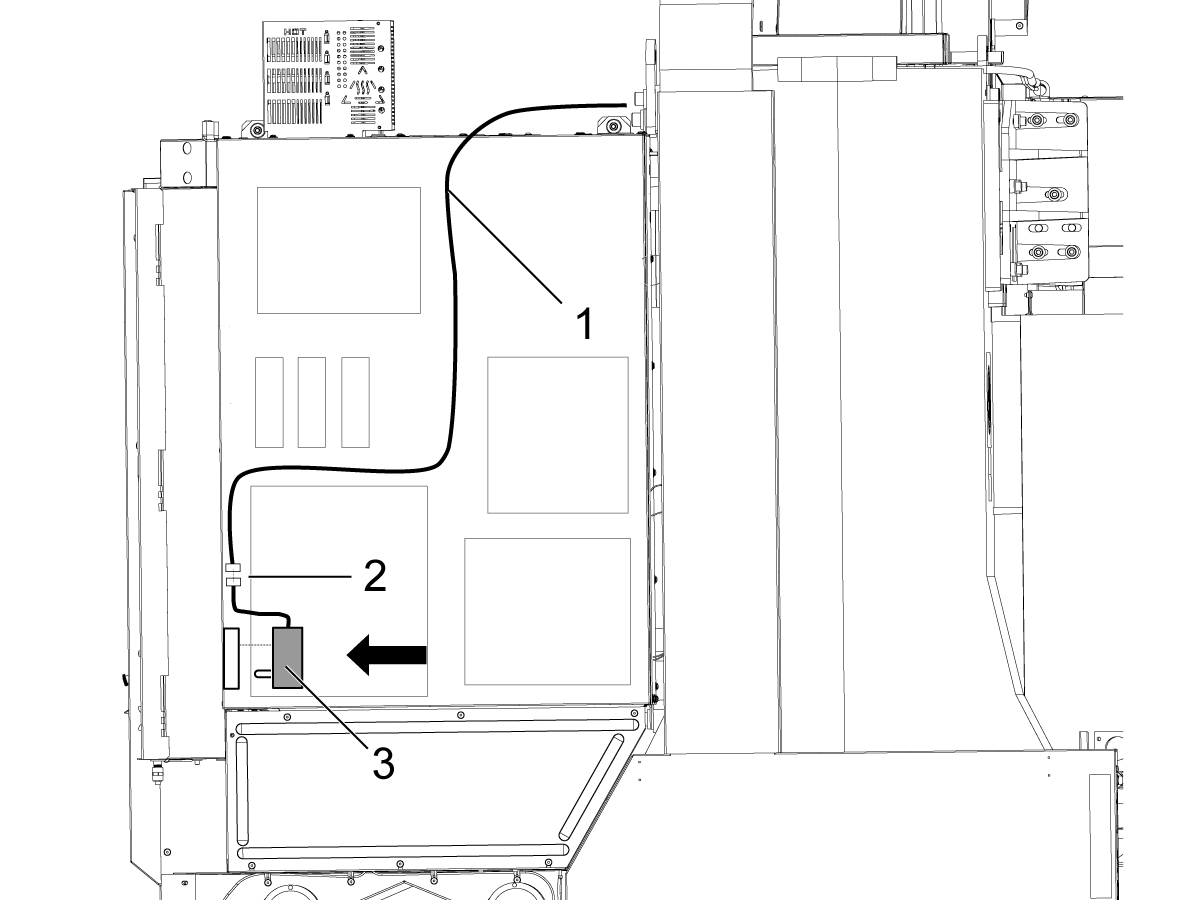
Position the camera assembly [3] with the provided magnetic base to your desired viewing location within the enclosure.

Route the cable through an enclosure opening to the electrical cabinet.  We recommend routing the camera cable using existing cable routings.

Use the provided cable magnets to hang the cable within the enclosure.

Route the camera power cable [1] inside the electrical cabinet as shown.

 Note: There is a power extension cable included in the kit if more length is required.

Connect the camera power cable to the power supply [2].

Connect the power supply to the GFCI outlet [3] inside the electrical cabinet.

Note: Machines equipped with the 24V Worklight /HIL system will not have a GFCI outlet, it will be a regular outlet

Camera Test

Verify that the camera is operating by selecting your device on the mydlink application.

Make any necessary adjustments to the camera housing.

NOTE: To be able to stream through multiple devices, it is only possible by using the same account on each device. It will not stream the video feed on different accounts.

Troubleshooting

Symptom Possible Cause Corrective Action
The WiFi Camera will not connect to the QR code printed on the Quick Install Card. The printed QR code may be damaged or printed incorrectly. Remove the camera housing cap and try the QR code located on the back of the camera.

24.4 Networking - Troubleshooting Guide

Recently Updated

Networking - Troubleshooting Guide - NGC


TG0105

Overview

Networks and operating systems are different from company to company. When your HFO Service Technician installs your machine, they can attempt to connect it to your network with your information, and they can troubleshoot connection problems with the machine itself. If the problem is with your network, you need a qualified IT service provider to assist you, at your expense.

If you call your HFO for help with network problems, remember that the technician can help only as far as the machine software and networking hardware.

Network Responsibility Diagram: [A] Haas Responsibility, [B] Your Responsibility, [1] Haas Machine, [2] Haas Machine Network Hardware, [3] Your Server, [4] Your computer(s).

General Network Troubleshooting

Use the following to troubleshoot general networking problems with your Haas CNC.  For specific problems refer to the Symptom table below:

Wire Connection:

  • Use a Network cable tester tool to check the ENET cable integrity.
  • Check the network connection points. Note: Never assume the cable or the wall connection is good.
  • Make sure that cables are not routed near high power cables, as noise can be induced.
  • Make sure that cable length runs follow the manufactures specification.
  • Inspect the ethernet ports for bent pins at switches and on the CNC.
  • Try another network switch port.
  • Bypass the Ethernet port on the side of the machine and connect the customer's ethernet cable directly to the Maincon PCB.
  • If  all connections look good,  do a continuous ping tests for at least 5-10 minutes should weed out any intermittent connection issues.
  • Use DHCP if possible to minimize IP addressing issues.

Wireless Connection:

  • Make sure you have a good strong signal at the machine. Move the WiFi router closer to the machine.

NOTE: Signal can look excellent, but if a microwave oven or other source of electromagnetic interference is nearby it can cause intermittent connection issues that are difficult to troubleshoot.

  • Make sure you start with line of sight between antennas and go from there. It’s not required to have line of sight, but it’s a place to begin troubleshooting from.
  • Make sure all antennas are vertical. Some folks like to have their routers with antennas bent at an angle because it looks edgy. This impedes signal gain that antennas use to push signal on the horizontal plane (think donut shapes).
  • Our machines use 2.4Ghz so microwaves, Bluetooth, wireless home phones and other RF sources can interfere.
  • Use DHCP if possible to minimize IP addressing issues.
  • Reset the WiFi router, or try another WiFi router.
  • Make sure the WiFi antenna is properly connected to the machine.

Symptom Table

Symptom Possible Cause Corrective Action
The CNC cannot connect to the Netshare User Name and Password are incorrect Use your PC user name and password for login into the network.  Do this for troubleshooting purposes, to determine if the user name/ password created for the CNC has the correct security settings as your user name/password.
Remote Net Share Enabled is turned Off Make sure the network setting "REMOTE Net Share Enabled" is set to On.
The IP address is not correct.

Make sure the Wired or Wireless Connection is UP.  Refer to Wired / Wireless Network - NGC procedure.

Type ‘ping cnc IP adresss' on the command prompt of a computer connected to the same network.  Make sure you get a Reply back from the CNC IP address.

Note: To prevent conflicts only use one connection method, wired or wireless.

The Remote Server Name is not correct. Make sure the Remote Server Name is set to the Computer Name.  If the Computer Name does not work try to use the IP address of the Remote Server.
The wired and wireless connection are Enabled at the same time. Use only one connection method wired or wireless.
The Enable SMBv1 Support setting is not correct. As of 100.18.000.1020 software version the control uses SMBV2.0. If your network requires SMBV1 turn this setting ON.  To view this setting Go to Settings>Network>Net Share>.
On Windows:  Go to Control Panel>Programs>Programs and Features>Turn Windows features on or off and see if SMB 1.0/CIFS File support is enabled.  Refer to Future Discontinued Support of SMB1 Network Protocol service update for more information.
The CNC no longer connects to the Netshare A windows security setting update is blocking the CNC connection. Windows PC: Go to Control Panel>Programs>Programs and Features>Installed Updates.  Determine if a security update was installed during the time the machine stop connecting.  Uninstall the update, log out and back in and see if the machine now connects.
If connected via WiFI, the WiFi connection is weak. Go to the Wireless connection settings and make sure the signal strength is more than 35%.  Add a WiFi extender to increase the signal strength.  In Settings go to the Net Share tab and adjust setting "Remote Share Connection Retry".
The CNC cannot connect to the Remote Display The Remote Display setting is turned Off. Go to Settings>Remote Display> and make sure the Remote Display is set to On.
The Remote Display password has not been set. Go to Settings>Remote Display> and make sure the Remote Display password is set.
Remote display glitch. Set Remote Display to OFF.  Press [F4].  Set Remote Display to ON. Press [F4].
The PC cannot connect to the CNC Local Net Share The Local Net Share Enabled is turned Off. Go to Settings> Network>Net Share tab and make sure the Local Net Share Enabled is set to On.
The Local Net Share Security is turned On and the User Name and Password are incorrect. Go to Settings> Network>Net Share tab and make sure the Local User Name and Password are set correctly.
The Local Net Share Security is turned On and the Local Security Policy on the User PC does not allow remote connections. Ask your Network administrator to try to access the Local Net Share from their PC.  If they can connect they will need to review your Local Security Policy on your PC.  Make sure the Local Policies>Security Options> Network security: LAN Manager authentication level is set to "Send NTLMv2 response only".  After making the change cycle the power on the PC and try again.  Important: Always check with your network administrator before changing any security settings.

The WiFi Camera is not connecting 

or

The WiFi connection is low.

The Aluminum housing is hindering the connectivity. Contact the Haas Service Department to order a WiFi camera with the new housing that decreases signal interference.
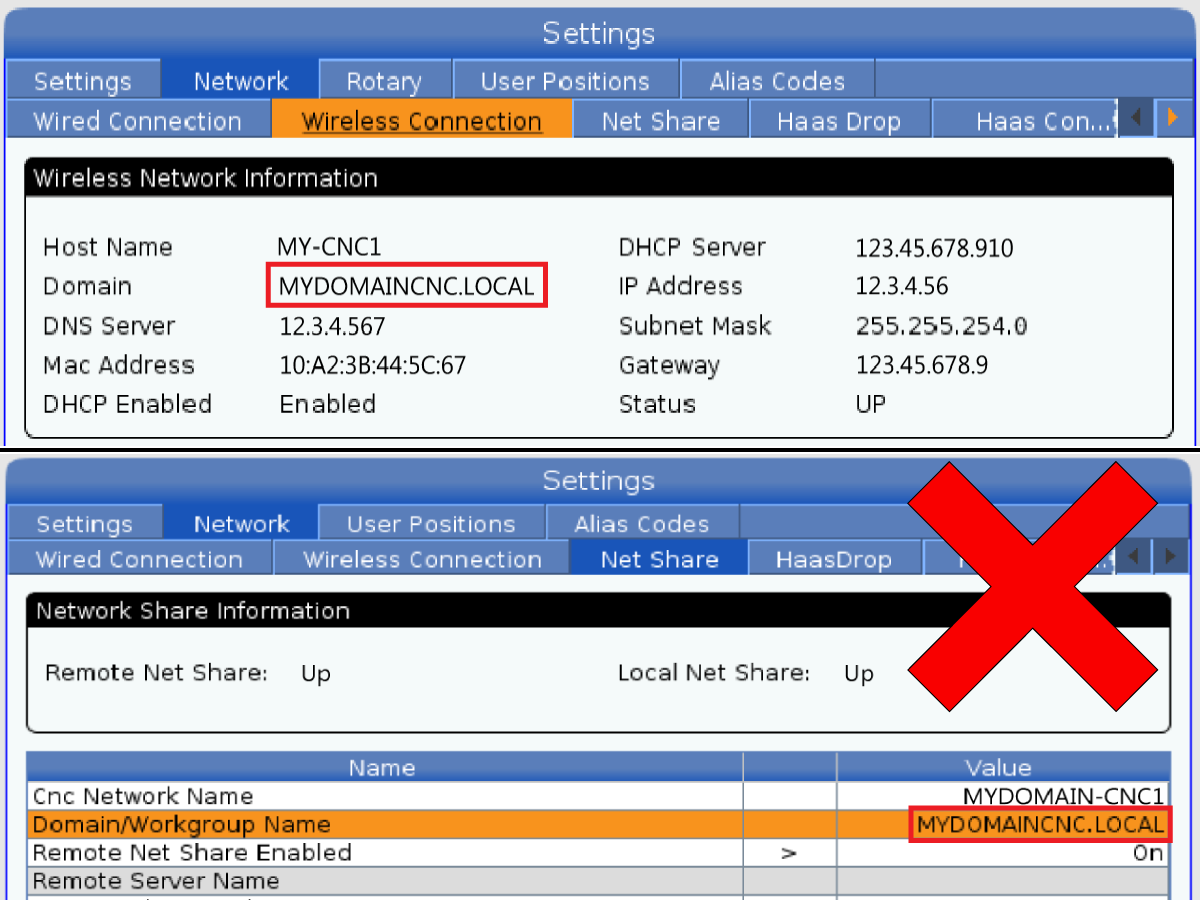
The Haas control is slow or unresponsive to any button commands or the screen is slow to switch between pages. The customer’s Network Domain name has too many characters.

Do not specify a Domain name for your network or reduce the amount of characters of the domain name to 15 characters or less. This includes .LOCAL if used.

Example: The Domain name is MYDOMAINCNC.LOCAL has 17 characters.

Example: The Domain name is MYCNC.LOCAL has 11 characters.

After the Domain name has been changed. Perform an Option 5 Software Update.

Netshare Network Domain Name Format

NGC machines may see the following issue when connected to a Wired or Wireless Network and using the Netshare feature.

Symptom: The Haas control is slow or unresponsive to any button commands or the screen is slow to switch between pages.

Cause: The customer’s Network Domain name has too many characters.

Example: The Domain name is MYDOMAINCNC.LOCAL has 17 characters.

Solution: Do not specify a Domain name for your network or reduce the amount of characters of the domain name to 15 characters or less. This includes .LOCAL if used. After the Domain name has been changed. Perform an Option 5 Software Update.

Example: The Domain name is MYCNC.LOCAL has 11 characters.

Solution: Do not specify a Domain name for your network or reduce the amount of characters of the domain name to 15 characters or less. This includes .LOCAL if used. After the Domain name has been changed. Perform an Option 5 Software Update.

Example: The Domain name is MYCNC.LOCAL has 11 characters.

Networking Option - Icons

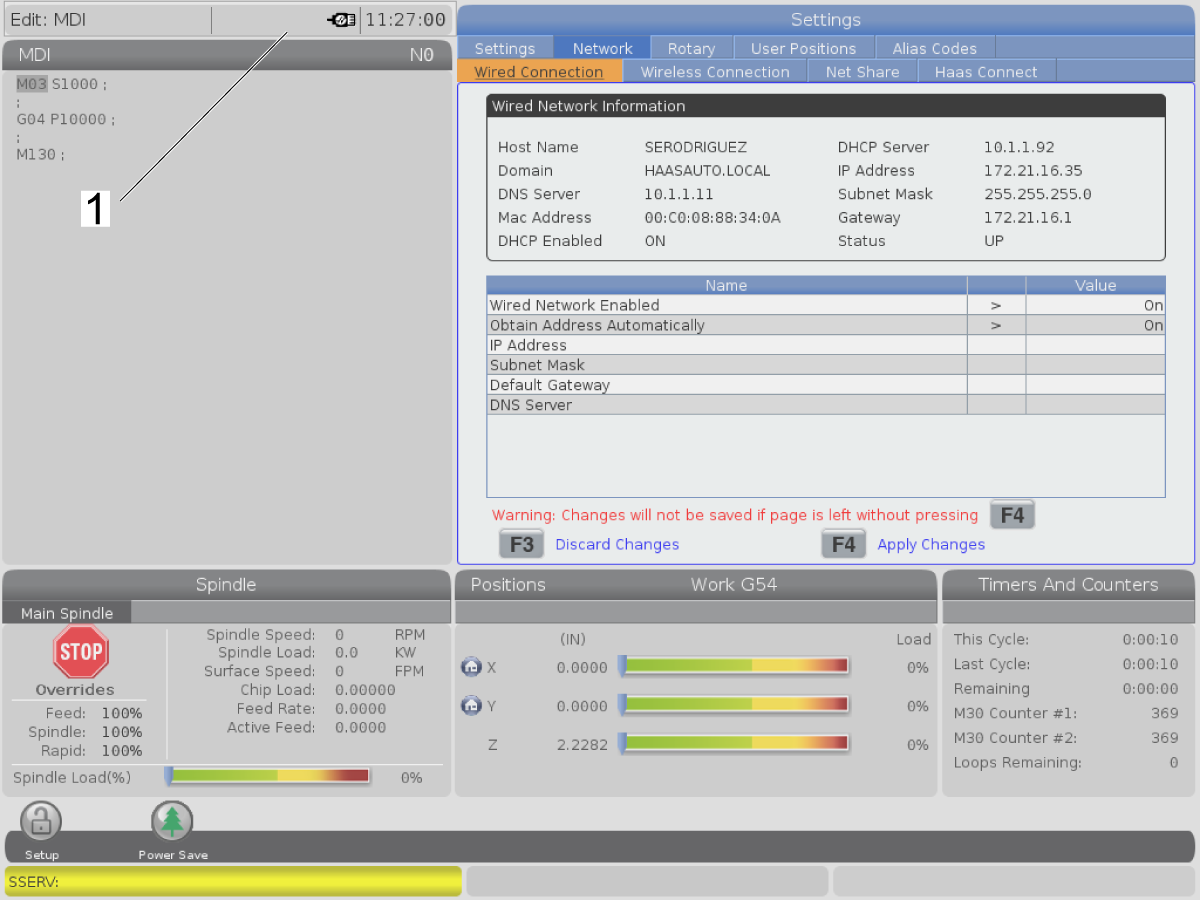
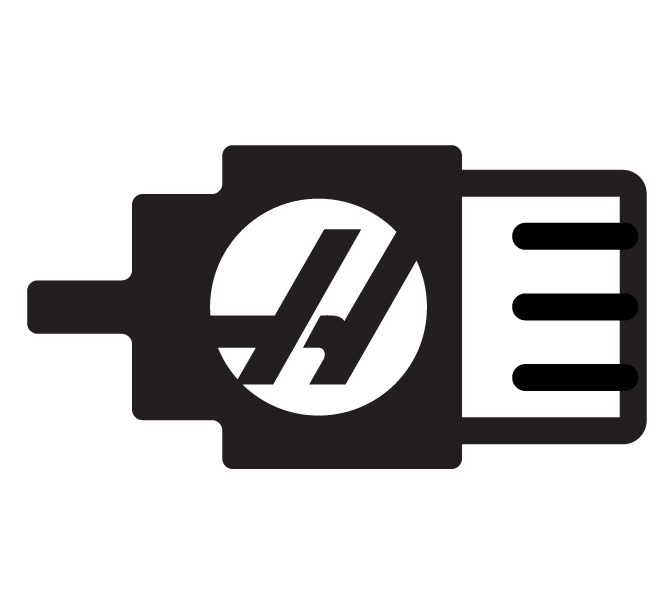
This document tells you the meaning of the networking icons that are shown in the status bar [1] of the control for machines that have the Next Generation Control.

Icon Description
The machine is connected to the internet via a wired network with an Ethernet cable.
The machine is connected to the internet via a wireless network and has 70 - 100% signal strength.
The machine is connected to the internet via a wireless network and has 30 - 70% signal strength.
The machine is connected to the internet via a wireless network and has 1 - 30% signal strength.
The machine was connected to the internet via a wireless network and is not receiving any data packets.
The machine is successfully registered with MyHaas and is communicating with the server.
The machine had previously registered with MyHaas and has a problem connecting to the server.
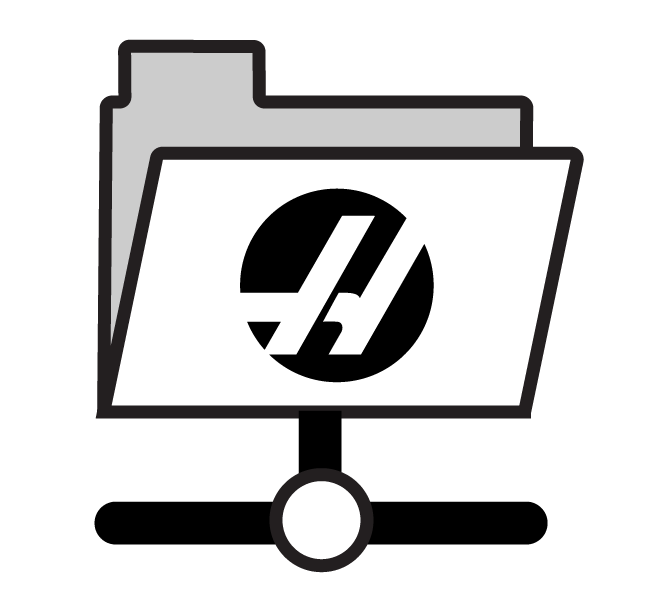
The machine is connected to a remote Netshare.

Recently Viewed Items

You Have No Recently Viewed Items Yet

Feedback
Haas Logo

Haas Delivered Price

This price includes shipping cost, export and import duties, insurance, and any other expenses incurred during shipping to a location in France agreed with you as a buyer. No other mandatory costs can be added to the delivery of a Haas CNC Product.

KEEP UP WITH THE LATEST HAAS TIPS AND TECHNOLOGY...

Sign up now!   

HAAS TOOLING ACCEPTS THE FOLLOWING:

  • Service & Support
  • Owners
  • Request Service
  • Operator Manuals
  • Haas Parts
  • Rotary Repair Request
  • Pre-Install Guides
  • Shopping Tools
  • Build & Price a New Haas
  • Available Inventory
  • The Haas Price List
  • CNCA Financing
  • About Haas
  • Accessibility Statement
  • DNSH Statement
  • Export Compliance
  • Careers
  • Certifications & Safety
  • Contact Us
  • History
  • Terms & Conditions
  • Haas Tooling Terms & Conditions
  • Privacy
  • Warranty
  • Haas Community
  • Haas Certification Program
  • Haas Motorsports
  • Gene Haas Foundation
  • Haas Technical Education Community
  • Events
  • Join the Conversation
  • Facebook
  • X
  • Flickr
  • YouTube
  • LinkedIn
  • Instagram
  • TikTok
© 2026 Haas Automation, Inc – CNC Machine Tools
This site is protected by reCAPTCHA and the Google Privacy Policy and Terms of Service apply.

2800 Sturgis Rd., Oxnard, CA 93030
Toll Free: (888) 817-4446 / Fax: 805-278-8554