My Haas Welcome,
!
Haas Tooling MyHaas/HaasConnect Sign In Register Haas Tooling MyHaas/HaasConnect Sign Out Welcome, My Machines Latest Activity My Quotes My Account My Users Sign Out
Find Your Distributor
  1. Select Language
    1. English
    2. Deutsch
    3. Español - España
    4. Español - México
    5. Français
    6. Italiano
    7. Português
    8. Český
    9. Dansk
    10. Nederlands
    11. Magyar
    12. Polski
    13. Svenska
    14. Türkçe
    15. 中文
    16. Suomi
    17. Norsk
    18. الإنجليزية
    19. български
    20. Hrvatski
    21. Ελληνικά
    22. Română
    23. Slovenský
    24. Slovenščina
    25. 한국어
    26. 日本語
    27. Українська
  • machines Main Menu
    • Vertical Mills
      Vertical Mills
      Vertical Mills View All
      • Vertical Mills
      • VF Series
      • Universal Machines
      • VR Series
      • VP-5 Prismatic
      • Pallet-Changing VMCs
      • Mini Mills
      • Mold Machines
      • High-Speed Drill Centers
      • Drill/Tap/ Mill Series
      • Toolroom Mills
      • Pocket Mill
      • Compact Mills
      • Gantry Series
      • SR Sheet Routers
      • Extra-Large VMC
      • Double-Column Mills
      • 3+2 Positioning Machines
    • Multi-Axis Solutions
      Multi-Axis Solutions
      Multi-Axis Solutions View All
      • Multi-Axis Solutions
      • Y-Axis Lathes
      • 5-Axis Mills
    • Lathes
      Lathes
      Lathes View All
      • Lathes
      • ST Series
      • Dual-Spindle
      • Box Way Series
      • Toolroom Lathes
      • Chucker Lathe
      • Haas Bar Feeders
    • Horizontal Mills
      Horizontal Mills
      Horizontal Mills View All
      • Horizontal Mills
      • 50-Taper
      • 40-Taper
    • Rotaries & Indexers
      Rotaries & Indexers
      Rotaries & Indexers View All
      • Rotaries & Indexers
      • Rotary Tables
      • Indexers
      • 5-Axis Rotaries
      • Extra-Large Rotaries
    • Special Series
      Special Series
      Special Series View All
      • Special Series
      • EU_Series_Redirect
    • Automation Systems
      Automation Systems
      Automation Systems View All
      • Automation Systems
      • Mill Automation
      • Lathe Automation
      • Automatic Parts Loaders
      • Automation Models
    • Desktop Machines
      Desktop Machines
      Desktop Machines View All
      • Desktop Machines
      • Desktop Mill
      • Desktop Lathe
      • Control Simulator, Standard
      • Control Simulator, Premium
    • Shop Equipment
      Shop Equipment
      Shop Equipment View All
      • Shop Equipment
      • Knee Mill
      • Haas Manual Lathes
      • Haas Saws
    • Fabrication Machines
      Fabrication Machines
      Fabrication Machines View All
      • Fabrication Machines
      • Laser Cutting Machines
      • CNC Press Brakes
    • QUICK LINKS Special Series  Special Series 
      EU SERIES EU SERIES BUILD & PRICE | PRICE LIST BUILD & PRICE | PRICE LIST In-Stock Machines In-Stock Machines WHAT’S NEW WHAT’S NEW YOUR FIRST CNC YOUR FIRST CNC
      SHOPPING TOOLS
      • Build & Price a Haas
      • Price List
      • Available Inventory
      • CNCA Financing
      WANT TO TALK TO SOMEONE?

      A Haas Factory Outlet (HFO) can answer your questions, and walk you through your best options.

      CONTACT YOUR DISTRIBUTOR >
  • Options Main Menu
    • The Haas Control Value Option Packages
      Value Option Packages
      Value Option Packages View All
      • Value Option Packages
    • Product Image Spindles
      Spindles
      Spindles View All
      • Spindles
    • Product Image Tool Changers
      Tool Changers
      Tool Changers View All
      • Tool Changers
    • Product Image 4th- | 5th-Axis
      4th- | 5th-Axis
      4th- | 5th-Axis View All
      • 4th- | 5th-Axis
    • Product Image Turrets & Live Tooling
      Turrets & Live Tooling
      Turrets & Live Tooling View All
      • Turrets & Live Tooling
    • Product Image Probing
      Probing
      Probing View All
      • Probing
    • Haas Chip & Coolant Management Chip & Coolant Management
      Chip & Coolant Management
      Chip & Coolant Management View All
      • Chip & Coolant Management
    • The Haas Control The Haas Control
      The Haas Control
      The Haas Control View All
      • The Haas Control
    • Product Image Product Options
      Product Options
      Product Options View All
      • Product Options
    • Product Image Tooling & Fixturing
      Tooling & Fixturing
      Tooling & Fixturing View All
      • Tooling & Fixturing
    • Product Image Workholding
      Workholding
      Workholding View All
      • Workholding
    • Product Image 5-Axis Solutions
      5-Axis Solutions
      5-Axis Solutions View All
      • 5-Axis Solutions
      • 5 Easy Steps to 5-Axis
    • QUICK LINKS Special Series  Special Series 
      EU SERIES EU SERIES BUILD & PRICE | PRICE LIST BUILD & PRICE | PRICE LIST In-Stock Machines In-Stock Machines WHAT’S NEW WHAT’S NEW YOUR FIRST CNC YOUR FIRST CNC
      SHOPPING TOOLS
      • Build & Price a Haas
      • Price List
      • Available Inventory
      • CNCA Financing
      WANT TO TALK TO SOMEONE?

      A Haas Factory Outlet (HFO) can answer your questions, and walk you through your best options.

      CONTACT YOUR DISTRIBUTOR >
  • Why Haas Main Menu
      Discover the Haas Difference
    • Why Haas
    • MyHaas
    • Education Community
    • Industry 4.0
    • Haas Certification
    • Customer Testimonials
  • Service Main Menu
      Welcome to Haas Service
      SERVICE HOME Operator’s Manuals How-To Procedures Troubleshooting Guides Preventive Maintenance Haas Parts Haas Tooling Videos
  • Videos Main Menu
  • Main Menu
    • View All
    • View All
    • View All
    • View All
      • HTEC Curriculum Support
    • View All
      • Haas 10 kg Cobot Package
      • Cobot Kits
      • DC-1 Drill Center
      • CNC Sales News
      • Do More With Your Haas
    • View All
    • View All
      • contact-us-test
      • 4 - AUTOMATION SYSTEMS
      • Carousel-V2
      • expert test
      • Demo_Day_Trident-test
      • Link Test
      • image-sale-tag-test
      • article-list-test
      • Haas 25 kg Robot Package
    • View All
      • Choose Options
    • View All
    • View All
    • View All
    • View All
    • View All
      • calc-test
    • View All
    • QUICK LINKS Special Series  Special Series 
      EU SERIES EU SERIES BUILD & PRICE | PRICE LIST BUILD & PRICE | PRICE LIST In-Stock Machines In-Stock Machines WHAT’S NEW WHAT’S NEW YOUR FIRST CNC YOUR FIRST CNC
      SHOPPING TOOLS
      • Build & Price a Haas
      • Price List
      • Available Inventory
      • CNCA Financing
      WANT TO TALK TO SOMEONE?

      A Haas Factory Outlet (HFO) can answer your questions, and walk you through your best options.

      CONTACT YOUR DISTRIBUTOR >
  • Haas Tooling Main Menu
  • Haas Service Parts Main Menu

My Haas Welcome,
!
Haas Tooling MyHaas/HaasConnect Sign In Register Haas Tooling MyHaas/HaasConnect Sign Out Welcome, My Machines Latest Activity My Quotes My Account My Users Sign Out
Find Your Distributor
  1. Select Language
    1. English
    2. Deutsch
    3. Español - España
    4. Español - México
    5. Français
    6. Italiano
    7. Português
    8. Český
    9. Dansk
    10. Nederlands
    11. Magyar
    12. Polski
    13. Svenska
    14. Türkçe
    15. 中文
    16. Suomi
    17. Norsk
    18. الإنجليزية
    19. български
    20. Hrvatski
    21. Ελληνικά
    22. Română
    23. Slovenský
    24. Slovenščina
    25. 한국어
    26. 日本語
    27. Українська
×

Search Results

Web Pages

Images

    • <
    • 1
    • >

2 - NGC - Activation

Next Gen Control Electrical - Service Manual


  • 1 - NGC - Introduction
  • 2 - NGC - Activation
  • 3 - NGC - Software Update
  • 4 - NGC - Firmware Update
  • 5 - NGC - Configuration
  • 6 - NGC - Error Report and Backup
  • 7 - NGC - Main Processor
  • 8 - NGC - I/O and TC PCB
  • 9 - NGC - CAN Systems and Autodoor
  • 10 - NGC - Servo Motors and Axis Cables
  • 11 - NGC - 4th and 5th Axis
  • 12 - NGC - Servo Amplifiers
  • 13 - NGC - Vector Drive
  • 14 - NGC - Regen
  • 15 - NGC - 320V Power Supply
  • 16 - NGC - Wye / Delta
  • 17 - NGC - Circuit Breaker and Transformer
  • 18 - NGC - PSUP PCB
  • 19 - NGC - SKBIF and LCD Monitor
  • 20 - NGC - Remote Jog Handle
  • 21 - NGC - 115V LED - WorkLights
  • 22 - NGC - CabCool
  • 23 - NGC - MyHaas
  • 24 - NGC - Networking
  • 25 - NGC - 8M PCB
  • 26 - NGC - Robot and Automation
  • 27 - NGC - Machine Data Collection
  • 28 - NGC - Control Icons
  • 29 - NGC - Sensors and Switches
  • 30 - NGC - USB
  • 31 - NGC - Keypad
  • 32 - NGC - Broken Tool Detection
  • 33 - NGC - IPFDM PCB
  • 34. NGC - LVPS
  • 35 - NGC - Camera Monitor System
  • 36 - NGC - High Intensity Lights
  • 37 - NGC - 24V LED - Worklights

Go To :

  • 2.1 How To Load Activation or Time Extension Files to a Machine
  • 2.2 Activation Codes (100.24.000.1111 and older)
  • 2.3 Option Tryout
  • 2.4 Date/Time Change

2.1 How to Load Activation or Time Extension Files to a machine

Recently Updated

How to Load Activation or Time Extension Files to a machine


Revision A - 4/2025

Introduction

Note: This procedure is for NGC machines with 100.24.000.1120 and higher. 

 Important: This procedure is intended to be done by a customer. These instructions are intended to help the customer understand the process and what information they need to give to the Haas Factory Outlet (HFO). 

 Note: Machines with 100.24.000.1111 and older should follow the instructions on Activation Codes (100.24.000.1111 and older).

This procedure needs to be done under the following circumstances

  1. Machine time extension.
  2. Option code unlocks that do not require a patch file. 

How To Generate an Out File.

Starting with software version 100.24.000.1120, a new way of applying activation and option codes will be implemented. From this version forward, if new activation or option codes need to be added to the control, the following two-step process will need to be followed.

1. Generate an "OUT" file on the control and give the "OUT" file to your local HFO. 

The OUT file contains all the information necessary to generate codes for a machine. OUT files are specific to individual machines. 

2. Your HFO will generate an EMC file from the "OUT" file. Load the EMC file onto your CNC machine's control to apply the activation codes. 

Detailed instructions on how to do these two steps can be found below. 

1

Insert a UBS stick into the control pendant. 

2

Press [Diagnostics] -> navigate to the Parameters tab -> Activation sub tab. 

Press [F2] to generate an OUT file. 

[2] Indicates how much time until the next machine generated code is generated. Codes will only last 4 days. Once a machine generated code has expired, all previously generated OUT or EMC files will no longer be valid. 

 Warning: Do not power cycle the machine until the EMC file has been loaded. The machine generated code will reset if the machine is power cycled. 

3

Press [1] to save the Out file to our USB stick.

4

Send the OUT file to your HFO so they can generate an EMC file to load onto the control. 

Note: The name of the out file has three parts. 

[2] The serial number of the machine it was taken. 

[3] The date the File was generated. 

[4] The time the File was generated. 

How To Load an EMC File Onto a Control

 Important: This procedure is intended to be done by a customer. These instructions are intended to help the customer understand the process and what information they need to give to the HFO. 

1

Load the EMC file to a USB stick.

Note: The name should not be edited, or the control may not recognize it and fail to load the EMC.

[1] The serial number of the machine it was taken. 

[2] The date the File was generated. 

[3] The time the File was generated. 

2

Press [Diagnostics] -> navigate to the Parameters tab -> Activation sub tab. 

Press [F3] to load the EMC file to the control.

3

Press [1] to select to load via USB. 

Press highlight the correct EMC file and press [ENTER] to load the file onto the control. 

2.2 Activation Codes (100.24.000.1111 and older)

Recently Updated

Activation Codes (100.24.000.1111 and older)


Revision A - 4/2025

Activation Codes

 Important: This procedure is intended to be done while the customer is at their machine calling into an HFO. These instructions are intended to help the customer understand the process and what information they need to give to the Haas Factory Outlet (HFO). 

 Note: This procedure only applies to software versions 100.24.000.1111 and earlier. Instructions on how to apply activation codes on software versions 100.24.000.1120 can later be found in How to Load Activation or Time Extension Files to a Machine. 

 Important: The machine-generated code is reset every 30 minutes or when a code is entered. Therefore, the HFO and the customer must be in communication while generating a code. HBC will only generate one temporary code; if the machine-generated code on the control changes before it can be entered, it will no longer be valid. 

1

To generate codes, an HFO will need: 

  1. The machine serial number [1]
  2. Mac Address of the machine [2]
  3. The Software version of the machine [3]
  4. The machine-generated code [4]

This information can be found on the activation page. You can also get to that page by pressing [Diagnostics] -> Parameters tab -> Activation tab.

This page also has a timer [5] for when the next machine generated code will be made. 

2

If the timer is low, it can be reset by having the customer enter a dummy arming code into the control, for example, "1," and press [F4] [1]. Doing this will generate a new machine-generated code and reset the 30-minute timer on the machine-generated code.

Note: You can only force the control to make new Machine-generated codes three times. After that, you will need to cycle power the machine. 

3

Once the HFO has the information from Step 1, it can generate an activation code. 

Once the code has been typed in, press [F4] [1]. 

Important: There may be more buttons available. Do not use those unless directed to by your HFO. If the wrong button is pressed, the code will fail to validate, and the process must be restarted.

2.3 200 Hour Option Tryout - NGC

Recently Updated

200 Hour Option Tryout - NGC


Applies to machines built from July 2015

200 Hour Option Tryout

1

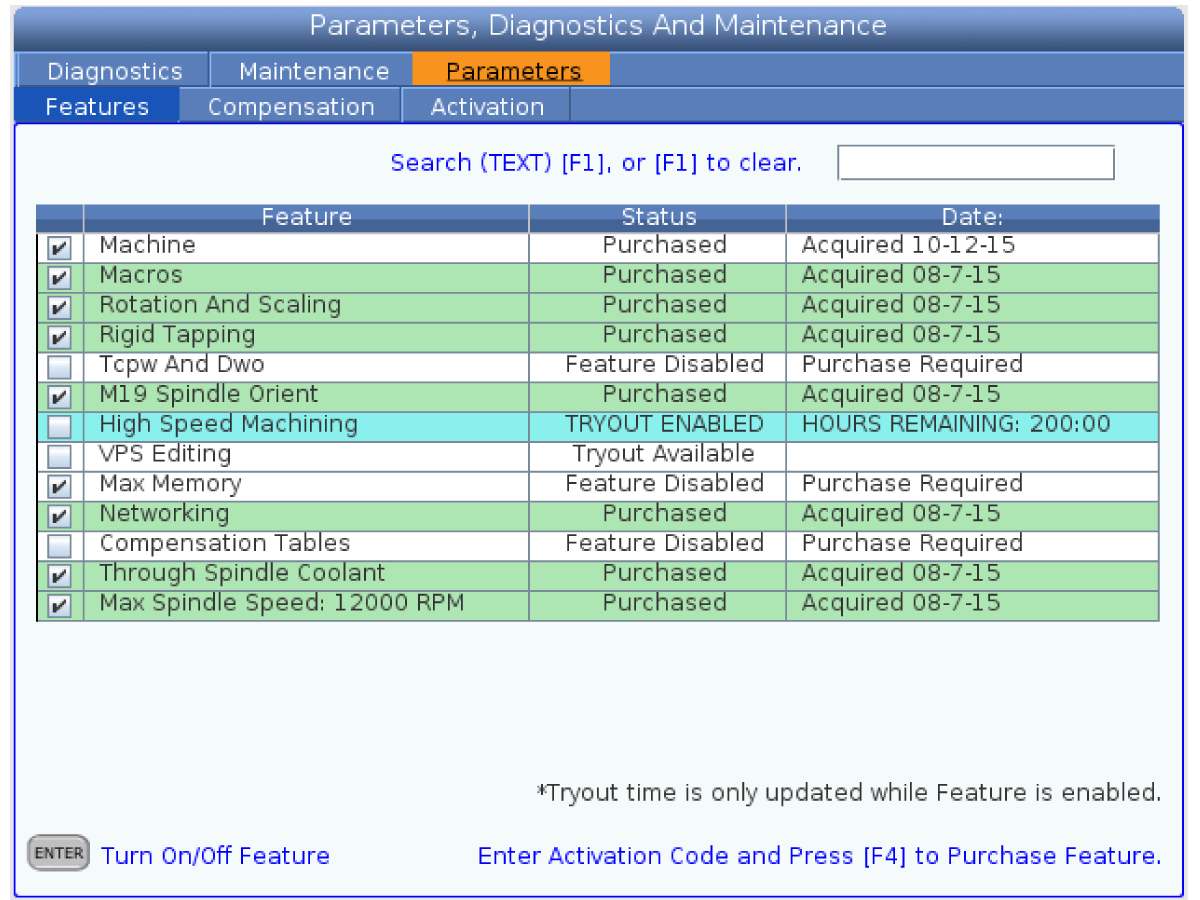
Push [DIAGNOSTIC] to go to Parameters, Diagnostics, and Maintenance.

Select the Parameters tab.

Select the Features tab.

Push [ENTER] to start the tryout period.

Push [ENTER] on an active tryout to stop the tryout period. You can activate the tryout again later.

Cycle the power.

 Note: The 200 hour option Tryout is for features that have the status Tryout Available.

For option activation, refer to the Option Activation - NGC procedure.

2.4 Date/Time Change - NGC

Recently Updated

Date/Time Change - NGC


Set the Date and Time

1

Push [POWER ON].

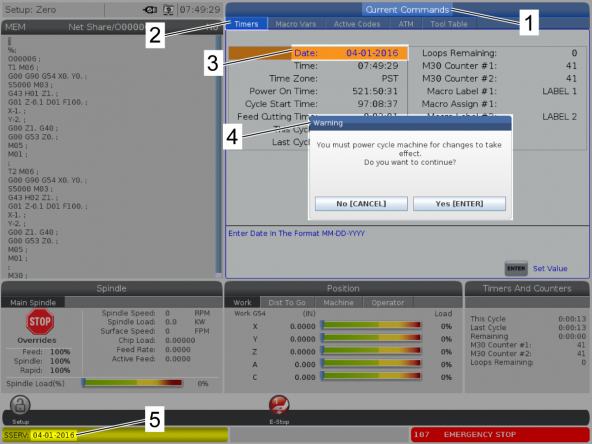
Push [CURRENT COMMANDS]  [1].

Select the Timers tab [2].

Select the Date: option [3].

Push [EMERGENCY STOP].

Type today's date in this format: MM-DD-YYYY(Month-Day-Year) [5].

 Note: Make sure not to put a future date. You will not be able to change it back.

Push [ENTER].

A Warning screen shows [4]. Push [ENTER].

 Note: Software version 100.16.000.1010 and higher does not have a Warning screen.

2

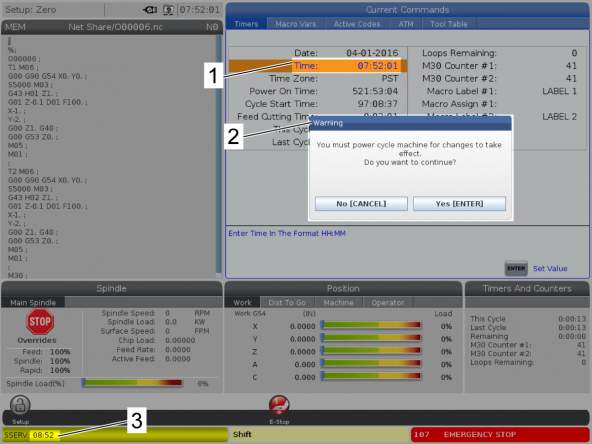
Select the Time: option [1].

Type current time in this format: HH:MM (Hour:Minute) [3].

Push [ENTER].

A Warning screen shows [2]. Push [ENTER].

 Note: Software version 100.16.000.1010 and higher does not have a Warning screen.

3

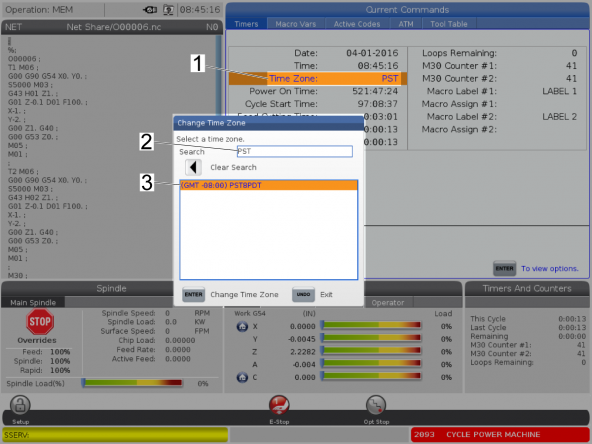
Select the Time Zone: option [1]. Push [ENTER].

Select your time zone.

You can also use the Search [2] function to find your time zone [3].

Push [ENTER].

Power on the machine.

 Note: For software version 100.16.000.1010 and higher, it is not necessary to power off and power on the machine.

Real Time Clock (RTC) Failure

The Real Time Clock (RTC) Failure screen can show when you start the machine. If this occurs, enter the correct time and date again.

Push [ENTER].

Recently Viewed Items

You Have No Recently Viewed Items Yet

Feedback
Haas Logo

Haas Delivered Price

This price includes shipping cost, export and import duties, insurance, and any other expenses incurred during shipping to a location in France agreed with you as a buyer. No other mandatory costs can be added to the delivery of a Haas CNC Product.

KEEP UP WITH THE LATEST HAAS TIPS AND TECHNOLOGY...

Sign up now!   

HAAS TOOLING ACCEPTS THE FOLLOWING:

  • Service & Support
  • Owners
  • Request Service
  • Operator Manuals
  • Haas Parts
  • Rotary Repair Request
  • Pre-Install Guides
  • Shopping Tools
  • Build & Price a New Haas
  • Available Inventory
  • The Haas Price List
  • CNCA Financing
  • About Haas
  • Accessibility Statement
  • DNSH Statement
  • Export Compliance
  • Careers
  • Certifications & Safety
  • Contact Us
  • History
  • Terms & Conditions
  • Haas Tooling Terms & Conditions
  • Privacy
  • Warranty
  • Haas Community
  • Haas Certification Program
  • Haas Motorsports
  • Gene Haas Foundation
  • Haas Technical Education Community
  • Events
  • Join the Conversation
  • Facebook
  • X
  • Flickr
  • YouTube
  • LinkedIn
  • Instagram
  • TikTok
© 2026 Haas Automation, Inc – CNC Machine Tools

This site is protected by reCAPTCHA and the Google Privacy Policy and Terms of Service apply.

2800 Sturgis Rd., Oxnard, CA 93030
Toll Free: (888) 817-4446 / Fax: 805-278-8554