My Haas Welcome,
!
Haas Tooling MyHaas/HaasConnect Sign In Register Haas Tooling MyHaas/HaasConnect Sign Out Welcome, My Machines Latest Activity My Quotes My Account My Users Sign Out
Find Your Distributor
  1. Select Language
    1. English
    2. Deutsch
    3. Español - España
    4. Español - México
    5. Français
    6. Italiano
    7. Português
    8. Český
    9. Dansk
    10. Nederlands
    11. Magyar
    12. Polski
    13. Svenska
    14. Türkçe
    15. 中文
    16. Suomi
    17. Norsk
    18. الإنجليزية
    19. български
    20. Hrvatski
    21. Ελληνικά
    22. Română
    23. Slovenský
    24. Slovenščina
    25. 한국어
    26. 日本語
    27. Українська
  • machines Main Menu
    • Vertical Mills
      Vertical Mills
      Vertical Mills View All
      • Vertical Mills
      • VF Series
      • Universal Machines
      • VR Series
      • VP-5 Prismatic
      • Pallet-Changing VMCs
      • Mini Mills
      • Mold Machines
      • High-Speed Drill Centers
      • Drill/Tap/ Mill Series
      • Toolroom Mills
      • Pocket Mill
      • Compact Mills
      • Gantry Series
      • SR Sheet Routers
      • Extra-Large VMC
      • Double-Column Mills
      • 3+2 Positioning Machines
    • Multi-Axis Solutions
      Multi-Axis Solutions
      Multi-Axis Solutions View All
      • Multi-Axis Solutions
      • Y-Axis Lathes
      • 5-Axis Mills
    • Lathes
      Lathes
      Lathes View All
      • Lathes
      • ST Series
      • Dual-Spindle
      • Box Way Series
      • Toolroom Lathes
      • Chucker Lathe
      • Haas Bar Feeders
    • Horizontal Mills
      Horizontal Mills
      Horizontal Mills View All
      • Horizontal Mills
      • 50-Taper
      • 40-Taper
    • Rotaries & Indexers
      Rotaries & Indexers
      Rotaries & Indexers View All
      • Rotaries & Indexers
      • Rotary Tables
      • Indexers
      • 5-Axis Rotaries
      • Extra-Large Rotaries
    • Special Series
      Special Series
      Special Series View All
      • Special Series
      • EU_Series_Redirect
    • Automation Systems
      Automation Systems
      Automation Systems View All
      • Automation Systems
      • Mill Automation
      • Lathe Automation
      • Automatic Parts Loaders
      • Automation Models
    • Desktop Machines
      Desktop Machines
      Desktop Machines View All
      • Desktop Machines
      • Desktop Mill
      • Desktop Lathe
      • Control Simulator, Standard
      • Control Simulator, Premium
    • Shop Equipment
      Shop Equipment
      Shop Equipment View All
      • Shop Equipment
      • Knee Mill
      • Haas Manual Lathes
      • Haas Saws
    • Fabrication Machines
      Fabrication Machines
      Fabrication Machines View All
      • Fabrication Machines
      • Laser Cutting Machines
      • CNC Press Brakes
    • QUICK LINKS Special Series  Special Series 
      EU SERIES EU SERIES BUILD & PRICE | PRICE LIST BUILD & PRICE | PRICE LIST In-Stock Machines In-Stock Machines WHAT’S NEW WHAT’S NEW YOUR FIRST CNC YOUR FIRST CNC
      SHOPPING TOOLS
      • Build & Price a Haas
      • Price List
      • Available Inventory
      • CNCA Financing
      WANT TO TALK TO SOMEONE?

      A Haas Factory Outlet (HFO) can answer your questions, and walk you through your best options.

      CONTACT YOUR DISTRIBUTOR >
  • Options Main Menu
    • The Haas Control Value Option Packages
      Value Option Packages
      Value Option Packages View All
      • Value Option Packages
    • Product Image Spindles
      Spindles
      Spindles View All
      • Spindles
    • Product Image Tool Changers
      Tool Changers
      Tool Changers View All
      • Tool Changers
    • Product Image 4th- | 5th-Axis
      4th- | 5th-Axis
      4th- | 5th-Axis View All
      • 4th- | 5th-Axis
    • Product Image Turrets & Live Tooling
      Turrets & Live Tooling
      Turrets & Live Tooling View All
      • Turrets & Live Tooling
    • Product Image Probing
      Probing
      Probing View All
      • Probing
    • Haas Chip & Coolant Management Chip & Coolant Management
      Chip & Coolant Management
      Chip & Coolant Management View All
      • Chip & Coolant Management
    • The Haas Control The Haas Control
      The Haas Control
      The Haas Control View All
      • The Haas Control
    • Product Image Product Options
      Product Options
      Product Options View All
      • Product Options
    • Product Image Tooling & Fixturing
      Tooling & Fixturing
      Tooling & Fixturing View All
      • Tooling & Fixturing
    • Product Image Workholding
      Workholding
      Workholding View All
      • Workholding
    • Product Image 5-Axis Solutions
      5-Axis Solutions
      5-Axis Solutions View All
      • 5-Axis Solutions
      • 5 Easy Steps to 5-Axis
    • QUICK LINKS Special Series  Special Series 
      EU SERIES EU SERIES BUILD & PRICE | PRICE LIST BUILD & PRICE | PRICE LIST In-Stock Machines In-Stock Machines WHAT’S NEW WHAT’S NEW YOUR FIRST CNC YOUR FIRST CNC
      SHOPPING TOOLS
      • Build & Price a Haas
      • Price List
      • Available Inventory
      • CNCA Financing
      WANT TO TALK TO SOMEONE?

      A Haas Factory Outlet (HFO) can answer your questions, and walk you through your best options.

      CONTACT YOUR DISTRIBUTOR >
  • Why Haas Main Menu
      Discover the Haas Difference
    • Why Haas
    • MyHaas
    • Education Community
    • Industry 4.0
    • Haas Certification
    • Customer Testimonials
  • Service Main Menu
      Welcome to Haas Service
      SERVICE HOME Operator’s Manuals How-To Procedures Troubleshooting Guides Preventive Maintenance Haas Parts Haas Tooling Videos
  • Videos Main Menu
  • Main Menu
    • View All
    • View All
    • View All
    • View All
      • HTEC Curriculum Support
      • Haas Value Option Packages (VOP) Journey
    • View All
      • Haas 10 kg Cobot Package
      • Cobot Kits
      • DC-1 Drill Center
      • CNC Sales News
      • Do More With Your Haas
    • View All
    • View All
      • contact-us-test
      • 4 - AUTOMATION SYSTEMS
      • Carousel-V2
      • expert test
      • Demo_Day_Trident-test
      • Link Test
      • image-sale-tag-test
      • article-list-test
      • Haas 25 kg Robot Package
      • test-algolia-page
    • View All
      • Choose Options
    • View All
    • View All
    • View All
    • View All
    • View All
      • calc-test
    • View All
    • QUICK LINKS Special Series  Special Series 
      EU SERIES EU SERIES BUILD & PRICE | PRICE LIST BUILD & PRICE | PRICE LIST In-Stock Machines In-Stock Machines WHAT’S NEW WHAT’S NEW YOUR FIRST CNC YOUR FIRST CNC
      SHOPPING TOOLS
      • Build & Price a Haas
      • Price List
      • Available Inventory
      • CNCA Financing
      WANT TO TALK TO SOMEONE?

      A Haas Factory Outlet (HFO) can answer your questions, and walk you through your best options.

      CONTACT YOUR DISTRIBUTOR >
  • Haas Tooling Main Menu
  • Haas Service Parts Main Menu

My Haas Welcome,
!
Haas Tooling MyHaas/HaasConnect Sign In Register Haas Tooling MyHaas/HaasConnect Sign Out Welcome, My Machines Latest Activity My Quotes My Account My Users Sign Out
Find Your Distributor
  1. Select Language
    1. English
    2. Deutsch
    3. Español - España
    4. Español - México
    5. Français
    6. Italiano
    7. Português
    8. Český
    9. Dansk
    10. Nederlands
    11. Magyar
    12. Polski
    13. Svenska
    14. Türkçe
    15. 中文
    16. Suomi
    17. Norsk
    18. الإنجليزية
    19. български
    20. Hrvatski
    21. Ελληνικά
    22. Română
    23. Slovenský
    24. Slovenščina
    25. 한국어
    26. 日本語
    27. Українська
×

Search Results

Web Pages

Images

    • <
    • 1
    • >

8 - Mill - Part Setup

Mill Operator's Manual


  • 0 - Mill - Table of Contents
  • 1 - Mill - Introduction
  • 2 - Mill - Legal Information
  • 3 - Mill - Safety
  • 4 - Mill - Control Pendant
  • 5 - Mill - Control Display
  • 6 - Mill - Device Manager
  • 7 - Mill - TouchScreen Feature
  • 8 - Mill - Part Setup
  • 9 - Mill - Umbrella Tool Changer
  • 10 - Mill - SMTC
  • 11 - Mill - Operation
  • 12 - Mill - Programming
  • 13 - Mill - Macros
  • 14 - Mill - Control Icons
  • 15 - Mill - Remote Jog Handle
  • 16 - Mill - Options Programming
  • 17 - Mill - G-Codes
  • 18 - Mill - M-Codes
  • 19 - Mill - Settings
  • 20 - Mill - Other Equipment
  • 21 - Eco Mode

Go To :

  • 8.1 Overview
  • 8.2 Jog Mode
  • 8.3 Tool Offsets
  • 8.4 Set a Tool Offset
  • 8.5 Work Offsets
  • 8.6 Set A Work Offset
  • 8.7 Setting offsets using WIPS

8.1 Overview

Part Setup

mill_part_setup_overview

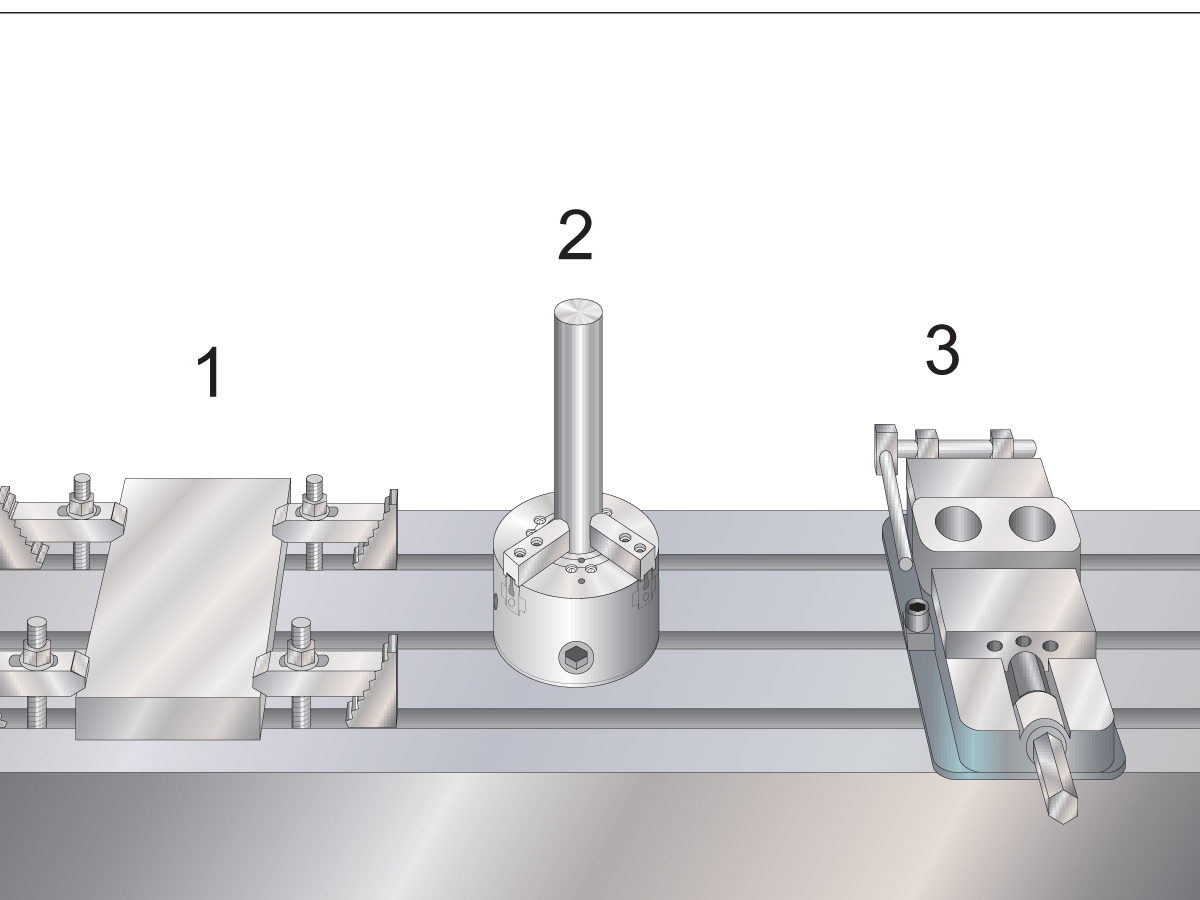
Part Setup Examples: [1] Toe clamp, [2] Chuck, [3] Vise.

Correct workholding is very important for safety, and to get the machining results that you want. There are many workholding options for different applications. Contact your HFO or workholding dealer for guidance.

8.2 Jog Mode

Jog Mode

Jog mode lets you jog the machine axes to a desired location. Before you can jog an axis, the machine must establish its home position. The control does this at machine power-up.

To enter jog mode:

  1. Press HANDLE JOG.
  2. Press the desired axis (+X, -X, +Y,-Y, +Z, -Z, +A/C or -A/C, +B, or -B).
  3. There are different increment speeds that can be used while in jog mode; they are .0001, .001, .01 and .1. Each click of the jog handle moves the axis the distance defined by the current jog rate. You can also use an optional Remote Jog Handle (RJH) to jog the axes.
  4. Press and hold the handle jog buttons or use the jog handle control to move the axis.

8.3 Tool Offsets

Tool Offsets

To machine a part accurately, the mill needs to know where the part is located on the table and the distance from the tip of the tools to the top of the part (tool offset from home position).

The tool offset behavior has been modified on Haas machines in the following ways:

  • By default tool offsets will now always be applied, unless a G49/H00 (Mill) or Txx00 offset (Lathe) is explicitly specified.
  • On mills, when a tool change occurs, the tool offset will automatically update to match the new tool. This behavior already existed on lathes.

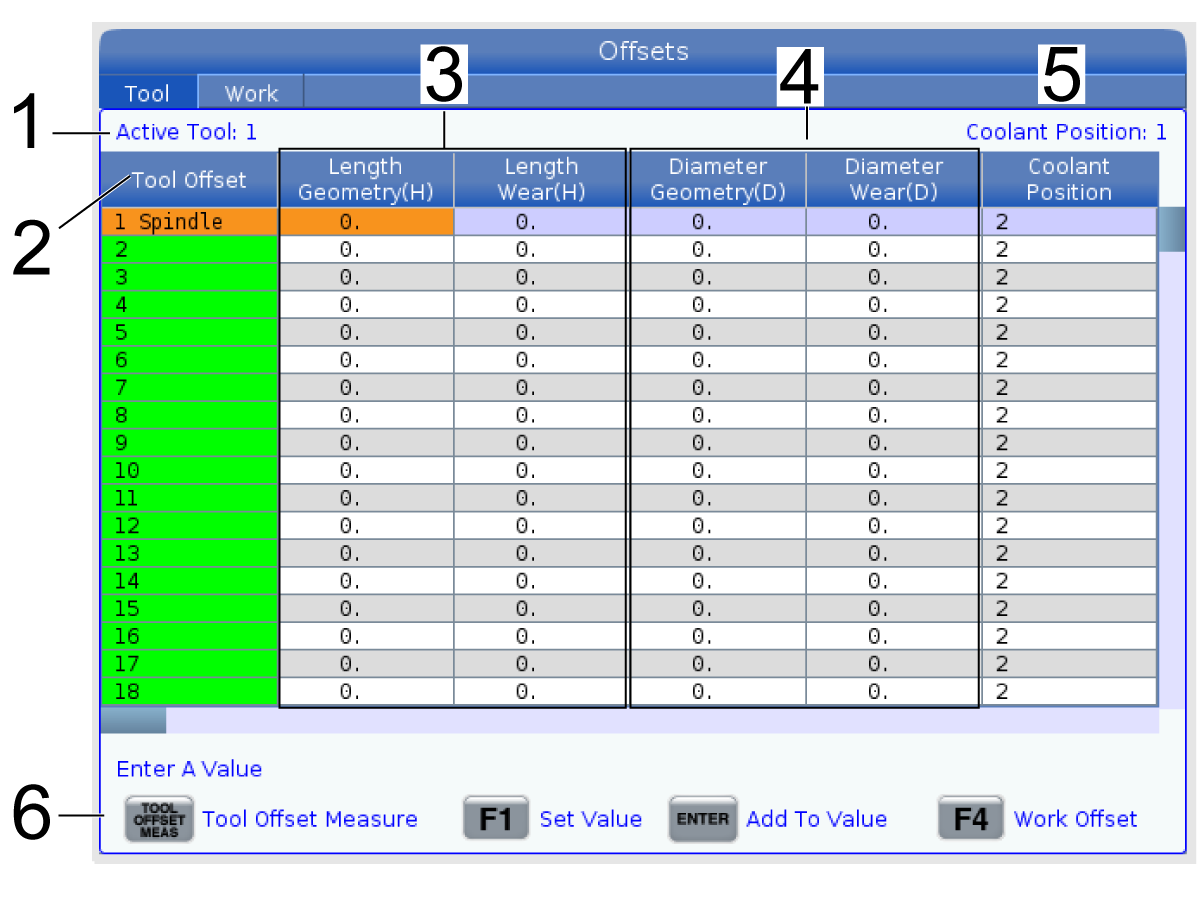
Press the OFFSET button to view the tool offset values. The tool offsets can be entered manually or automatically with a probe. The list below will shows how each offset setting works.

1) Active Tool: - This tells you which tool is in the spindle.

2) Tool Offset (T) - This is the list of tool offsets. There is a maximum of 200 tool offsets available.

3) Length Geometry (H), Length Wear (H) - These two columns are tied to the G43 (H) values in the program. If you command a
G43 H01;

from within a program for tool #1, the program will use the values from these columns.

NOTE: The Length Geometry can be set manually or automatically by the probe.

4) Diameter Geometry (D), Diameter Wear (D) - These two columns are used for cutter compensation. If you command a 

G41 D01;

from within a program, the program will use the values from these columns.

 NOTE: The Diameter Geometry can be set manually or automatically by the probe.

5) Coolant Position - Use this column for setting the coolant position for the tool in this row. 

 NOTE: This column will only show if you have the Programmable Coolant option.

6) These functions buttons allow you to set the offset values.

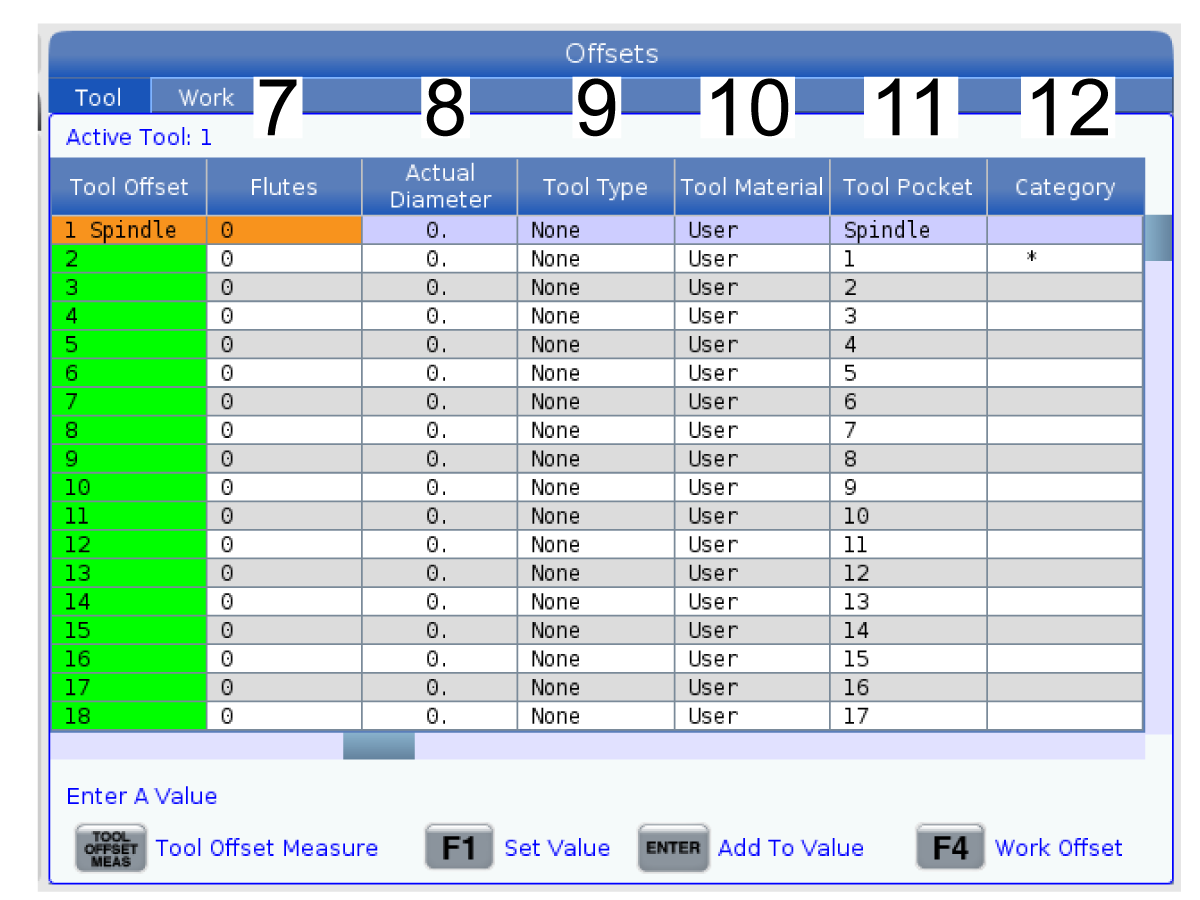
7) Flutes - When this column is set to the correct value, the control can calculate the correct Chip Load value displayed at the Main Spindle screen. The VPS feeds and speeds library will also use these values for calculations.

NOTE: The values set on the Flute column will not affect the operation of the probe.

8) Actual Diameter - This column is used by the control to calculate the correct Surface Speed value displayed at the Main Spindle screen.

9) Tool Type - This column is used by the control to decide which probe cycle to use to probe this tool. Press F1 to view the options: None, Drill, Tap, Shell Mill, End Mill, Spot Drill, Ball Nose and Probe. When this field is set to Drill, Tap, Spot Drill, Ball Nose and Probe, the probe will probe along the tool centerline for the length. When this field is set to Shell Mill or End Mill the probe will probe at the tools edge.

10) Tool Material - This column is used for calculations by the VPS feeds and speeds library. Press F1 to view the options: User, Carbide, Steel. Press Enter to set the material, or press Cancel to exit.

11) Tool Pocket - This column shows you what pocket the tool is currently in.This column is read only.

12) Tool Category - This column shows if the tool is set up as large, heavy or extra large. To make a change, highlight the column and press ENTER. The Tool Table will be displayed. Follow the instructions on the screen to make tool table changes.

13) Approximate Length - This column is used by the probe. The value in this field tells the probe the distance from the tip of the tool to the spindle gauge line. 

NOTE: If you probe the length of a drill or a tap, or some tool that is not a shell mill or an end mill you can leave this field blank.

14) Approximate Diameter - This column is used by the probe. The value in this field tells the probe the diameter of the tool.

15) Edge Measure Height - This column is used by the probe. The value in this field is the distance below the tip of the tool that the tool needs to move, when the tool diameter is probed. Use this setting when you have a tool with a large radius or when you are probing a diameter on a chamfer tool.

16) Tool Tolerance - This column is used by the probe. The value in this field is used for checking tool breakage and wear detection. Leave this field blank if you are setting the length and diameter on the tool.

17) Probe Type - This column is used by the probe. You can select the probe routine you want to perform on this tool. 

The choices are: 0 - No tool probing to be performed., 1- Length probing (Rotating)., 2 - Length probing (Non-Rotating)., 3 - Length and Diameter probing (Rotating). Press TOOL OFFSET MEASURE to set automatic probe options.

8.4 Set A Tool Offset

Set a Tool Offset

The next step is to touch off the tools. This defines the distance from the tip of the tool to the top of the part. Another name for this is Tool Length Offset, which is designated as H in a line of machine code. The distance for each tool is entered into the TOOL OFFSET table.

NOTE: When touching off tools or working on the stationary table, make sure the tilt axis is at 0 degrees (A0° or B0°).

1

Setting Tool Offset. With the Z Axis at its home position, Tool Length Offset is measured from the tip of the tool [1] to the top of the part [2].

  • Load the tool in the spindle [1].
  • Press HANDLE JOG [F].
  • Press .1/100. [G] (The mill moves at a fast rate when the handle is turned).
  • Select between the X and Y axes [J], and with the use the jog handle [K] to move the tool near the center of the part.
  • Press +Z [C].
  • Jog the Z Axis approximately 1" above the part.
  • Press .0001/.1 [H] (The mill moves at a slow rate when the handle is turned).

2

  • Place a sheet of paper between the tool and the work piece. Carefully move the tool down to the top of the part, as close as possible, and still be able to move the paper.
  • Press OFFSET [D] and select the TOOL tab.
  • Highlight the H (length) Geometry value for position #1.
  • Press TOOL OFFSET MEASURE [A]. A pop box may appear if the change is Greater Than Setting 142! Accept (Y/N). Press Y to accept.
  • CAUTION: The next step causes the spindle to move rapidly in the Z Axis.
  • Press NEXT TOOL [B].
  • Repeat the offset process for each tool.

8.5 Work Offsets

Work Offsets

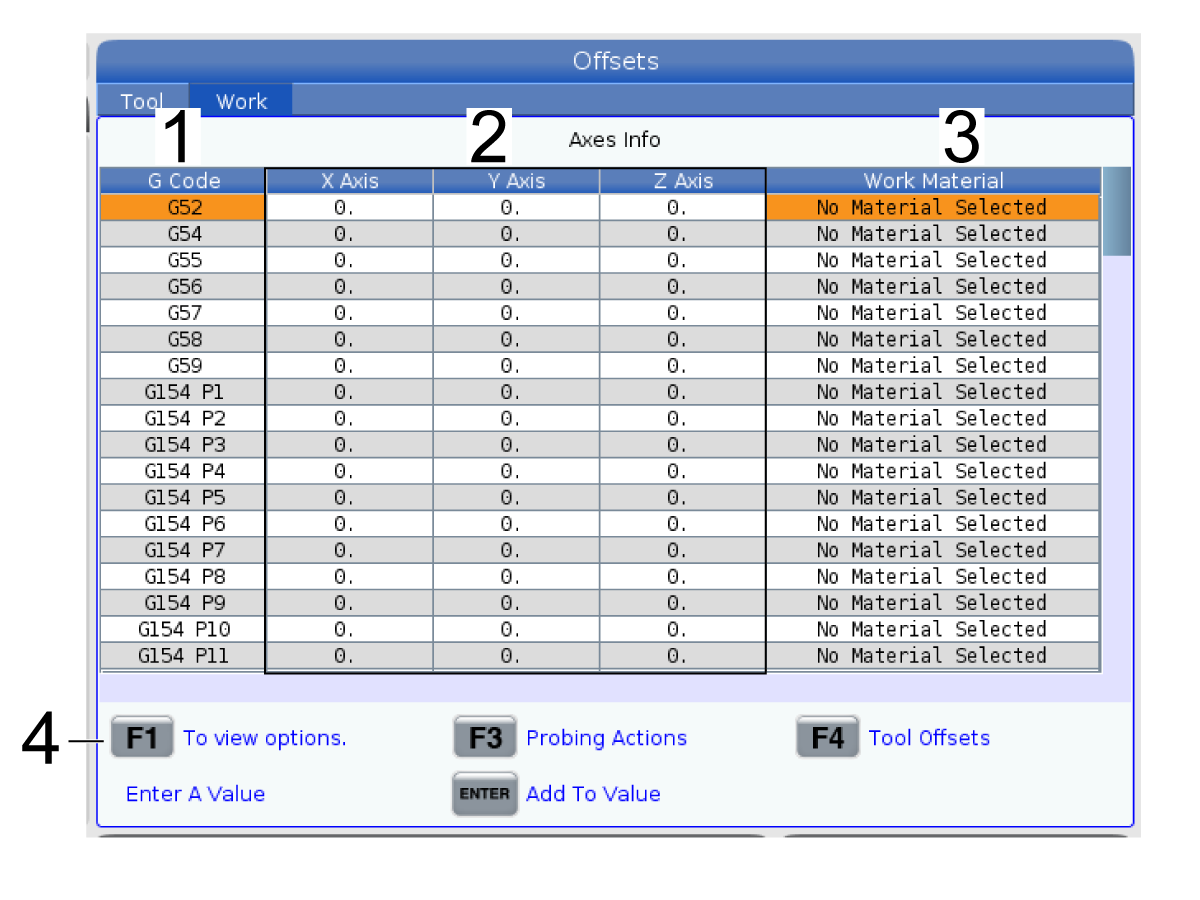
Press the OFFSET, then the F4 to view the work offset values. The work offsets can be entered manually or automatically with a probe. The list below will shows how each work offset setting works.

1) G Code - This column displays all the available work offset G-codes. For more information on these work offsets, refer to the G52 Set Work Coordinate System (Group 00 or 12), G54 Work Offsets, G92 Set Work Coordinate Systems Shift Value (Group 00).

2) X, Y, Z, Axis - This column displays the work offset value for each axis. If rotary axis are enabled the offsets for these will be displayed on this page.

3) Work Material - This column is used by the VPS feeds and speeds library.

4) These functions buttons allow you to set the offset values. Type in the desired work offset value and press F1 to set the value. Press F3 to set a probing action. Press F4 to toggle from work to tool offset tab. Type in a value and press Enter to add to the current value.

8.6 Set a Work Offset

Set a Work Offset

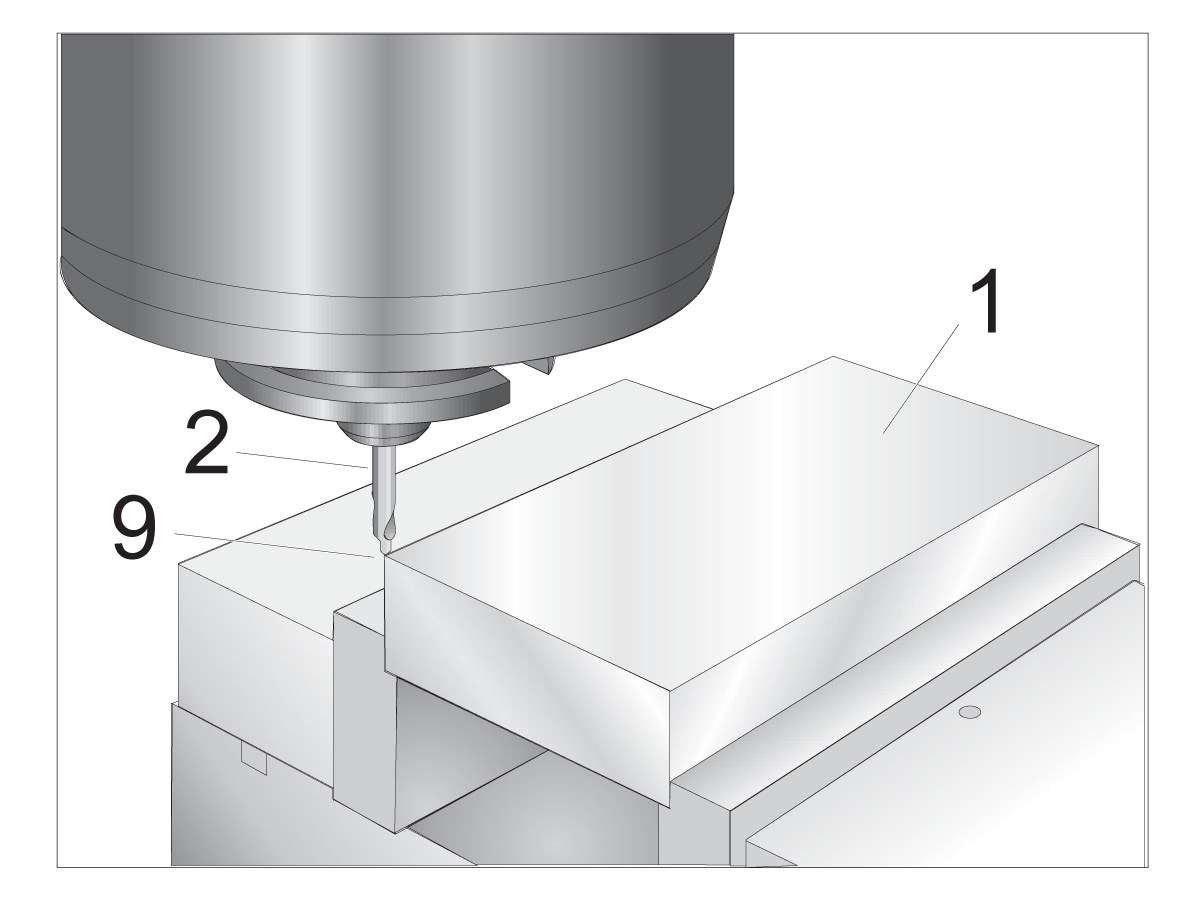
To machine a workpiece, the mill needs to know where the workpiece is located on the table. You can use an edge finder, an electronic probe, or many other tools and methods to establish part zero. To set the part zero offset with a mechanical pointer:

1

Place the material [1] in the vise and tighten.

Load a pointer tool [2] in the spindle.

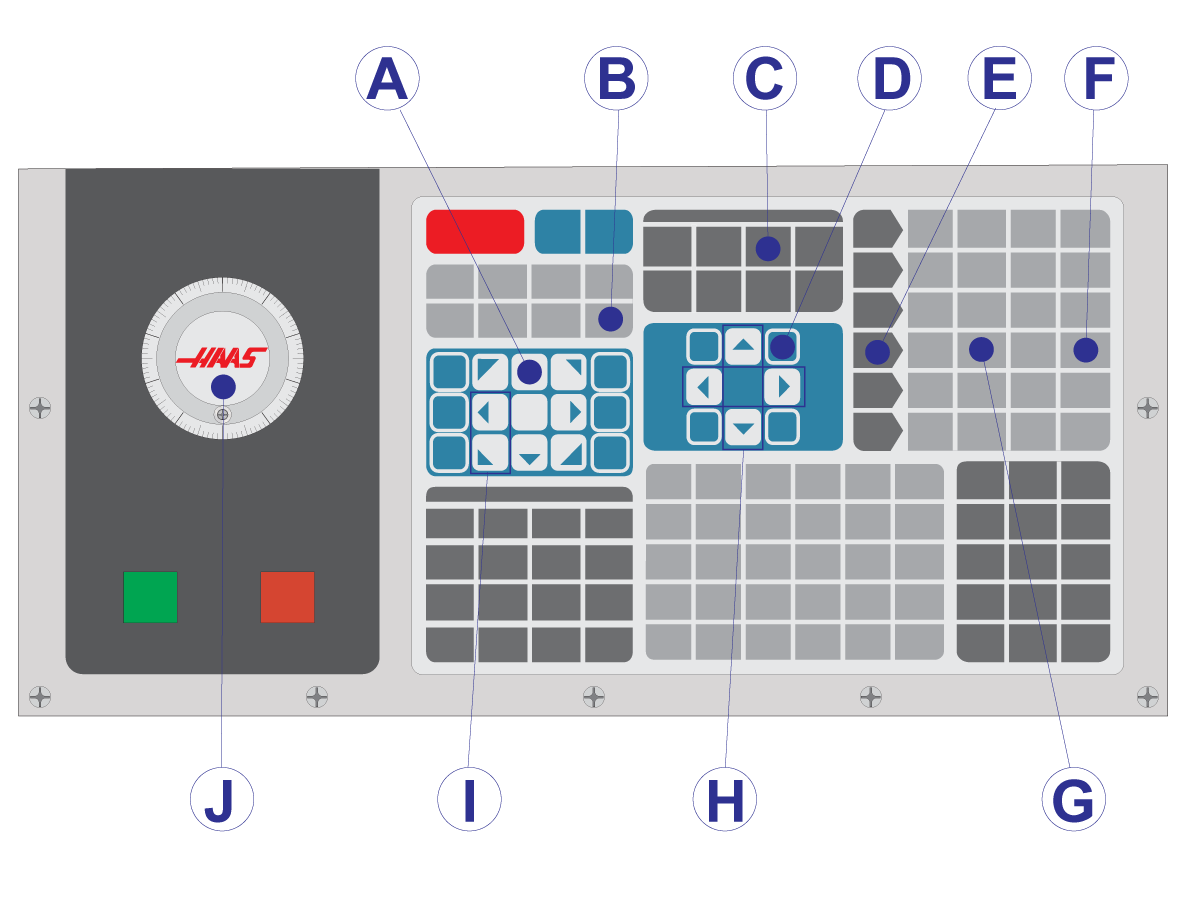
Press HANDLE JOG [E].

Press .1/100. [F] (The mill moves at a fast speed when the handle is turned).

Press +Z [A].

Use the jog handle [J] to move the Z-Axis approximately 1" above the part.

Press .001/1. [G] (The mill moves at a slow speed when the handle is turned).

Jog the Z-Axis approximately. 0.2" above the part.

Select between the X and Y axes [I] and jog the tool to the upper left corner of the part (see illustration [9])

2

Navigate to the OFFSET>WORK [C] tab and press the DOWN cursor key [H] to activate the page. You can press F4 to toggle between Tool offsets and Work offsets.

Navigate to the G54 X Axis location.

CAUTION: In the next step, do not press PART ZERO SET a third time; this loads a value into the Z AXIS column. This causes a crash or a Z-Axis alarm when the program is run.

Press PART ZERO SET [B] to load the value into the X Axis column. The second press of PART ZERO SET [B] loads the value into the Y Axis column.

8.7 Setting Offsets Using WIPS

WIPS - Operators Manual

Please refer to the WIPS operators manual, operation section, for instructions on how to set tool offsets and work offsets using a probing cycle. 

Clink on the link below to be redirected to that page. 

WIPS - Operation
Feedback

Recently Viewed Items

You Have No Recently Viewed Items Yet

Feedback
Haas Logo

Haas Delivered Price

This price includes shipping cost, export and import duties, insurance, and any other expenses incurred during shipping to a location in France agreed with you as a buyer. No other mandatory costs can be added to the delivery of a Haas CNC Product.

KEEP UP WITH THE LATEST HAAS TIPS AND TECHNOLOGY...

Sign up now!   

HAAS TOOLING ACCEPTS THE FOLLOWING:

  • Service & Support
  • Owners
  • Request Service
  • Operator Manuals
  • Haas Parts

  • Rotary Repair Request
  • Pre-Install Guides
  • Shopping Tools
  • Build & Price a New Haas
  • Available Inventory
  • The Haas Price List
  • CNCA Financing
  • About Haas
  • Accessibility Statement
  • DNSH Statement
  • Export Compliance
  • Careers
  • Certifications & Safety
  • Contact Us
  • History
  • Terms & Conditions
  • Haas Tooling Terms & Conditions
  • Privacy
  • Warranty
  • Haas Community
  • Haas Certification Program
  • Haas Motorsports
  • Gene Haas Foundation
  • Haas Technical Education Community
  • Events
  • Join the Conversation
  • Facebook
  • X
  • Flickr
  • YouTube
  • LinkedIn
  • Instagram
  • TikTok
© 2026 Haas Automation, Inc – CNC Machine Tools

This site is protected by reCAPTCHA and the Google Privacy Policy and Terms of Service apply.

2800 Sturgis Rd., Oxnard, CA 93030
Toll Free: (888) 817-4446 / Fax: 805-278-8554