My Haas Welcome,
!
Haas Tooling MyHaas/HaasConnect Sign In Register Haas Tooling MyHaas/HaasConnect Sign Out Welcome, My Machines Latest Activity My Quotes My Account My Users Sign Out
Find Your Distributor
  1. Select Language
    1. English
    2. Deutsch
    3. Español - España
    4. Español - México
    5. Français
    6. Italiano
    7. Português
    8. Český
    9. Dansk
    10. Nederlands
    11. Magyar
    12. Polski
    13. Svenska
    14. Türkçe
    15. 中文
    16. Suomi
    17. Norsk
    18. الإنجليزية
    19. български
    20. Hrvatski
    21. Ελληνικά
    22. Română
    23. Slovenský
    24. Slovenščina
    25. 한국어
    26. 日本語
    27. Українська
  • machines Main Menu
    • Vertical Mills
      Vertical Mills
      Vertical Mills View All
      • Vertical Mills
      • VF Series
      • Universal Machines
      • VR Series
      • VP-5 Prismatic
      • Pallet-Changing VMCs
      • Mini Mills
      • Mold Machines
      • High-Speed Drill Centers
      • Drill/Tap/ Mill Series
      • Toolroom Mills
      • Pocket Mill
      • Compact Mills
      • Gantry Series
      • SR Sheet Routers
      • Extra-Large VMC
      • Double-Column Mills
      • 3+2 Positioning Machines
    • Multi-Axis Solutions
      Multi-Axis Solutions
      Multi-Axis Solutions View All
      • Multi-Axis Solutions
      • Y-Axis Lathes
      • 5-Axis Mills
    • Lathes
      Lathes
      Lathes View All
      • Lathes
      • ST Series
      • Dual-Spindle
      • Box Way Series
      • Toolroom Lathes
      • Chucker Lathe
      • Haas Bar Feeders
    • Horizontal Mills
      Horizontal Mills
      Horizontal Mills View All
      • Horizontal Mills
      • 50-Taper
      • 40-Taper
    • Rotaries & Indexers
      Rotaries & Indexers
      Rotaries & Indexers View All
      • Rotaries & Indexers
      • Rotary Tables
      • Indexers
      • 5-Axis Rotaries
      • Extra-Large Rotaries
    • Special Series
      Special Series
      Special Series View All
      • Special Series
      • EU_Series_Redirect
    • Automation Systems
      Automation Systems
      Automation Systems View All
      • Automation Systems
      • Mill Automation
      • Lathe Automation
      • Automatic Parts Loaders
      • Automation Models
    • Desktop Machines
      Desktop Machines
      Desktop Machines View All
      • Desktop Machines
      • Desktop Mill
      • Desktop Lathe
      • Control Simulator, Standard
      • Control Simulator, Premium
    • Shop Equipment
      Shop Equipment
      Shop Equipment View All
      • Shop Equipment
      • Knee Mill
      • Haas Manual Lathes
      • Haas Saws
    • Fabrication Machines
      Fabrication Machines
      Fabrication Machines View All
      • Fabrication Machines
      • Laser Cutting Machines
      • CNC Press Brakes
    • QUICK LINKS Special Series  Special Series 
      EU SERIES EU SERIES BUILD & PRICE | PRICE LIST BUILD & PRICE | PRICE LIST In-Stock Machines In-Stock Machines WHAT’S NEW WHAT’S NEW YOUR FIRST CNC YOUR FIRST CNC
      SHOPPING TOOLS
      • Build & Price a Haas
      • Price List
      • Available Inventory
      • CNCA Financing
      WANT TO TALK TO SOMEONE?

      A Haas Factory Outlet (HFO) can answer your questions, and walk you through your best options.

      CONTACT YOUR DISTRIBUTOR >
  • Options Main Menu
    • The Haas Control Value Option Packages
      Value Option Packages
      Value Option Packages View All
      • Value Option Packages
    • Product Image Spindles
      Spindles
      Spindles View All
      • Spindles
    • Product Image Tool Changers
      Tool Changers
      Tool Changers View All
      • Tool Changers
    • Product Image 4th- | 5th-Axis
      4th- | 5th-Axis
      4th- | 5th-Axis View All
      • 4th- | 5th-Axis
    • Product Image Turrets & Live Tooling
      Turrets & Live Tooling
      Turrets & Live Tooling View All
      • Turrets & Live Tooling
    • Product Image Probing
      Probing
      Probing View All
      • Probing
    • Haas Chip & Coolant Management Chip & Coolant Management
      Chip & Coolant Management
      Chip & Coolant Management View All
      • Chip & Coolant Management
    • The Haas Control The Haas Control
      The Haas Control
      The Haas Control View All
      • The Haas Control
    • Product Image Product Options
      Product Options
      Product Options View All
      • Product Options
    • Product Image Tooling & Fixturing
      Tooling & Fixturing
      Tooling & Fixturing View All
      • Tooling & Fixturing
    • Product Image Workholding
      Workholding
      Workholding View All
      • Workholding
    • Product Image 5-Axis Solutions
      5-Axis Solutions
      5-Axis Solutions View All
      • 5-Axis Solutions
      • 5 Easy Steps to 5-Axis
    • QUICK LINKS Special Series  Special Series 
      EU SERIES EU SERIES BUILD & PRICE | PRICE LIST BUILD & PRICE | PRICE LIST In-Stock Machines In-Stock Machines WHAT’S NEW WHAT’S NEW YOUR FIRST CNC YOUR FIRST CNC
      SHOPPING TOOLS
      • Build & Price a Haas
      • Price List
      • Available Inventory
      • CNCA Financing
      WANT TO TALK TO SOMEONE?

      A Haas Factory Outlet (HFO) can answer your questions, and walk you through your best options.

      CONTACT YOUR DISTRIBUTOR >
  • Why Haas Main Menu
      Discover the Haas Difference
    • Why Haas
    • MyHaas
    • Education Community
    • Industry 4.0
    • Haas Certification
    • Customer Testimonials
  • Service Main Menu
      Welcome to Haas Service
      SERVICE HOME Operator’s Manuals How-To Procedures Troubleshooting Guides Preventive Maintenance Haas Parts Haas Tooling Videos
  • Videos Main Menu
  • Main Menu
    • View All
    • View All
    • View All
    • View All
      • HTEC Curriculum Support
    • View All
      • Haas 10 kg Cobot Package
      • Cobot Kits
      • DC-1 Drill Center
      • CNC Sales News
      • Do More With Your Haas
    • View All
    • View All
      • contact-us-test
      • 4 - AUTOMATION SYSTEMS
      • Carousel-V2
      • expert test
      • Demo_Day_Trident-test
      • Link Test
      • image-sale-tag-test
      • article-list-test
      • Haas 25 kg Robot Package
    • View All
      • Choose Options
    • View All
    • View All
    • View All
    • View All
    • View All
      • calc-test
    • View All
    • QUICK LINKS Special Series  Special Series 
      EU SERIES EU SERIES BUILD & PRICE | PRICE LIST BUILD & PRICE | PRICE LIST In-Stock Machines In-Stock Machines WHAT’S NEW WHAT’S NEW YOUR FIRST CNC YOUR FIRST CNC
      SHOPPING TOOLS
      • Build & Price a Haas
      • Price List
      • Available Inventory
      • CNCA Financing
      WANT TO TALK TO SOMEONE?

      A Haas Factory Outlet (HFO) can answer your questions, and walk you through your best options.

      CONTACT YOUR DISTRIBUTOR >
  • Haas Tooling Main Menu
  • Haas Service Parts Main Menu

My Haas Welcome,
!
Haas Tooling MyHaas/HaasConnect Sign In Register Haas Tooling MyHaas/HaasConnect Sign Out Welcome, My Machines Latest Activity My Quotes My Account My Users Sign Out
Find Your Distributor
  1. Select Language
    1. English
    2. Deutsch
    3. Español - España
    4. Español - México
    5. Français
    6. Italiano
    7. Português
    8. Český
    9. Dansk
    10. Nederlands
    11. Magyar
    12. Polski
    13. Svenska
    14. Türkçe
    15. 中文
    16. Suomi
    17. Norsk
    18. الإنجليزية
    19. български
    20. Hrvatski
    21. Ελληνικά
    22. Română
    23. Slovenský
    24. Slovenščina
    25. 한국어
    26. 日本語
    27. Українська
×

Search Results

Web Pages

Images

    • <
    • 1
    • >

16 - Mill - Options Programming

Mill Operator's Manual


  • 0 - Mill - Table of Contents
  • 1 - Mill - Introduction
  • 2 - Mill - Legal Information
  • 3 - Mill - Safety
  • 4 - Mill - Control Pendant
  • 5 - Mill - Control Display
  • 6 - Mill - Device Manager
  • 7 - Mill - TouchScreen Feature
  • 8 - Mill - Part Setup
  • 9 - Mill - Umbrella Tool Changer
  • 10 - Mill - SMTC
  • 11 - Mill - Operation
  • 12 - Mill - Programming
  • 13 - Mill - Macros
  • 14 - Mill - Control Icons
  • 15 - Mill - Remote Jog Handle
  • 16 - Mill - Options Programming
  • 17 - Mill - G-Codes
  • 18 - Mill - M-Codes
  • 19 - Mill - Settings
  • 20 - Mill - Other Equipment
  • 21 - Eco Mode

Go To :

  • 16.1 Feature List
  • 16.2 Rotation and Scaling
  • 16.3 Visual Programming System (VPS)
  • 16.4 Rigid Tapping
  • 16.5 M19 Spindle Orientation
  • 16.6 High -Speed Machining
  • 16.7 Additional Memory Options
  • 16.8 Probing
  • 16.9 Maximum Spindle Speed
  • 16.10 Compensation Tables

16.1 Feature List

Introduction

In addition to the standard functions included with your machine, you may also have optional equipment with special programming considerations. This section tells you how to program these options.

You can contact your HFO to purchase most of these options, if your machine did not come equipped with them.

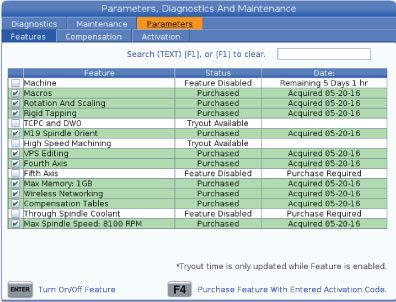
Feature List

The Feature List contains both standard and purchasable options.

To access the list:

Press [DIAGNOSTIC].

Navigate to the Parameters and then the Features tab. (Purchased options are marked in green and their status is set as PURCHASED.)

Purchased Options Enable/Disable

To enable or disable a purchased option:

Highlight the option on the FEATURES tab.

Press [ENTER] to turn ON/OFF the option.

NOTE: If the featured option is turned OFF, the option is not available.

Option Tryout

Some options have a 200-hour tryout available. The FEATURES tab Status column shows the options available for tryout.

NOTE: If an option does not have a tryout, the Status column shows FEATURE DISABLED, and you must purchase the option to use it.

To start tryout:

Highlight the feature.

Press [ENTER]. Press [ENTER] again to disable the option and stop the timer.

The status of the feature changes to TRYOUT ENABLED, and the date column shows the remaining hours left in the tryout period. When the tryout period expires, the status changes to EXPIRED. You cannot extend the tryout time for expired options. You must purchase them to use them.

NOTE: Tryout time is only updated while the option is enabled.

16.2 Rotation and Scaling

Recently Updated

Mill - Coordinate Rotation and Scaling


RD0045

Rotation and Scaling

Rotation lets you rotate a pattern to another location or around a circumference. Scaling reduces or enlarges a toolpath or pattern.

Refer to G68 Rotation to learn how to use this control feature.

16.3 Visual Programming System (VPS)

Visual Programming System (VPS)

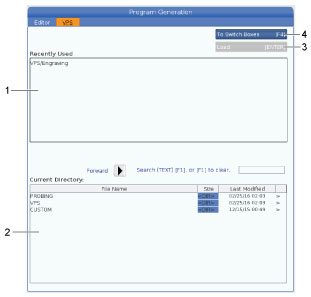
VPS lets you quickly build programs from program templates. To access VPS, press EDIT and then select the VPS tab.


VPS Starting Screen.

[1] Recently Used Templates,

[2] Template Directory Window,

[3] ENTER to Load a Template,

[4] F4 to Switch Between Recently Used and Template Directory.

VPS Example

When you use VPS, you choose a template for the function you want to program, and then enter variables to create a program. The default templates include probing and part features. You can also create custom templates. Contact the Applications department at your HFO for help with custom templates.


In this example, we use a VPS template to program the engraving cycle from the G47 program example in this manual. The G47 description starts on page 5. VPS templates all work in the same way: You first fill in values for the template variables, and you then output a program.

1. Press EDIT, and then select the VPS tab.

2. Use the cursor arrow keys to highlight the VPS menu option. Press the RIGHT cursor arrow key to select the option.

3.  Highlight and select the Engraving option from the next menu.

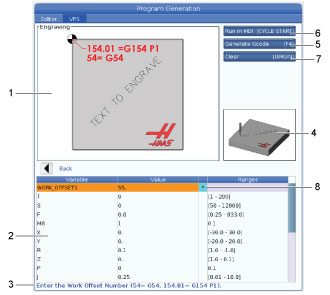
VPS Engraving Program Generation Window Example.

[1] Variable Illustration,

[2] Variables Table,

[3] Variable Description Text,

[4] Template Illustration,

[5] Generate G-code F4,

[6] Run in MDI CYCLE START,

[7] Clear ORIGIN,

[8] Default value was changed indicator.

4.  In the Program Generation window, use the UP and DOWN cursor arrow keys to highlight the variable rows.

5.  Type a value for the highlighted variable and press ENTER. The control will display an asterisk (*) next to variable if the default value is changed. To set the variable back to default press the ORIGIN button. Press the DOWN cursor arrow key to move to the next variable.

To generate the example engraving cycle, we use these variable values. Note that all of the position values are given in work coordinates.

Variable Description Value
WORK_OFFSETS Work Offset Number 54
T Tool Number 1
S Spindle Speed 1000
F Feedrate 15
M8 Coolant (1 - YES / 0 - NO) 1
X Starting X Position 2
Y Starting Y Position 2
R R-Plane Height 0.05
Z Z Depth -0.005
P Text or Serial Number Switch (0 - Text, 1 - Serial Number) 0
J Text Height 0.5
I Text Angle (Degrees from Horizontal) 45
TEXT Text to Engrave TEXT TO ENGRAVE

6.  With all of the variables entered, you can press [CYCLE START] to immediately run the program in MDI, or F4 to output the code to either the clipboard or MDI without running the program.

This VPS template creates a program with the specified variables to engrave the text:

%
O11111 ;
(Engraving) ;
( TOOL 1 ) ;
( SPINDLE 1000 RPM / FEED 15. ) ;
( DEPTH -0.005 ) ;
T1 M06 ;
G00 G90 G54 X2. Y2. S1000 M03 ;
G43 Z0.05 H1 ;
M08 ;
G00 G90 G54 X2. Y2. ;
( TEXT ENGRAVING : TEXT TO ENGRAVE ) ;
G47 E7.5000 F15. I45. J.5 P0 R0.05 Z-0.005 (TEXT TO ENGRAVE) ;
G0 Z0.05 M09 ;
M05 ;
G91 G28 Z0. ;
G91 G28 Y0. ;
M01 ( END ENGRAVING ) ;
%

16.4 Rigid Tapping

Recently Updated

Mill - Rigid Tapping


RD0047

Rigid Tapping

This option synchronizes the spindle’s RPM with the feedrate during a tapping operation.  Refer to G84 Tapping Canned Cycle to learn how to use this control feature.


Refer to Tap Breakage - Troubleshooting guide to view solutions to some of the most common causes for tap breakage.

16.5 M19 Spindle Orientation

Recently Updated

Mill - Spindle Orientation


RD0048

M19 Spindle Orientation

The Spindle Orientation lets you position the spindle to a programmed angle. This option provides inexpensive, accurate positioning. 

Refer to the M19 Orient Spindle for more information on how to use this software control feature.

16.6 High-Speed Machining

Recently Updated

High-Speed Machining


RD0030

16.5 High-Speed Machining

The Haas high-speed machining option allows faster feedrates and more complex toolpaths.

HSM uses a motion algorithm called Acceleration Before Interpolation combined with full look-ahead to provide contouring feeds up to 1200 ipm (30.5 m/min) without risk of distortion to the programmed path.

This reduces cycle times, improves accuracy, and smooths motion.

Refer to G187 Accuracy Control  to control the smoothness and max corner rounding value when cutting a part.

16.7 Additional Memory Options

Additional Memory Option

This option expands the on-board solid-state memory and allows the control to store, run, and edit large programs directly at the machine.

16.8 Probing

Probing

You can use an optional probe system to set offsets, check work, measure tools, and check tools. This section describes basic probe use and troubleshooting.

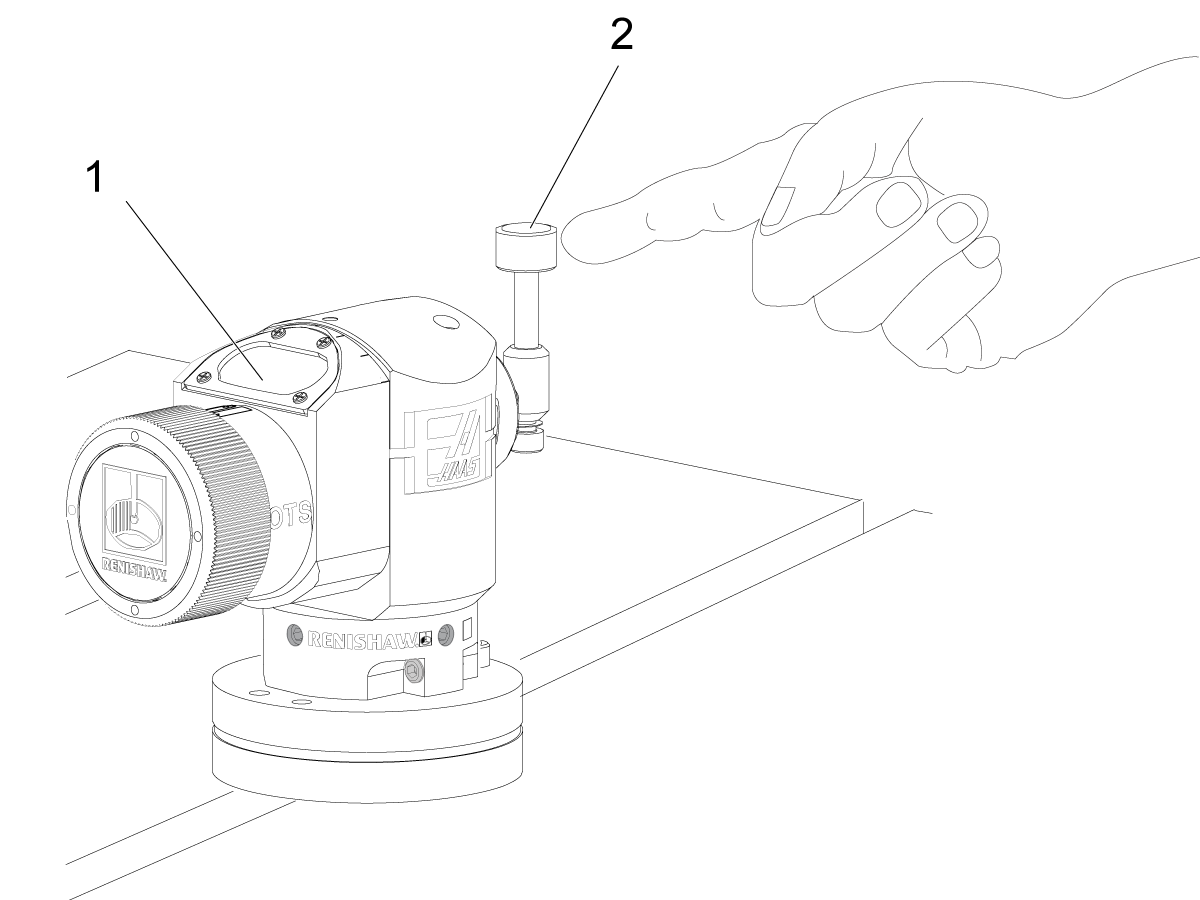
Check Tool Probe

Do these steps to make sure the tool probe operates correctly:

1

In MDI mode, run:

M59 P2 ;
G04 P1.0 ;
M59 P3 ;

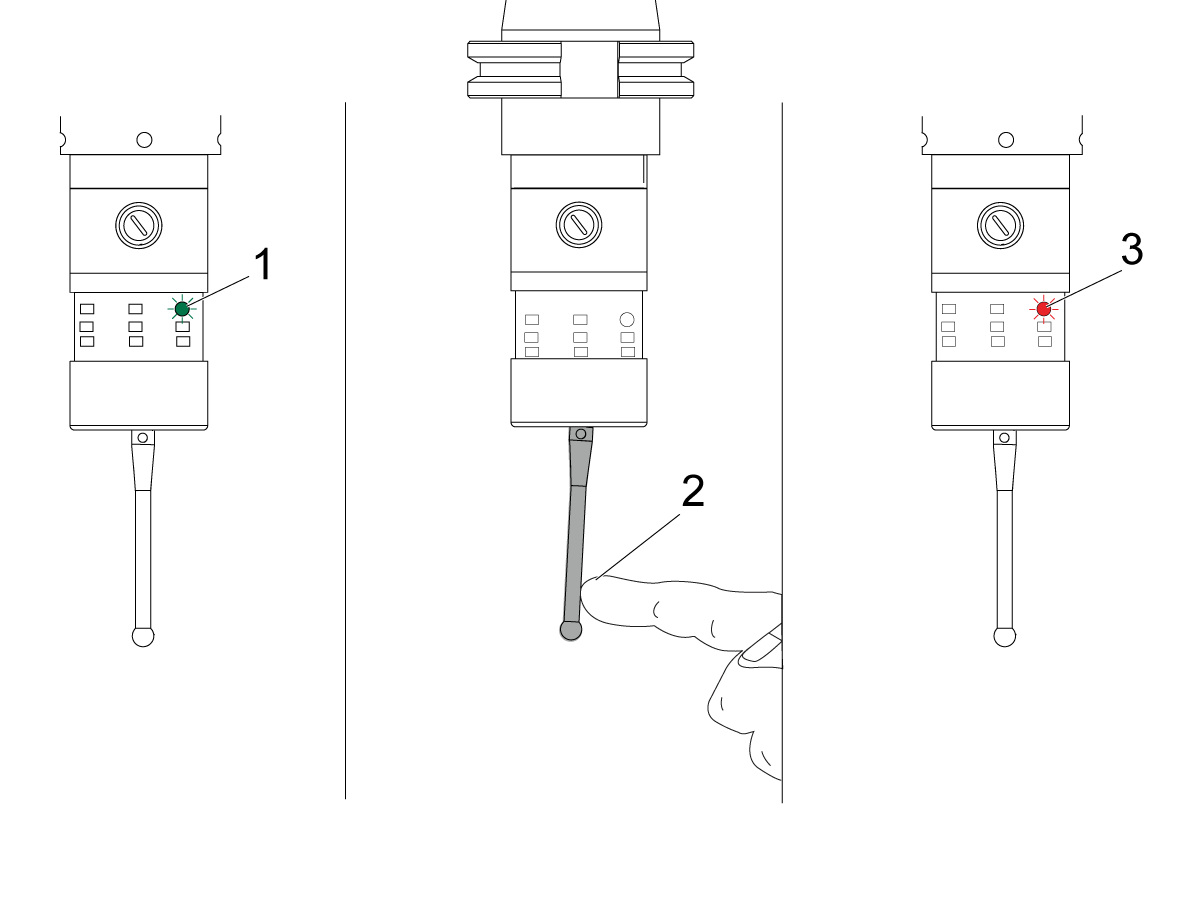
This turns on tool probe communication, delays one second, and turns on the tool probe. The LED [1] on the tool probe flashes green.

2

Touch the stylus [2].

The machine makes a "beep" sound and the LED becomes red [1]. This tells you that the tool probe is started.

3

Press RESET to deactivate the probe.

The probe LED [1] turns off.

Check Work Probe

Do these steps to make sure the work probe operates correctly:

1

Select the work probe with a tool change, or manually insert the work probe into the spindle.

2

In MDI mode, run M69 P2 ;

This starts communication with the work probe.

3

in MDI mode: run M59 P3 ;

The probe LED flashes green [1].

4

Touch the stylus [2].

The machine makes a "beep" sound and the LED becomes red [3]. This tells you that the work probe is started.

5

Press RESET to deactivate the probe.

The work probe LED turns off [1].

Probe Example

You can use a probe to check your part for correct dimensions during the machining process. For example, this program uses the work probe to check for squareness. The program uses G65 to call 9XXXXX macro programs created specifically for probing. You can find more information on these programs in the Renishaw manuals on the web at www.haascnc.com then click on the Service tab.

The program does the following:

1

After a tool change, home, and adding tool length compensation, the system turns on the work probe and moves to a safe start location.

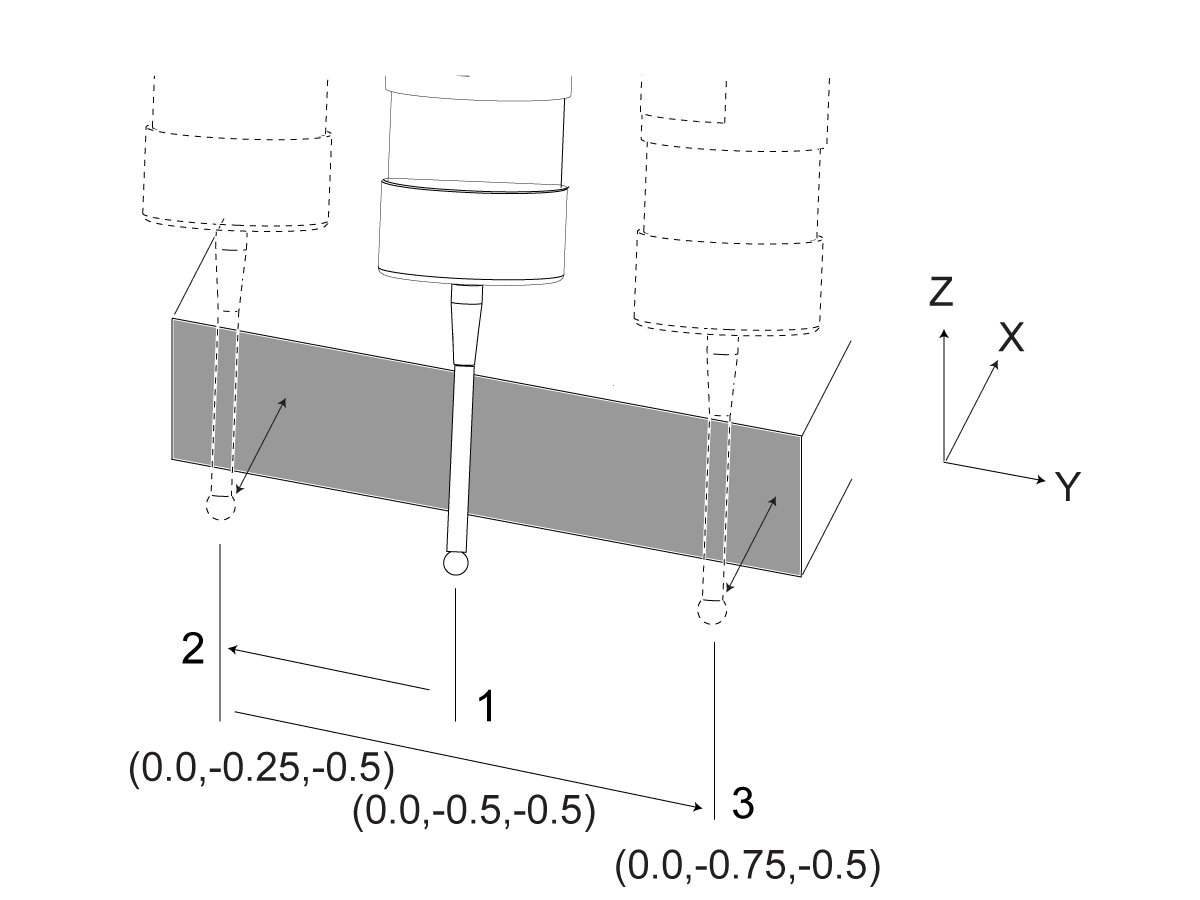
2

The probe stylus moves adjacent to the surface at the required Z-Axis point to provide a central start position [1].

3

The cycle makes two measurements, symmetrically about the start position, to establish the surface angle [2], [3].

4

Finally, the probe stylus moves to its safe out position, tuns off the probe, and returns home.

Example:

%
O00010 (CHECK FOR SQUARE) ;
T20 M06 (PROBE) ;
G00 G90 G54 X0. Y0. ;
G43 H20 Z6. ;
G65 P9832 (WORK PROBE ON) ;
G65 P9810 Z-0.5 F100. (SAFE MOVE) ;
G65 P9843 Y-0.5 D0.5 A15. (ANGLE MEAS.) ;
G65 P9810 Z6. F100. (SAFE OUT) ;
G65 P9833 (WORK PROBE OFF) ;
G00 G90 G53 Z0. ;
M01 ;
;
;
( PART PROGRAM ) ;
G00 G90 G54 X0. Y0. ;
T2 M06 (1/2" END MILL) ;
G00 G90 G43 H02 Z1.5 ;
G68 R#189 ;
G01 X-2. F50. ;
M30 ;

%

Probe Use with Macros

Macro statements select and turn on and off the probe the same as M-codes.

M-Code System Variable Macro Value Probe
M59 P2 ; #12002 1 Tool Probe Selected
M69 P2 ; #12002 0 Work Probe Selected
M59 P3 ; #12003 1 Probe Enable
M69 P3 ; #12003 0 Probe Disable

If you assign the system variable to a viewable global variable, you can see the macro value change in the Macro Vars tab under CURRENT COMMANDS.

For example,

M59 P3 ;
#10003=#12003 ;

The global variable #10003 shows the output from M59 P3 ; as 1.000000. This means that either the tool probe or work probe is on.

16.9 Maximum Spindle Speed

Maximum Spindle Speed

This option increases the maximum speed at which you can run the machine spindle.

16.10 Compensation Tables

16.10 Compensation Tables

With this option, the control stores a compensation table to correct for small errors in the rotary worm gear, as well as small errors in X, Y, and Z.

Recently Viewed Items

You Have No Recently Viewed Items Yet

Feedback
Haas Logo

Haas Delivered Price

This price includes shipping cost, export and import duties, insurance, and any other expenses incurred during shipping to a location in France agreed with you as a buyer. No other mandatory costs can be added to the delivery of a Haas CNC Product.

KEEP UP WITH THE LATEST HAAS TIPS AND TECHNOLOGY...

Sign up now!   

HAAS TOOLING ACCEPTS THE FOLLOWING:

  • Service & Support
  • Owners
  • Request Service
  • Operator Manuals
  • Haas Parts
  • Rotary Repair Request
  • Pre-Install Guides
  • Shopping Tools
  • Build & Price a New Haas
  • Available Inventory
  • The Haas Price List
  • CNCA Financing
  • About Haas
  • Accessibility Statement
  • DNSH Statement
  • Export Compliance
  • Careers
  • Certifications & Safety
  • Contact Us
  • History
  • Terms & Conditions
  • Haas Tooling Terms & Conditions
  • Privacy
  • Warranty
  • Haas Community
  • Haas Certification Program
  • Haas Motorsports
  • Gene Haas Foundation
  • Haas Technical Education Community
  • Events
  • Join the Conversation
  • Facebook
  • X
  • Flickr
  • YouTube
  • LinkedIn
  • Instagram
  • TikTok
© 2026 Haas Automation, Inc – CNC Machine Tools

This site is protected by reCAPTCHA and the Google Privacy Policy and Terms of Service apply.

2800 Sturgis Rd., Oxnard, CA 93030
Toll Free: (888) 817-4446 / Fax: 805-278-8554