My Haas Welcome,
!
Haas Tooling MyHaas/HaasConnect Sign In Register Haas Tooling MyHaas/HaasConnect Sign Out Welcome, My Machines Latest Activity My Quotes My Account My Users Sign Out
Find Your Distributor
  1. Select Language
    1. English
    2. Deutsch
    3. Español - España
    4. Español - México
    5. Français
    6. Italiano
    7. Português
    8. Český
    9. Dansk
    10. Nederlands
    11. Magyar
    12. Polski
    13. Svenska
    14. Türkçe
    15. 中文
    16. Suomi
    17. Norsk
    18. الإنجليزية
    19. български
    20. Hrvatski
    21. Ελληνικά
    22. Română
    23. Slovenský
    24. Slovenščina
    25. 한국어
    26. 日本語
    27. Українська
  • machines Main Menu
    • Vertical Mills
      Vertical Mills
      Vertical Mills View All
      • Vertical Mills
      • VF Series
      • Universal Machines
      • VR Series
      • VP-5 Prismatic
      • Pallet-Changing VMCs
      • Mini Mills
      • Mold Machines
      • High-Speed Drill Centers
      • Drill/Tap/ Mill Series
      • Toolroom Mills
      • Pocket Mill
      • Compact Mills
      • Gantry Series
      • SR Sheet Routers
      • Extra-Large VMC
      • Double-Column Mills
      • 3+2 Positioning Machines
    • Multi-Axis Solutions
      Multi-Axis Solutions
      Multi-Axis Solutions View All
      • Multi-Axis Solutions
      • Y-Axis Lathes
      • 5-Axis Mills
    • Lathes
      Lathes
      Lathes View All
      • Lathes
      • ST Series
      • Dual-Spindle
      • Box Way Series
      • Toolroom Lathes
      • Chucker Lathe
      • Haas Bar Feeders
    • Horizontal Mills
      Horizontal Mills
      Horizontal Mills View All
      • Horizontal Mills
      • 50-Taper
      • 40-Taper
    • Rotaries & Indexers
      Rotaries & Indexers
      Rotaries & Indexers View All
      • Rotaries & Indexers
      • Rotary Tables
      • Indexers
      • 5-Axis Rotaries
      • Extra-Large Rotaries
    • Special Series
      Special Series
      Special Series View All
      • Special Series
      • EU_Series_Redirect
    • Automation Systems
      Automation Systems
      Automation Systems View All
      • Automation Systems
      • Mill Automation
      • Lathe Automation
      • Automatic Parts Loaders
      • Automation Models
    • Desktop Machines
      Desktop Machines
      Desktop Machines View All
      • Desktop Machines
      • Desktop Mill
      • Desktop Lathe
      • Control Simulator, Standard
      • Control Simulator, Premium
    • Shop Equipment
      Shop Equipment
      Shop Equipment View All
      • Shop Equipment
      • Knee Mill
      • Haas Manual Lathes
      • Haas Saws
    • Fabrication Machines
      Fabrication Machines
      Fabrication Machines View All
      • Fabrication Machines
      • Laser Cutting Machines
      • CNC Press Brakes
    • QUICK LINKS Special Series  Special Series 
      EU SERIES EU SERIES BUILD & PRICE | PRICE LIST BUILD & PRICE | PRICE LIST In-Stock Machines In-Stock Machines WHAT’S NEW WHAT’S NEW YOUR FIRST CNC YOUR FIRST CNC
      SHOPPING TOOLS
      • Build & Price a Haas
      • Price List
      • Available Inventory
      • CNCA Financing
      WANT TO TALK TO SOMEONE?

      A Haas Factory Outlet (HFO) can answer your questions, and walk you through your best options.

      CONTACT YOUR DISTRIBUTOR >
  • Options Main Menu
    • The Haas Control Value Option Packages
      Value Option Packages
      Value Option Packages View All
      • Value Option Packages
    • Product Image Spindles
      Spindles
      Spindles View All
      • Spindles
    • Product Image Tool Changers
      Tool Changers
      Tool Changers View All
      • Tool Changers
    • Product Image 4th- | 5th-Axis
      4th- | 5th-Axis
      4th- | 5th-Axis View All
      • 4th- | 5th-Axis
    • Product Image Turrets & Live Tooling
      Turrets & Live Tooling
      Turrets & Live Tooling View All
      • Turrets & Live Tooling
    • Product Image Probing
      Probing
      Probing View All
      • Probing
    • Haas Chip & Coolant Management Chip & Coolant Management
      Chip & Coolant Management
      Chip & Coolant Management View All
      • Chip & Coolant Management
    • The Haas Control The Haas Control
      The Haas Control
      The Haas Control View All
      • The Haas Control
    • Product Image Product Options
      Product Options
      Product Options View All
      • Product Options
    • Product Image Tooling & Fixturing
      Tooling & Fixturing
      Tooling & Fixturing View All
      • Tooling & Fixturing
    • Product Image Workholding
      Workholding
      Workholding View All
      • Workholding
    • Product Image 5-Axis Solutions
      5-Axis Solutions
      5-Axis Solutions View All
      • 5-Axis Solutions
      • 5 Easy Steps to 5-Axis
    • QUICK LINKS Special Series  Special Series 
      EU SERIES EU SERIES BUILD & PRICE | PRICE LIST BUILD & PRICE | PRICE LIST In-Stock Machines In-Stock Machines WHAT’S NEW WHAT’S NEW YOUR FIRST CNC YOUR FIRST CNC
      SHOPPING TOOLS
      • Build & Price a Haas
      • Price List
      • Available Inventory
      • CNCA Financing
      WANT TO TALK TO SOMEONE?

      A Haas Factory Outlet (HFO) can answer your questions, and walk you through your best options.

      CONTACT YOUR DISTRIBUTOR >
  • Why Haas Main Menu
      Discover the Haas Difference
    • Why Haas
    • MyHaas
    • Education Community
    • Industry 4.0
    • Haas Certification
    • Customer Testimonials
  • Service Main Menu
      Welcome to Haas Service
      SERVICE HOME Operator’s Manuals How-To Procedures Troubleshooting Guides Preventive Maintenance Haas Parts Haas Tooling Videos
  • Videos Main Menu
  • Main Menu
    • View All
    • View All
    • View All
    • View All
      • HTEC Curriculum Support
      • Haas Value Option Packages (VOP) Journey
    • View All
      • Haas 10 kg Cobot Package
      • Cobot Kits
      • DC-1 Drill Center
      • CNC Sales News
      • Do More With Your Haas
    • View All
    • View All
      • contact-us-test
      • 4 - AUTOMATION SYSTEMS
      • Carousel-V2
      • expert test
      • Demo_Day_Trident-test
      • Link Test
      • image-sale-tag-test
      • article-list-test
      • Haas 25 kg Robot Package
      • test-algolia-page
    • View All
    • View All
    • View All
    • View All
      • calc-test
    • View All
    • QUICK LINKS Special Series  Special Series 
      EU SERIES EU SERIES BUILD & PRICE | PRICE LIST BUILD & PRICE | PRICE LIST In-Stock Machines In-Stock Machines WHAT’S NEW WHAT’S NEW YOUR FIRST CNC YOUR FIRST CNC
      SHOPPING TOOLS
      • Build & Price a Haas
      • Price List
      • Available Inventory
      • CNCA Financing
      WANT TO TALK TO SOMEONE?

      A Haas Factory Outlet (HFO) can answer your questions, and walk you through your best options.

      CONTACT YOUR DISTRIBUTOR >
  • Haas Tooling Main Menu
  • Haas Service Parts Main Menu

My Haas Welcome,
!
Haas Tooling MyHaas/HaasConnect Sign In Register Haas Tooling MyHaas/HaasConnect Sign Out Welcome, My Machines Latest Activity My Quotes My Account My Users Sign Out
Find Your Distributor
  1. Select Language
    1. English
    2. Deutsch
    3. Español - España
    4. Español - México
    5. Français
    6. Italiano
    7. Português
    8. Český
    9. Dansk
    10. Nederlands
    11. Magyar
    12. Polski
    13. Svenska
    14. Türkçe
    15. 中文
    16. Suomi
    17. Norsk
    18. الإنجليزية
    19. български
    20. Hrvatski
    21. Ελληνικά
    22. Română
    23. Slovenský
    24. Slovenščina
    25. 한국어
    26. 日本語
    27. Українська
×

Search Results

Web Pages

Images

    • <
    • 1
    • >

7 - NGC - Main Processor PCB

Next Gen Control Electrical - Service Manual


  • 1 - NGC - Introduction
  • 2 - NGC - Activation
  • 3 - NGC - Software Update
  • 4 - NGC - Firmware Update
  • 5 - NGC - Configuration
  • 6 - NGC - Error Report and Backup
  • 7 - NGC - Main Processor
  • 8 - NGC - I/O and TC PCB
  • 9 - NGC - CAN Systems and Autodoor
  • 10 - NGC - Servo Motors and Axis Cables
  • 11 - NGC - 4th and 5th Axis
  • 12 - NGC - Servo Amplifiers
  • 13 - NGC - Vector Drive
  • 14 - NGC - Regen
  • 15 - NGC - 320V Power Supply
  • 16 - NGC - Wye / Delta
  • 17 - NGC - Circuit Breaker and Transformer
  • 18 - NGC - PSUP PCB
  • 19 - NGC - SKBIF and LCD Monitor
  • 20 - NGC - Remote Jog Handle
  • 21 - NGC - 115V LED - WorkLights
  • 22 - NGC - CabCool
  • 23 - NGC - MyHaas
  • 24 - NGC - Networking
  • 25 - NGC - 8M PCB
  • 26 - NGC - Robot and Automation
  • 27 - NGC - Machine Data Collection
  • 28 - NGC - Control Icons
  • 29 - NGC - Sensors and Switches
  • 30 - NGC - USB
  • 31 - NGC - Keypad
  • 32 - NGC - Broken Tool Detection
  • 33 - NGC - IPFDM PCB
  • 34. NGC - LVPS
  • 35 - NGC - Camera Monitor System
  • 36 - NGC - High Intensity Lights
  • 37 - NGC - 24V LED - Worklights
  • 38 - NGC - Mill - Rotary Scale Cable Installation

Go To :

  • 7.1 Main Processor PCB - Replacement
  • 7.2 Main Processor Battery - Replacement/Install
  • 7.3 15" LCD Main Processor PCB - Troubleshooting
  • 7.4 19" LCD Main Processor PCB - Troubleshooting
  • 7.5 Main Processor PCB Identification

7.1 Main Processor PCB - Replacement

Recently Updated

Main Processor PCB - Replacement - NGC


AD0316

Introduction

This procedure will show you how to replace the Main Control PCB on a machine with the Next Generation control.

Download and fill out the Main Processor PCB Inspection Report Checklist below before replacing any parts. It can be found at the Main Processor PCB troubleshooting guide.

Main Control PCB Replacement Kits:

  • 93-32-4250B    NGC MAIN PCB, (1GB) REPLACEMENT
  • 93-32-4251B    NGC MAIN PCB, (32 OR 64GB) REPLACEMENT
  • 93-2796    NGC MAIN PCB, (1GB) REPLACEMENT
  • 93-2799    NGC MAIN PCB, (32 OR 64GB) REPLACEMENT
  • 93-3427     MAIN PROC NGC W/C7 1GB REPLACEMENT
  • 93-4071   ENCL XILINX MAIN 1GB SVC KIT
  • 93-4072    ENCL XILINX MAIN 32/64GB SVC KIT
  • 93-4466     MAIN IMX8 SVC KIT 32/64GB
  • 93-1000310    EXPANDED MEMORY 32GB (PCB+SD+CODE)
  • 93-1000309    EXPANDED MEMORY 64GB (PCB+SD+CODE)

Hardware and Software Version Compatibility Table

 15" MAIN PROCESSOR PCB Compatible Software Version Hardware PN# TP#
NGC Maincon PCB with Q7_4GB eMMC module. 100.16.000.1011 and higher (see note*) 32-4250A, 32-4250B, 32-4251B, 32-4252F, 32-4253F N/A
NGC Maincon PCB with Q7_8GB eMMC module. 100.17.000.1018 and higher 32-4250C, 32-4250D, 32-4251C, 32-4252A, 32-4253A 20433
NGC Maincon PCB with Q7_16GB eMMC module. 100.17.000.2034 and higher 32-4252B, 32-4253B 20566
NGC Maincon PCB with IWAVE Q7_16GB eMMC module. 100.20.000.1200 and higher  32-4256, 32-4257 N/A
NGC Maincon PCB with C7 (1GB, 32GB, and 64GB) 100.22.000.1010 and higher 32-4290, 32-4291 56810
NGC Maincon PCB with Xilinx Q7 
100.23.000.1000 and higher 32-4254, 32-4255, 32-4266, 32-4268 N/A
NGC Maincon PCB  with Xilinx Q7  100.24.000.1000 and higher  32-4266A, 32-4268A N/A

 Note: Do not upgrade to the current software from software version 100.16.000.1020 or lower. You need to upgrade to 100.16.000.1021 first then you can upgrade to the current software version.

Hardware and Software Version Compatibility Table

19" MAIN PROCESSOR PCB Compatible Software Version Hardware PN# TP#
NGC Maincon PCB with iMX8 Q7  100.25.001.1000 and higher 32-4272, 32-4273 N/A

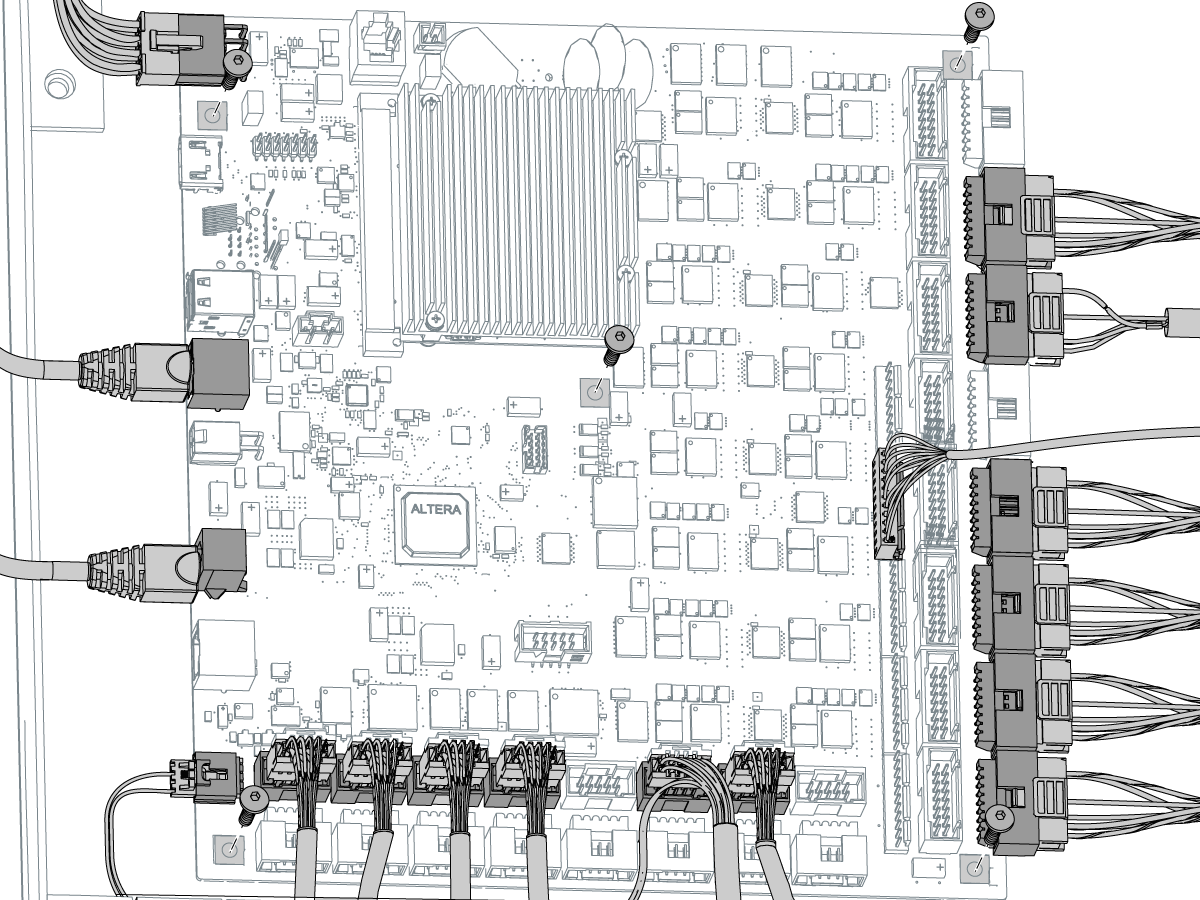
Main Control PCB Replacement

1

Push [POWER OFF]. Set the main circuit breaker to the OFF position. Lock the main circuit breaker. Use an approved lock with an approved safety tag.

Danger: After turning off the machine, wait at least 5 minutes before working in the control cabinet, to allow power todissipate. Wait for the voltage indicator LED on the vector drive to go off completely.

Caution: When you touch a PCB, you must put on an Electrostatic Discharge (ESD) strap.

2

 Note: The Main Control PCB leaves the factory without a battery, refer to the Main Control PCB - (Coin Type) - NGC - Battery Replacement/Install procedure for what type of battery to install and how to do so properly.

Disconnect all of the cables from the Main Control PCB.

 Note: Put an identification label on each cable that is attached to the PCB. This makes the installation easier.

Remove the used Main Control PCB.

Install the new Main Control PCB. 

NOTE: If the PCB you are replacing has a plastic enclosure, refer to the Main Control Enclosed PCB section below.

Connect the cables. Use your identification labels to make the connection

Main Control Non Enclosed to Main Control Enclosed PCB Replacement

Use the following procedure below to replace a non-enclosed Main Control PCB to an Enclosed Main ControlPCB.

1

Once the steps from the previous section for removing the Unenclosed Main Control Board are complete, proceed with the following steps to install the Main Control Enclosed PCB.

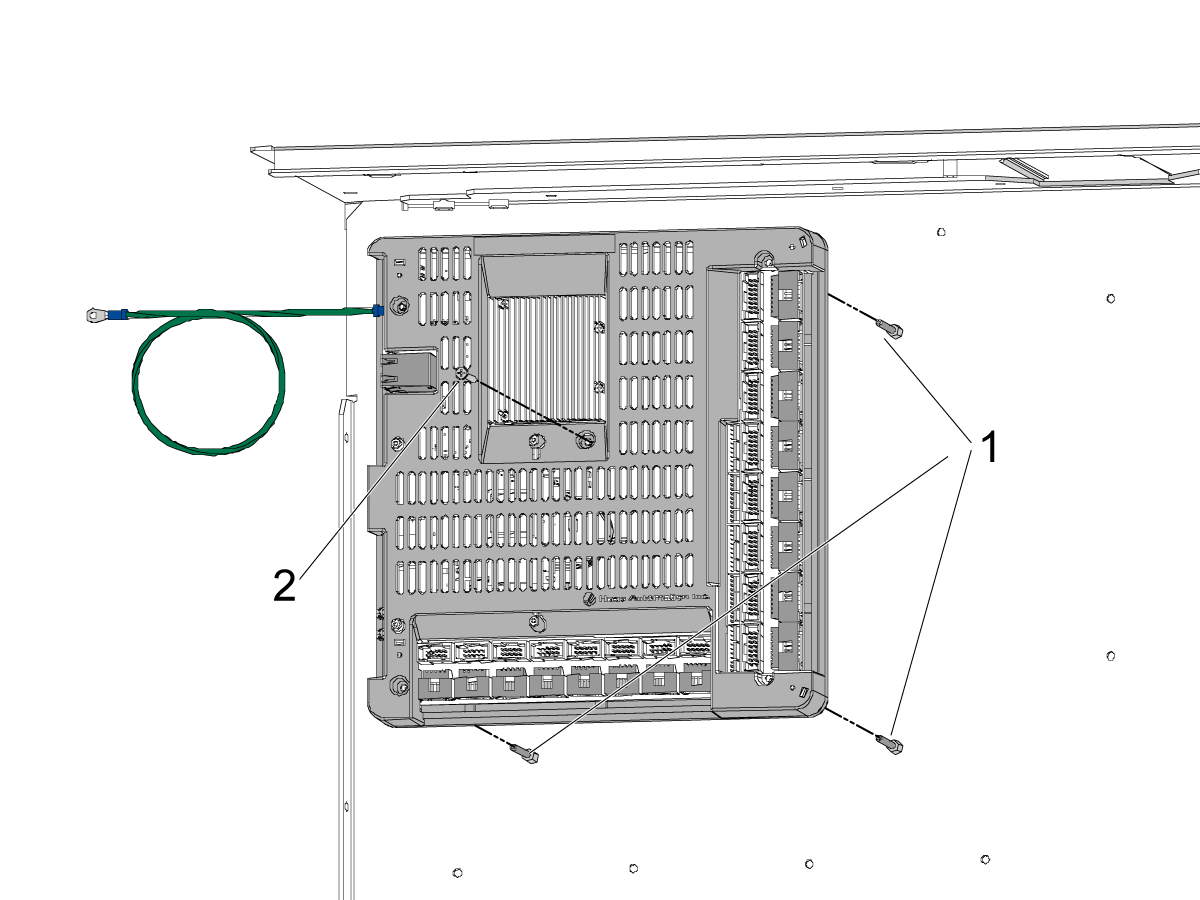
Remove the male-to-male end standoffs from the chassis of the control cabinet, where the Unenclosed Main Control Board was previously mounted.

Install the four 6-32 male to female stand offs used to mount the Enclosed Main Control Board. 

Install the three threaded rods to the following standoffs shown [1].

Note: [2] Will be the only stand off without a threaded rod. 

2

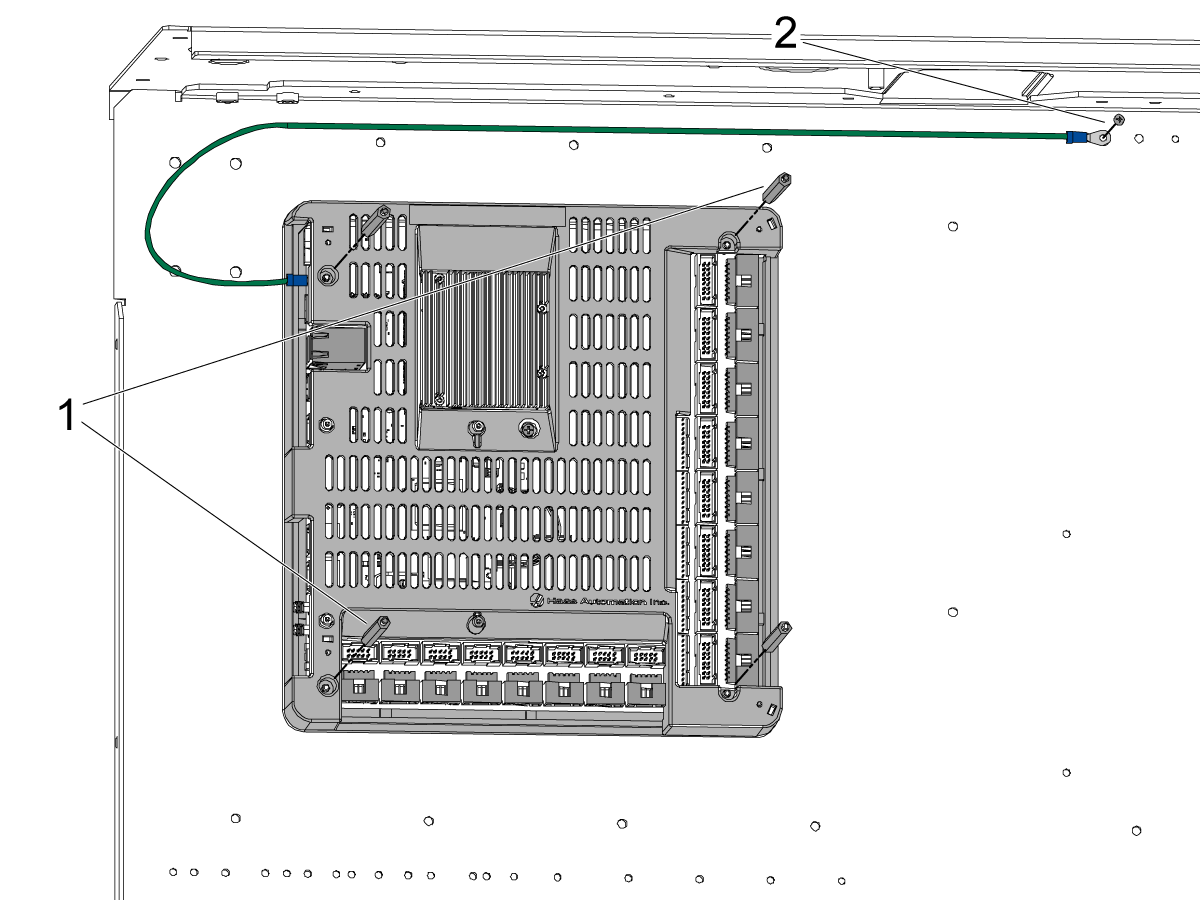
IMPORTANT: Make sure all cables are labeled so that they can be plugged into the new PCB.

Mount the new Main Control Enclosed PCB by aligning it on the threaded rods [1]. 

Once aligned, fasten the center Philip's Pan Head Screw (PPHS) [2] to fix the PCB in position.

3

Fasten the 4 standoffs [1] to the threaded rods that aligned the PCB.

Route the ground cable and fasten it to the Control Cabinet Chassis [2].

NOTE: The image shows one possible location to mount the ground cable to the chassis. The cable can be mounted to any available location on the chassis.

Once mounted make sure that all the cables are plugged into the PCB according to the labels used in the previous step.

Follow the BTD Replacement to continue with mounting the Broken Tool Detection PCB install if applicable to the machine.

Load Software

Note: This process can only be done by a certified Haas technician, 

You must do a "clean" software install when you replace the Main Control PCB. Refer to Software Update - (Option 5) Clean Installation - NGC.

Memory Upgrade Activation

The 32GB or 64GB memory upgrade kits need an activation code to enable the memory on the control.  Refer to NGC configuration 24.1120 and Later.

7.2 Main Processor Battery - Replacement/Install

Recently Updated

Main Control PCB - (Coin Type) - NGC - Battery Replacement/Install


AD0317

Revision B - 7/2025

Introduction

This procedure shows you how to replace the coin battery on a NGC Main Processor.

Parts Required

  • LIR2032 or LR2032 Rechargeable Lithium-Ion coin cell battery 
LIR2032 Material Safety Data Sheet

Electrical Safety

 DANGER: Working with the electrical services required for CNC machines is extremely hazardous and can result in serious injury or death.

Before connecting line wires to the CNC:

  • Turn off all power to the machine at the source.
  • Perform a Lockout-Tagout (LOTO) procedure to ensure the power remains off during service.
  • Verify that power has been disconnected by using an AC voltage detector on all incoming lines.

If you are uncertain about how to safely disconnect power or perform LOTO procedures:

  • Do not proceed.
  • Contact qualified personnel or obtain appropriate assistance before continuing.

Failure to follow these precautions may result in electrical shock, equipment damage, or fatal injury.

 Danger: Before beginning any work inside the control cabinet, verify that the High Voltage indicator light on the 320V Power Supply / Vector Drive has been off for a minimum of five (5) minutes. This waiting period ensures that residual voltage has dissipated and reduces the risk of electric shock.

Certain service procedures involve high-risk electrical components and may pose serious injury or fatality hazards. Technicians must not attempt any procedure unless they have a complete understanding of the steps involved and the associated risks.

If there is any uncertainty regarding a procedure, contact your Haas Factory Outlet (HFO) to arrange for a qualified service technician.

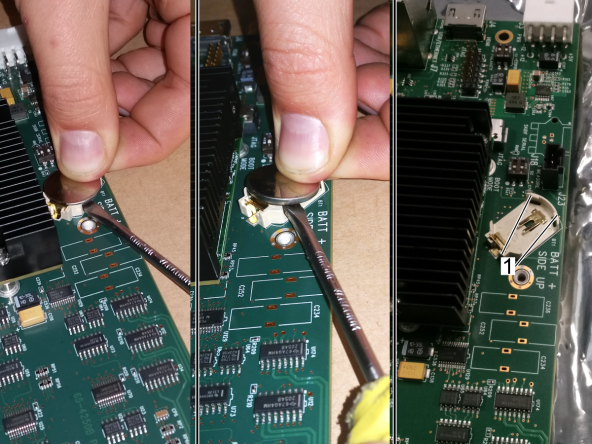
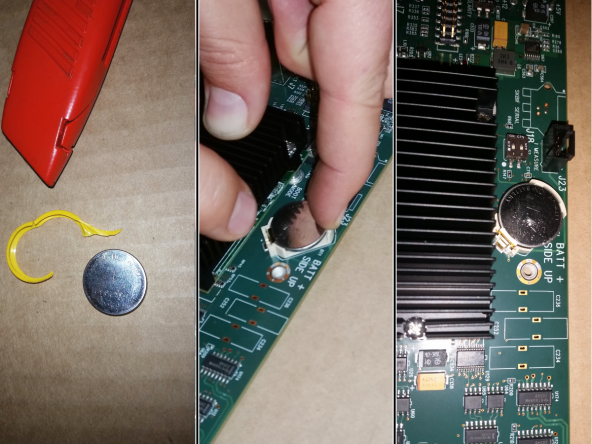
Snap In Battery - Removal

This procedure explains how to replace the coin battery using the snap-in battery holder.

Press lightly on the back end of the battery.

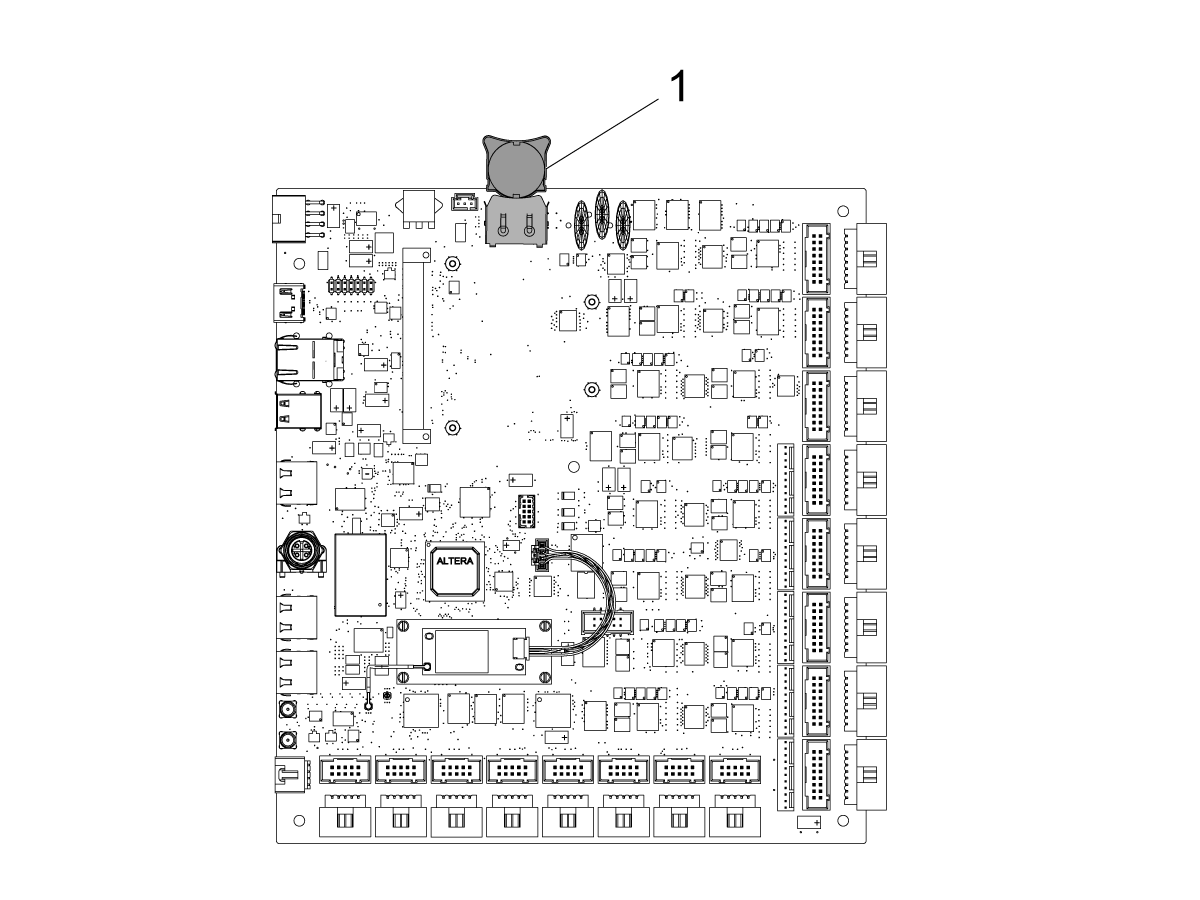
 Caution: Battery holder [1] may get damaged if the battery is allowed to move during the next step.

Position a small flat screw driver underneath the battery on the side of the spring retainer and carefully pry underneath the battery to remove the battery.

Snap In Battery - Installation

Remove the protective film from the new battery.

Install the new battery, make sure the "+" symbol faces up.

Place one edge of battery into holder against metal spring retainer while pulling battery lightly into metal spring. Carefully press back end of battery down into holder past tabs.

 Important: Do not replace the processor, if the battery holder tabs [1] are broken. Temporally hold the battery in place and apply hot silicon glue to secure the battery.

Set the machine date and time. Refer to the Next Generation Control - Date/Time Change procedure.

Note: Leave the machine powered on for at least 4 hours to recharge the battery. Failing to do so can cause the machine Date/Time to reset.

Sliding Battery - Removal

This procedure shows you how to replace the coin battery on a NGC Main Processor with the sliding coin battery holder. This procedure applies to new processors with the plastic enclosure.

Remove the battery door and screws. 

The image on the left depicts a processor on a 15" LCD control, located on the back of the processor.

The right shows a 19" LCD NGC control, located on the front of the processor.

Slide the the battery holder out of its holding clip [1].

Caution: Battery holder may get damaged during installation if the battery is not secured properly.


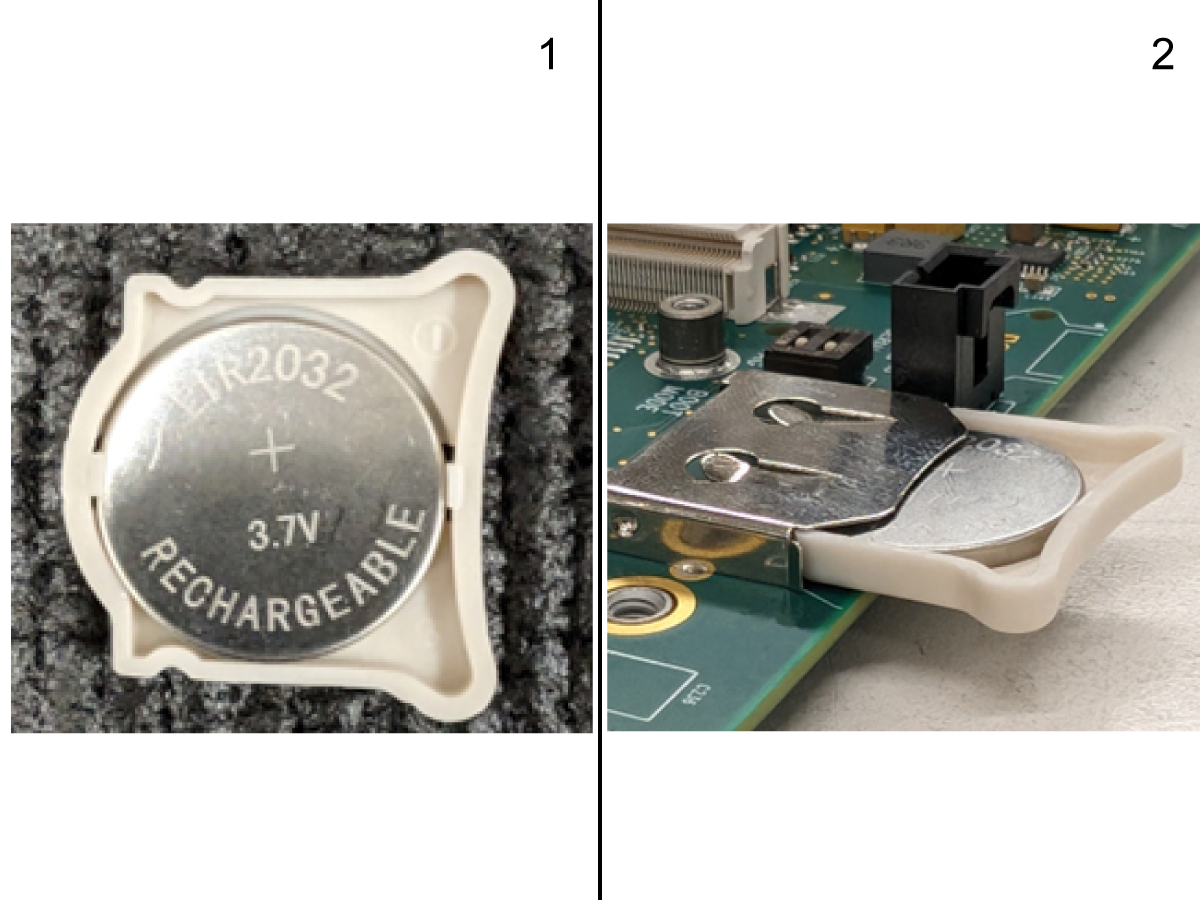
Sliding Battery - Installation

Remove the protective film from the new battery.

Install the new battery, make sure the "+" symbol faces up [1].

Slide the battery holder into the battery clip until locked [2].

Note: Avoid contaminating the battery holder.

Re-install the battery cover.

Set the machine date and time. Refer to the Next Generation Control - Date/Time Change procedure.

Note: Leave the machine powered on for at least 4 hours to recharge the battery. Failing to do so can cause the machine Date/Time to reset.

7.3 15" LCD Main Processor PCB - Troubleshooting

Recently Updated

15" LCD Main Processor PCB - Troubleshooting Guide - NGC


TG0005

Revision B - 01/2026

Introduction

Use this document to troubleshoot the Maincon PCB problems on a machine with the Next Generation Control. If you can not find the scenario that matches your situation, please submit an error log ([SHIFT] + [F3]) to [email protected].

 Note: If necessary the error log command ([SHIFT] + [F3]) can be initiated while the program is running.

Download and fill out the Main Processor PCB Inspection Report Checklist below before replacing any parts.

Main Processor PCB Inspection Report Checklist

15" LCD Main Processor PCB - Overview

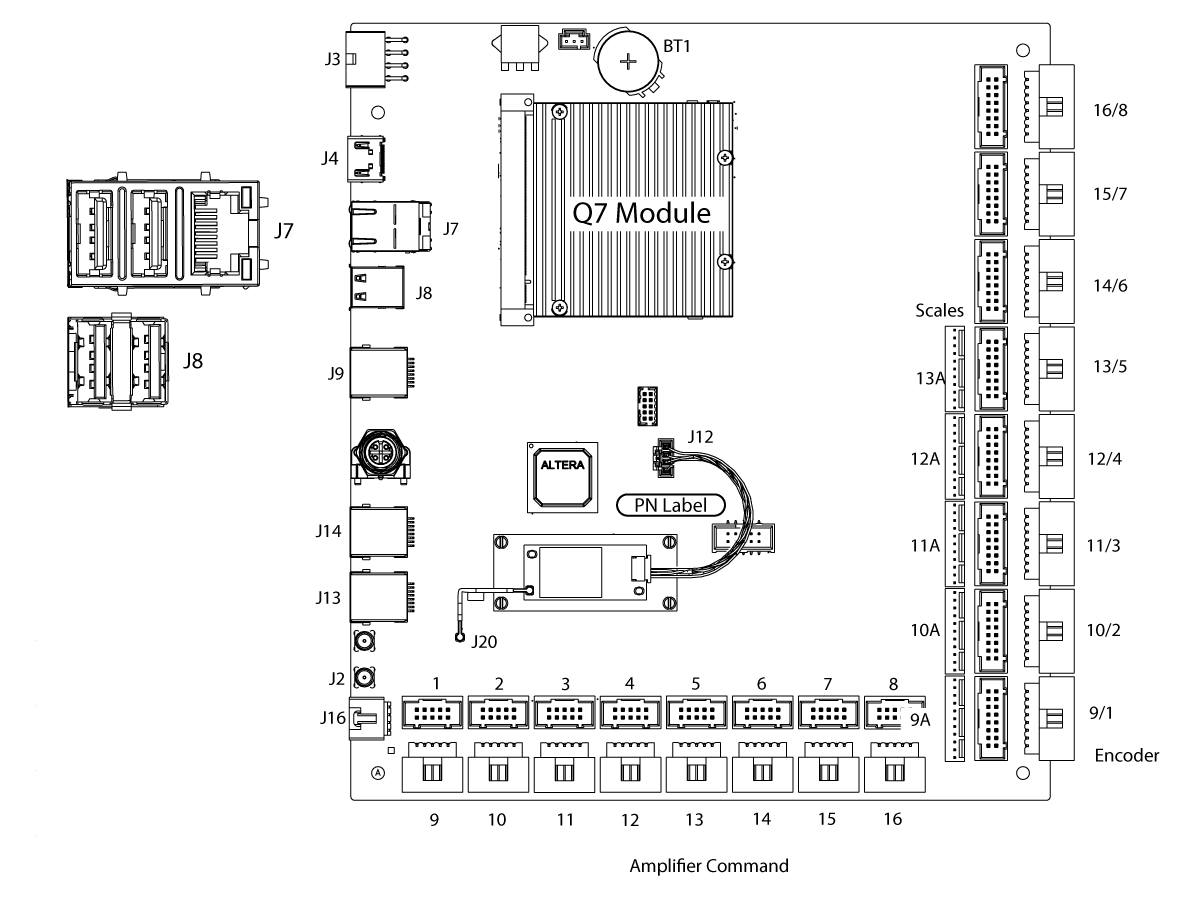
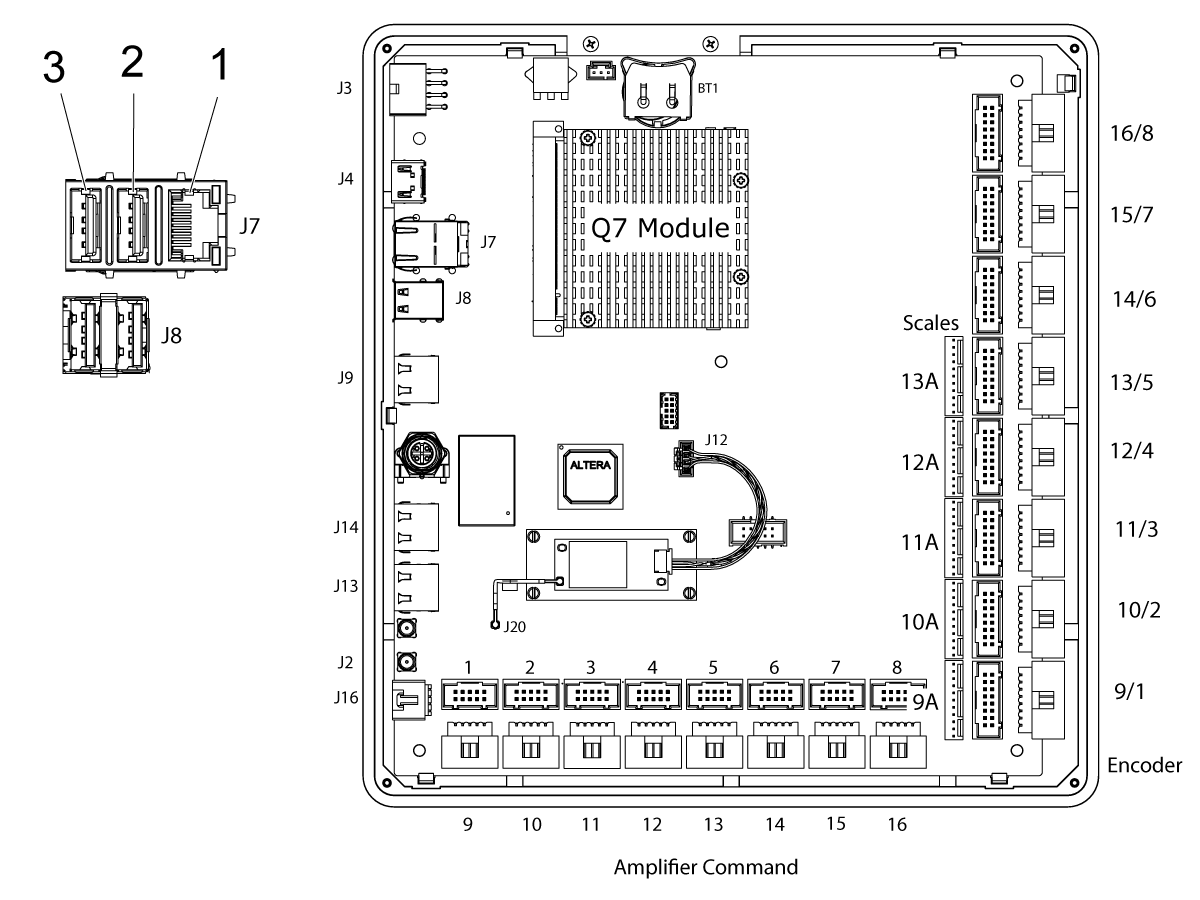
The Next Generation Control 15" LCD Main Processor PCB includes the units for Video, Main, and Motion controller. It accommodates 16 motion control channels. No need to add extra MOCON for the applications that require more channels. This board communicates with the I/O PCB via serial communication through a single RJ45 cable using the RS422 system. The Next Generation Control includes ports for linear scale encoders. Communication with the front panel is done via RJ45 cable and includes the video signals for the 15" LCD display.

  • J3 is the power input connector where +5VDC and +/- 12VDC and a voltage monitor signal is delivered from the PSUP PCB.
  • J7 is a RJ45 ethernet connector and a dual USB hub.
  • The RJ45 ethernet connector is the input from the control cabinet sidewall sheet metal for a wired ethernet connection.
    • The top USB port is connected to the SKBIF PCB at J9.
    • The bottom USB port is not used at this time.
  • J8 is a dual USB hub. It is not used at this time.
  • J9 is a RJ45 ethernet connector. This is connected to the SKBIF PCB at J28.
  • J14 is a RJ45 ethernet connector. This is connected to the I/O PCB at J4.
  • J13 is not used at this time.
  • J2 is a RP-SMA (Reverse-Polarity Sub-Miniature Version A) coaxial connector. This is connected to the WiFi Antenna.
  • J16 is the Voltage Monitor input from the Vector Drive.
  • P1-P16 are the Amplifier Command connections. These are connected to the Axis Servo Amplifiers.
  • P17-P32 are the Axis Encoder input connections. These are the inputs for the Axis Servo motor encoders, axis home sensors, and some rotary air pressure sensors.
  • P33-P37 are the Axis Scale Encoder inputs. These are connected to the secondary scale encoders.
  • BT1 is the System Battery. This provides power to store the date and time memory.
  • The Q7 Module is the Processor board. This module should not be removed.
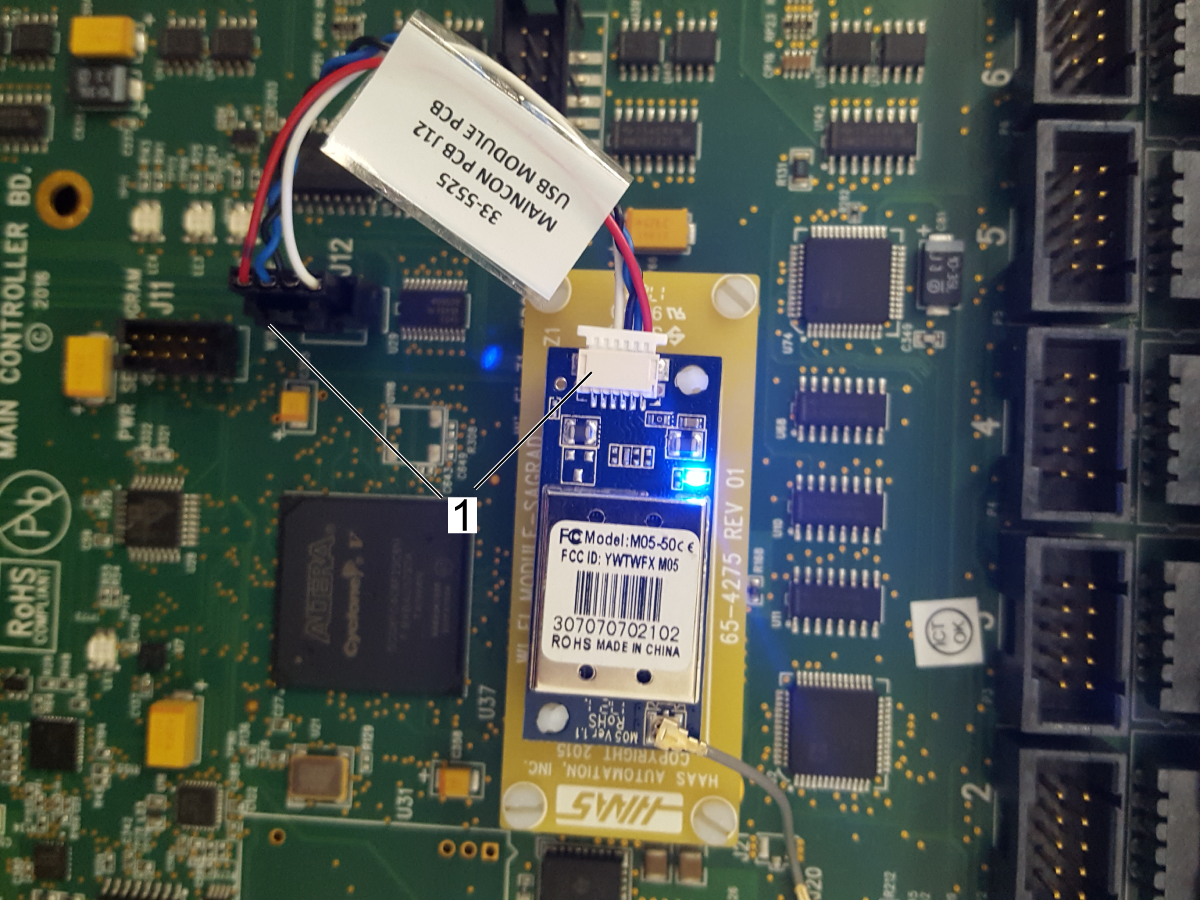
  • J12 is the WiFi module USB connector. This is connected to the WiFi Module PCB.
  • J20 is a UMCC (Ultra Miniature Coaxial Connector). This is connected to the WiFi Module by a jumper cable.

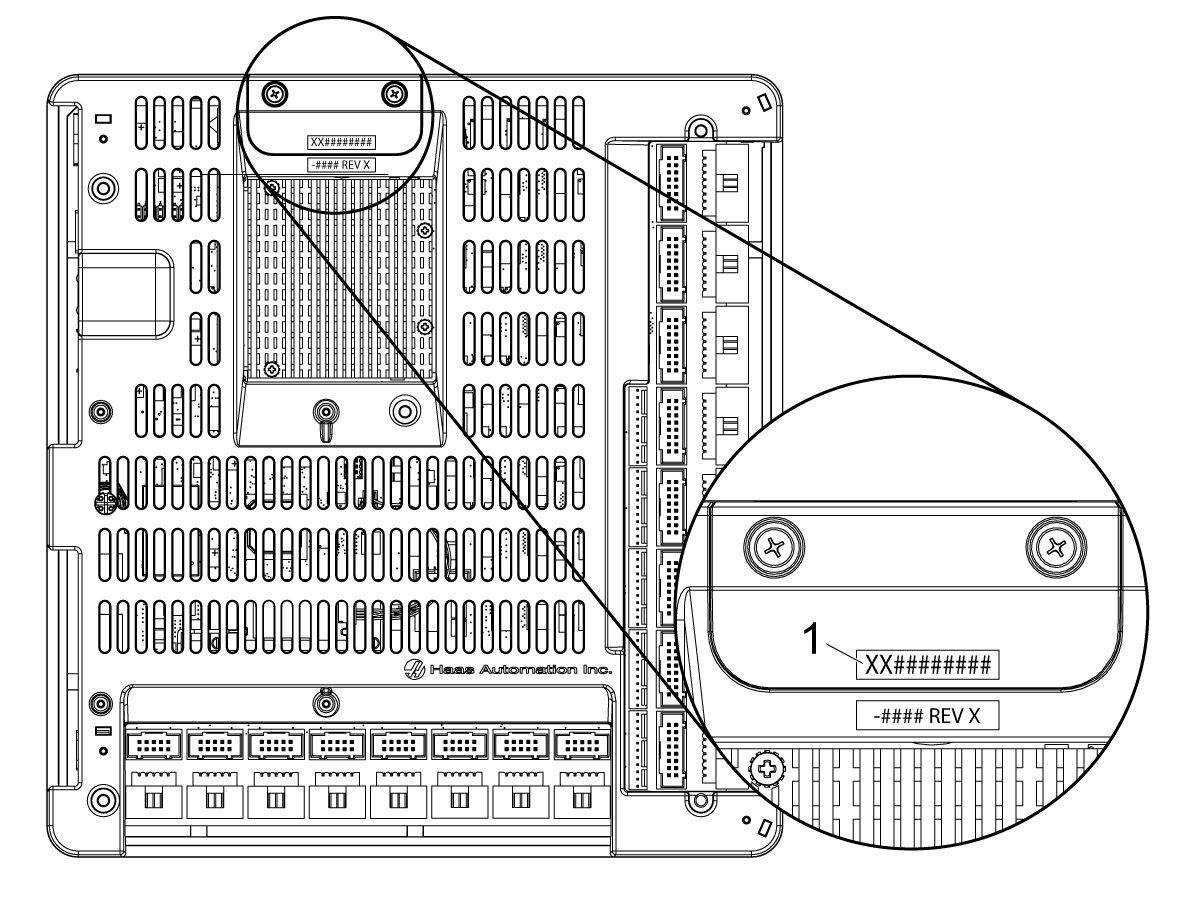
PCB serial number

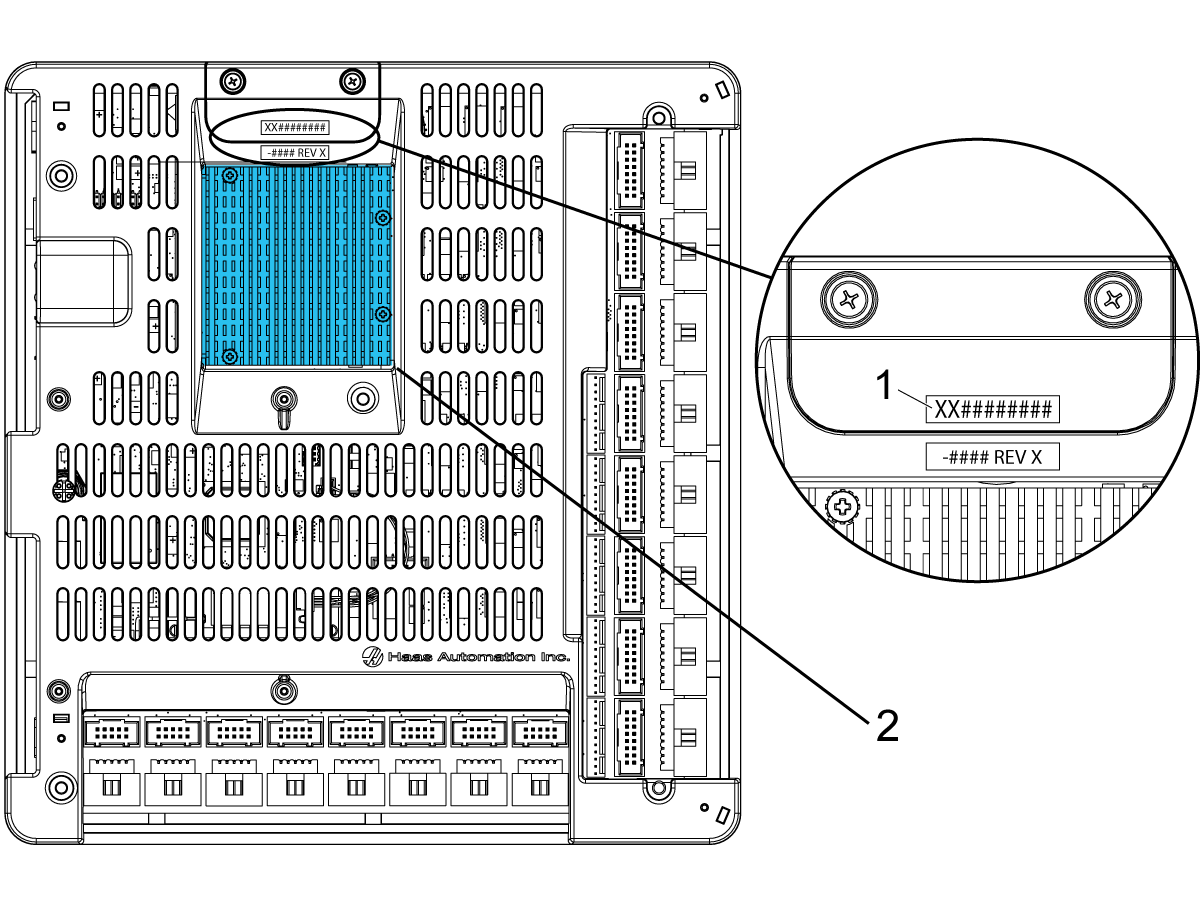
Note: The PCB's serial number must be included in the inspection report checklist. The serial number is on a sticker [1] on the top of the inspection checklist. 

The serial number will start with two letters, followed by eight digits. Include both the letters and numbers on the inspection report. 

15" LCD Main Processor PCB Troubleshooting - Boot Up

1

When powering on the machine the control screen does not boot up and displays a black screen and the LCD backlight is not lit.

Check the following:

  • Check the power input connector at J3 and measure the +5VDC at the connector. The correct voltage will be between +4.90VDC to +5.20VDC.
  • Power off/on the machine a few times and check that the measured voltage stays consistent.
  • If the voltage levels are not consistent. Troubleshoot the PSUP PCB, LVPS, and cables to find the power issue.

Caution: When testing for voltage be careful not to short out the red and black leads. This can cause damage to the Main Processor PCB or the low volt power supply.

2

If you measure the correct voltage consistently at boot up but the control does not boot up and the screen is black. Check the following with the machine powered off:

  • Check the RJ45 ethernet cable and connector from the Main Processor PCB at J9 to the SKBIF PCB at J28. Test the cable, refer to the Network Cable - Tester Tool procedure.
  • Check the connections to the LCD. The LCD data cable at J16 on the SKBIF to the LCD. The LCD Backlight cable from J13 to the LCD. Do not unplug the connections but make check that they are plugged in all the way.

With the machine powered on:

  • Check the Power Input connector at J20 and measure the voltage at the +3.3VDC, +5VDC, and +12VDC test points on the SKBIF. The correct voltages will be between +3.10VDC to +3.50VDC, +4.90VDC to +5.20VDC, and +11.85VDC to +12.40VDC.

3

If the cable connections and measured voltages are correct but the control does not boot up and the screen is black. Perform the following:

  • Update the machine software by holding the U button when powering on the machine.
    • The USB should have your service key, the latest software, and the machine configurations.
    • If the machine boots up and you get the Haas Software Updater screen. Perform an Option 2 software update.
  • If that fails perform an Option 5 software update.
  • If that fails perform a SOFTWARE UPDATE RECOVERY by holding the E button when powering on the machine. This boots from the USB rather than the processor.
  • If the machine does not boot up and display the Haas Software Updater screen. Replace the Main Processor PCB.

4

If the control screen powers on but stops at steps 2-8, this is not a power issue or RJ45 video connection issue, but a Main Processor boot up issue.
This can happen every time at boot up or intermittently. Check the following:

  • Check the Main Processor/Software compatibility table below and upgrade to the latest software.

Note: Do not upgrade to the current software from software version 100.16.000.1020 or lower. You need to upgrade to 100.16.000.1021 first then you can upgrade to the current software version.

  • Perform an Option 2 software update first.
  • If this fails perform an Option 5 software update. If that fails perform a SOFTWARE UPDATE RECOVERY by holding the E button when powering on the machine.
  • If the machine does not boot up and display the Haas Software Updater screen. Replace the Main Processor PCB.

Hardware and Software Version Compatibility Table

NGC Main PCB Compatible Software Version Hardware PN# TP#
NGC Maincon PCB with Q7_4GB eMMC module. 100.16.000.1011 and higher (see note*) 32-4250A, 32-4250B, 32-4251B, 32-4252F, 32-4253F N/A
NGC Maincon PCB with Q7_8GB eMMC module. 100.17.000.1018 and higher 32-4250C, 32-4250D, 32-4251C, 32-4252A, 32-4253A 20433
NGC Maincon PCB with Q7_16GB eMMC module. 100.17.000.2034 and higher 32-4252B, 32-4253B 20566
NGC Maincon PCB with IWAVE Q7_16GB eMMC module. 100.20.000.1200 and higher  32-4256, 32-4257 N/A
NGC Maincon PCB with C7 (1GB, 32GB, and 64GB) 100.22.000.1010 and higher 32-4290, 32-4291 56810
NGC Maincon PCB with Xilinx Q7 
100.23.000.1000 and higher 32-4254, 32-4255, 32-4266, 32-4268 N/A
NGC Maincon PCB  with Xilinx Q7  100.24.000.1000 and higher  32-4266A, 32-4268A N/A
Y/D Contactor      
Y/D contactor with feedback cables. 100.17.000.2034 and higher 32-5280A, 32-5281A 20007

 Note: Do not upgrade to the current software from software version 100.16.000.1020 or lower. You need to upgrade to 100.16.000.1021 first then you can upgrade to the current software version.

Symptom Table

Symptom Possible Cause Corrective Action

The Time/Date or Activation will reset intermittently.

The system battery is defective.

Measure the system battery voltage, if the voltage is below 3.0 VDC replace the battery. Refer to Next Generation Control - Main Control PCB - Battery Replacement.

Leave the machine powered on for at least 4 hours to recharge the battery. If the machine Date/Time to resets the battery may need to be replaced.

Maincon PCB is not outputting the correct voltage.  Refer to the PCB Battery Inspection section below for the corrective action. 
The machine display will not turn on. The Low Volt Power Supply is not outputting the correct voltage.
  • Check the power input connector at J3 and measure the +5VDC at the connector. The correct voltage will be between +4.90VDC to +5.20VDC.
  • Power off/on the machine a few times and check that the measured voltage stays consistent.
A loose cable connection to the WIFI module PCB is causing the processor to hang.
  1. Power Off the machine.
  2. Disconnect the WIFI module connector at J12.
  3. Power On the machine. If the machine boots correctly, reseat the WIFI module connector at J12 and also on the WIFI module PCB [1].
The cable from the SKBIF to the Maincon PCB is defective. Refer to the Next Generation Control - SKBIF / LCD Monitor - Troubleshooting Guide for more troubleshooting information.
The screen on the control flickers or goes blank when the servos are on. The cable from the SKBIF to the Maincon PCB is defective. Test the RJ-45 cable that connects to J28 on the SKBIF PCB and J9 on the Maincon PCB using a network cable tester. Refer to Network Cable Tester Tool procedure.
The connector on the SKBIF PCB has a broken solder joint or is not soldered correctly. Check the solder on the J28 header connector on the SKBIF PCB. Make sure that it is soldered correctly. Replace the SKBIF PCB if the connector is not soldered correctly.
The connector on the Maincon PCB has a broken solder joint or is not soldered correctly. Check the solder on the J9 header connector on the Maincon PCB. Make sure that it is soldered correctly. Replace the Maincon PCB if the connector is not soldered correctly.
Machines with software version prior to 100.17.000.2034. The control freezes, blank monitor, black screen, keypad not working, won't boot sometimes, random shutdowns, or software alarms. The parameters for the Q7 module on the Maincon PCB are outdated. The updated parameters have been incorporated into the software version 100.17.000.2034 (TP 21894). Update the software to the latest version. If the symptoms continue after updating the software, download the error log with [SHIFT] + [F3] and e-mail it to Haas Service Department.
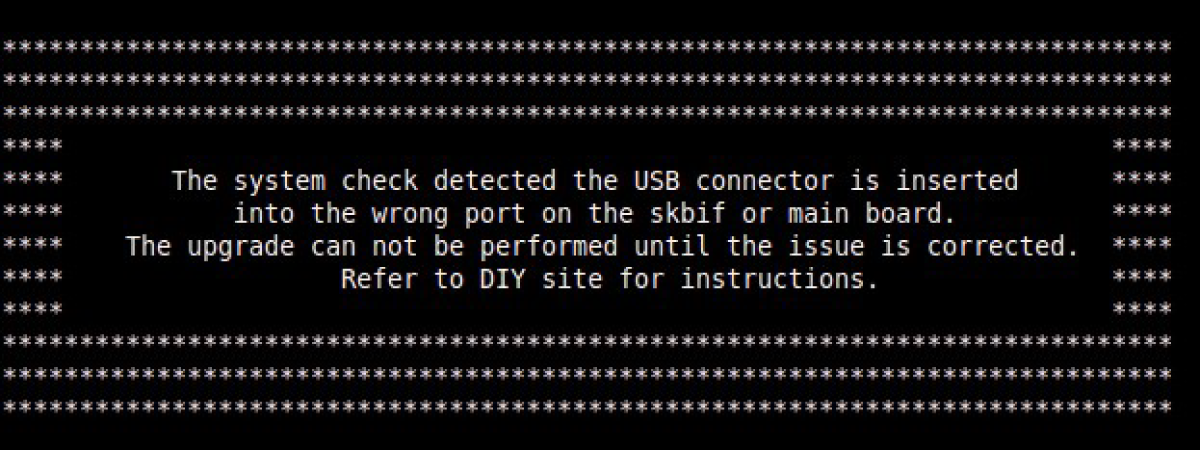
Machines with 100.17.000.2040 of later, during a software update you get the following USB error: "The system check detected the USB connector is inserted into the wrong port on the skbif or main board......" The USB cable on the Maincon or SKIBF PCB is connected to the wrong location. Make sure the USB cable going to the SKIBF PCB is connected to the correct location, #2, on the Maincon PCB (See above diagram).
Alarm 488 INTERMITTENT USB ERROR A communication timeout due to a faulty USB device.

Try a different USB device to see if the issue continues. Programs should be run from the control memory and not from the USB. Update the machine to the latest software.

If the alarms continues to generate, take an error report with the alarm present and submit it to Haas Service. Remove the USB device from the side of the pendant. If the alarm does not continue to generate, plug the USB directly into the SKBIF PCB or Main Processor PCB to find the faulty cable or PCB. If it does continue to generate, disconnect the other USB devices. See the Alarms 9100.017 & 9100.018 section below for steps.

Watch the video below and follow the troubleshooting done.

USB Cable - Troubleshooting

The control freezes. Faulty USB stick or USB hub on the Main Processor PCB or SKBIF PCB.

Try a different USB device to see if the issue continues. Programs should be run from the control memory and not from the USB.

If the control freezes and the machine is unresponsive, Cycle Power the machine and take an error report and submit it to Haas Service. If it does not continue, install the USB to the bottom port of J21 on the SKBIF PCB. If the issue continues, take an error report at the time of the issue and submit it to Haas Service. If it doesnt continue replace the cable from the pendant to the SKBIF PCB.

The control has a laggy/delayed response. Faulty USB stick or USB hub on the Main Processor PCB or SKBIF PCB.

Try a different USB device to see if the issue continues. Programs should be run from the control memory and not from the USB.

If the control is laggy, remove the USB stick from the side of the pendant. If the issue continues, take an error report at the time of the issue and submit it to Haas Service. If it does not continue, install the USB to the bottom port of J21 on the SKBIF PCB. If the issue continues, take an error report at the time of the issue and submit it to Haas Service. If it doesnt continue replace the cable from the pendant to the SKBIF PCB.

Alarms 9100.017 or 9100.018 NON RESETTABLE SOFTWARE ERROR is generated on machines with software version 100.21.000.1133 and lower. A communication timeout due to a faulty USB component.

Update the machine to the latest software. If the alarms continues to generate, take an error report with the alarm present and submit it to Haas Service. Disconnect the following USB devices to troubleshoot the USB device causing the alarm:

•USB drive on pendant.
•Touchscreen and disable the setting
•Wi-Fi and disable the Wireless Connection
•Robot Signal and disable the setting

See the Alarms 9100.017 & 9100.018 section below for steps.

Alarm 9011 WIFI MODULE ERROR A communication timeout due to a faulty Wi-Fi USB device.

If installed, remove the USB device from the side of the pendant. Update the machine to the latest software. If the alarms continues to generate, take an error report with the alarm present and submit it to Haas Service.

Disconnect the Wi-Fi at J12 on the Main Processor PCB and Disable the Wireless Connection in Settings > Network > Wireless Connection and press F1 to Disconnect. Cycle power the machine. Does the alarm continue to generate?

•If no, replace the Main Processor PCB.
•If yes, disconnect the other USB devices.

Alarm 9012 ETHERNET ADAPTER ERROR A communication timeout due to a faulty Robot signal USB device.

If installed, remove the USB device from the side of the pendant. Update the machine to the latest software. If the alarms continues to generate, take an error report with the alarm present and submit it to Haas Service.

Disconnect the Robot Signal cable at J8 on the Main Processor PCB and disable the Robot by changing Setting 372 – Part Loader Type to 0: Off.

•Does the alarm continue to generate? If no, replace the Main Processor PCB.
•If yes, disconnect the other USB devices.

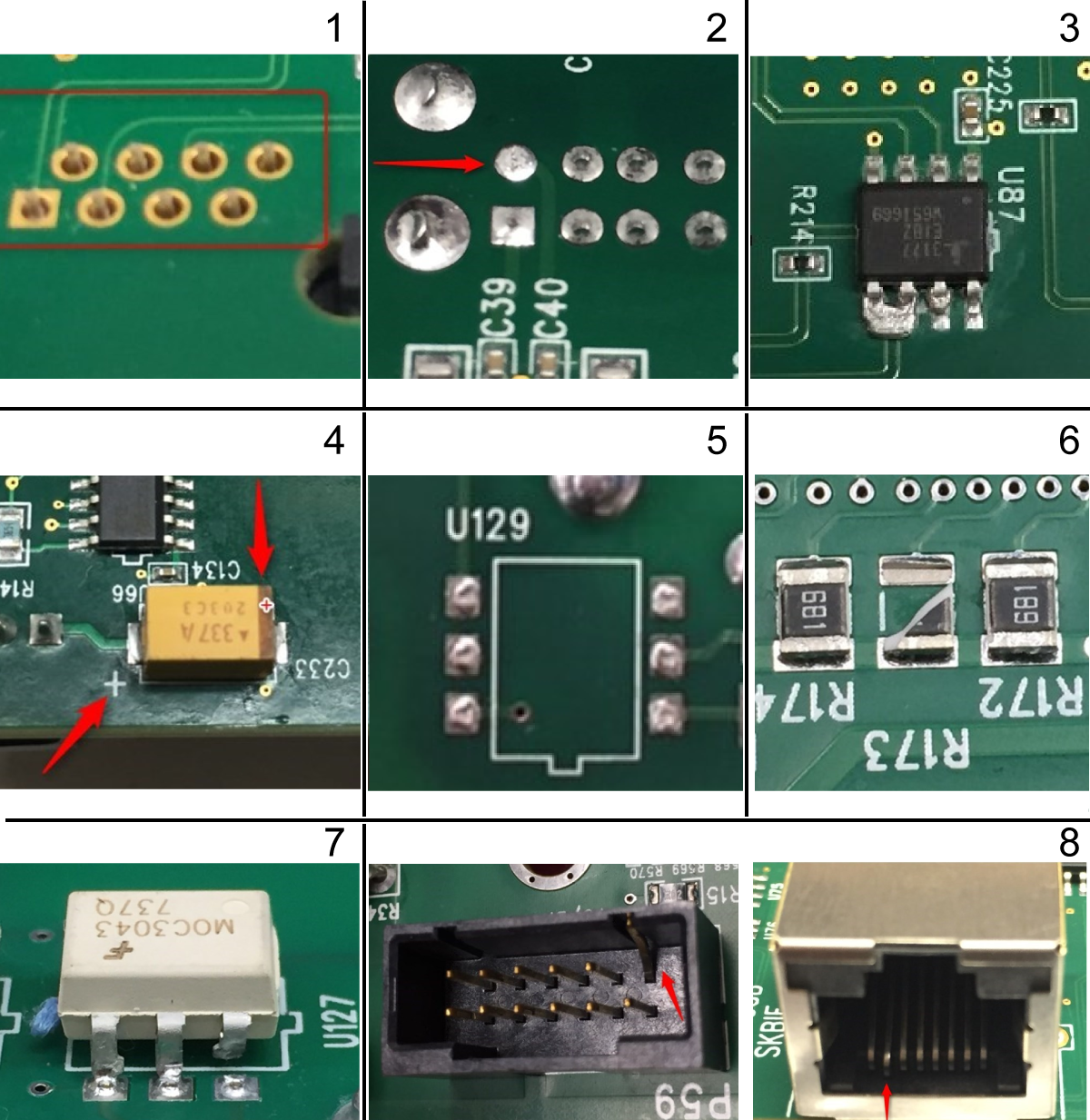
PCB Component Inspection

Intermittent symptoms or alarms can be caused by component failure. Below is a list of possible failures:

  1. Missing solder on all or some components pins
  2. Poor solder
  3. Solder bridges
  4. Wrong component installation (orientation)
  5. Missing components

     Note: Some PCB's have unused circuits and are missing components intentionally, look for broken off components.

  6. Broken components
  7. Broken pins on IC's
  8. Bent pins on the connectors

Use a magnifying glass to inspect the circuit components on the front and back of the Maincon PCB. Below are the circuit component zones to inspect:

  1. Inspect for bent pins inside the connectors, also look for loose header connectors.
  2. Inspect for a loose battery, broken battery tabs, repair if needed.

     Note: Do not replace the Maincon PCB. Refer to Next Generation Control - Main Control PCB - Battery Replacement for repair instructions.

  3. Inspect for bent or missing pins inside the connectors, also look for loose header connectors.
  4. Inspect the E-net module for loose connections or broken wires.
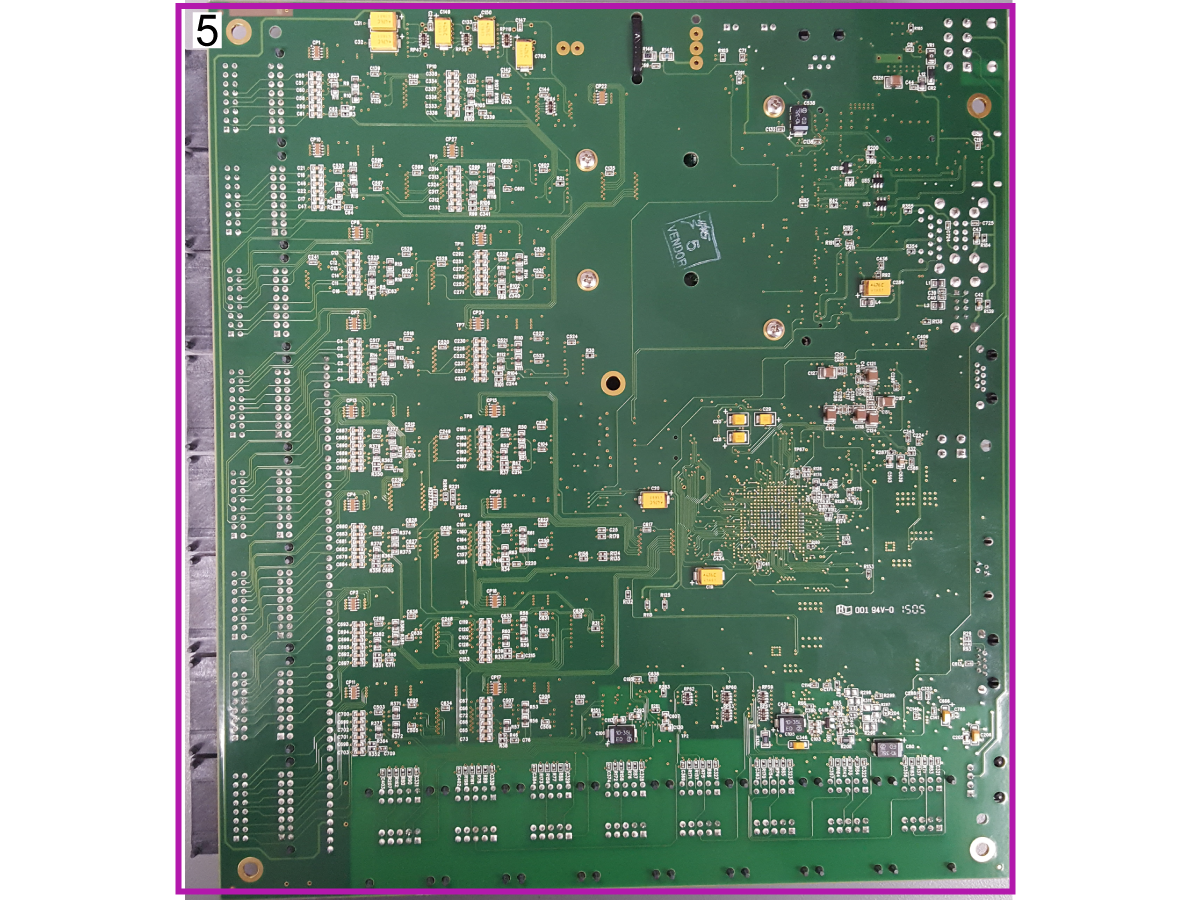
  5. Inspect all solder joints and surface mount components on the back of the Maincon PCB.

PCB Battery Inspection

Updated

Corrective Action: With the machine powered ON, use a multimeter to test the voltage of the following points [1] while the battery is in its holder. 

Note: For sliding type battery holders, you can remove the battery holder to measure the voltage of the battery while the machine is powered ON. Removing the battery when the machine is powered OFF will result in the machine losing track of the date and time.

Test the battery independently with a multimeter to ensure that it is producing a voltage of 4.06. 

After testing the voltage of the battery, measure the voltage on the PCB as shown in the image. The voltage at the points of the PCB should match the battery voltage measurement. If it is lower, the Maincon PCB will need to be replaced.

7.4 19" LCD Main Processor PCB - Troubleshooting

Recently Updated

19" LCD Main Processor PCB - Troubleshooting Guide - NGC


TG0007

Revision C - 01/2026

Introduction

Updated

Use this document to troubleshoot the Maincon PCB problems on a machine with the Next Generation Control. If you can not find the scenario that matches your situation, please submit an error log ([SHIFT] + [F3]) to [email protected].

The 19‑inch LCD NGC control includes an IPFM PCB that can directly influence the performance of the Main Processor PCB. Because of this interaction, the IPFM PCB should be included as part of the overall troubleshooting process. For detailed diagnostic procedures, refer to the IPFM PCB – Troubleshooting Guide.

 Note: If necessary the error log command ([SHIFT] + [F3]) can be initiated while the program is running.

Download and fill out the Main Processor PCB Inspection Report Checklist below before replacing any parts.

Main Processor PCB Inspection Report Checklist

19" LCD Main Processor PCB - Overview

The Next Generation Control 19" LCD Main Processor PCB includes the units for Video, Main, and Motion controller. It accommodates 16 motion control channels. No need to add extra MOCON for the applications that require more channels. This board communicates with the I/O PCB via serial communication through a single RJ45 cable using the RS422 system. The Next Generation Control includes ports for linear scale encoders. Communication with the front panel is done via HDMI cable and includes the video signals for the 19" LCD display.

 Note: The NGC Maincon PCB with iMX8 Q7 has a protective plastic enclosure. The top cover is removed for illustrative purposes. 
 
  • J3 is the power input connector where +5VDC and +/- 12VDC and a voltage monitor signal is delivered from the iPFDM.
  • J7 is a RJ45 ethernet connector and a dual USB hub.
  • The RJ45 ethernet connector [1] is the input from the control cabinet sidewall sheet metal for a wired ethernet connection.
    • The top USB port [2] is connected to the SKBIF PCB at J9.
    • The bottom USB port [3] is not used at this time.
  • J8 is a dual USB hub. It is not used at this time.
  • J9 is a RJ45 ethernet connector. This is connected to the SKBIF PCB at J28.
  • J14 is a RJ45 ethernet connector. This is connected to the I/O PCB at J4.
  • J13 is not used at this time.
  • J2 is a RP-SMA (Reverse-Polarity Sub-Miniature Version A) coaxial connector. This is connected to the WiFi Antenna.
  • J16 is the Voltage Monitor input from the Vector Drive.
  • P1-P16 are the Amplifier Command connections. These are connected to the Axis Servo Amplifiers.
  • P17-P32 are the Axis Encoder input connections. These are the inputs for the Axis Servo motor encoders, axis home sensors, and some rotary air pressure sensors.
  • P33-P37 are the Axis Scale Encoder inputs. These are connected to the secondary scale encoders.
  • BT1 is the System Battery. This provides power to store the date and time memory.
  • The Q7 Module is the Processor board. This module should not be removed.
  • J12 is the WiFi module USB connector. This is connected to the WiFi Module PCB.
  • J20 is a UMCC (Ultra Miniature Coaxial Connector). This is connected to the WiFi Module by a jumper cable.

PCB serial number

Note: The PCB's serial number must be included in the inspection report checklist. The serial number is on a sticker [1] on the plastic cover. 

The serial number will start with two letters, followed by eight digits. Include both the letters and numbers on the inspection report. 

Hardware and Software Version Compatibility Table

NGC Main PCB Compatible Software Version Hardware PN# TP#
NGC Maincon PCB with iMX8 Q7  100.25.001.1000 and higher 32-4272, 32-4273 N/A

Symptom Table

Symptom Possible Cause Corrective Action

The Time/Date or Activation will reset intermittently.

The system battery is defective.

Measure the system battery voltage, if the voltage is below 3.0 VDC replace the battery. Refer to Next Generation Control - Main Control PCB - Battery Replacement.

Leave the machine powered on for at least 4 hours to recharge the battery. If the machine Date/Time to resets the battery may need to be replaced.

Maincon PCB is not outputting the correct voltage.  Refer to the PCB Battery Inspection section below for the corrective action. 
The machine display will not turn on. The Low Volt Power Supply is not outputting the correct voltage.
  • Check the power input connector at J3 and measure the +5VDC at the connector. The correct voltage will be between +4.90VDC to +5.20VDC.
  • Power off/on the machine a few times and check that the measured voltage stays consistent.
The cable from the SKBIF to the Maincon PCB is defective. Refer to the Next Generation Control - SKBIF / LCD Monitor - Troubleshooting Guide for more troubleshooting information.
A loose HDMI cable connection between LCD PCB and J4 on the Main Processor PCB.

Power off the machine. Check the HDMI cable connection at the LCD PCB and at J4 on the Main Processor PCB. Power on the machine.

The screen on the control flickers or goes blank when the servos are on. The cable from the SKBIF to the Maincon PCB is defective. Test the RJ-45 cable that connects to J28 on the SKBIF PCB and J9 on the Maincon PCB using a network cable tester. Refer to Network Cable Tester Tool procedure.
The connector on the SKBIF PCB has a broken solder joint or is not soldered correctly. Check the solder on the J28 header connector on the SKBIF PCB. Make sure that it is soldered correctly. Replace the SKBIF PCB if the connector is not soldered correctly.
The connector on the Maincon PCB has a broken solder joint or is not soldered correctly. Check the solder on the J9 header connector on the Maincon PCB. Make sure that it is soldered correctly. Replace the Maincon PCB if the connector is not soldered correctly.
The control freezes. Faulty USB stick or USB hub on the Main Processor PCB or SKBIF PCB.

Try a different USB device to see if the issue continues. Programs should be run from the control memory and not from the USB.

If the control freezes and the machine is unresponsive, Cycle Power the machine and take an error report and submit it to Haas Service. If it does not continue, install the USB to the bottom port of J21 on the SKBIF PCB. If the issue continues, take an error report at the time of the issue and submit it to Haas Service. If it doesnt continue replace the cable from the pendant to the SKBIF PCB.

The control has a laggy/delayed response. Faulty USB stick or USB hub on the Main Processor PCB or SKBIF PCB.

Try a different USB device to see if the issue continues. Programs should be run from the control memory and not from the USB.

If the control is laggy, remove the USB stick from the side of the pendant. If the issue continues, take an error report at the time of the issue and submit it to Haas Service. If it does not continue, install the USB to the bottom port of J21 on the SKBIF PCB. If the issue continues, take an error report at the time of the issue and submit it to Haas Service. If it doesnt continue replace the cable from the pendant to the SKBIF PCB.

Alarm 9011 WIFI MODULE ERROR A communication timeout due to a faulty Wi-Fi USB device.

If installed, remove the USB device from the side of the pendant. Update the machine to the latest software. If the alarms continues to generate, take an error report with the alarm present and submit it to Haas Service.

Disconnect the Wi-Fi at J12 on the Main Processor PCB and Disable the Wireless Connection in Settings > Network > Wireless Connection and press F1 to Disconnect. Cycle power the machine. Does the alarm continue to generate?

•If no, replace the Main Processor PCB.
•If yes, disconnect the other USB devices.

Alarm 9012 ETHERNET ADAPTER ERROR A communication timeout due to a faulty Robot signal USB device.

If installed, remove the USB device from the side of the pendant. Update the machine to the latest software. If the alarms continues to generate, take an error report with the alarm present and submit it to Haas Service.

Disconnect the Robot Signal cable at J8 on the Main Processor PCB and disable the Robot by changing Setting 372 – Part Loader Type to 0: Off.

•Does the alarm continue to generate? If no, replace the Main Processor PCB.
•If yes, disconnect the other USB devices.

Alarm 9100.017 NON RESETTABLE SYSTEM ERROR by itself or accompanied by other communication or hardware related alarms. Machine is currently on software version lower than 100.25.001.1102. The software needs to be updated Perform a software update on the machine and update to version 100.25.001.1102 or later. Refer to the service news HBC-N-07/01/2025 for more information.
Screen is black or screen is frozen and machine is on software version lower than 100.25.001.1102.
The monitor display is zoomed in or is displaying abnormal colors. The HDMI cable is damaged. Unplug and re-plug in the HDMI cable. If the issue persists, order a new HDMI cable of the correct length. If applicable, remove the tape from the HDMI cable and order the magnetic cable tie (59-1536) to secure the HDMI in place.

Refer to the service news posted on HBC-N 10/06/2025 for more information.

Electrical Diagrams


Updated

19 in LCD Control Detail Diagram


Updated

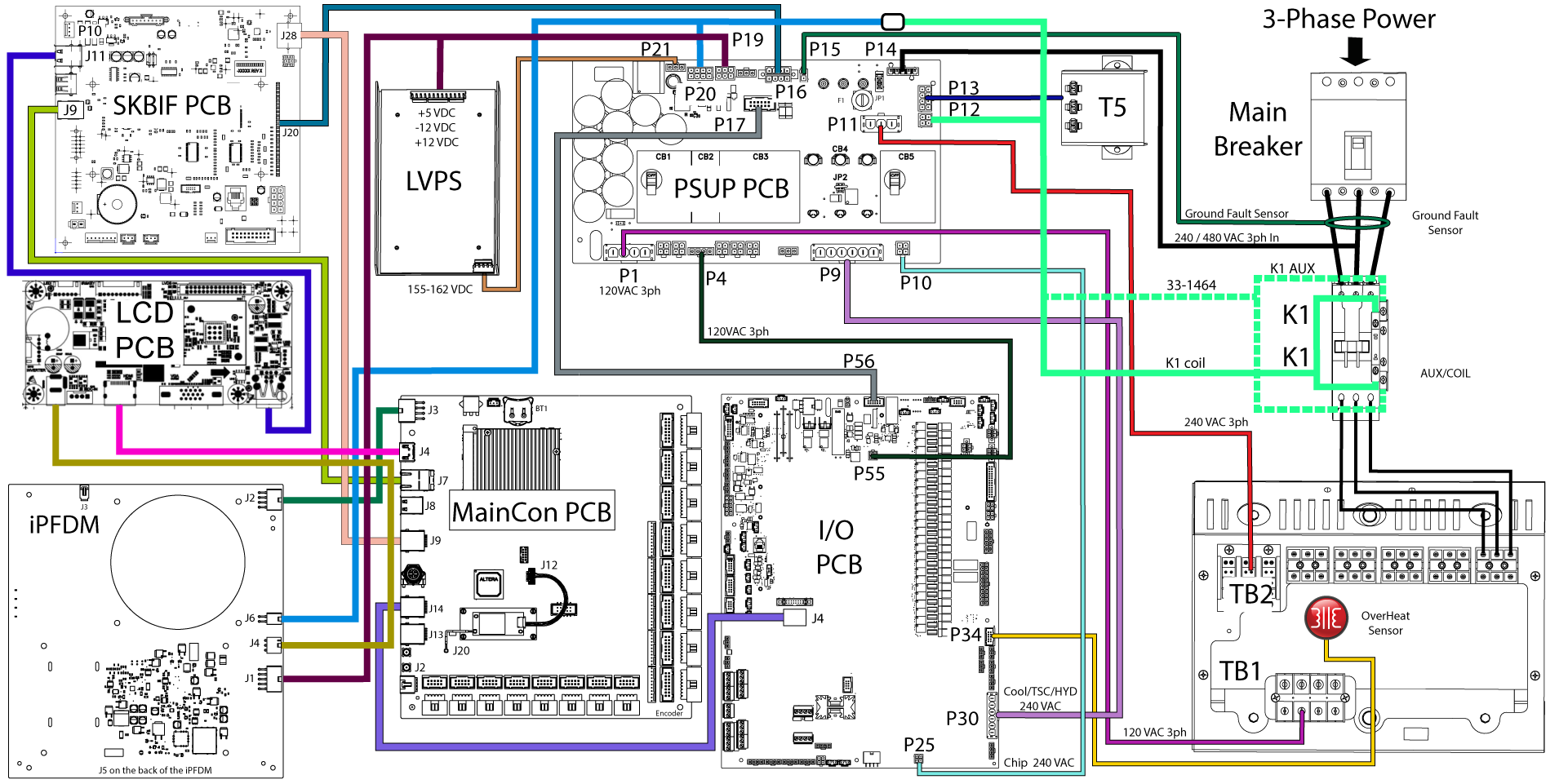
19 in LCD Maincon PCB (J3) to iPFDM to PSUP PCB (P20) Detail Diagram

7.5 Main Processor PCB - Identification

Recently Updated

Main Processor PCB - Identification - NGC


RD0091

Revision A - 5/2025

Introduction

Use this document to differentiate between the two kind Main Processor PCBs on a machine with the Next Generation Control before conducting any kind of troubleshooting. Refer to 15"LCD Main Processor Troubleshooting Guide or 19" LCD Main Processor Troubleshooting Guide for further questions and scenarios.

If you cannot find the scenario that matches your situation, please submit an error log ([SHIFT] + [F3]) to [email protected].

 Note: If necessary the error log command ([SHIFT] + [F3]) can be initiated while the program is running.

Download and fill out the Main Processor PCB Inspection Report Checklist below before replacing any parts.

Main Processor PCB Inspection Report Checklist

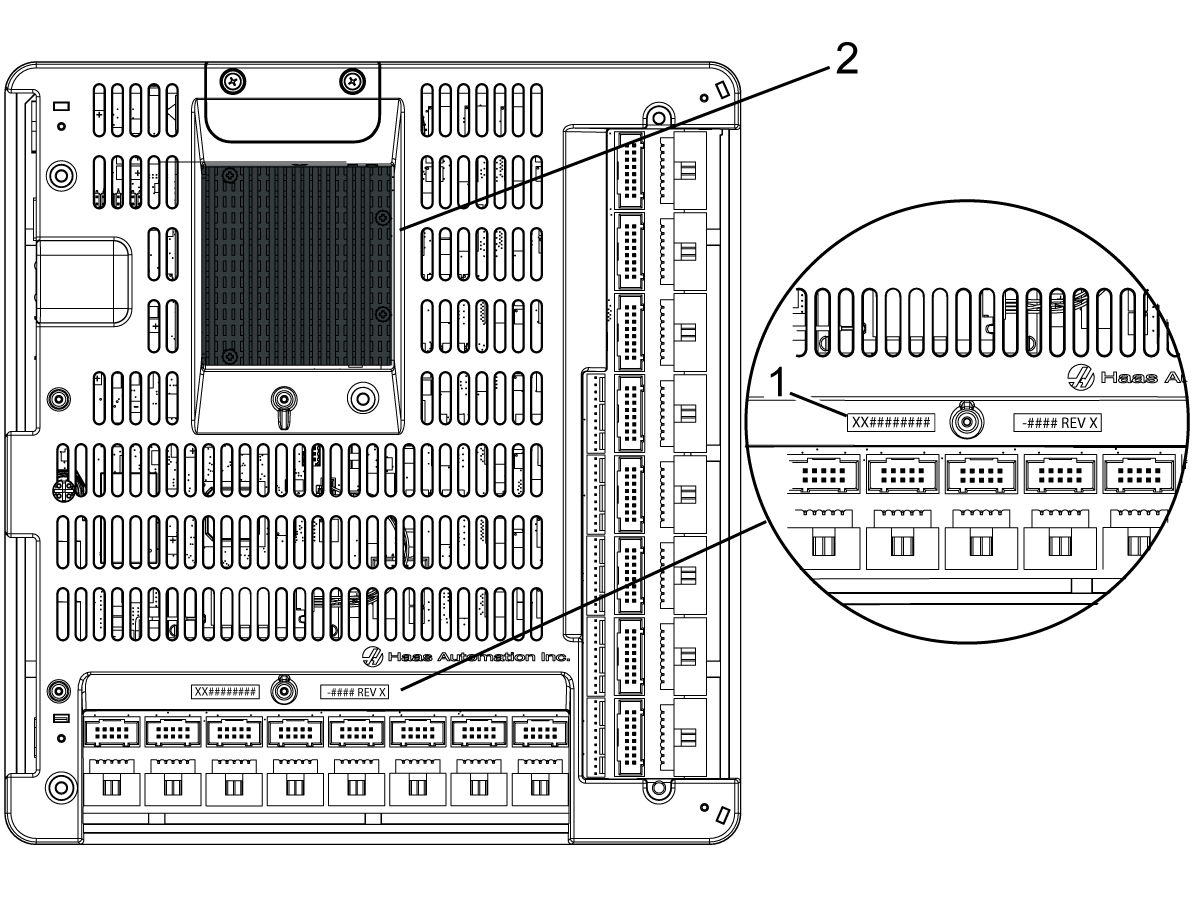
iMX6 Main Processor PCB

Important: The following indicators can help you identify the iMX6 Main Processor PCB.

[1] Location of the Serial Number Label.

[2] iMX6 boards come equipped with a black heat sink.

Note: Refer to the chart below to determine the appropriate Main Processor and compatible software for your machine.

Hardware and Software Version Compatibility Table

 15" MAIN PROCESSOR PCB Compatible Software Version Hardware PN# TP#
NGC Maincon PCB with Q7_4GB eMMC module. 100.16.000.1011 and higher (see note*) 32-4250A, 32-4250B, 32-4251B, 32-4252F, 32-4253F N/A
NGC Maincon PCB with Q7_8GB eMMC module. 100.17.000.1018 and higher 32-4250C, 32-4250D, 32-4251C, 32-4252A, 32-4253A 20433
NGC Maincon PCB with Q7_16GB eMMC module. 100.17.000.2034 and higher 32-4252B, 32-4253B 20566
NGC Maincon PCB with IWAVE Q7_16GB eMMC module. 100.20.000.1200 and higher  32-4256, 32-4257 N/A
NGC Maincon PCB with C7 (1GB, 32GB, and 64GB) 100.22.000.1010 and higher 32-4290, 32-4291 56810
NGC Maincon PCB with Xilinx Q7 
100.23.000.1000 and higher 32-4254, 32-4255, 32-4266, 32-4268 N/A
NGC Maincon PCB  with Xilinx Q7  100.24.000.1000 and higher  32-4266A, 32-4268A N/A

 Note: Do not upgrade to the current software from software version 100.16.000.1020 or lower. You need to upgrade to 100.16.000.1021 first then you can upgrade to the current software version.

iMX8 Main Processor PCB

Important: The following indicators can help you identify the iMX8 Main Processor PCB.

[1] Location of the Serial Number Label.

[2] iMX8 boards come equipped with a blue heat sink.

Note: Refer to the chart below to determine the appropriate Main Processor and compatible software for your machine.

Hardware and Software Version Compatibility Table

19" MAIN PROCESSOR PCB Compatible Software Version Hardware PN# TP#
NGC Maincon PCB with iMX8 Q7  100.25.001.1000 and higher 32-4272, 32-4273 N/A

Recently Viewed Items

You Have No Recently Viewed Items Yet

Feedback
Haas Logo

Haas Delivered Price

This price includes shipping cost, export and import duties, insurance, and any other expenses incurred during shipping to a location in France agreed with you as a buyer. No other mandatory costs can be added to the delivery of a Haas CNC Product.

KEEP UP WITH THE LATEST HAAS TIPS AND TECHNOLOGY...

Sign up now!   

HAAS TOOLING ACCEPTS THE FOLLOWING:

  • Service & Support
  • Owners
  • Request Service
  • Operator Manuals
  • Haas Parts
  • Rotary Repair Request
  • Pre-Install Guides
  • Shopping Tools
  • Build & Price a New Haas
  • Available Inventory
  • The Haas Price List
  • CNCA Financing
  • About Haas
  • Accessibility Statement
  • DNSH Statement
  • Export Compliance
  • Careers
  • Certifications & Safety
  • Contact Us
  • History
  • Terms & Conditions
  • Haas Tooling Terms & Conditions
  • Privacy
  • Warranty
  • Haas Community
  • Haas Certification Program
  • Haas Motorsports
  • Gene Haas Foundation
  • Haas Technical Education Community
  • Events
  • Join the Conversation
  • Facebook
  • X
  • Flickr
  • YouTube
  • LinkedIn
  • Instagram
  • TikTok
© 2026 Haas Automation, Inc – CNC Machine Tools

This site is protected by reCAPTCHA and the Google Privacy Policy and Terms of Service apply.

2800 Sturgis Rd., Oxnard, CA 93030
Toll Free: (888) 817-4446 / Fax: 805-278-8554